How to freeze heading in Google Sheets

Freezing headings in Google Sheets keeps your column and row headers visible as you scroll through large datasets. This feature is essential for maintaining context when working with extensive spreadsheets, ensuring you always know which column or row you're viewing.
Quick summary
In this tutorial, you'll learn how to freeze a single row in Google Sheets using the View menu. By the end, you'll be able to lock your headers in place so they remain visible while scrolling through your data.
Why this matters
Freezing headers prevents confusion when navigating large spreadsheets with many rows or columns. This workflow is critical for data analysis, reporting, and collaborative work where team members need clear reference points while exploring datasets.
Step-by-step guide
- 1
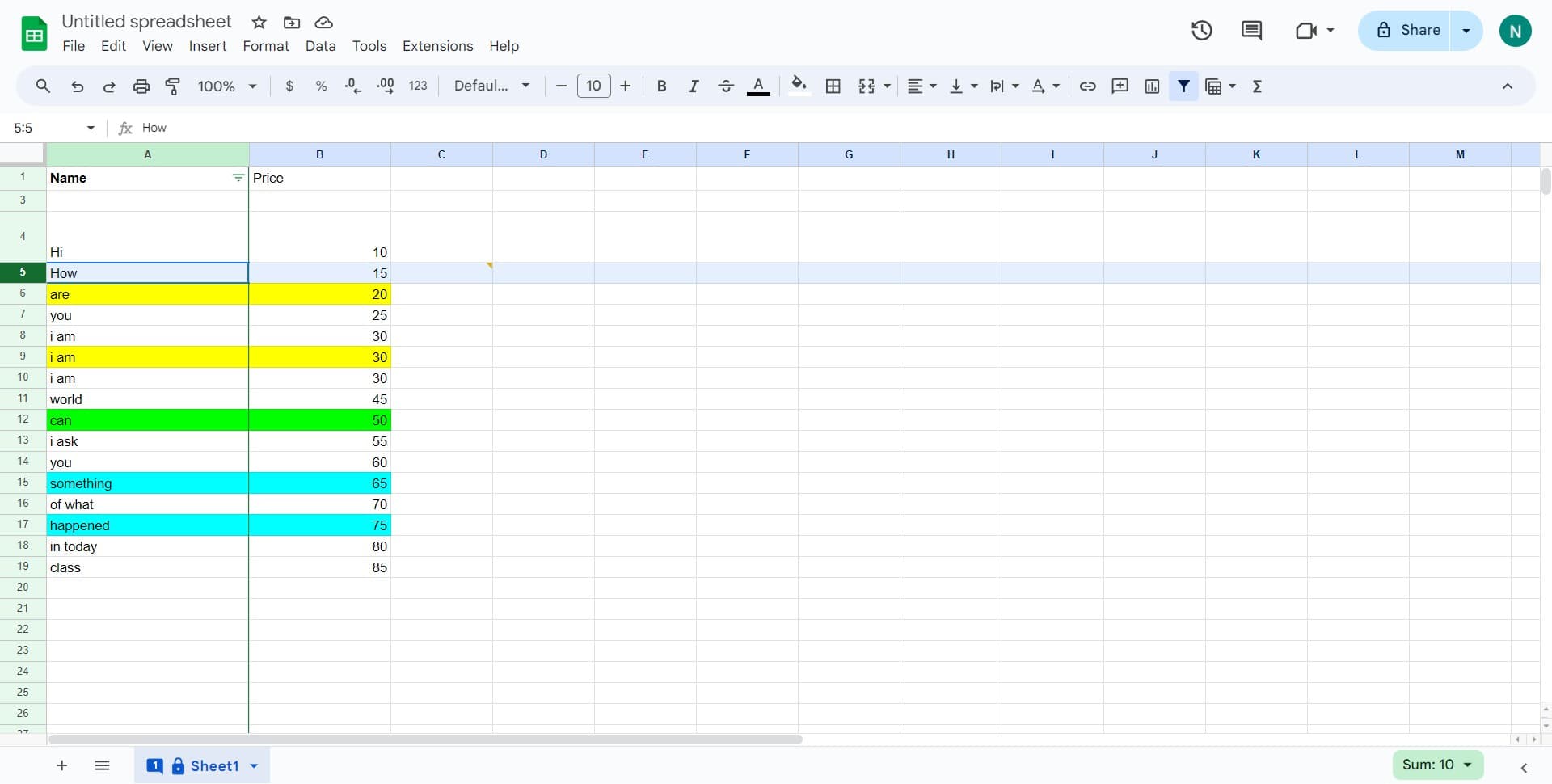
Open your Google Sheet
Navigate to the Google Sheet where you want to freeze the heading row. Ensure you have the spreadsheet open and ready to edit.
- 2
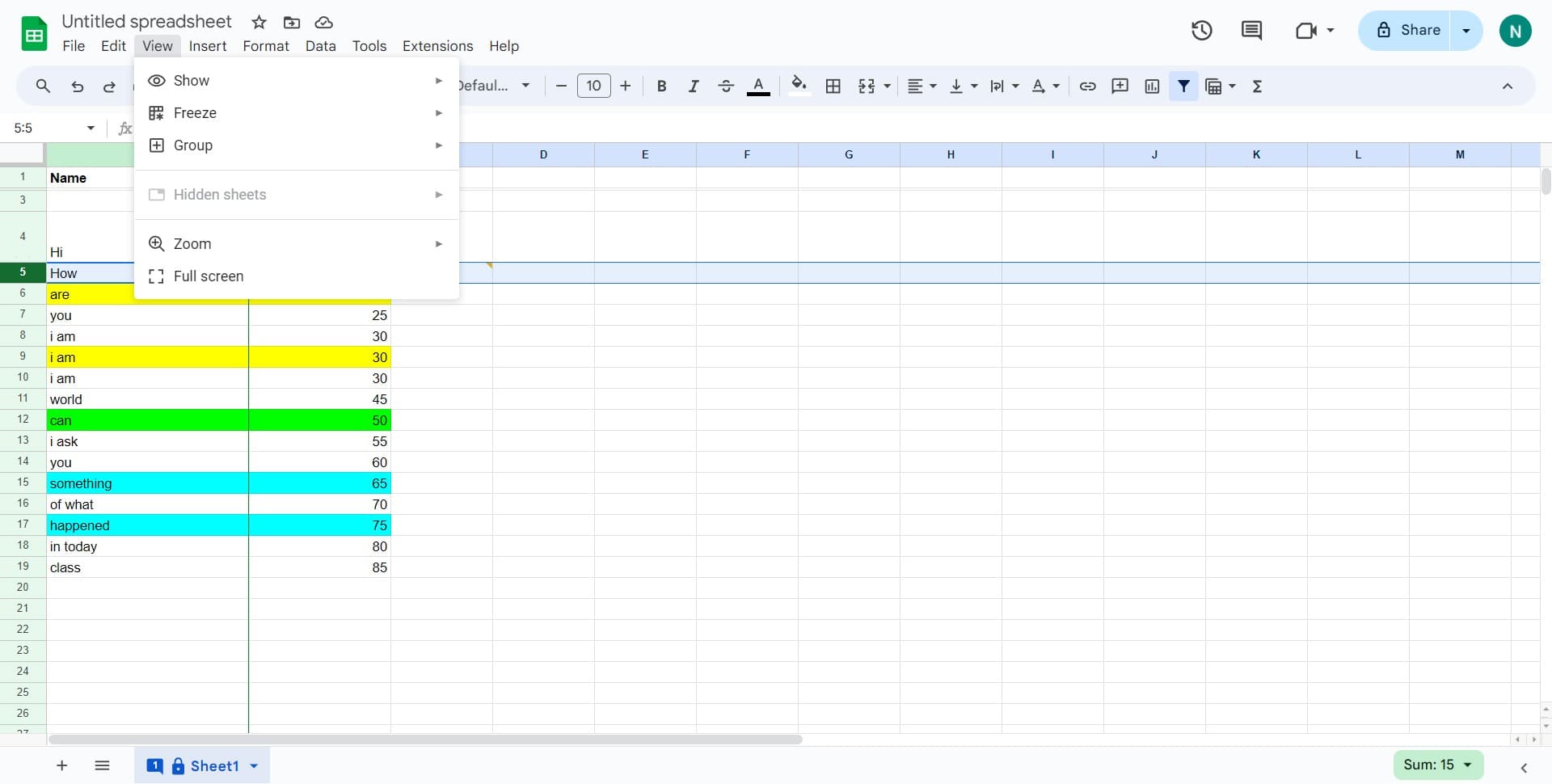
Click on View menu
In the top menu bar, locate and click on the View option. This will open a dropdown menu with formatting and display options.
- 3
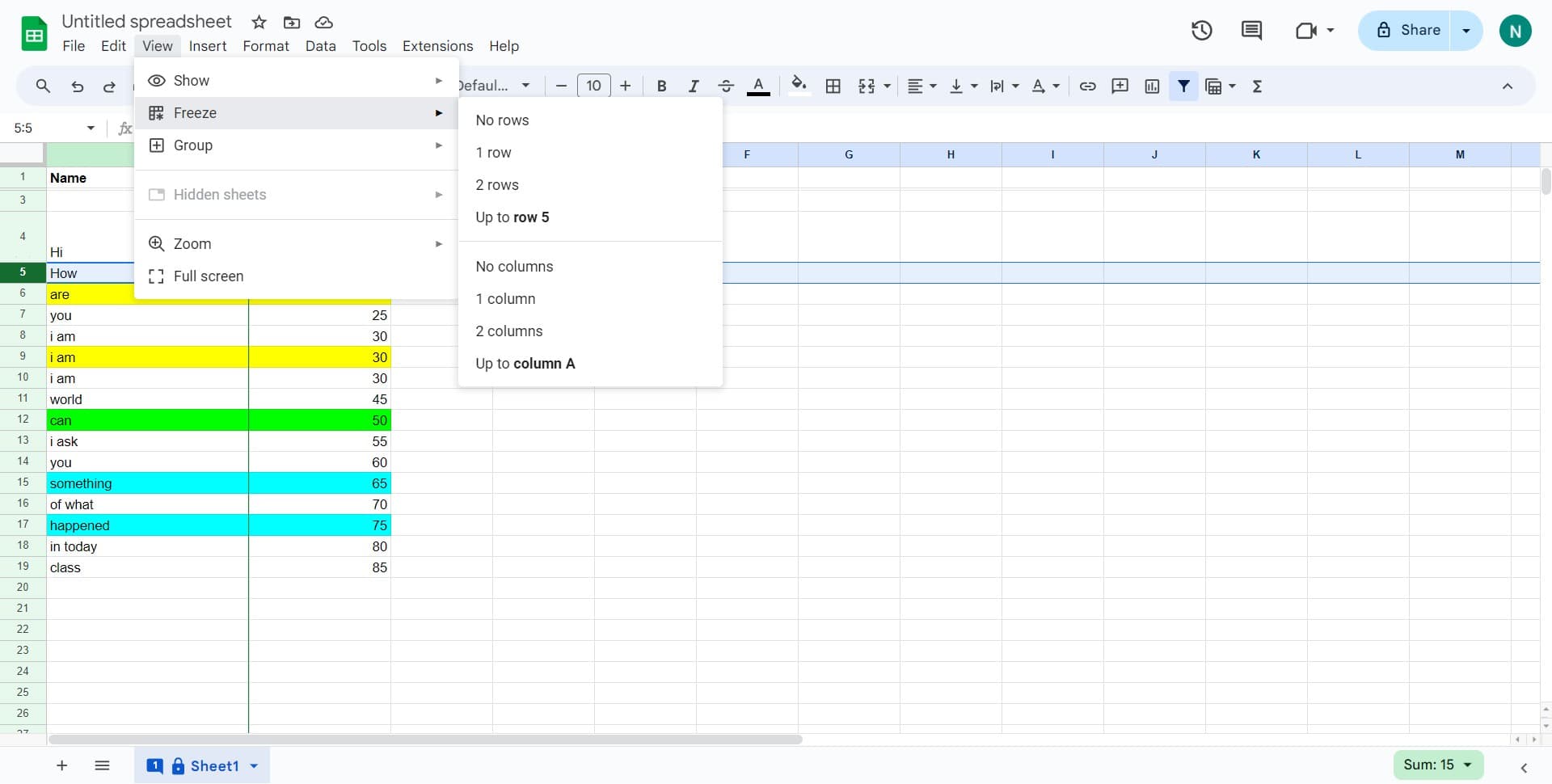
Click on Freeze option
From the View dropdown menu, find and click on Freeze. This will reveal additional freeze options for rows and columns.
- 4
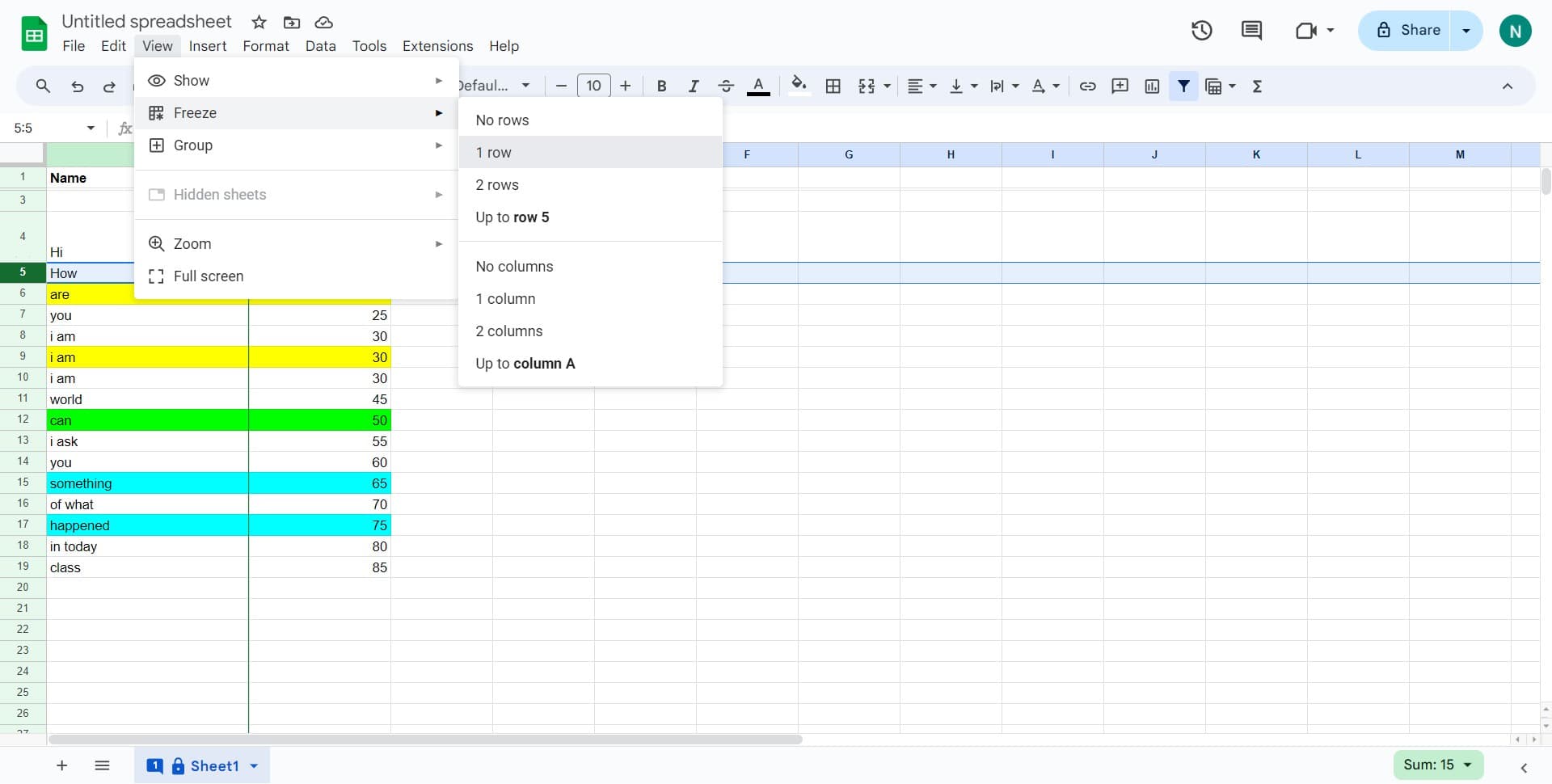
Select 1 row to freeze
Click on '1 row' from the freeze submenu. Your first row will now be locked in place, remaining visible as you scroll down through your spreadsheet data.
Frequently asked questions
Common questions about how to freeze heading in google sheets.
Yes, you can freeze multiple rows by selecting a specific row number and then using View > Freeze. Google Sheets will freeze all rows above the selected row. For example, selecting row 3 will freeze rows 1 and 2.
To unfreeze, go to View > Freeze and click on 'None'. This will remove all frozen rows and columns from your spreadsheet, allowing normal scrolling throughout the entire sheet.
Yes, you can freeze columns using the same View > Freeze menu. Click on 'Freeze' and select the number of columns you want to lock in place. You can also freeze both rows and columns simultaneously.
No, freeze settings are applied to your view only. Other collaborators will see their own independent view of the spreadsheet with their own freeze preferences, so your freeze won't affect how they see the data.
Freezing rows only affects how the spreadsheet displays on screen and does not impact printing or exporting. When you print or export your sheet, frozen rows will appear as normal rows without any special formatting.