How to lock cells and sheets in Google Sheets

Protecting cells and sheets in Google Sheets is essential for maintaining data integrity and preventing accidental or unauthorized changes. This guide walks you through the process of locking ranges and sheets to control who can edit specific parts of your spreadsheet.
Quick summary
In this tutorial, you'll learn how to protect ranges and entire sheets in Google Sheets by setting up access restrictions and permissions. You'll discover how to specify which areas should be locked and determine who can make edits to your protected content.
Why this matters
Locking cells and sheets is critical when collaborating on spreadsheets with multiple users or when you want to preserve formulas and structure in shared documents. By restricting editing permissions, you reduce the risk of data corruption, accidental deletions, or unwanted modifications to important information.
Step-by-step guide
- 1
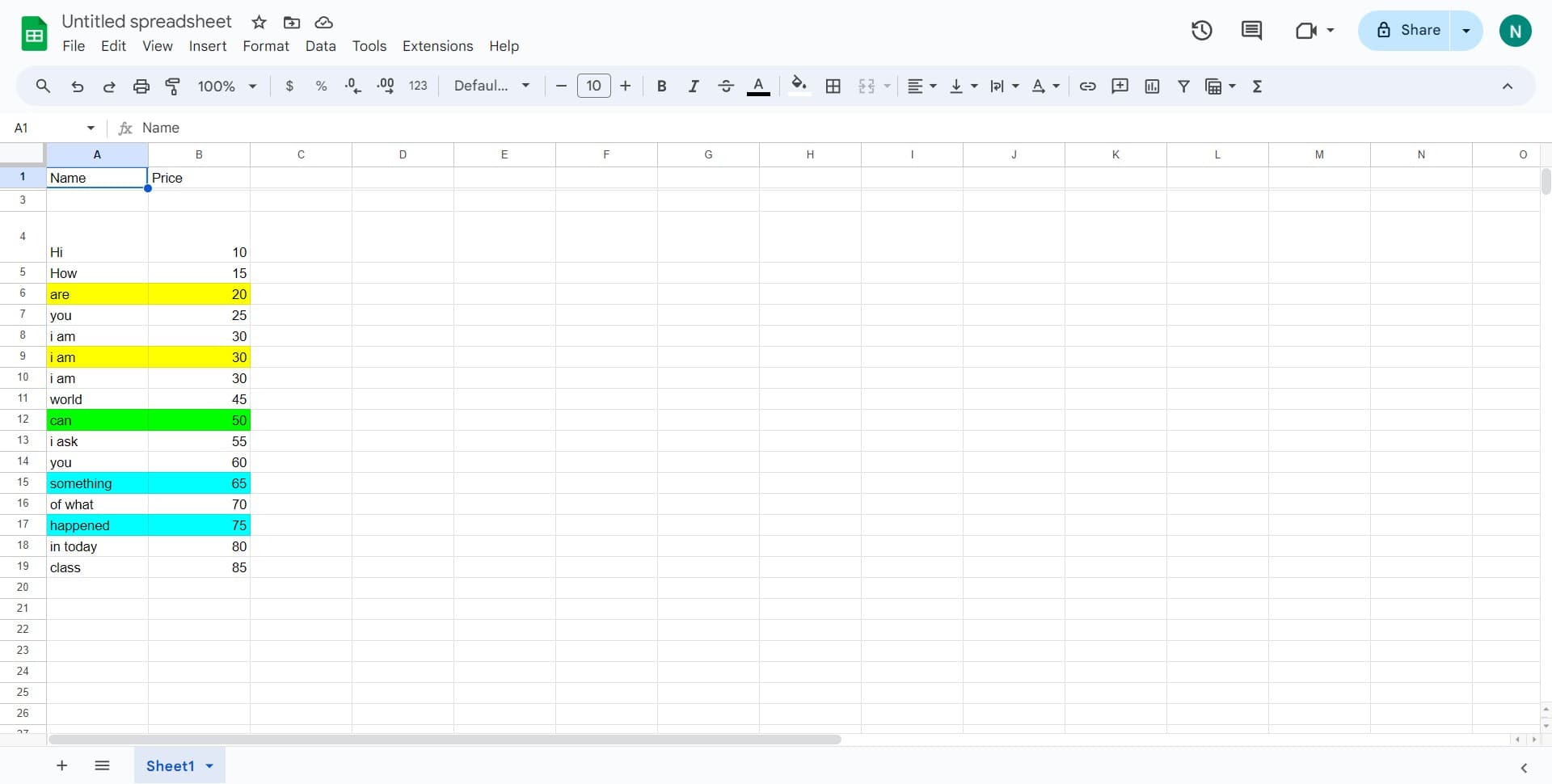
Access the cell actions menu
Start by clicking on the three-dot menu icon to reveal the cell action options. This menu gives you access to advanced protection and formatting features in Google Sheets.
- 2
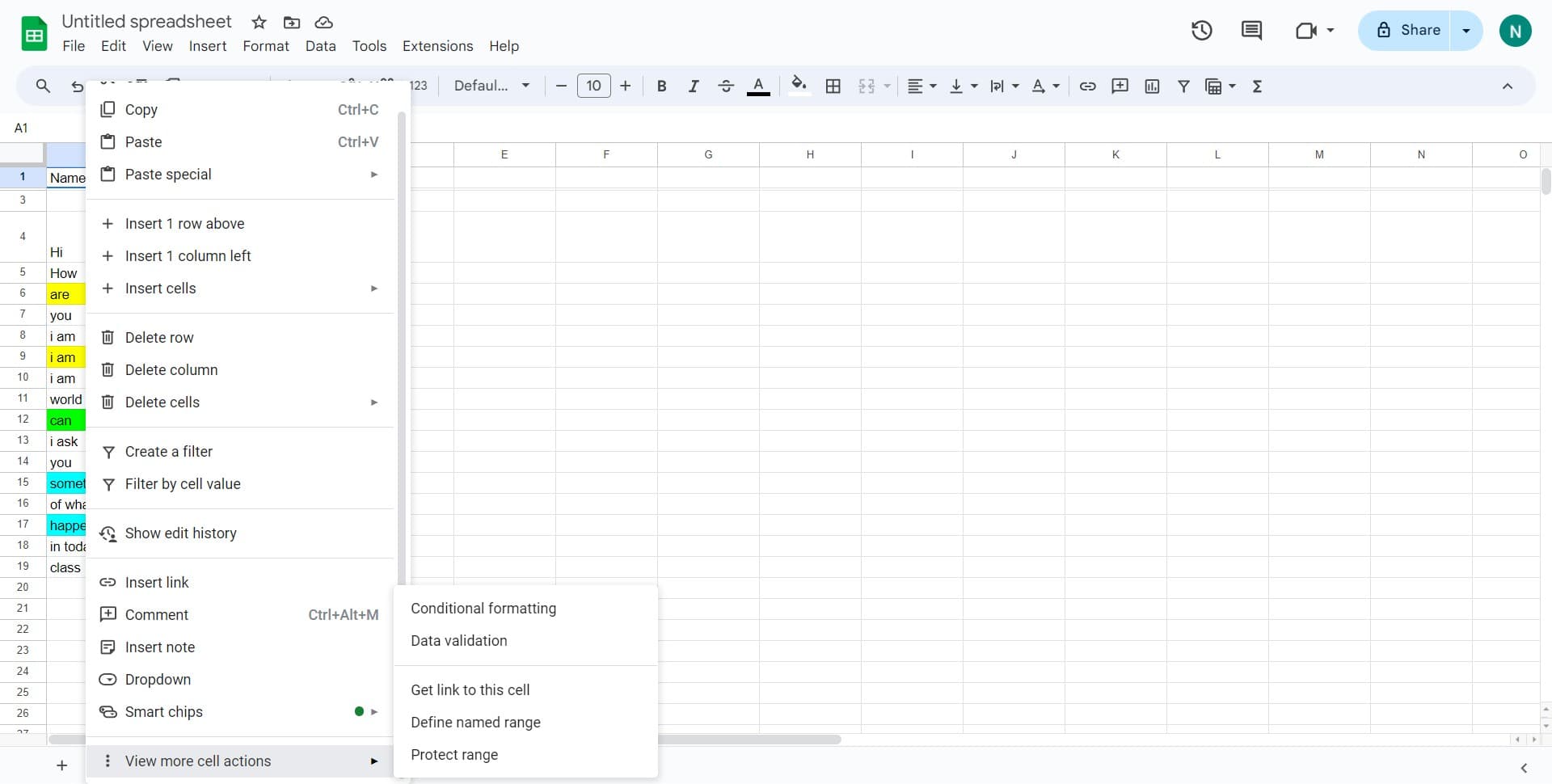
Click on View more cell actions
Select 'View more cell actions' from the dropdown menu to expand the available options. This will display additional actions including protection settings.
- 3
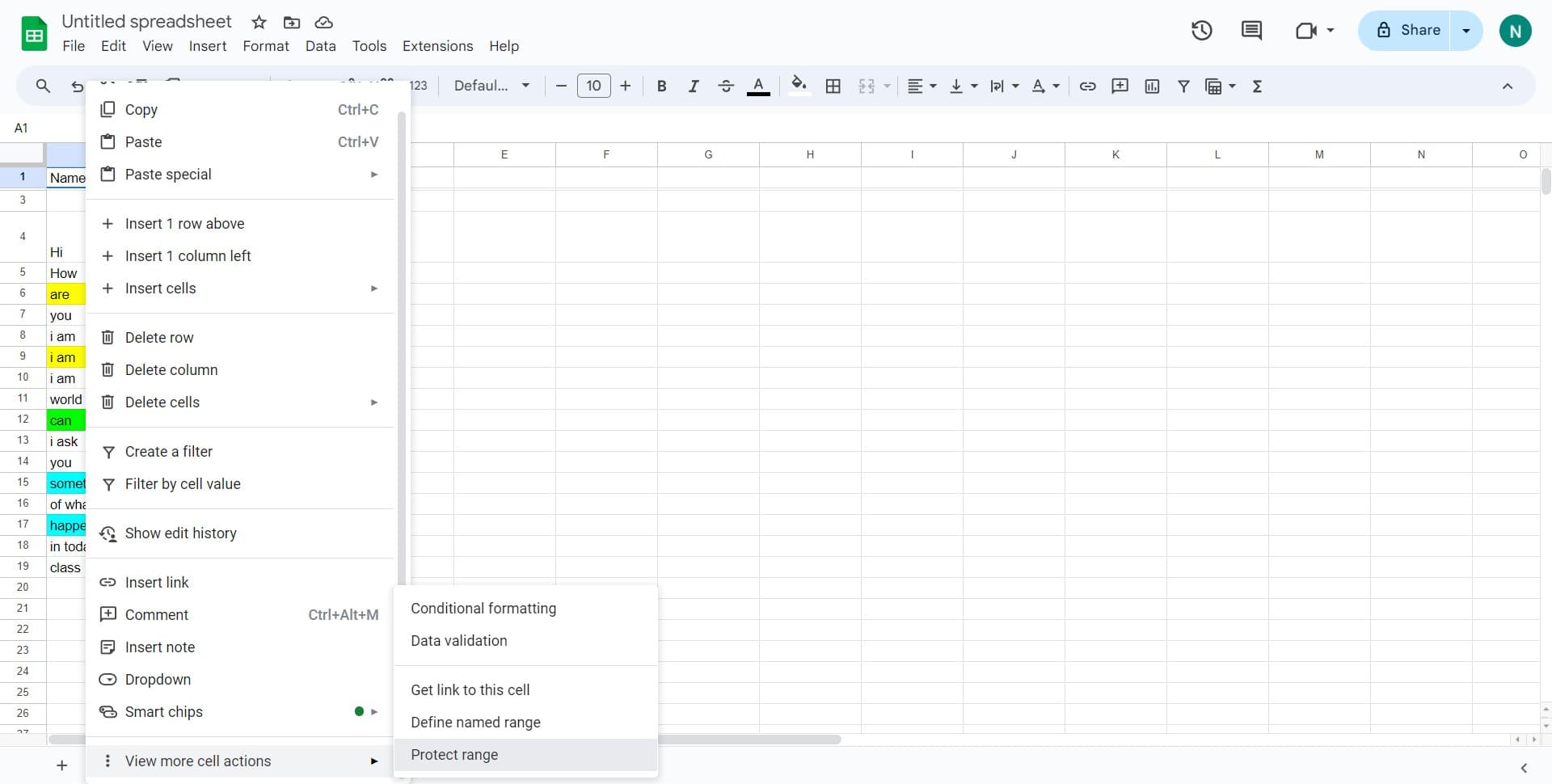
Select Protect range
Click on 'Protect range' to begin the process of restricting access to specific cells or areas of your spreadsheet. This opens the protection setup dialog.
- 4
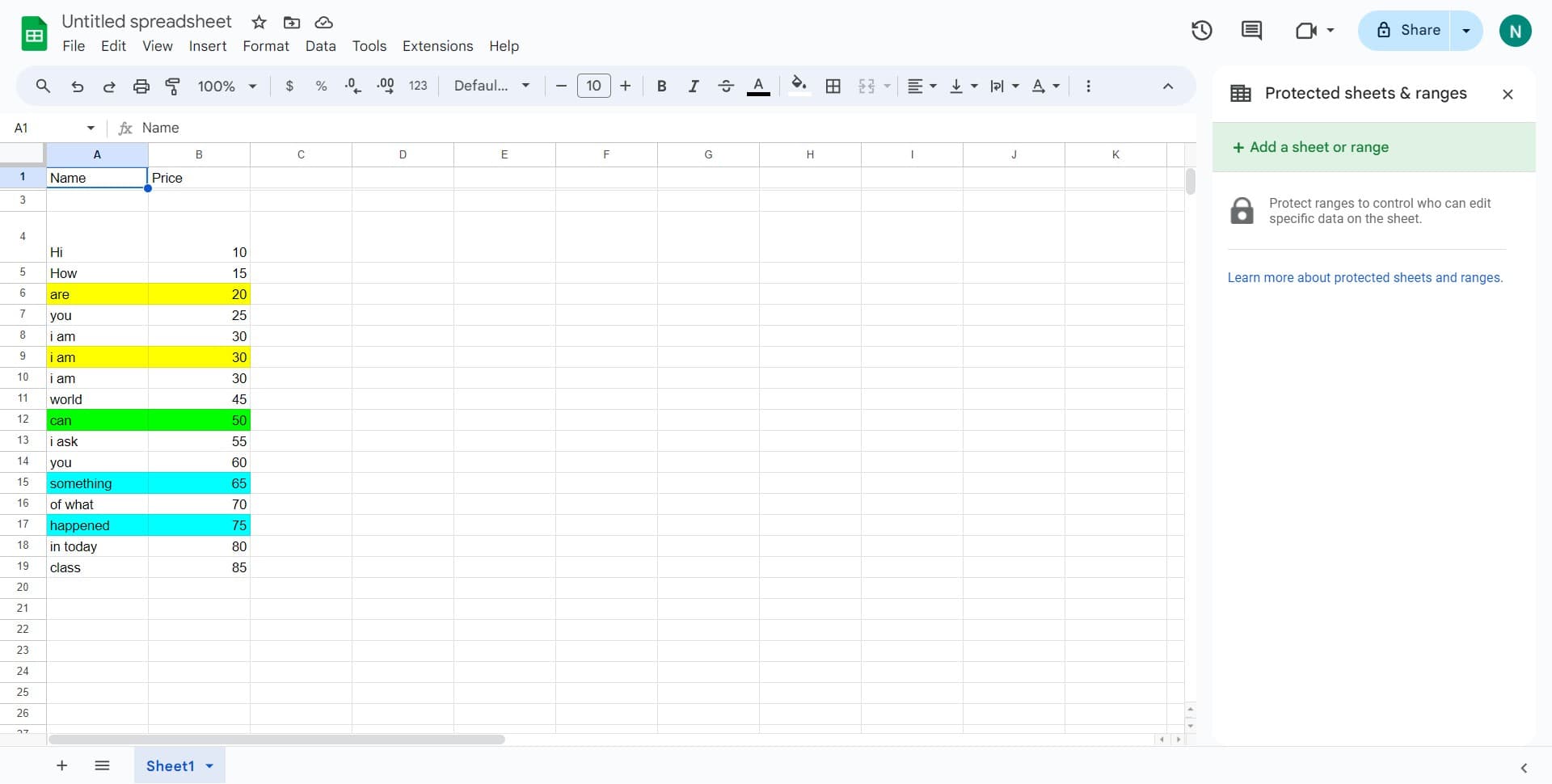
Click on Add a sheet or range
Select 'Add a sheet or range' to specify what you want to protect. You can choose to lock individual cell ranges or entire sheets depending on your needs.
- 5
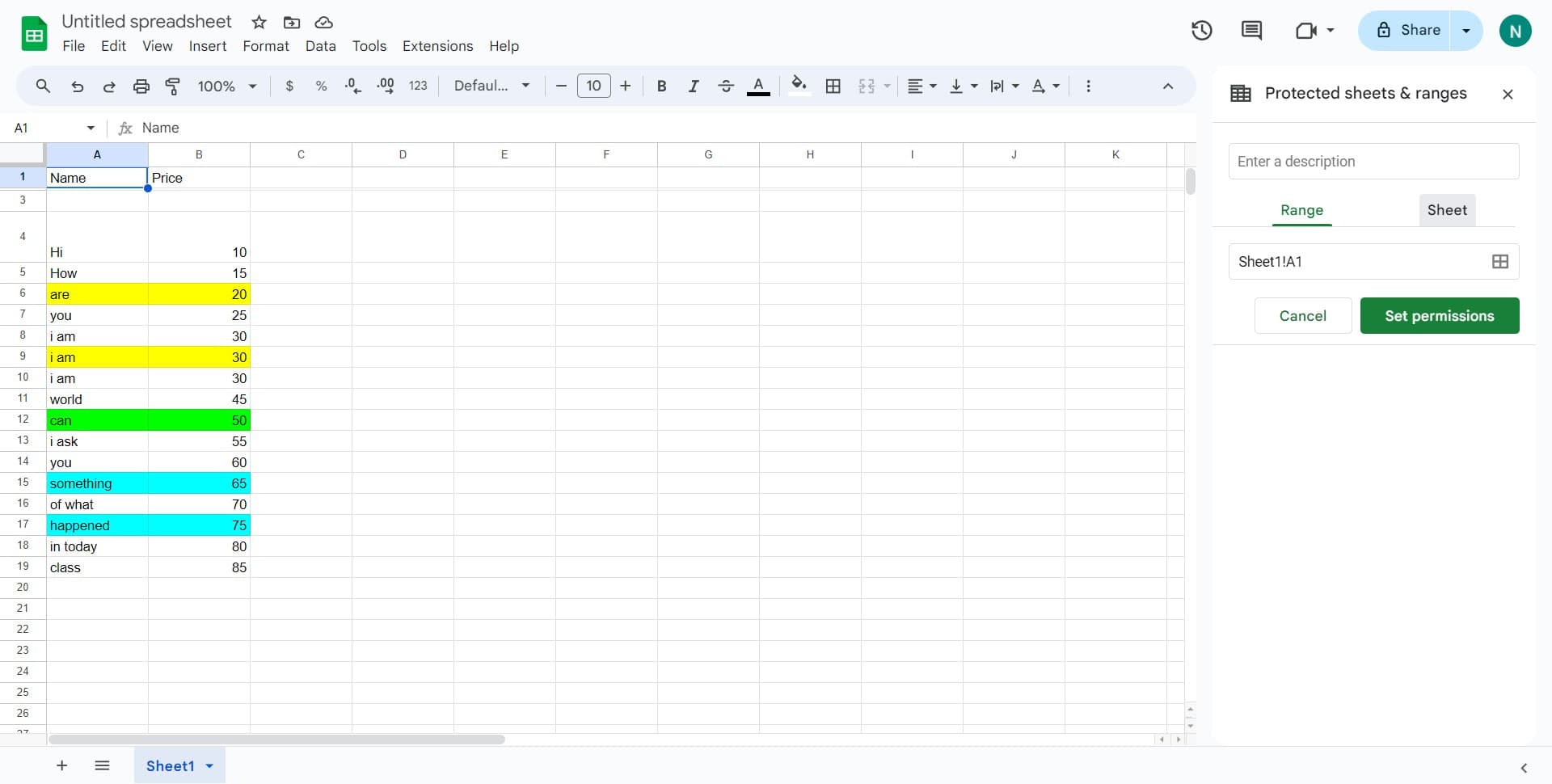
Choose Sheet protection
Click on 'Sheet' to indicate that you want to protect the entire sheet rather than just a specific range. This ensures all content in the sheet is protected.
- 6
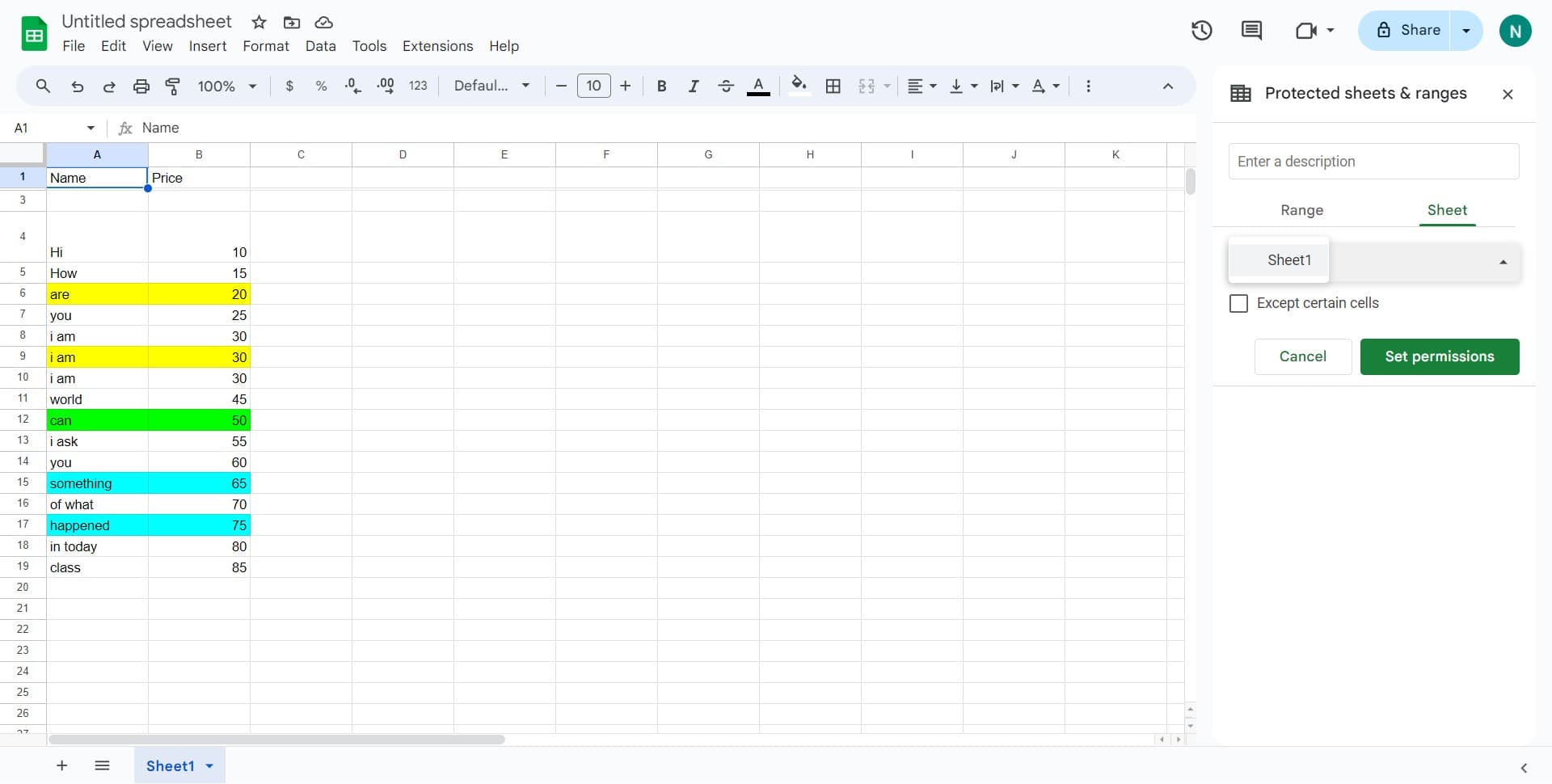
Select the target sheet
Click on 'Sheet1' (or whichever sheet you want to protect) to confirm your selection. The system will now proceed to set permissions for this sheet.
- 7
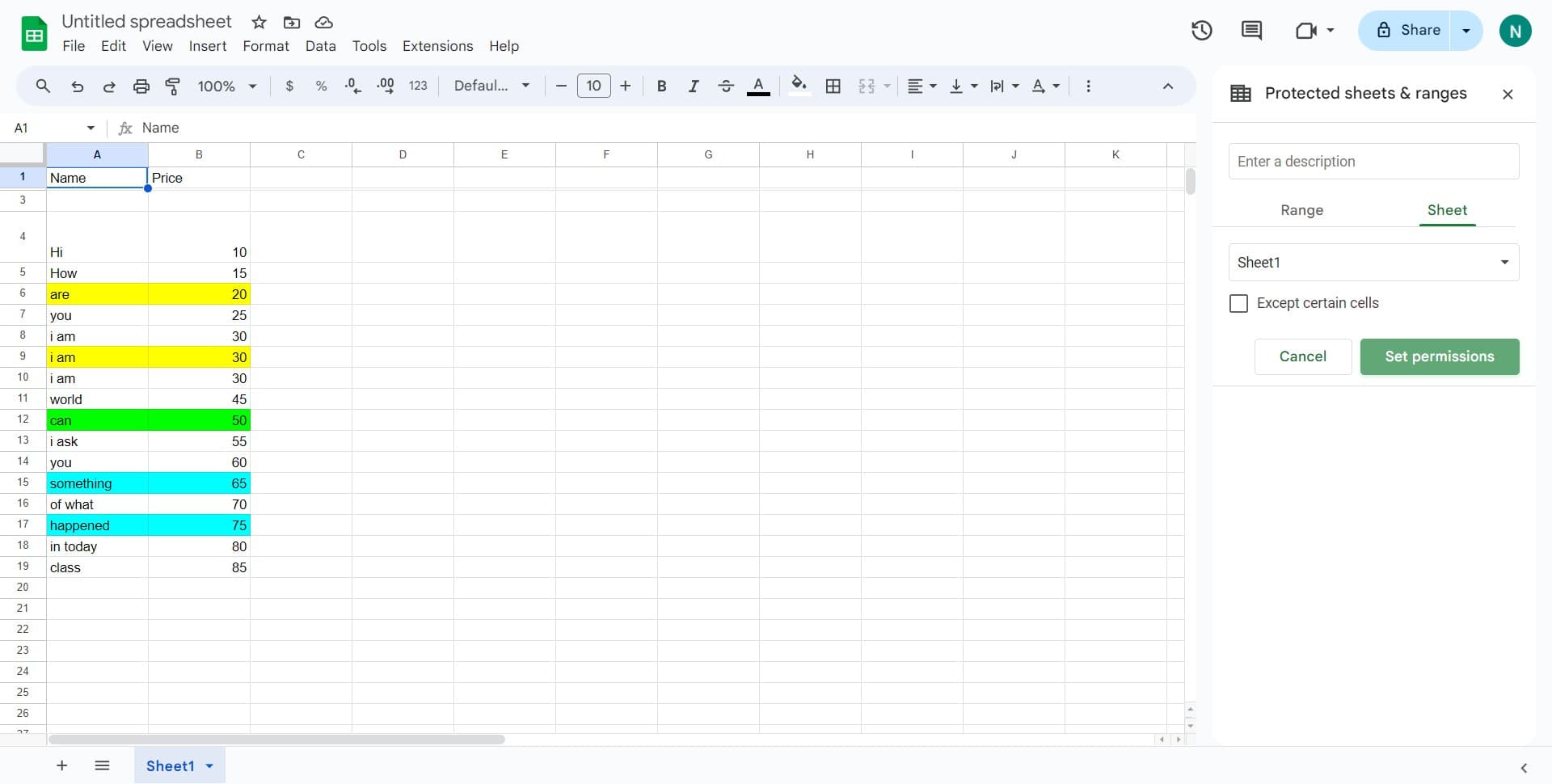
Navigate to permissions settings
Click on 'Set permissions' to configure who can edit the protected sheet. This is where you define access restrictions for your locked content.
- 8
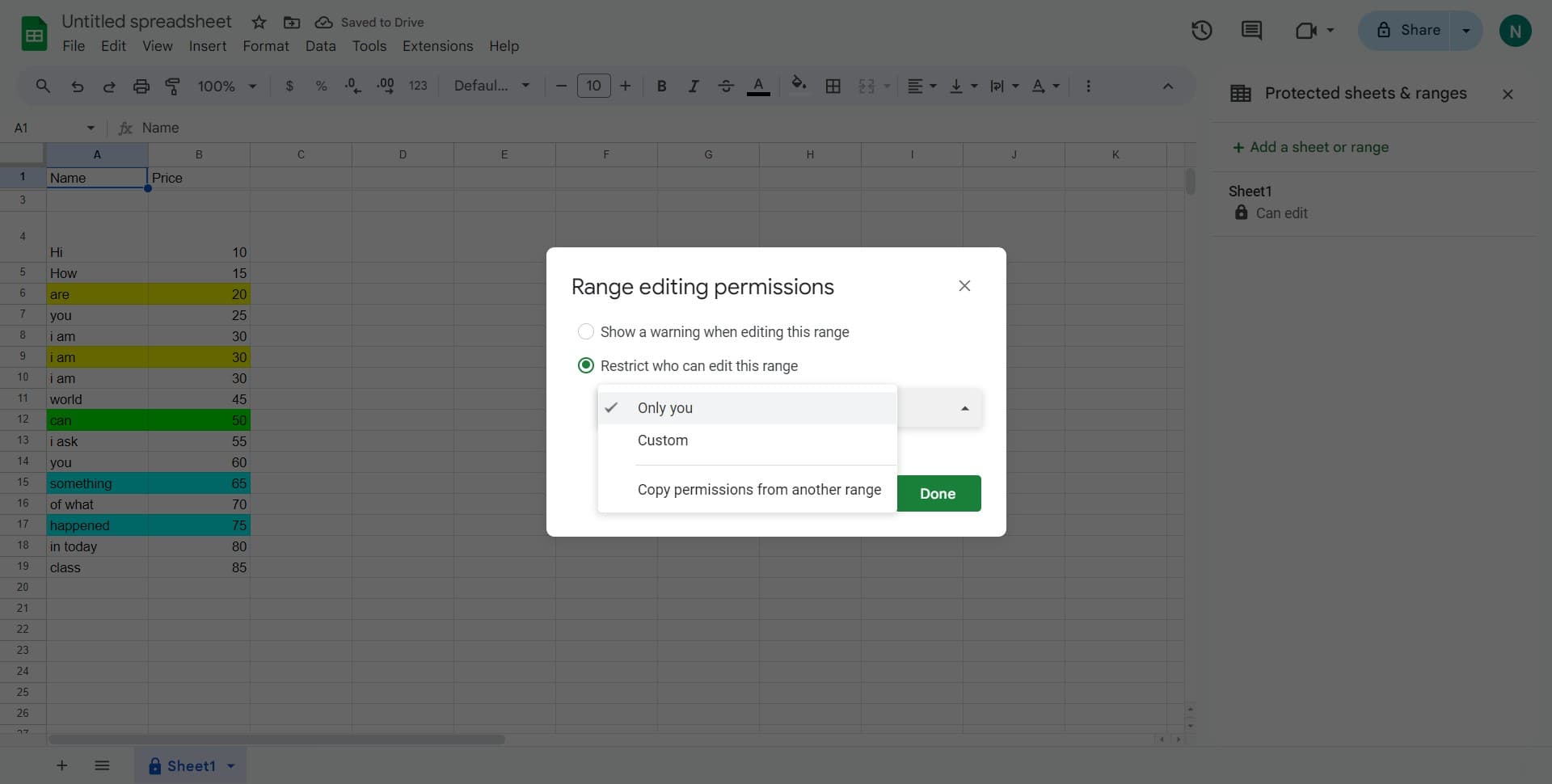
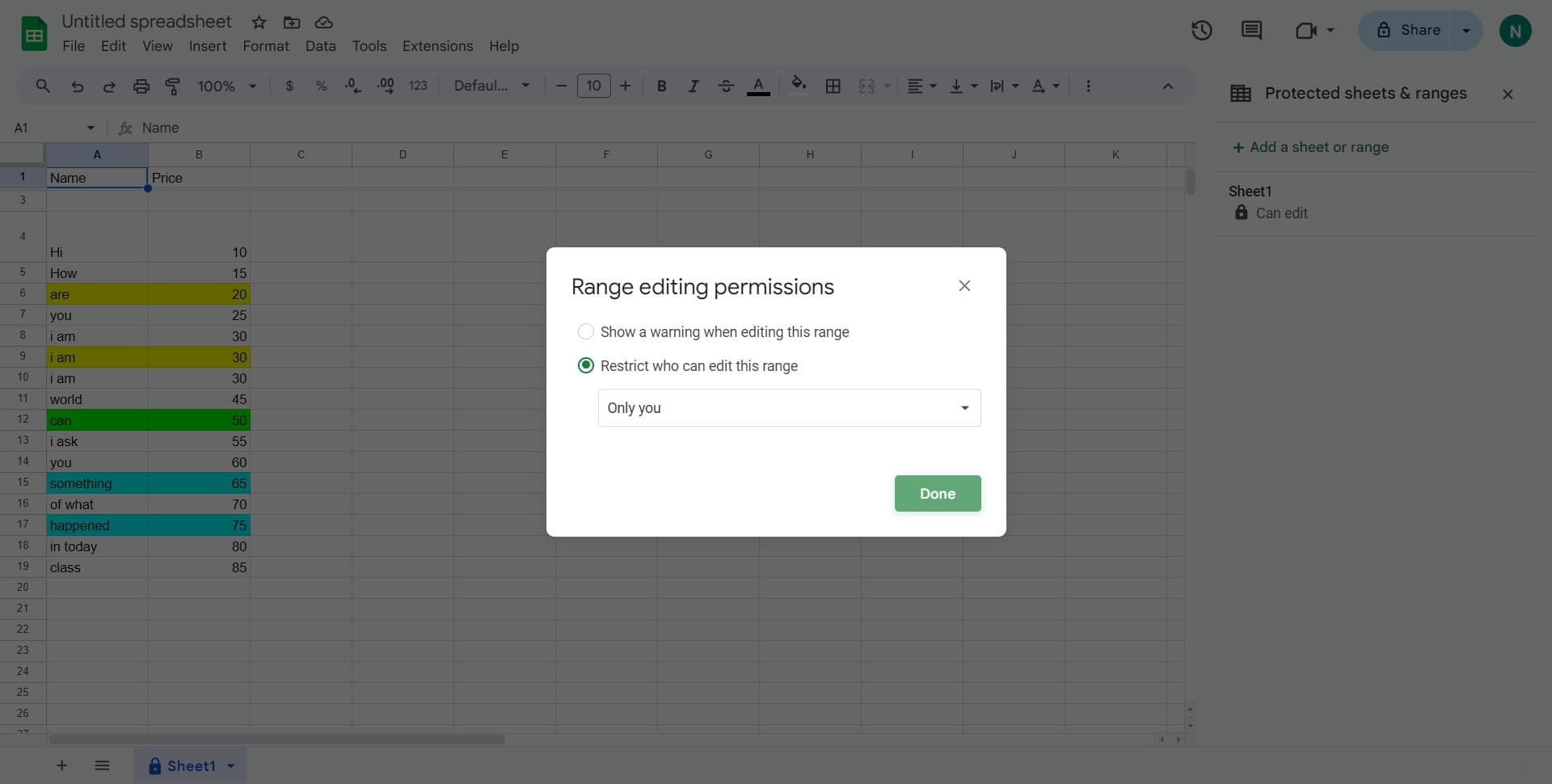
Restrict access to owner only
Select 'Only you' from the permissions options to ensure that only you can edit the protected sheet. All other users will be unable to modify the locked content.
- 9
Finalize the protection
Click 'Done' to complete the protection setup and apply the restrictions. Your sheet is now locked with the permissions you've specified.
Frequently asked questions
Common questions about how to lock cells and sheets in google sheets.
Yes, instead of selecting 'Sheet' in step 5, you can choose 'Range' to protect only specific cells or columns. This allows you to keep some areas editable while locking down sensitive data or formulas.
When you select 'Only you', all other users can view the sheet but cannot make any edits to the protected cells or sheet. They can still access the data and see the formulas, but modifications are blocked.
Yes, in the permissions step, you can select 'Custom' instead of 'Only you' to specify individual users or groups who have editing access. This gives you granular control over who can modify protected content.
To unprotect, go to the Data menu and select 'Protect sheets and ranges'. Find the protection you want to remove, click the trash icon next to it, and confirm the deletion. Only the sheet owner can remove protections.
Sheet protection prevents editing but does not restrict copying, downloading, or sharing. If you want to limit access entirely, use Google Sheets' sharing settings to control who can view or access the document.