How to make a column wider in Google Sheets

Adjusting column widths in Google Sheets is essential for displaying all your data clearly and improving readability. Whether you're working with large datasets or simply want a cleaner spreadsheet layout, knowing how to resize columns will save you time and make your sheets more professional.
Quick summary
In this tutorial, you'll learn how to make a column wider in Google Sheets using the built-in resize feature. You'll select your target column, access the resize option, and adjust the width to fit your content perfectly.
Why this matters
Properly sized columns ensure that your data is fully visible and easy to read without requiring constant scrolling or guessing at hidden content. This is especially important when sharing spreadsheets with colleagues or presenting data to stakeholders, as it reflects attention to detail and makes information accessible at a glance.
Step-by-step guide
- 1
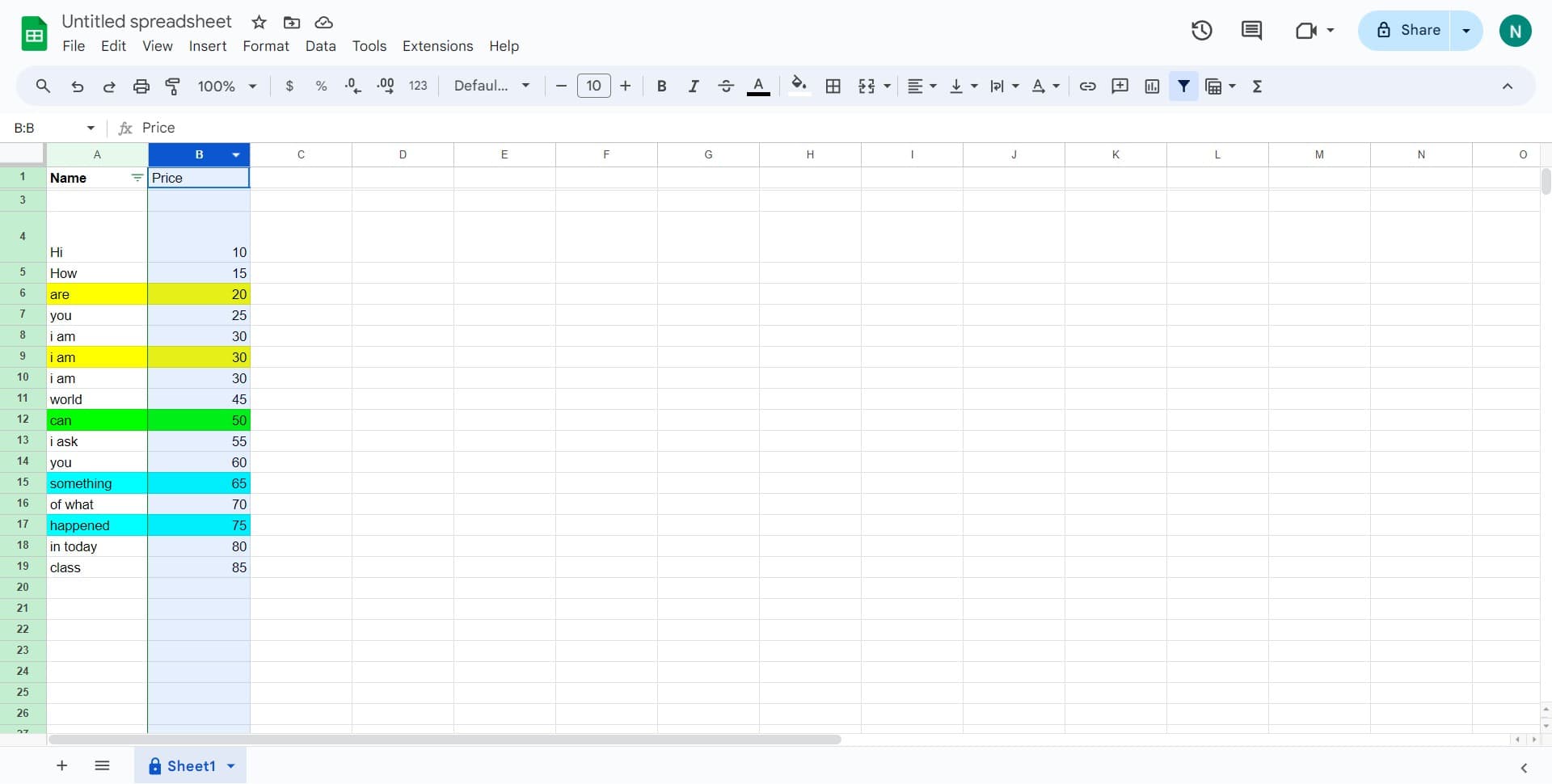
Select the target column
Click on the column header you want to resize. The entire column will highlight, indicating it's selected and ready for editing.
- 2
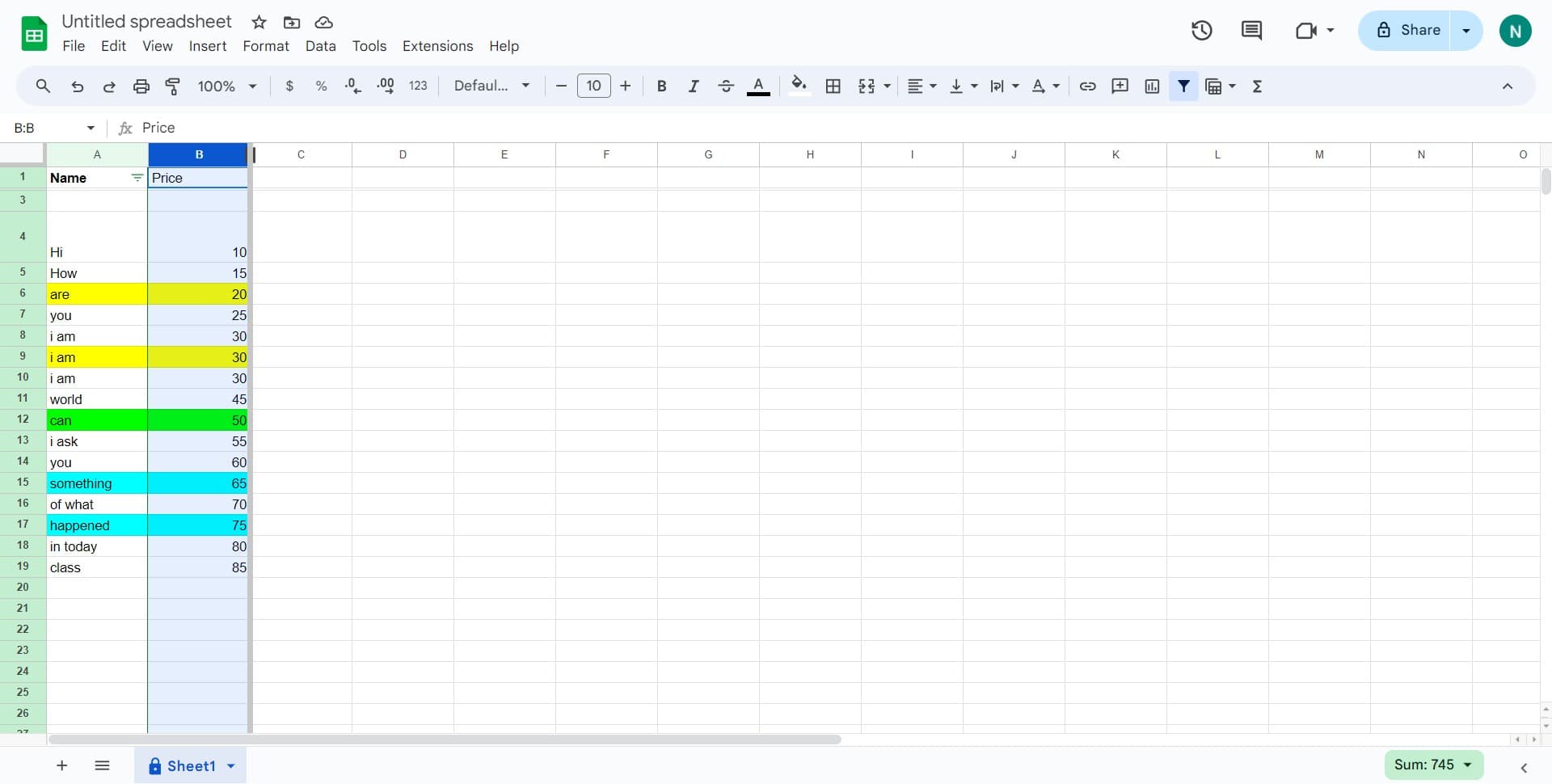
Access the column menu
Click on the appropriate menu option to bring up additional actions for the selected column.
- 3
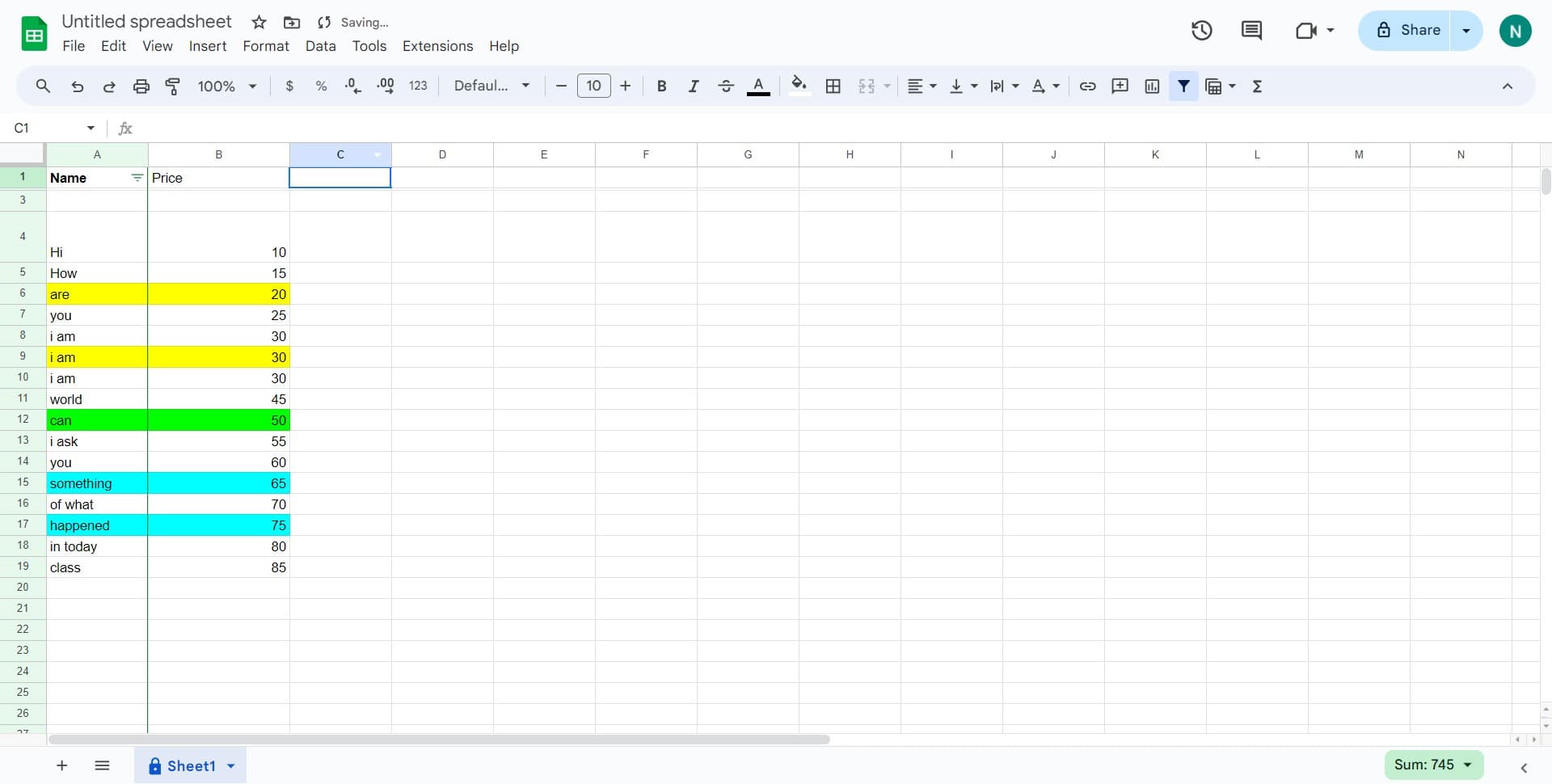
Open the column options
Click on the column header again or navigate to the next menu step to prepare for resizing.
- 4
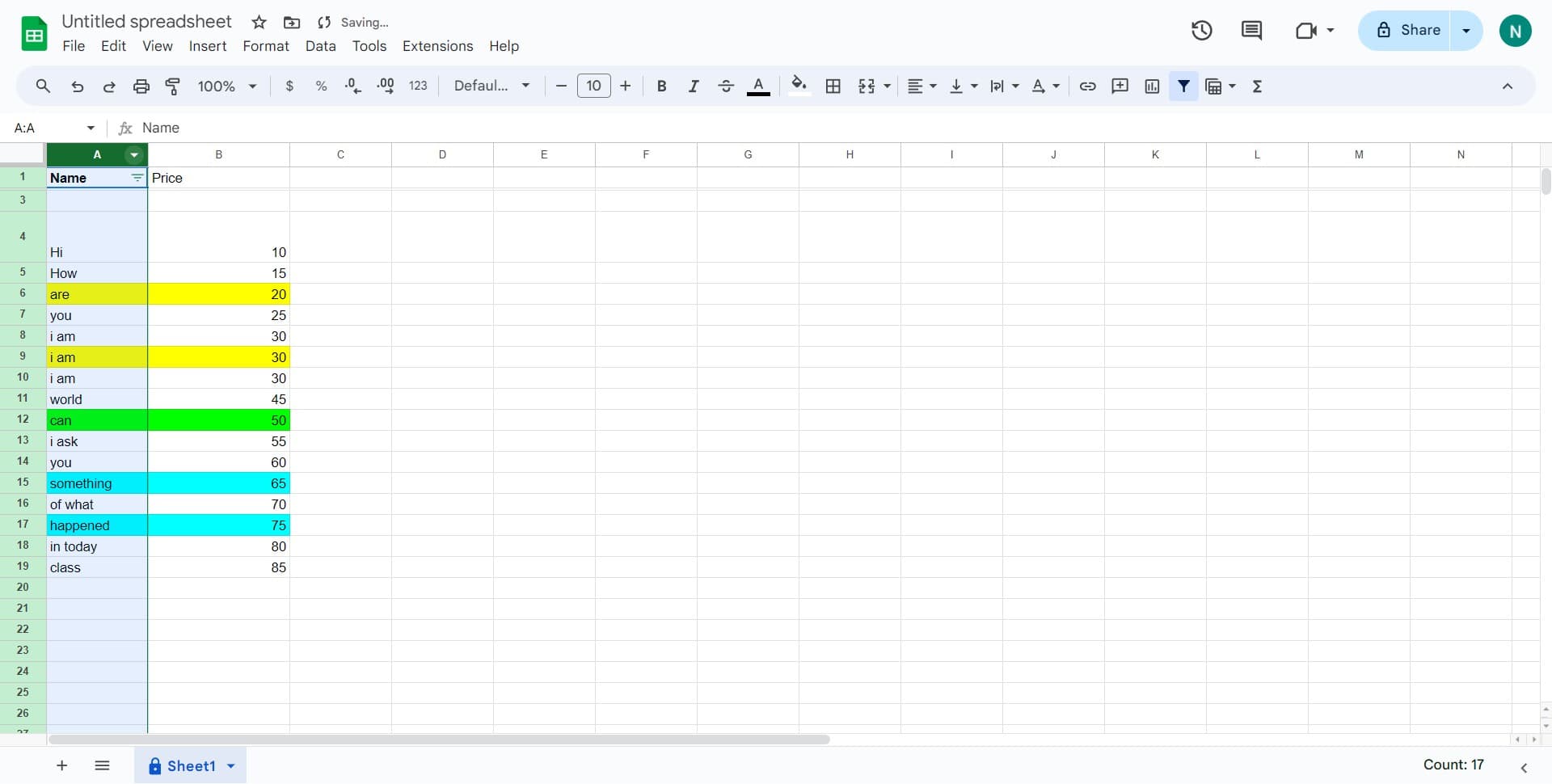
Proceed to resize menu
Click on the designated area to continue moving through the column modification interface.
- 5
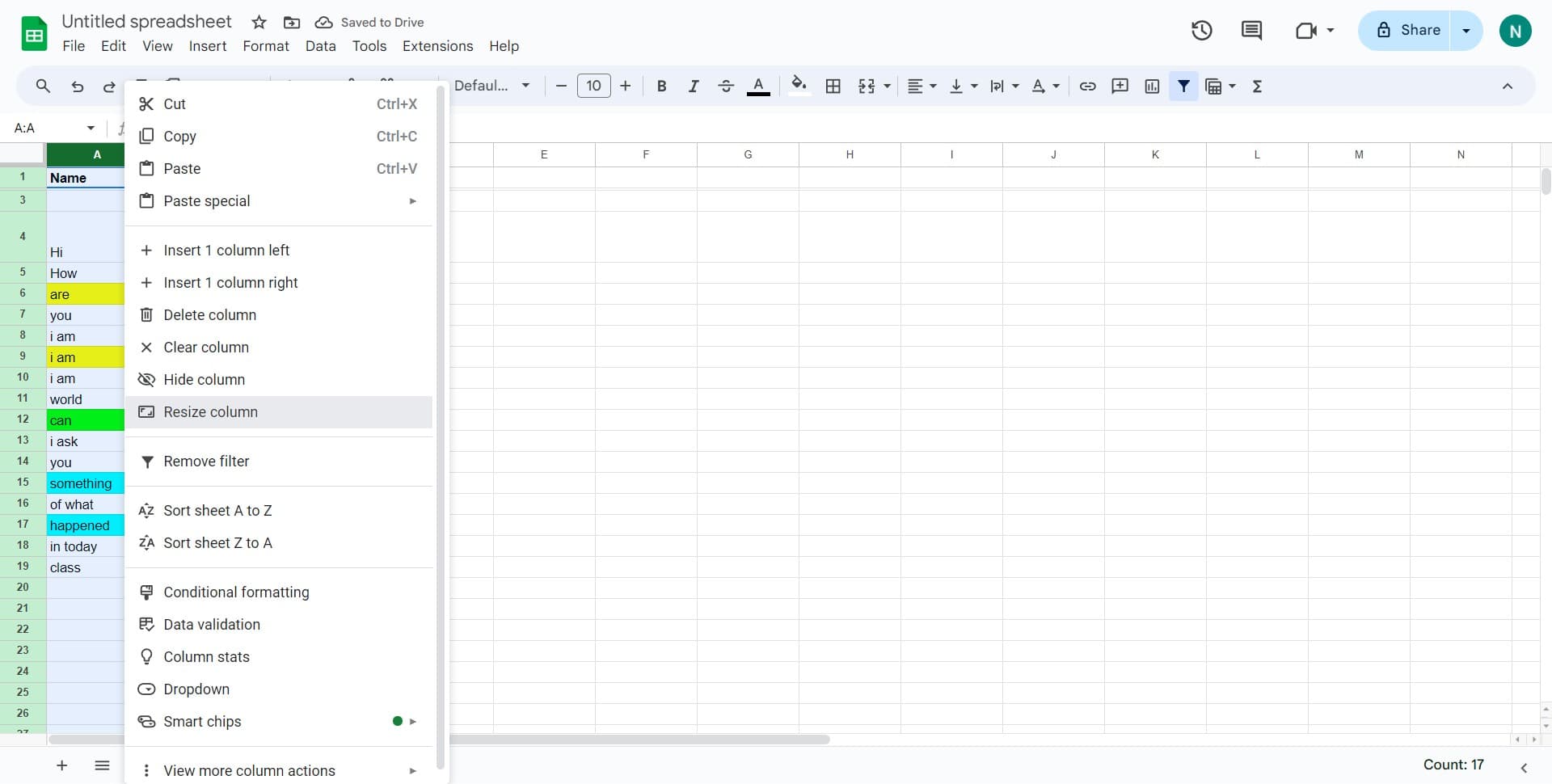
Select resize column option
Click on 'Resize column' from the dropdown menu. This will open a dialog box where you can set the exact width for your column.
- 6
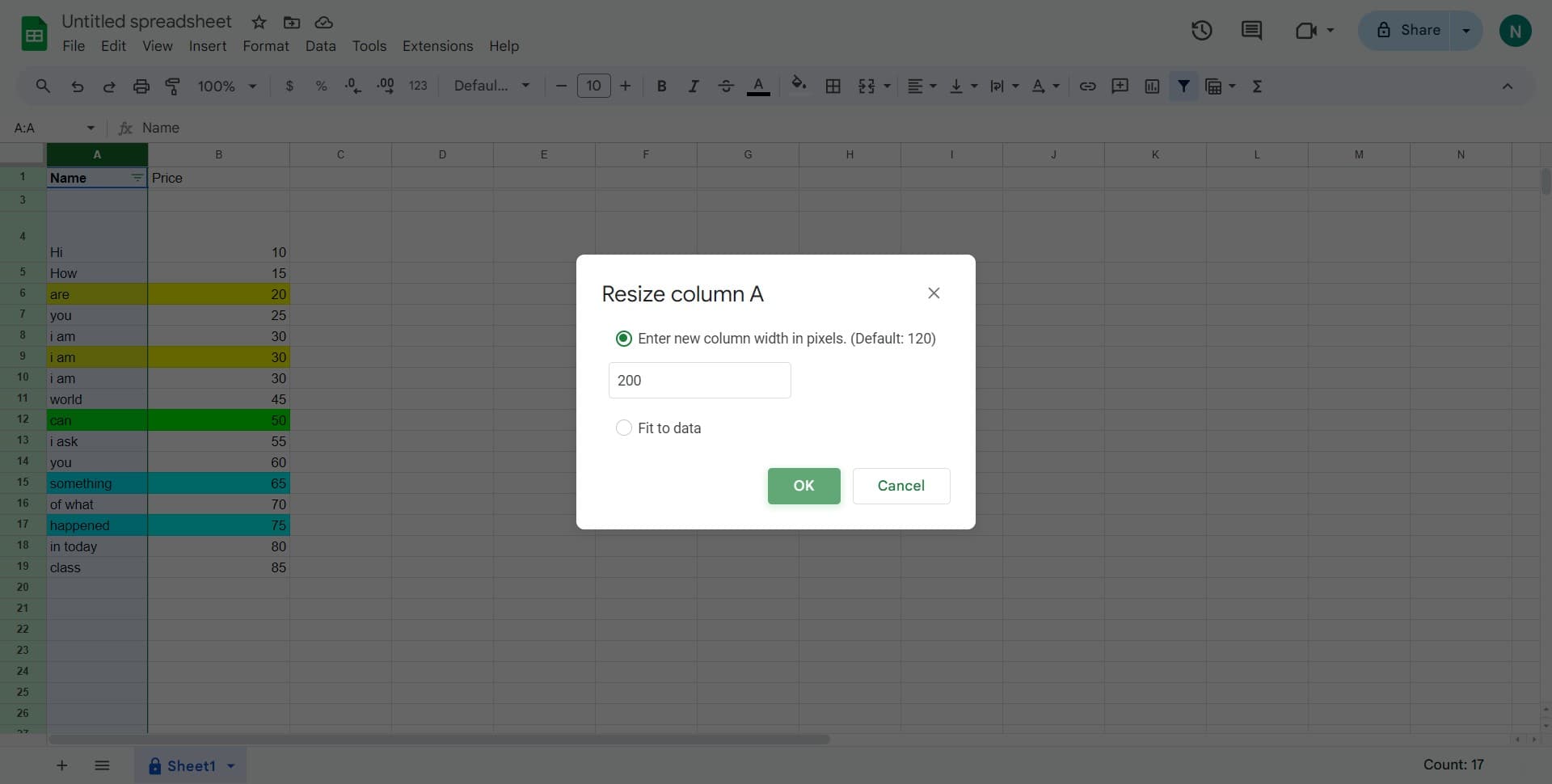
Confirm the resize action
Click 'OK' to apply the new column width. Your column will now be adjusted to the specified size.
- 7
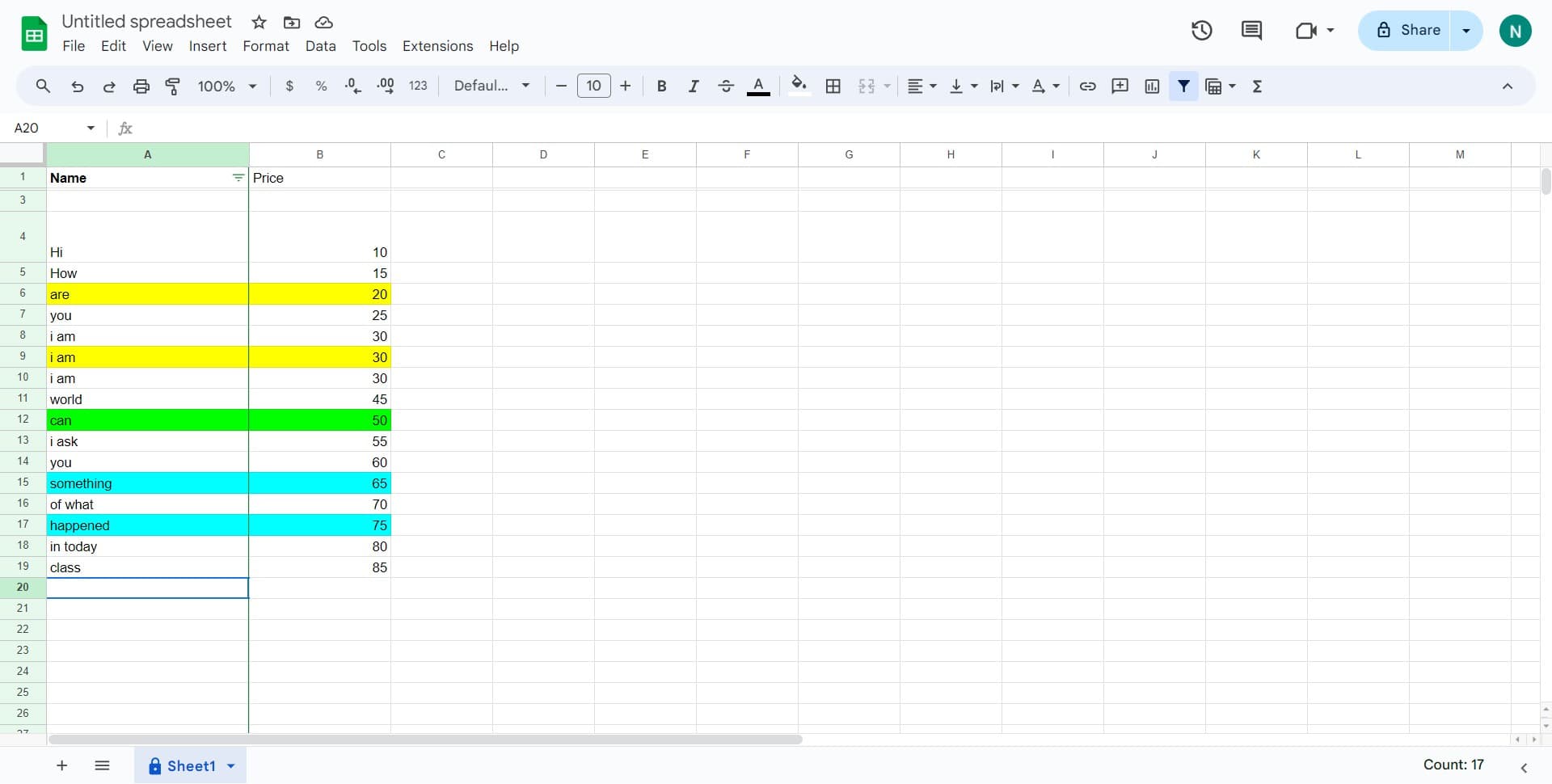
Finalize column adjustment
Click on the final area to complete the resizing process and return to your spreadsheet view.
Frequently asked questions
Common questions about how to make a column wider in google sheets.
Yes, you can select multiple columns by clicking on one column header and then holding Shift while clicking on another column header to select a range. You can also select non-adjacent columns by holding Ctrl (or Cmd on Mac) while clicking individual column headers. Then use the 'Resize columns' option to adjust them all at once.
Manual dragging allows you to adjust column width visually by dragging the border between column headers, while the Resize Column option lets you specify an exact pixel width numerically. The resize option is more precise if you need exact measurements or want to ensure consistency across multiple columns.
Google Sheets offers an auto-fit feature that automatically adjusts column width to match the longest content in that column. You can typically access this through the column menu by selecting the column and choosing an auto-fit or 'Optimal width' option instead of manually specifying a size.
Google Sheets doesn't have built-in minimum or maximum width constraints that you can set beforehand. However, you can manually adjust columns to your preferred width and maintain that layout. If you need consistent column widths across a sheet, you can resize them individually or select multiple columns and resize them together.
No, resizing a column is purely a visual adjustment and does not affect any data, formulas, or calculations in your spreadsheet. All your data remains intact, and formulas will continue to work exactly as before. Column width changes only alter how the data is displayed on screen.