How to search for words in Google Sheets

Finding specific words or phrases in a Google Sheets document can be time-consuming when scrolling manually through large datasets. Google Sheets provides a built-in Find and Replace feature that lets you quickly locate any text in your spreadsheet. This guide walks you through the process step by step.
Quick summary
In this tutorial, you'll learn how to use Google Sheets' Find and Replace function to search for words efficiently. You'll access the feature through the Edit menu and use it to locate specific text within your spreadsheet.
Why this matters
Being able to search for words in Google Sheets is essential when working with large datasets or complex spreadsheets where manual scanning is impractical. This skill saves time and reduces errors when you need to locate, verify, or modify specific data points. Whether you're auditing data or preparing reports, mastering the Find function makes your workflow significantly more efficient.
Step-by-step guide
- 1
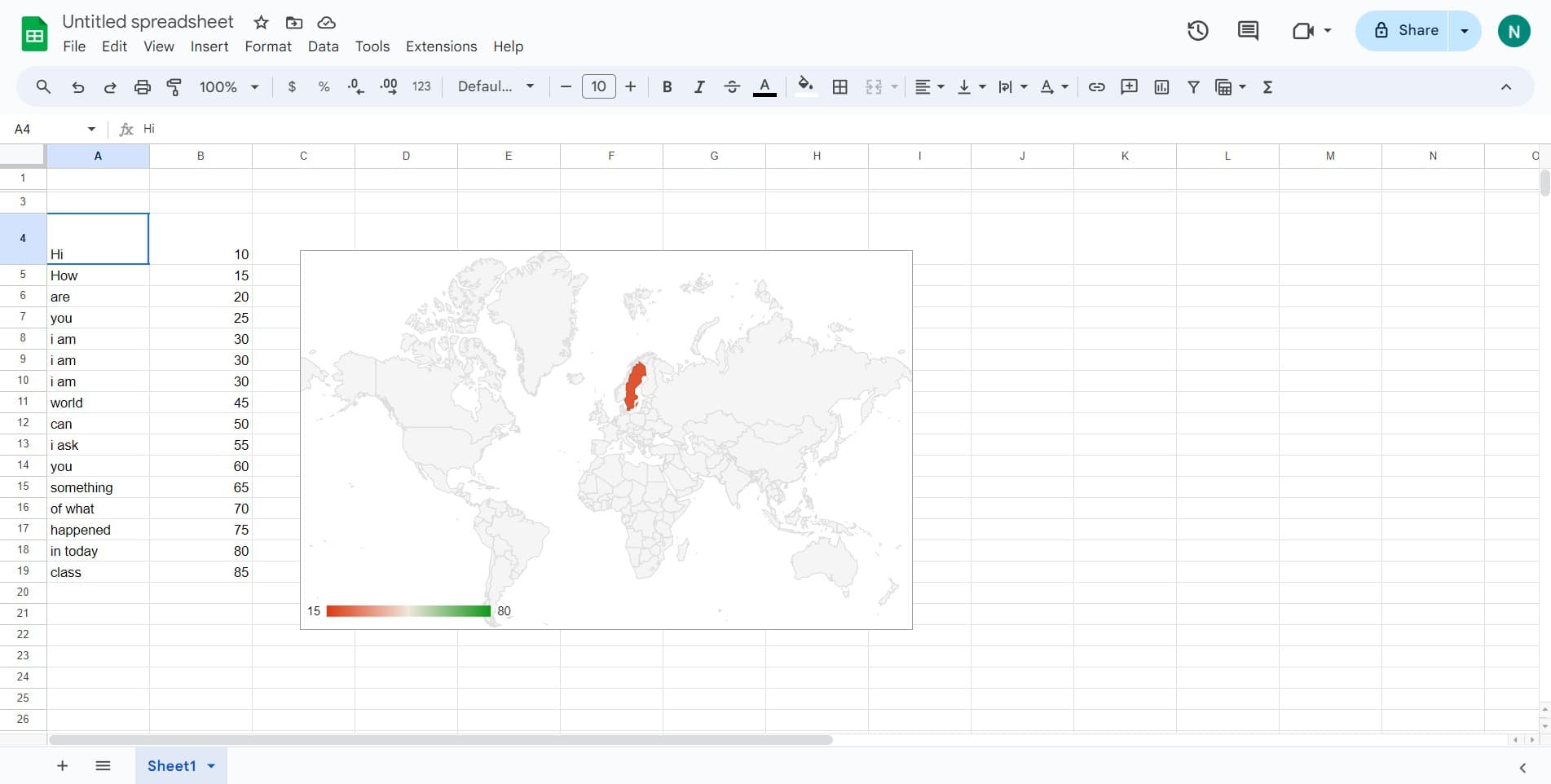
Select the range to search
Click on the cell or range where you want to begin your search. If you want to search the entire spreadsheet, you can skip this step or click on any cell.
- 2
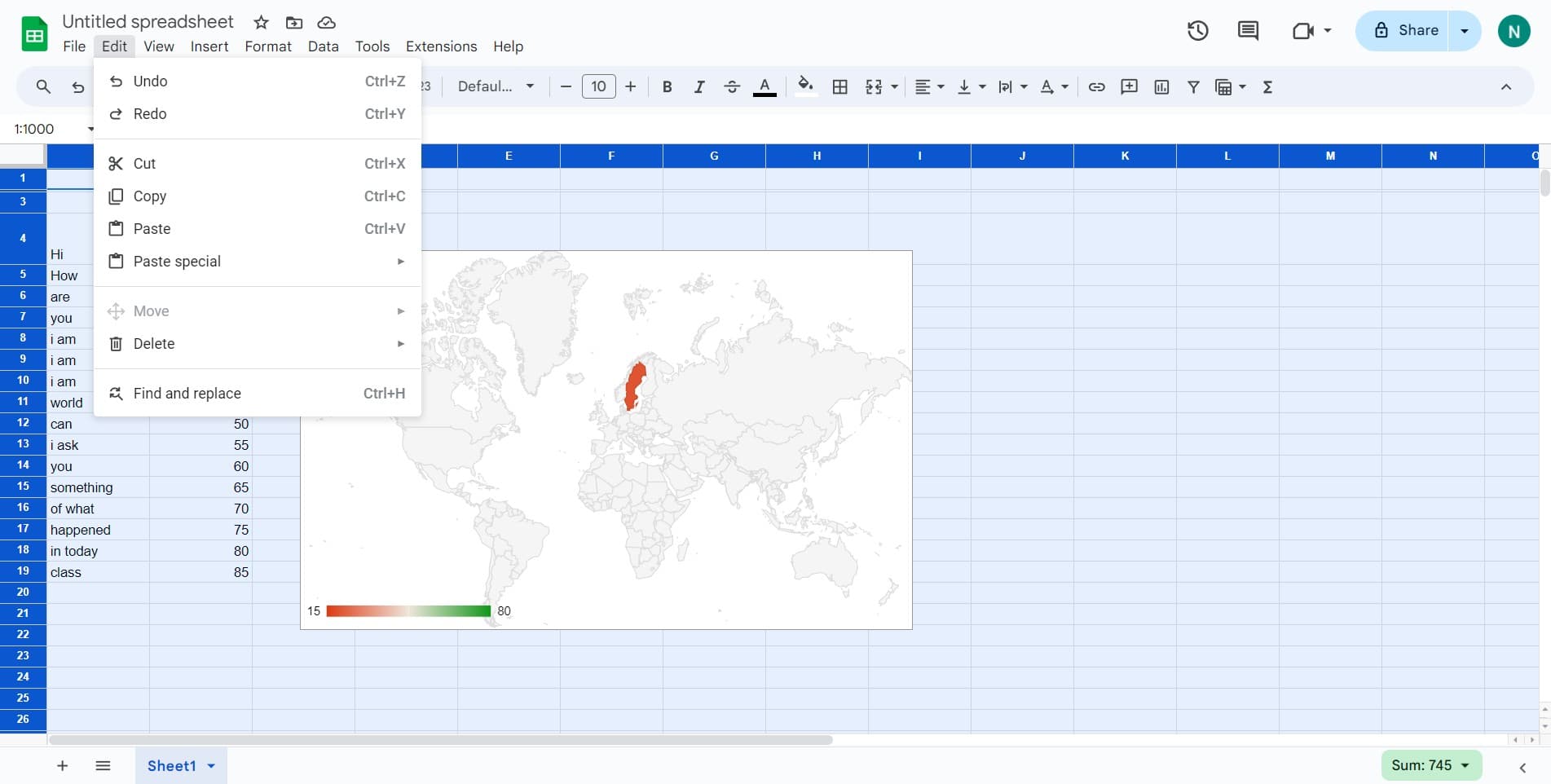
Click on Edit menu
Open the Edit menu located in the top menu bar. This gives you access to various editing tools, including the Find and Replace function.
- 3
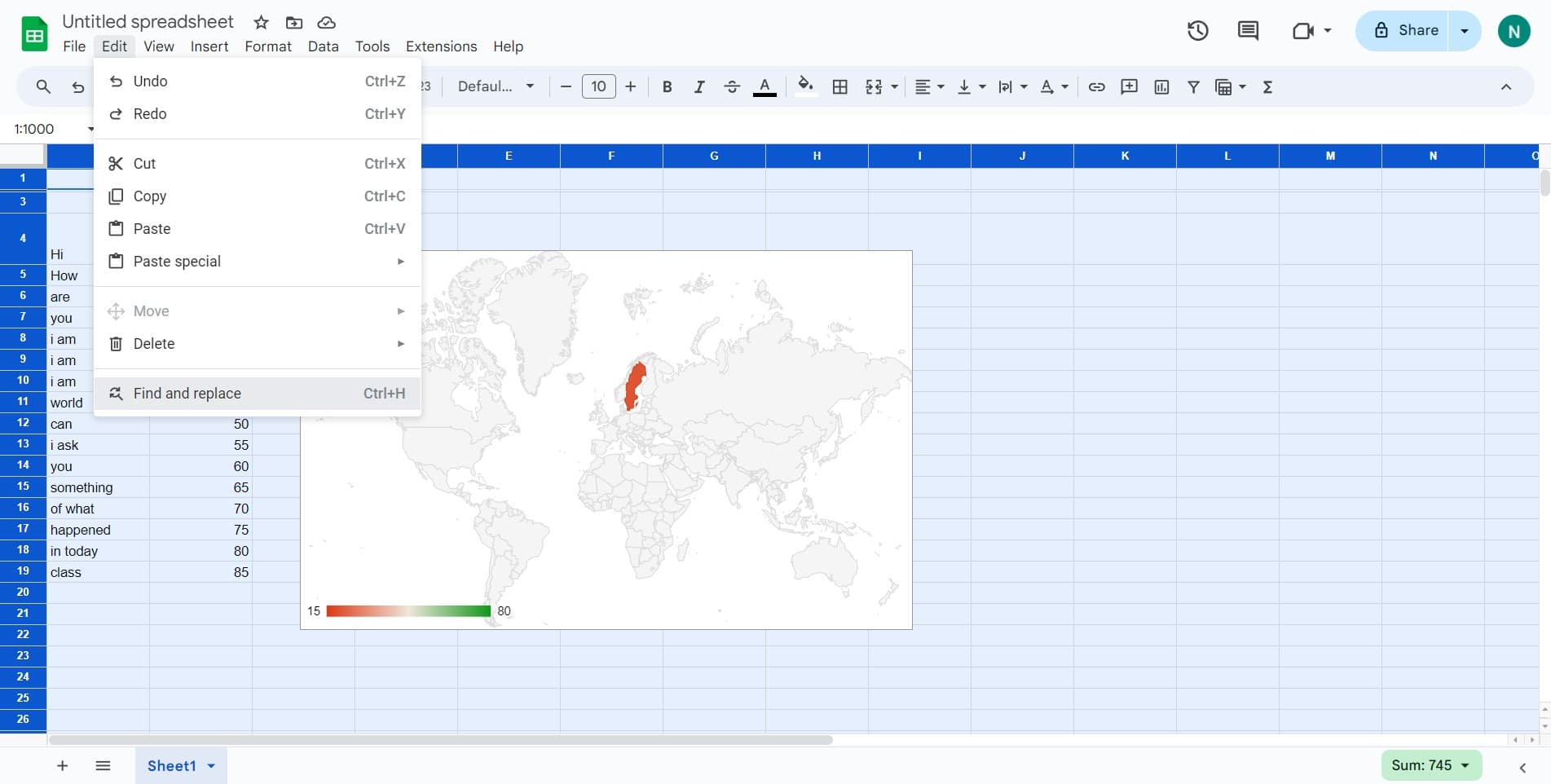
Select Find and replace
Click on 'Find and replace' from the dropdown menu. You can also use the keyboard shortcut Ctrl+H to open this dialog directly.
- 4
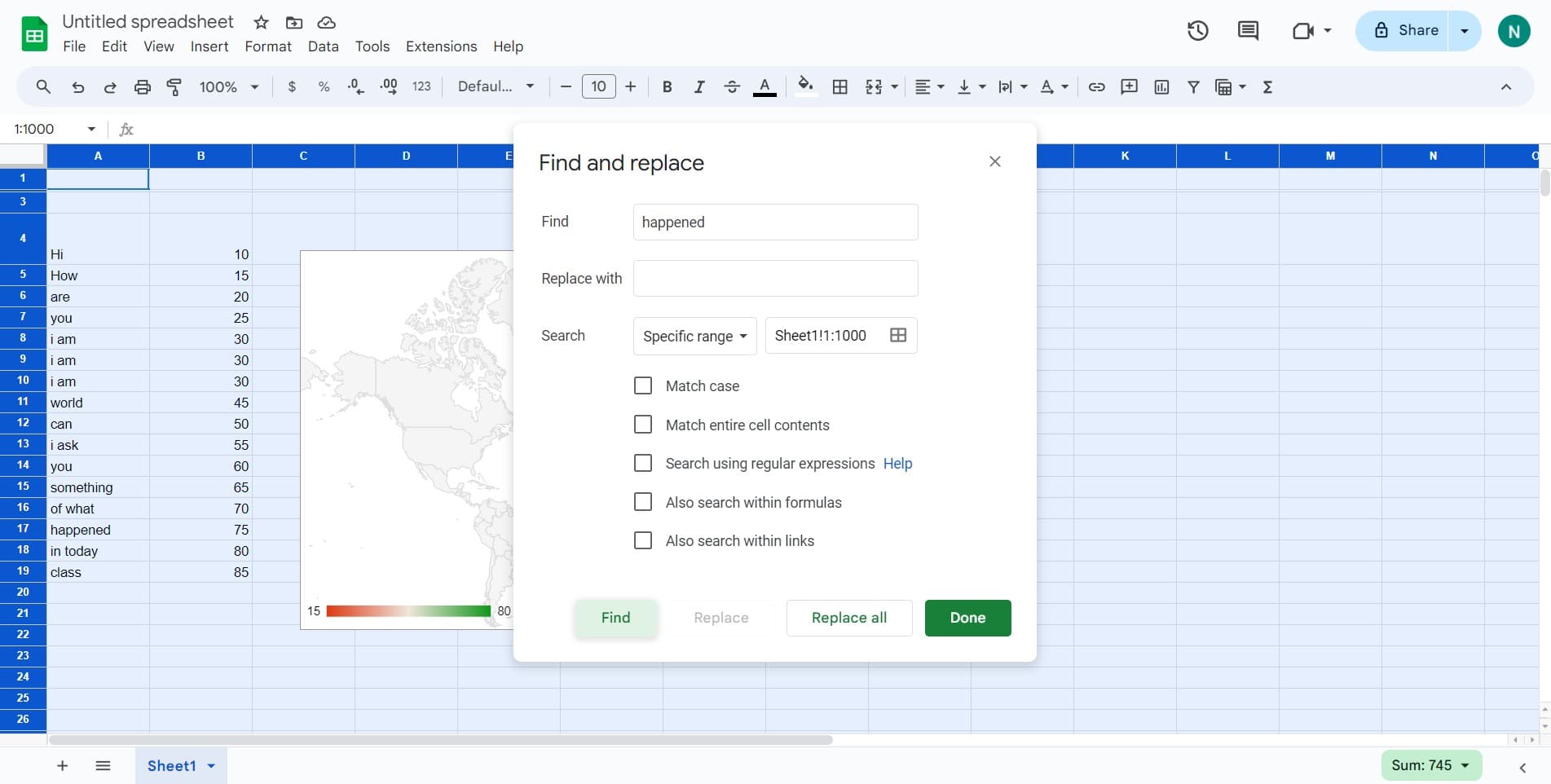
Click on Find field
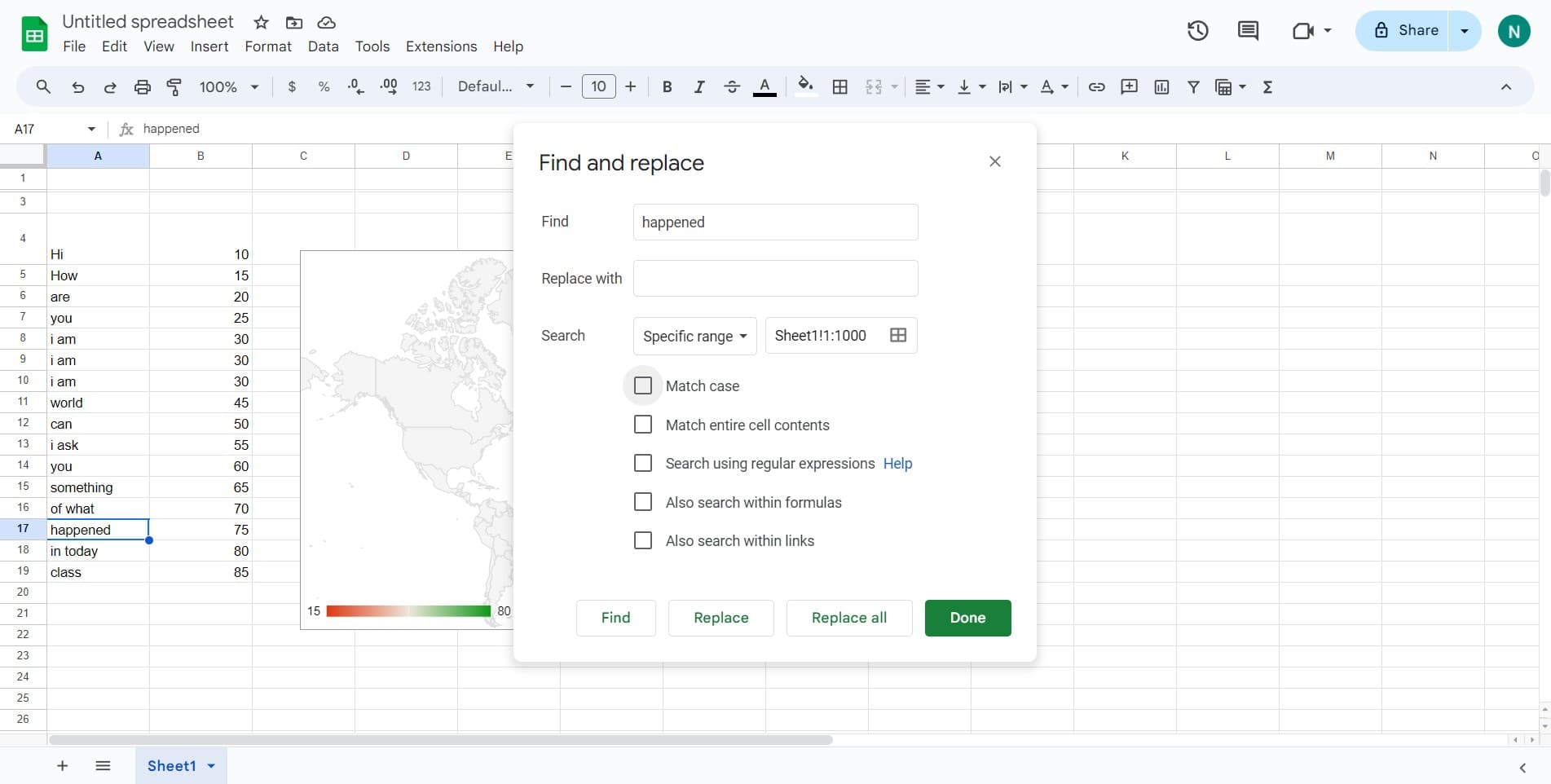
Click in the 'Find' text field at the top of the dialog box. This is where you'll enter the word or phrase you want to search for.
- 5
Enter your search term
Type the word or phrase you want to find into the search field. Google Sheets will highlight all matching instances in your spreadsheet.
- 6
Review results and close
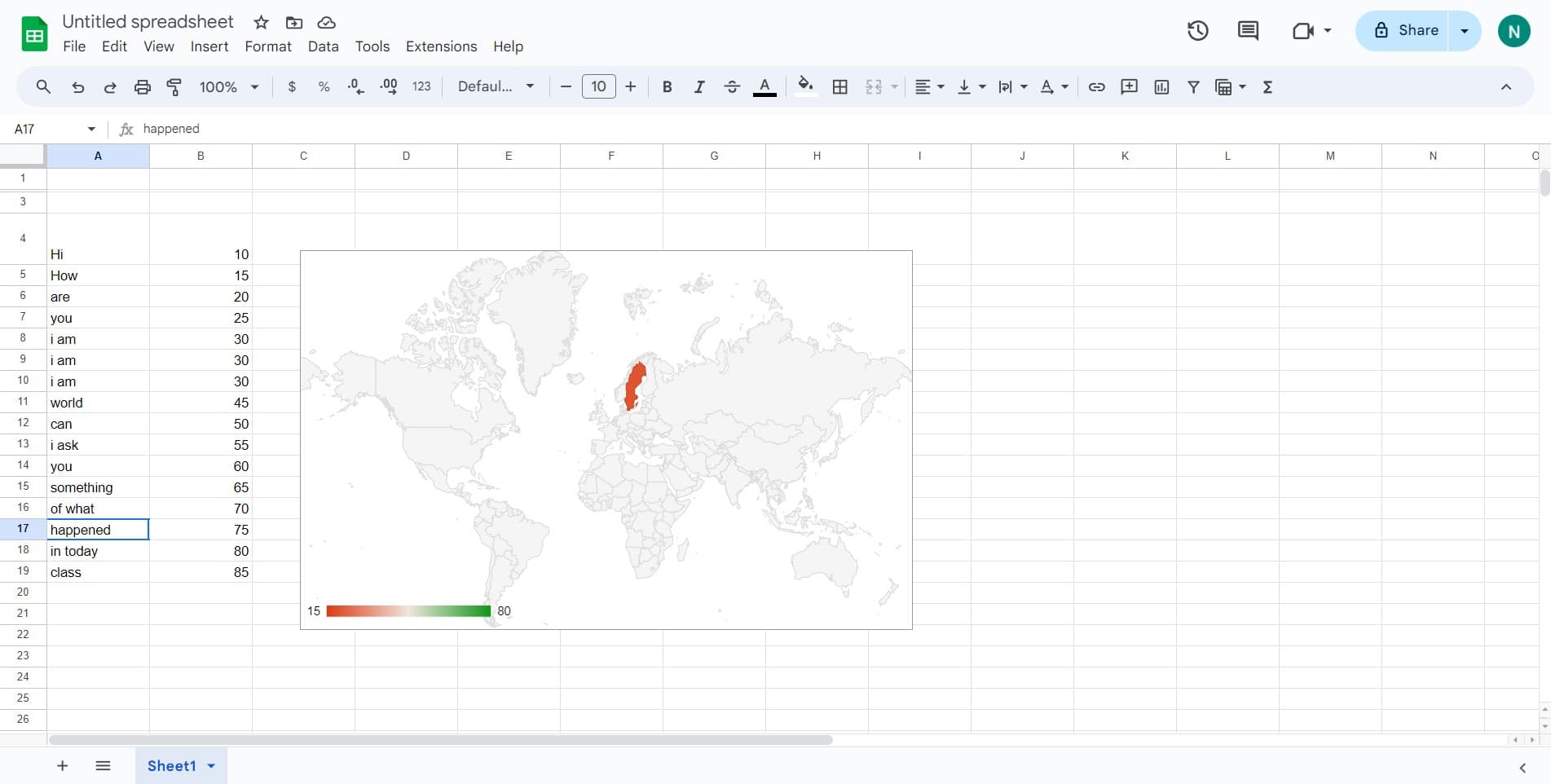
Review the highlighted results in your spreadsheet. Click 'Done' to close the Find and Replace dialog when you're finished searching.
- 7
Navigate between results
Use the navigation arrows in the Find dialog to move between different instances of your search term if multiple matches are found.
Frequently asked questions
Common questions about how to search for words in google sheets.
Yes. Before opening Find and Replace, click on the sheet tab you want to search. The Find function will then search only within that active sheet unless you expand the search scope in the dialog options.
Find locates specific text in your spreadsheet, while Find and Replace both locates the text and allows you to replace it with new content. You access both through the same dialog by using Ctrl+H or the Edit menu.
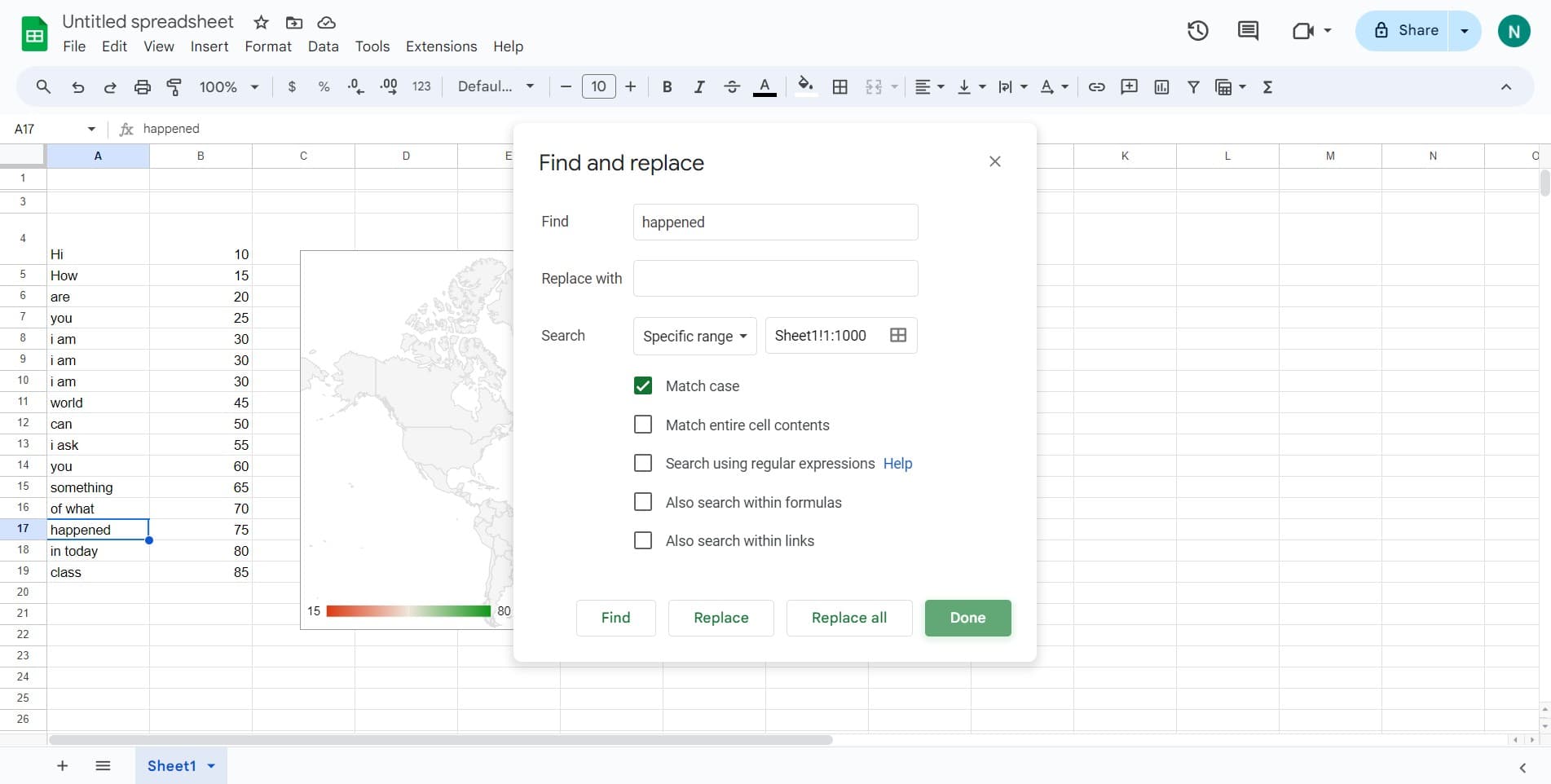
By default, Google Sheets searches are not case-sensitive, meaning 'apple' will match 'Apple' and 'APPLE'. You can enable case-sensitive searching by checking the 'Match case' option in the Find and Replace dialog.
Yes. Google Sheets supports regular expressions if you enable the 'Search using regular expressions' option in the Find and Replace dialog. This allows you to search for patterns rather than exact matches.
If the search term doesn't exist in your spreadsheet, Google Sheets will display a message indicating no matches were found. Double-check your spelling and search settings, then try again with a different term if needed.