How to shift cells down in Google Sheets

Shifting cells down in Google Sheets is a fundamental operation when you need to insert new data without overwriting existing content. This tutorial walks you through the process of inserting cells and moving your current data down to make room for new information.
Quick summary
In this tutorial, you'll learn how to select cells in Google Sheets and use the insert and shift down function to create space for new data while preserving your existing spreadsheet content. By the end, you'll be able to quickly insert rows or columns without losing any information.
Why this matters
Shifting cells down is essential for maintaining data integrity when adding new information to an already-populated spreadsheet. Rather than manually moving data or risking accidental overwrites, this feature automatically pushes existing content down, keeping your spreadsheet organized and error-free. It's a critical skill for anyone managing databases, lists, or financial records in Google Sheets.
Step-by-step guide
- 1
Select the target cell or range
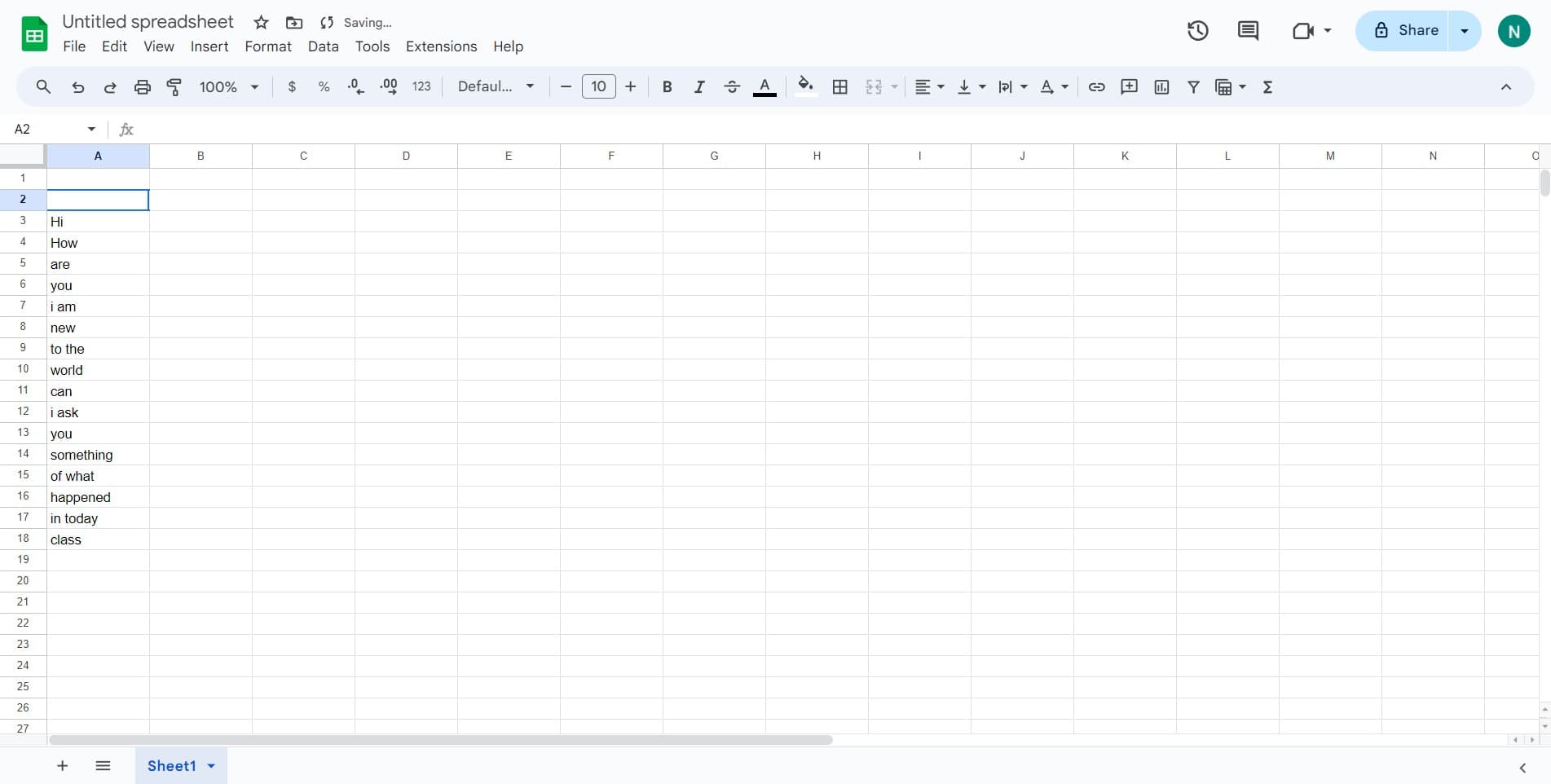
Click on the cell where you want to begin inserting new data. This is the cell that will shift downward along with all data below it. You can select a single cell or a range of cells, depending on how many rows you need to insert.
- 2
Click on Insert cells and shift down
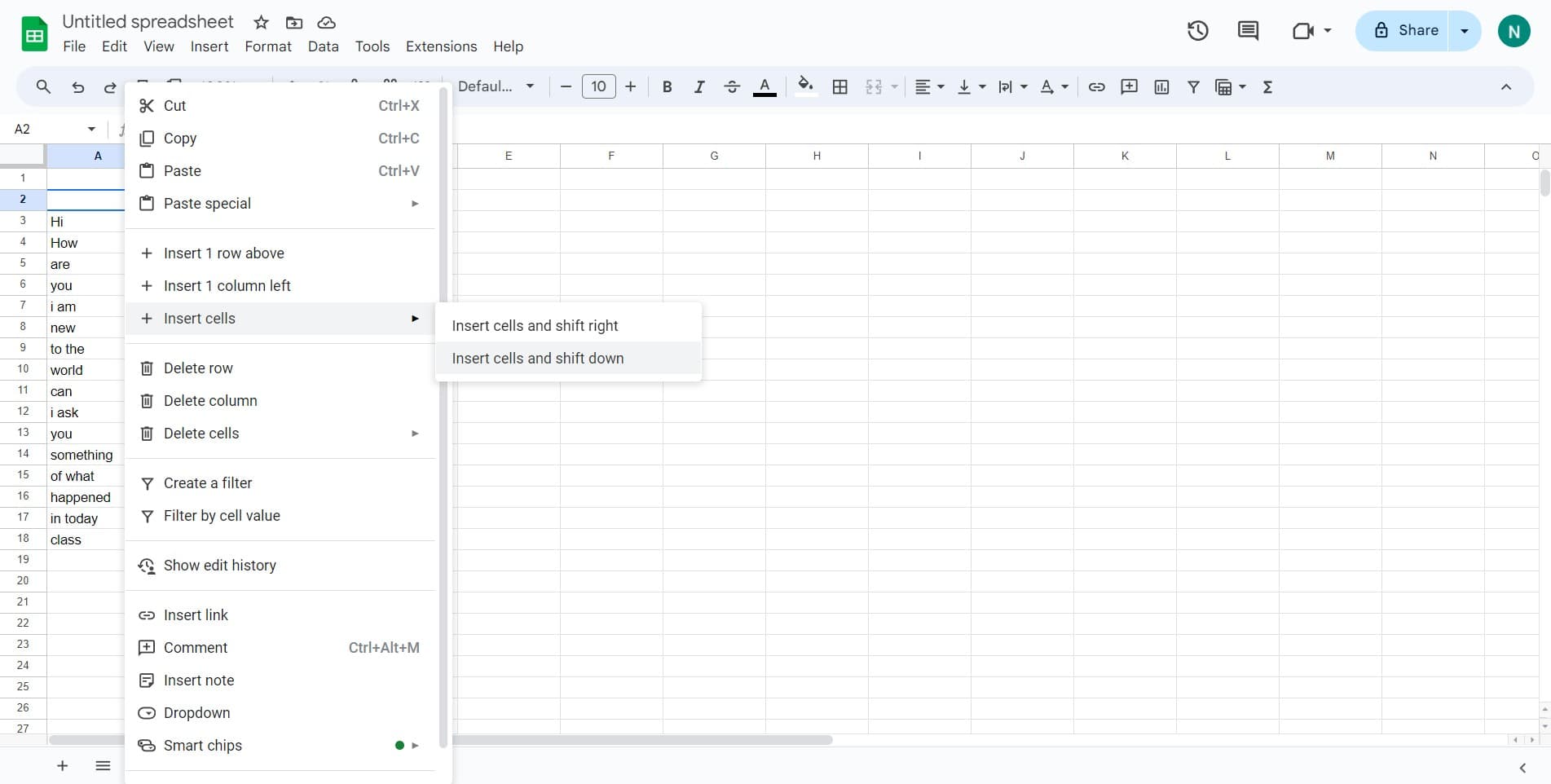
Right-click on your selected cell or cells to open the context menu. Choose the 'Insert cells and shift down' option to insert a new cell or row above your selection while pushing all existing data downward automatically.
- 3
Confirm the insertion and verify
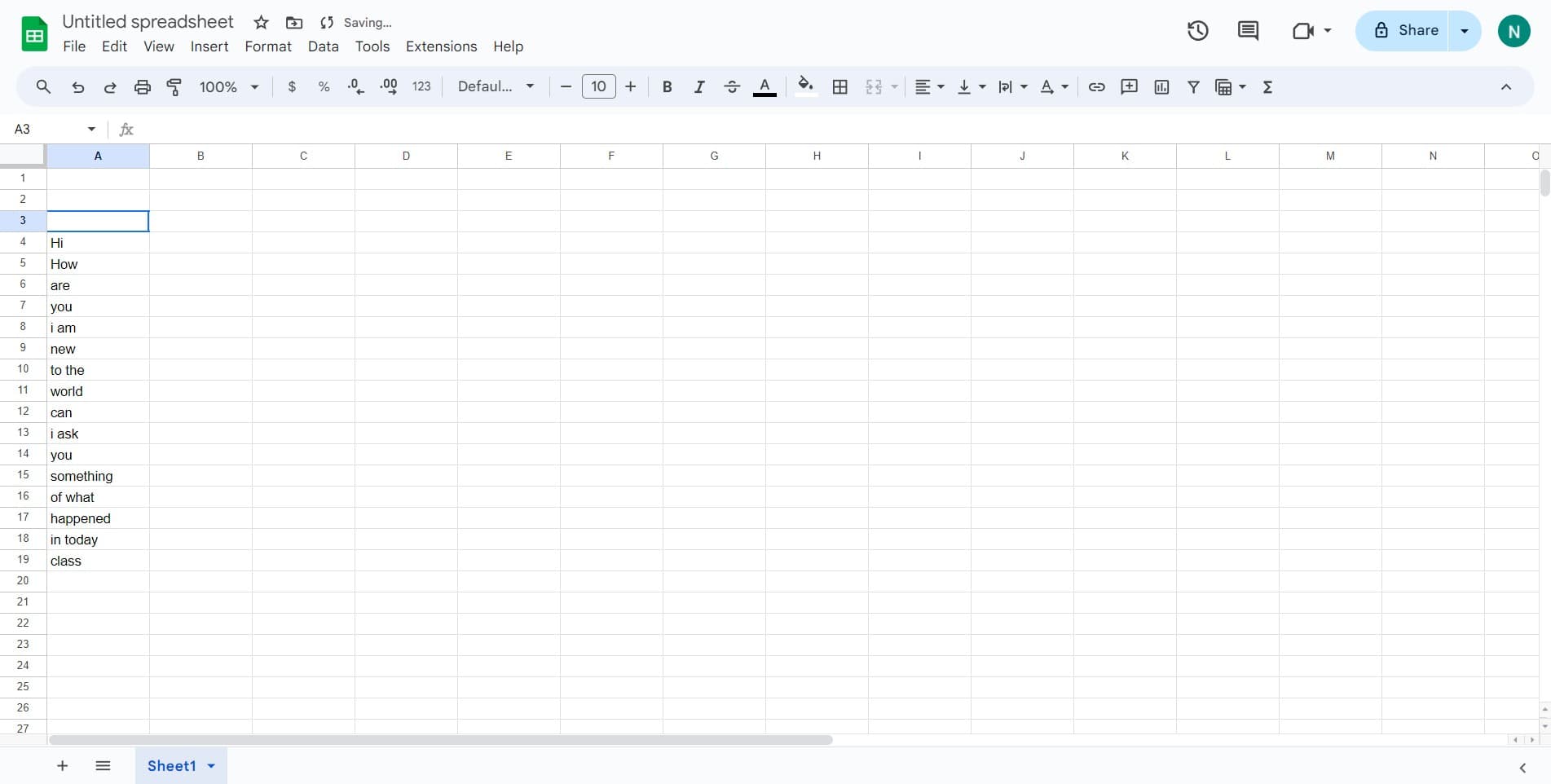
Google Sheets will immediately insert the new cell(s) and shift your existing content down. Verify that your data has moved correctly and that the new empty cell or cells are ready for your new data entry.
Frequently asked questions
Common questions about how to shift cells down in google sheets.
Yes. Select the range of cells you want to insert by clicking and dragging across multiple cells before right-clicking and selecting 'Insert cells and shift down.' Google Sheets will insert that many rows or columns and shift all data below accordingly.
Shifting cells down inserts new rows and moves existing data vertically downward. Shifting right inserts new columns and moves existing data horizontally to the right. Choose based on whether you need to add rows or columns to your spreadsheet.
Google Sheets automatically updates formula references when you shift cells down. If a formula references cells that move, the formula will adjust to reference the new cell locations, so your calculations remain accurate.
Yes. If you make a mistake, simply press Ctrl+Z (or Cmd+Z on Mac) to undo the shift down operation. Google Sheets will restore your data to its previous position immediately.
There is no default keyboard shortcut, but you can access the feature by right-clicking on your selected cells and choosing 'Insert cells and shift down' from the context menu. This method is consistent across all devices and browsers.