How to Change Slide Size in PowerPoint

Changing slide size in PowerPoint is essential when adapting presentations for different display formats, venues, or client requirements. Whether you need widescreen format for modern displays or standard format for older projectors, PowerPoint makes this adjustment quick and straightforward. This tutorial walks you through the process step-by-step.
Quick summary
In this tutorial, you'll learn how to change your PowerPoint slide dimensions using the Design menu and Slide Size options. You'll discover how to select from preset formats like widescreen (16:9) and apply these changes to your entire presentation. By the end, you'll be able to resize your slides to match any presentation venue or device requirement.
Why this matters
Slide size directly impacts how your presentation appears on different screens and in different environments. Using the correct slide dimensions ensures your content displays properly, maintains aspect ratios, and prevents awkward formatting or cut-off text. Getting this right from the start saves time and prevents last-minute formatting issues during important presentations.
Step-by-step guide
- 1
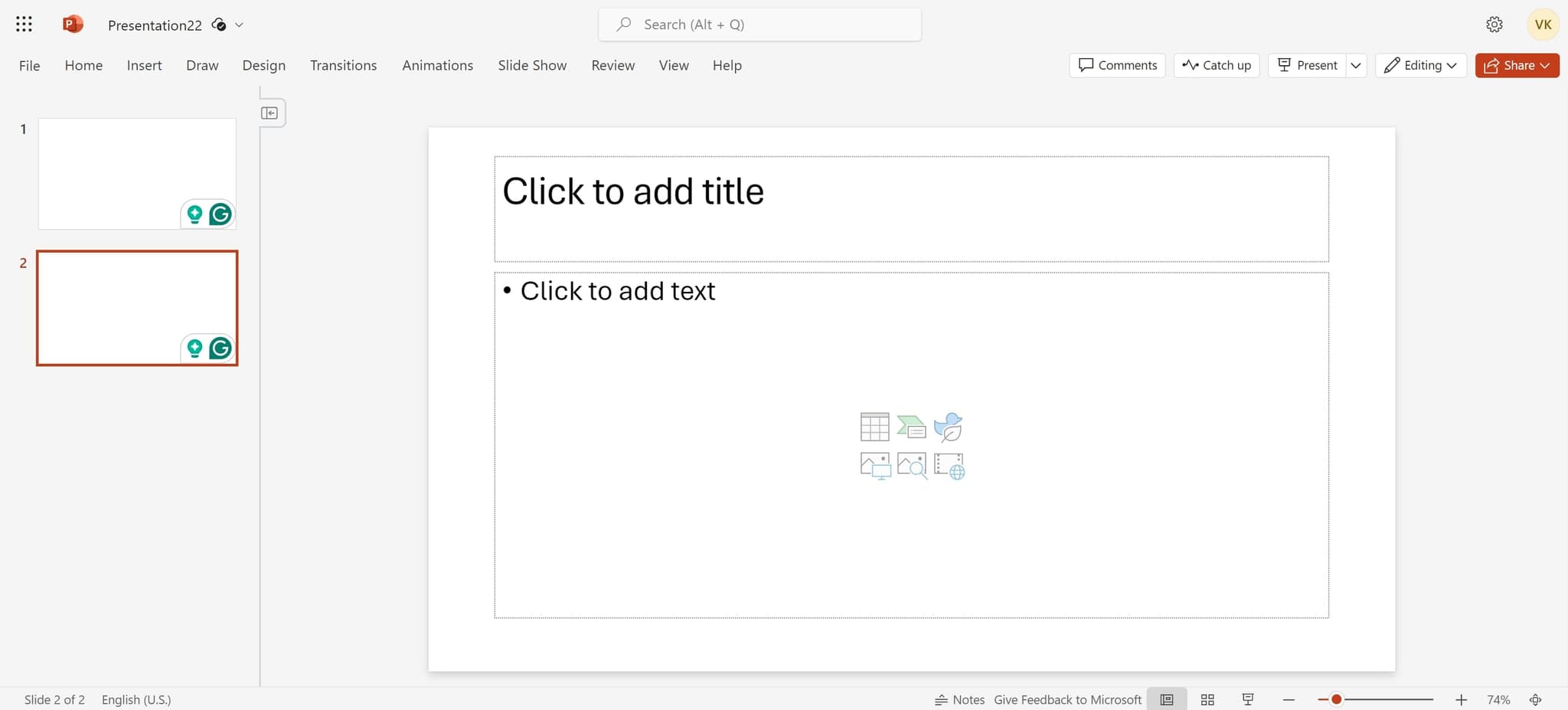
Access the File menu
Click on the File menu at the top of the PowerPoint window to begin accessing presentation settings. This opens the backstage view where you can find design and layout options.
- 2
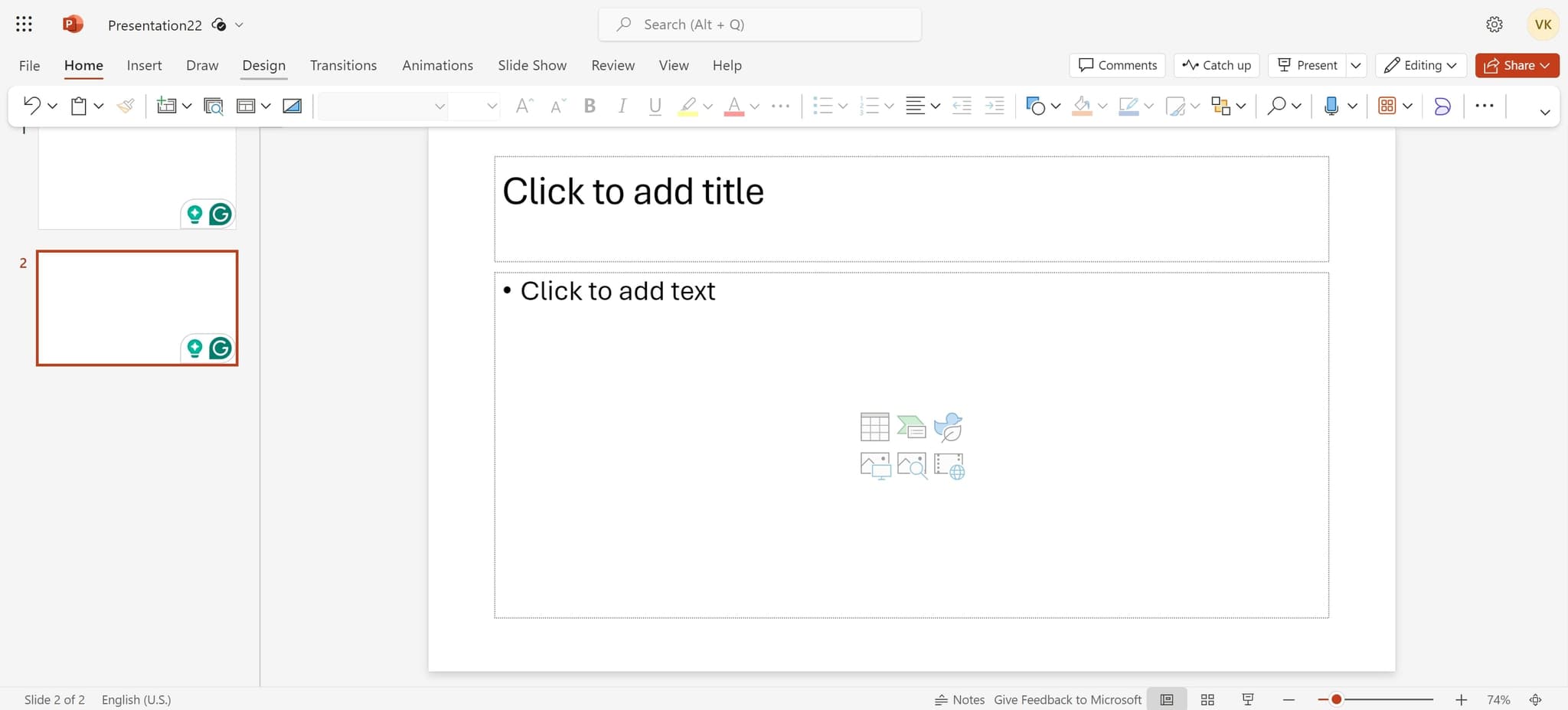
Open the Design tab
Click on "Design" from the menu options. This reveals formatting and layout tools specific to your slide design.
- 3
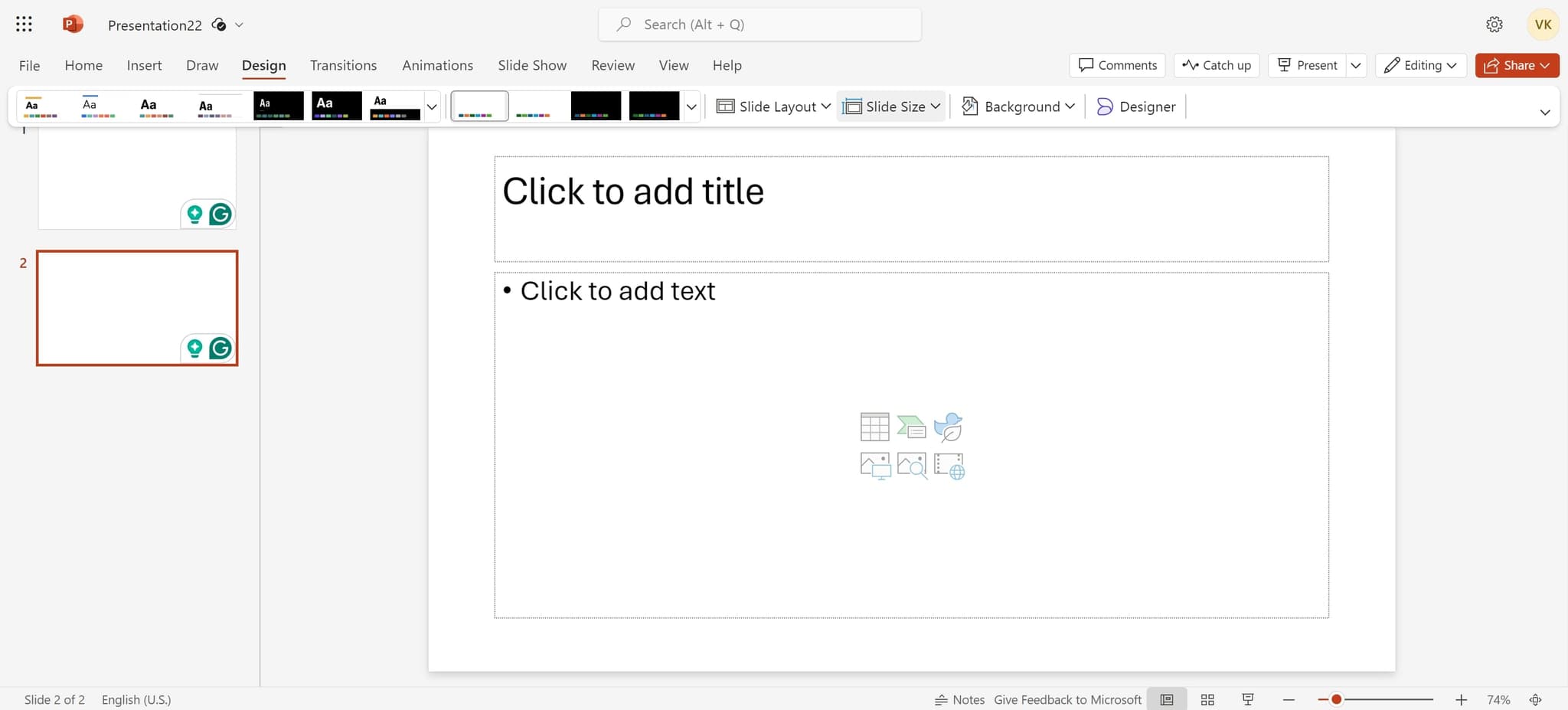
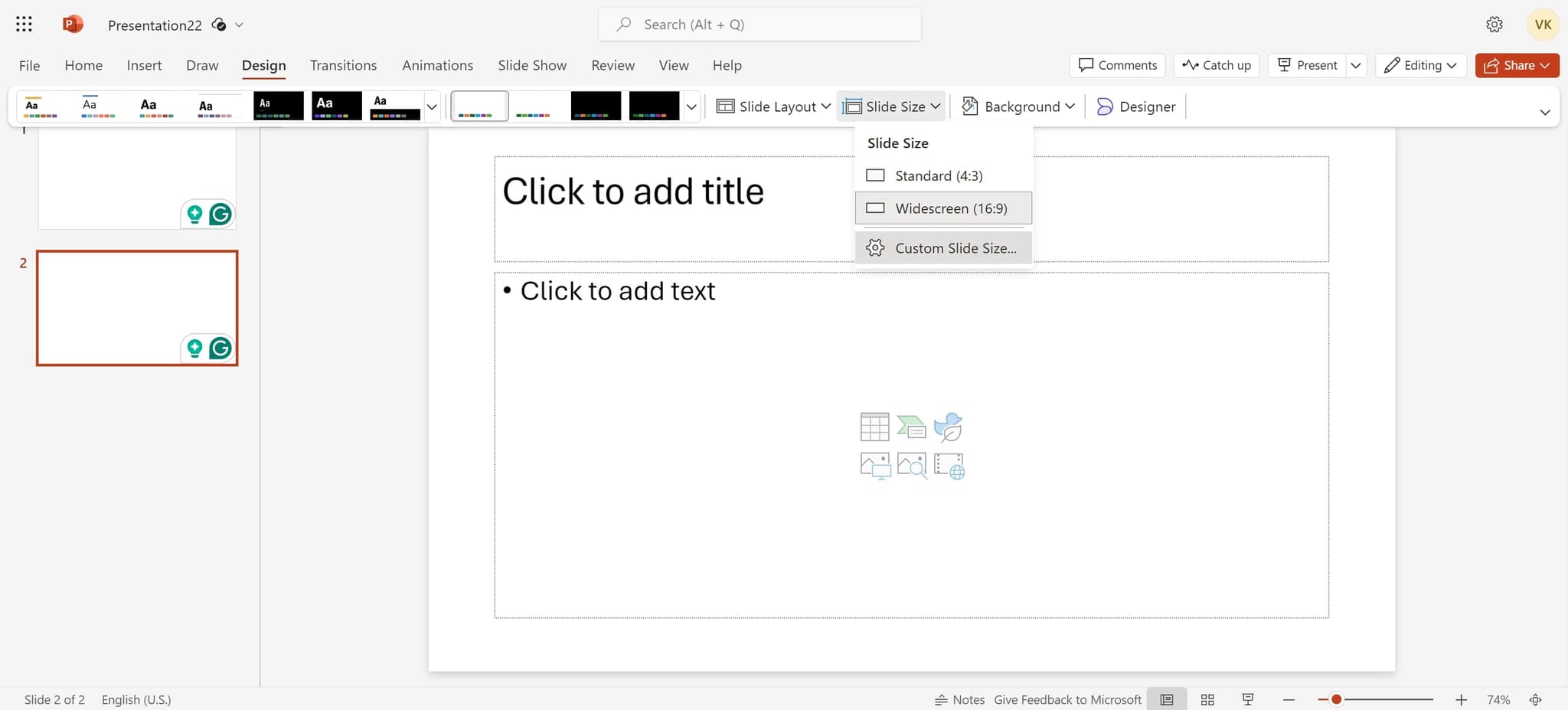
Select Slide Size option
Click on "Slide Size" to view available preset dimensions for your presentation. A dropdown menu will display various standard formats you can choose from.
- 4
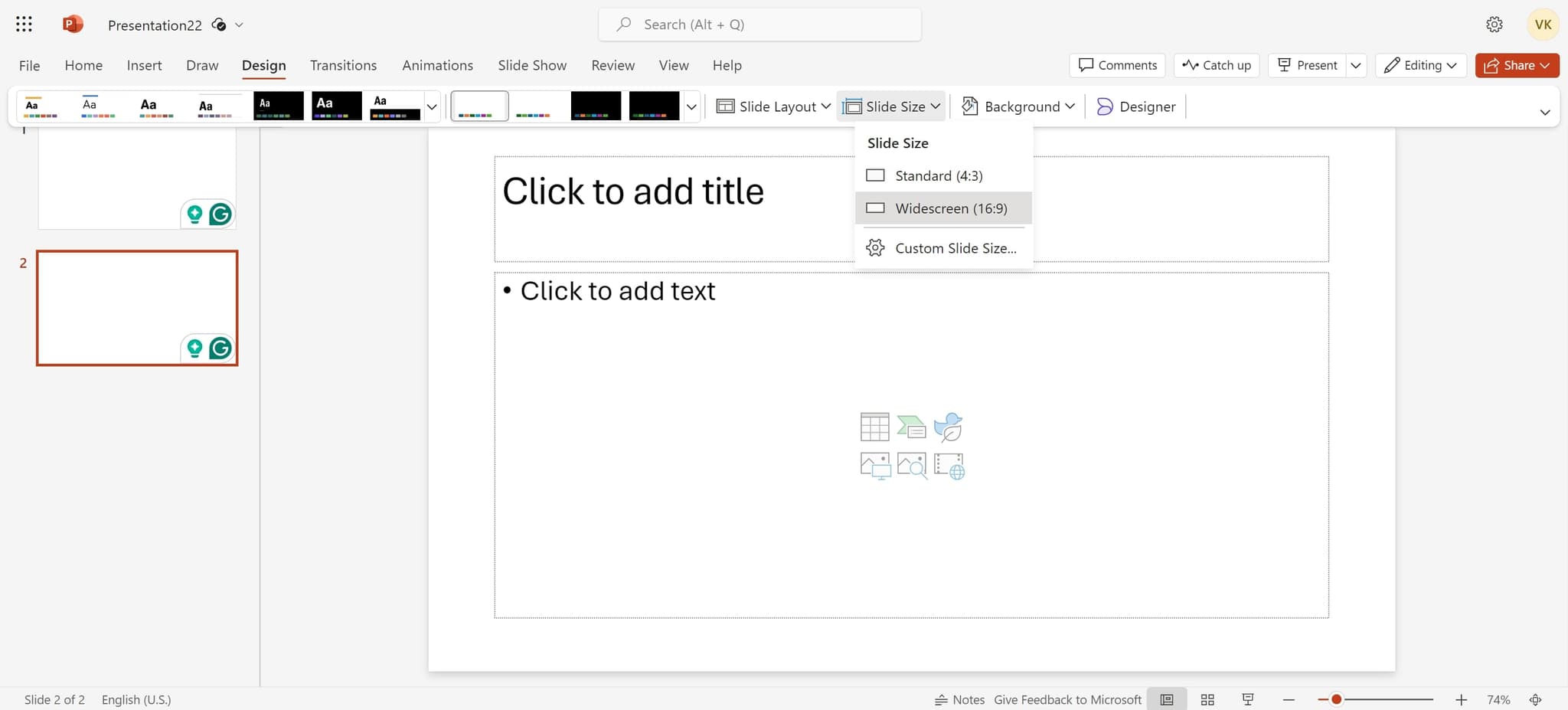
Choose widescreen format
Click on "Widescreen (16:9)" to select this modern, wide aspect ratio for your slides. This format is ideal for contemporary displays and projectors.
- 5
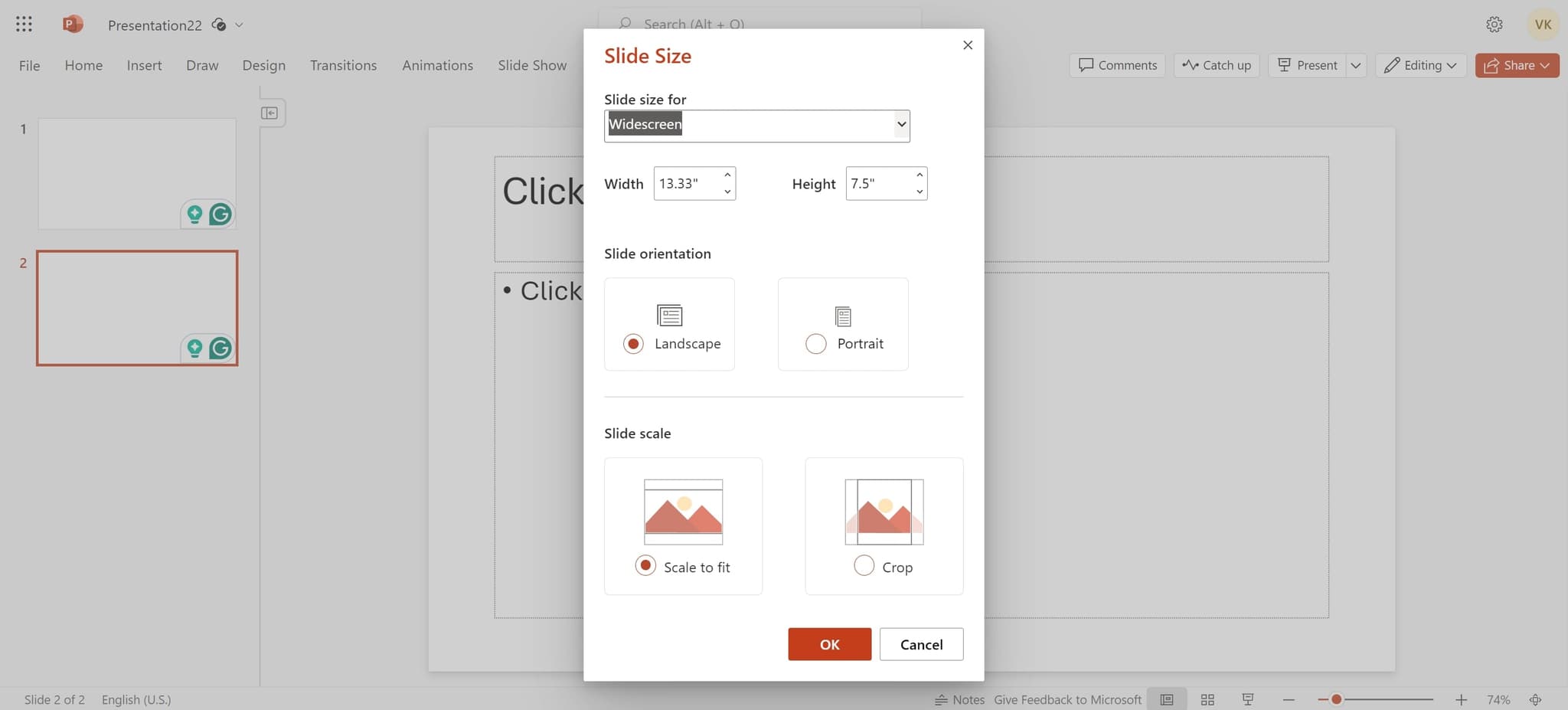
Confirm content scaling
Click on the presented element when prompted about how to handle your existing content. PowerPoint will ask whether to maximize or ensure fit of your current slide elements.
- 6
Adjust content layout
Click on the next element to finalize how your content scales to the new slide dimensions. This step ensures all your text, images, and shapes fit properly in the new format.
- 7
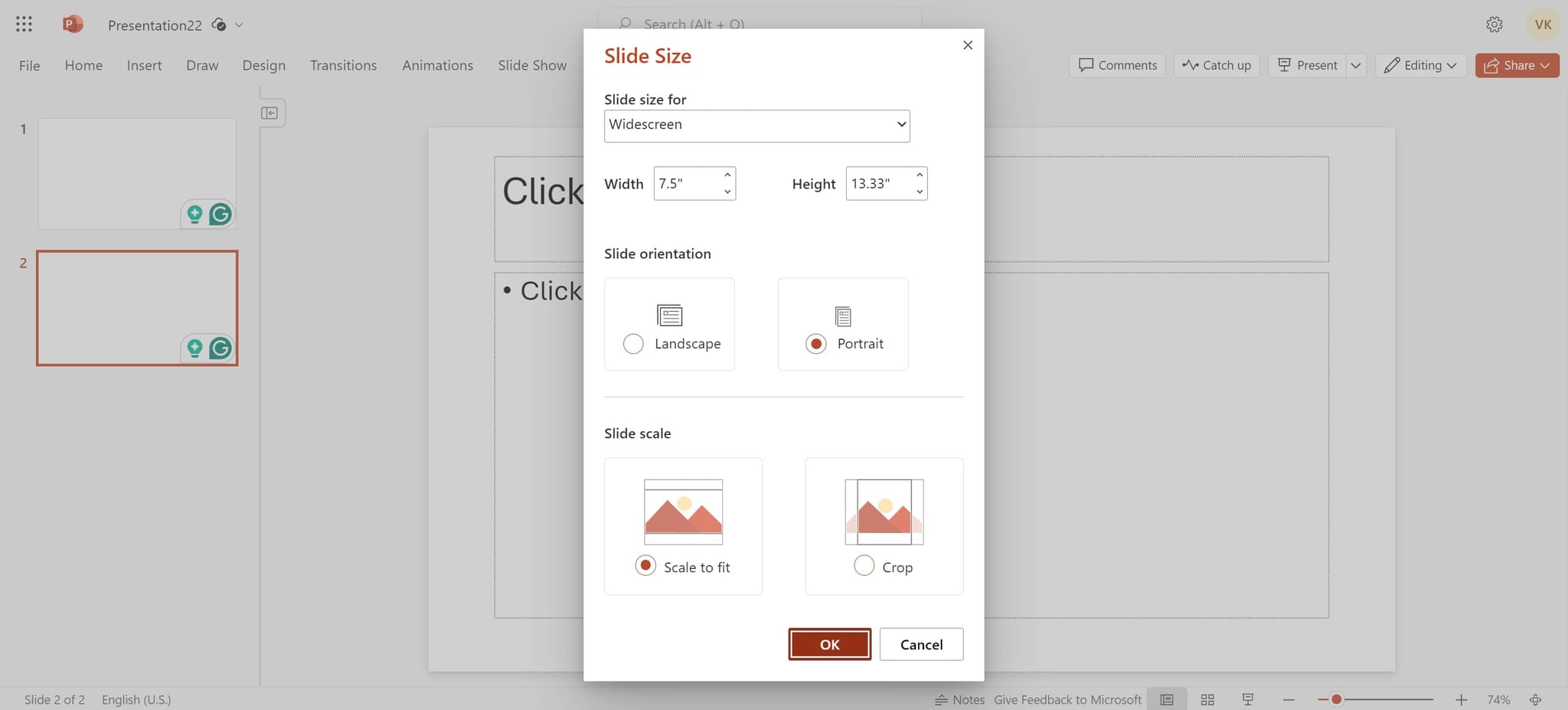
Apply changes
Click "OK" to confirm and apply the new slide size to your entire presentation. All slides will now display in the widescreen (16:9) format.
Frequently asked questions
Common questions about how to change slide size in powerpoint.
No, slide size changes apply to the entire presentation at once. PowerPoint does not support different slide sizes within a single presentation file. If you need different sizes, you would need to create separate presentations.
PowerPoint offers several preset formats including Standard (4:3), Widescreen (16:9), Widescreen (16:10), and others. You can also set custom dimensions if needed by selecting "Custom Slide Size" from the dropdown menu.
Changing slide size may reposition or rescale your content to fit the new dimensions. PowerPoint will prompt you to choose between maximizing content or ensuring it fits within the new size. You may need to manually adjust some elements afterward.
Widescreen (16:9) is the current standard for most modern presentations and displays. Use Standard (4:3) only if presenting on older projectors or in specific corporate environments that still use legacy equipment.
Yes, you can undo a slide size change by pressing Ctrl+Z immediately after making the change. If you've made other edits since then, go to File > Info and use the Version History or undo multiple steps to revert.