How to Group Objects in PowerPoint

Grouping objects in PowerPoint allows you to treat multiple shapes, images, and text boxes as a single unit, making it easier to move, resize, and format them together. This essential skill saves time when working with complex slides and ensures consistent alignment across your presentation.
Quick summary
In this tutorial, you'll learn how to select multiple objects and group them in PowerPoint, giving you greater control over your slide layouts and design elements. You'll discover how grouping streamlines your workflow and helps maintain visual consistency throughout your deck.
Why this matters
Grouping objects is crucial when you're building intricate slide designs with many elements that need to move and scale together. Without grouping, managing multiple objects becomes tedious and error-prone, potentially leading to misaligned designs and wasted editing time.
Step-by-step guide
- 1
Select Your First Object
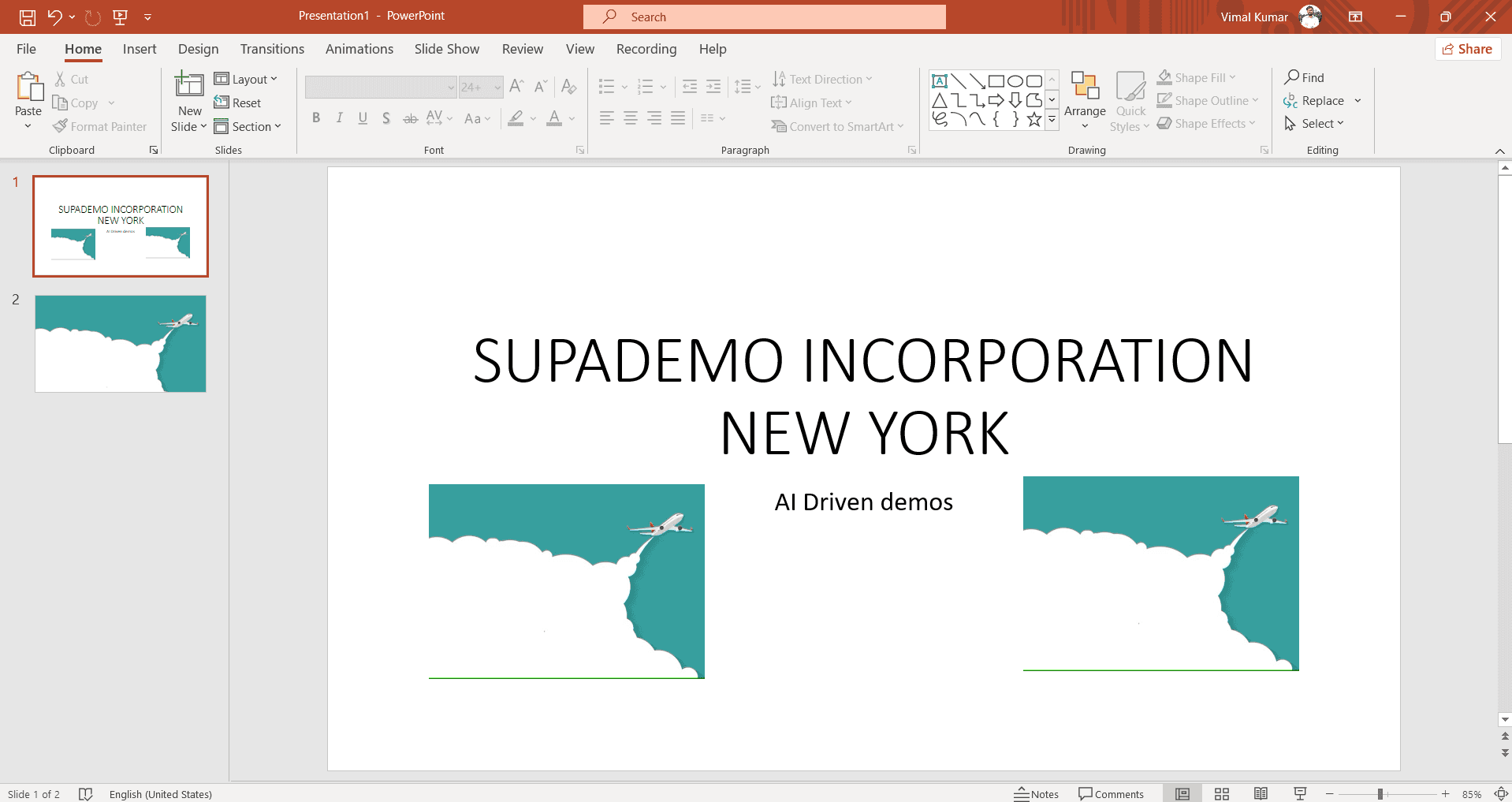
Click on the first object you want to group, such as a shape or image on your slide. You'll see selection handles appear around the object, indicating it's ready to be manipulated.
- 2
Hold Shift and Select Additional Objects
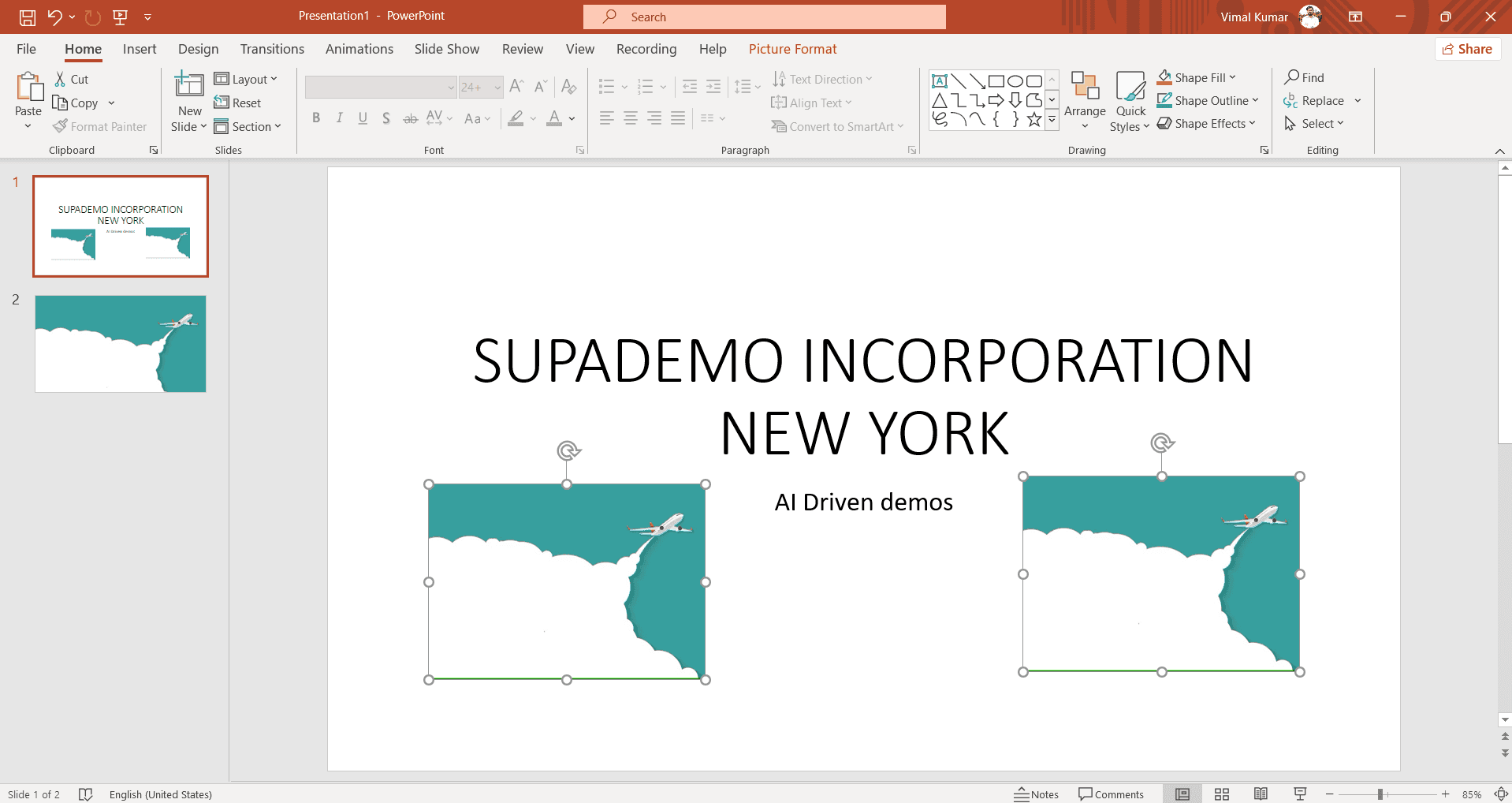
While holding the Shift key, click on each additional object you want to include in the group. As you select each object, it will be highlighted, and you'll notice all selected objects now have selection handles.
- 3
Apply the Group Command
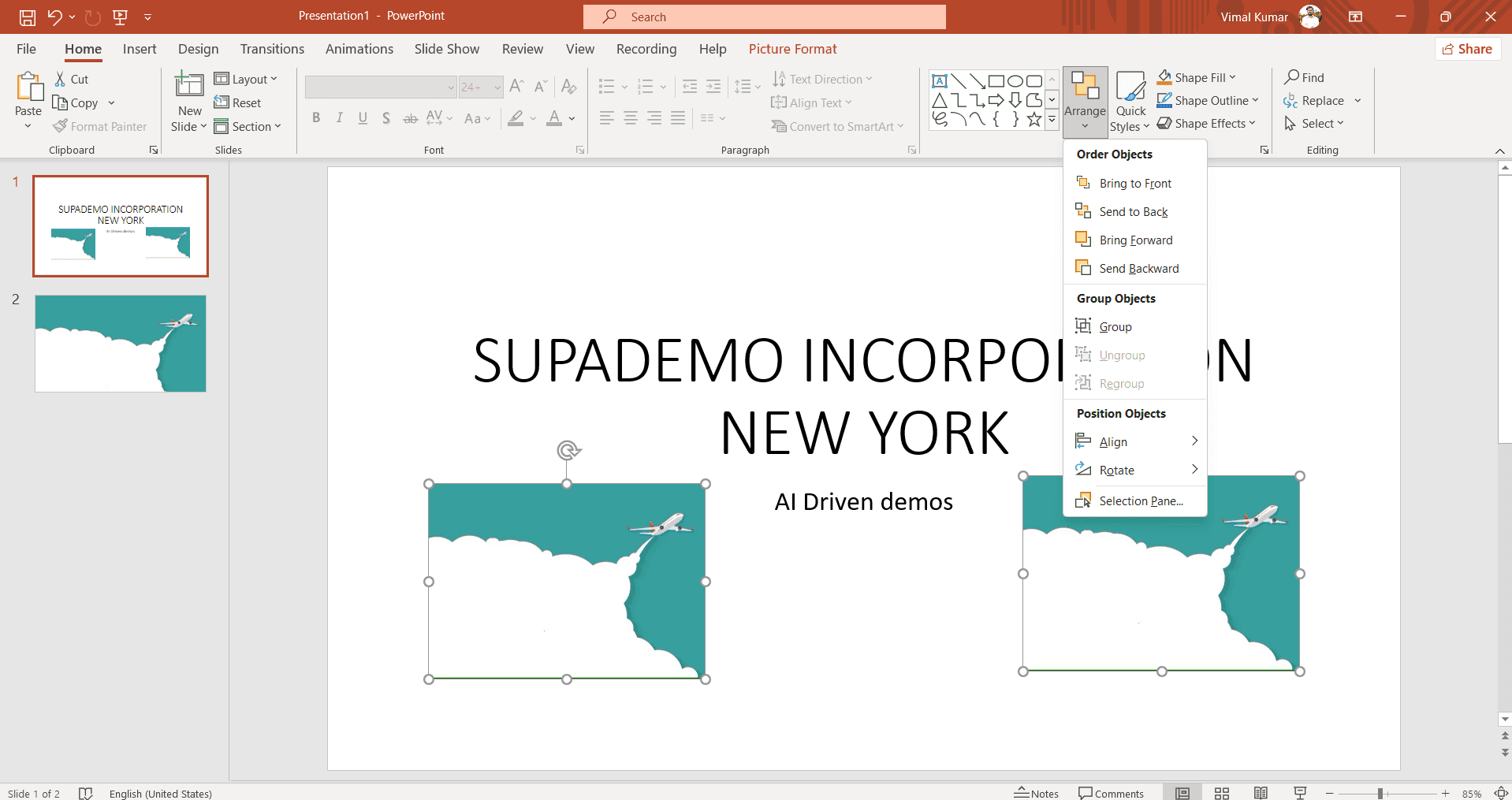
Right-click on one of the selected objects to open the context menu, then choose 'Group' from the options. Alternatively, use the keyboard shortcut Ctrl+G (Windows) or Cmd+G (Mac) to instantly group all selected objects into a single unit.
Frequently asked questions
Common questions about how to group objects in powerpoint.
Yes, absolutely. Select the grouped object and right-click, then choose 'Ungroup' to separate the objects back into individual elements. You can also use the keyboard shortcut Ctrl+Shift+G (Windows) or Cmd+Shift+G (Mac) to ungroup.
Grouping permanently combines objects into a single unit that moves and resizes together, while the selection pane lets you select and manage multiple objects without combining them. Grouping is better when objects need to stay together; the selection pane is better for temporary selections and layer management.
No, you can only group objects that exist on the same slide. Objects across different slides cannot be grouped together. However, you can copy grouped objects to other slides if needed.
No, grouping doesn't change the individual formatting of your objects. Each object retains its original color, font, style, and other properties. You can still edit individual elements within a group by double-clicking the group to enter edit mode.
Double-click the grouped object to enter edit mode, which allows you to select and modify individual elements within the group without ungrouping. When you're finished editing, click outside the group to exit edit mode.