How to embed your Google Calendar to your Calendly link

Connecting your Google Calendar to your Calendly link ensures that your availability is always up-to-date and prevents double-bookings. This integration automatically syncs your calendar events with your scheduling page, giving clients an accurate view of when you're available.
Quick summary
In this tutorial, you'll learn how to embed your Google Calendar to your Calendly link by accessing calendar sync settings, authenticating your Google account, and configuring your calendar preferences. You'll grant Calendly permission to access your calendar data and customize how events are added to your calendar.
Why this matters
Syncing your Google Calendar with Calendly eliminates manual scheduling conflicts and saves time managing multiple calendars. When your calendar is properly connected, clients book only during your available time slots, reducing back-and-forth communication and improving the booking experience.
Step-by-step guide
- 1
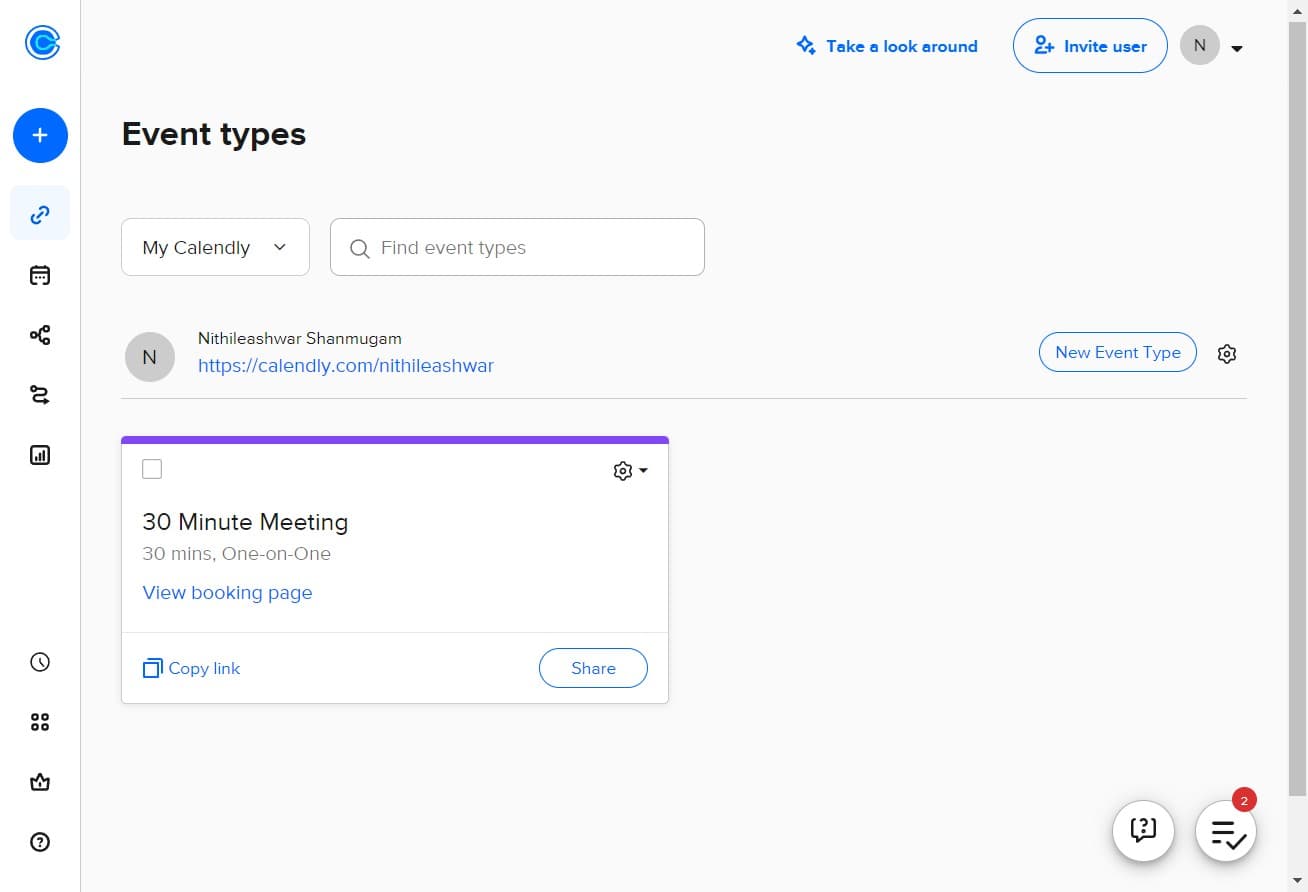
Click on settings menu
Open your Calendly account and locate the settings menu, typically represented by the 'N' icon or menu button. This gives you access to account configuration options.
- 2
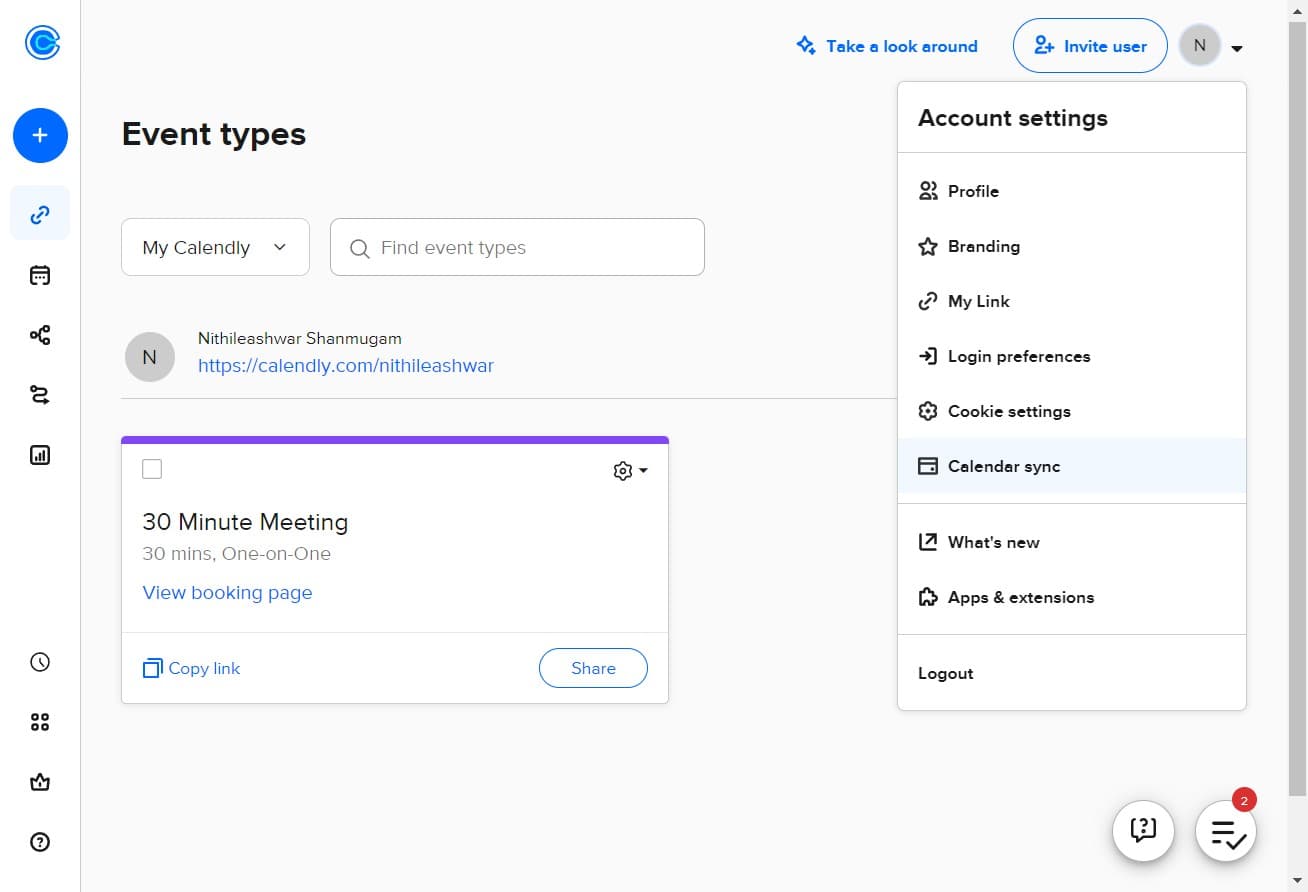
Select Calendar sync option
From the menu, click on 'Calendar sync' to access the calendar integration settings. This is where you'll manage all connected calendars.
- 3
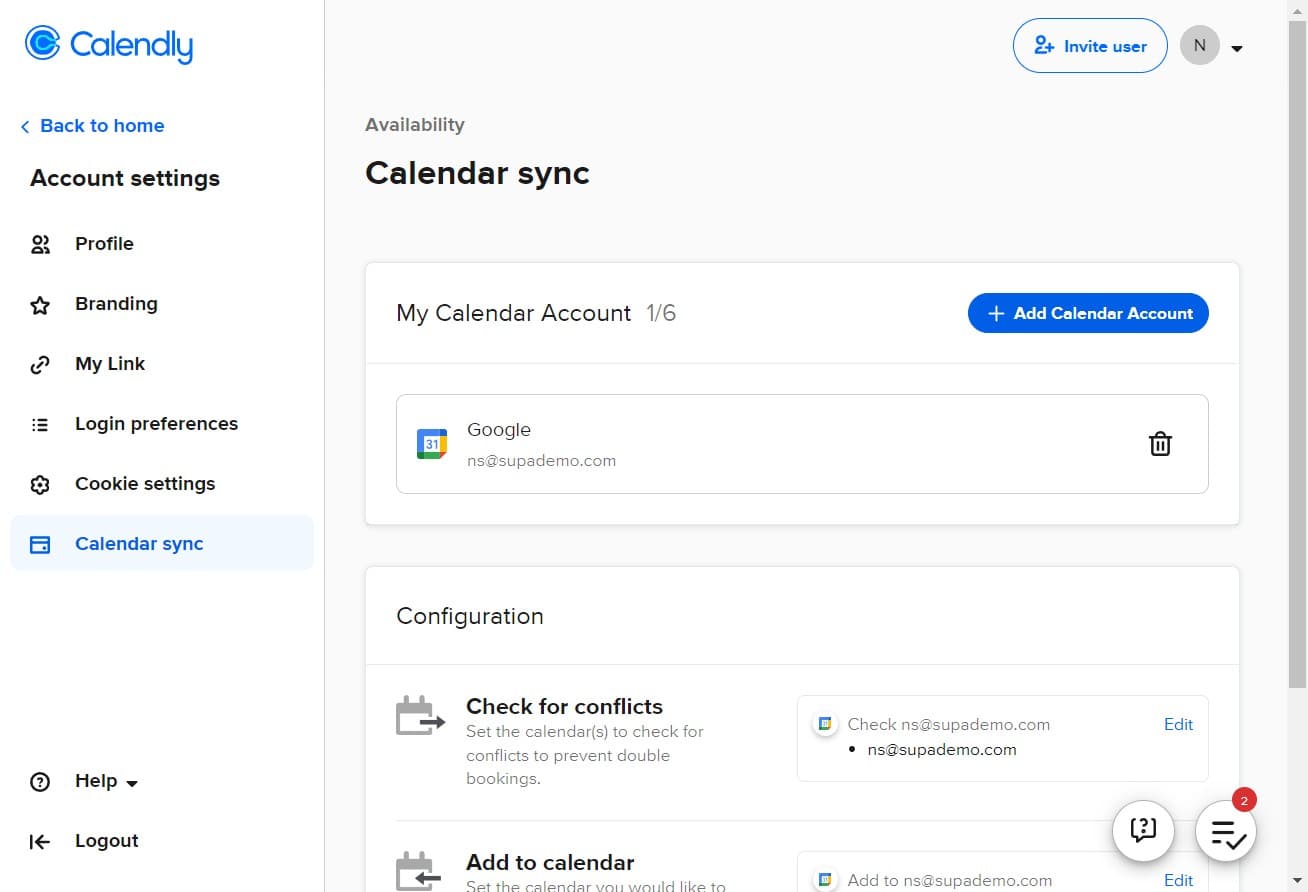
Add a new calendar account
Click 'Add Calendar Account' to begin the process of connecting a new calendar. This will prompt you to select which calendar service you want to integrate.
- 4
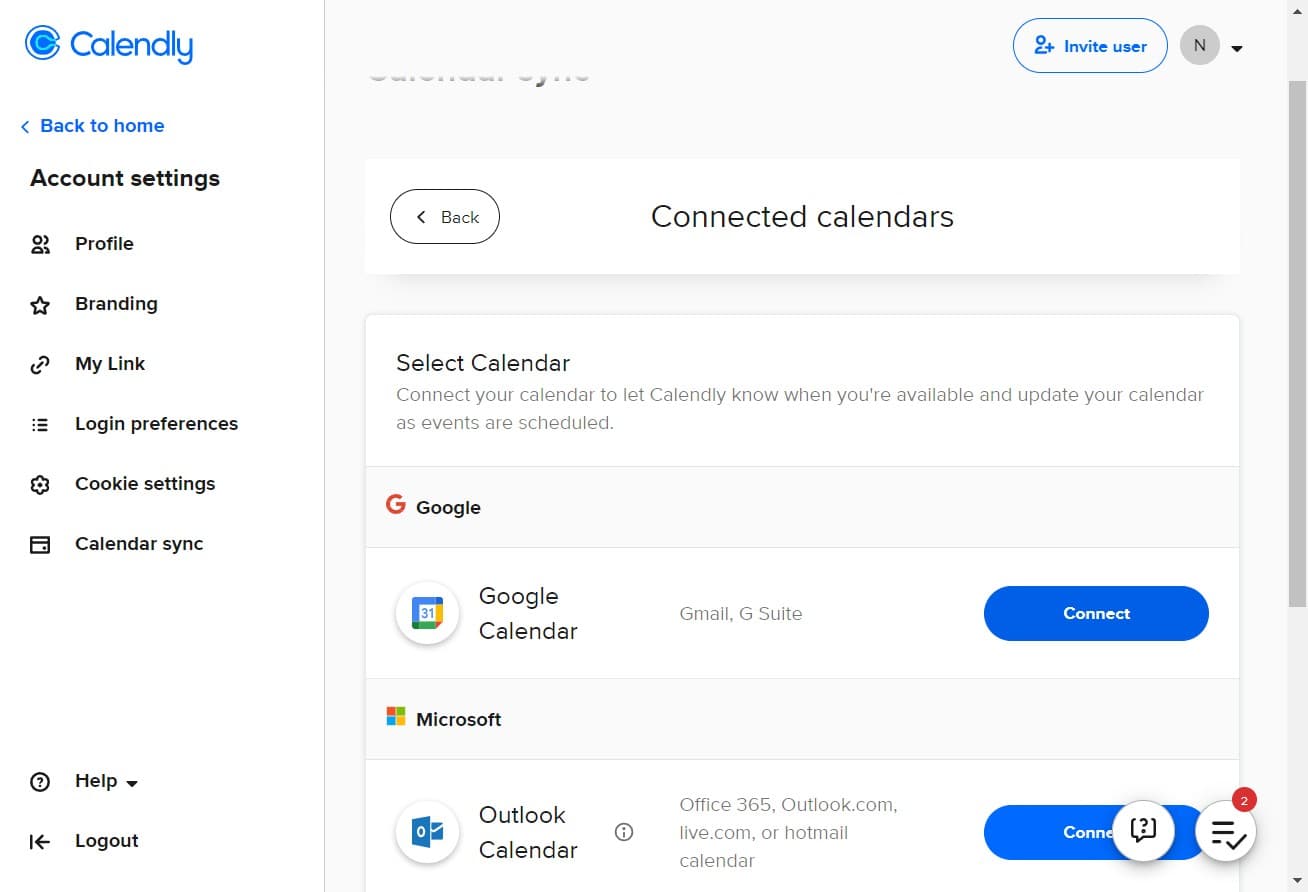
Click Connect button
Select 'Connect' to initiate the authentication process with your calendar service. You'll be directed to authorize the connection between Calendly and your calendar.
- 5
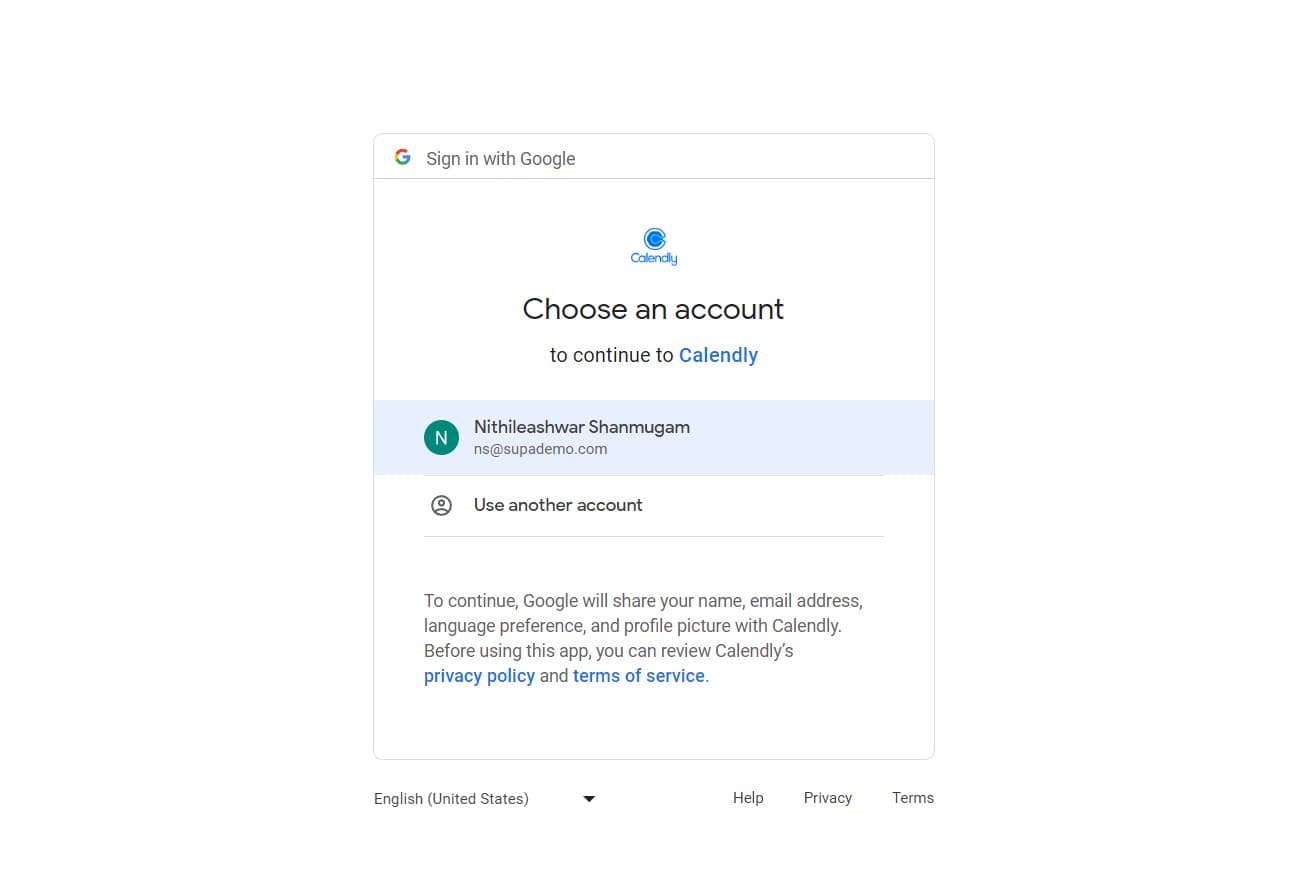
Select your Google account
Choose the Google account you want to connect by clicking on your email address (e.g., 'ns@supademo.com'). Ensure you select the correct account that contains your calendar.
- 6
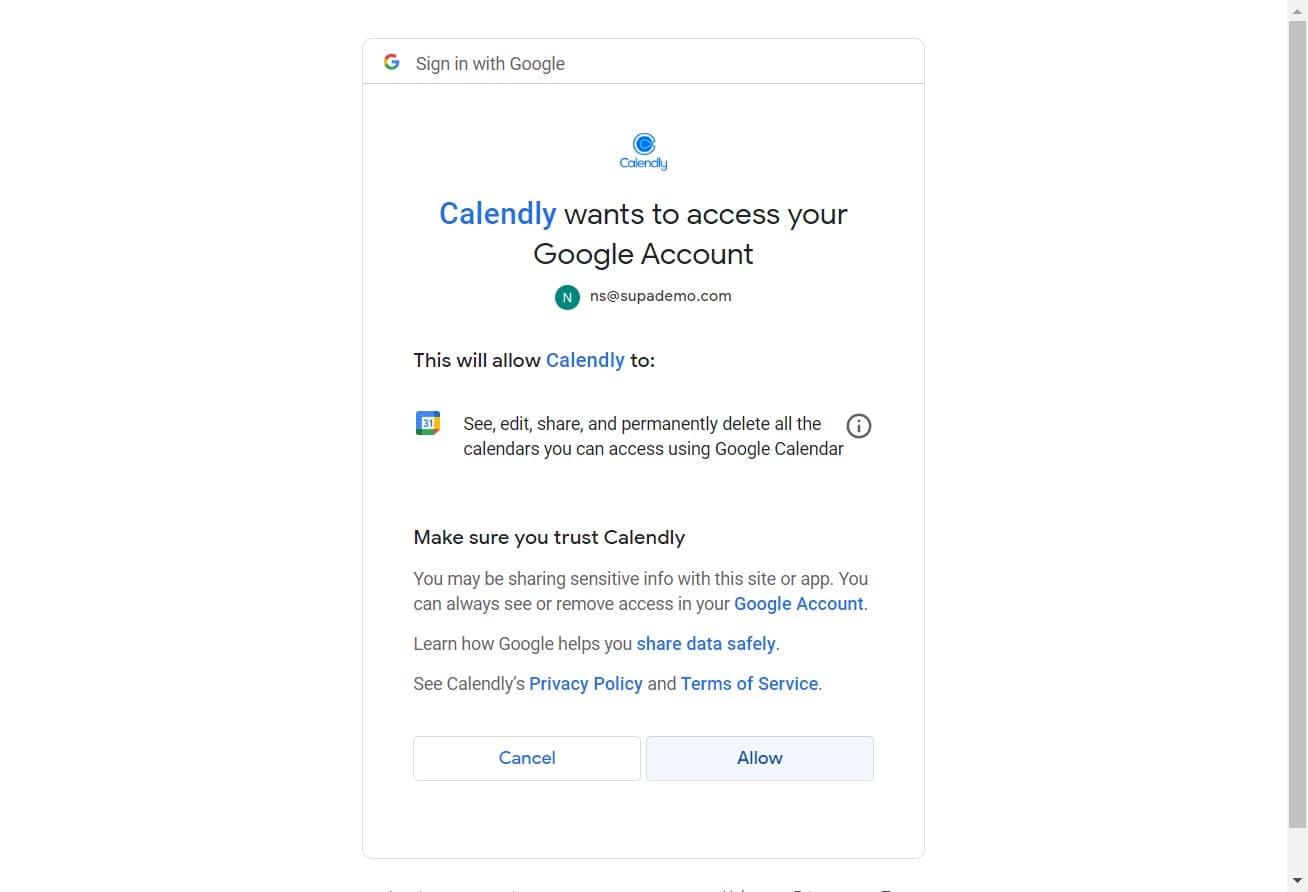
Grant permission to Calendly
Click 'Allow' to give Calendly permission to access and sync your Google Calendar. This authorization enables Calendly to read your availability and prevent scheduling conflicts.
- 7
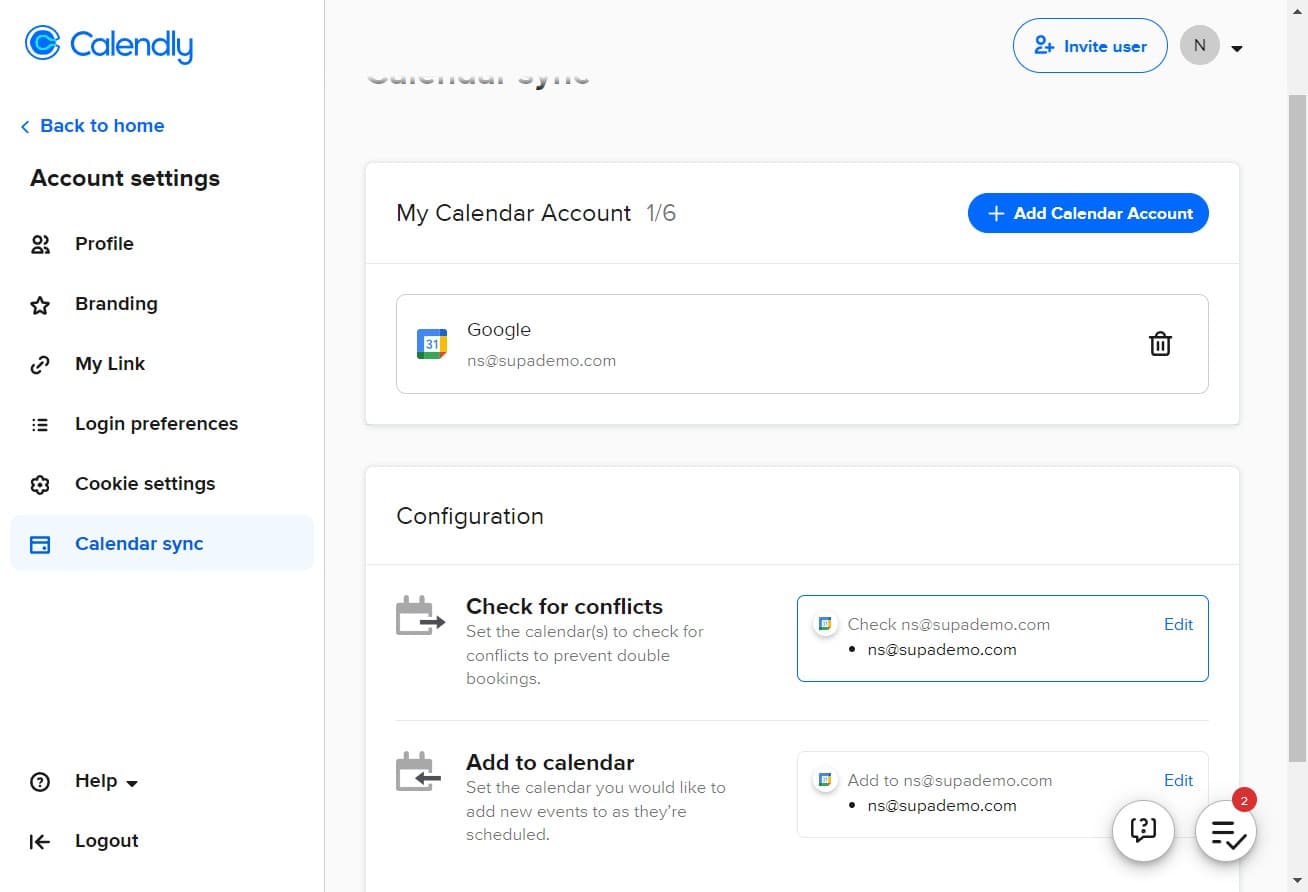
Edit calendar settings first time
Click 'Edit' to configure how your calendar will behave with Calendly. This opens the detailed settings for your newly connected calendar.
- 8
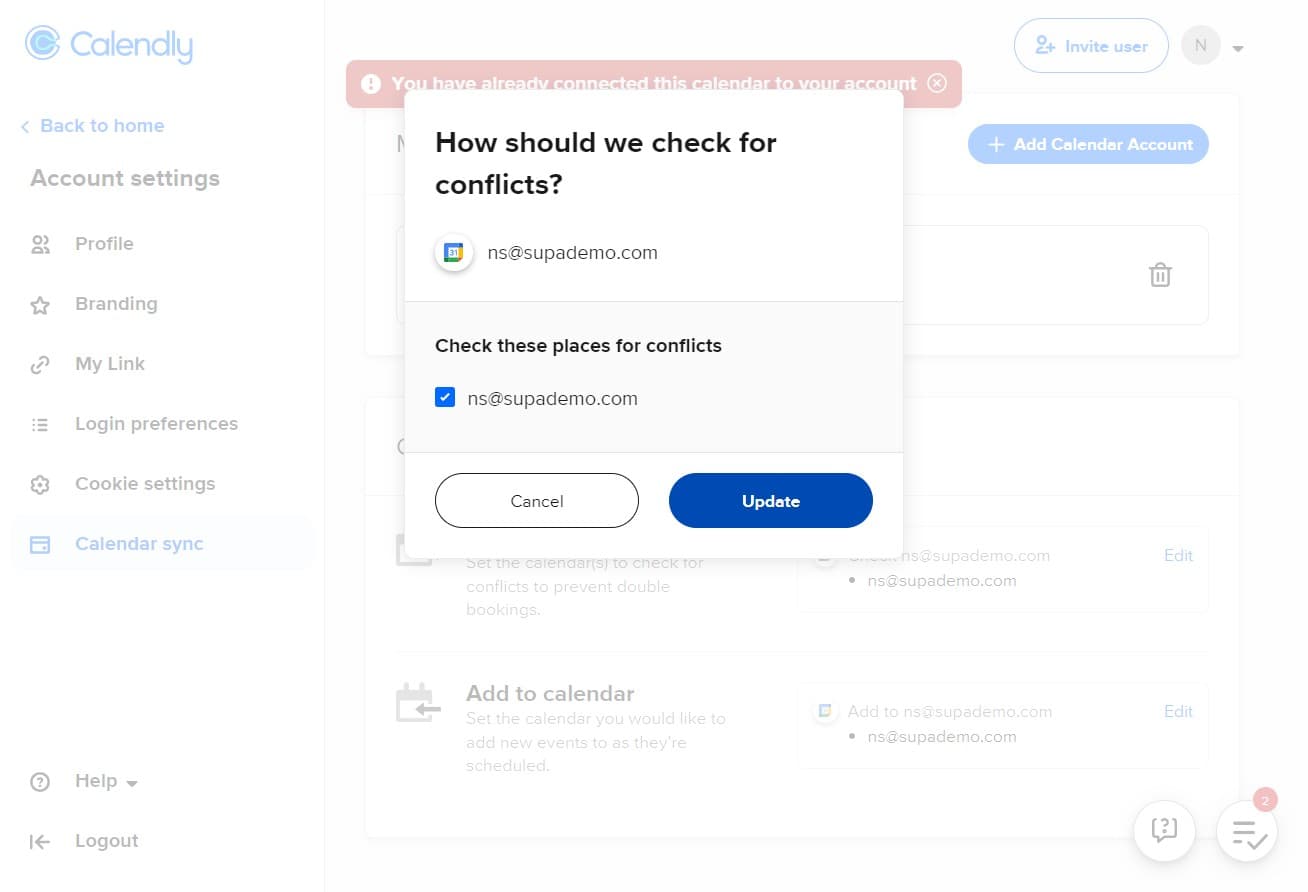
Update initial settings
Click 'Update' to save your initial configuration changes. This confirms your first set of preferences for the calendar integration.
- 9
Edit calendar settings again
Click 'Edit' once more to access additional configuration options. This allows you to fine-tune how events are handled in your calendar.
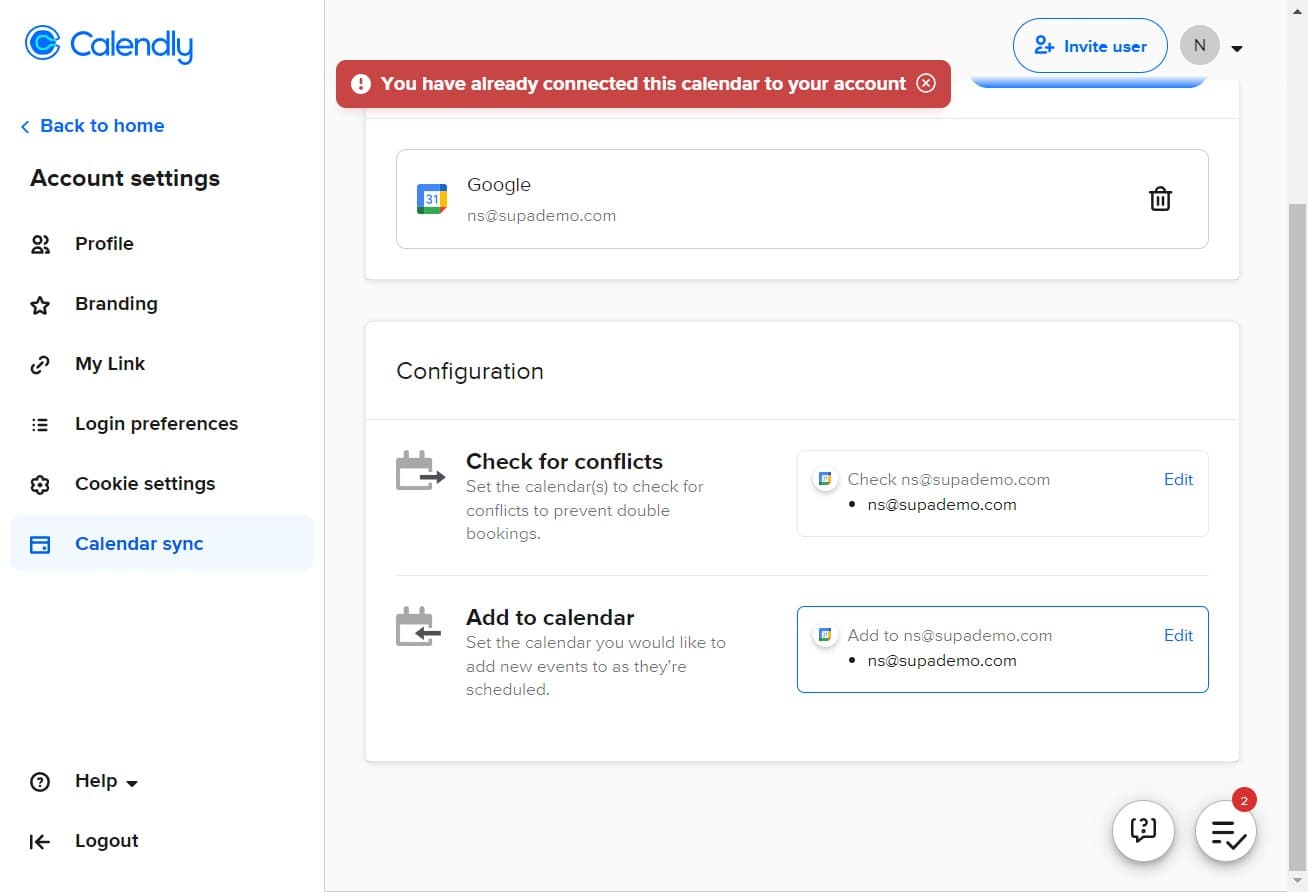
- 10
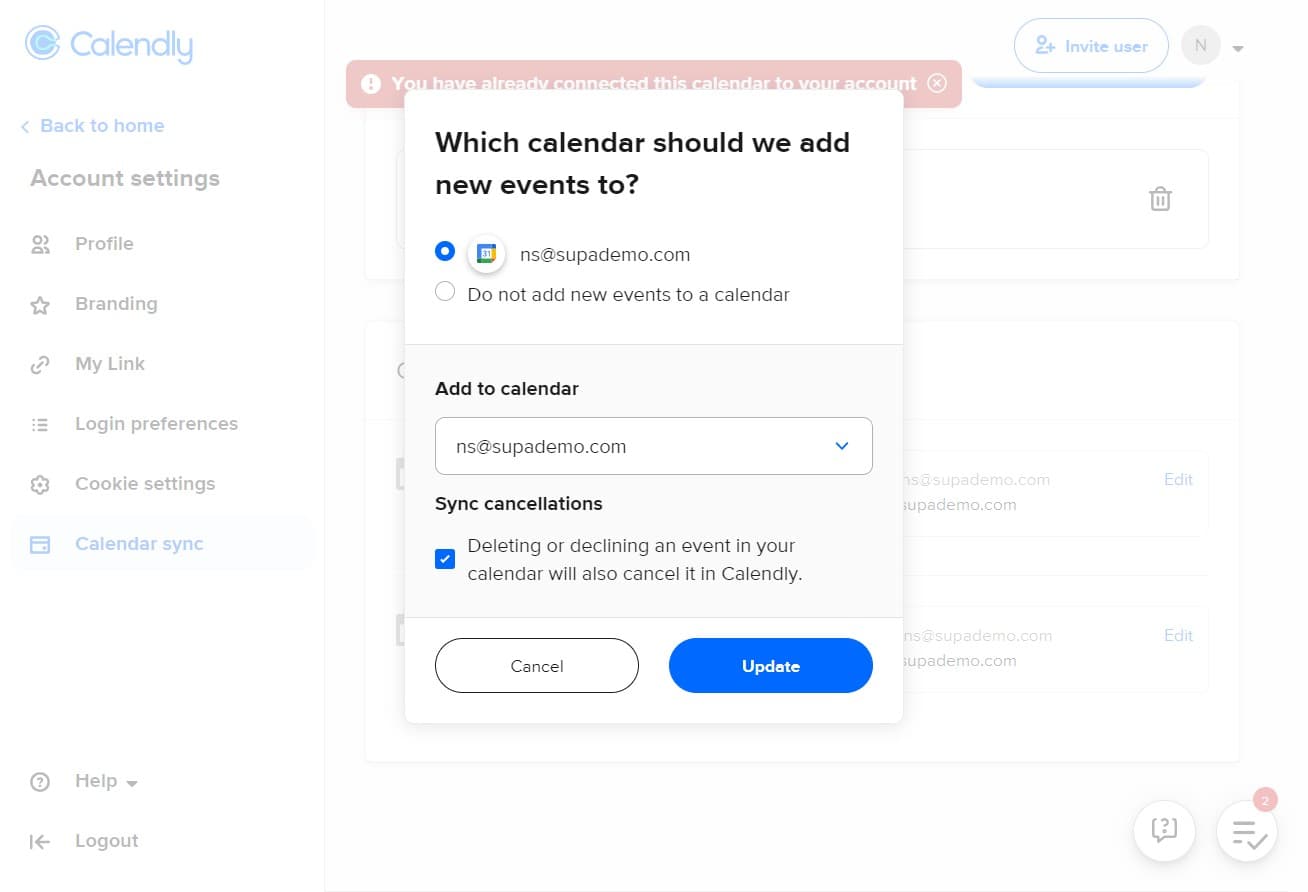
Configure event creation preference
Select 'Do not add new events to a calendar' if you don't want Calendly to automatically create calendar events when bookings are made. This option prevents duplicate entries across your calendars.
- 11
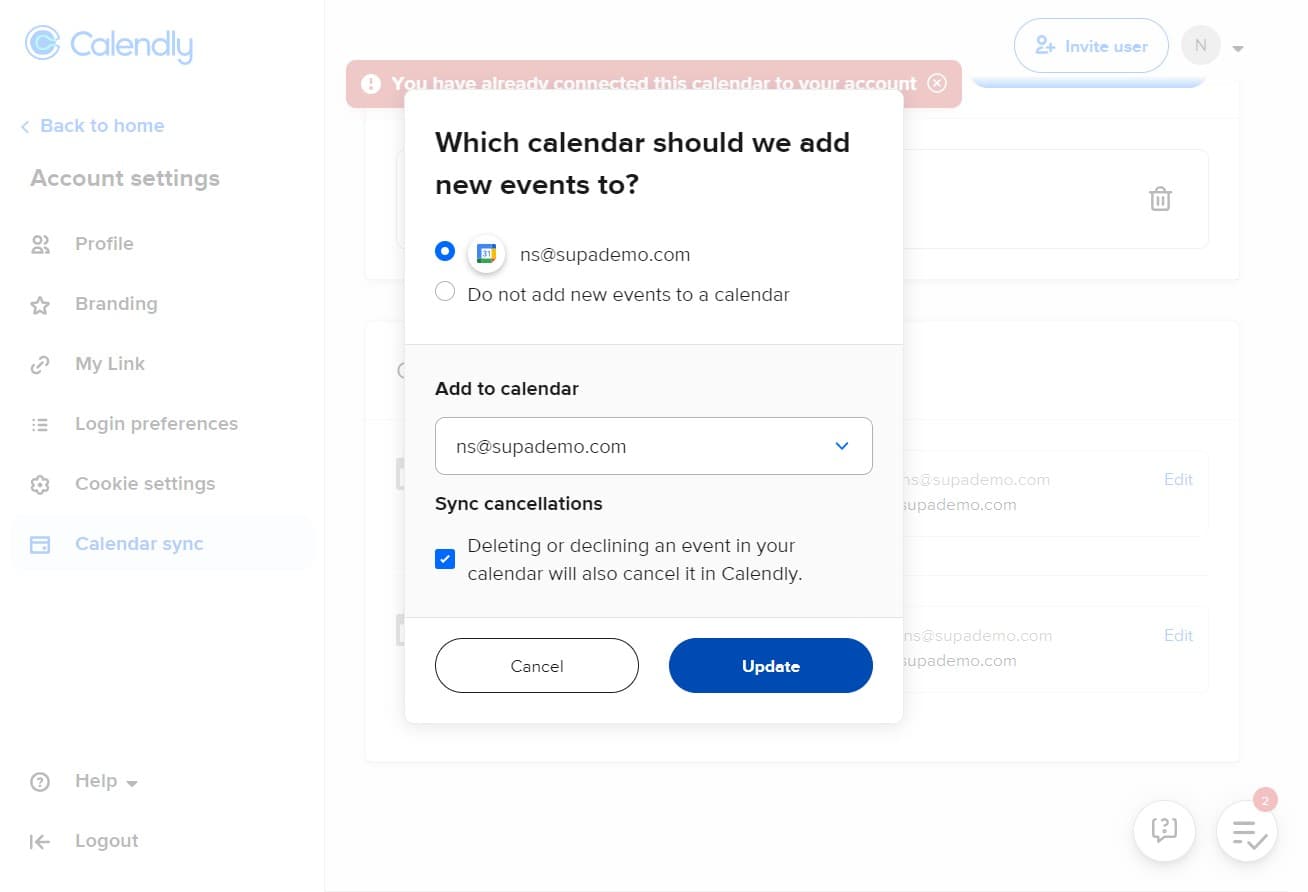
Upload and finalize settings
Click 'Upload' to complete the calendar sync setup and apply all your configured settings. Your Google Calendar is now fully integrated with your Calendly link.
Frequently asked questions
Common questions about how to embed your google calendar to your calendly link.
Without syncing, your Calendly booking page won't know about events in your Google Calendar, which can lead to double-bookings and scheduling conflicts. Clients may book time slots when you're already busy, requiring you to manually cancel or reschedule meetings.
Yes, Calendly allows you to connect multiple calendar accounts by repeating the 'Add Calendar Account' process for each account. This is useful if you manage calendars across different Gmail addresses or organizations.
This depends on your preference. If you enable automatic event creation, Calendly will add booked appointments directly to your Google Calendar, keeping everything in one place. If you disable it, you'll need to manually add events or use a different method to track bookings.
Calendar sync typically becomes active immediately after you complete the setup and click 'Upload'. However, it may take a few minutes for existing events to appear in Calendly's availability calculation.
You can reconnect your calendar anytime by returning to the 'Calendar sync' settings and clicking 'Add Calendar Account' again. You'll need to grant permission once more and reconfigure your preferences.