How to Add Google Calendar to Notion

Integrating Google Calendar with Notion allows you to sync your calendar events directly into your Notion workspace, keeping your schedule and task management in one place. This integration eliminates the need to switch between applications and helps you maintain better visibility over your commitments. Learn how to seamlessly connect Google Calendar to Notion with this step-by-step guide.
Quick summary
In this tutorial, you'll learn how to embed your Google Calendar into Notion by accessing your calendar settings, generating a shareable link, and embedding it into your Notion page. You'll discover how to configure the necessary permissions and copy the embed code required for the integration. By the end, you'll have a fully functional Google Calendar display within your Notion workspace.
Why this matters
Combining Google Calendar with Notion streamlines your workflow by centralizing your schedule alongside your other organizational tools and databases. This integration reduces context switching and helps teams stay aligned on availability and deadlines. Having your calendar embedded in Notion makes it easier to reference events while planning projects or managing tasks within the same platform.
Step-by-step guide
- 1
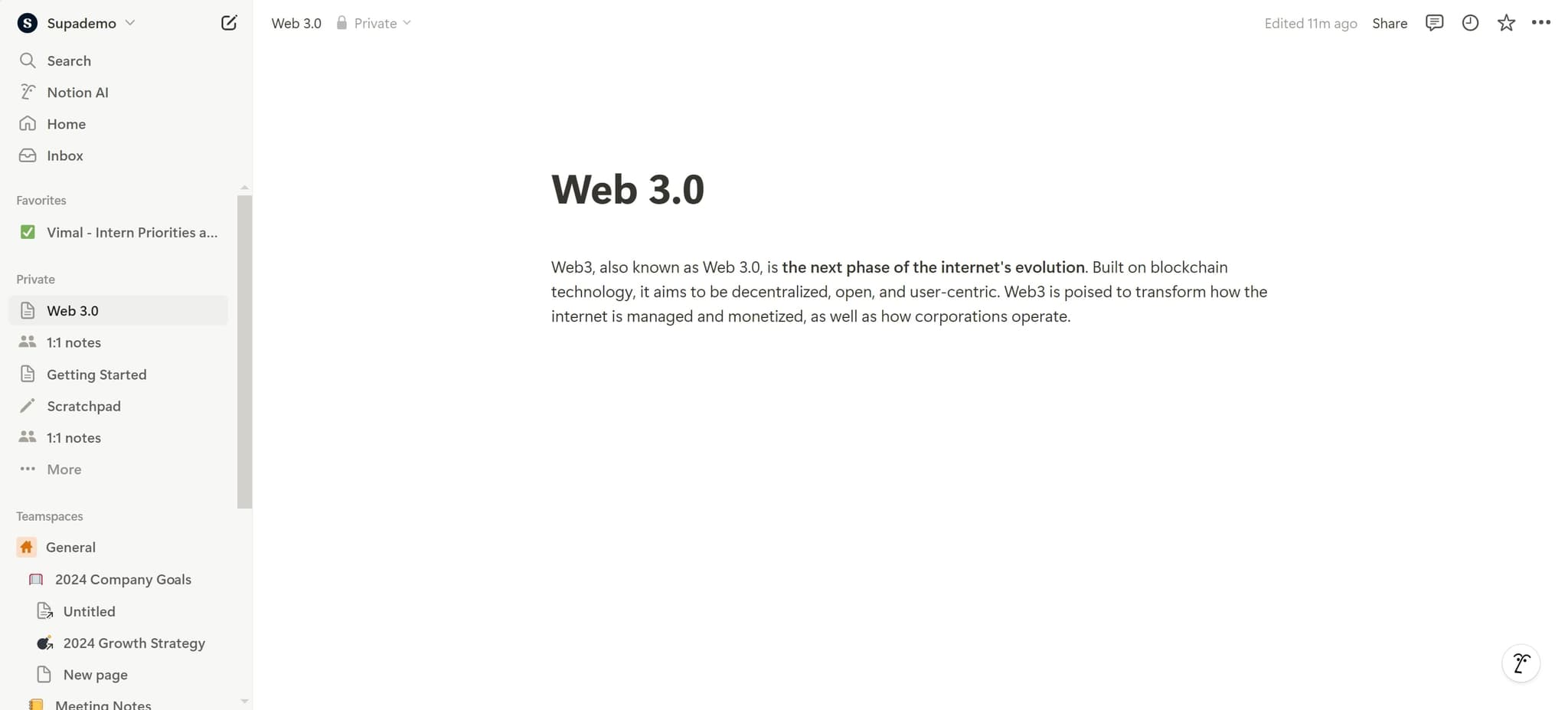
Click on the initial element
Start by locating and clicking on the primary element in your interface to begin the setup process. This action will open the necessary options for proceeding with the integration.
- 2
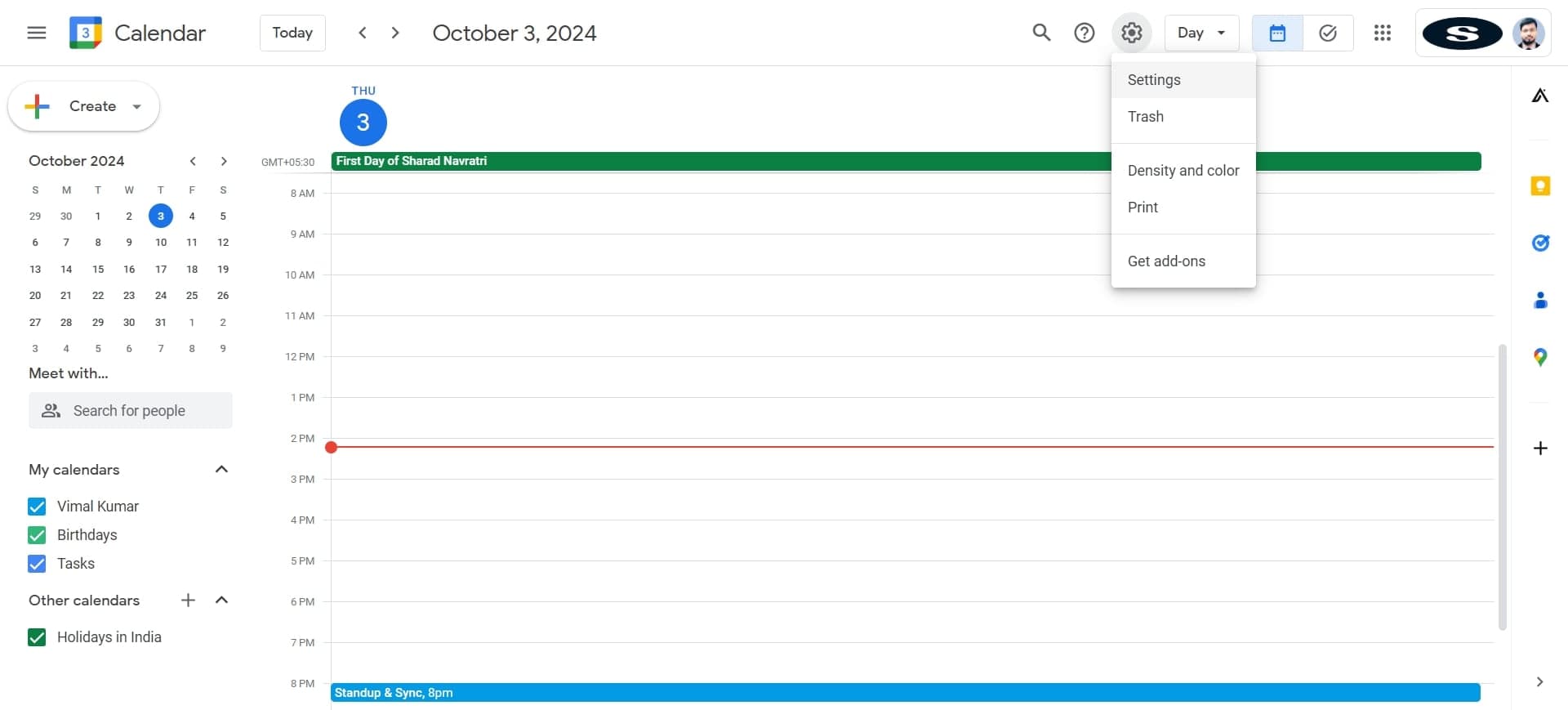
Upload your calendar data
Select the upload option to import or configure your calendar data. This step prepares your calendar for integration with Notion.
- 3
Access the Settings menu
Navigate to the Settings option to access the configuration panel where you can manage calendar permissions and sharing options. This is where you'll adjust the necessary parameters for the integration.
- 4
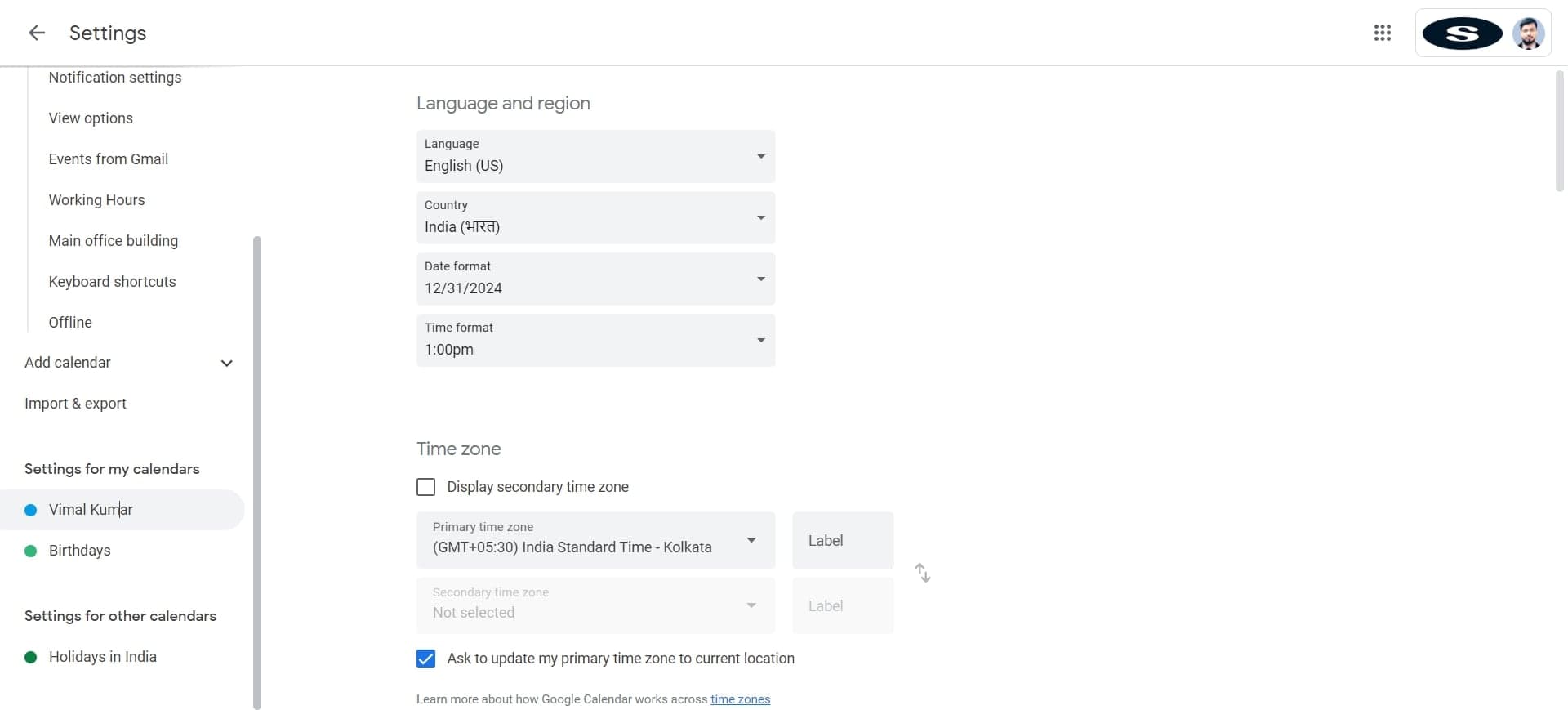
Select your account profile
Click on your account name (in this case, 'Vimal Kumar') to verify and authenticate your Google Calendar account. This confirms which calendar you want to integrate with Notion.
- 5
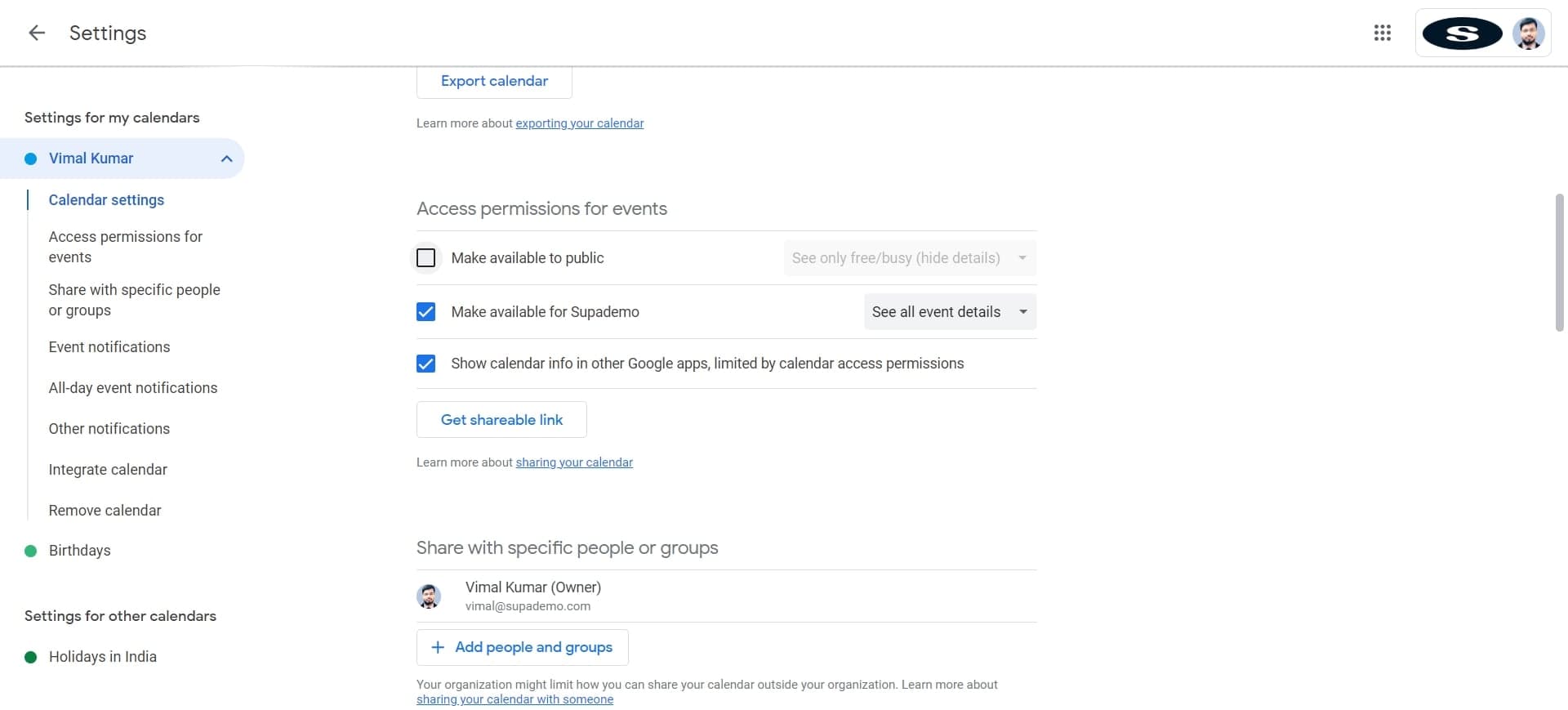
Click on the configuration element
Select the next element to proceed with configuring the sharing and embedding settings. This step advances you to the permission setup phase.
- 6
Confirm your settings
Click OK to apply the configuration changes and confirm your selections. This finalizes the permission setup for your calendar integration.
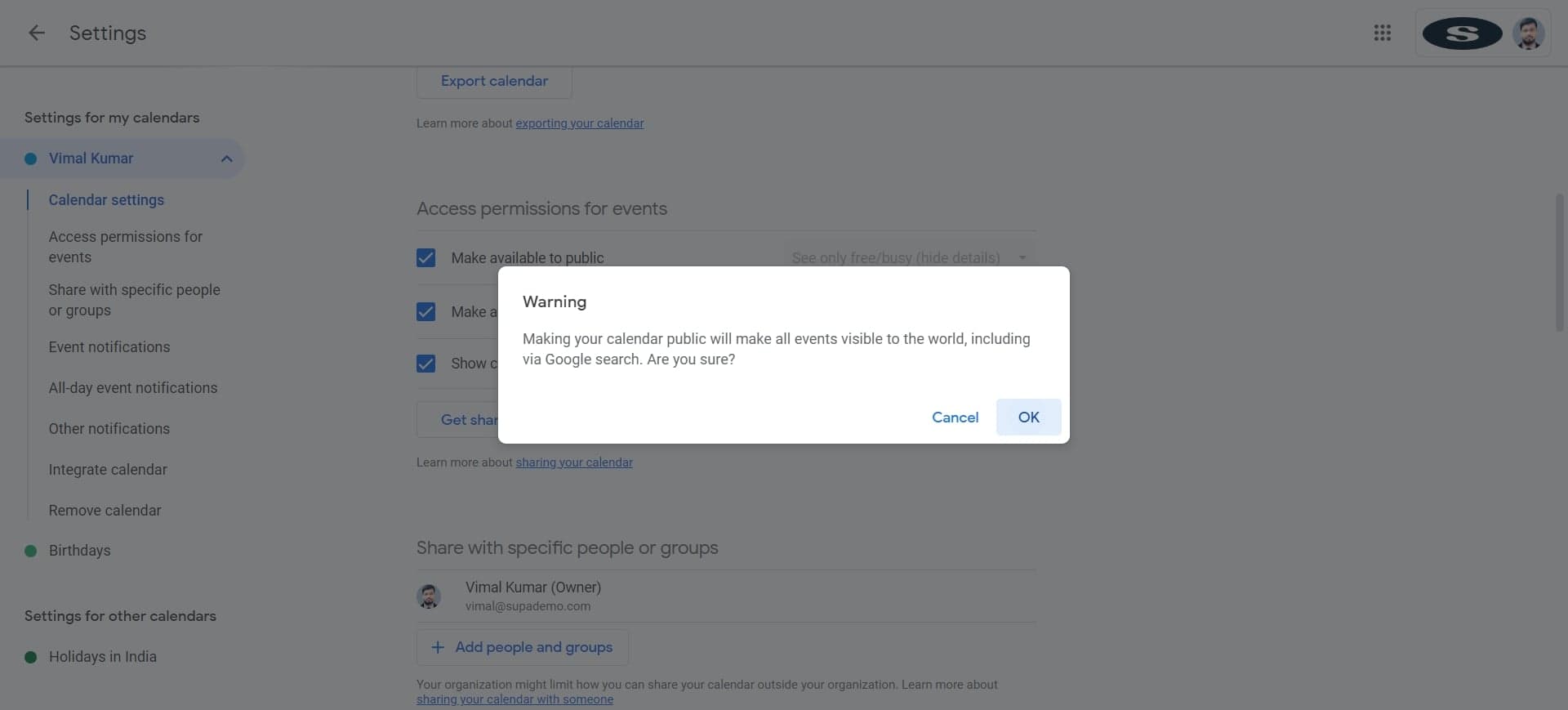
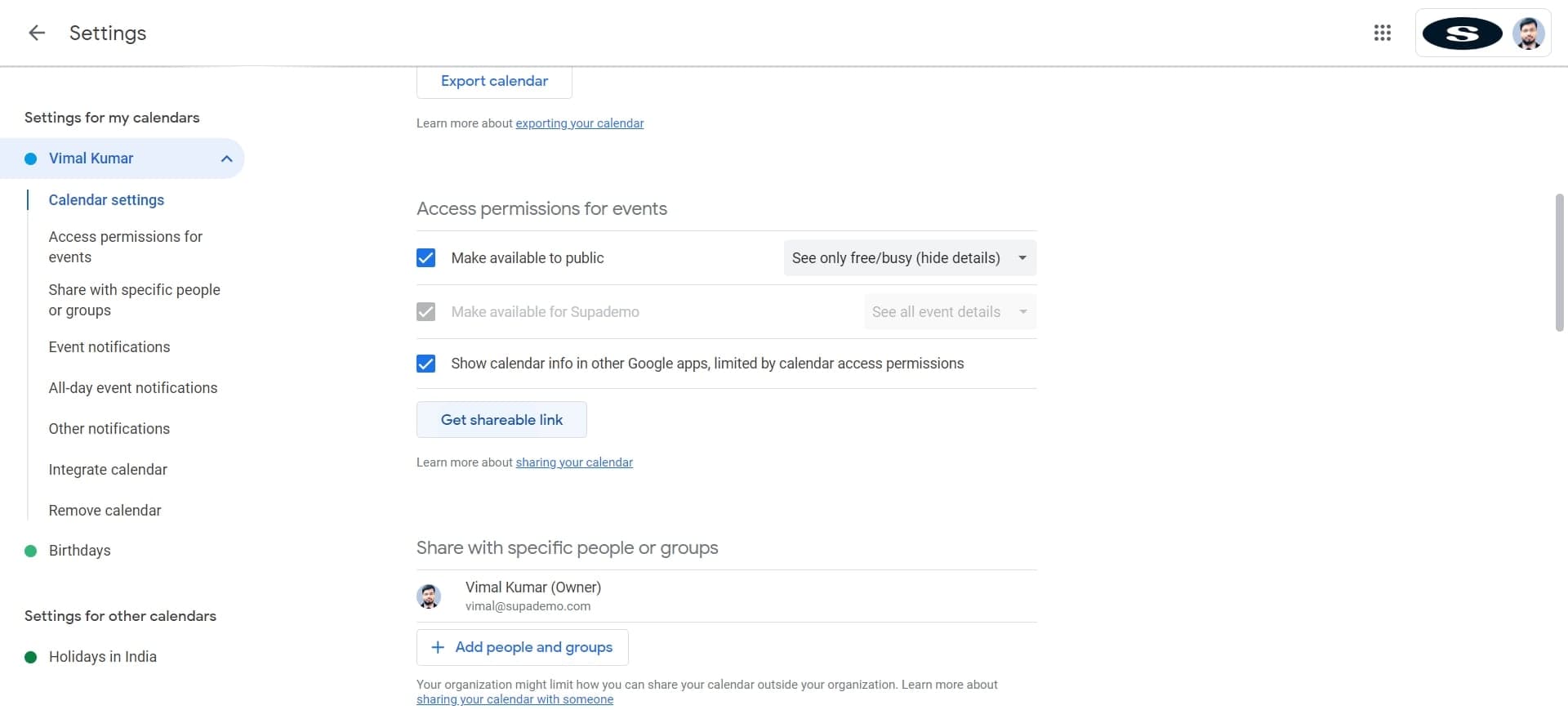
- 7
Get shareable link
Click on 'Get shareable link' to generate a URL that will allow you to embed your calendar in Notion. Google Calendar will create a unique link for your calendar that can be embedded across platforms.
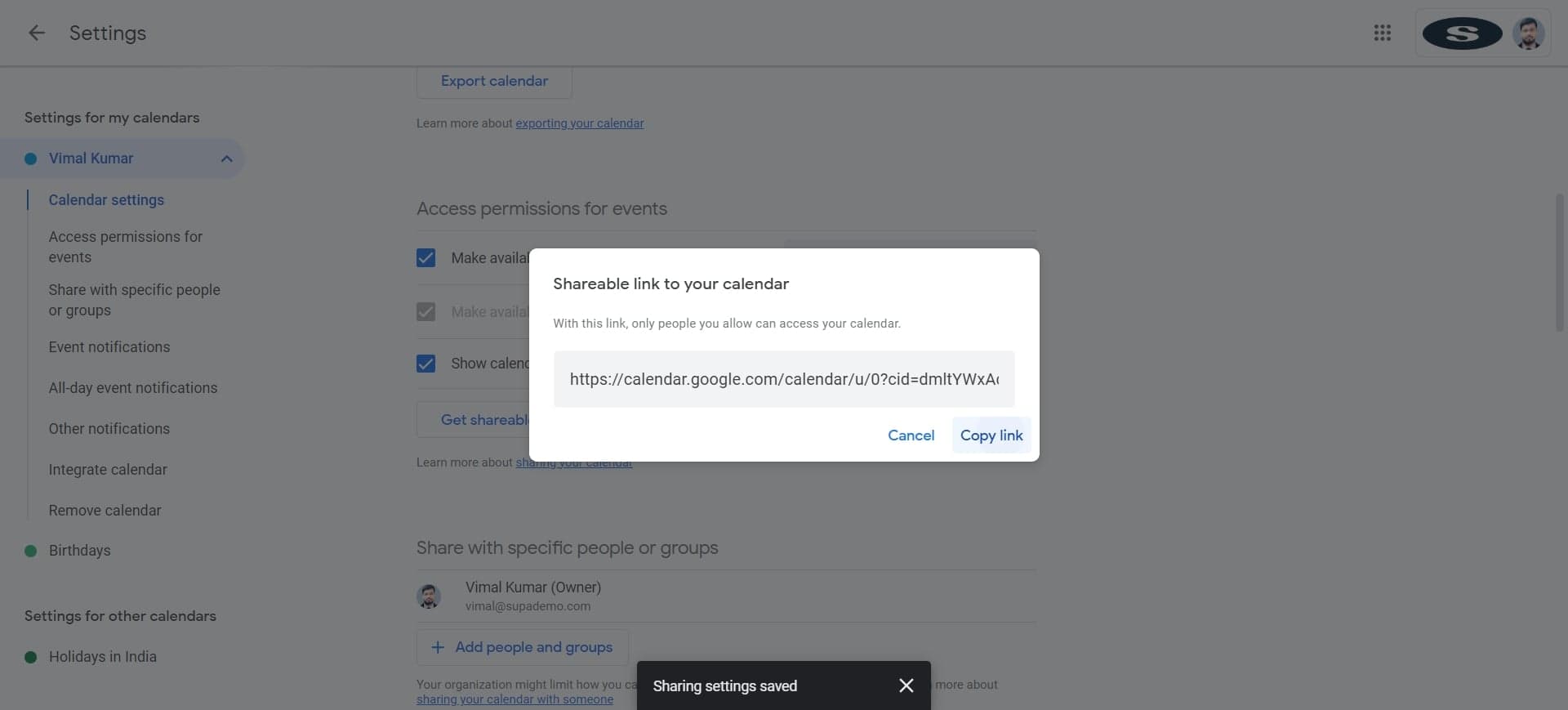
- 8
Copy the generated link
Click 'Copy link' to save the shareable URL to your clipboard. You'll use this link when embedding the calendar into your Notion page.
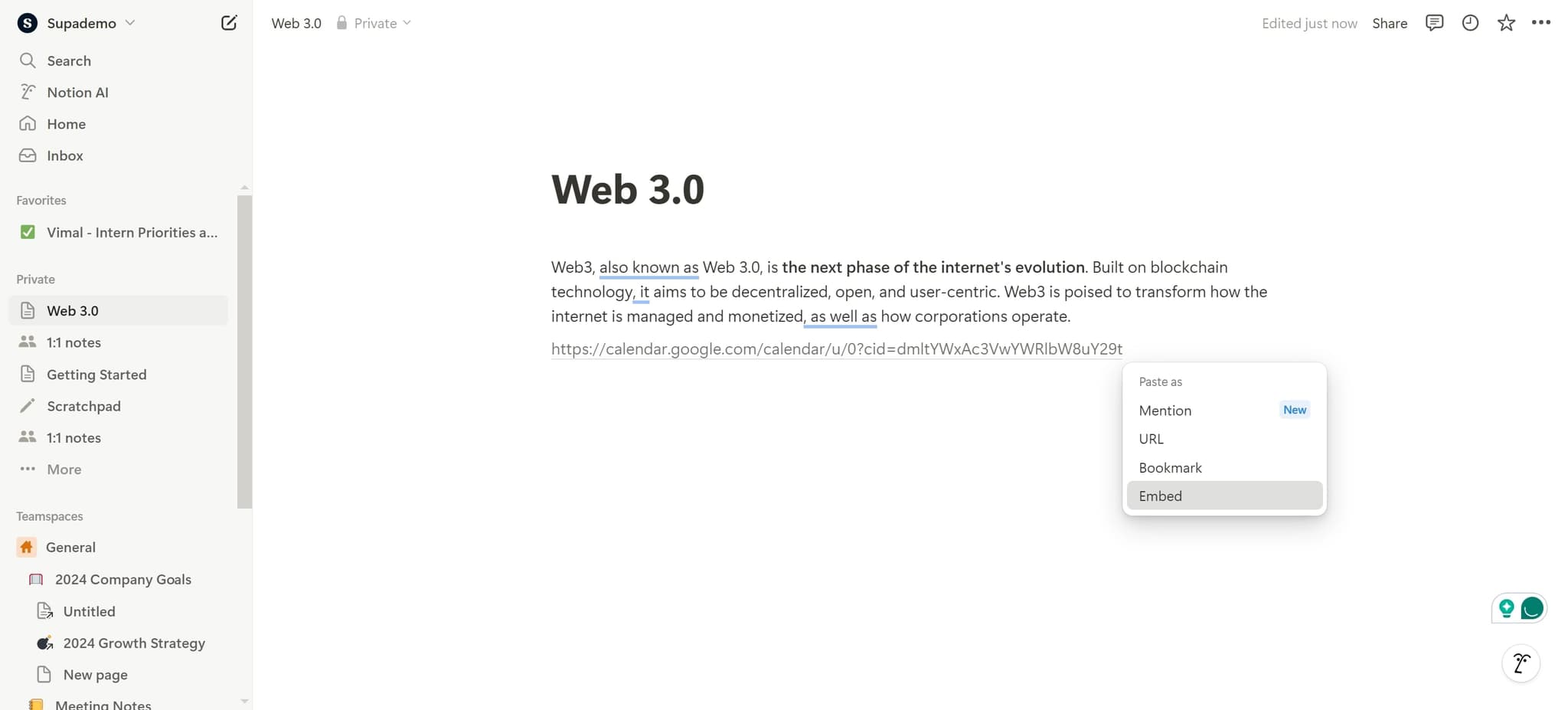
- 9
Embed the calendar in Notion
Click on 'Embed' to begin the embedding process in your Notion page. Paste the copied link when prompted to complete the integration and display your Google Calendar within Notion.
Frequently asked questions
Common questions about how to add google calendar to notion.
Yes, you can embed multiple Google Calendars by repeating this process for each calendar. Each calendar will need its own shareable link generated from Google Calendar settings. Simply create multiple embed blocks in Notion and paste the different links for each calendar.
Yes, the embedded calendar is dynamic and will automatically reflect changes made in Google Calendar. When you add, edit, or delete events in Google Calendar, those changes will appear in your Notion page without requiring manual updates.
The visibility depends on your Google Calendar sharing settings and your Notion page permissions. Make sure your calendar's sharing settings in Google Calendar are configured appropriately before embedding. Then set your Notion page permissions to control who can access the embedded calendar.
First, verify that you've copied the correct shareable link from Google Calendar. Check your Notion page's internet connection and try refreshing the page. If issues persist, try regenerating the shareable link and re-embedding it in your Notion workspace.
You need to be the owner or have edit access to the Google Calendar you want to embed. In Notion, you'll need edit permissions on the page where you're adding the embedded calendar. Make sure your Google account has the necessary permissions before starting the integration process.