
1. Start by opening the Figma project containing the design you want to convert to WordPress.
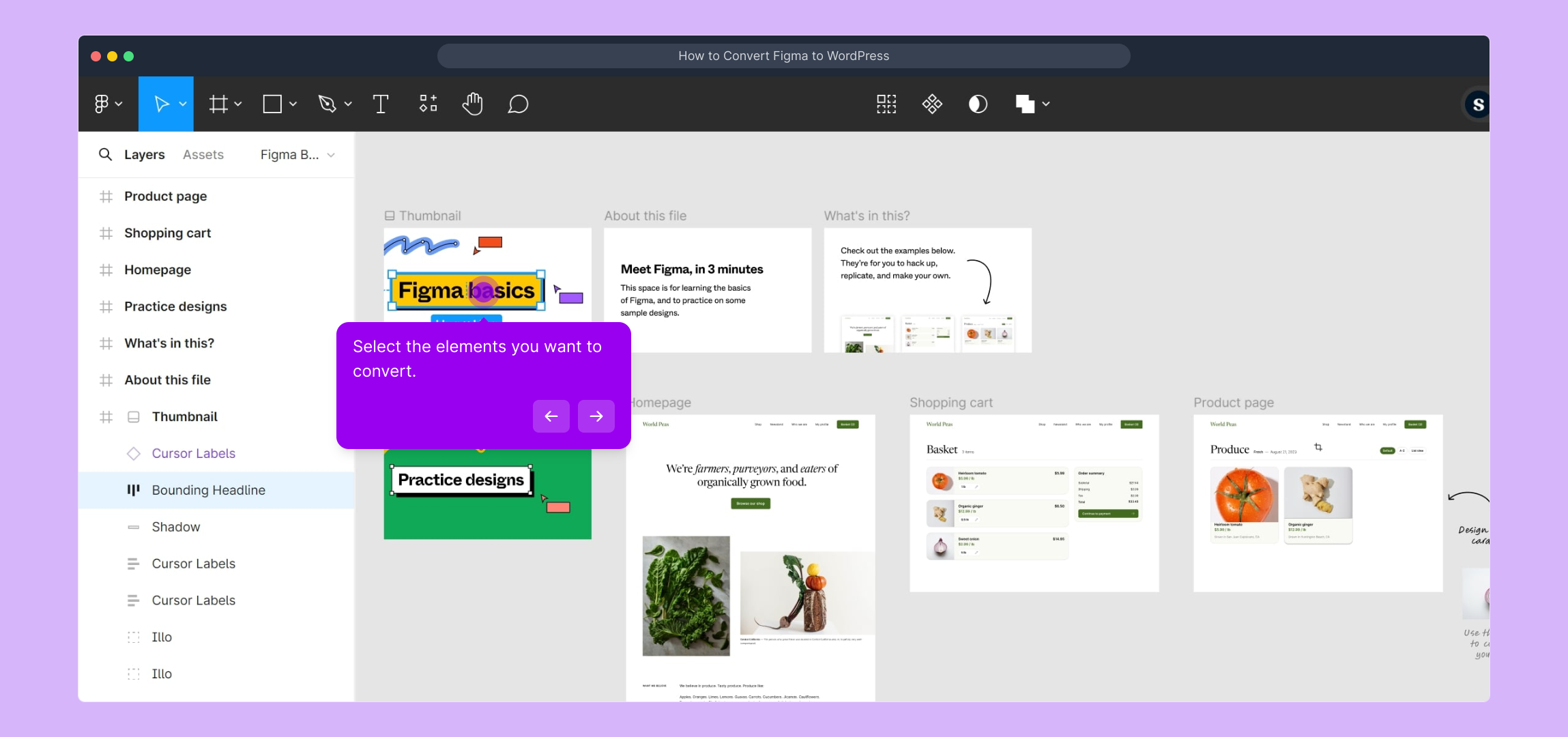
2. Select the elements you want to convert.
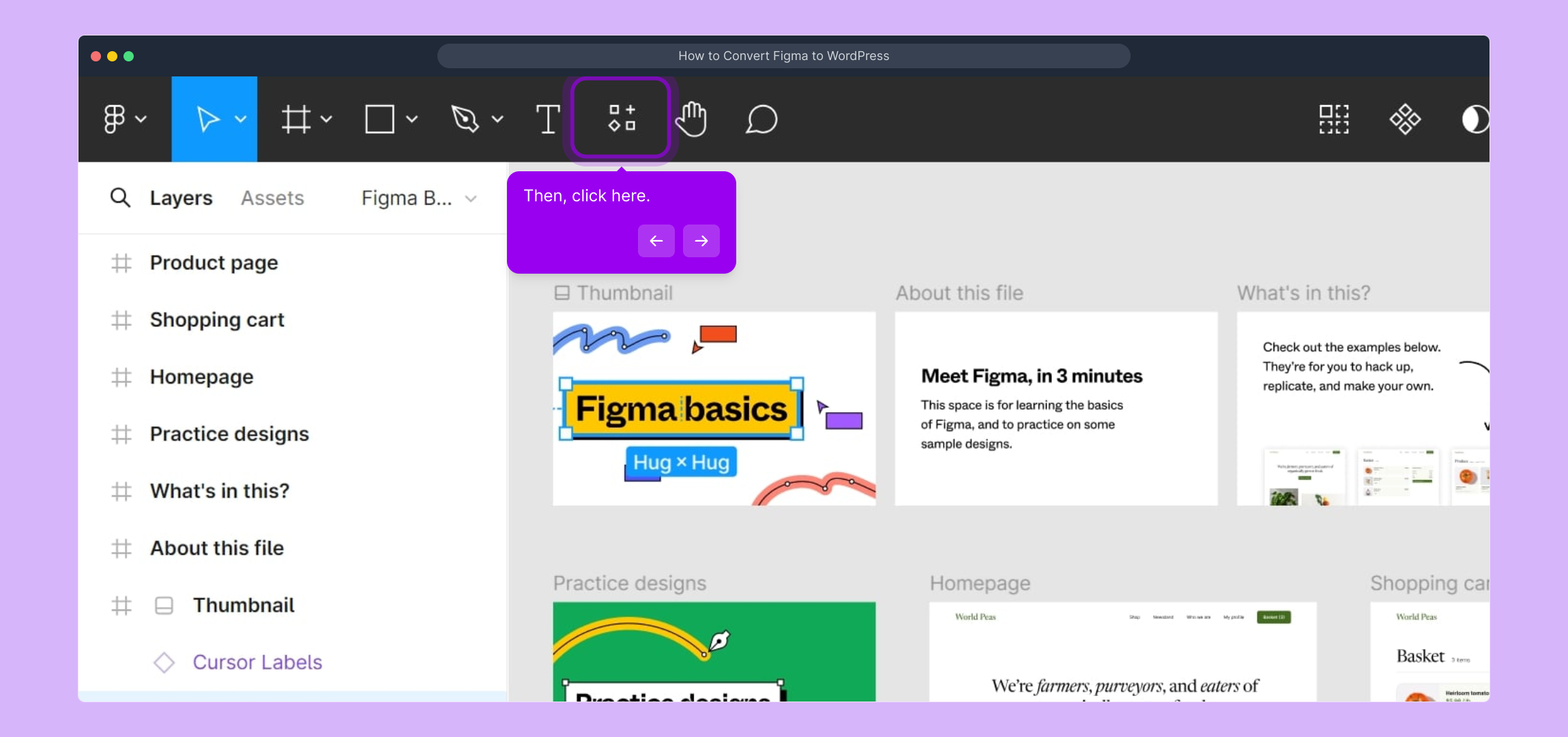
3. Then, click here.
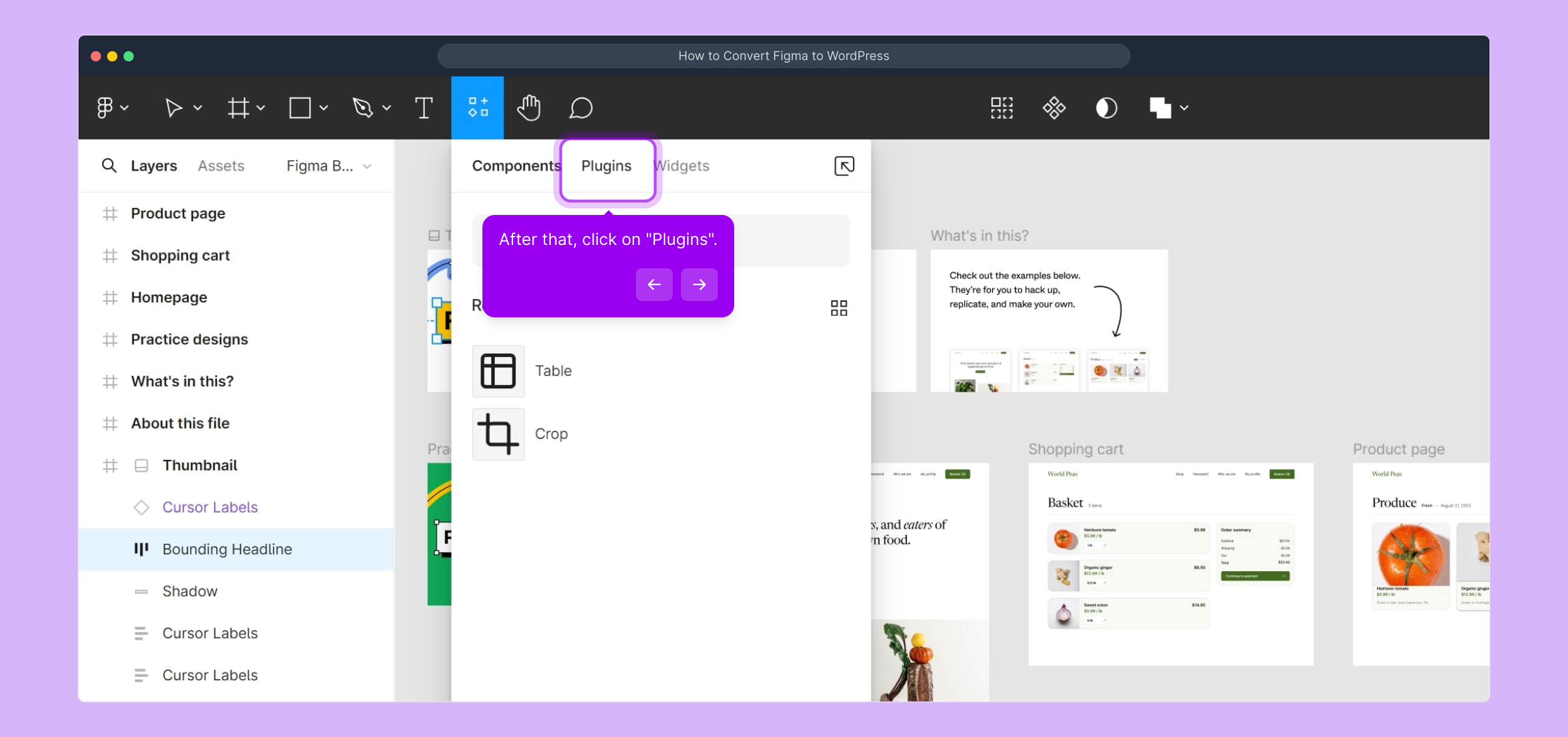
4. After that, click on "Plugins".
5. Video Step (
6. Click on "Figma To WordPress Block".
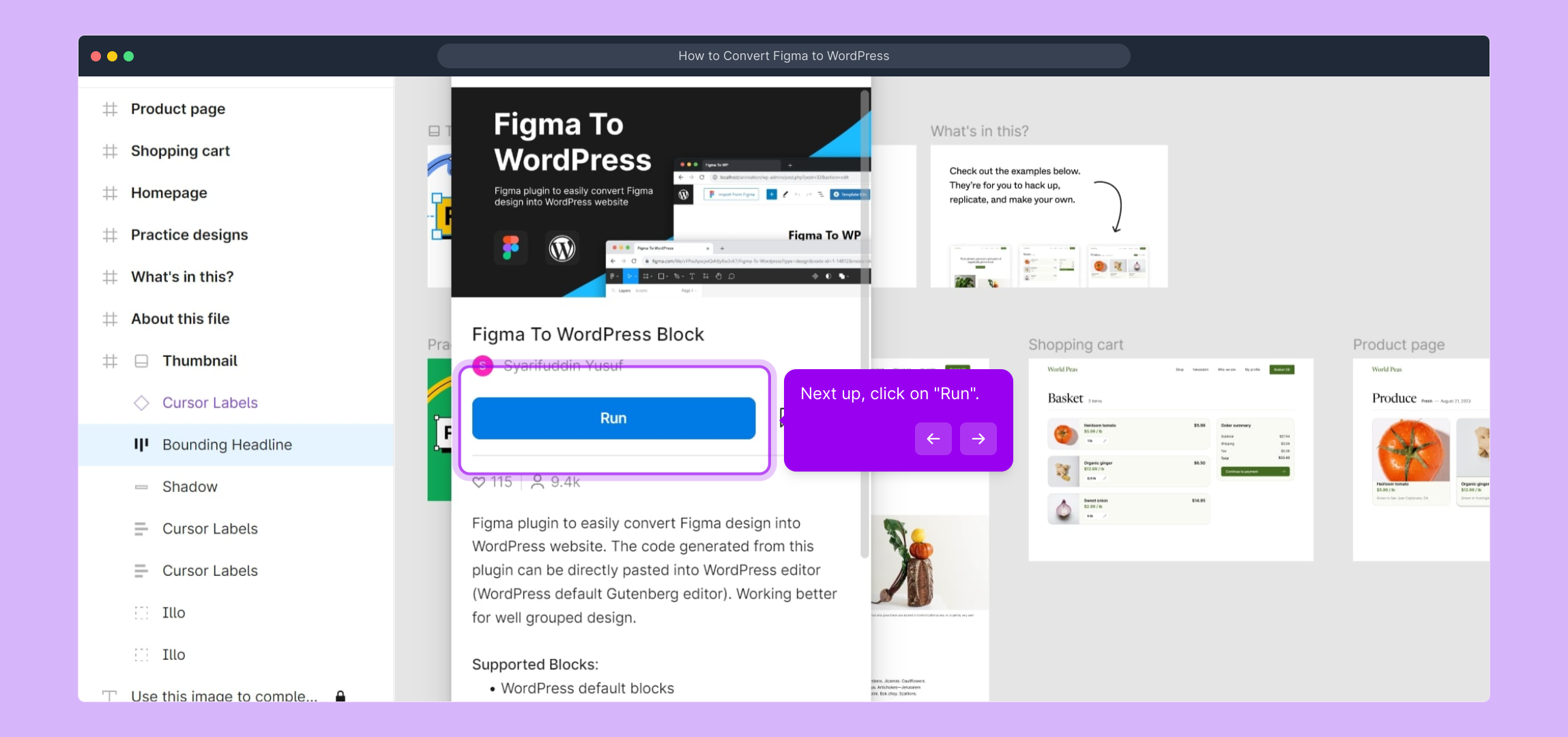
7. Next up, click on "Run".
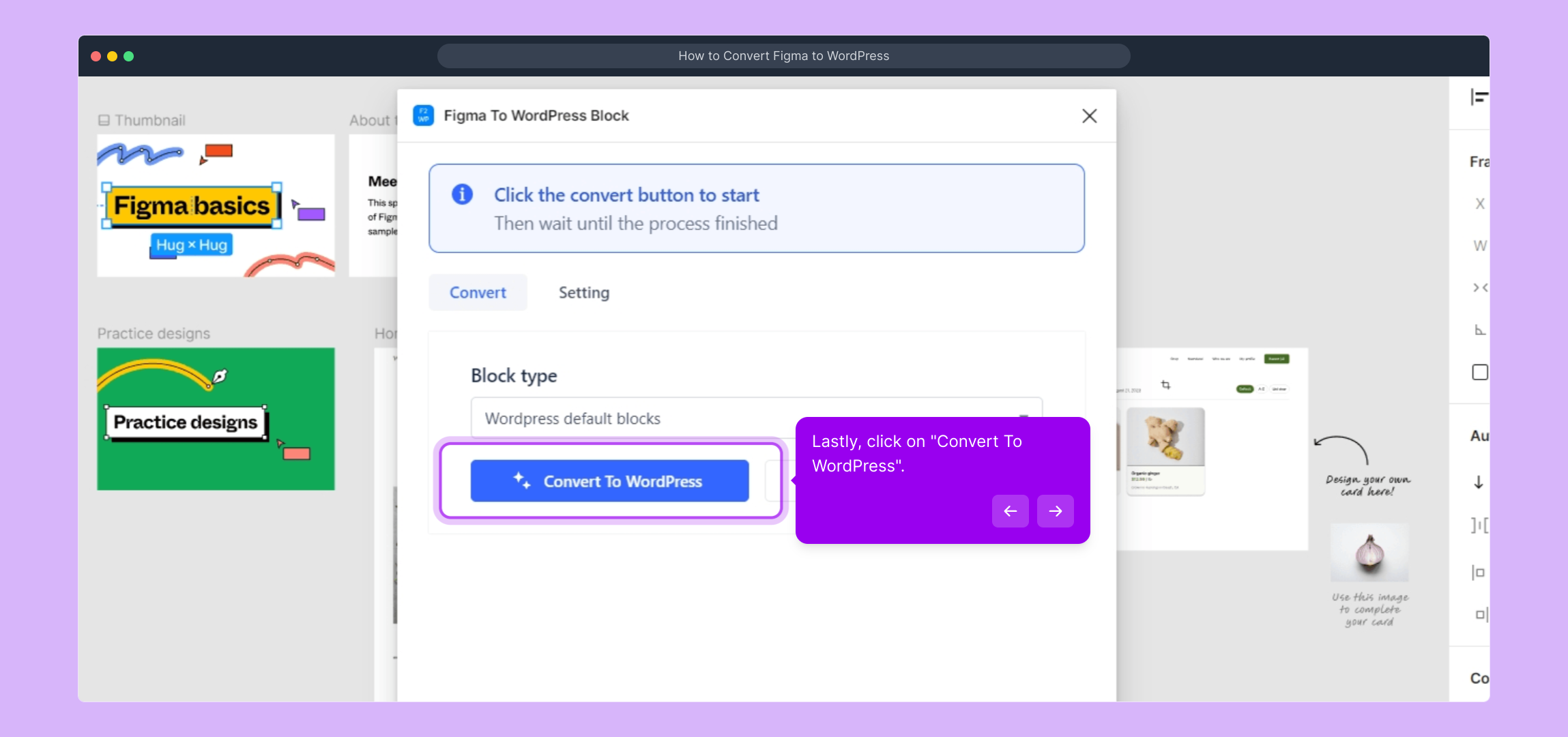
8. Lastly, click on "Convert To WordPress".
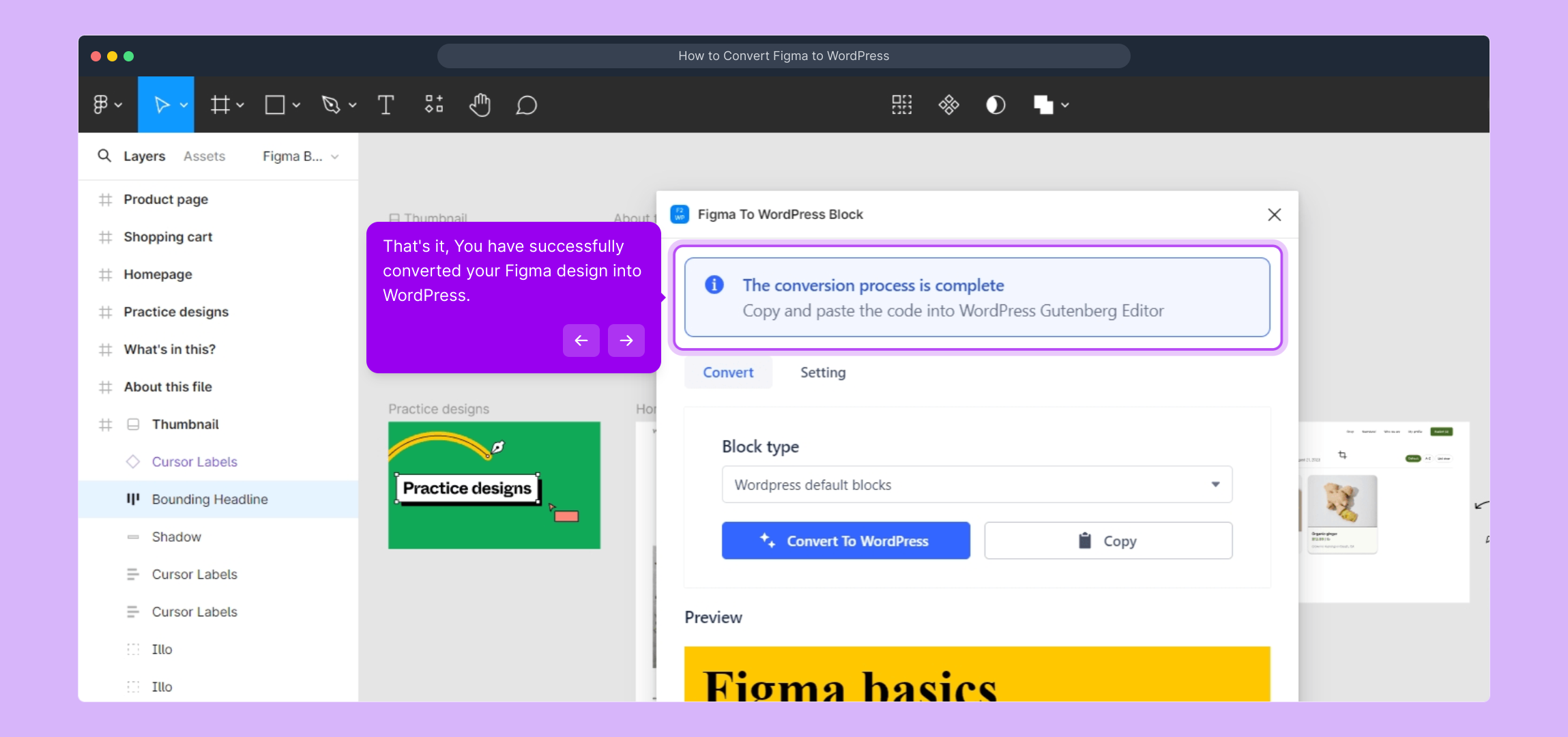
9. That's it, You have successfully converted your Figma design into WordPress.
10. Create a Supademo in seconds
This interactive demo/guided walkthrough on How to Convert Figma to WordPress was created using Supademo.
How to Convert Figma to WordPress : Step-by-Step Guide
Begin by launching your Figma project where your design lives. This is the starting point for turning your visual work into a functional WordPress site.

Next, carefully highlight the specific parts of your design that you want to bring into WordPress. Selecting only the relevant elements helps focus the conversion process.
Once your elements are selected, look to the top right corner and click on the menu indicated here to proceed to the next phase.
From the dropdown, locate and select the "Plugins" option—this is where you'll access the tools needed to convert your design.
To help you along, there's a video walkthrough available that demonstrates the process step-by-step. Click
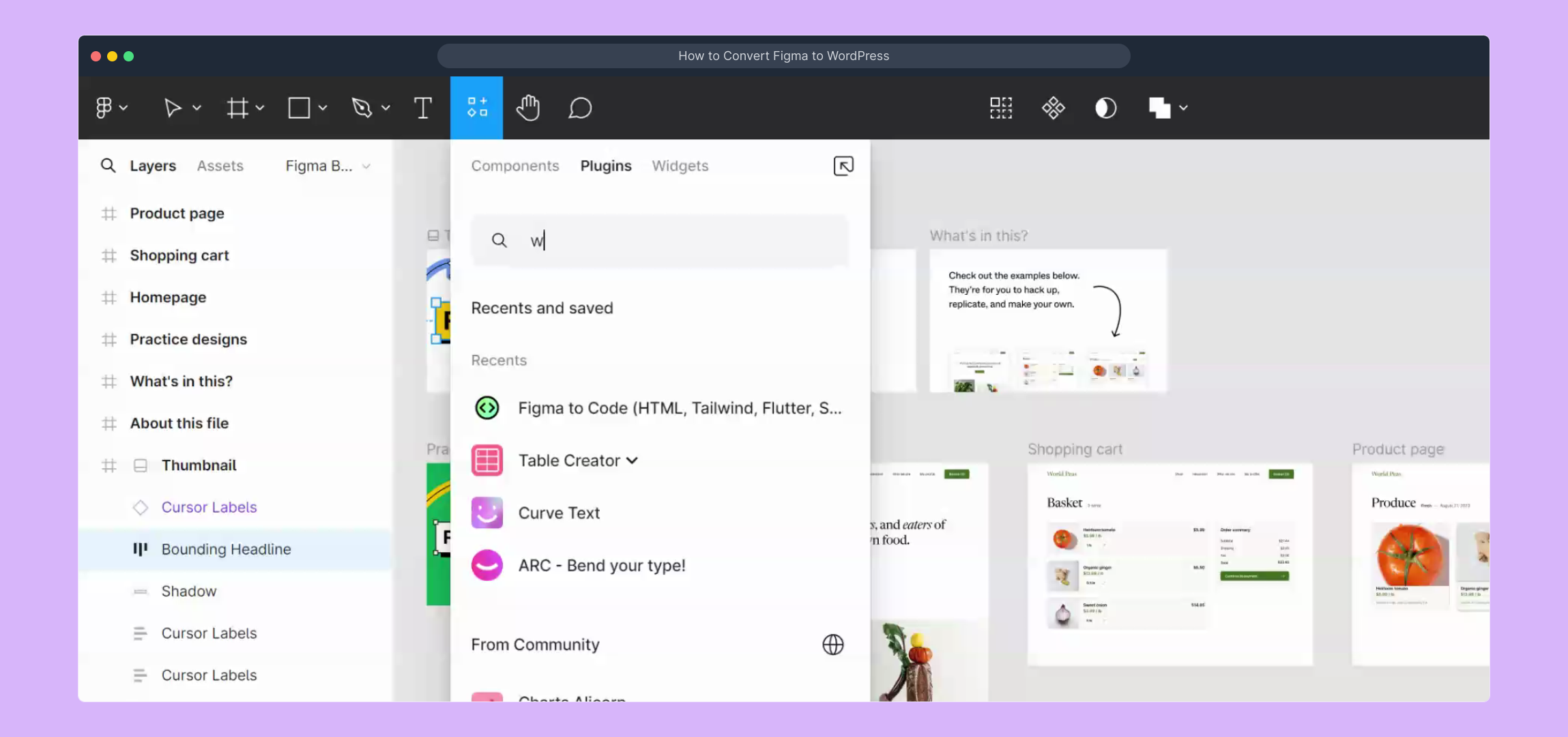
Within the Plugins menu, find and click on the "Figma To WordPress Block". This plugin is essential for transforming your design into WordPress components.
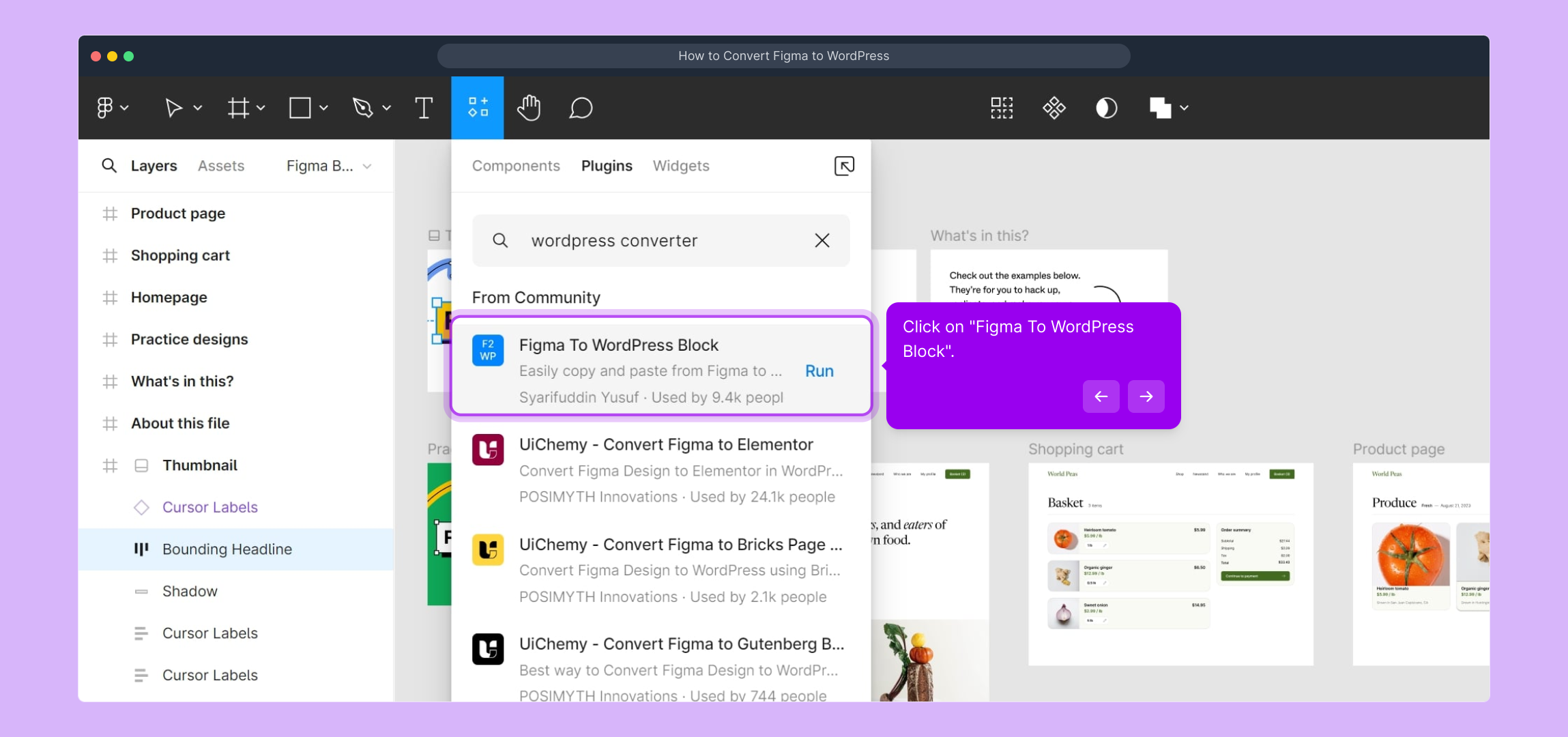
With the plugin open, the next action is to click on the "Run" button. This initiates the conversion process behind the scenes.
Finally, confirm the conversion by clicking "Convert To WordPress". This command completes the transformation of your selected design elements into WordPress code.
Congratulations! Your Figma design has now been successfully converted into a fully functional WordPress layout, ready for further customization or publishing.
To cap it all off, you can quickly create a Supademo—a live demo of your project—to showcase your converted design in action.
Create your own interactive demos in < 5 mins with Supademo
You can create your own interactive product demo in minutes using Supademo. Drive growth, scale enablement, and supercharge product-led onboarding with Supademo. Sign up for free here with no credit card required.
FAQs
Commonly asked questions about this topic.
What is the easiest way to convert a Figma design into a WordPress site?
Do I need coding experience to convert Figma designs to WordPress?
Can all design elements from Figma be converted perfectly to WordPress?
What are the main steps to convert a Figma file to WordPress?
Is it necessary to use plugins for Figma to WordPress conversion?
How do I handle responsiveness when converting from Figma to WordPress?
Can I convert interactive prototypes from Figma to WordPress?
What file formats are involved in this conversion process?
Are there any limitations when using the "Figma To WordPress Block" plugin?
Can I preview my converted WordPress site before publishing?

Product Operations Associate
Vimal Kumar helps build and grow Supademo’s team and GTM efforts, with a focus on figuring out growth levers and improving product traction.




