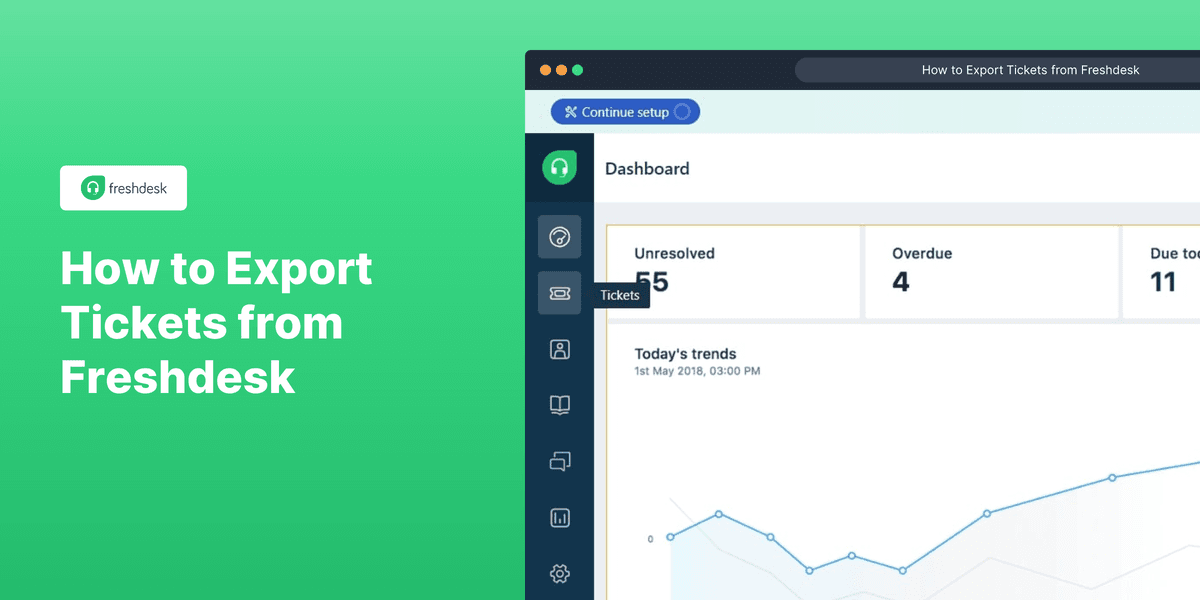
1. First, naviagte to the Tickets tab.
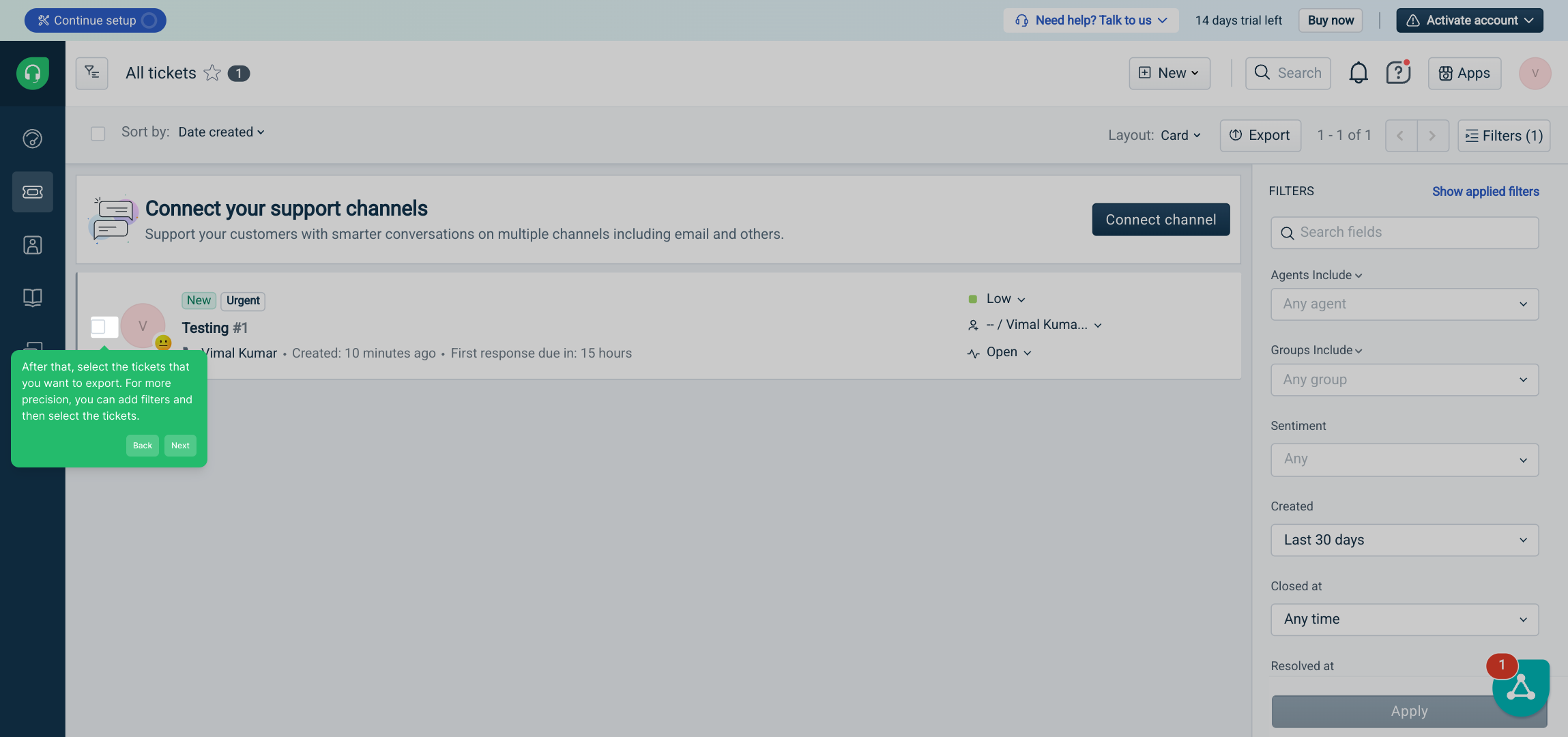
2. After that, select the tickets that you want to export. For more precision, you can add filters and then select the tickets.
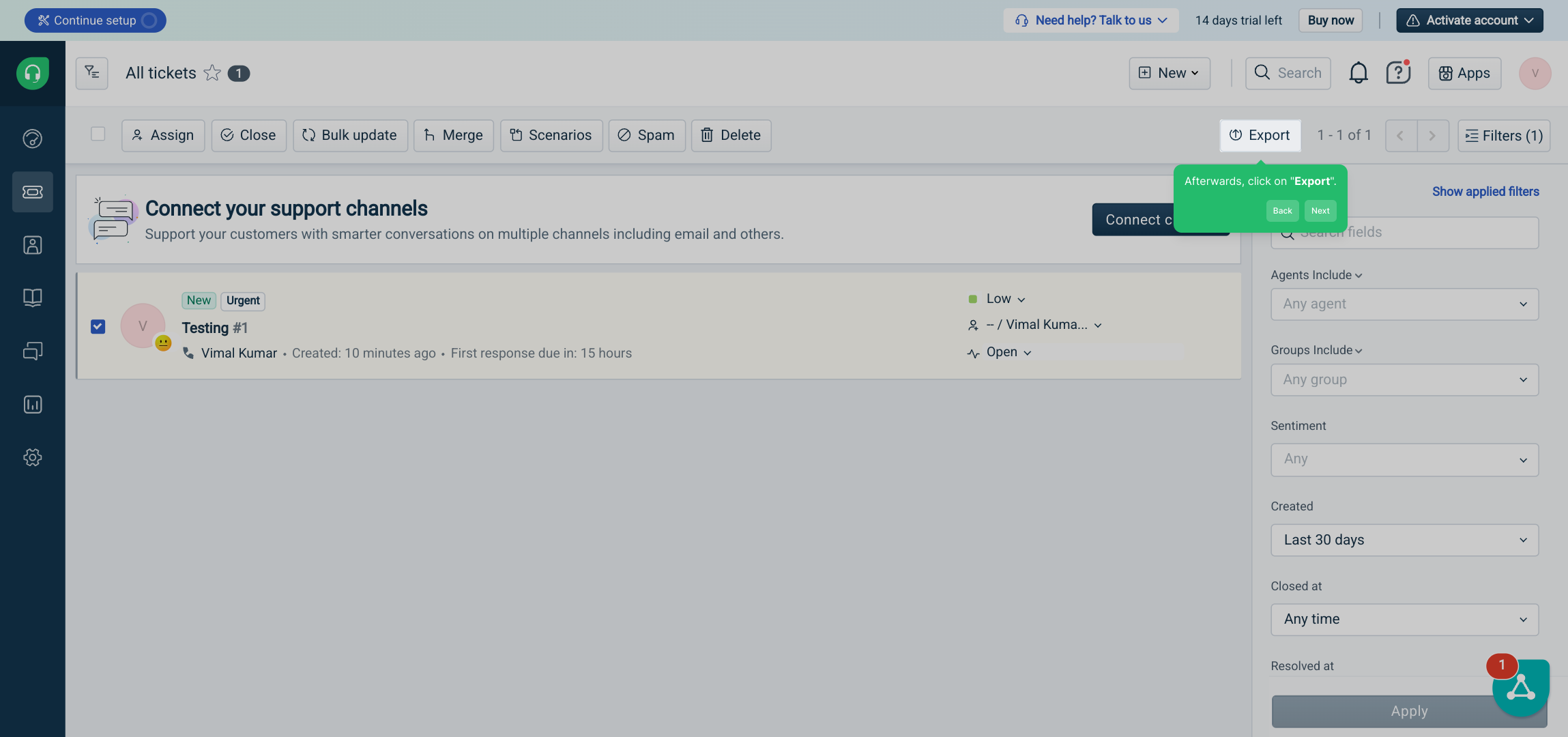
3. Afterwards, click on "Export".
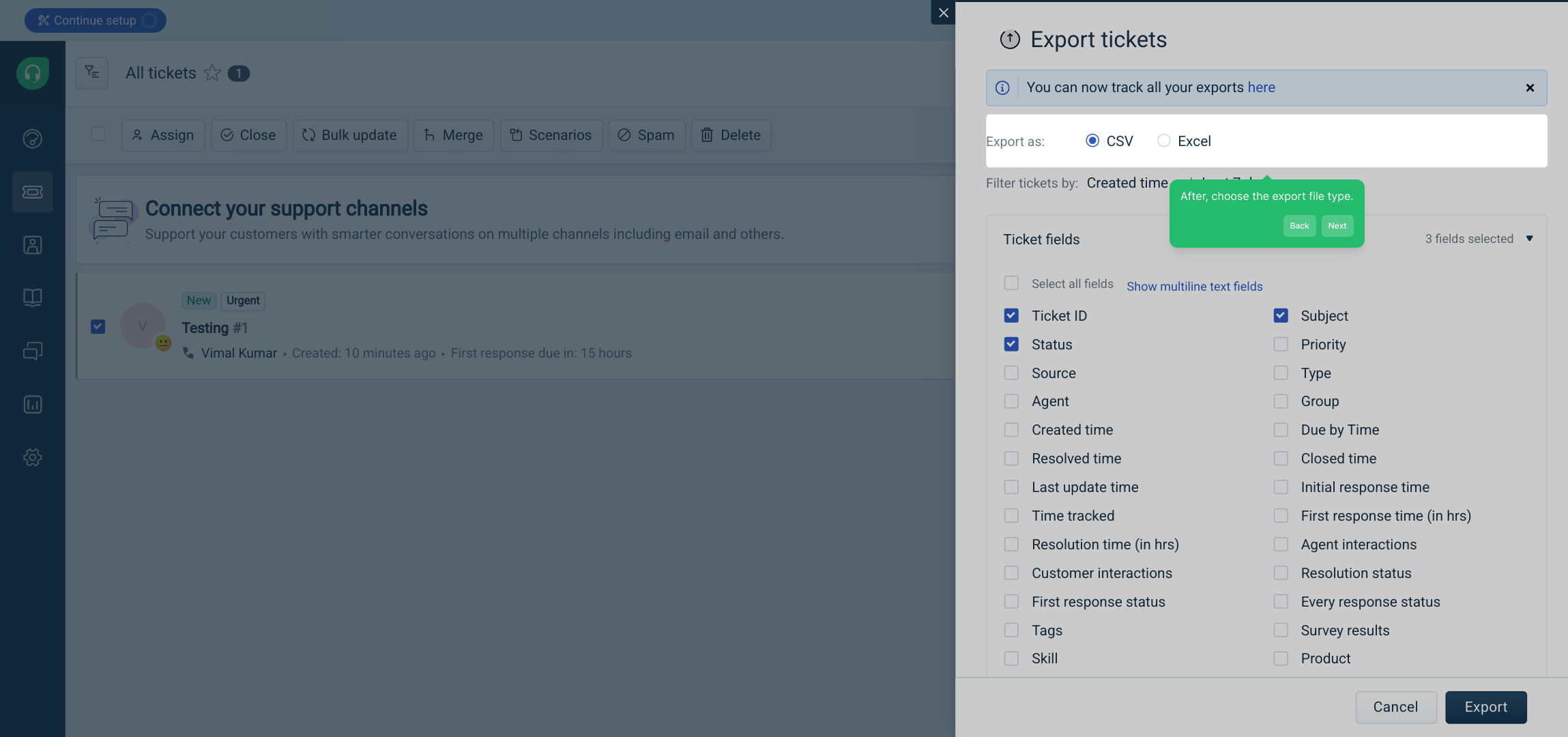
4. After, choose the export file type.
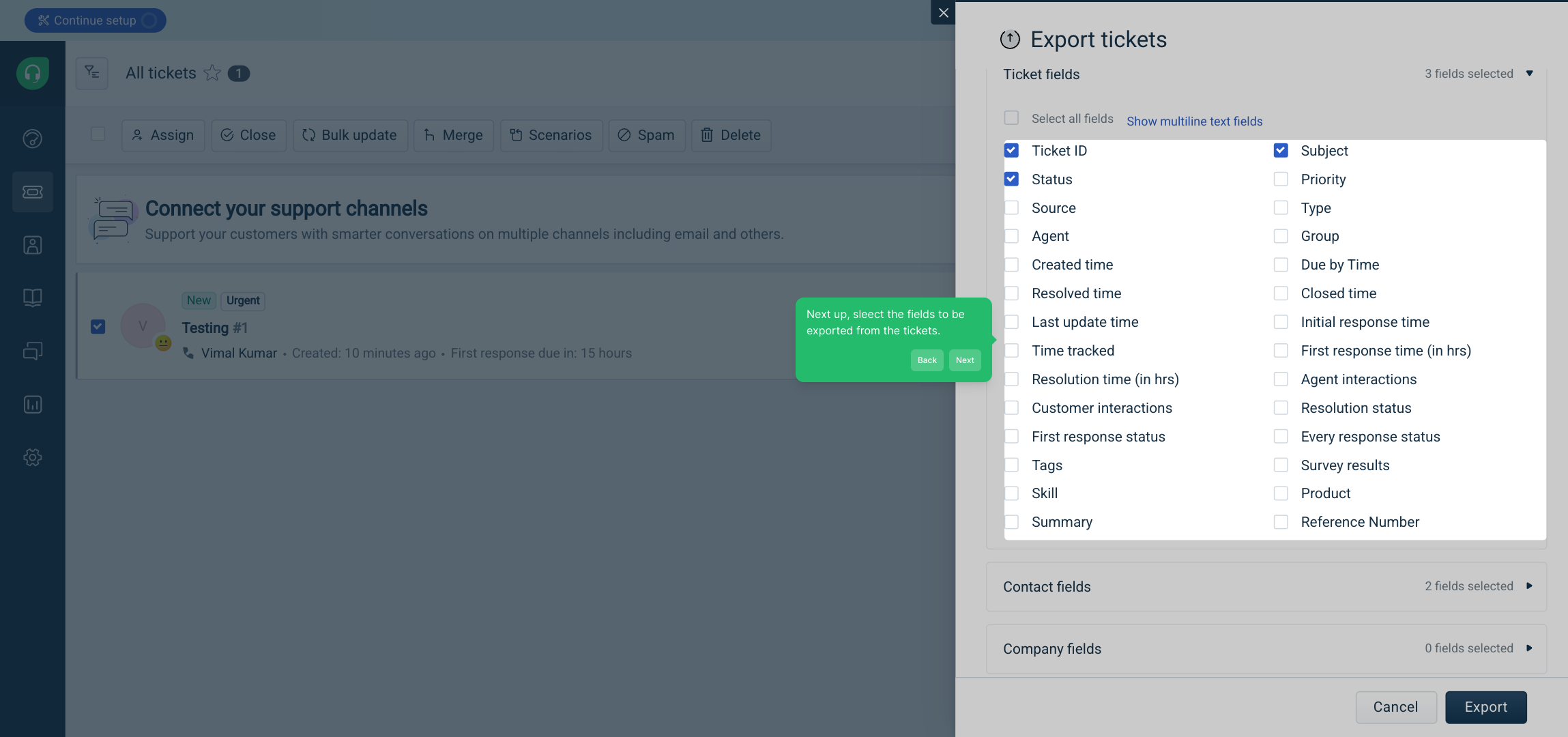
5. Next up, sleect the fields to be exported from the tickets.
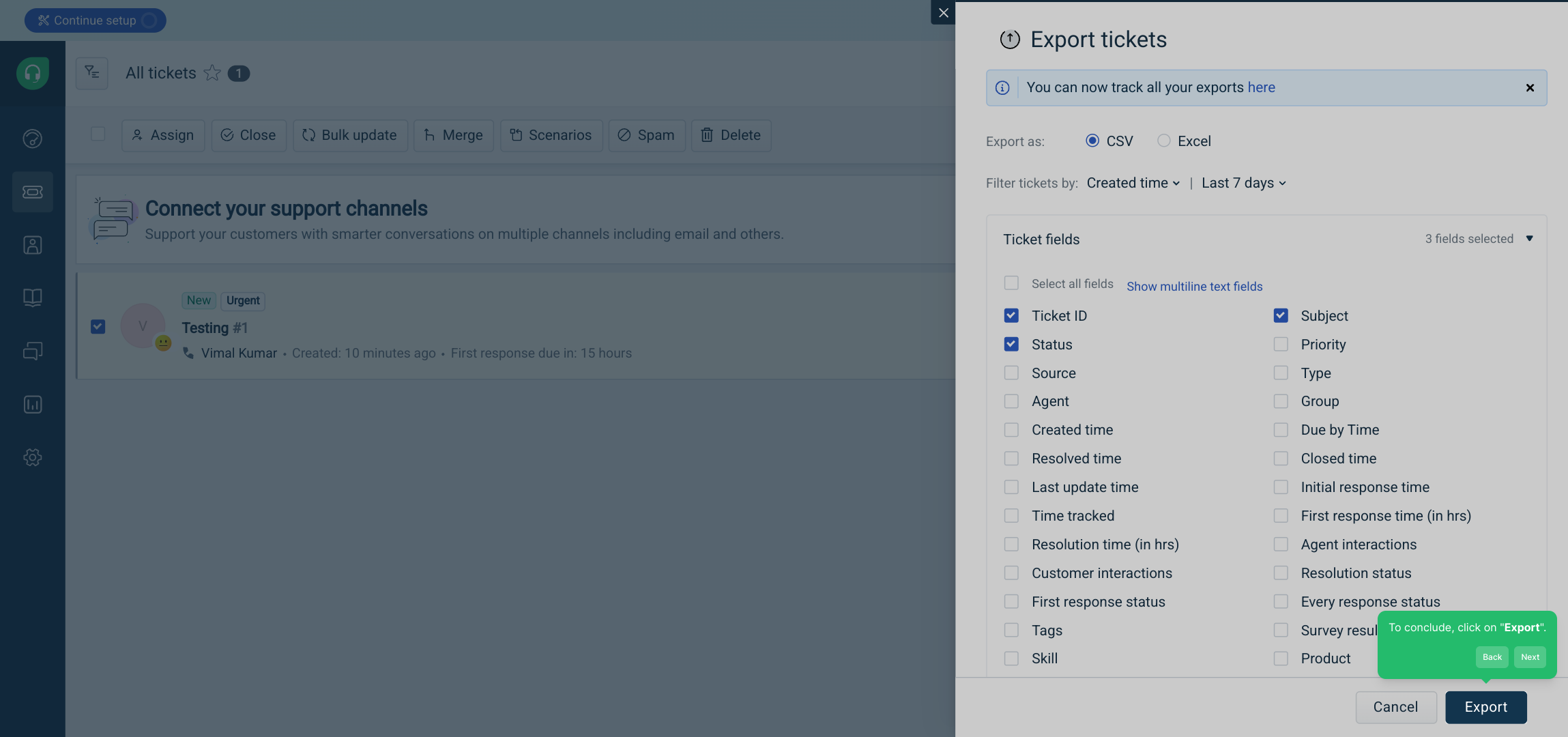
6. To conclude, click on "Export".
7. Create a Supademo in seconds
This interactive demo/guided walkthrough on How to Export Tickets from Freshdesk was created using Supademo.
How to Export Tickets from Freshdesk: Step-by-Step Guide
Begin by opening the application and heading over to the Tickets tab in the main menu. This is where all your tickets are listed and where you’ll manage them for export.
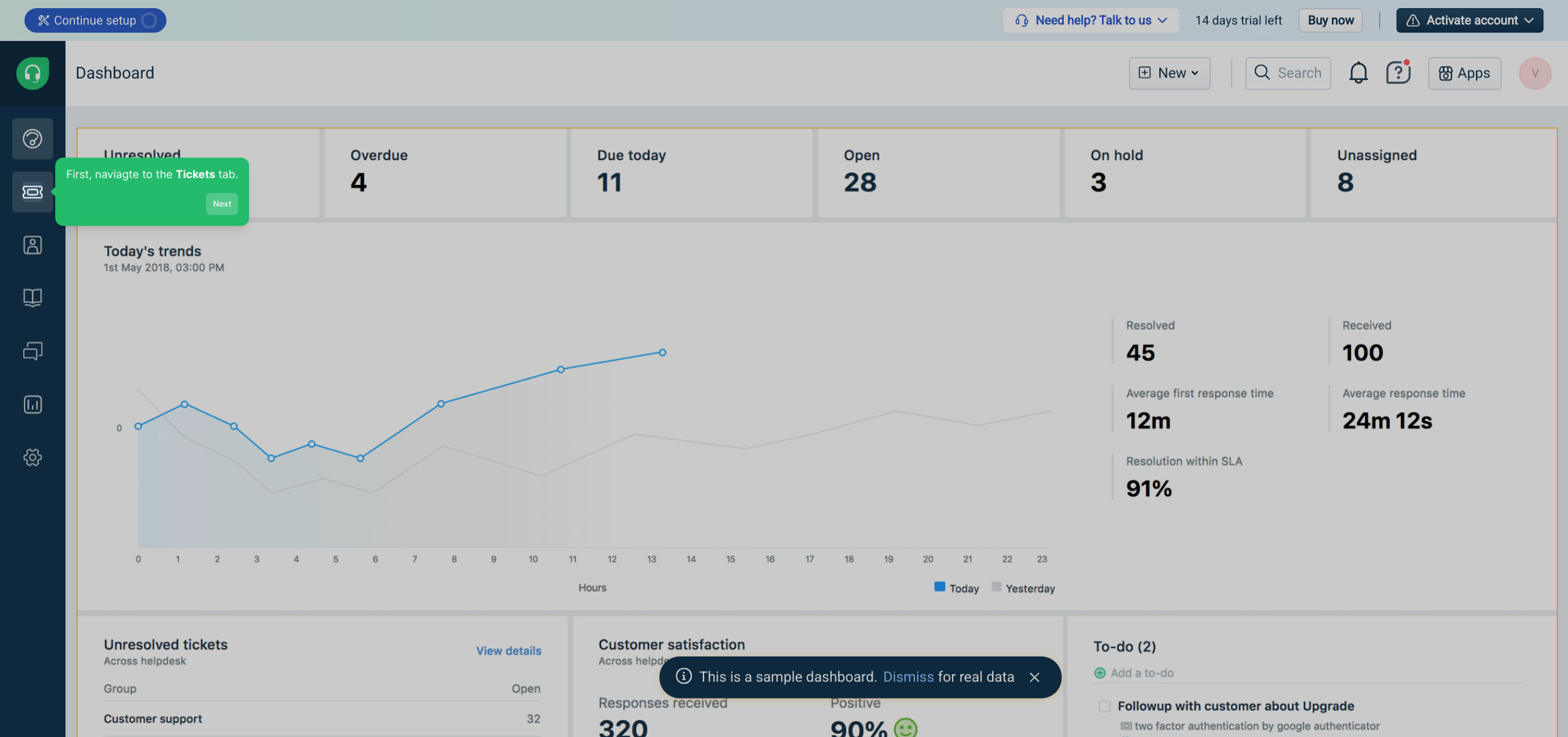
Next, review the tickets displayed and select the ones you wish to export. If you need help narrowing down your selection, use the available filters to find specific tickets before making your choices.
Once you’ve picked your tickets, look for the "Export" button and click it. This will start the process to prepare your selected tickets for export.
Now, decide on the format you would like your exported file to be in. Choosing the correct export file type ensures the data is compatible with the destination application or system you plan to use.
At this stage, select which specific fields or data from the tickets you want included in the export file. This lets you customize the output and include only the most relevant information.
Finally, confirm your selections and click the "Export" button to generate your export file. Your tickets will then be processed and saved according to your settings.
With just these simple steps completed, you’ve successfully created a Supademo export. You’re now ready to use this file as needed in your workflows or reporting.
Create your own interactive demos in < 5 mins with Supademo
You can create your own interactive product demo in minutes using Supademo. Drive growth, scale enablement, and supercharge product-led onboarding with Supademo. Sign up for free here with no credit card required.
FAQs
Commonly asked questions about this topic.
How do I start exporting tickets in Freshdesk?
Can I filter tickets before exporting them?
What file formats can I export Freshdesk tickets to?
Can I choose which ticket fields to export?
Is exporting tickets from Freshdesk available for all plan types?
How long does it take to export tickets?
Can exported tickets be imported into other systems?
Do I need special permissions to export tickets?
Can I export tickets including their attachments?
What are the benefits of exporting tickets from Freshdesk?

Product Operations Associate
Vimal Kumar helps build and grow Supademo’s team and GTM efforts, with a focus on figuring out growth levers and improving product traction.




