How to export your task in CSV on Asana

Exporting your tasks from Asana to CSV format allows you to analyze, share, and archive your project data outside the platform. Whether you need to create reports, integrate data into other tools, or maintain a backup, this tutorial shows you exactly how to do it in just a few clicks.
Quick summary
In this tutorial, you'll learn how to export your Asana tasks as a CSV file. You'll navigate to your task list, locate the export option, and download your data in a spreadsheet-compatible format that you can use anywhere.
Why this matters
Exporting tasks to CSV is essential for creating custom reports, sharing task information with stakeholders who don't use Asana, and maintaining data portability. Many organizations require CSV exports for compliance, auditing, or integration with external analytics and project management systems.
Step-by-step guide
- 1
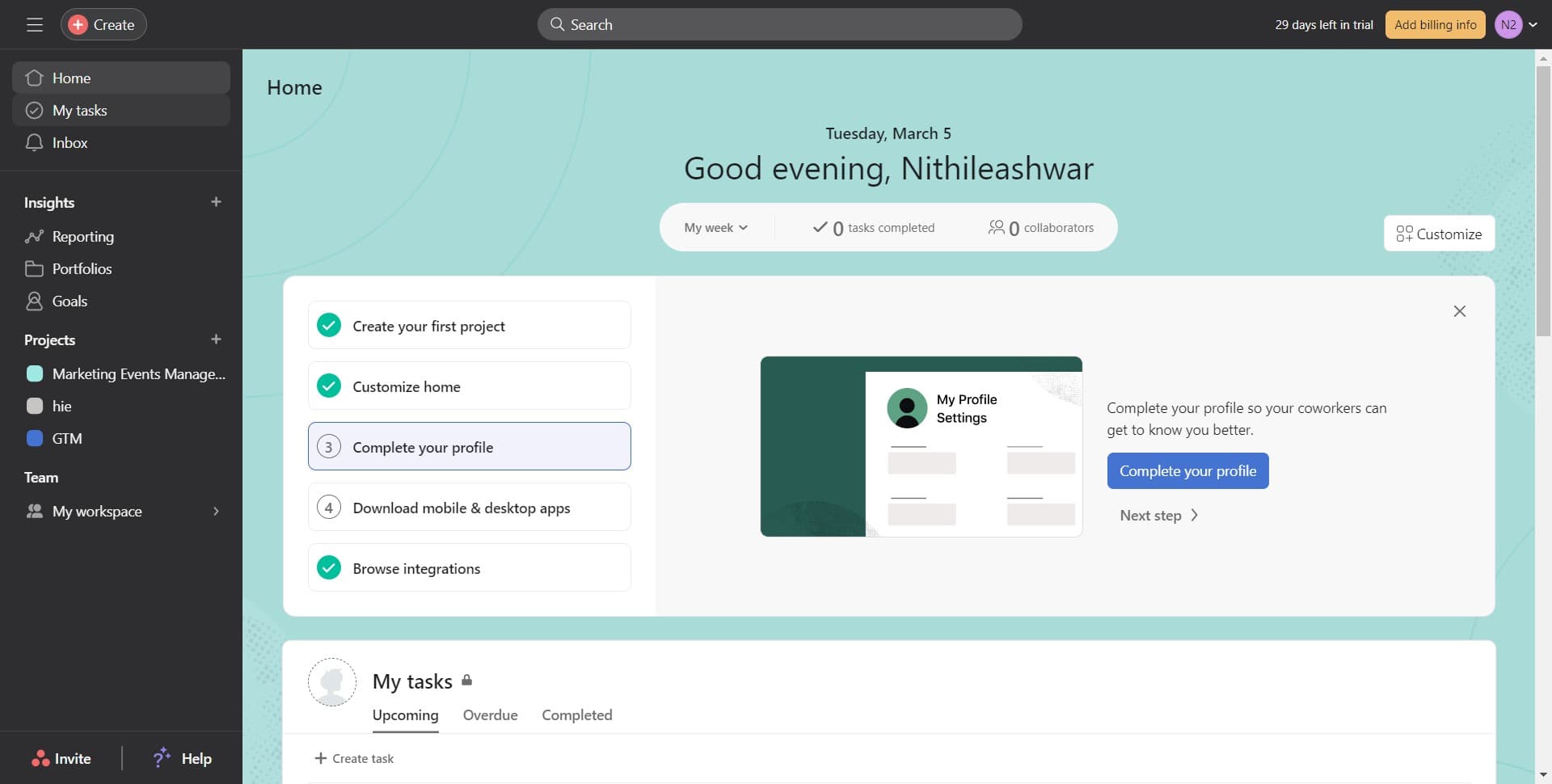
Navigate to My Tasks
Start by clicking on 'My Tasks' in the left sidebar of your Asana workspace. This will display all tasks assigned to you in a centralized view.
- 2
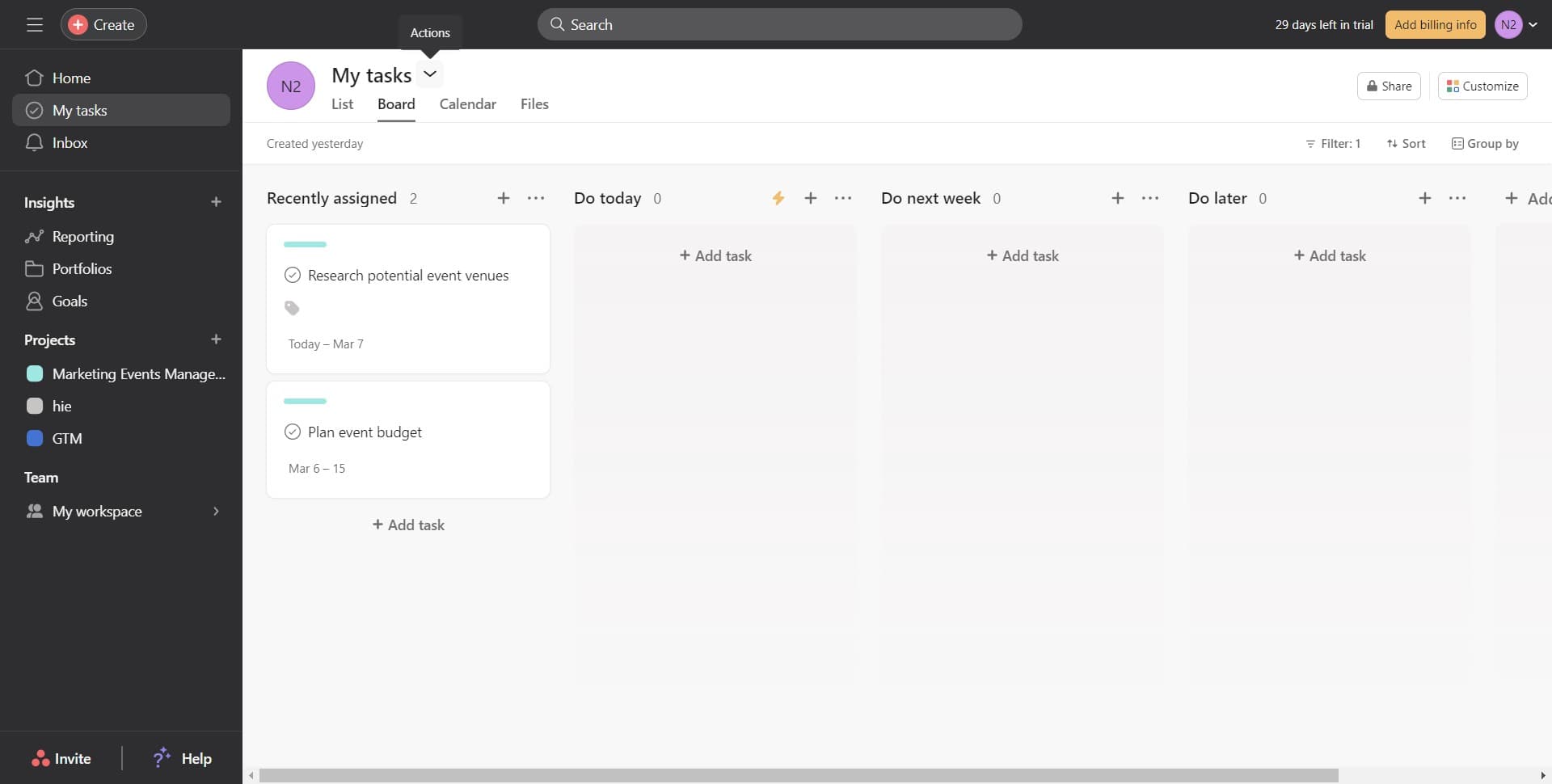
Access the export menu
Look for the options menu (typically represented by three dots or a menu icon) near your task list. Click on it to reveal additional actions available for your tasks.
- 3
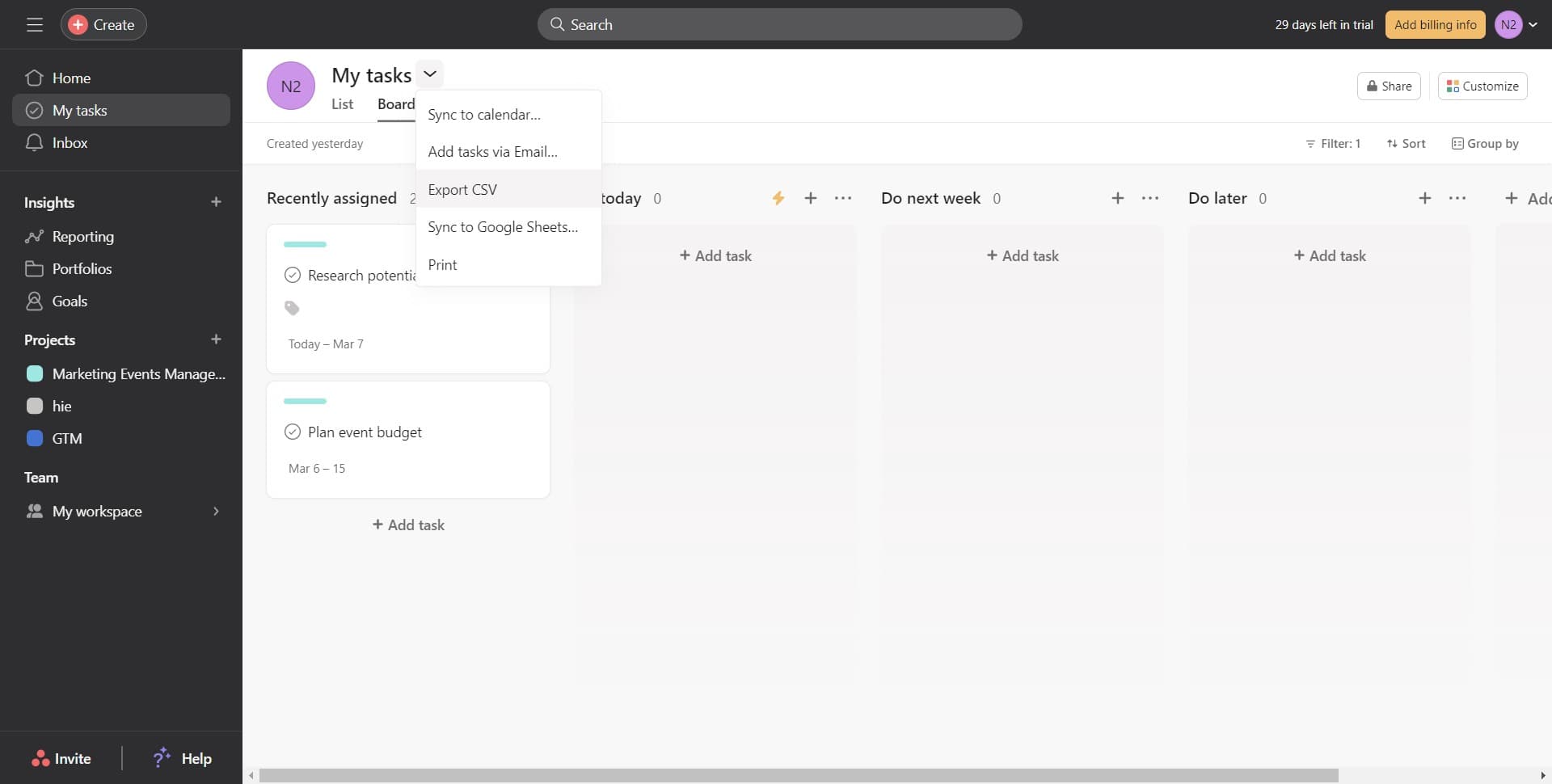
Select Export CSV
From the dropdown menu, click on 'Export CSV' to initiate the export process. Your browser will automatically download the CSV file containing all your task data.
Frequently asked questions
Common questions about how to export your task in csv on asana.
What information is included in the CSV export?
The CSV export includes all task details such as task name, assignee, due date, status, priority, custom fields, and any other metadata associated with your tasks. The exact columns depend on your workspace setup and which fields are tracked in your Asana projects.
Can I export tasks from multiple projects at once?
Exporting from 'My Tasks' captures all tasks assigned to you across all projects. If you need to export tasks from a specific project only, navigate to that project's task list and use the same export process from there.
Will the CSV include completed tasks?
By default, the CSV export will include both active and completed tasks in your task list. If you want to exclude completed tasks, filter them out in your Asana view before exporting to reduce file size and focus on relevant data.
Is there a file size limit for CSV exports?
Asana can export large task lists to CSV, but extremely large workspaces with thousands of tasks may take longer to process. If you encounter issues with large exports, try breaking them into smaller segments by filtering by project or date range.
Can I import the CSV back into Asana?
While you can export tasks to CSV, importing CSV files back into Asana requires using Asana's import feature through the web interface. The CSV format is primarily useful for external analysis, reporting, and sharing with non-Asana users.