How to Find My Shopify Store URL

Your Shopify store URL is essential for accessing your admin dashboard, sharing your store with customers, and integrating third-party tools. Finding this URL is straightforward once you know where to look in your Shopify account settings.
Quick summary
In this tutorial, you'll learn how to locate your Shopify store URL by navigating through your account settings. By following three simple steps, you'll access the General settings where your store URL is displayed.
Why this matters
Knowing your store URL is critical for day-to-day operations—you need it to log into your admin panel, direct customers to your storefront, and configure integrations with apps and external services. Having quick access to this information saves time and prevents confusion when setting up your store.
Step-by-step guide
- 1
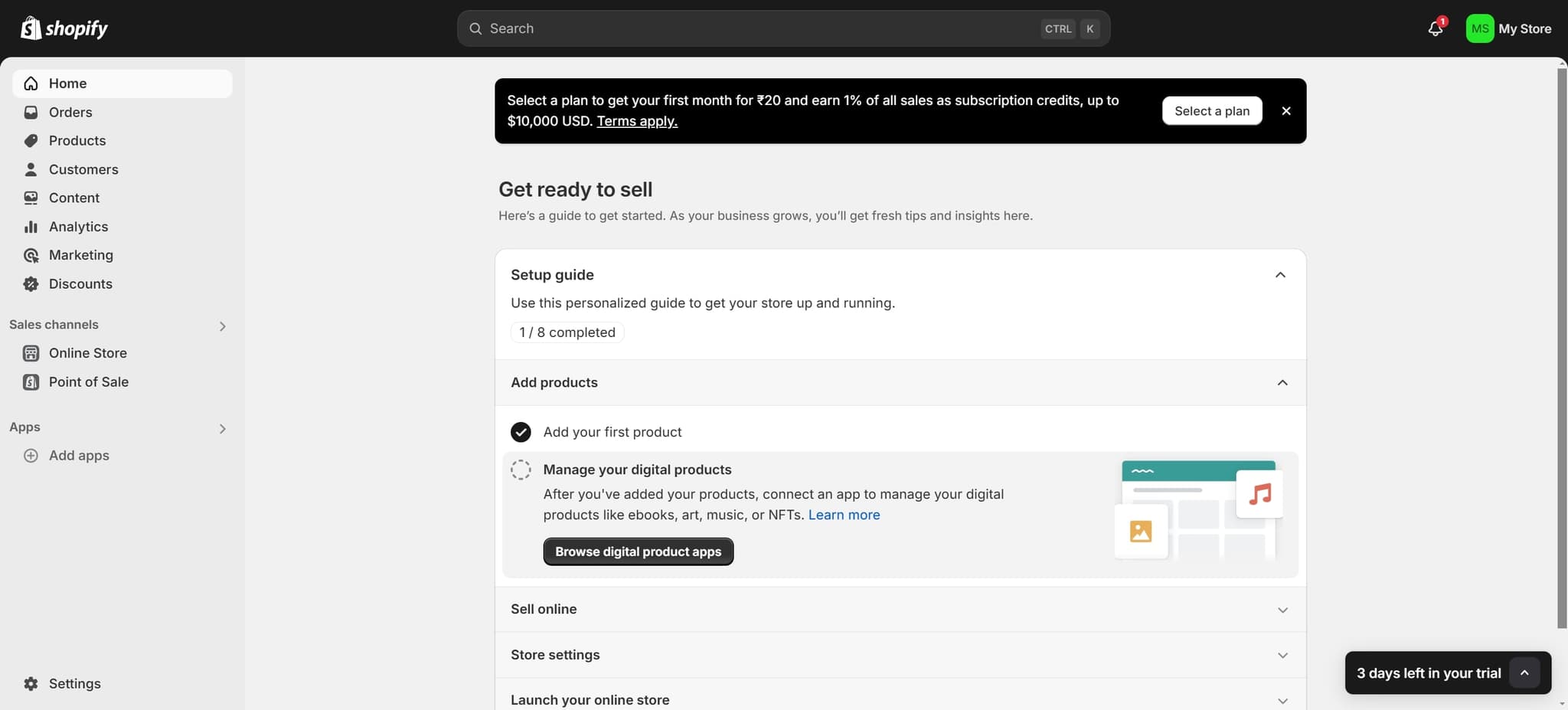
Click on Setup guide
From your Shopify admin dashboard, locate and click the 'Setup guide' option. This will open the initial setup interface where you can access various configuration options for your store.
- 2
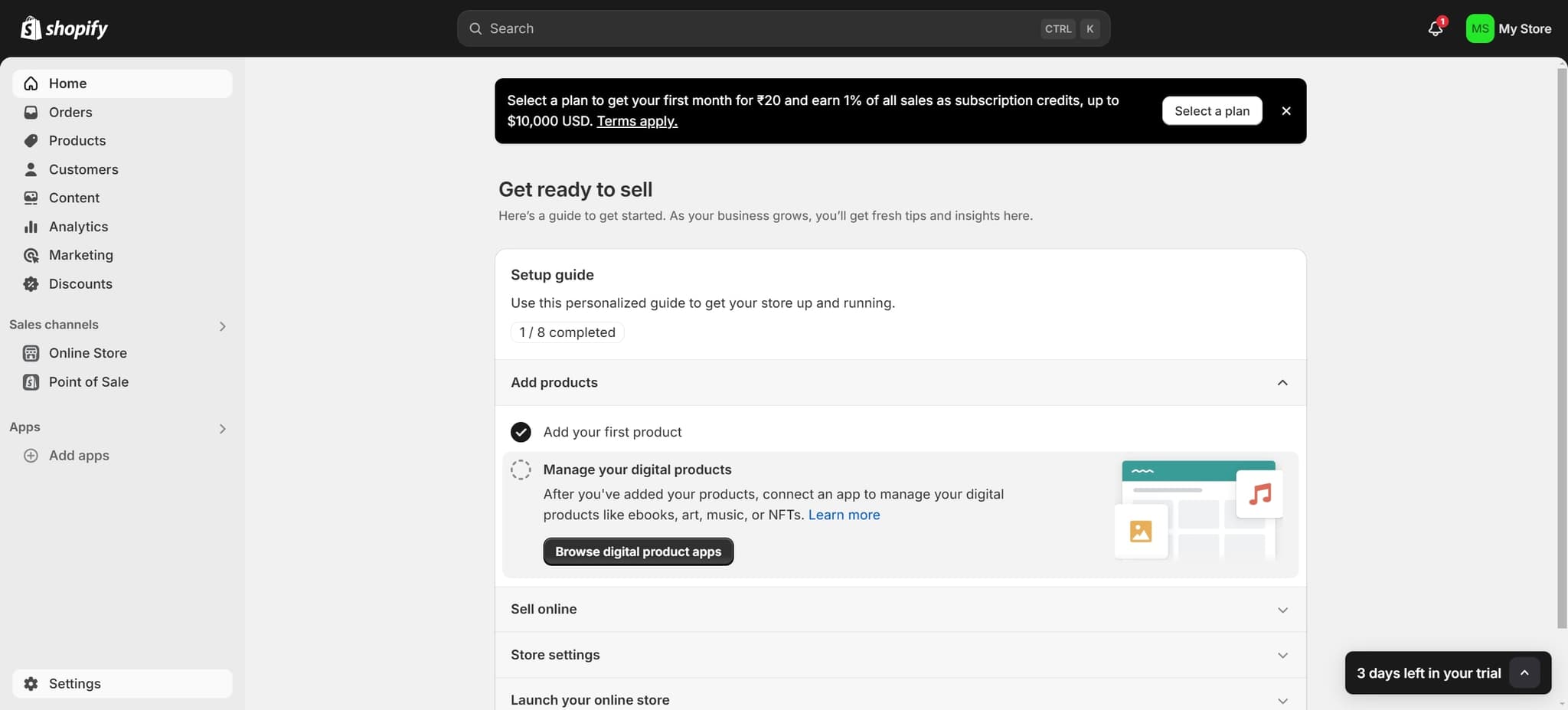
Click on Settings
Next, click on the 'Settings' option in the menu. This will take you to the main settings area where you can manage all aspects of your store configuration.
- 3
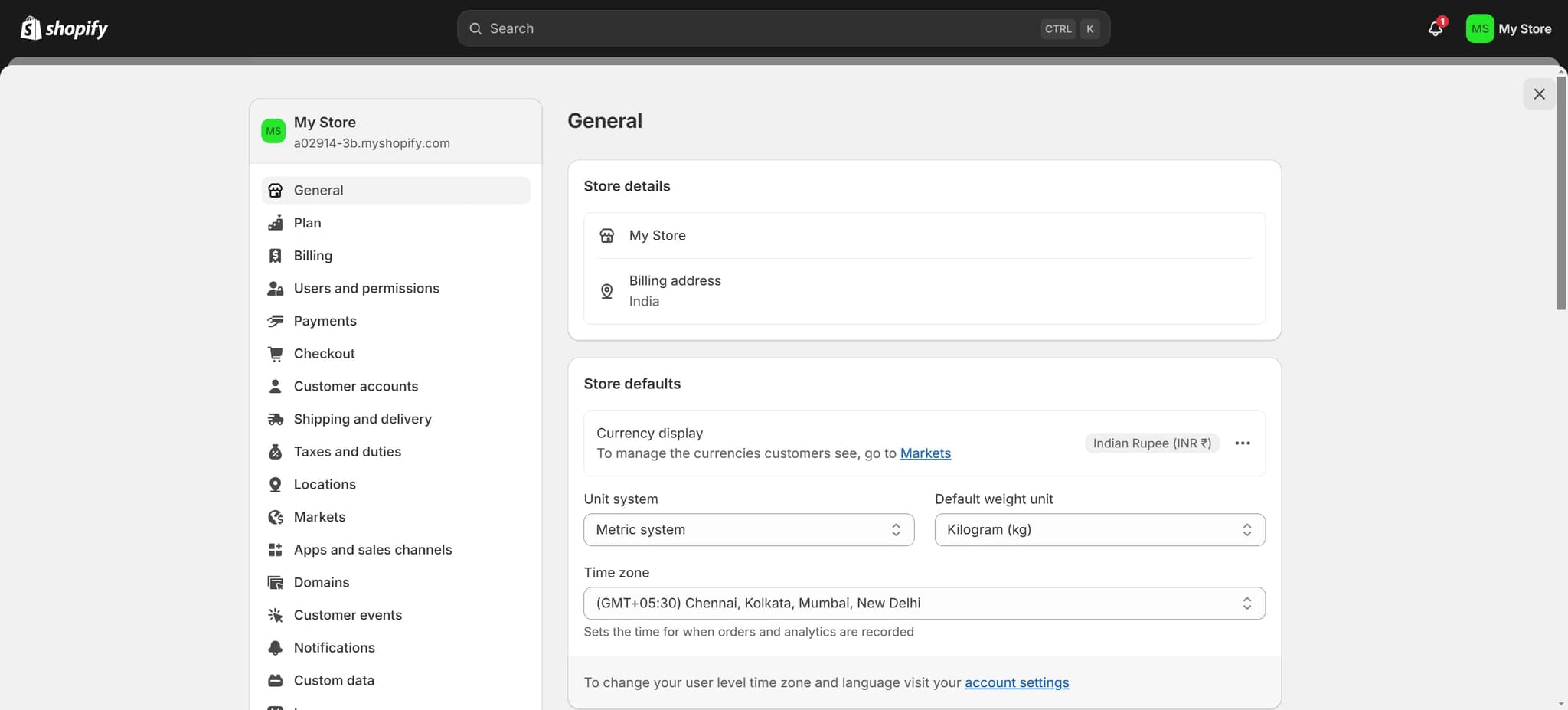
Click on General
Finally, click on 'General' in the settings menu. Your Shopify store URL will be clearly displayed in this section along with other fundamental store information.
Frequently asked questions
Common questions about how to find my shopify store url.
In the General settings page, your store URL appears near the top of the page under the store information section. It's typically labeled as 'Store address' or 'Online store' and shows your complete Shopify domain (e.g., yourstore.myshopify.com).
Yes, you can change your store URL, but there are limitations depending on your plan and domain setup. You can modify the myshopify.com domain name, though changing it frequently may impact SEO and customer bookmarks. Consult Shopify's documentation for specific restrictions on your plan.
Your Shopify store URL (myshopify.com) is the default domain provided by Shopify, while a custom domain is a separate domain you own and connect to your store. Both lead to your store, but customers typically access your custom domain instead of the default Shopify URL.
Most apps and integrations require your store URL or API credentials rather than just the URL itself. However, knowing your store URL is helpful when configuring third-party tools and when troubleshooting integration issues.
No, your store URL and online store password are completely different. Your store URL is the web address customers use to access your store, while your online store password is a security credential used to protect your storefront if you want to restrict access during setup or maintenance.