How to move or swap rows in Google Sheets

Moving or swapping rows in Google Sheets is a fundamental skill for organizing and restructuring your data efficiently. Whether you're reordering data for analysis, correcting placement, or reorganizing your spreadsheet layout, understanding how to move rows will save you time and reduce manual data entry errors.
Quick summary
In this tutorial, you'll learn how to move and swap rows in Google Sheets using the built-in row manipulation features. By following these steps, you'll be able to quickly reorganize your spreadsheet data without losing any information or formatting.
Why this matters
Managing row order is essential for creating logical data structures, preparing data for analysis, and maintaining spreadsheet organization as your data grows. Being able to efficiently move rows helps you maintain data integrity while avoiding costly mistakes that can occur with manual cutting and pasting.
Step-by-step guide
- 1
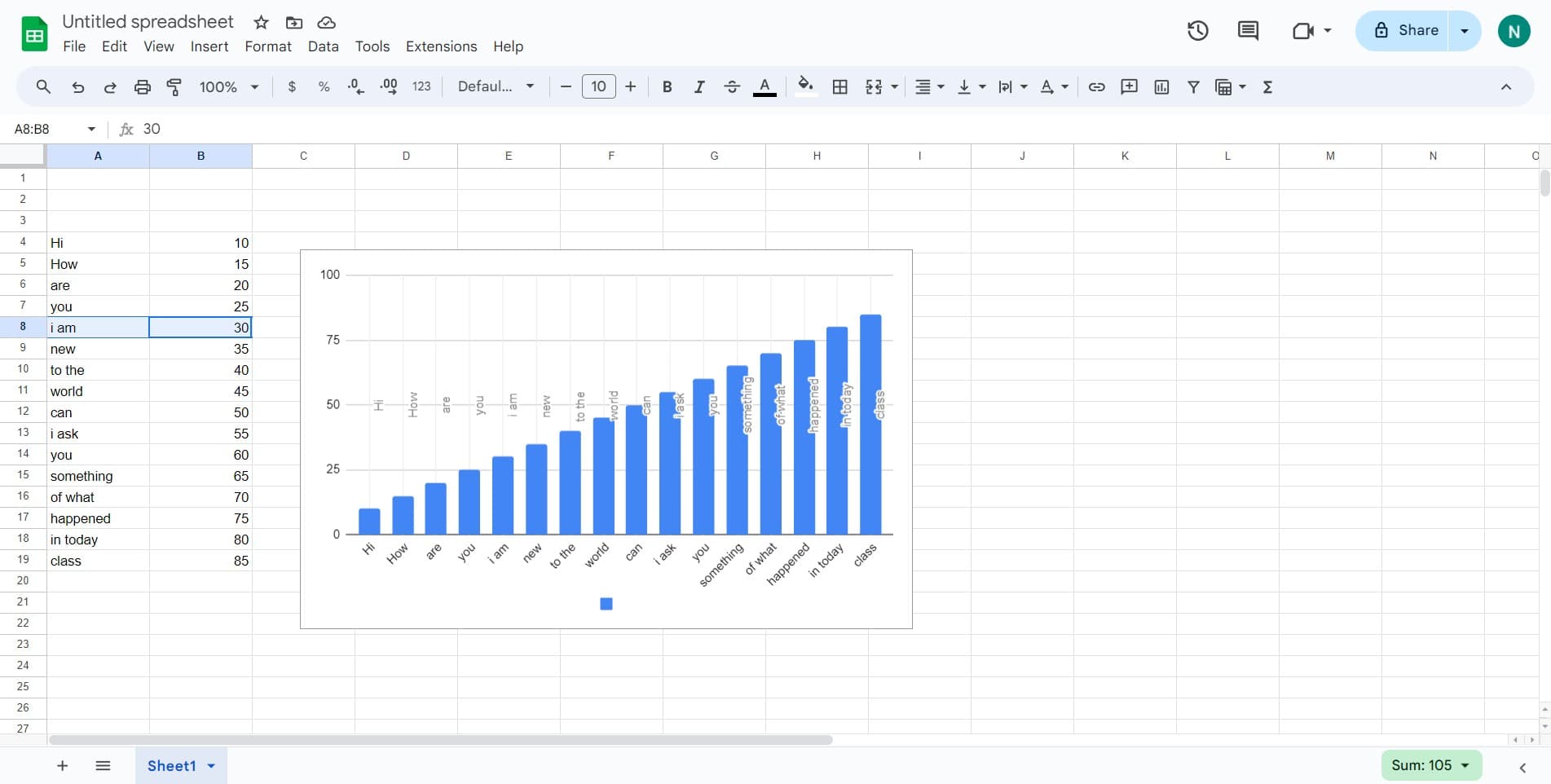
Access the chart summary section
Locate and click on the Chart Summary area in your Google Sheets document. This section contains the data you want to reorganize.
- 2
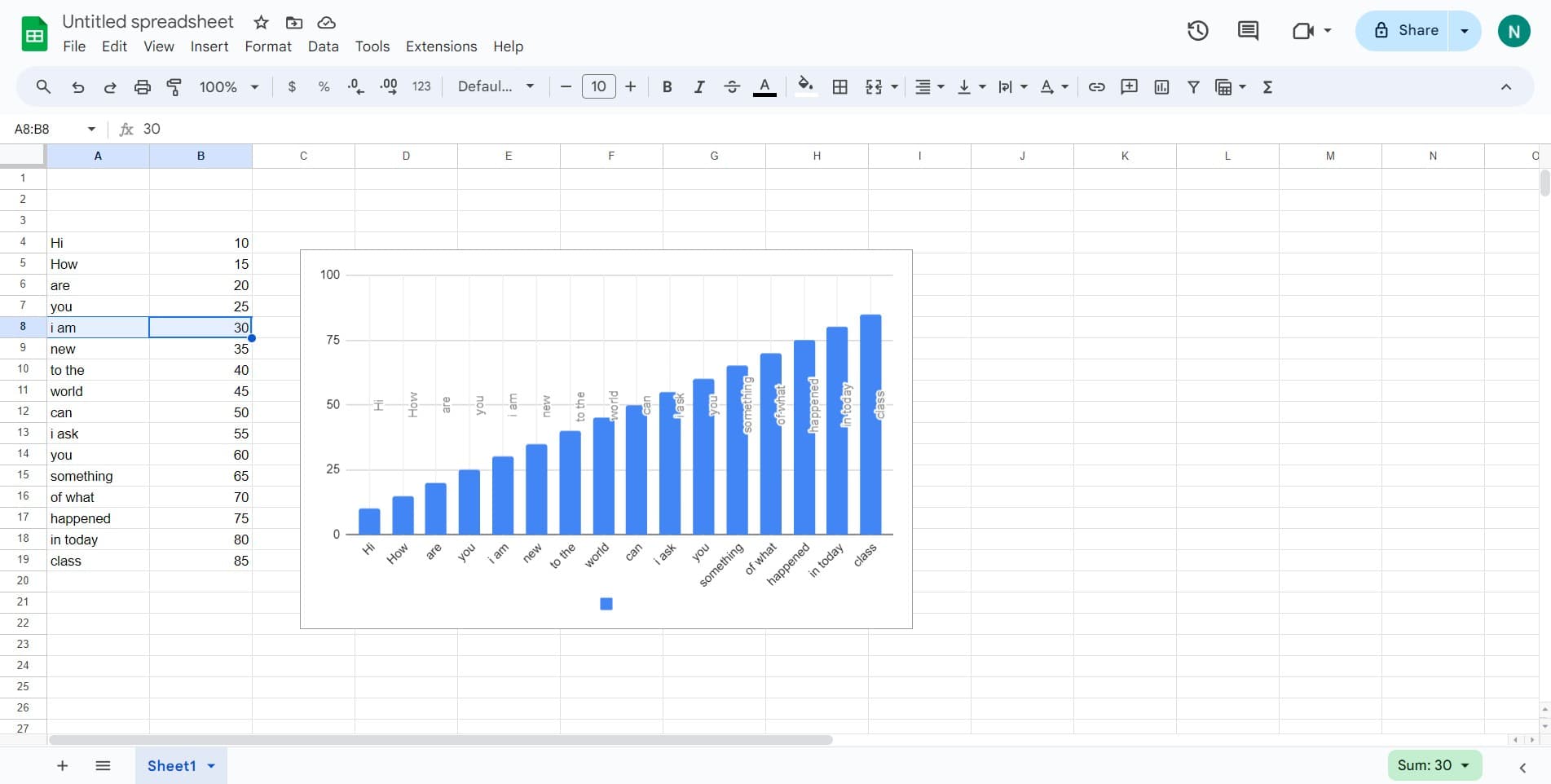
Select your target row
Click on the row number on the left side of the spreadsheet to select the entire row you wish to move. The row will be highlighted to indicate it's selected.
- 3
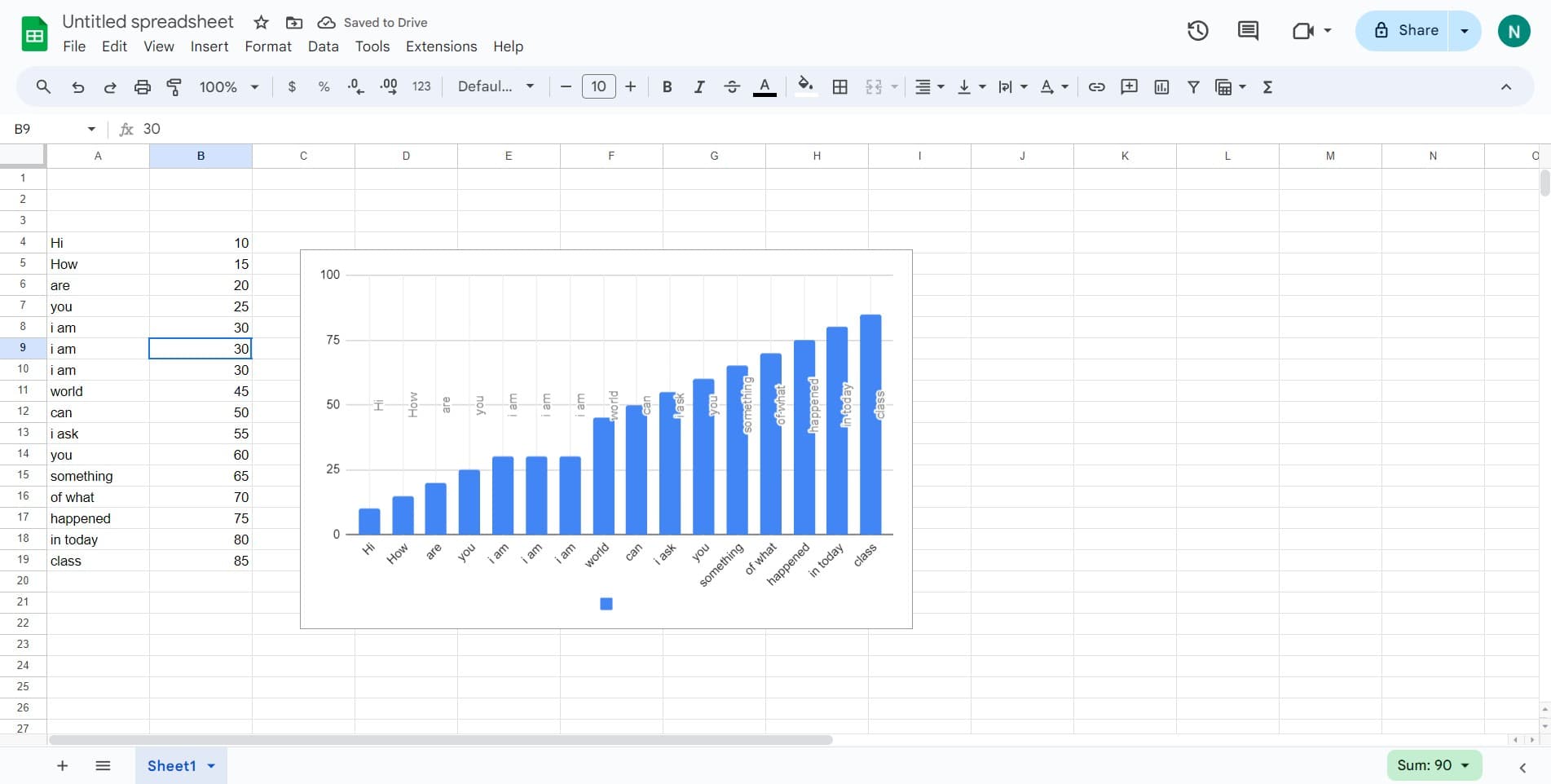
Move or swap the row
Use the drag-and-drop functionality or right-click context menu to move your selected row to the desired position. Your row will shift to the new location while maintaining all associated data and formatting.
Frequently asked questions
Common questions about how to move or swap rows in google sheets.
Can I move multiple rows at once in Google Sheets?
Yes, you can select multiple rows by clicking on the first row number, then holding Ctrl (or Cmd on Mac) and clicking additional row numbers. Once multiple rows are selected, you can move them together to a new location in your spreadsheet.
Will moving rows affect my formulas and references?
When you move rows in Google Sheets, formulas that reference cells in those rows will automatically update to reflect the new row positions. However, if you have formulas referencing specific row numbers, you should verify they still calculate correctly after moving rows.
What's the difference between moving and copying rows?
Moving a row transfers it to a new location and removes it from the original position, while copying creates a duplicate. When you move a row, you have one instance of that data; when you copy, you have two identical rows in your spreadsheet.
Can I undo a row move if I make a mistake?
Absolutely. Google Sheets has an undo function (Ctrl+Z on Windows, Cmd+Z on Mac) that will reverse your last action, including row moves. You can undo multiple steps if needed to get back to your previous state.
Is there a keyboard shortcut for moving rows?
Google Sheets primarily uses the drag-and-drop method or cut-and-paste approach for moving rows. You can cut a row with Ctrl+X (Cmd+X on Mac), select your target position, and paste with Ctrl+V (Cmd+V on Mac) to move it to a new location.