How to Mute in Zoom

Muting your microphone in Zoom is essential for minimizing background noise and maintaining professionalism during meetings. Whether you're joining a large conference call or a one-on-one video chat, knowing how to quickly mute and unmute your audio ensures you have full control over when you're heard.
Quick summary
In this tutorial, you'll learn how to mute your microphone in Zoom using multiple methods. You'll discover the quickest ways to toggle your audio on and off, giving you confidence to manage your presence during any meeting.
Why this matters
Muting is a critical meeting etiquette practice that prevents distracting background noise from disrupting colleagues and presenters. Quick access to mute controls helps you respond appropriately to unexpected interruptions without fumbling through menus, keeping meetings focused and professional.
Step-by-step guide
- 1
Locate the mute button
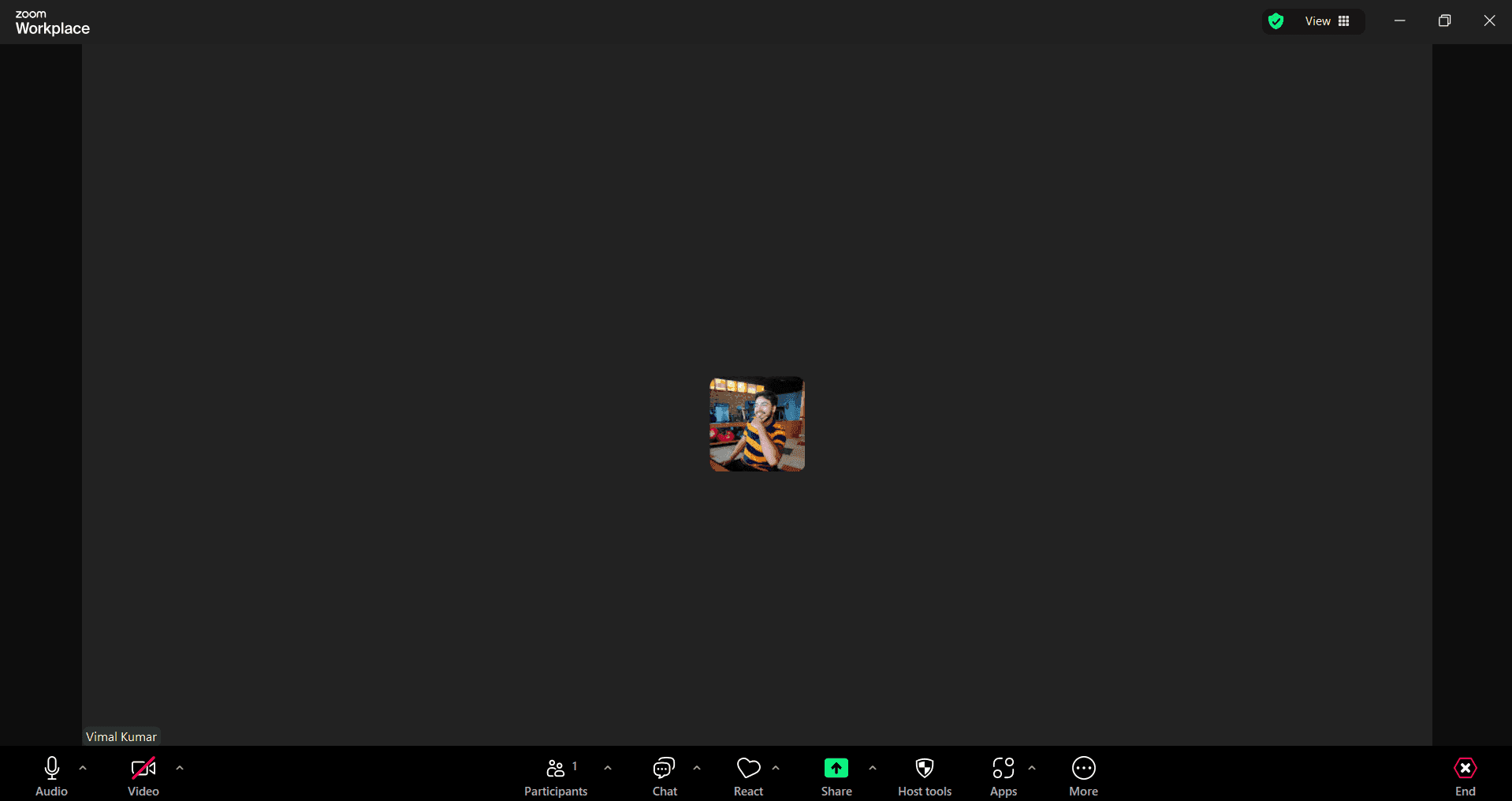
Open Zoom and join or start a meeting. Look at the bottom of your screen for the meeting controls toolbar, where you'll find the microphone icon on the left side of the control bar.
- 2
Click the microphone icon
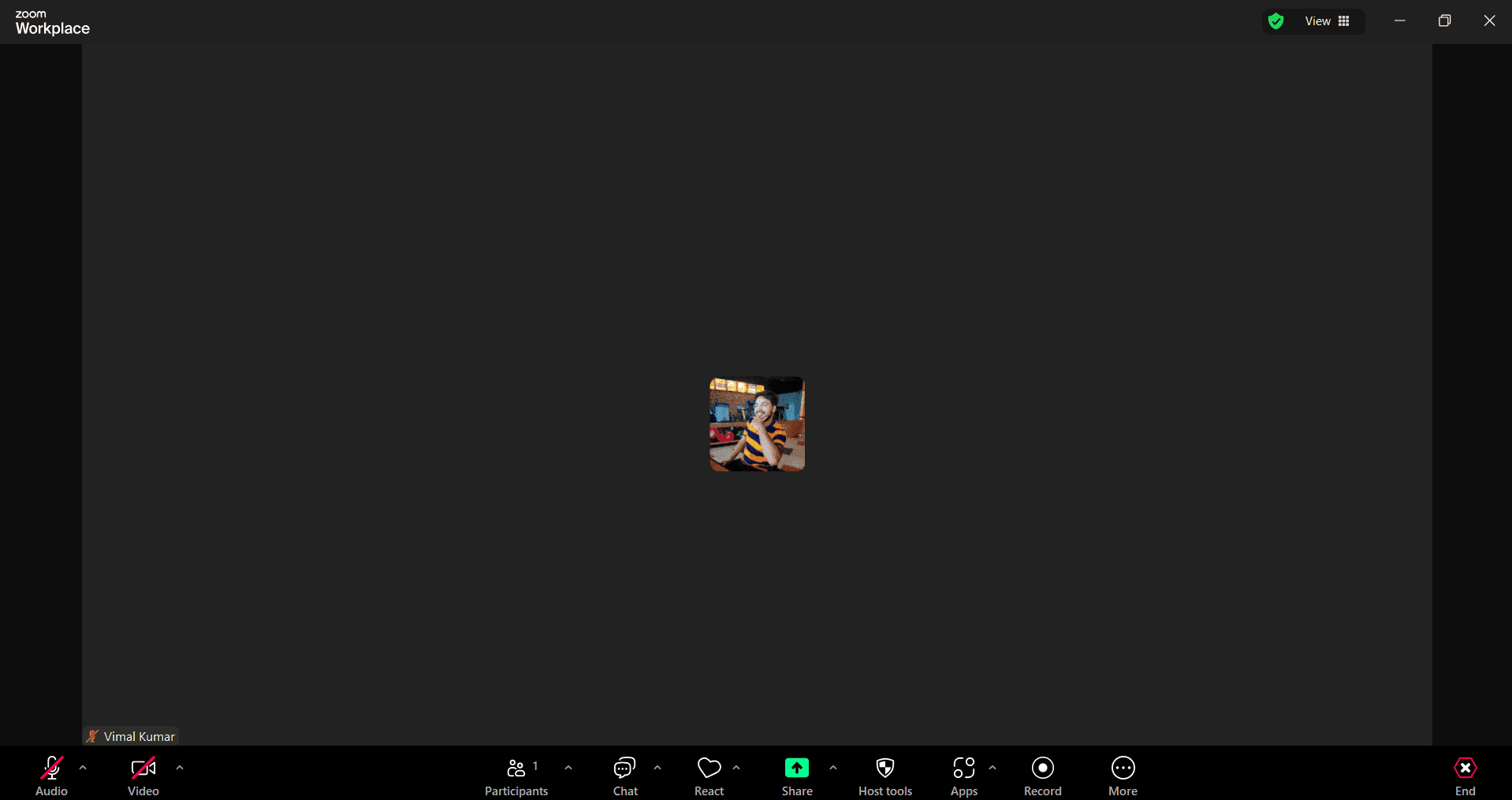
Click the microphone icon to toggle your mute status. When muted, the icon will display a slash through it, indicating your audio is off and other participants cannot hear you.
- 3
Confirm your mute status
Verify that the microphone icon shows the muted state in the toolbar. You can also check your meeting display name—a muted indicator will appear next to your name in the participant list.
Frequently asked questions
Common questions about how to mute in zoom.
Can I mute myself before joining a Zoom meeting?
Yes, when you're in the Zoom waiting room or preview screen before joining, you can click the microphone icon to join muted. This is helpful if you want to enter a large meeting without broadcasting background noise initially.
What's the keyboard shortcut to mute in Zoom?
On most systems, you can press Space bar to temporarily unmute while holding it, then release to mute again. Alternatively, use Alt+A on Windows or Command+Control+M on Mac to toggle mute on and off.
Will participants know when I mute or unmute?
Yes, other participants will see a muted indicator appear next to your name when you mute, and it will disappear when you unmute. The host may also receive notifications about mute status changes depending on meeting settings.
Can the Zoom host mute my microphone?
Yes, the meeting host has the ability to mute individual participants or all participants at once. However, you can unmute yourself unless the host has disabled that permission for all participants.
How do I know if my microphone is working before I unmute?
Before unmuting, you can test your microphone in Zoom's audio settings by speaking and watching the input level indicator. This ensures your audio is working properly without unmuting in front of other meeting participants.