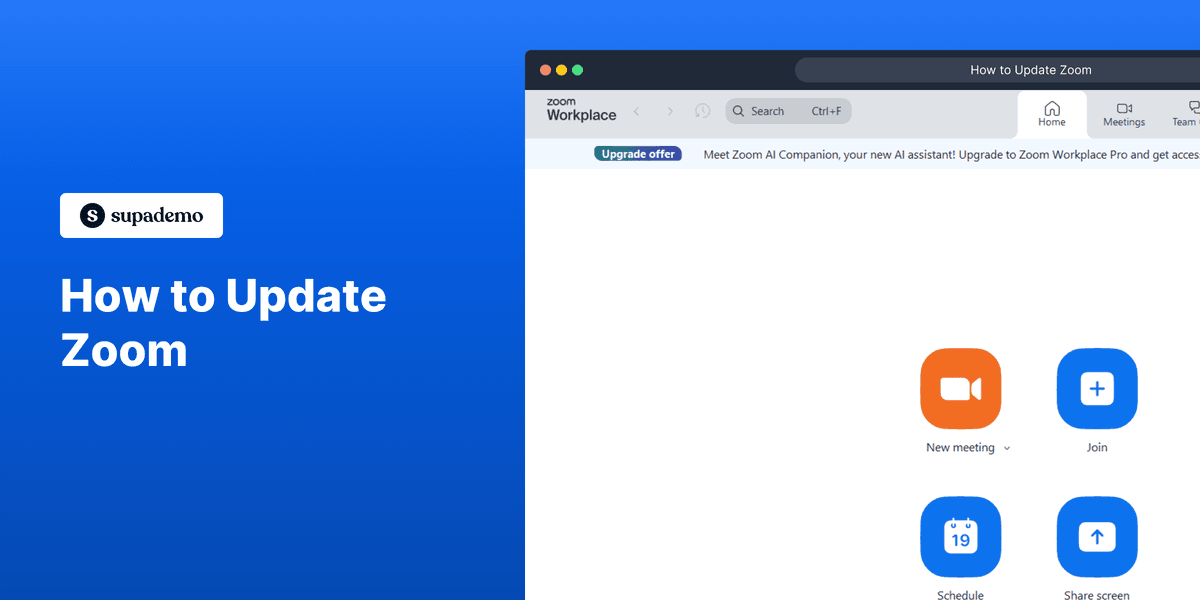
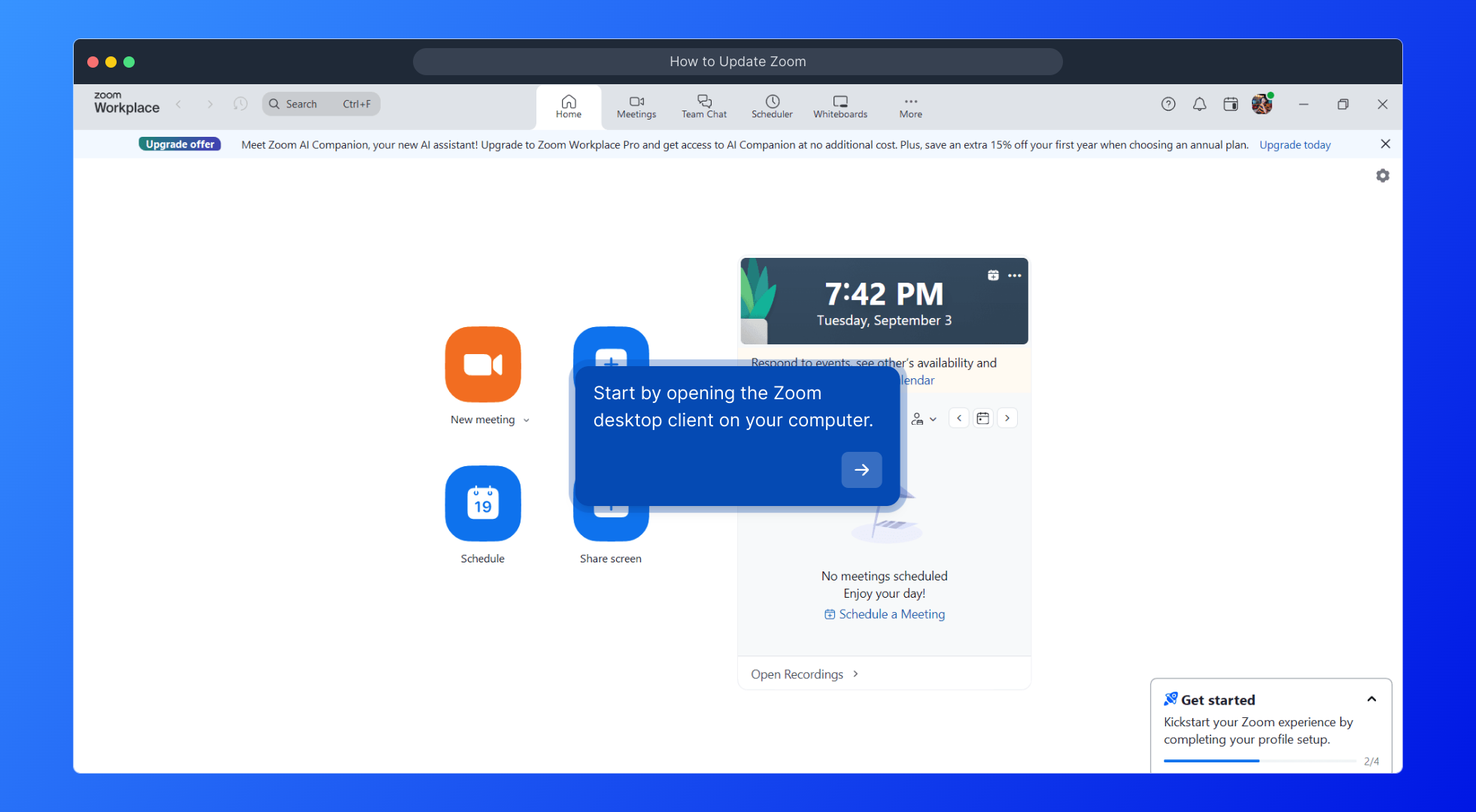
1. Start by opening the Zoom desktop client on your computer.
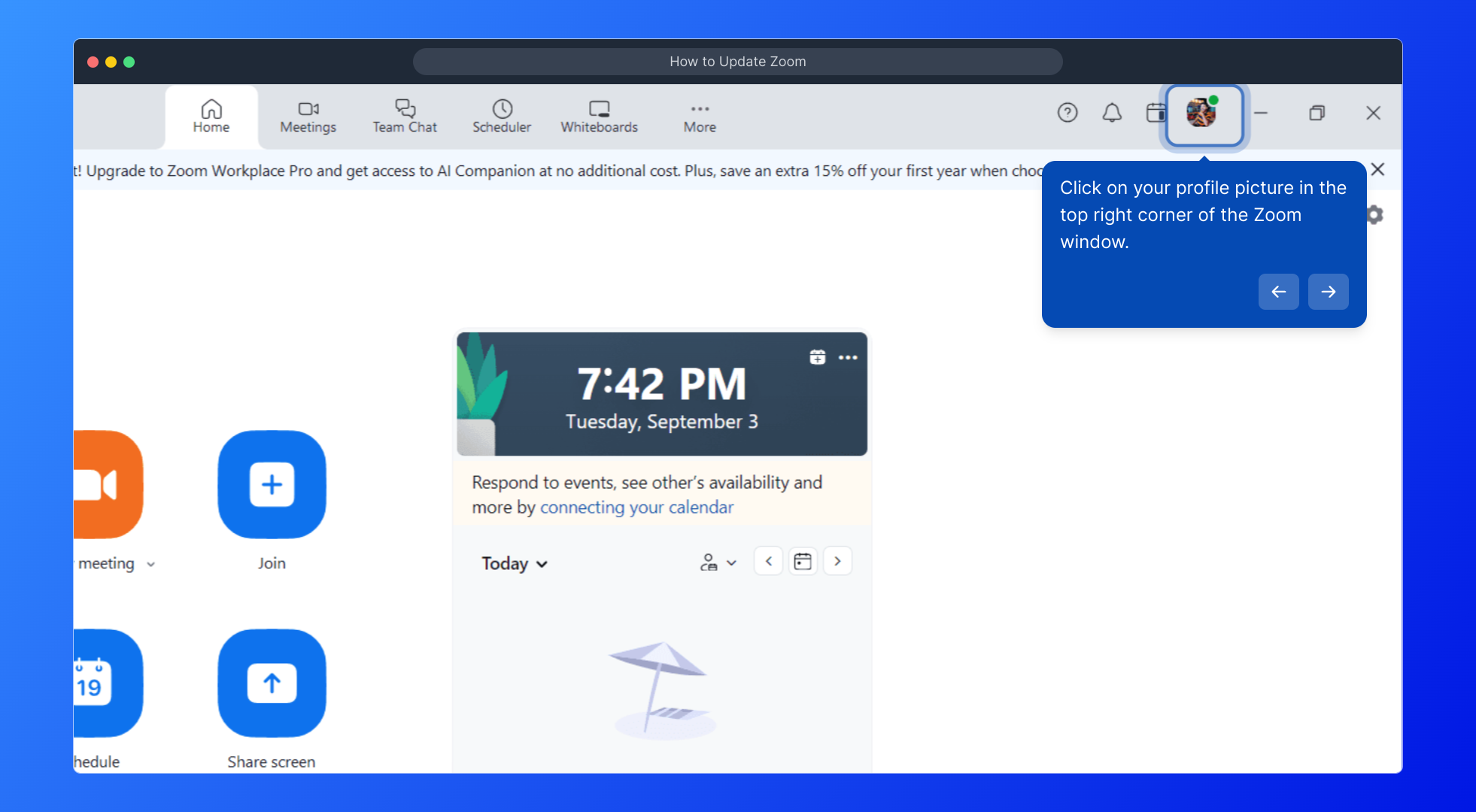
2. Click on your profile picture in the top right corner of the Zoom window.
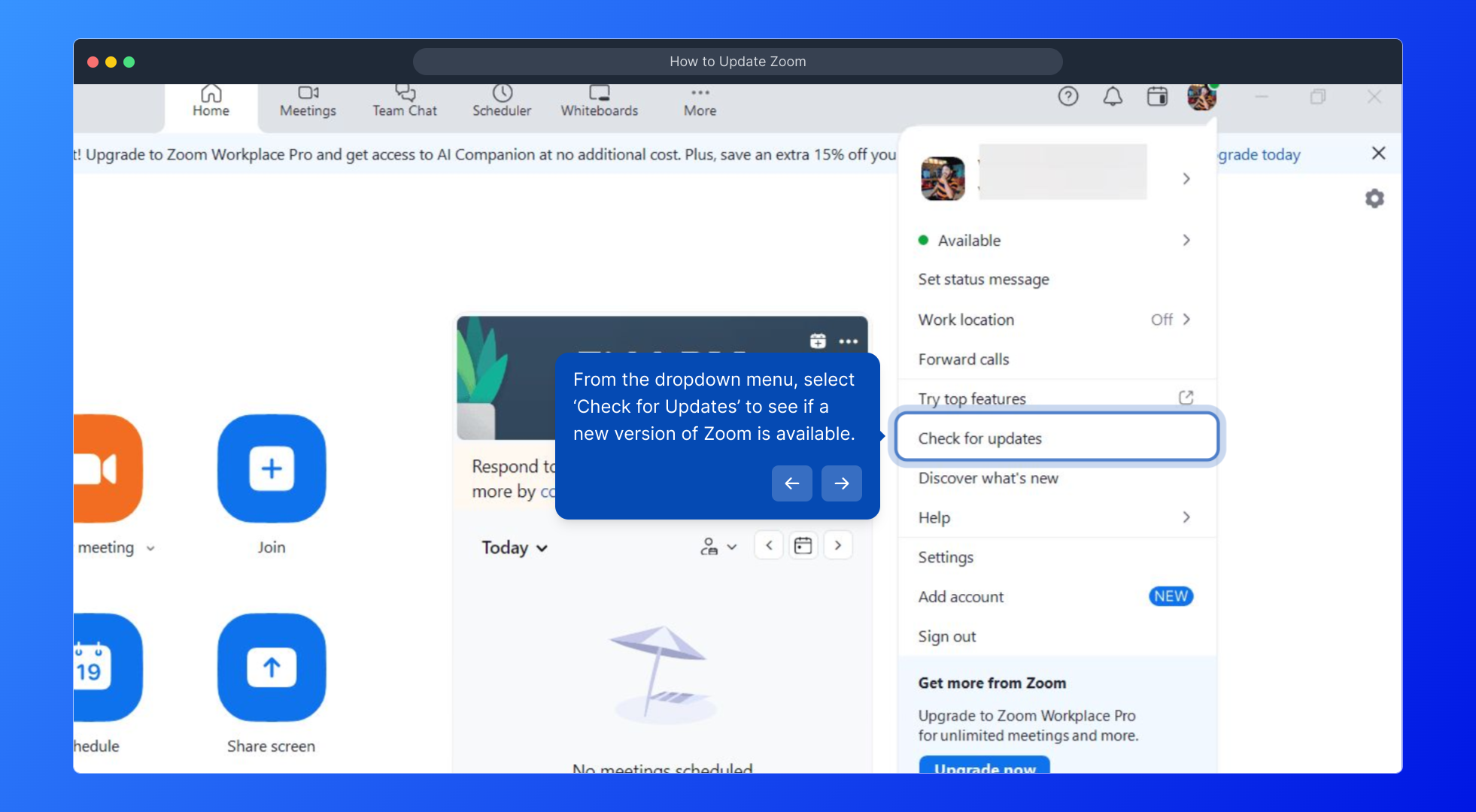
3. From the dropdown menu, select ‘Check for Updates’ to see if a new version of Zoom is available.
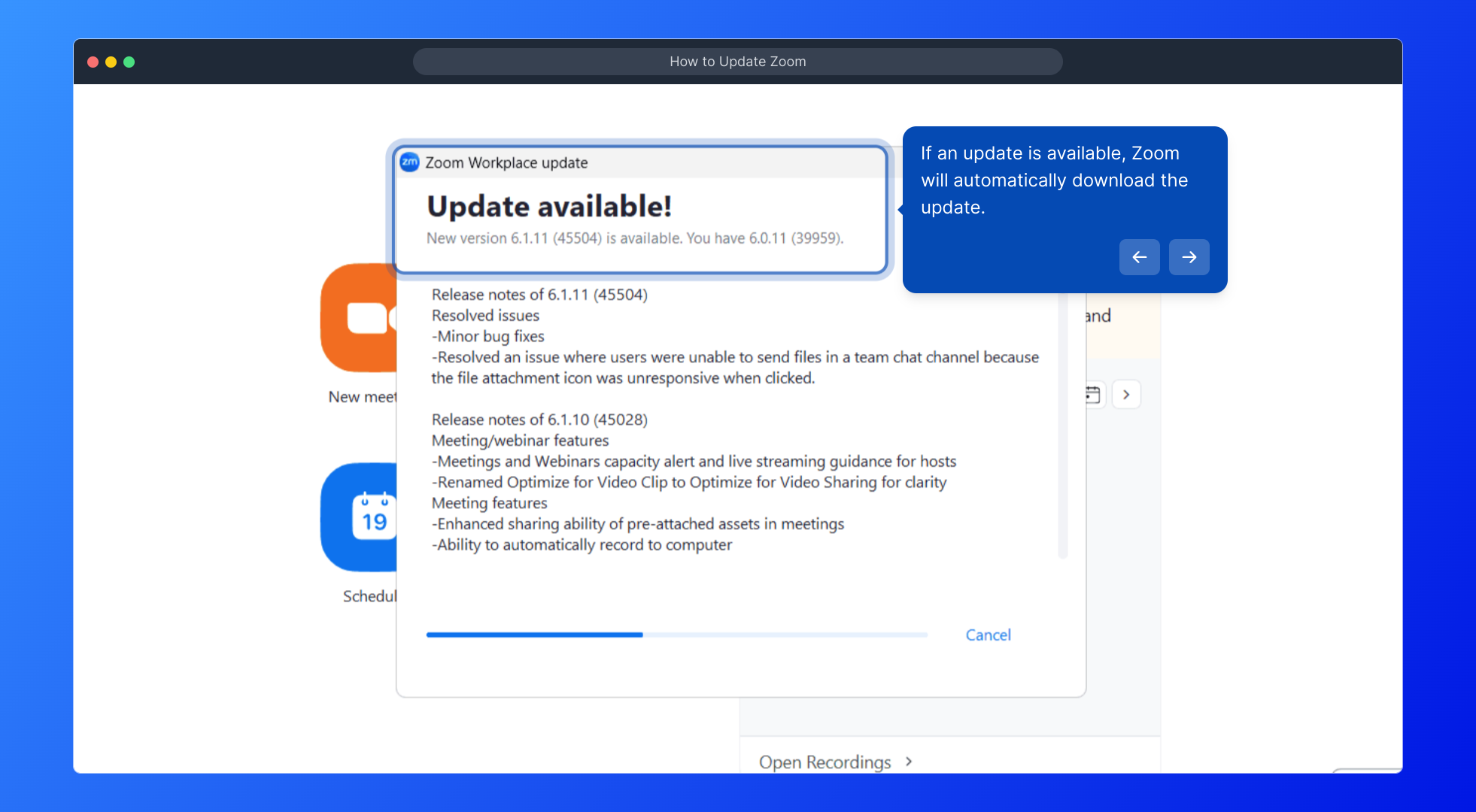
4. If an update is available, Zoom will automatically download the update.
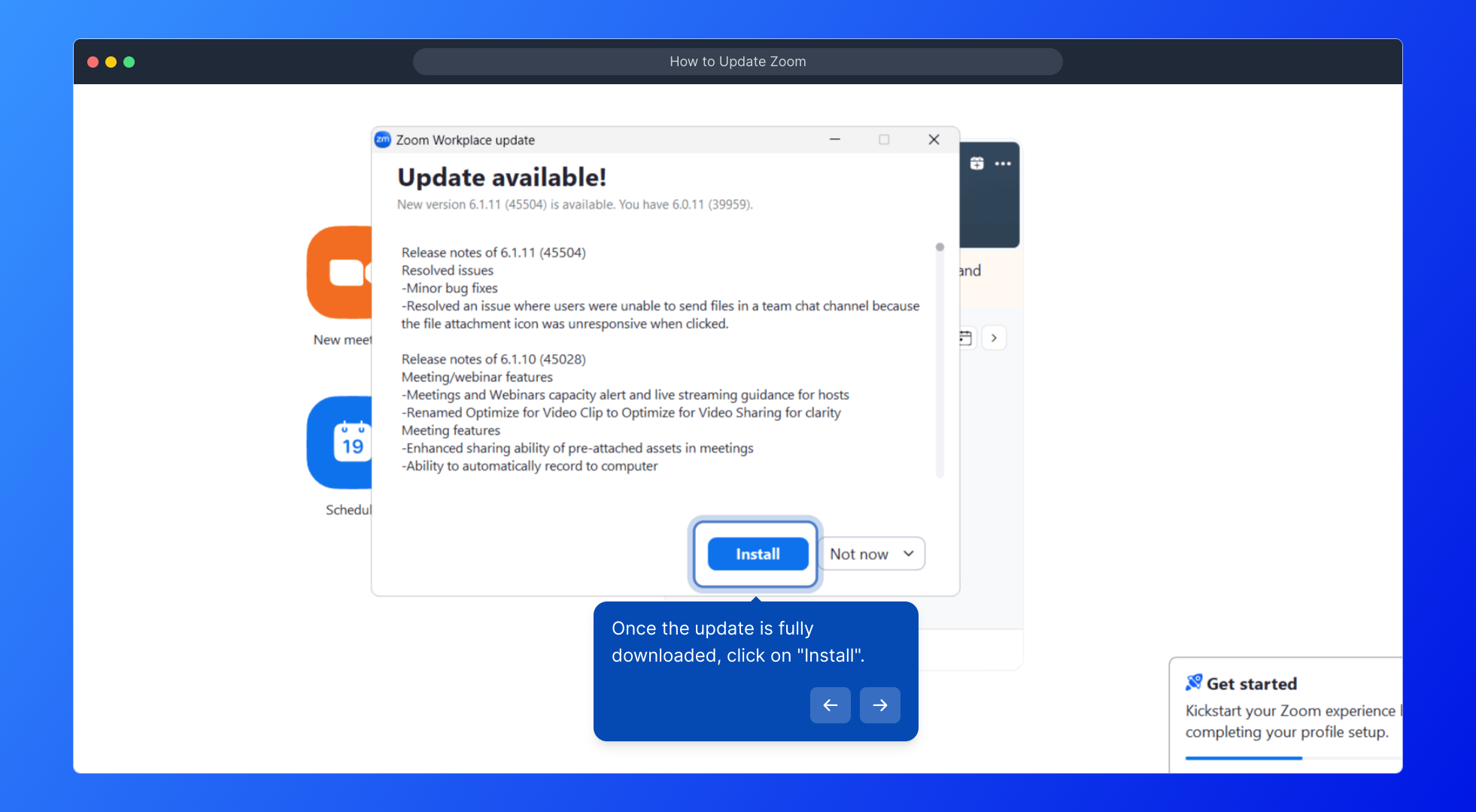
5. Once the update is fully downloaded, click on "Install".
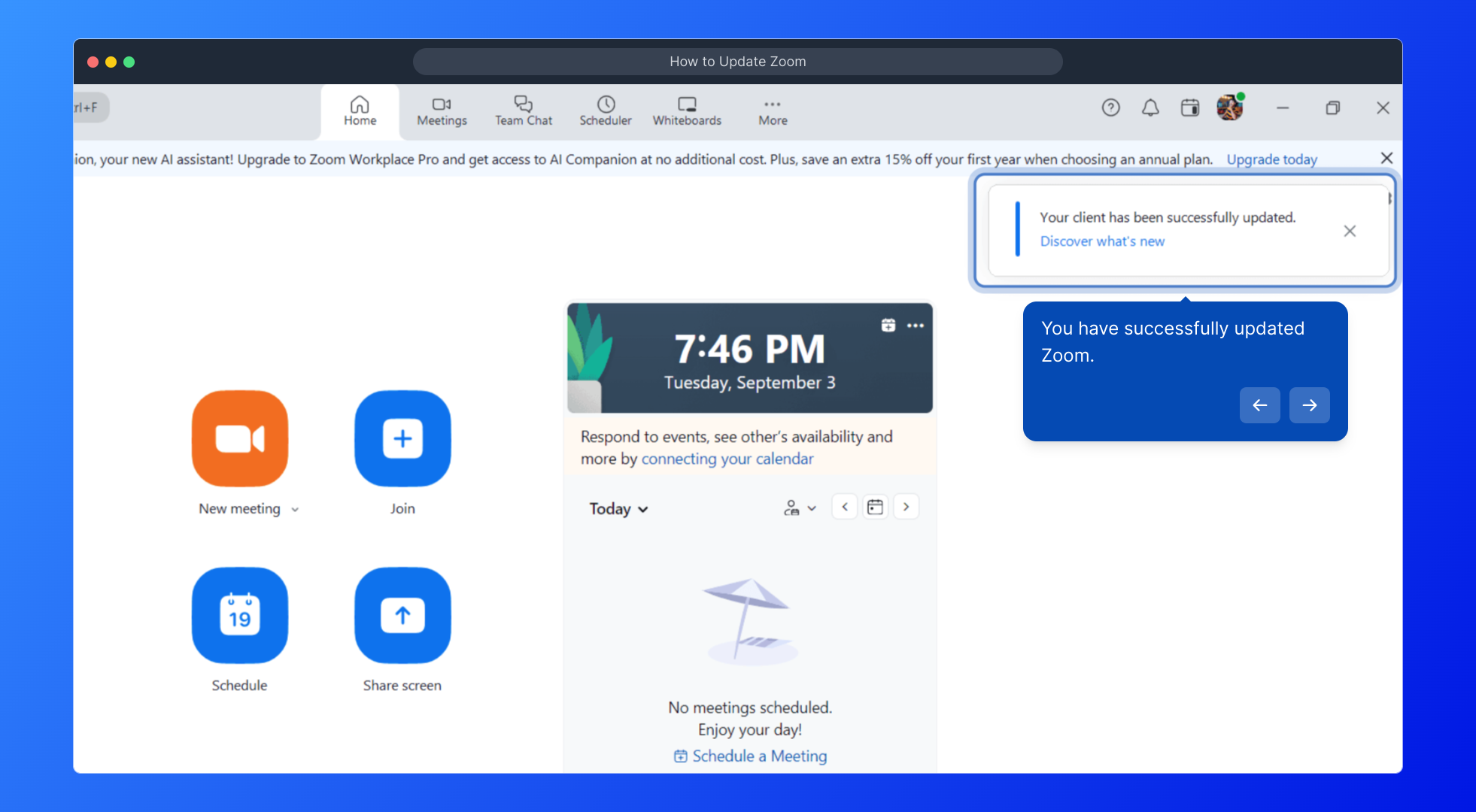
6. You have successfully updated Zoom.
7. Enjoyed the guided demo?
This interactive demo/guided walkthrough on How to Update Zoom was created using Supademo.
How to Update Zoom : Step-by-Step Guide
To begin, locate and open the Zoom desktop application installed on your computer. This is where you manage all your meetings and settings.
Once the Zoom window is open, find your profile picture in the upper right corner—it’s the gateway to your account settings and preferences.
Clicking your profile will reveal a dropdown menu. From here, select the option labeled ‘Check for Updates’ to see if Zoom has released a newer version for download.
If there’s a new update available, Zoom will start downloading it automatically so you don’t have to worry about manually finding the latest version.
After the download finishes, you’ll see an option to install the update. Click “Install” to begin upgrading your Zoom client to the latest version.
Once the installation completes, you’ve successfully updated Zoom and can enjoy all the newest features and improvements.
We hope you found this walkthrough helpful. If you’re ready, dive in and experience the enhanced Zoom features for yourself!

Create your own interactive demos in < 5 mins with Supademo
You can create your own interactive product demo in minutes using Supademo. Drive growth, scale enablement, and supercharge product-led onboarding with Supademo. Sign up for free here with no credit card required.
FAQs
Commonly asked questions about this topic.
How do I check if my Zoom is up to date?
Can I update Zoom automatically?
What should I do if Zoom update fails to install?
Will updating Zoom delete my settings or meetings?
Do I need to update Zoom on all devices separately?
Is it safe to update Zoom immediately when prompted?
How often does Zoom release updates?
Can I skip an available Zoom update?
What if I don’t see ‘Check for Updates’ in Zoom?
Can I update Zoom on mobile devices the same way?

Vimal Kumar
Product Operations Associate
Vimal Kumar helps build and grow Supademo’s team and GTM efforts, with a focus on figuring out growth levers and improving product traction.




