How to use SUMIF in Google Sheets

The SUMIF function in Google Sheets allows you to sum values in a range based on a specific criteria you define. This powerful function is essential for financial analysis, inventory tracking, and any workflow where you need to calculate conditional totals.
Quick summary
In this tutorial, you'll learn how to construct and execute a SUMIF formula in Google Sheets. You'll discover how to specify the range to evaluate, set your criteria, and designate the sum range to calculate totals that meet your conditions.
Why this matters
SUMIF is fundamental for data analysis because it enables you to extract meaningful insights from large datasets without manual calculation. Whether you're reconciling sales figures, tracking expenses by category, or analyzing survey responses, SUMIF saves time and reduces errors.
Step-by-step guide
- 1
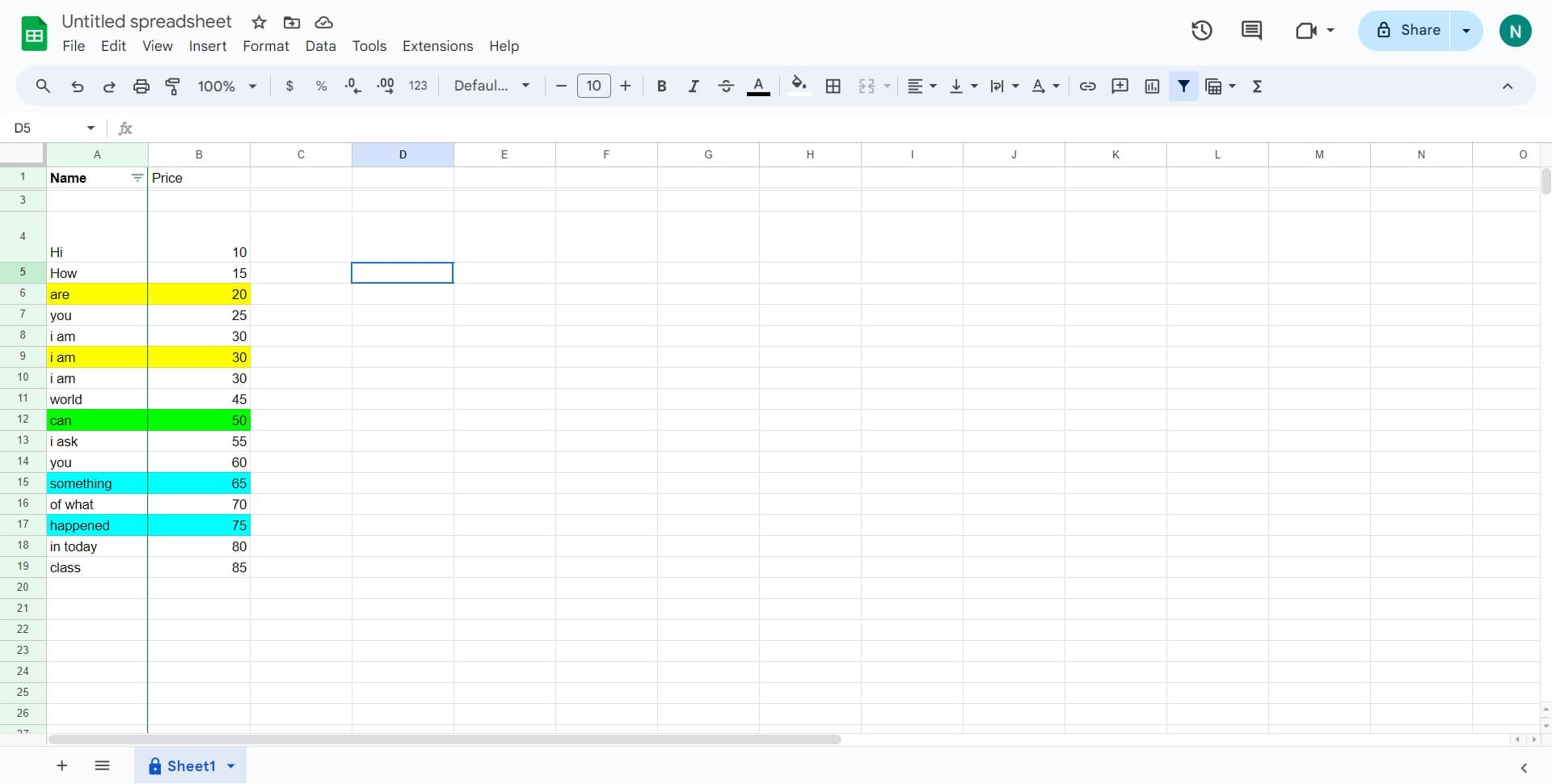
Select your target cell
Click on the cell where you want your SUMIF formula result to appear. This is typically an empty cell where you'll enter the formula.
- 2
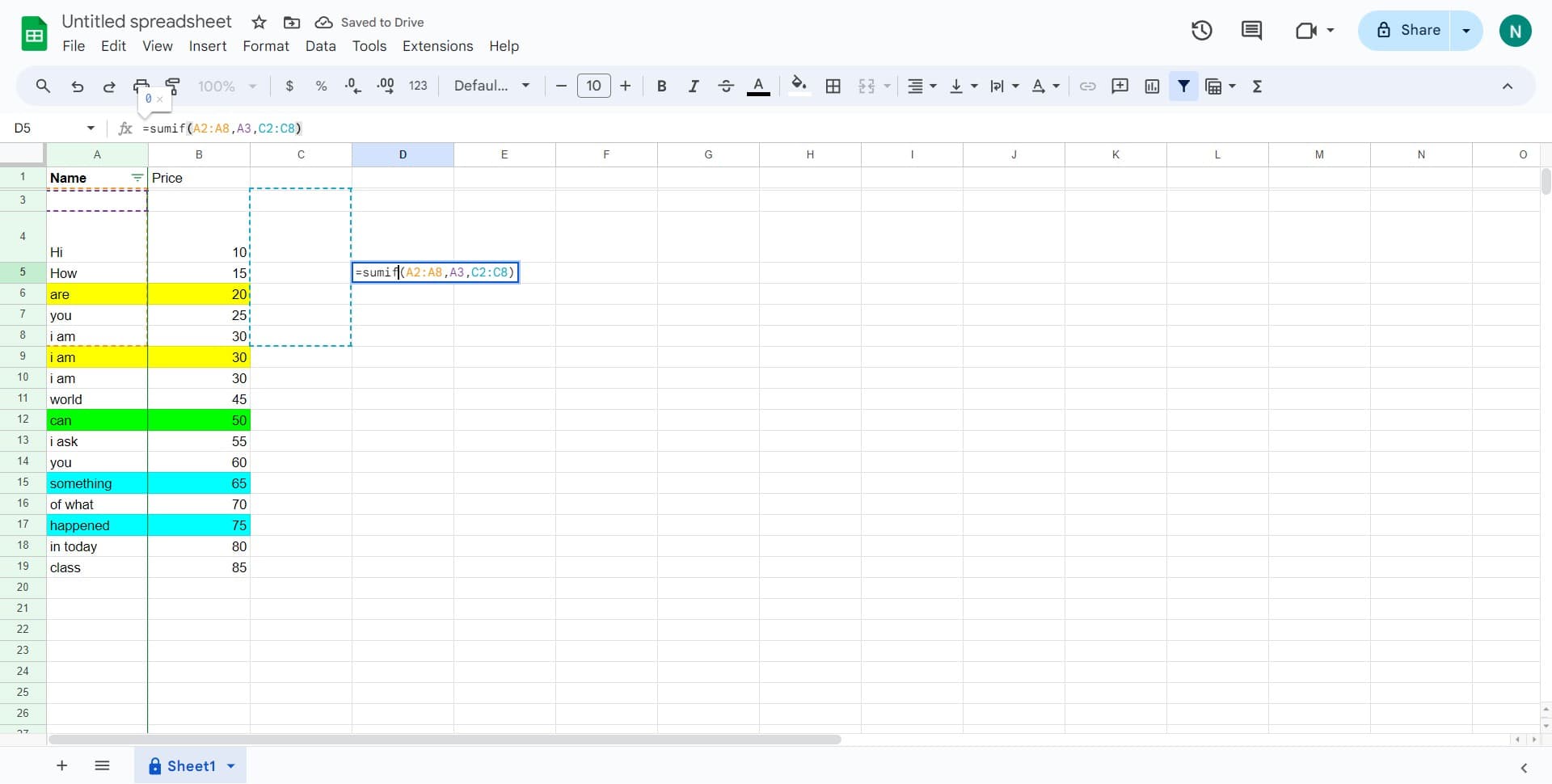
Enter the SUMIF function
Type the opening parenthesis after SUMIF to begin defining your function parameters. This starts the syntax required by Google Sheets to recognize your formula.
- 3
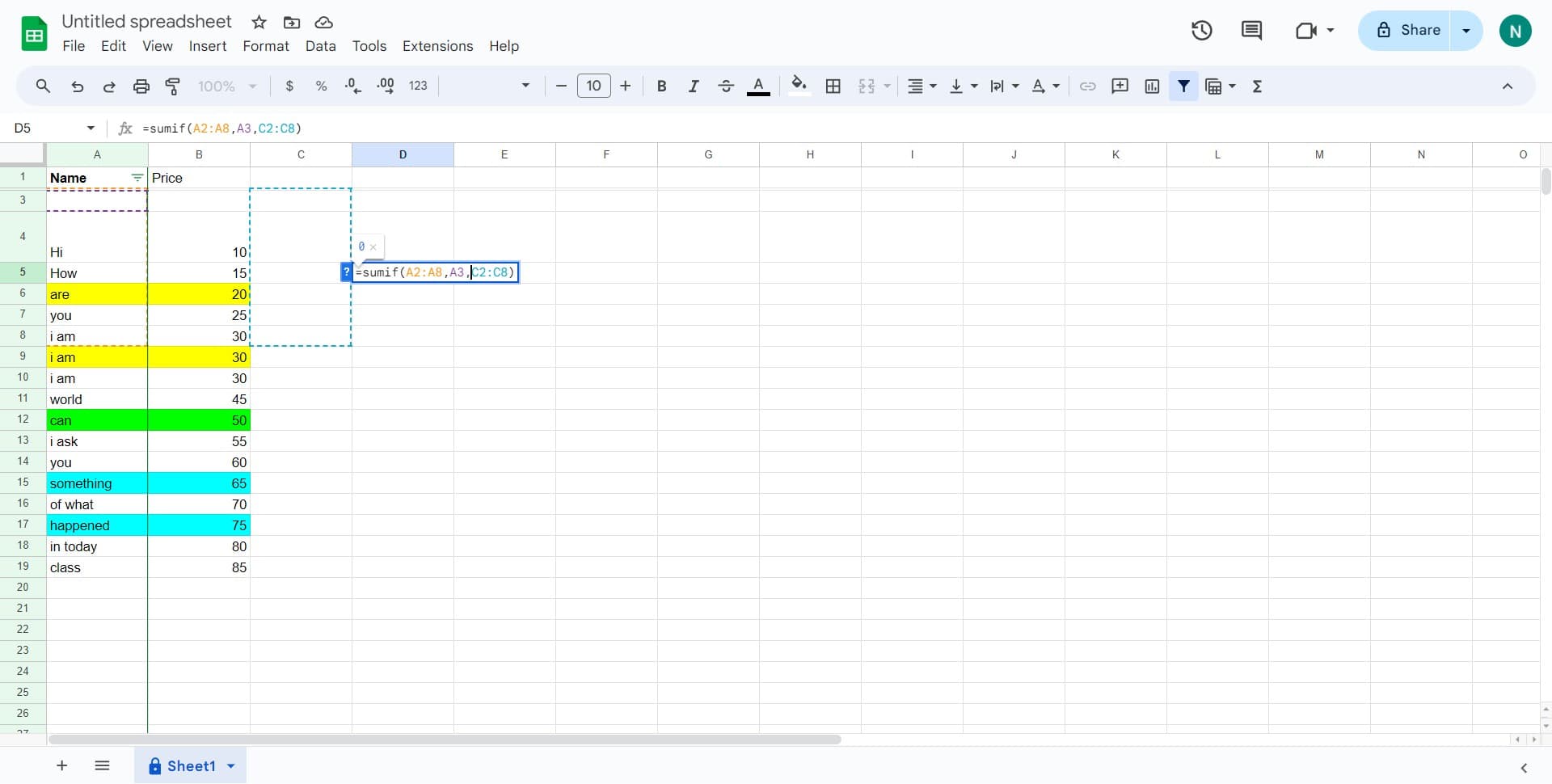
Define your criteria range
Click on the range of cells (such as C2:C8) that contains the values Google Sheets will evaluate against your criteria. This range tells the function which column or data set to check.
- 4
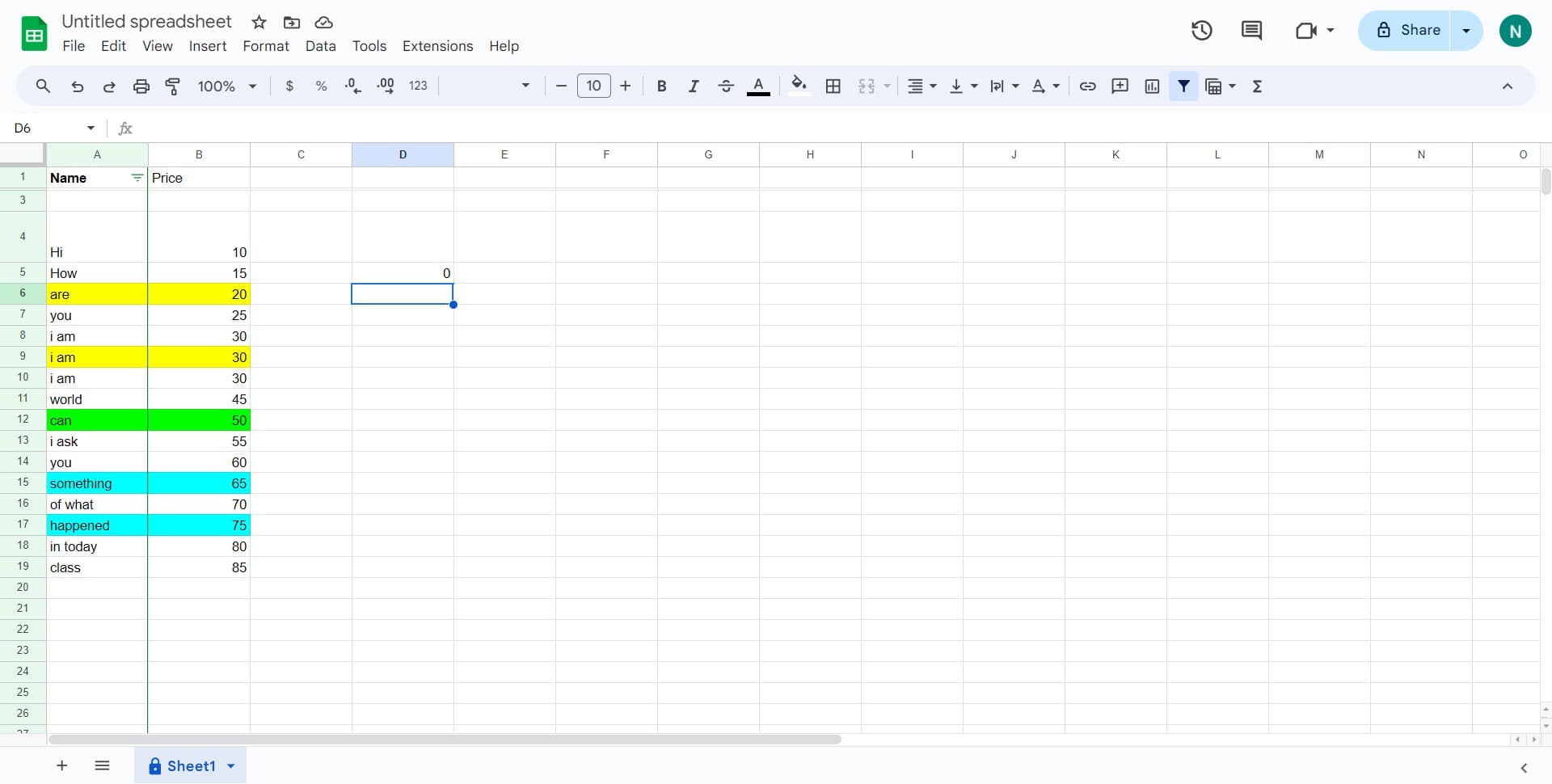
Complete your formula
Finish entering your criteria and sum range parameters, then press Enter to execute the formula. Google Sheets will calculate and display the sum of all cells that match your specified criteria.
Frequently asked questions
Common questions about how to use sumif in google sheets.
What's the difference between SUMIF and SUMIFS?
SUMIF evaluates a single criteria across one range, making it ideal for straightforward conditional sums. SUMIFS allows you to specify multiple criteria across different ranges, providing more complex filtering capabilities for advanced analysis.
Can I use SUMIF with text criteria?
Yes, SUMIF works with text criteria by matching exact or partial text values. You can use wildcards like asterisks to match patterns, for example using 'Sales*' to sum all entries starting with 'Sales'.
What happens if my criteria range and sum range are different sizes?
Google Sheets will use only the overlapping portion of the ranges or adjust based on the starting cell. It's best practice to ensure your ranges are the same size to avoid unexpected results.
Can I use SUMIF with dates as criteria?
Yes, SUMIF supports date criteria using the DATE function or comparison operators like greater than or less than. For example, you can sum values where the date is after a specific date using criteria like '>='&DATE(2024,1,1).
How do I sum multiple criteria in Google Sheets?
Use the SUMIFS function for multiple criteria, which allows you to add multiple condition ranges and criteria pairs. Alternatively, you can combine multiple SUMIF functions with addition, such as =SUMIF(range1,criteria1,sum_range)+SUMIF(range2,criteria2,sum_range).