How to Create a Board on Monday.com

Vimal Kumar
Vimal Kumar·
How to Create a Board on Monday.com

What is Monday.com?


Monday.com is a versatile work operating system that enables teams to run projects and workflows with confidence. It offers an intuitive platform for managing tasks and collaborating on projects, providing a dynamic way to enhance productivity and transparency. Monday.com's user-friendly interface and customizable templates make it a powerful tool for organizing and tracking work.
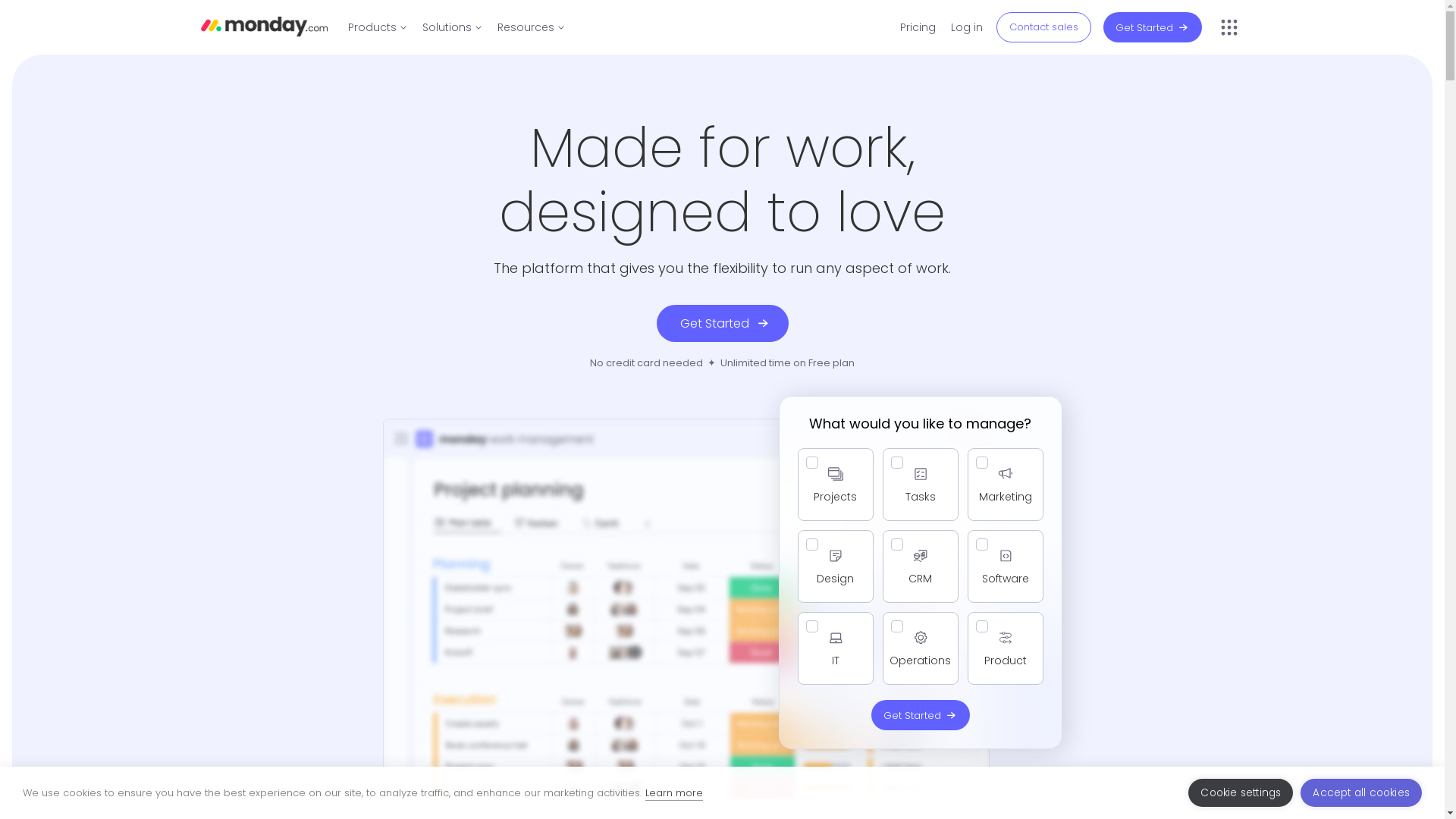
Monday.com Screenshot

Who is Monday.com best suited for?

Monday.com is ideal for professionals such as Product Marketers, project managers, and team leads. It serves as an excellent tool for coordinating product launches, managing marketing campaigns, and streamlining workflow processes. The platform offers robust features like automation and integrations, which significantly enhance team collaboration and efficiency.

How to Create a Board on Monday.com

Interactive demo powered by Supademo

Common FAQs on How to Create a Board on Monday.com

Commonly asked questions about this topic.

How do I start creating a board?

To create a board, click the "+ Add" button located on the left panel, then choose "New Board" and follow the prompts to set it up.

Can I duplicate an existing board?

Yes, you can duplicate an existing board by clicking the three-dot menu on the board's main page and selecting "Duplicate Board".

What types of columns can I add to my board?

You can add various types of columns such as Text, Number, Status, Person, Date, and more to customize your board.

Is it possible to integrate automation into my board?

Yes, you can integrate automation by using Monday.com's automation recipes found in the Automation Center of your board.

How do I invite team members to my board?

To invite team members, click on "Invite" at the top right of the board, enter their email addresses, and click "Send Invitation".

Enjoyed this interactive product demo of Monday.com?

Create your own interactive product demo in minutes. Drive growth, scale enablement and supercharge product led-onboarding with Supademo. Sign up for free here with no credit card required.

Vimal Kumar

Vimal Kumar

Product Operations Associate

Vimal Kumar helps build and grow Supademo’s team and GTM efforts, with a focus on figuring out growth levers and improving product traction.

More from the blog

How to Add Products to Shopify

How to Add Products to Shopify

Learn step-by-step how to add products to your Shopify store effortlessly, including tips on product details, images, pricing, and inventory management to boost your online sales.

Vimal Kumar
Vimal KumarDec 17, 2025
How to Deactivate Your Shopify Store

How to Deactivate Your Shopify Store

Learn step-by-step how to deactivate your Shopify store easily, including important considerations and tips to pause or close your shop without losing data.

Vimal Kumar
Vimal KumarDec 17, 2025
How to Remove 'Powered by Shopify'

How to Remove 'Powered by Shopify'

Learn how to easily remove the 'Powered by Shopify' text from your online store with step-by-step instructions and tips to customize your Shopify storefront.

Vimal Kumar
Vimal KumarDec 17, 2025
How to Create a Shopify Account

How to Create a Shopify Account

Learn step-by-step how to create a Shopify account quickly and easily, set up your online store, and start selling your products in no time.

Vimal Kumar
Vimal KumarDec 17, 2025
How to Create a Stripe Account

How to Create a Stripe Account

Learn how to create a Stripe account quickly and easily with our step-by-step guide, perfect for beginners looking to start accepting online payments.

Vimal Kumar
Vimal KumarDec 17, 2025
How to Contact Stripe Support

How to Contact Stripe Support

Learn the easiest ways to contact Stripe support for quick assistance with your payment processing, account issues, and technical questions.

Vimal Kumar
Vimal KumarDec 16, 2025