How to create a project tracker in Airtable

Building a project tracker from scratch can be time-consuming, but Airtable's pre-built templates make it simple. This guide walks you through accessing Airtable's project management template and setting it up in your workspace so you can start organizing tasks immediately.
Quick summary
In this tutorial, you'll learn how to browse Airtable's template library, select a project management template, and activate it in your workspace. You'll discover how to quickly implement a structured project tracker without building the base from the ground up.
Why this matters
Using a pre-built project tracker template saves hours of setup time and ensures you have a proven structure for managing tasks, deadlines, and team collaboration. A well-organized tracker keeps projects on schedule and makes it easier to track progress across your team.
Step-by-step guide
- 1
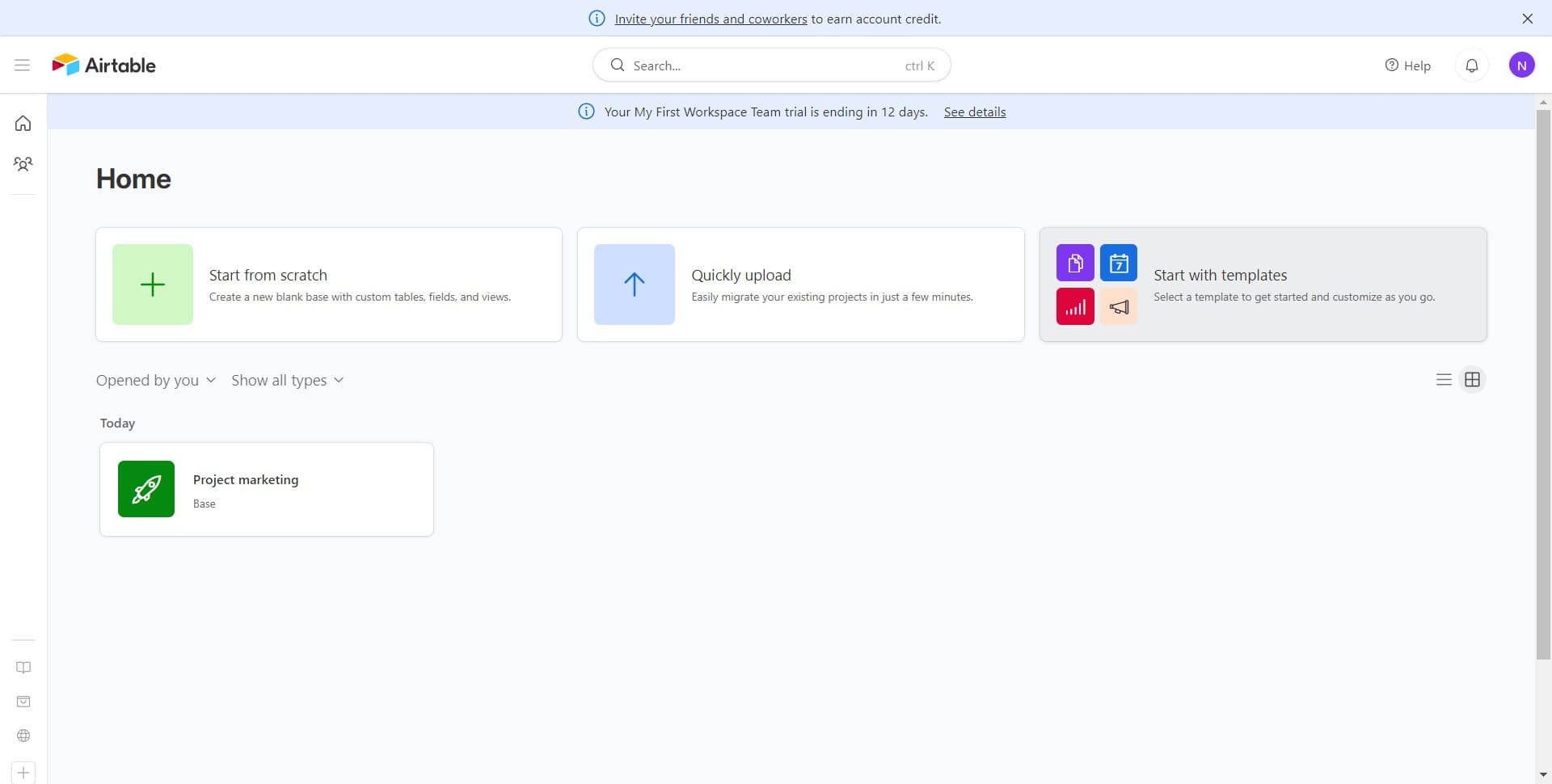
Click on Start with templates
Open Airtable and locate the "Start with templates" option on the home screen. This gives you access to Airtable's library of pre-designed bases built for common workflows.
- 2
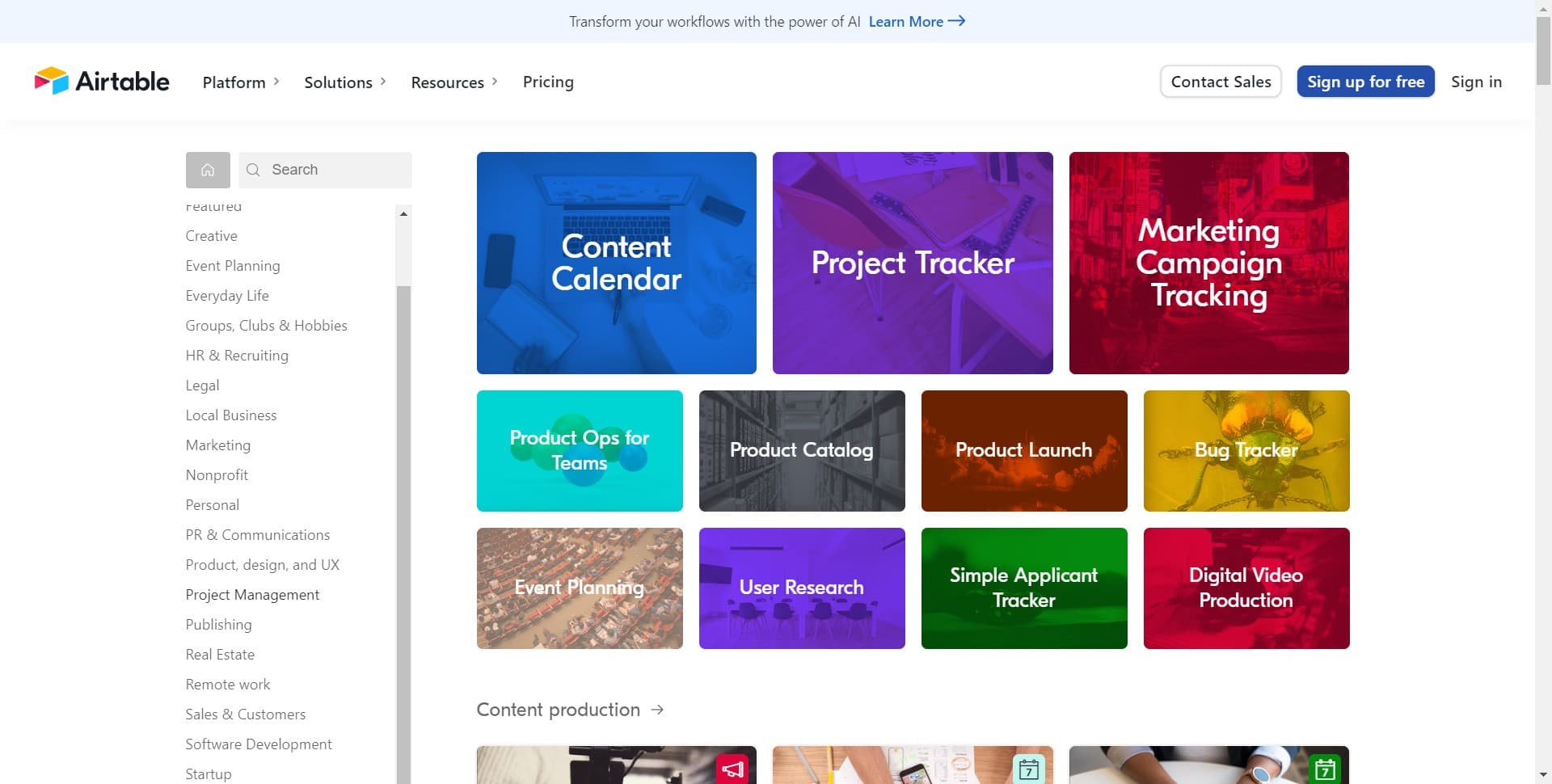
Click on Project Management
In the templates gallery, find and select the "Project Management" category. This category contains several templates designed to help you organize and track projects effectively.
- 3
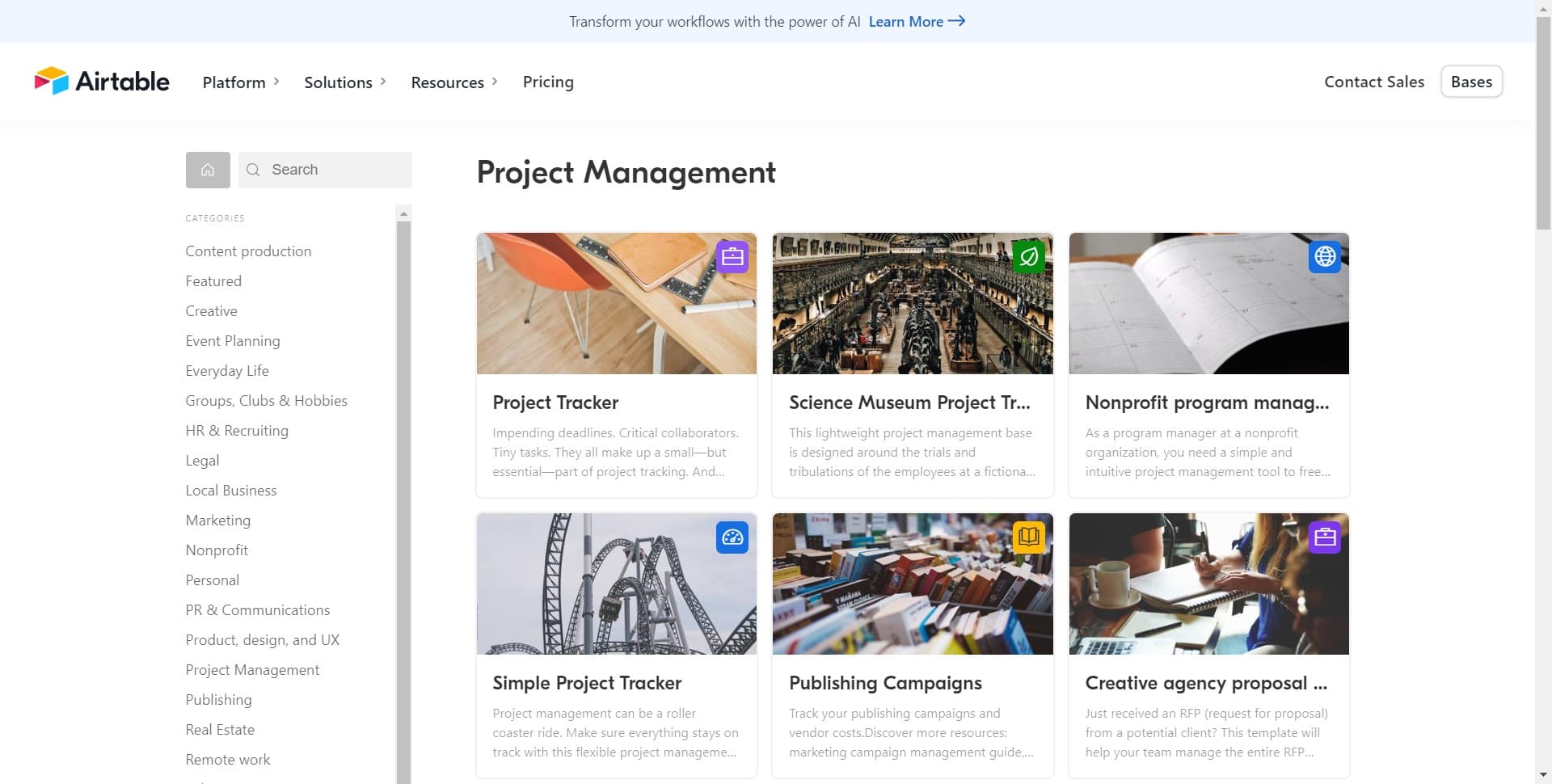
Select the project tracker template
Browse the available project management templates and click on the one that best fits your needs. Preview the template structure to ensure it matches your project tracking requirements.
- 4
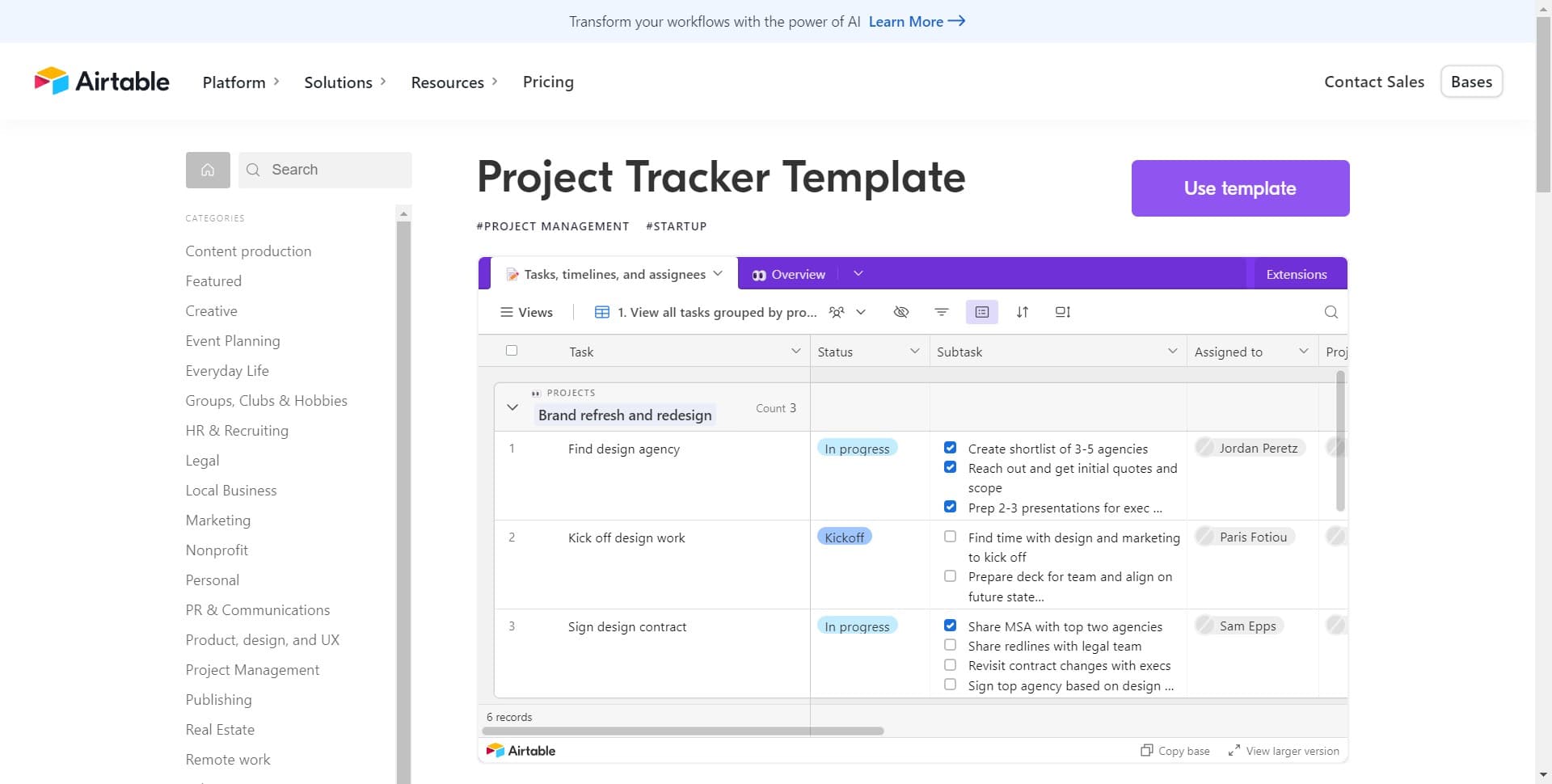
Click on Use template
Once you've selected your preferred template, click the "Use template" button to proceed. This will prompt you to choose a workspace where the template will be created.
- 5
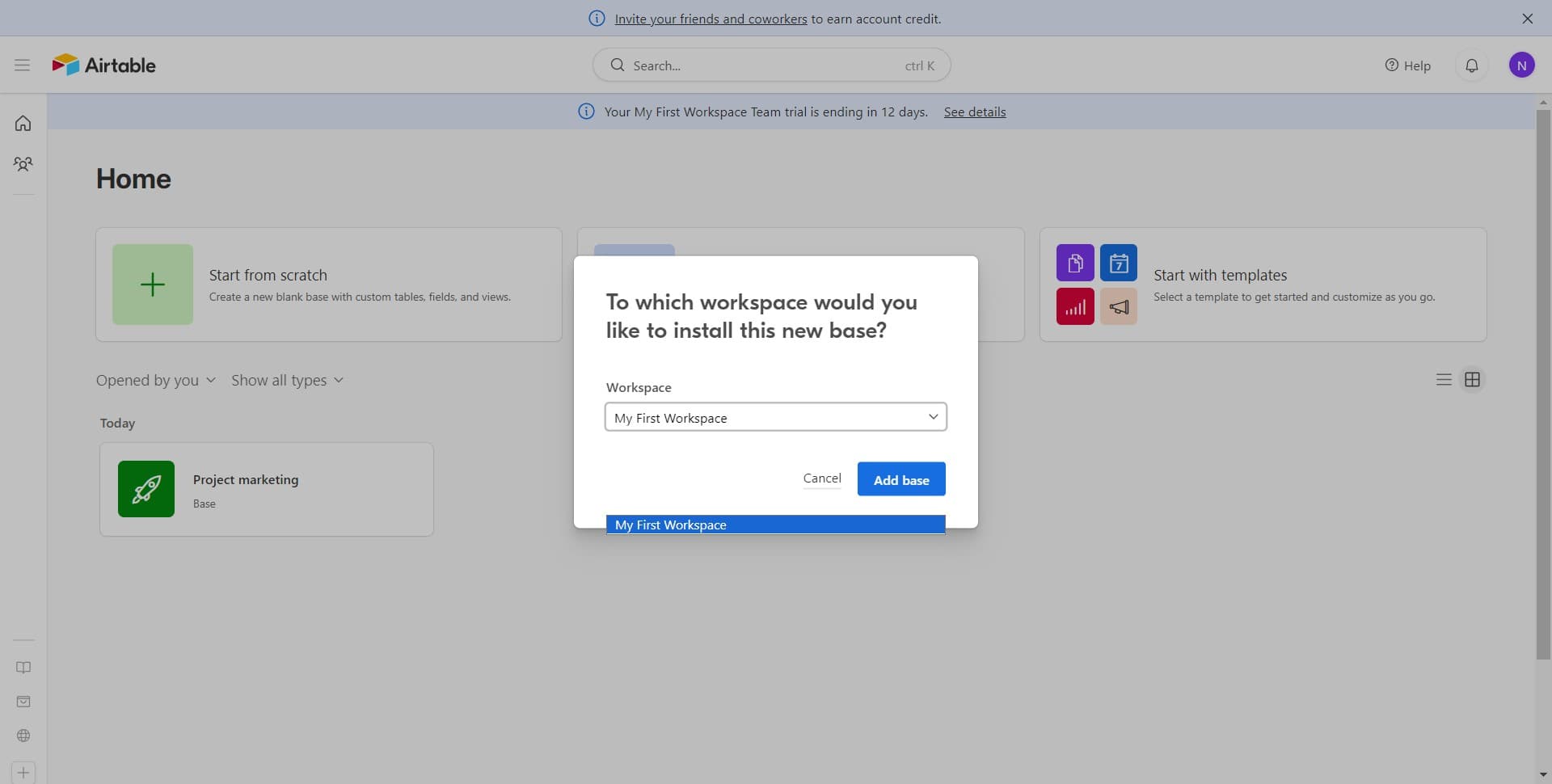
Select your workspace
Click on "My First Workspace" or whichever workspace you want to add the project tracker to. This is where your new project management base will be stored and accessible to your team.
- 6
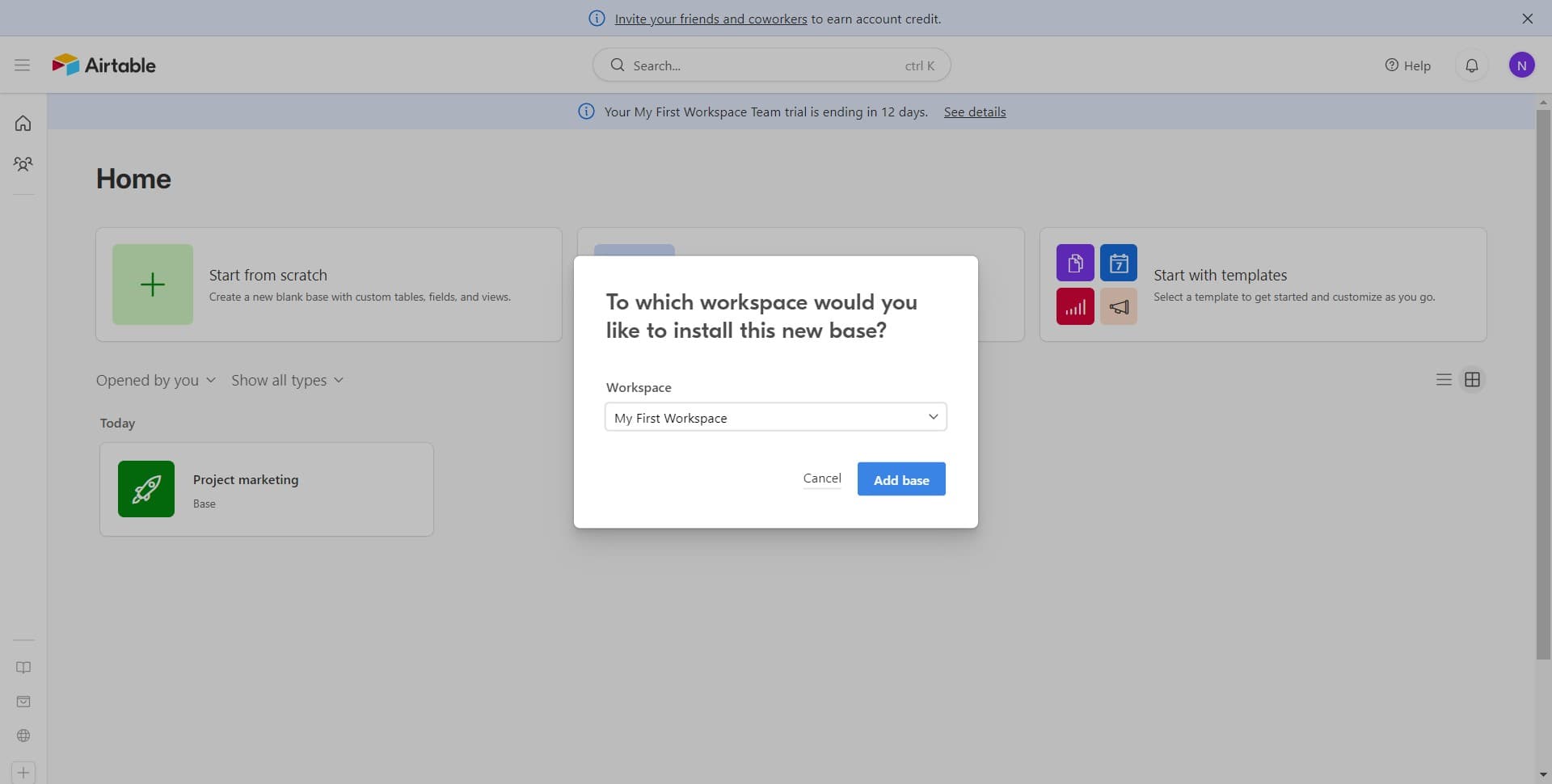
Click on Add base
Select the "Add base" option to create the project tracker in your chosen workspace. Airtable will now generate a new base with all the template fields and configurations.
- 7
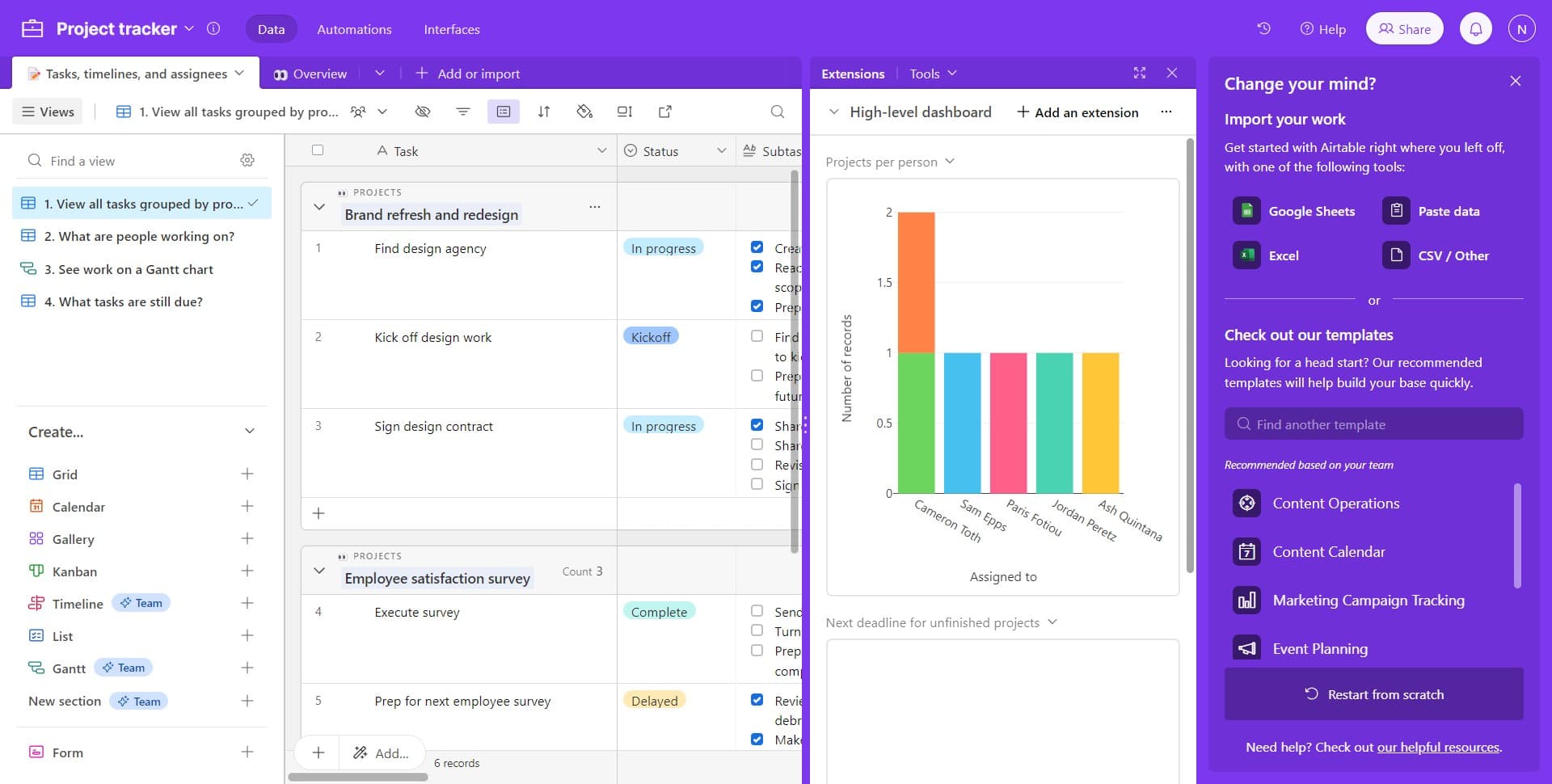
Launch the Brand Refresh project
Click on "Brand refresh and redesign" to open the sample project included with the template. This gives you a working example of how to structure tasks, assign owners, and track progress within the tracker.
Frequently asked questions
Common questions about how to create a project tracker in airtable.
Can I customize the template after setting it up?
Yes, absolutely. After creating the base from the template, you can modify fields, add columns, adjust views, and configure automations to match your specific project needs. The template provides a solid foundation, but Airtable allows full customization.
What information does the project management template track?
The template typically includes task names, descriptions, due dates, status, assignees, and priority levels. Most versions also feature project timelines, progress indicators, and team collaboration features to keep everyone aligned.
Can multiple team members access the same project tracker?
Yes, you can invite team members to your Airtable workspace and grant them access to the project tracker base. Different permission levels allow you to control who can view, edit, or manage the tracker.
Is the template free to use?
Airtable's templates are available to all users, including those on the free plan. However, some advanced features or higher limits may require a paid Airtable subscription depending on your workspace needs.
Can I create multiple projects in the same base?
Yes, the project management template supports multiple projects in a single base. You can add new project records, filter by project, and manage all your projects from one centralized location.