How to format currencies in Google Sheets

Formatting currencies in Google Sheets ensures your financial data is displayed consistently and professionally. Whether you're tracking expenses, creating budgets, or building financial reports, proper currency formatting makes numbers immediately recognizable and easier to interpret. This guide walks you through applying currency formats to your spreadsheet cells.
Quick summary
In this tutorial, you'll learn how to format cells as currencies in Google Sheets by accessing the Format menu and selecting from predefined currency options. You'll discover how to apply US Dollar formatting and customize your selection to match your financial needs. By the end, you'll be able to quickly format any range of numbers as currency with just a few clicks.
Why this matters
Currency formatting is essential for financial clarity and professionalism in spreadsheets. Properly formatted currencies reduce misinterpretation, improve readability across large datasets, and maintain consistency when sharing reports with stakeholders. In business contexts, this formatting also helps prevent errors when performing calculations or audits on financial data.
Step-by-step guide
- 1
Select the cells to format
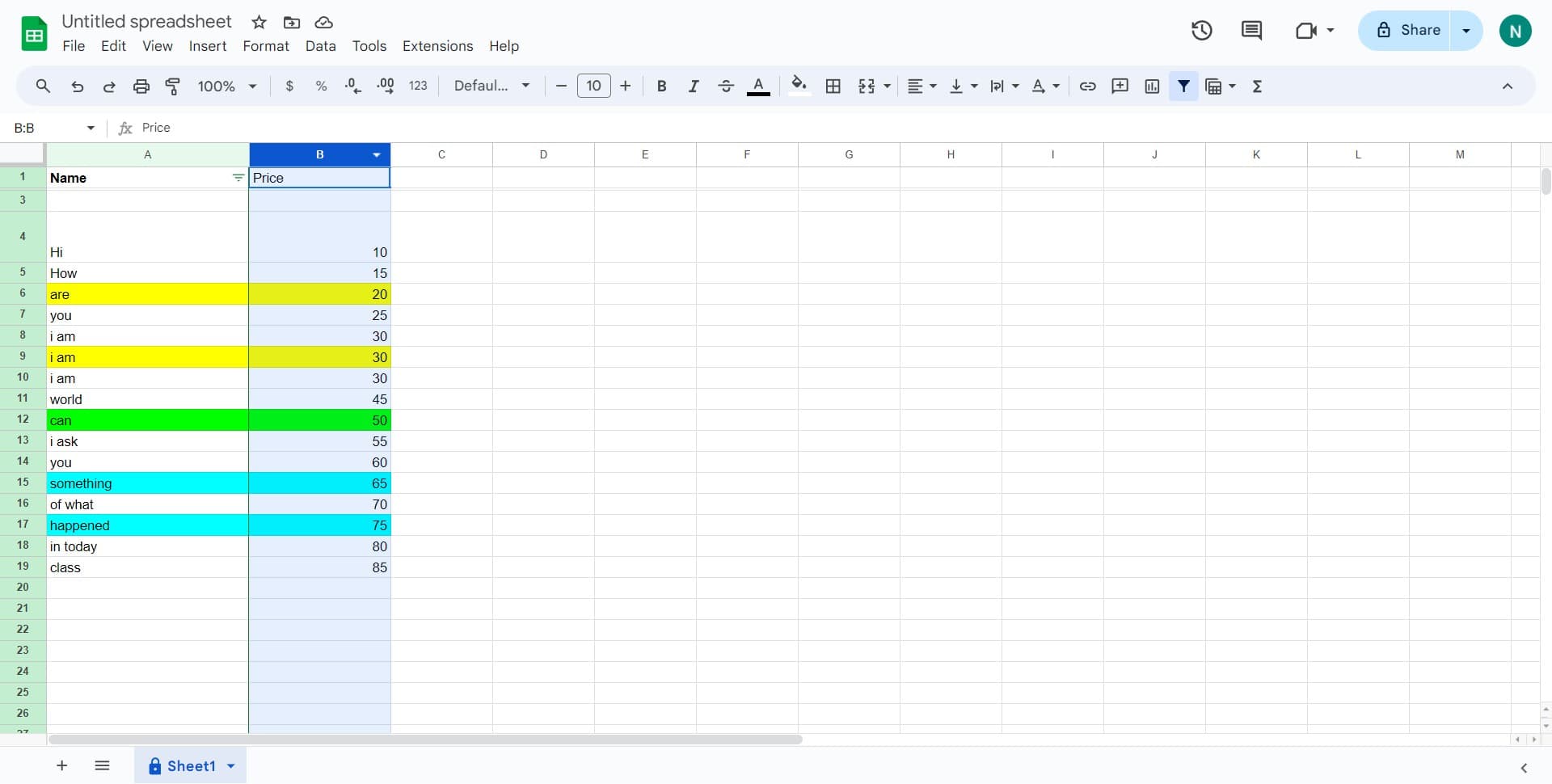
Click on the cell or range of cells containing the numbers you want to format as currency. You can select a single cell, multiple cells, or an entire column by clicking and dragging across your target range.
- 2
Open the Format menu
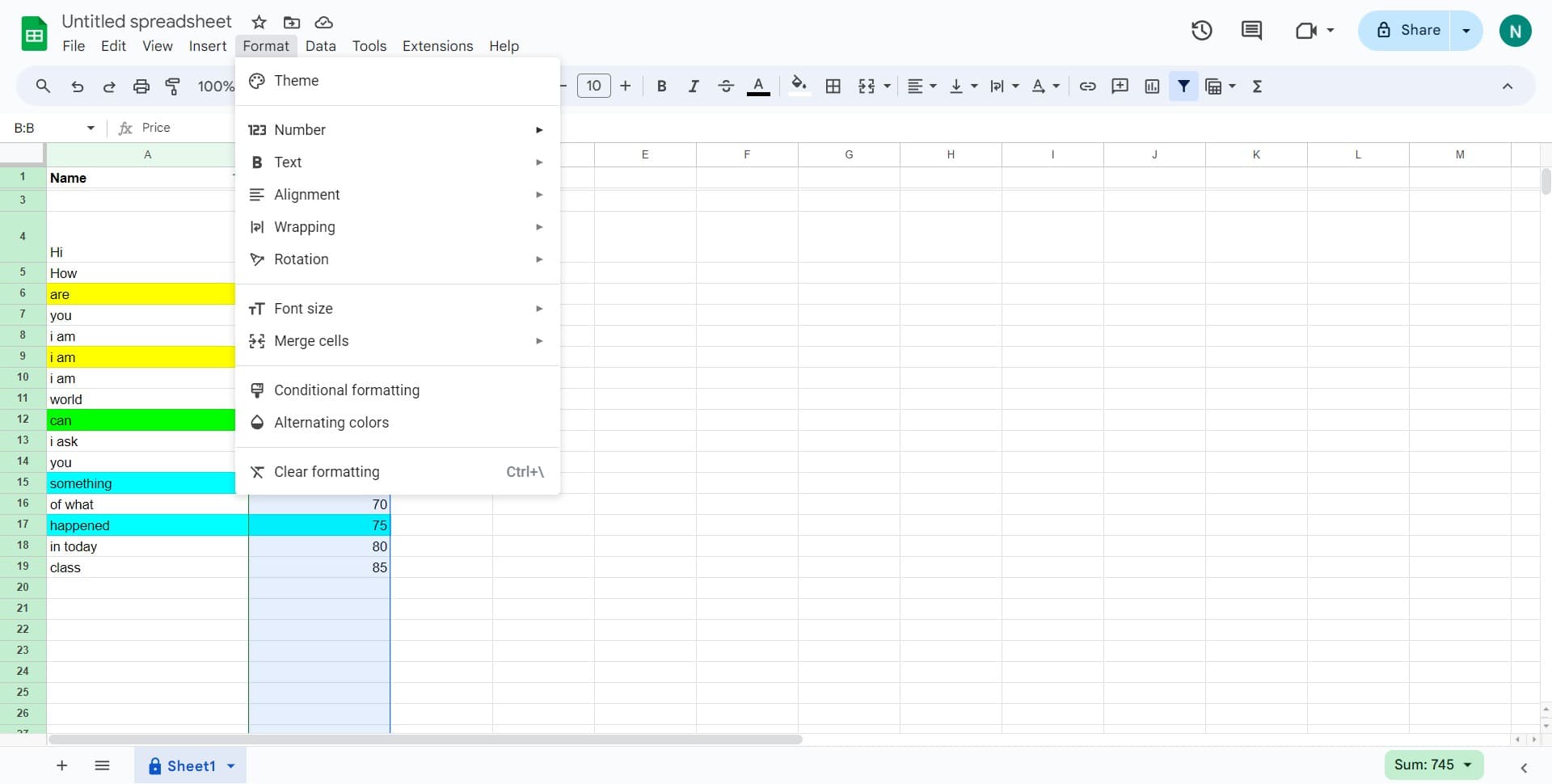
Click on 'Format' in the top menu bar to open the formatting options. This dropdown menu provides access to all number and cell formatting tools available in Google Sheets.
- 3
Navigate to Number formatting
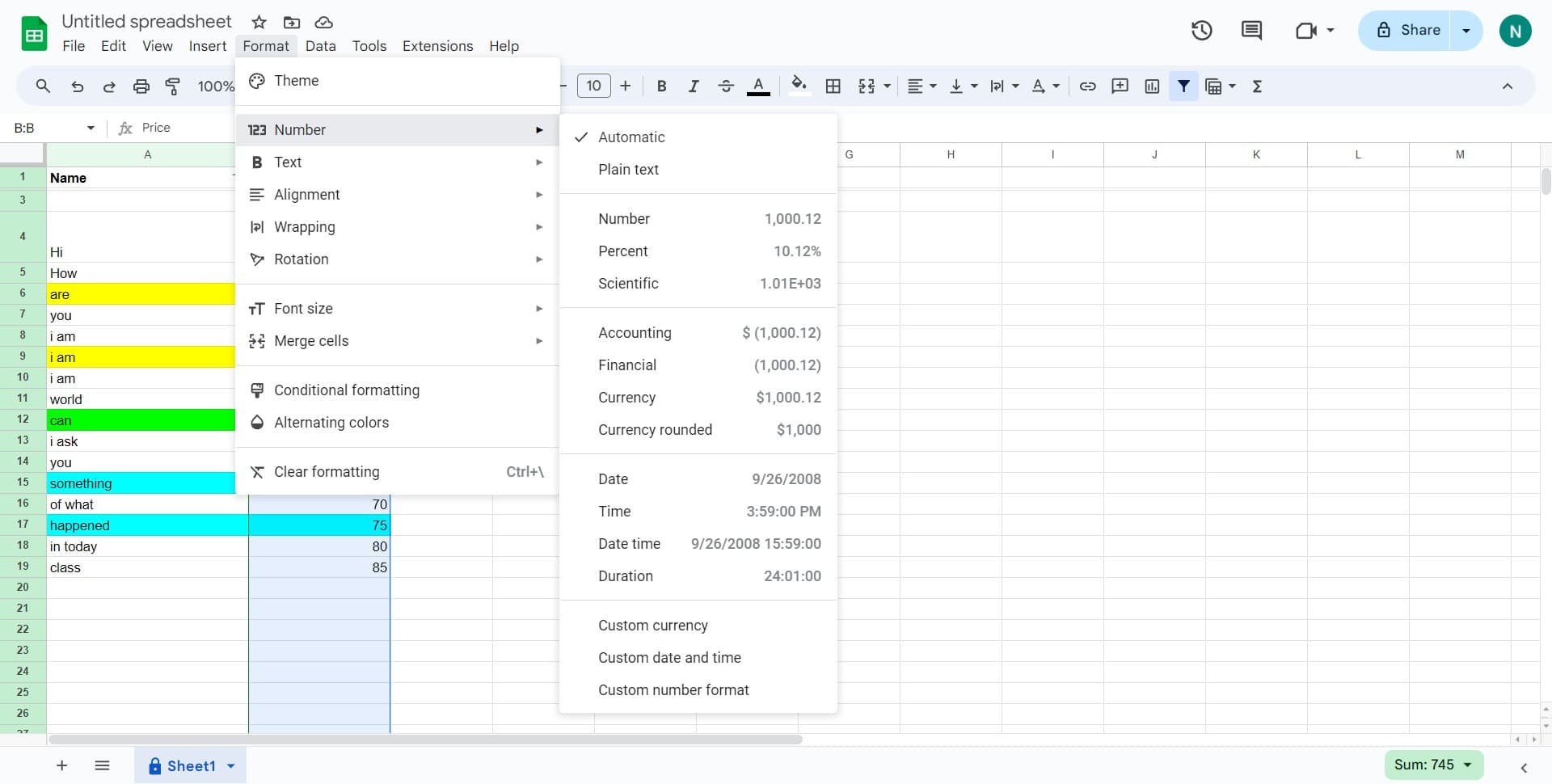
Click on 'Number' followed by the arrow (►) to expand the submenu. This section contains all number format types, including currency, percentage, date, and custom formats.
- 4
Select Custom currency option
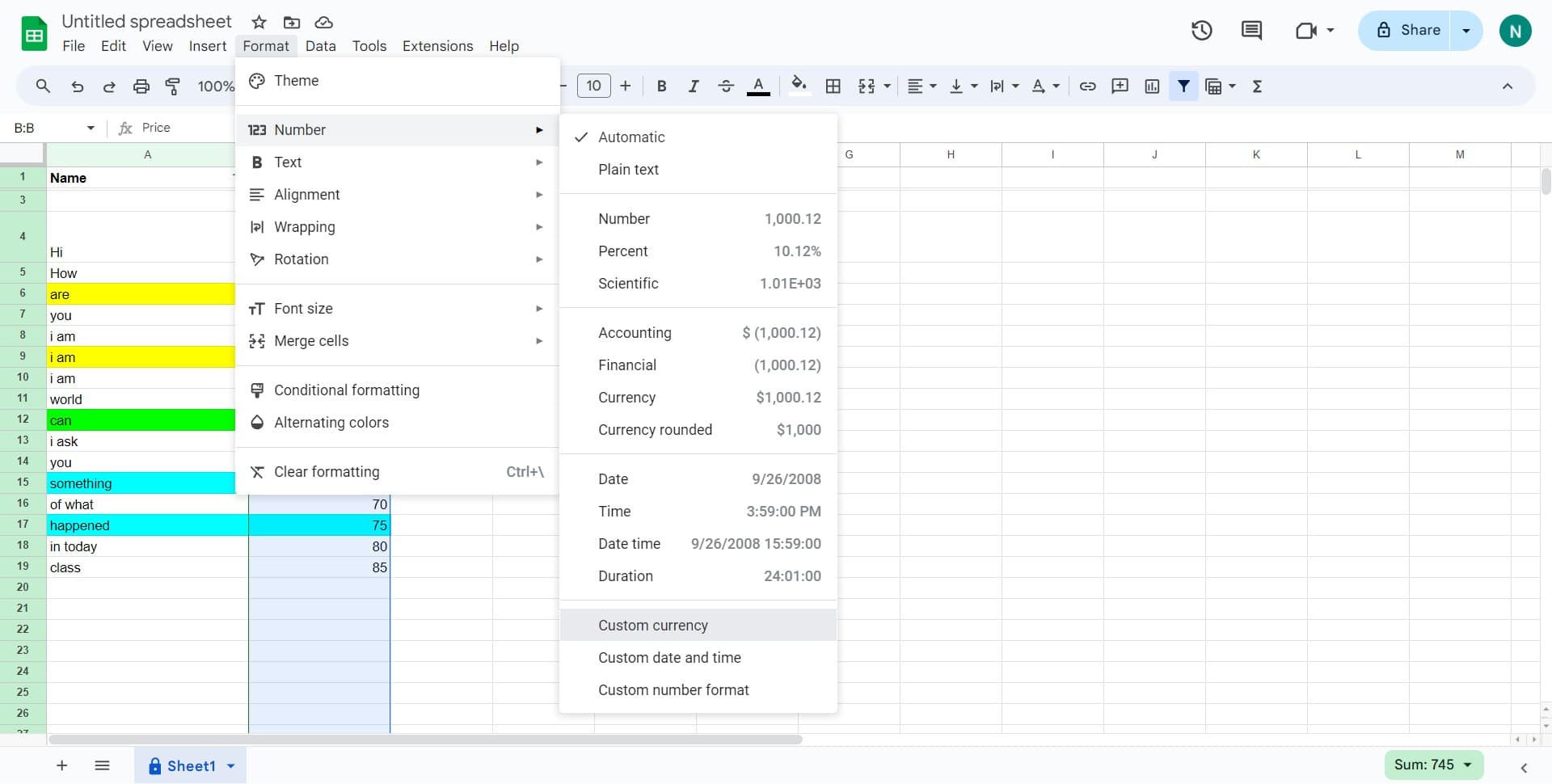
Click on 'Custom currency' from the expanded Number submenu. This option allows you to choose from a variety of predefined currency formats from different countries and regions.
- 5
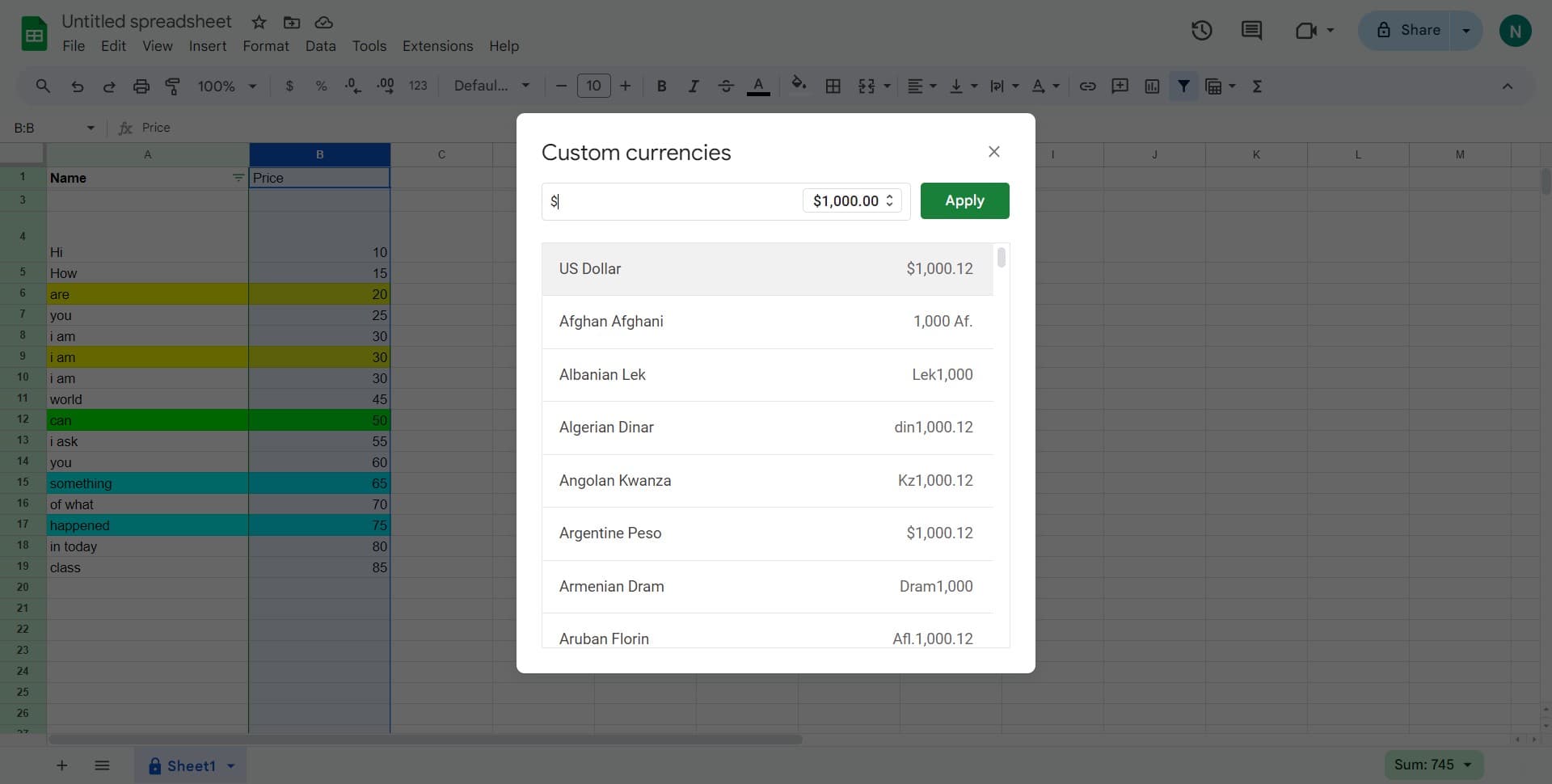
Choose US Dollar format
Click on 'US Dollar $1,000.12' to apply the standard US Dollar currency format to your selected cells. This format will display numbers with a dollar sign, thousands separators, and two decimal places.
- 6
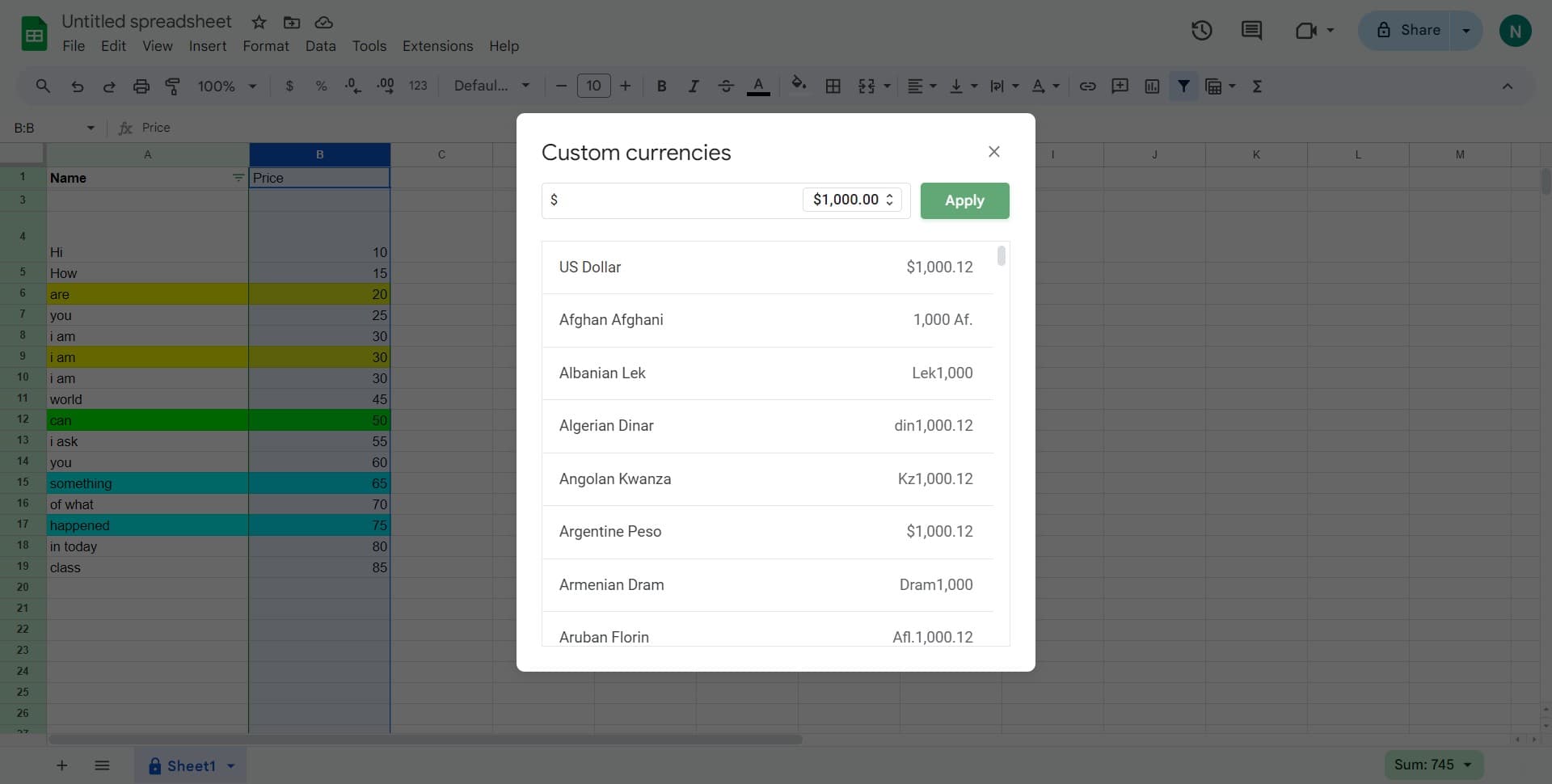
Apply the formatting
Click on 'Apply' to confirm and apply the US Dollar currency format to your selected cells. Your numbers will instantly update to display with the dollar sign and proper decimal formatting.
- 7
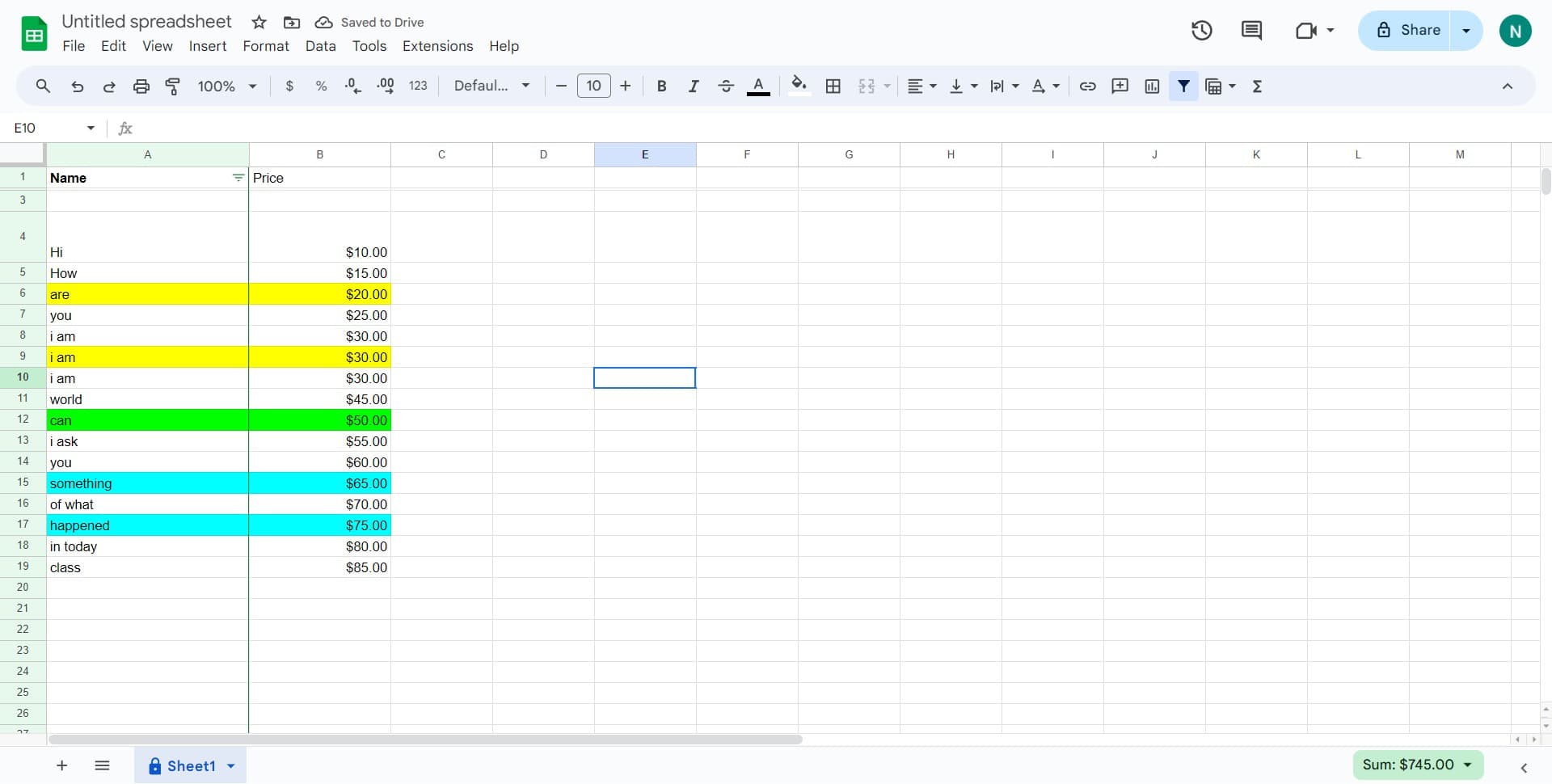
Verify the formatting result
Click on a formatted cell to confirm the currency format has been applied correctly. The cell should now display your number with the currency symbol and proper spacing.
Frequently asked questions
Common questions about how to format currencies in google sheets.
Can I format currencies other than US Dollar?
Yes, Google Sheets offers currency formatting for dozens of countries and currencies. When you click on 'Custom currency', you'll see a dropdown list with options like Euro, British Pound, Japanese Yen, and many others. Simply select your preferred currency from the list and apply it to your cells.
How do I format negative currency values?
Google Sheets automatically handles negative values when you apply currency formatting. By default, negative amounts display with a minus sign (e.g., -$1,000.12). If you need a different format for negatives (like parentheses), you can select 'More formats' from the Number menu to customize the appearance.
Can I remove currency formatting from cells?
Yes, you can easily remove currency formatting by selecting the formatted cells, opening the Format menu, clicking on Number, and selecting 'Number' (the basic format). This will convert the cells back to standard numeric display without currency symbols.
What if I want to show cents but no dollar sign?
You can create a custom currency format by selecting 'More formats' from the Number menu in the Format dropdown. This opens the format rules editor where you can specify exactly how your numbers should appear, including whether to display the currency symbol.
Does currency formatting affect the actual cell values?
No, currency formatting is purely visual and does not change the underlying cell values. The actual numbers remain the same, so all calculations and formulas will work correctly. Only the display appearance changes when you apply currency formatting.