How to Mute in Zoom

Vimal Kumar
Vimal Kumar·
How to Mute in Zoom
Interactive demo powered by Supademo

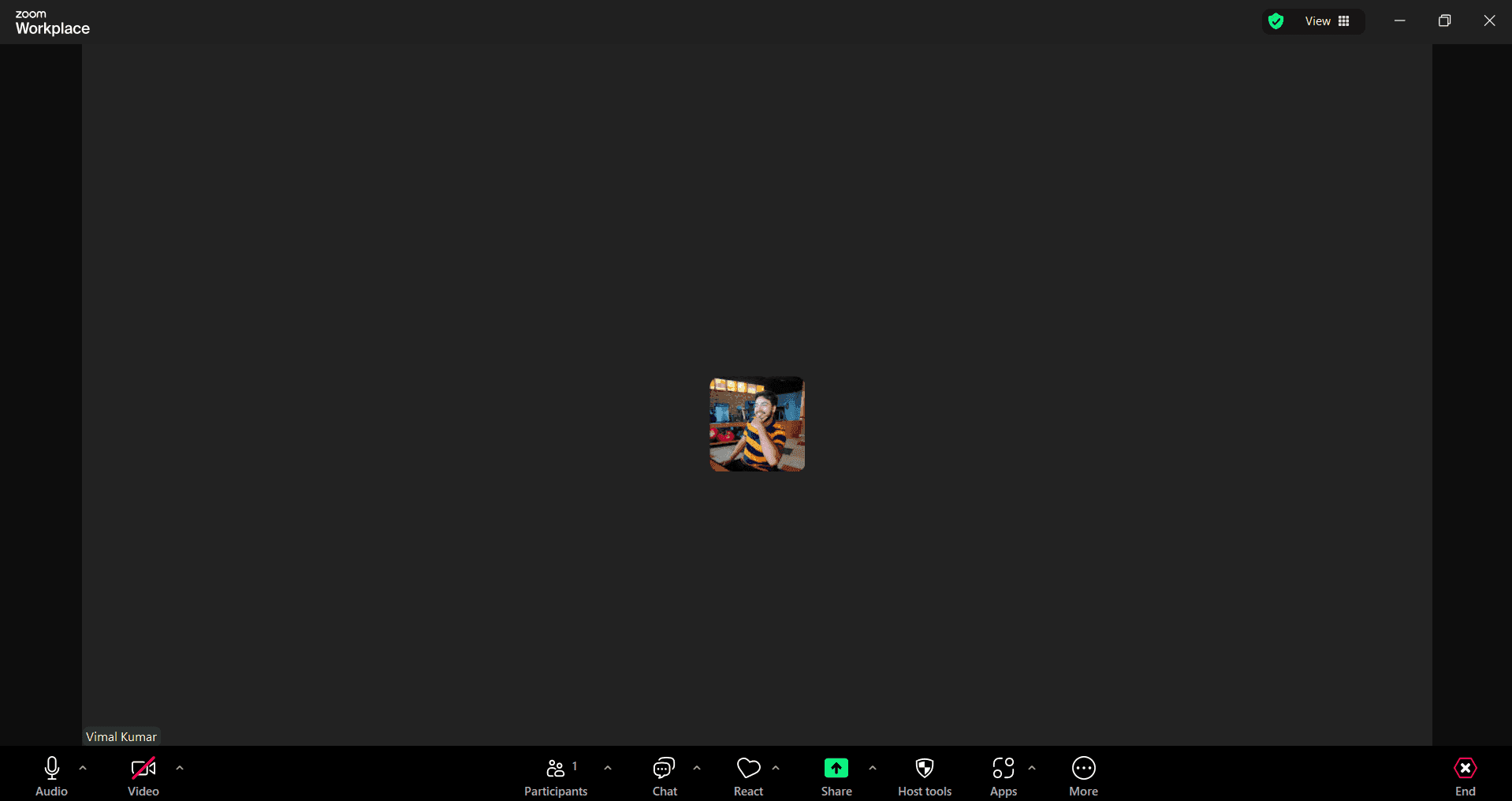
1. Begin by joining or starting the Zoom meeting where you want to mute or unmute your audio.

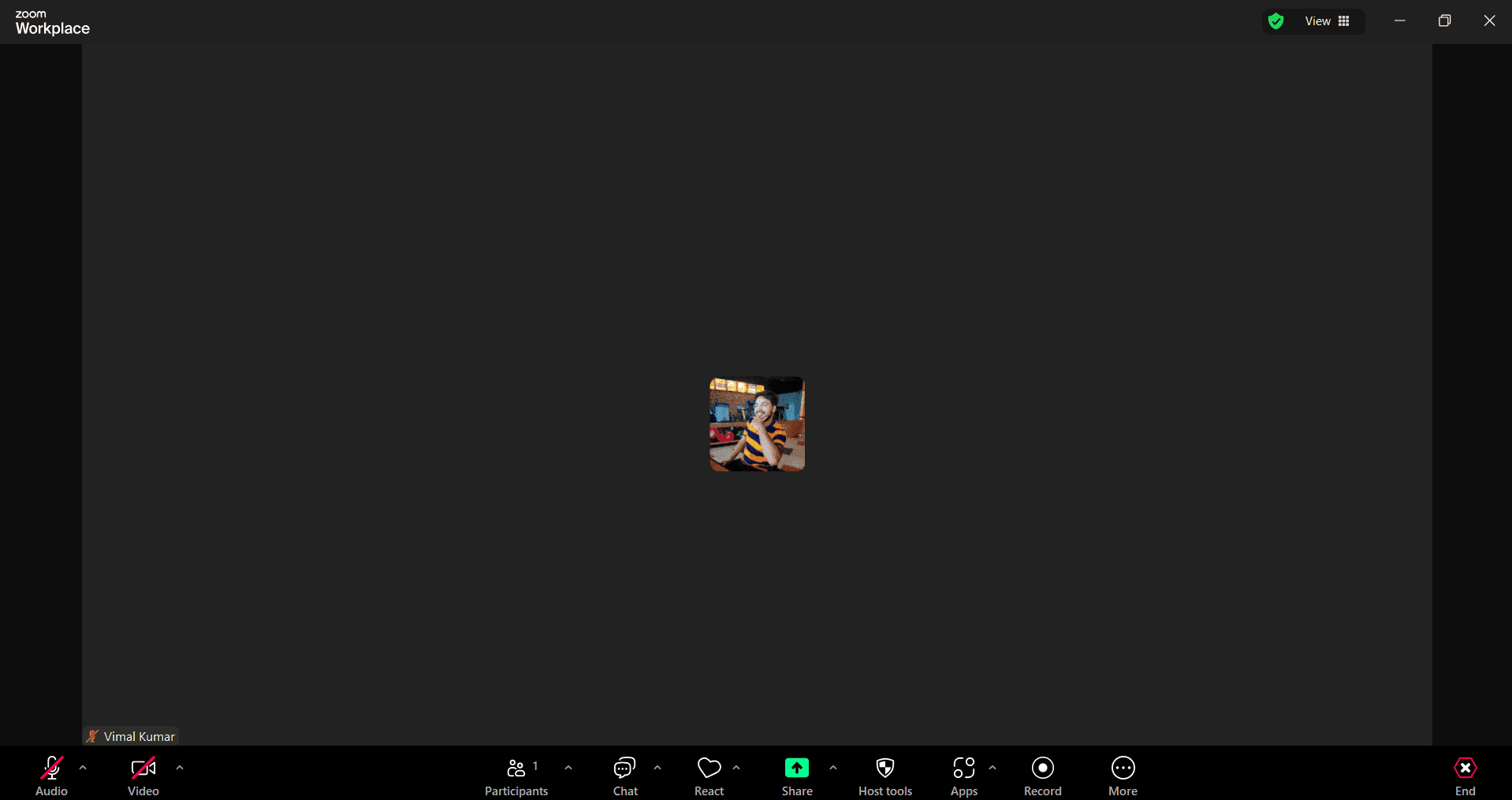
2. At the bottom of the Zoom window, find the microphone icon and click the microphone icon to mute your audio. When muted, the icon will show a red line through it.

3. You have successfully muted yourself in a Zoom Meeting.

4. Enjoyed the guided demo?

This interactive demo/guided walkthrough on How to Mute in Zoom was created using Supademo.


How to Mute in Zoom : Step-by-Step Guide

To get started, join an existing Zoom meeting or initiate a new one where you want to control your audio settings. This is the space where you’ll manage when to speak or stay silent during the call.

1

Look towards the bottom of your Zoom window to locate the microphone icon — this is your key tool for managing sound. Clicking this icon lets you mute your microphone, helping prevent background noise or interruptions. You’ll know it’s muted when a red line appears through the icon, signaling you’re no longer audible to others.

2

Once muted, you’ve successfully silenced your microphone in the meeting. This allows you to listen without contributing any audio, which is perfect for moments when you want to focus on the discussion without distractions.

3

We hope you found this step-by-step guide helpful in mastering Zoom’s audio controls. Feel free to explore more features or revisit this demo anytime you want a refresher.

4

Create your own interactive demos in < 5 mins with Supademo

You can create your own interactive product demo in minutes using Supademo. Drive growth, scale enablement, and supercharge product-led onboarding with Supademo. Sign up for free here with no credit card required.


FAQs

Commonly asked questions about this topic.

How do I mute myself in a Zoom meeting?

Click the microphone icon located at the bottom-left corner of your Zoom window. When muted, a red line will appear through the icon, indicating your audio is off and others cannot hear you.

Can I mute someone else in a Zoom meeting?

As a host or co-host, you can mute other participants by clicking the “Manage Participants” option, then choosing the mute button next to their name. However, attendees cannot mute others.

Is there a shortcut to mute/unmute in Zoom?

Yes, press and hold the spacebar to temporarily unmute yourself while holding it down. Pressing Alt + A (Windows) or Command + Shift + A (Mac) toggles mute/unmute permanently.

Why can't I mute myself in Zoom?

If you cannot mute yourself, it might be due to a host-imposed setting or microphone issues. Check that your microphone is properly connected and that the host hasn't restricted muting permissions.

How can I tell if I'm muted during a Zoom call?

If the microphone icon on your Zoom window shows a red slash through it, it means you are muted. You can also look for a notification on your screen confirming the muted status.

Can I mute all participants at once?

Hosts can mute all participants by clicking “Manage Participants” and selecting “Mute All.” This is useful for managing large meetings and minimizing background noise.

Does muting in Zoom turn off my speakers as well?

No, muting only affects your microphone, so others won’t hear you. Your speakers remain on, allowing you to hear other participants.

How do I unmute myself after muting in Zoom?

Simply click the microphone icon again or use the shortcut keys (Alt + A on Windows, Command + Shift + A on Mac) to unmute yourself and be heard by others.

Can I mute Zoom notifications sounds during a meeting?

Yes, go to Zoom settings, select “Audio,” and uncheck the option for notification sounds or adjust volume levels to reduce interruptions during meetings.

Does muting in Zoom save battery on mobile devices?

Muting your microphone may slightly reduce power usage by limiting audio processing, but overall battery impact is minimal. Other settings like screen brightness and app activity have a larger influence on battery life.

Vimal Kumar

Vimal Kumar

Product Operations Associate

Vimal Kumar helps build and grow Supademo’s team and GTM efforts, with a focus on figuring out growth levers and improving product traction.

More from the blog

How to Add Products to Shopify

How to Add Products to Shopify

Learn step-by-step how to add products to your Shopify store effortlessly, including tips on product details, images, pricing, and inventory management to boost your online sales.

Vimal Kumar
Vimal KumarDec 17, 2025
How to Deactivate Your Shopify Store

How to Deactivate Your Shopify Store

Learn step-by-step how to deactivate your Shopify store easily, including important considerations and tips to pause or close your shop without losing data.

Vimal Kumar
Vimal KumarDec 17, 2025
How to Remove 'Powered by Shopify'

How to Remove 'Powered by Shopify'

Learn how to easily remove the 'Powered by Shopify' text from your online store with step-by-step instructions and tips to customize your Shopify storefront.

Vimal Kumar
Vimal KumarDec 17, 2025
How to Create a Shopify Account

How to Create a Shopify Account

Learn step-by-step how to create a Shopify account quickly and easily, set up your online store, and start selling your products in no time.

Vimal Kumar
Vimal KumarDec 17, 2025
How to Create a Stripe Account

How to Create a Stripe Account

Learn how to create a Stripe account quickly and easily with our step-by-step guide, perfect for beginners looking to start accepting online payments.

Vimal Kumar
Vimal KumarDec 17, 2025
How to Contact Stripe Support

How to Contact Stripe Support

Learn the easiest ways to contact Stripe support for quick assistance with your payment processing, account issues, and technical questions.

Vimal Kumar
Vimal KumarDec 16, 2025