How to use "countif" in Google Sheets

COUNTIF is one of Google Sheets' most powerful functions for counting cells that meet specific criteria. Whether you're analyzing survey responses, tracking inventory, or managing data, COUNTIF helps you quickly quantify results without manual counting.
Quick summary
In this tutorial, you'll learn how to use the COUNTIF function to count cells matching a specific value or condition. You'll see how to construct the formula, reference your data range, and apply it to real-world scenarios.
Why this matters
COUNTIF saves time when working with large datasets and reduces human error in data analysis. It's essential for creating summaries, generating reports, and making data-driven decisions in Google Sheets.
Step-by-step guide
- 1
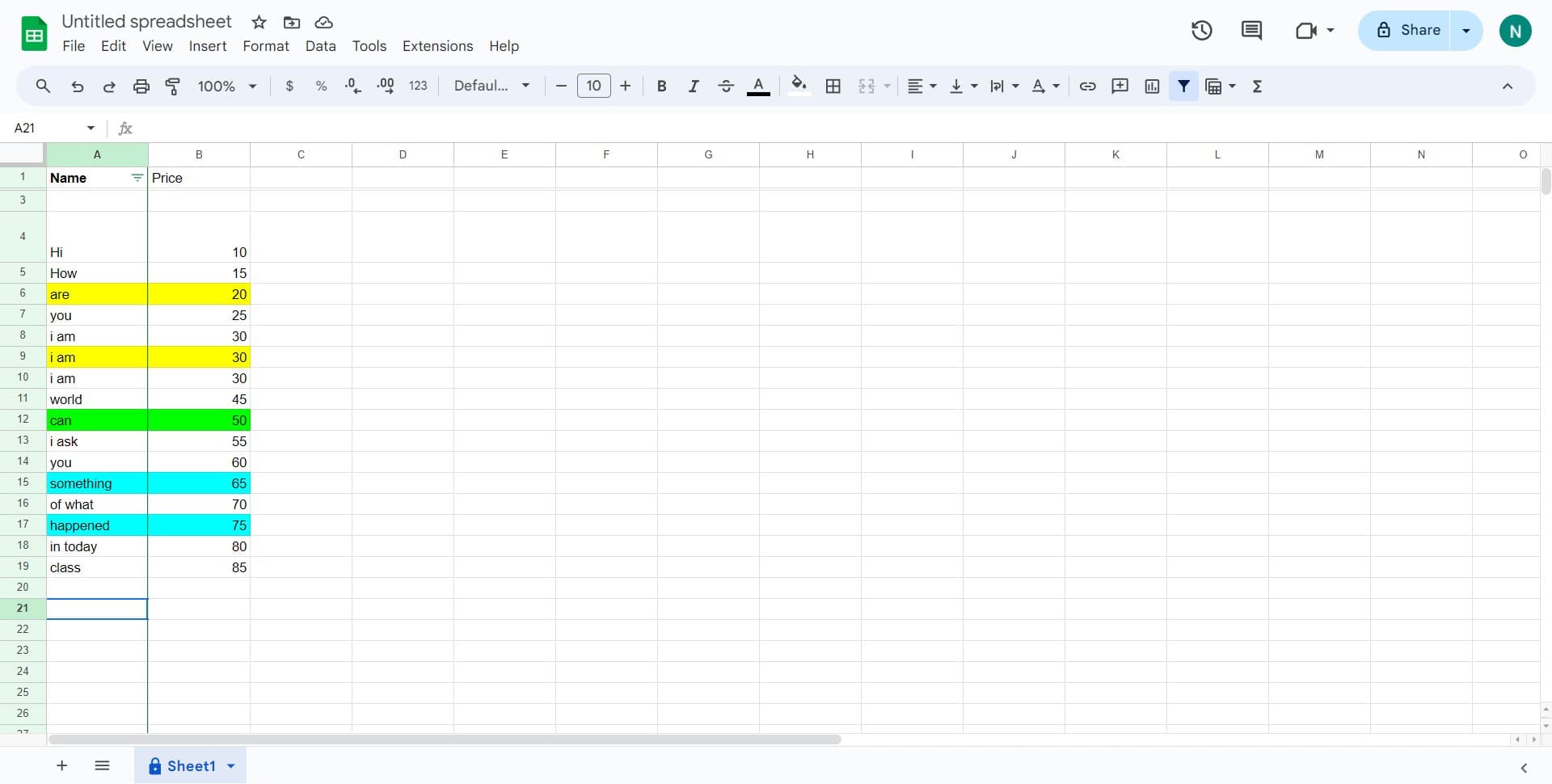
Click on an empty cell
Select the cell where you want your COUNTIF result to appear. This is typically in a summary area or next to your data range where you can easily see the count.
- 2
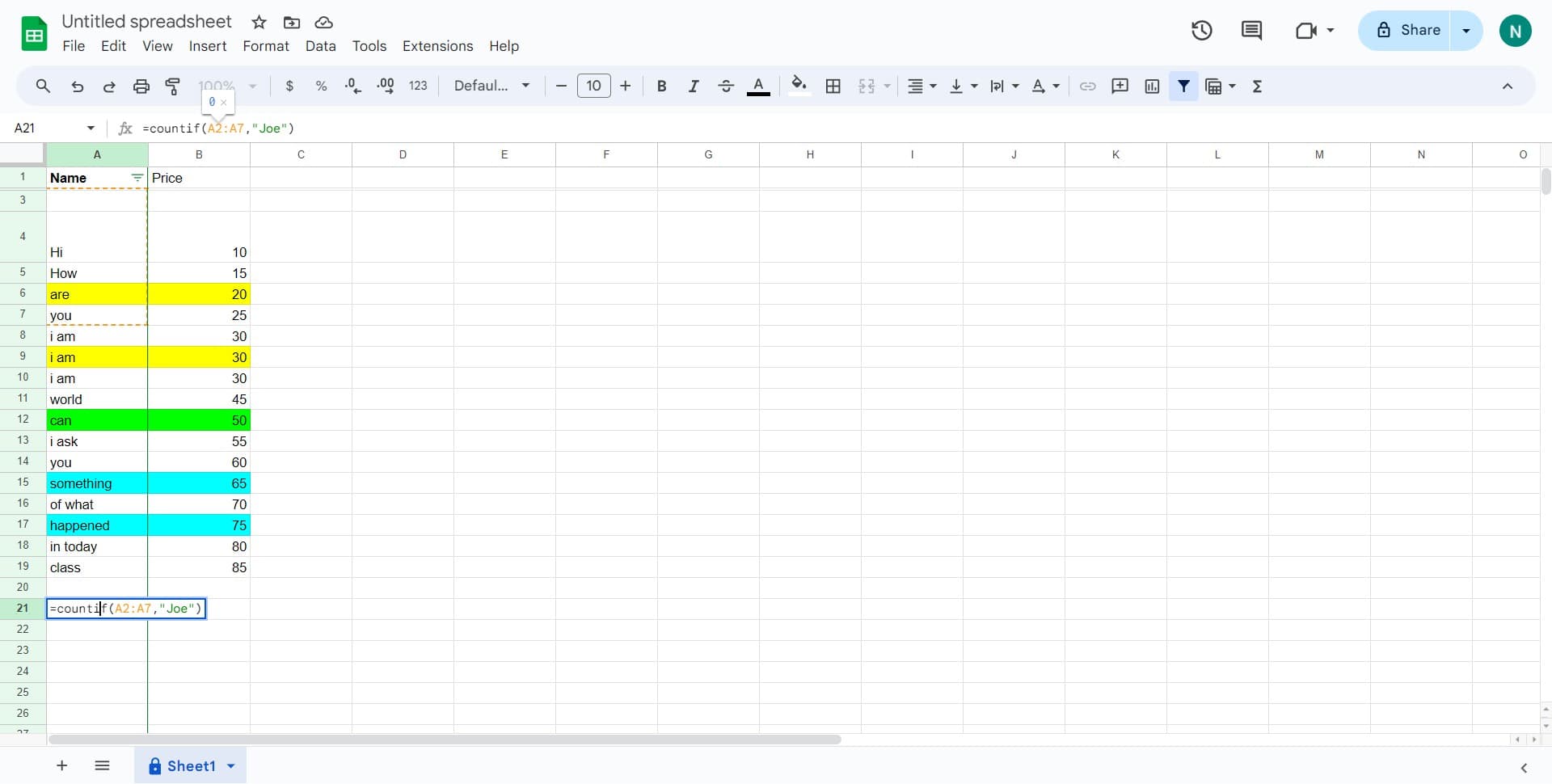
Type the COUNTIF function
Begin typing 'countif' in the cell. Google Sheets will display the function in the formula bar and show you a tooltip with the syntax: COUNTIF(range, criterion).
- 3
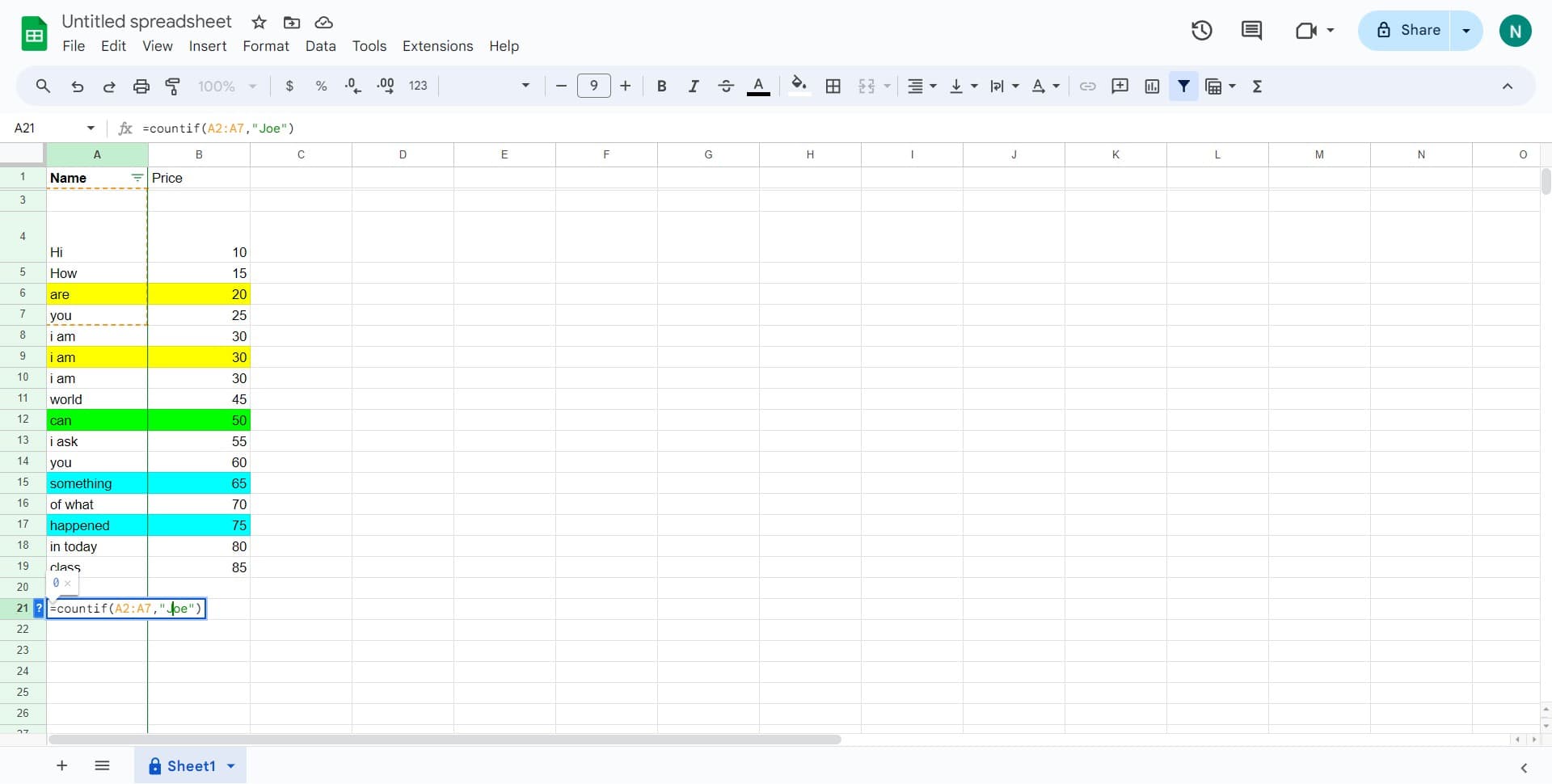
Specify your criteria
Enter the value you want to count, such as 'Joe'. Google Sheets will search through your selected range and count every cell that exactly matches this criteria.
- 4
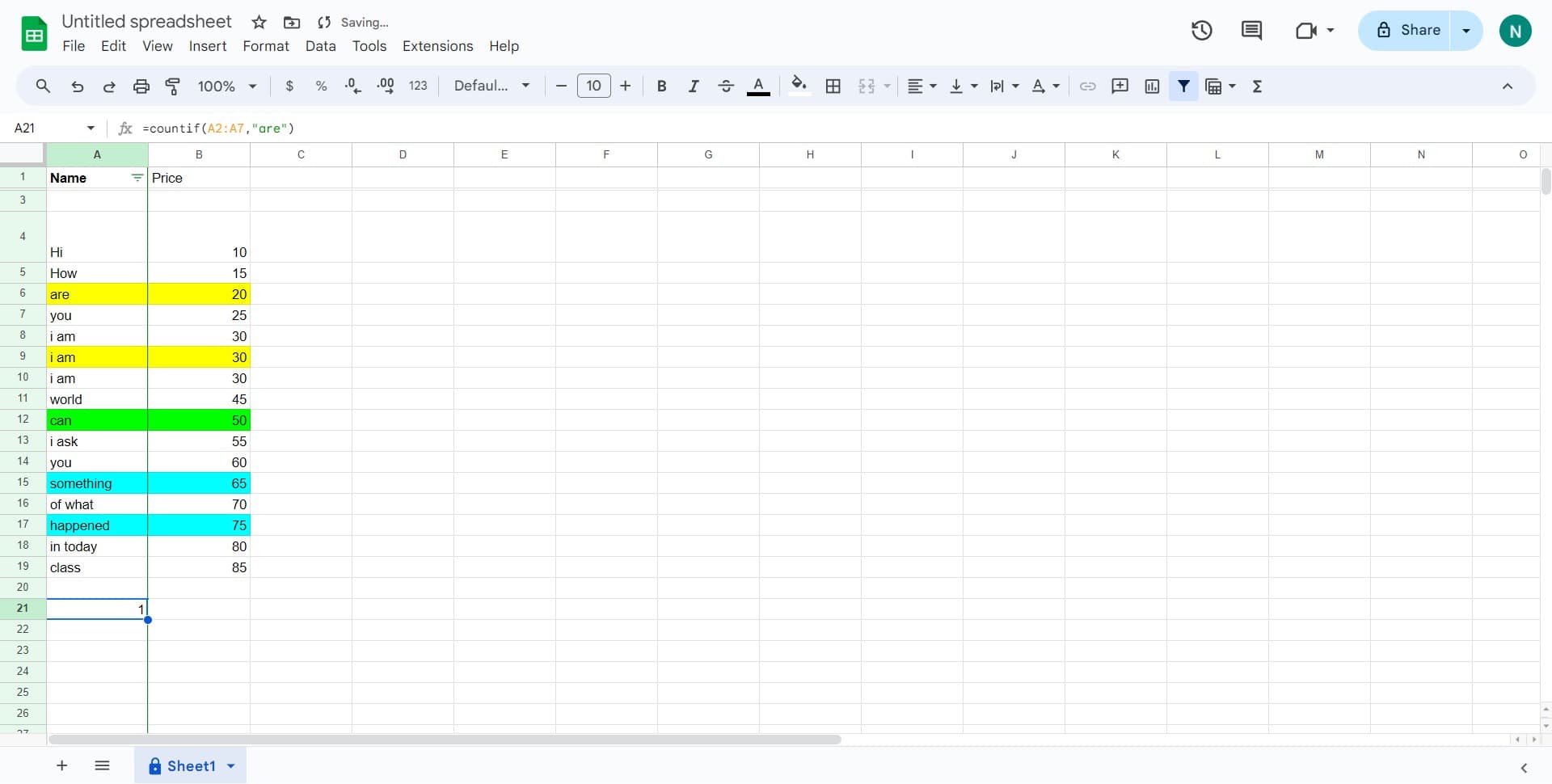
Press Enter to execute
Hit Enter to run the formula. Google Sheets will immediately calculate and display the total count of cells matching your specified criteria in the selected cell.
Frequently asked questions
Common questions about how to use "countif" in google sheets.
Can COUNTIF count cells with partial matches?
Yes. Use wildcards in your criteria: an asterisk (*) matches any number of characters. For example, use 'Jo*' to count all cells starting with 'Jo', including 'Joe', 'John', and 'Joan'. This makes COUNTIF flexible for pattern matching.
How do I count cells that meet a numeric condition?
COUNTIF works with numeric criteria using comparison operators. For example, use '>50' to count cells greater than 50, or '>=100' for cells greater than or equal to 100. Enclose the criteria in quotes if using operators.
What's the difference between COUNTIF and COUNTIFS?
COUNTIF counts based on a single criterion, while COUNTIFS allows you to count based on multiple criteria across different ranges. Use COUNTIFS when you need to apply several conditions simultaneously, such as counting cells that are both greater than 10 AND less than 50.
Can I use COUNTIF to count across multiple sheets?
Yes. Reference another sheet by using the syntax: COUNTIF(SheetName!Range, Criterion). For example, 'COUNTIF(Sheet2!A:A, 'Joe')' counts 'Joe' in column A of Sheet2. This is useful when analyzing data spread across multiple sheets.
What happens if my range includes blank cells?
COUNTIF ignores blank cells by default, so they won't affect your count. If you specifically want to count blank cells, use COUNTBLANK instead, or use COUNTIF with an empty string criterion: COUNTIF(range, '').