How to use the SEMRush keyword magic tool

The Semrush Keyword Magic Tool is a powerful feature for discovering keyword variations, search volume data, and competitive insights. This guide walks you through the process of searching for keywords and saving them to a custom list for further analysis.
Quick summary
In this tutorial, you'll learn how to access the Keyword Magic Tool, search for target keywords, and export your findings to an organized keyword list. By the end, you'll be able to efficiently collect and manage keyword data for your SEO strategy.
Why this matters
Building comprehensive keyword lists is fundamental to SEO success, as it helps you identify high-opportunity search terms and understand market demand. The ability to quickly compile and export keyword data enables you to make faster, more informed decisions about your content strategy and competitive positioning.
Step-by-step guide
- 1
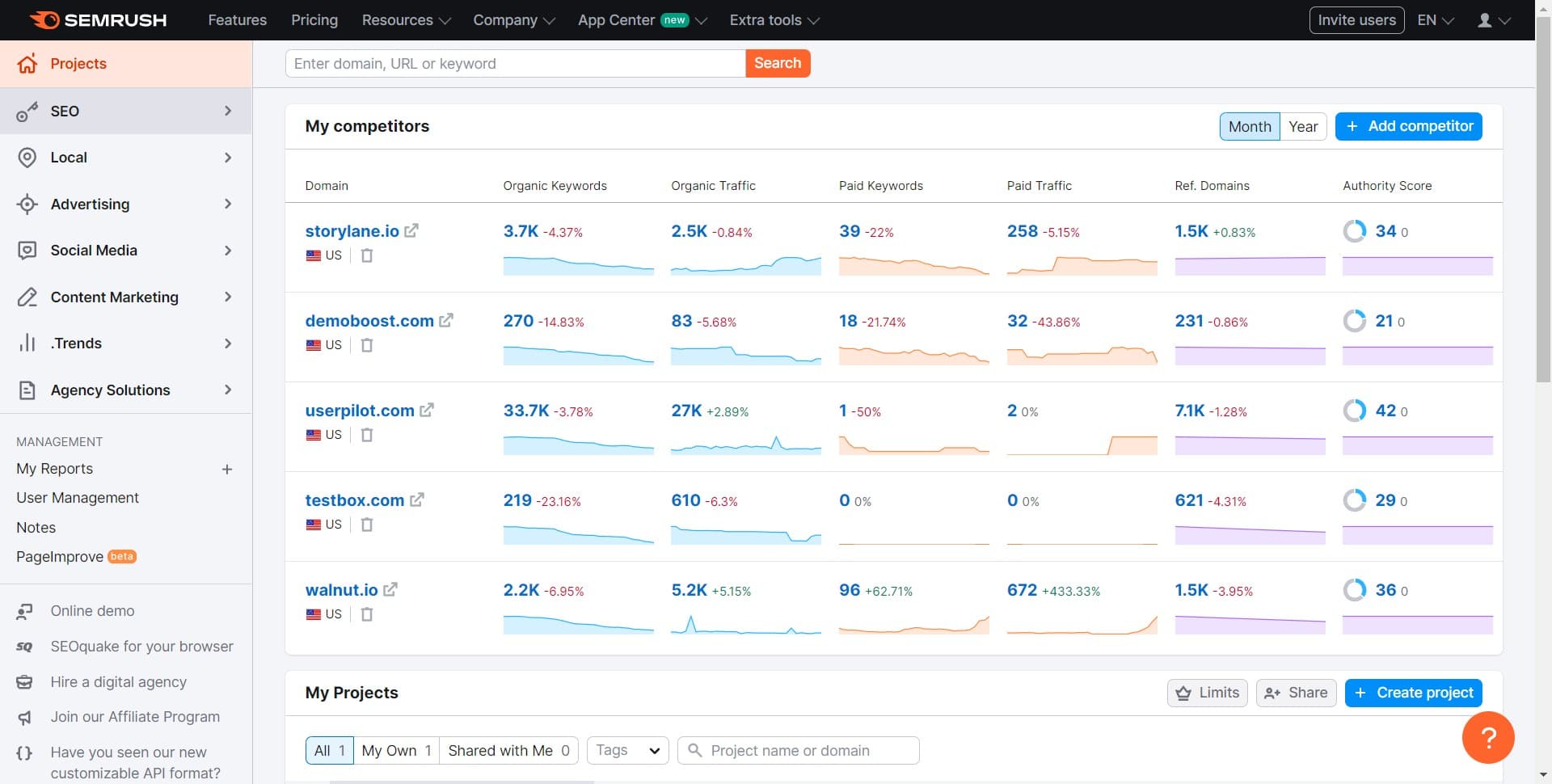
Navigate to the SEO section
Start by clicking on the 'SEO' menu option in the main navigation. This opens the SEO suite of tools within Semrush where you can access keyword research features.
- 2
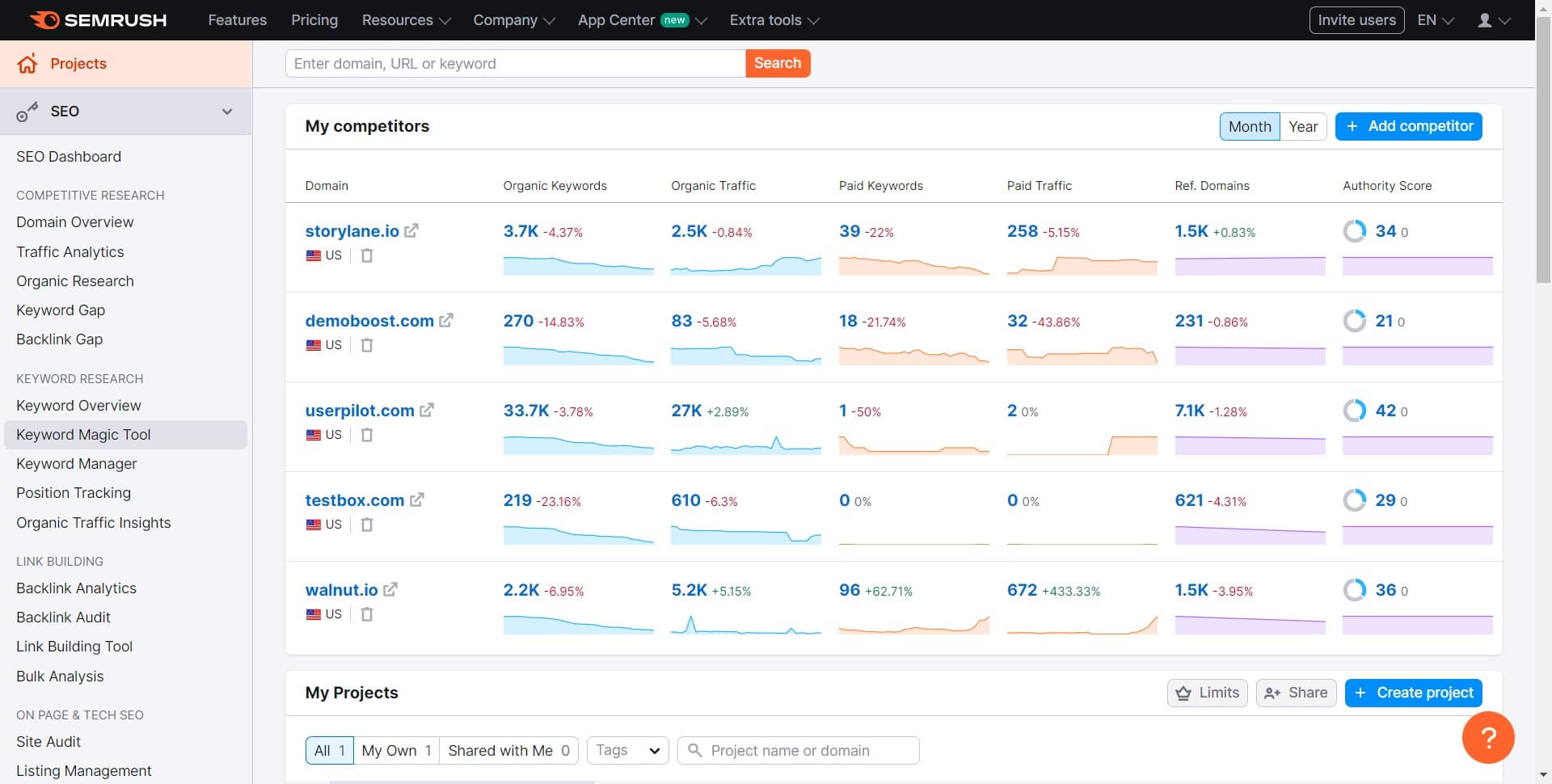
Select Keyword Magic Tool
Click on 'Keyword Magic Tool' from the available SEO options. This tool specializes in finding keyword variations and related search terms with detailed metrics.
- 3
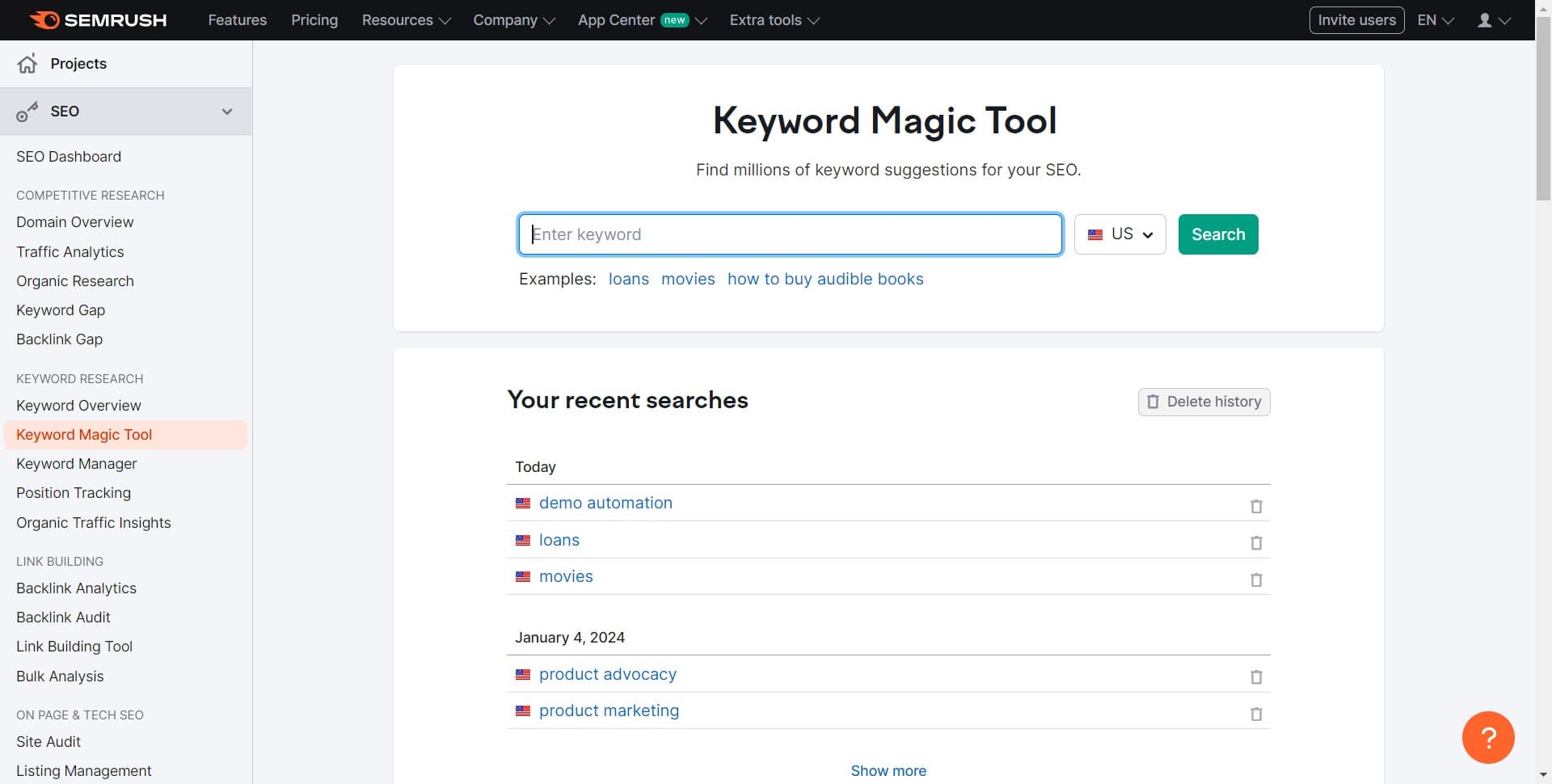
Enter your target keyword
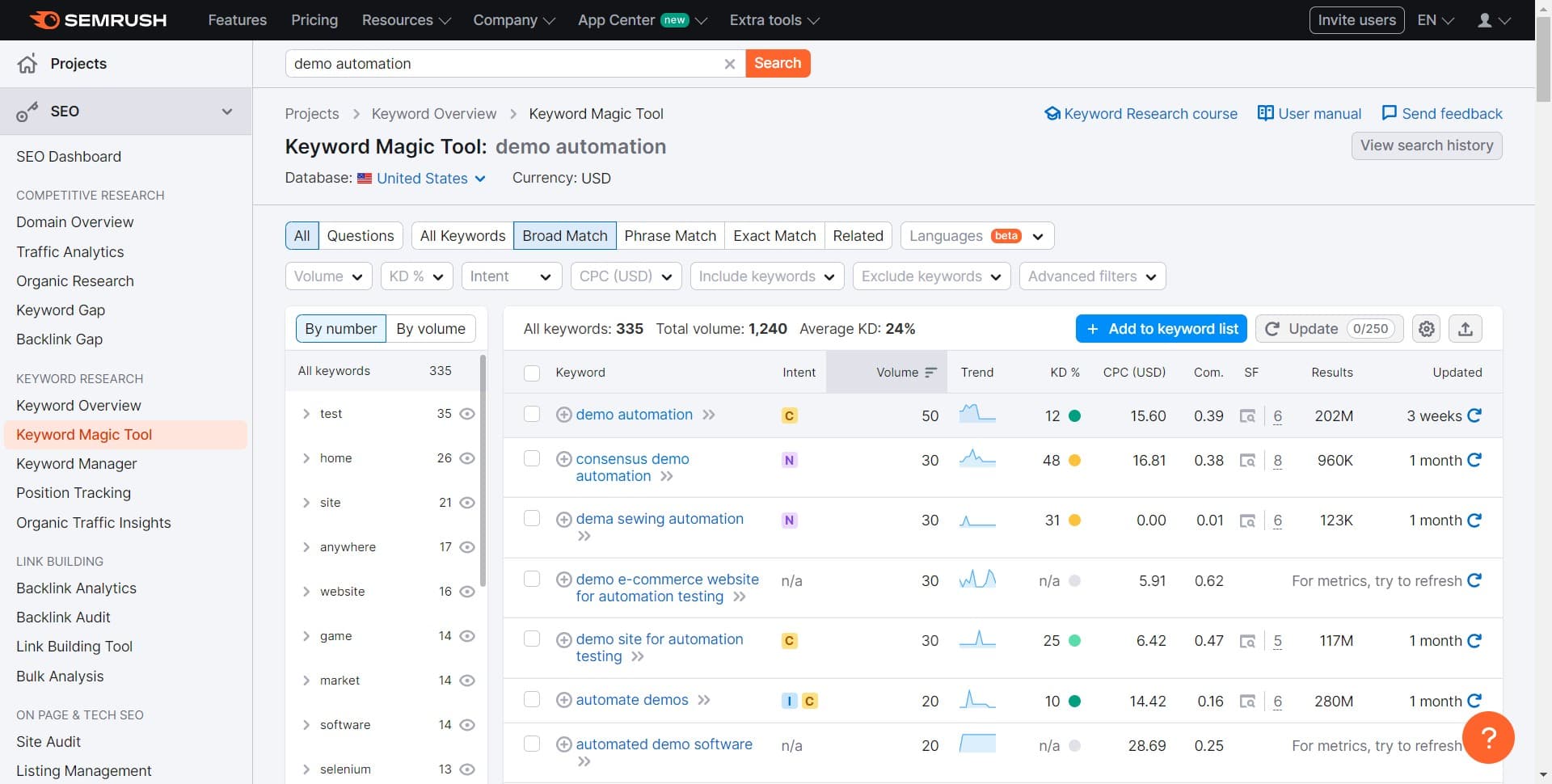
In the search field, type the keyword you want to research. This is your seed keyword that will generate related variations and data.
- 4
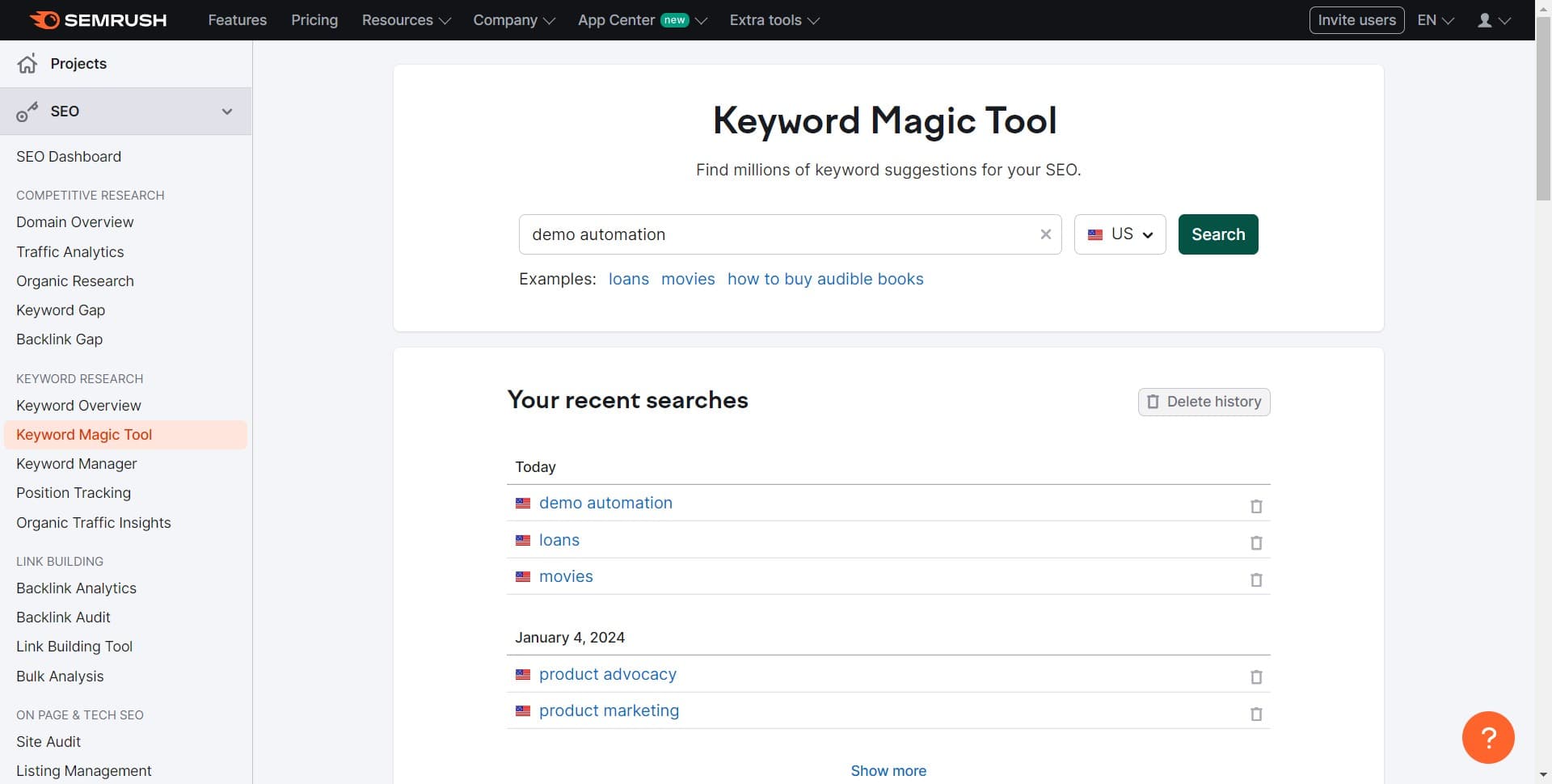
Click Search to generate results
Click the 'Search' button to initiate the keyword research. Semrush will analyze your keyword and display related terms, search volume, difficulty scores, and other valuable metrics.
- 5
Review keyword data and metrics
Examine the results displayed, which include search volume, keyword difficulty, and related variations. You can sort and filter these results to find the most relevant keywords for your strategy.
- 6
Add keywords to a list
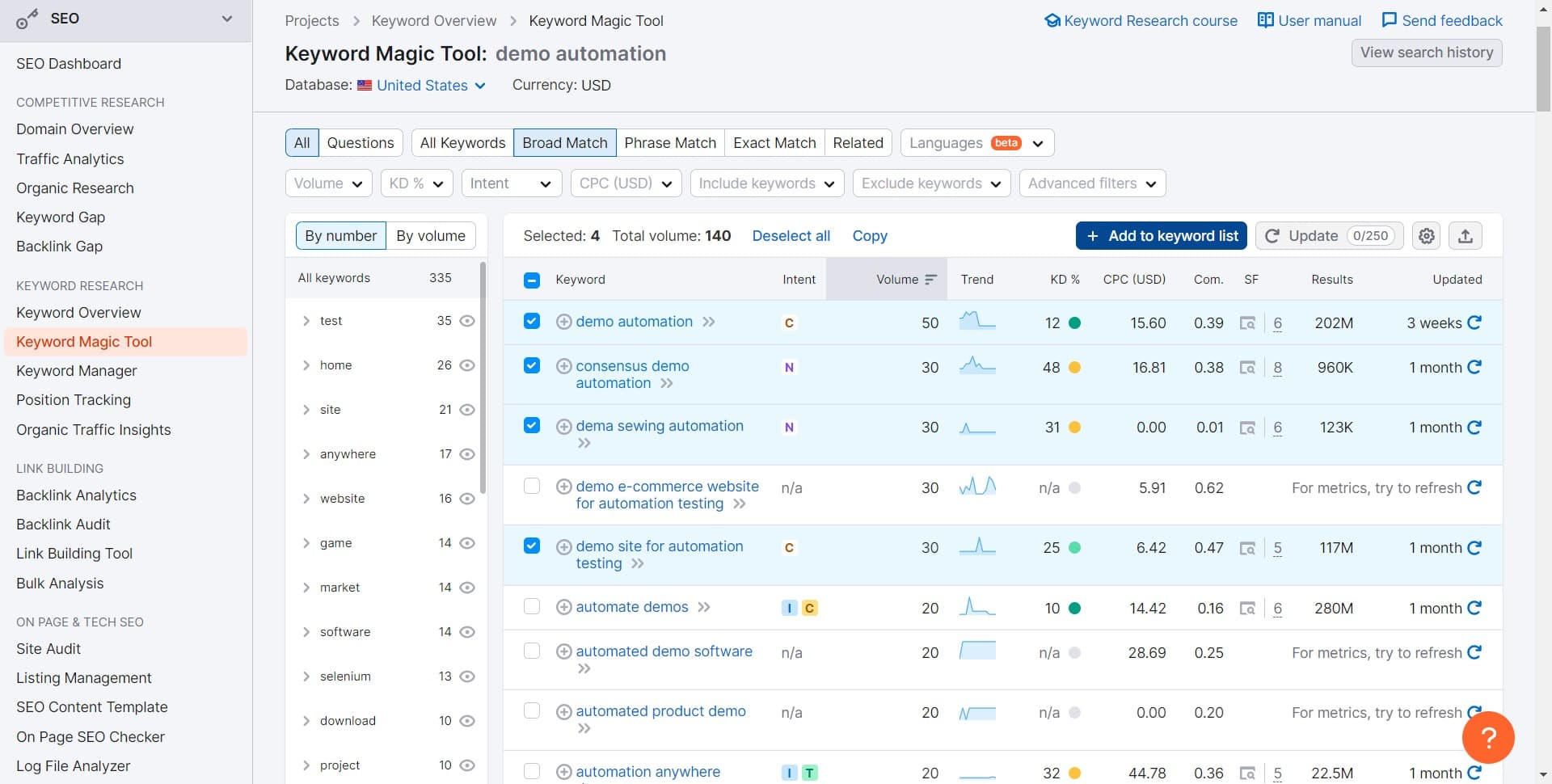
Click on 'Add to keyword list' for the keywords you want to save. This allows you to collect multiple keywords for organized tracking and further analysis.
- 7
Create a new keyword list
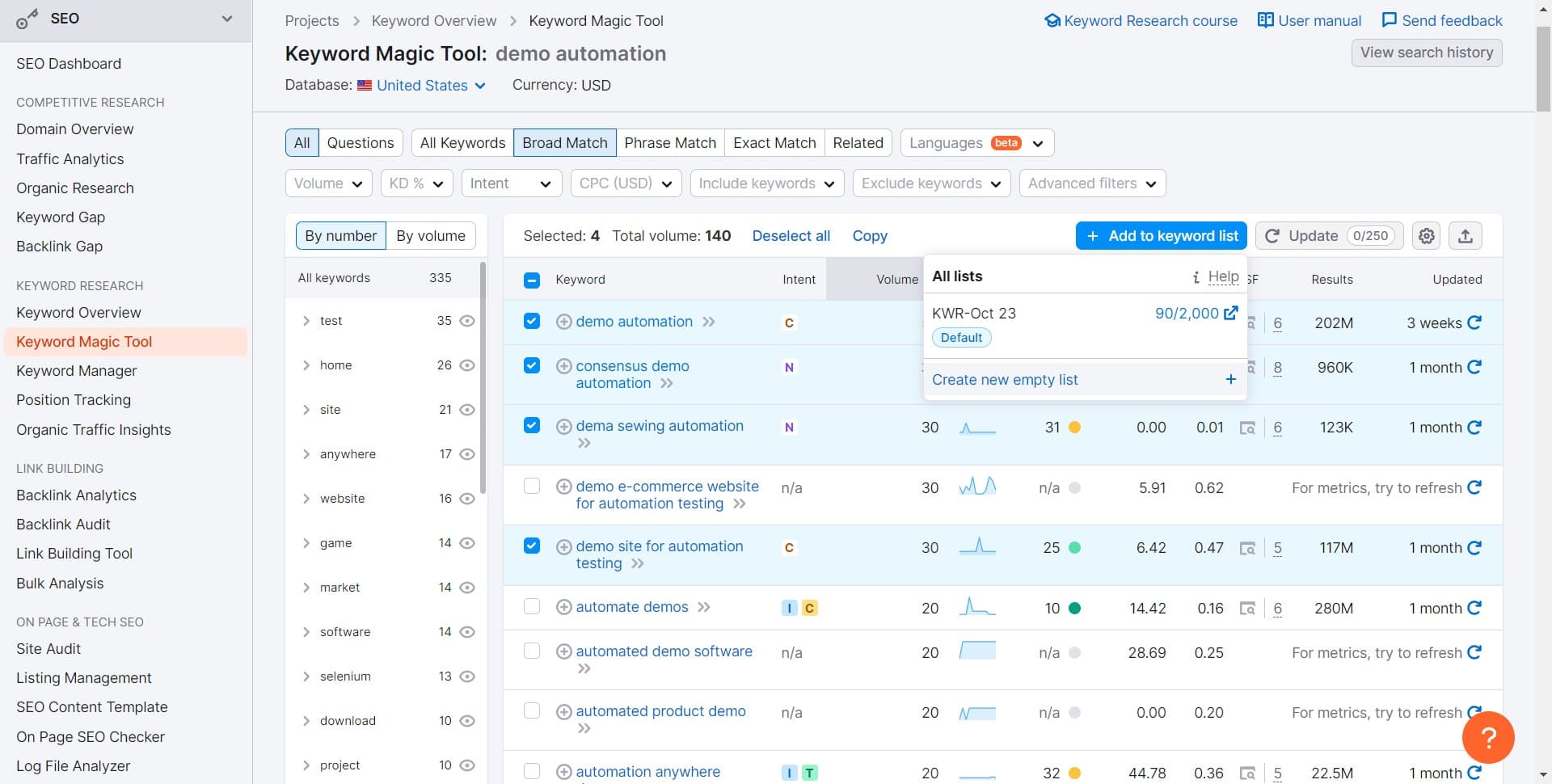
Select 'Create new empty list' to establish a dedicated collection for your keywords. Give your list a descriptive name to organize keywords by campaign, topic, or goal.
- 8
Confirm your list creation
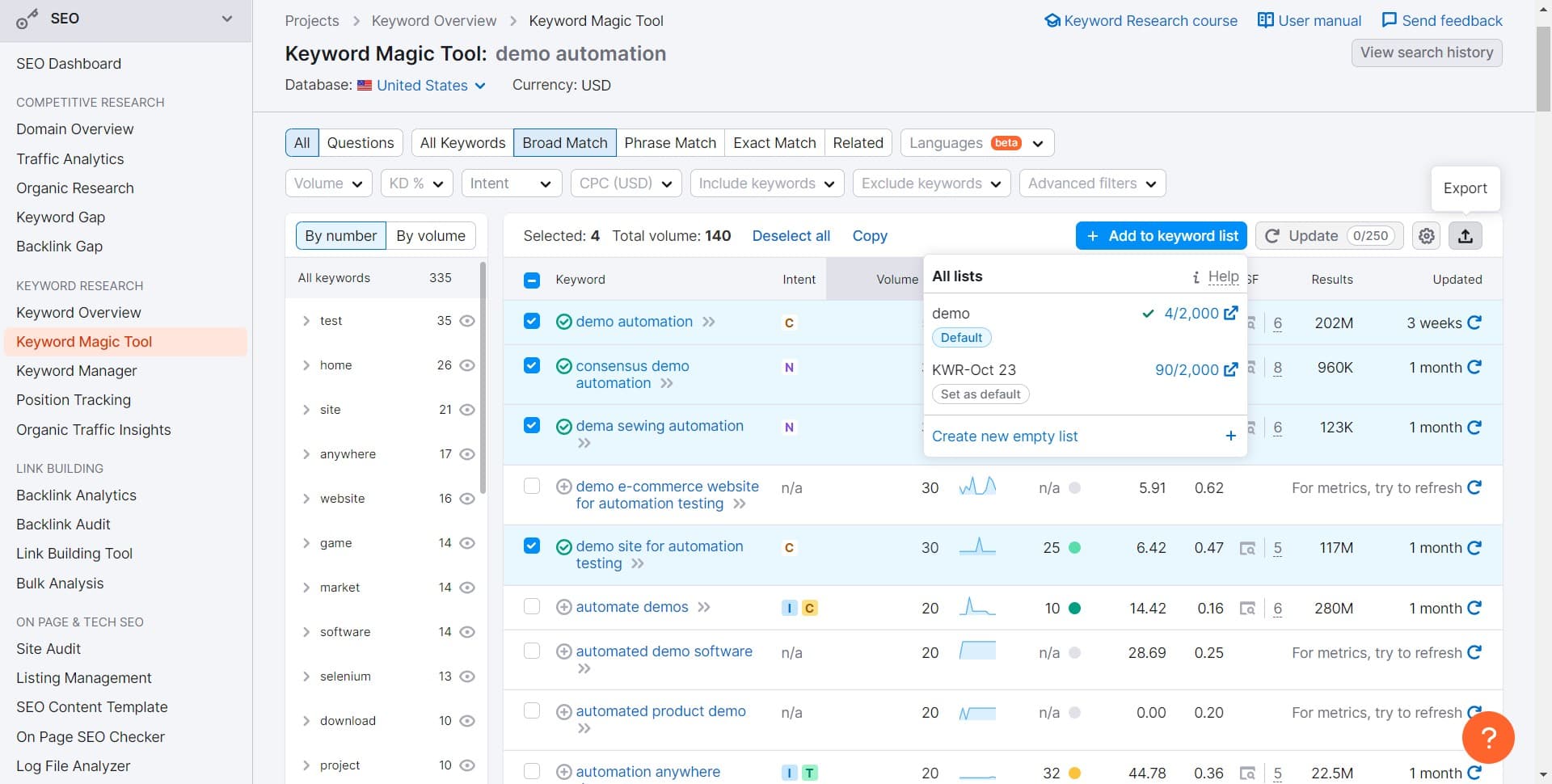
Complete the list setup process by confirming your selections. Your new list is now ready to store and manage your keyword data.
- 9
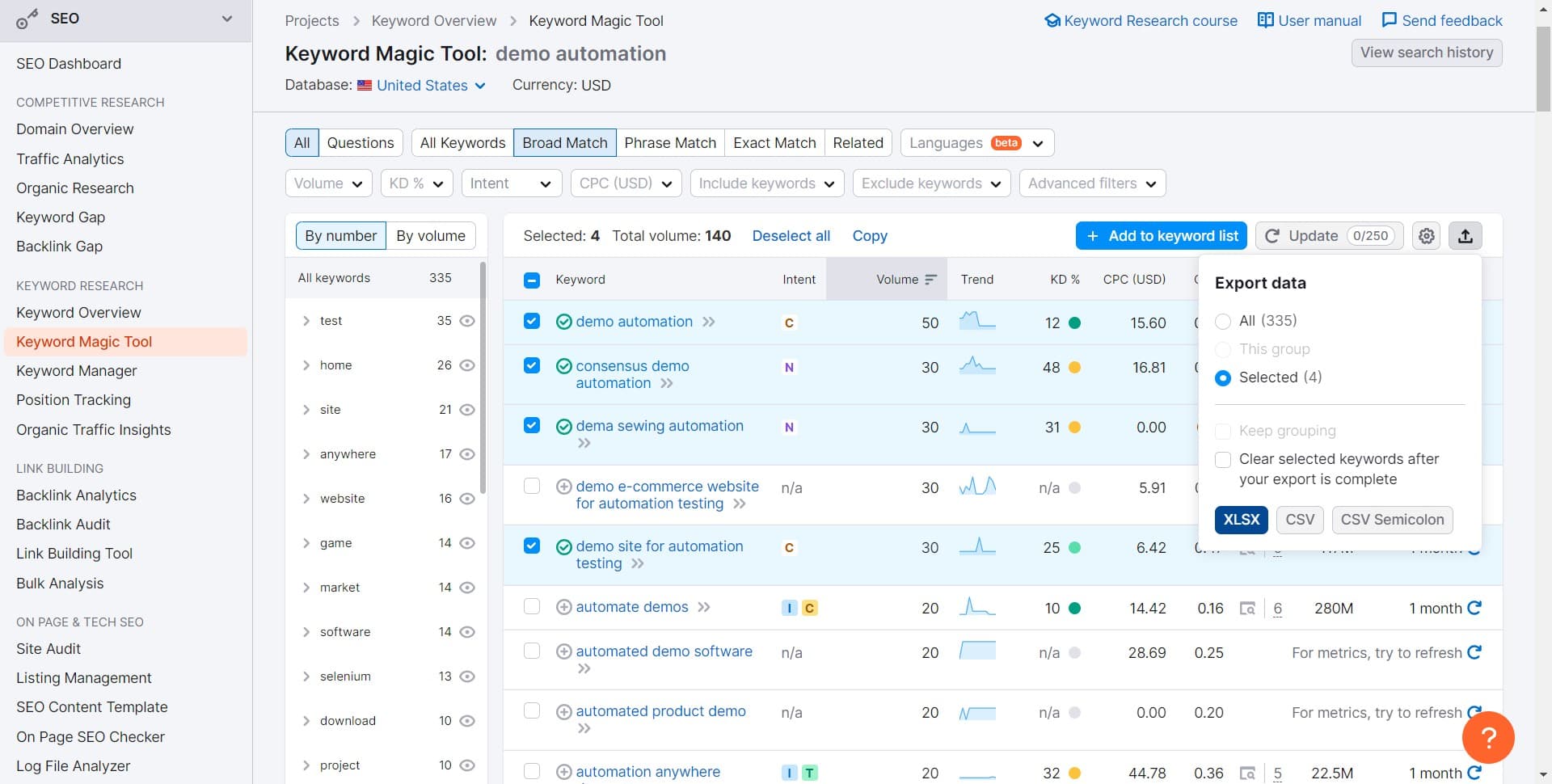
Export keywords to XLSX format
Click on 'XLSX' to download your keyword list as an Excel file. This enables you to work with the data in spreadsheet applications for further analysis, planning, or team collaboration.
Frequently asked questions
Common questions about how to use the semrush keyword magic tool.
What is the Keyword Magic Tool used for?
The Keyword Magic Tool is designed to help you discover keyword variations, related search terms, and detailed metrics like search volume and keyword difficulty. It's essential for competitive keyword research and building comprehensive keyword strategies for SEO campaigns.
Can I search for multiple keywords at once?
The Keyword Magic Tool searches one seed keyword at a time, but it generates numerous related variations and related keywords in the results. You can run multiple searches sequentially and add results from each to your keyword lists for comprehensive research.
How do I filter the keyword results?
After generating results, you can use filters to narrow down keywords by search volume, difficulty, CPC, and other metrics. These filters help you focus on the most relevant and valuable keywords for your specific goals.
What does keyword difficulty mean in Semrush?
Keyword difficulty is a metric that indicates how hard it is to rank for a specific keyword based on the strength of existing top-ranking pages. Lower difficulty scores typically mean easier ranking opportunities, especially useful for newer or smaller websites.
Can I share my keyword lists with team members?
Yes, once you've created and saved your keyword lists, you can share them with other team members who have access to your Semrush account. Exporting to XLSX also allows you to easily share the data via email or collaborative tools like Google Drive or Slack.