How to create a multi-host meetings in Apollo.io

Multi-host meetings in Apollo.io allow multiple team members to join and manage calls together, improving collaboration and call efficiency. This guide walks you through the process of setting up a multi-host meeting from start to finish.
Quick summary
In this tutorial, you'll learn how to create a multi-host meeting in Apollo.io by navigating to the Meetings section, starting a new meeting, configuring host settings, and generating a shareable meeting link. By the end, you'll be able to set up collaborative meetings where multiple team members can co-host calls with your contacts.
Why this matters
Multi-host meetings are essential for sales teams that want to involve multiple stakeholders in client conversations or provide backup support during important calls. This capability ensures better coverage, knowledge sharing, and a more professional experience for your contacts when meeting with your team.
Step-by-step guide
- 1
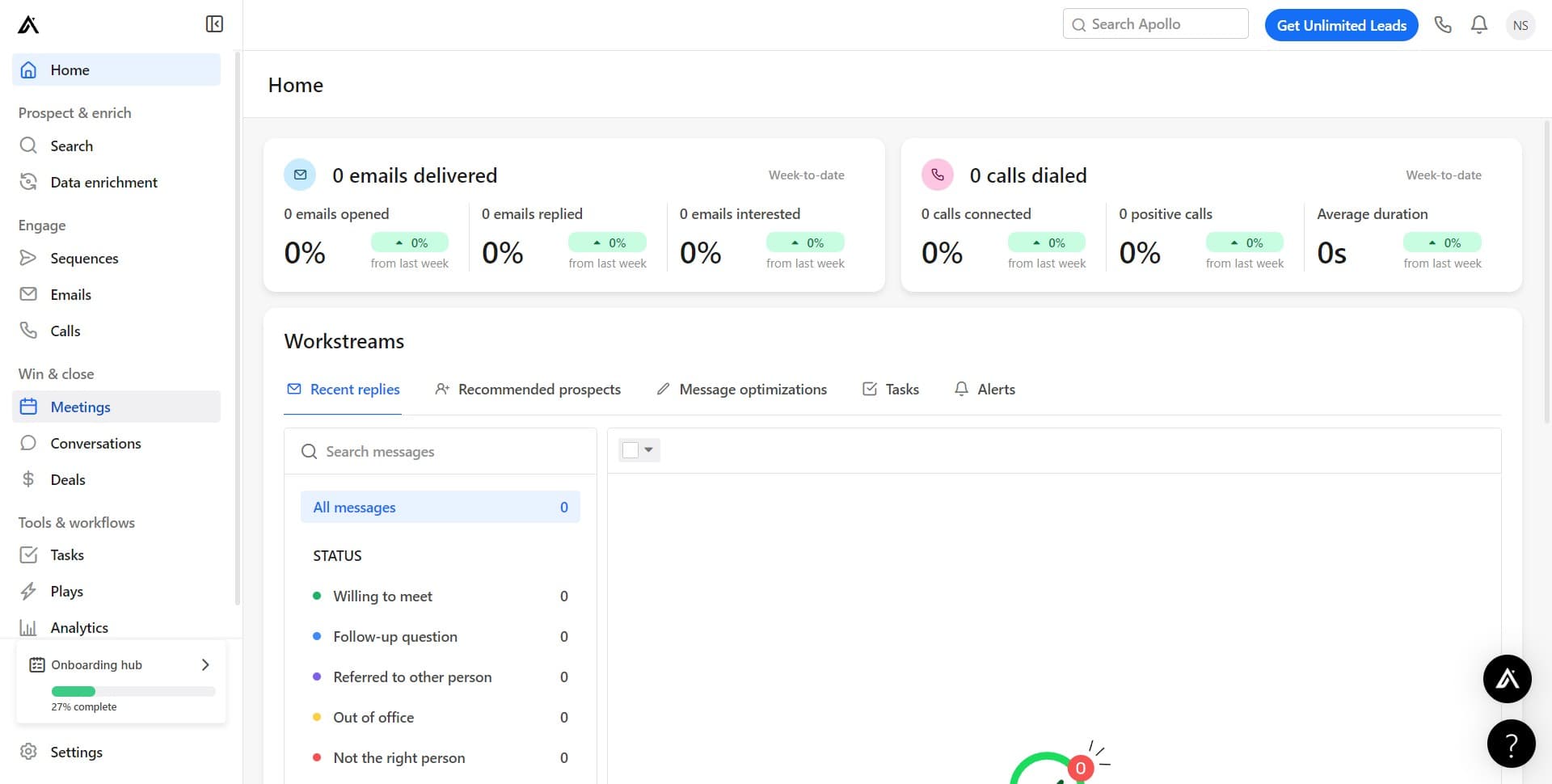
Navigate to the Meetings section
In Apollo.io, locate and click on 'Meetings' in the main navigation menu. This takes you to the central hub where you can manage all your scheduled and upcoming meetings.
- 2
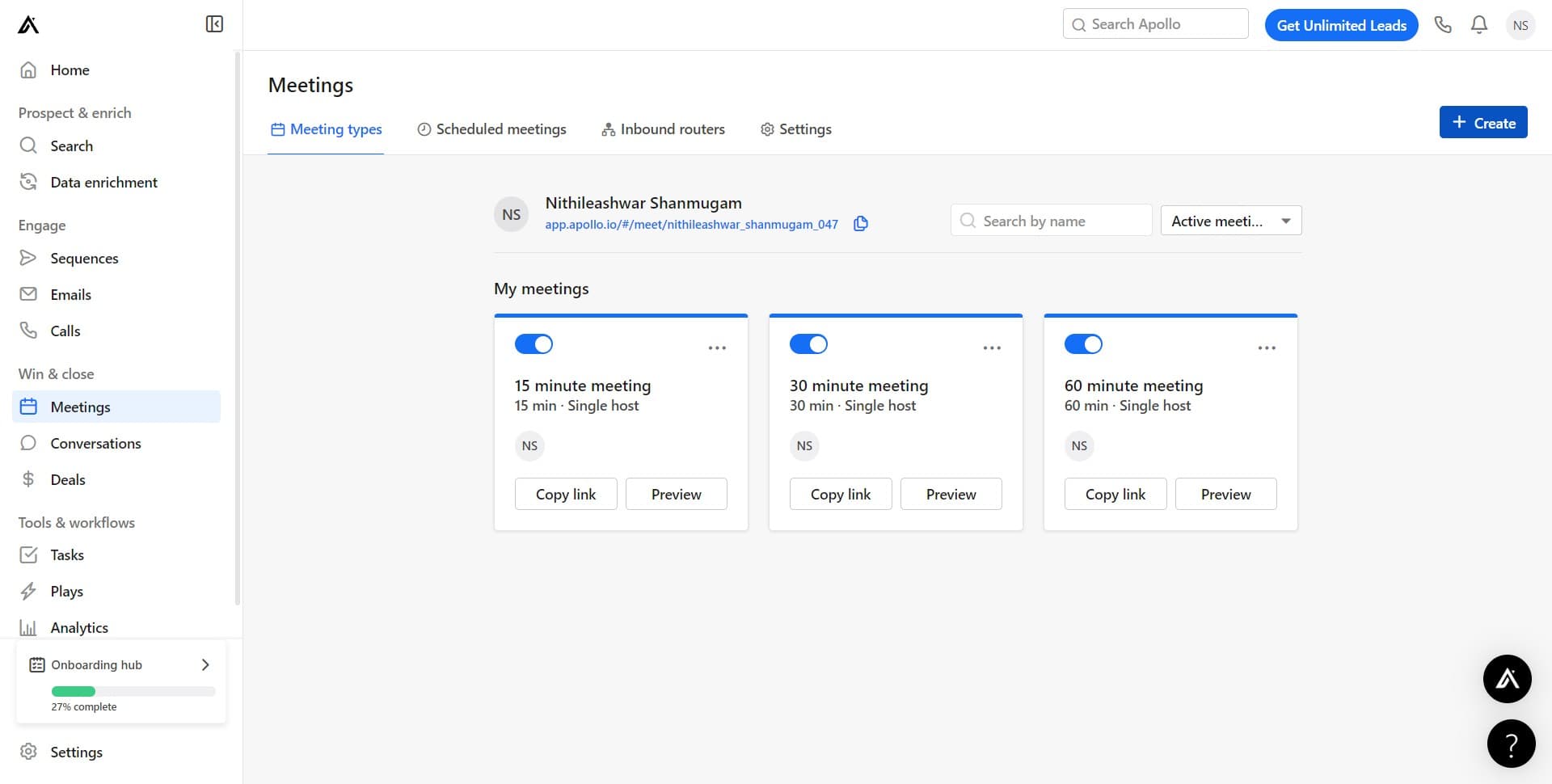
Access meeting creation options
On the Meetings page, identify and click the designated area to reveal additional meeting setup options. This prepares the interface for creating a new meeting.
- 3
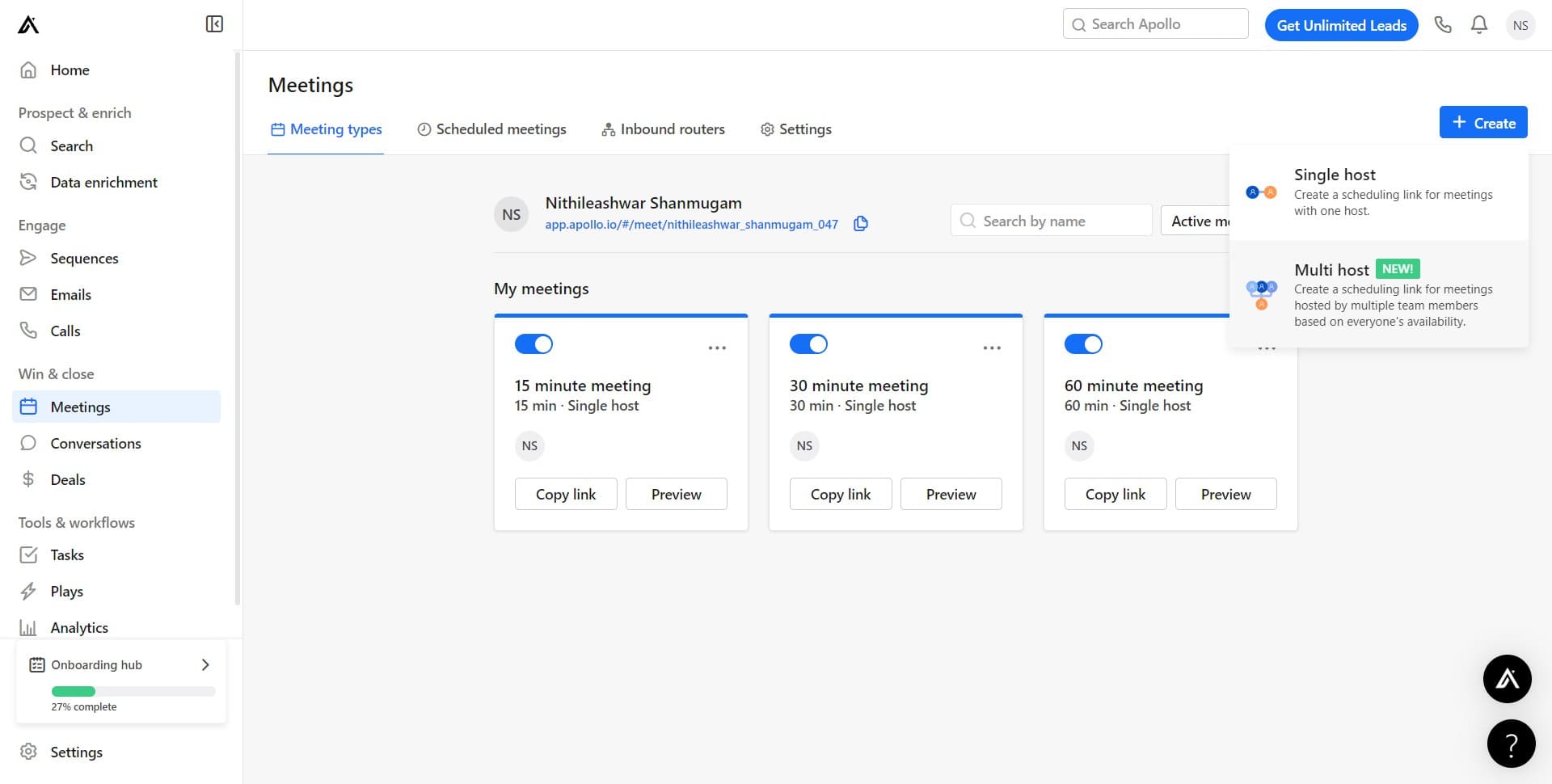
Start a new meeting
Click on the 'NEW!' button to initiate the creation of a new meeting. This opens the meeting setup workflow where you can configure meeting details.
- 4
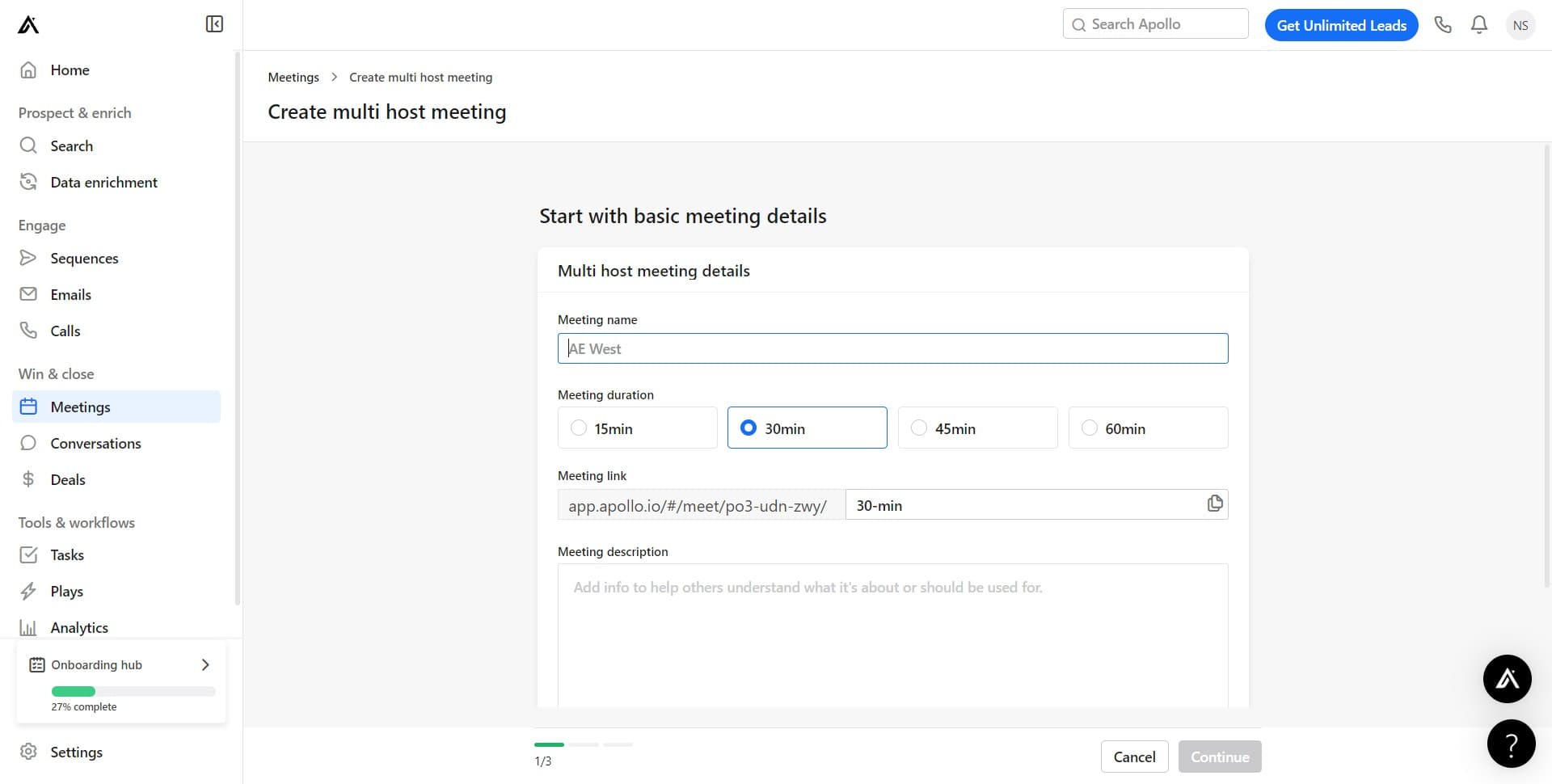
Configure initial meeting settings
The next screen presents configuration options for your meeting. Work through the available settings to establish the foundation for your multi-host meeting.
- 5
Set host preferences and permissions
Click on the relevant field or section to configure who can serve as hosts for this meeting. This step determines which team members will have co-hosting capabilities.
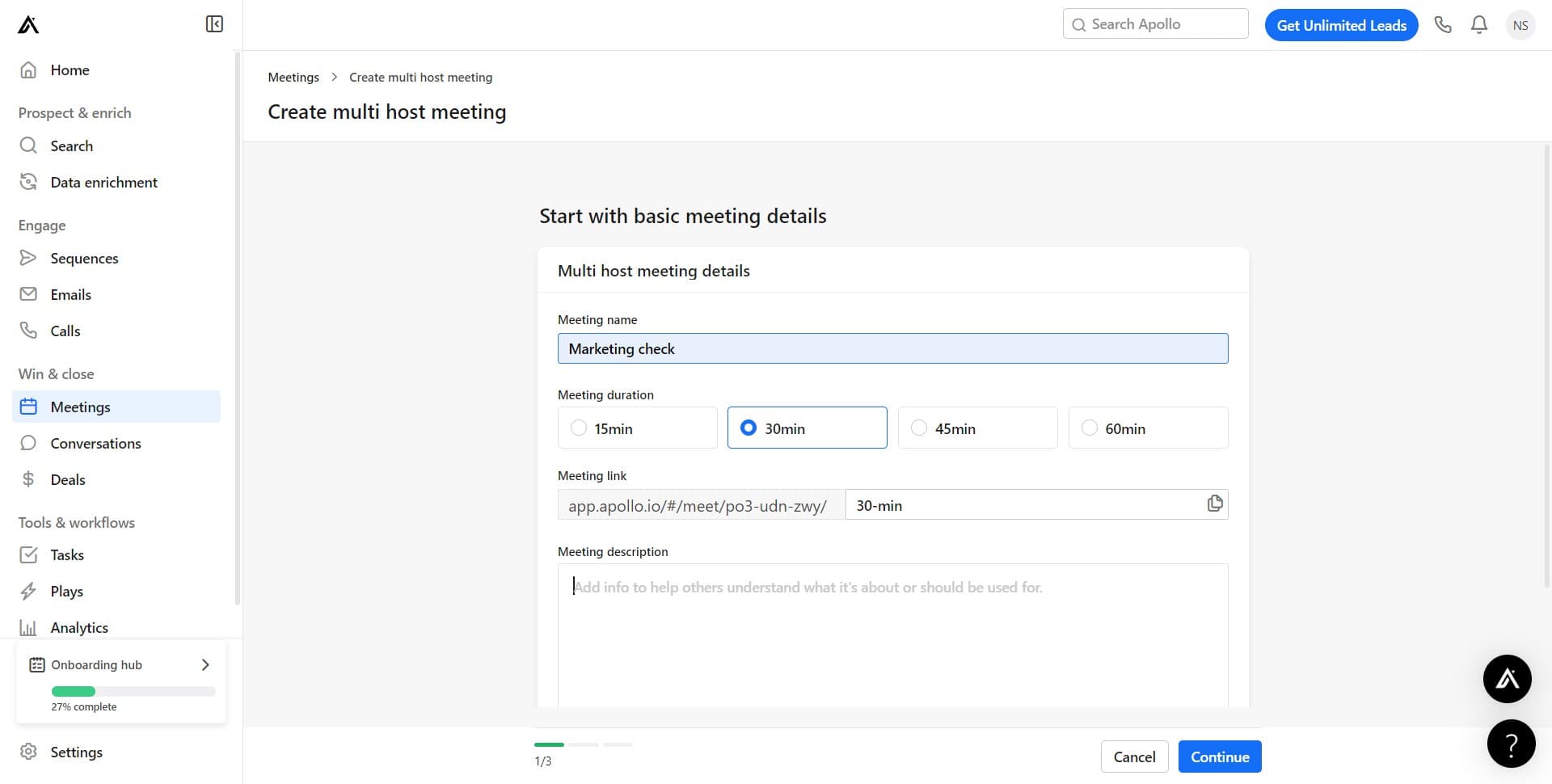
- 6
Complete first configuration panel
Click to proceed through the first stage of meeting configuration. This action confirms your settings and moves you closer to finalizing the multi-host setup.
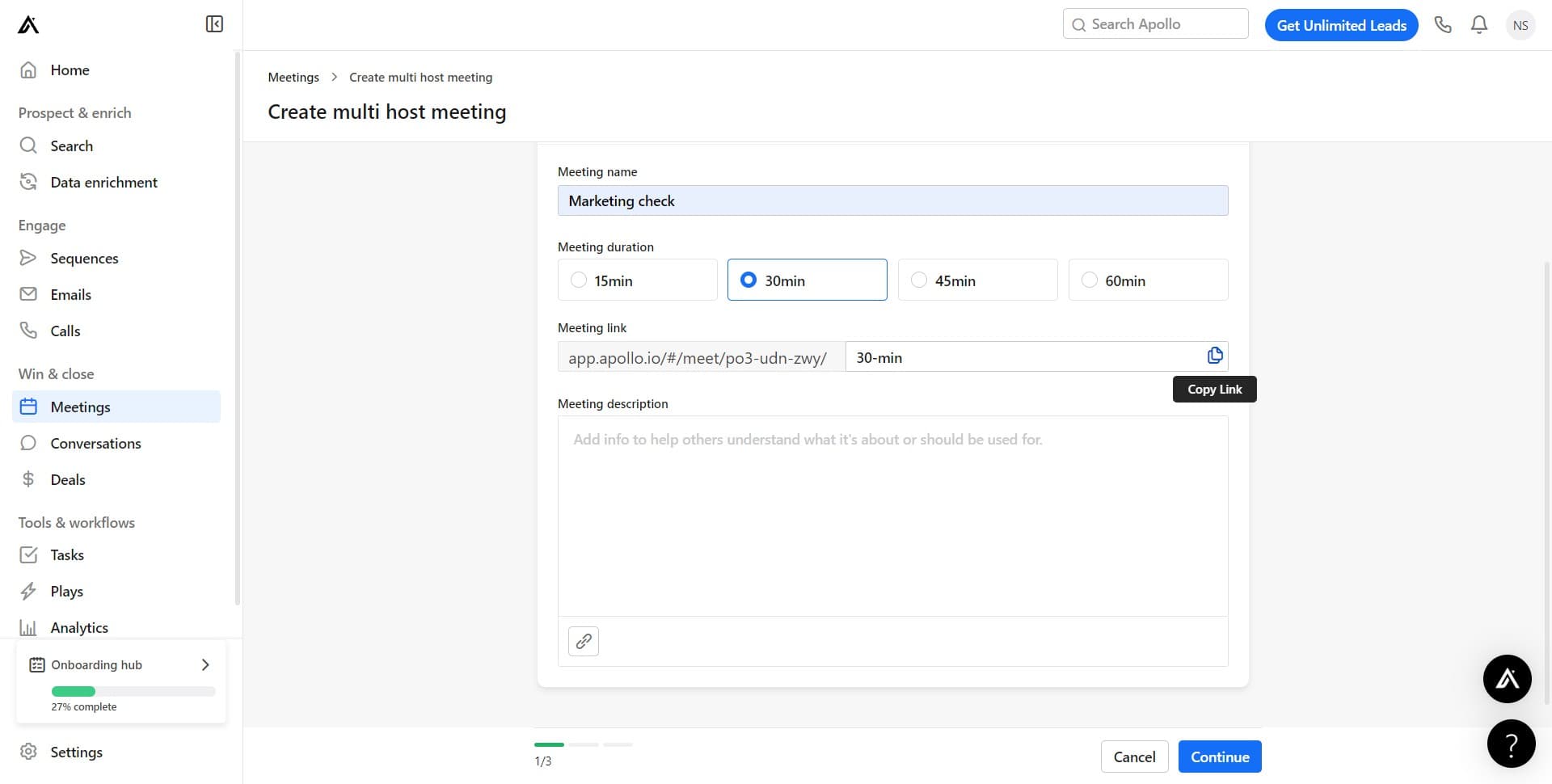
- 7
Advance to the next setup stage
Click to continue with additional meeting configuration options. You're now working through subsequent steps to fully establish your multi-host meeting parameters.
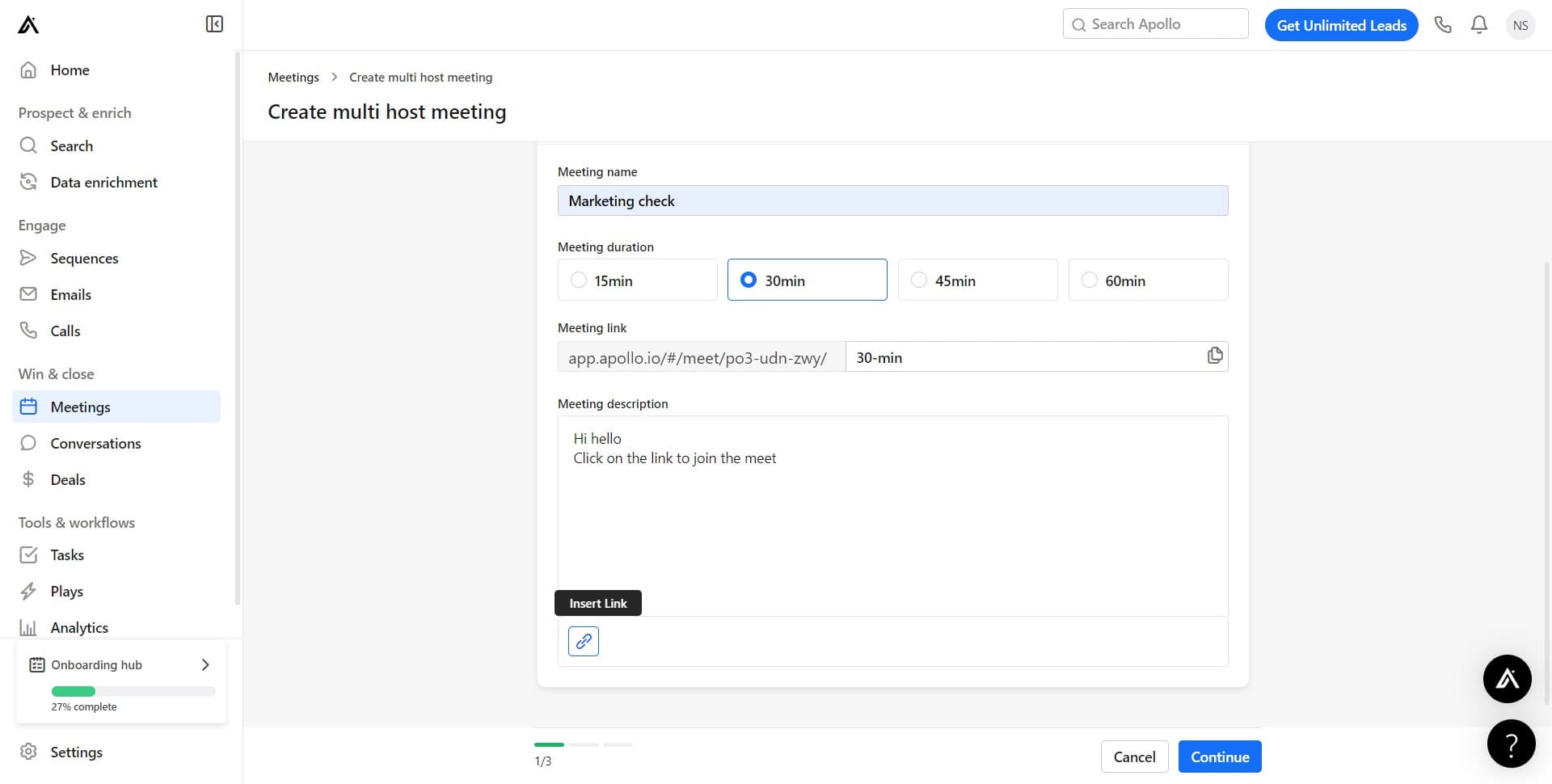
- 8
Finalize meeting details
Click to complete the final configuration steps for your multi-host meeting. At this stage, all core settings for hosts and meeting parameters are locked in.
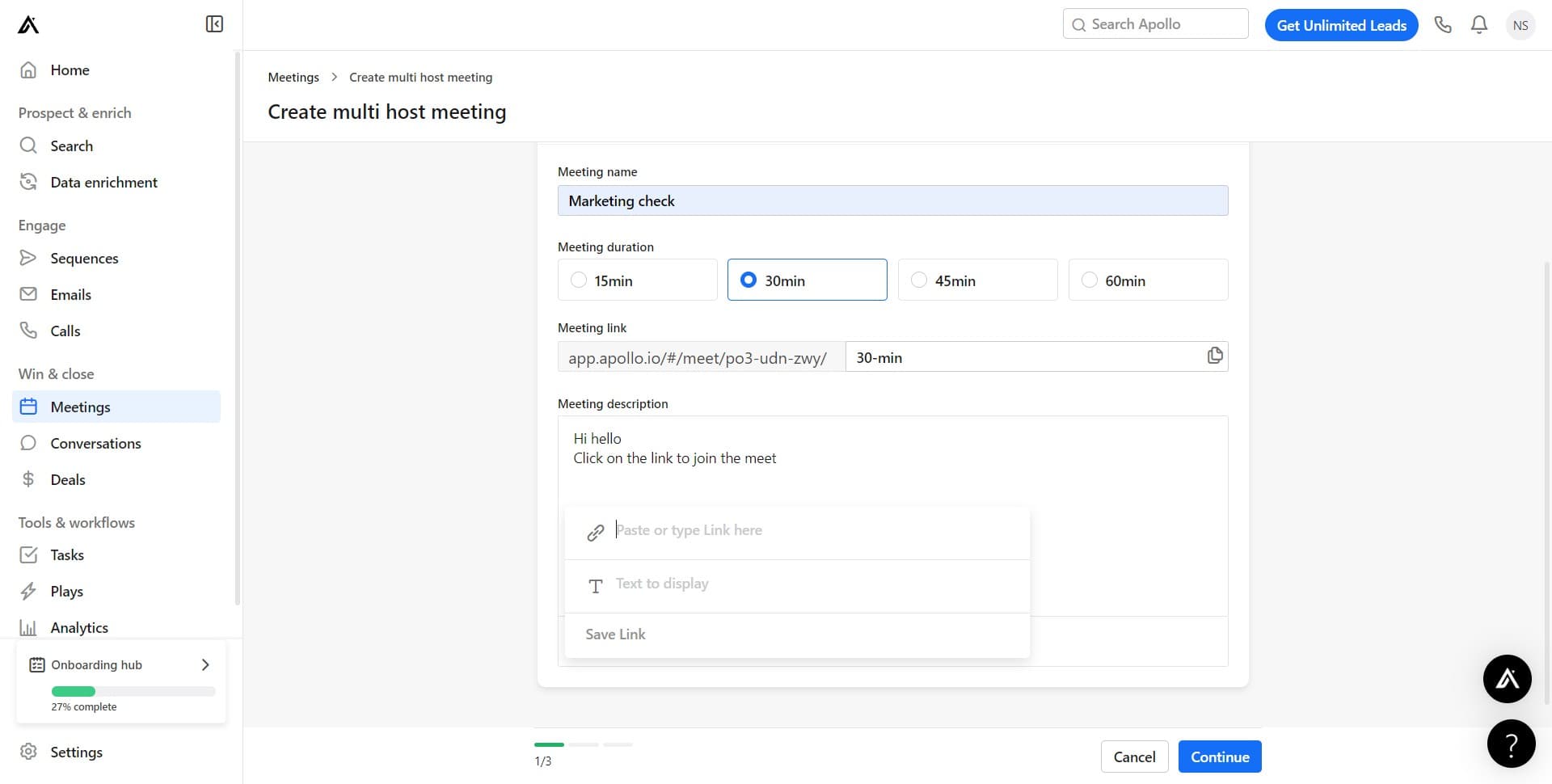
- 9
Generate the shareable meeting link
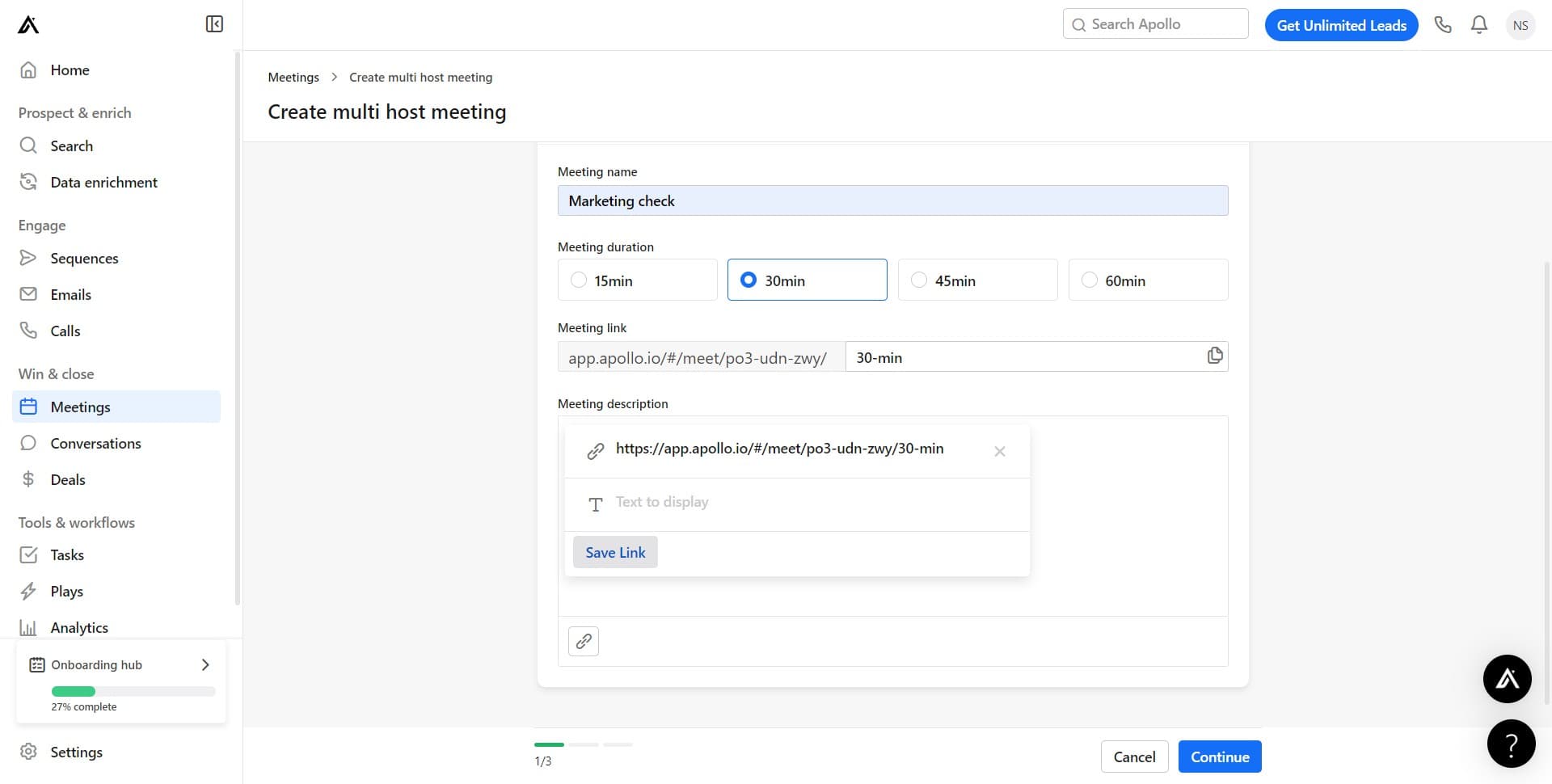
Click on 'Save Link' to create and save the unique URL for your multi-host meeting. This generates the link that you'll share with participants to join the meeting.
- 10
Copy and distribute the meeting link
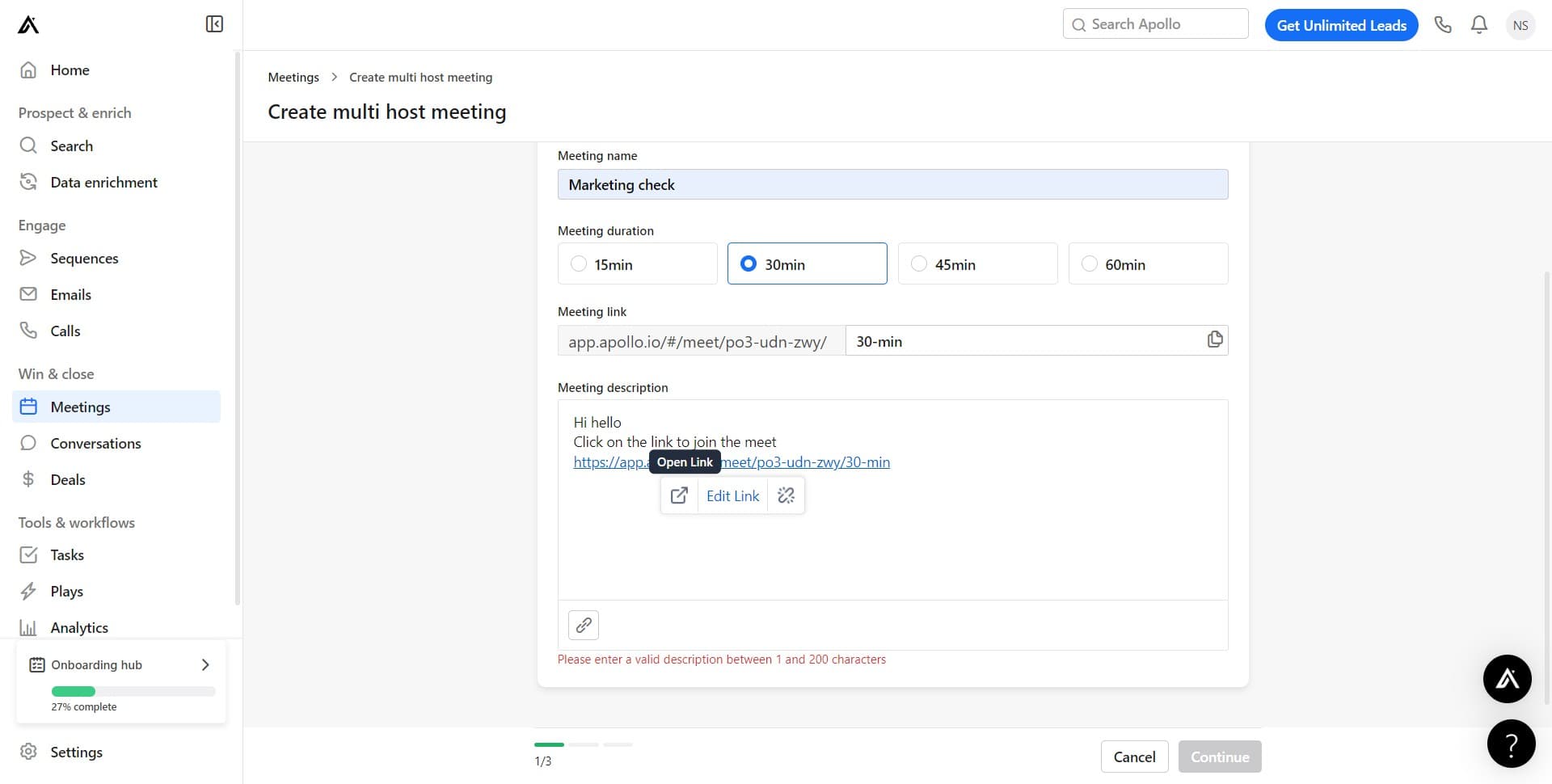
Click on the generated link starting with 'https://app.apo...' to copy it to your clipboard. You can now share this link with all meeting participants and co-hosts.
Frequently asked questions
Common questions about how to create a multi-host meetings in apollo.io.
Hosts have administrative control over the meeting, including the ability to start, end, and manage participant permissions. Participants can join and interact but don't have administrative capabilities. Multi-host meetings allow multiple team members to share these administrative responsibilities.
Yes, you can typically modify host assignments after creating a meeting through the meeting settings. Access your meeting details and update the host list as needed to add or remove co-hosts before or after sharing the link.
Apollo.io allows multiple hosts per meeting, but the exact number may depend on your plan type. Check your account settings or Apollo.io documentation for specific limits on concurrent hosts for your subscription level.
Apollo.io is designed to handle concurrent host actions, but certain operations may require sequential execution. In most cases, the platform manages these interactions gracefully, though it's best practice to coordinate major actions among co-hosts to avoid conflicts.
The meeting link is auto-generated by Apollo.io based on your meeting configuration. While you may not be able to customize the URL itself, you can add context or branding in the message when you share the link with participants and co-hosts.