How to add task in multiple project in Asana

Managing tasks across multiple projects in Asana helps you stay organized when work spans several initiatives. This guide walks you through adding a single task to multiple projects simultaneously, eliminating the need to duplicate effort or create redundant entries.
Quick summary
In this tutorial, you'll learn how to create a task in your My Tasks list and assign it to multiple projects at once. By the end, you'll be able to streamline your workflow and keep all relevant projects updated with a single task entry.
Why this matters
Adding tasks to multiple projects ensures stakeholders across different teams see the same work item without manual duplication. This approach reduces confusion, maintains a single source of truth, and keeps project timelines synchronized across your organization.
Step-by-step guide
- 1
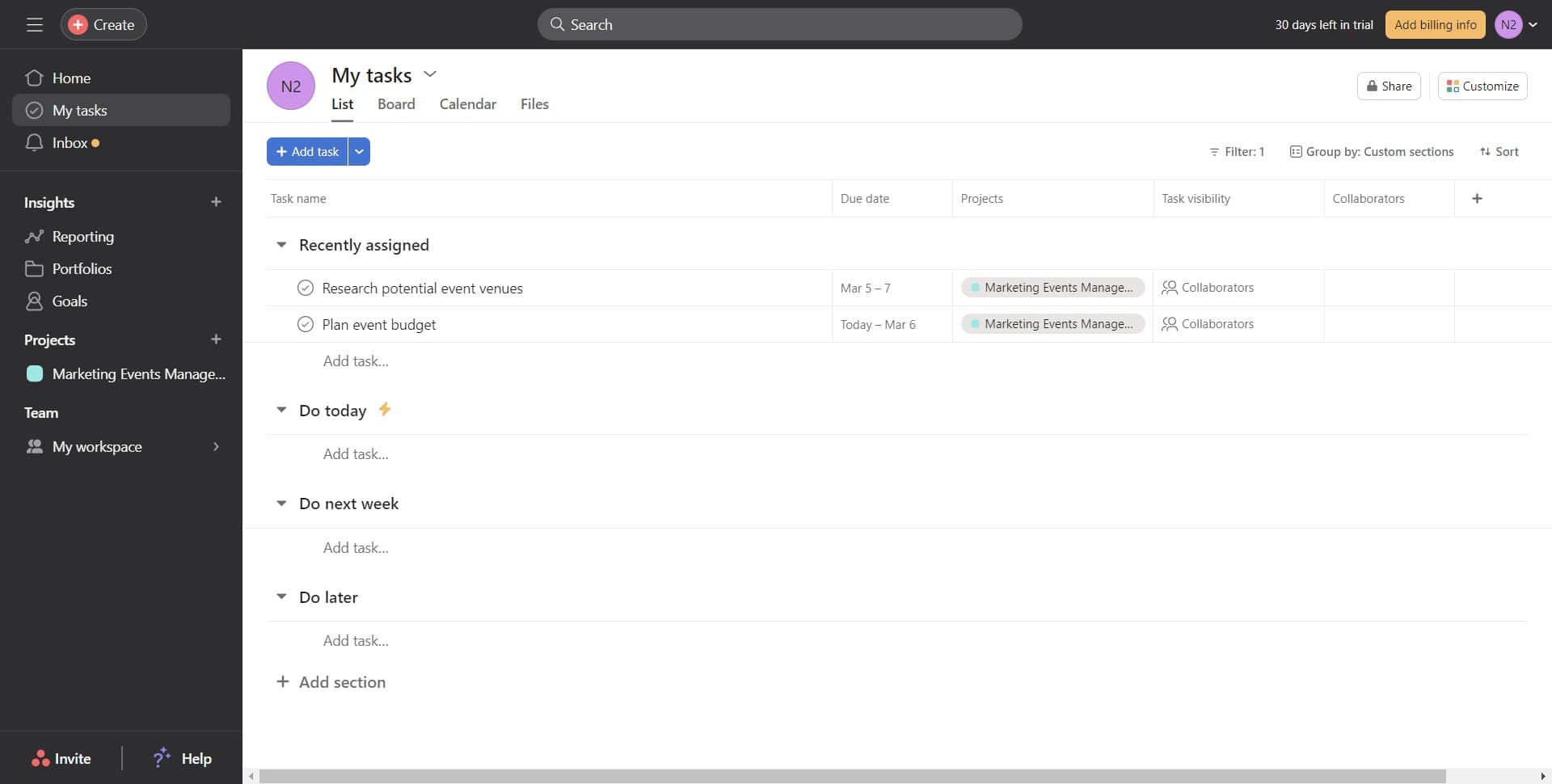
Open your My Tasks list
Navigate to the My Tasks section in Asana. This is your personal task dashboard where you can view and manage all your assigned work.
- 2
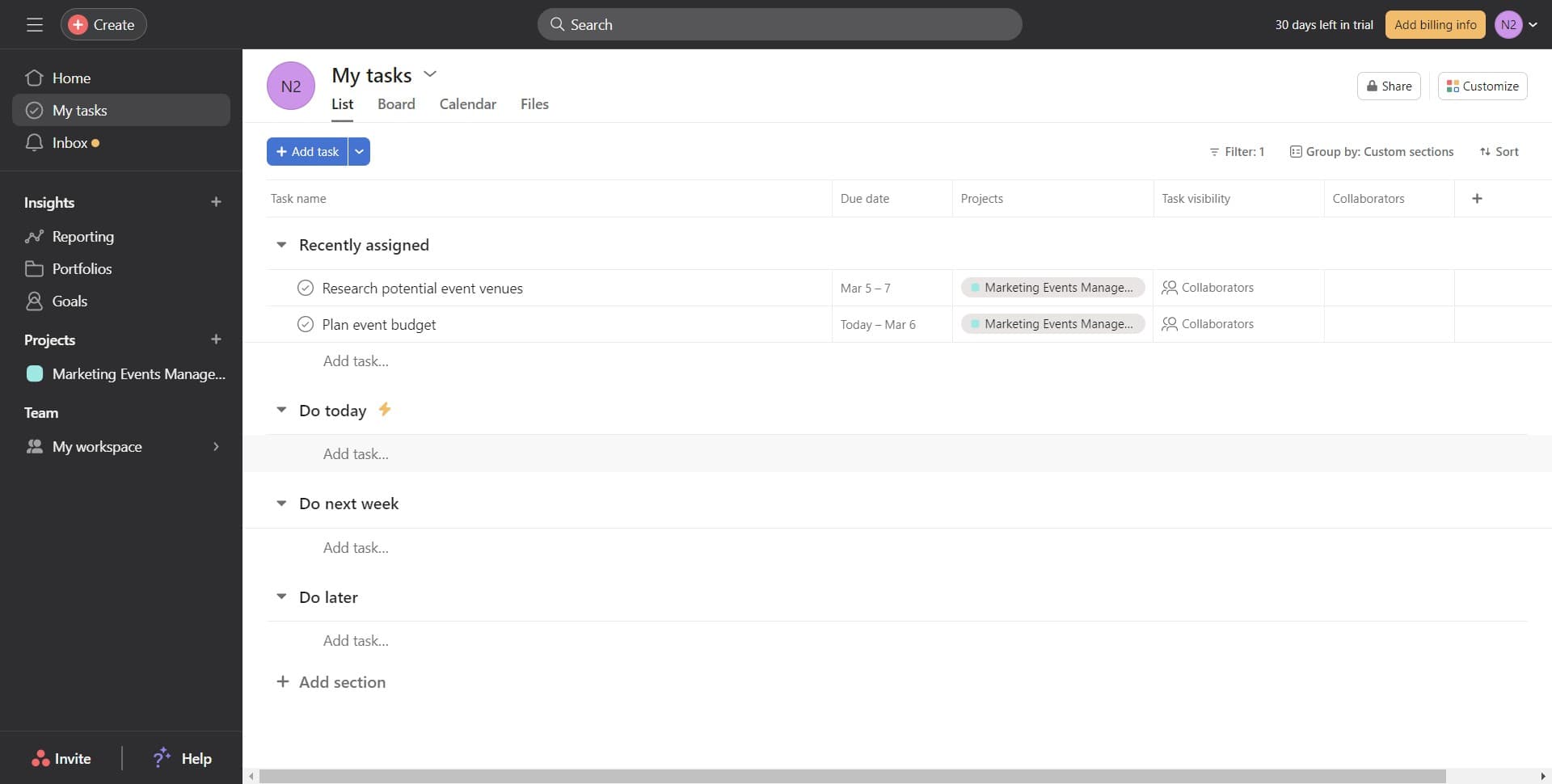
Click Add task option
Look for the 'Add task...' button or link in your My Tasks view. This will open a dialog or input field to create a new task.
- 3
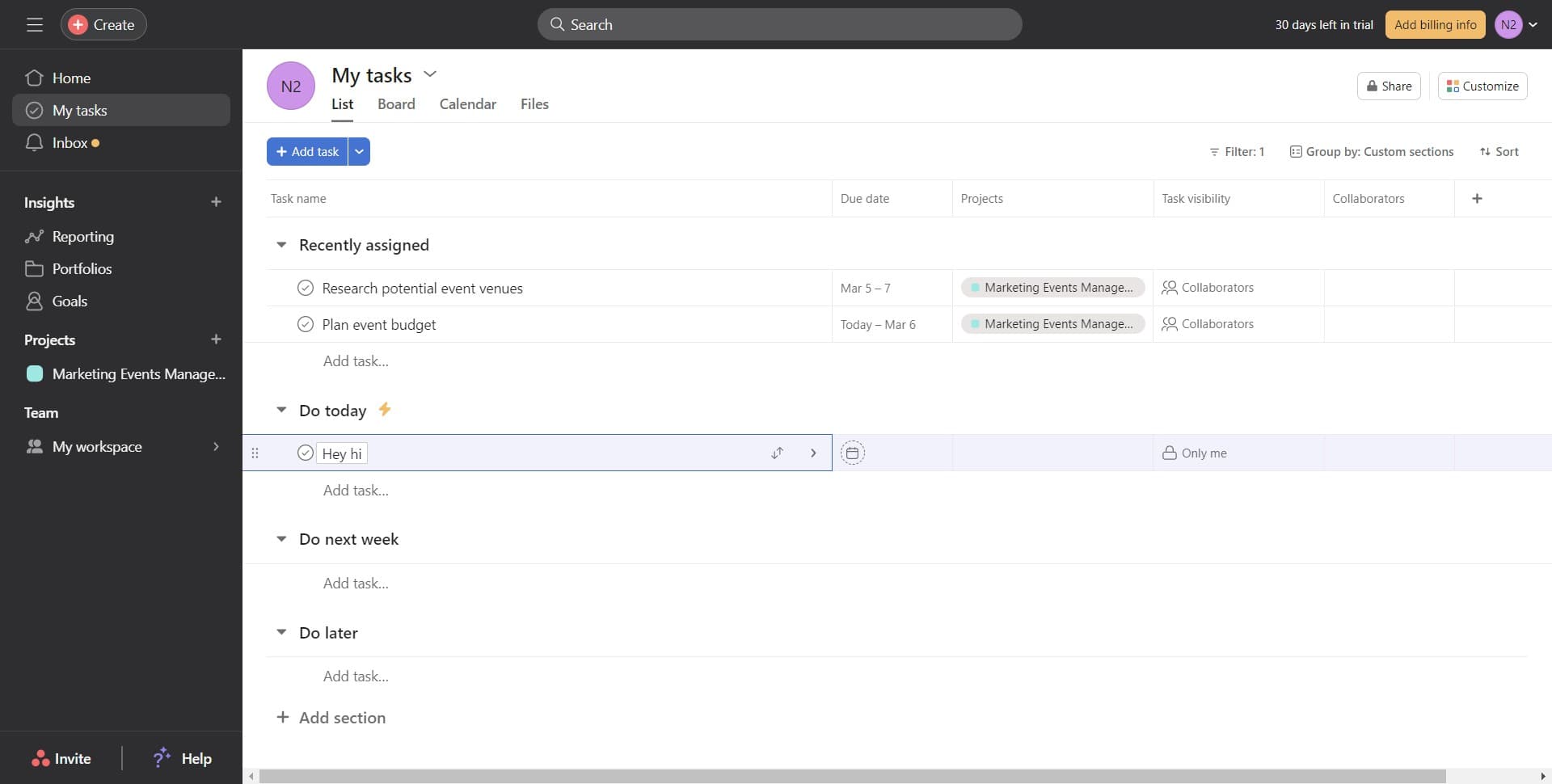
Enter task title and details
Type your task name and add any relevant details in the task creation form. Make sure the task title clearly describes the work you need to track.
- 4
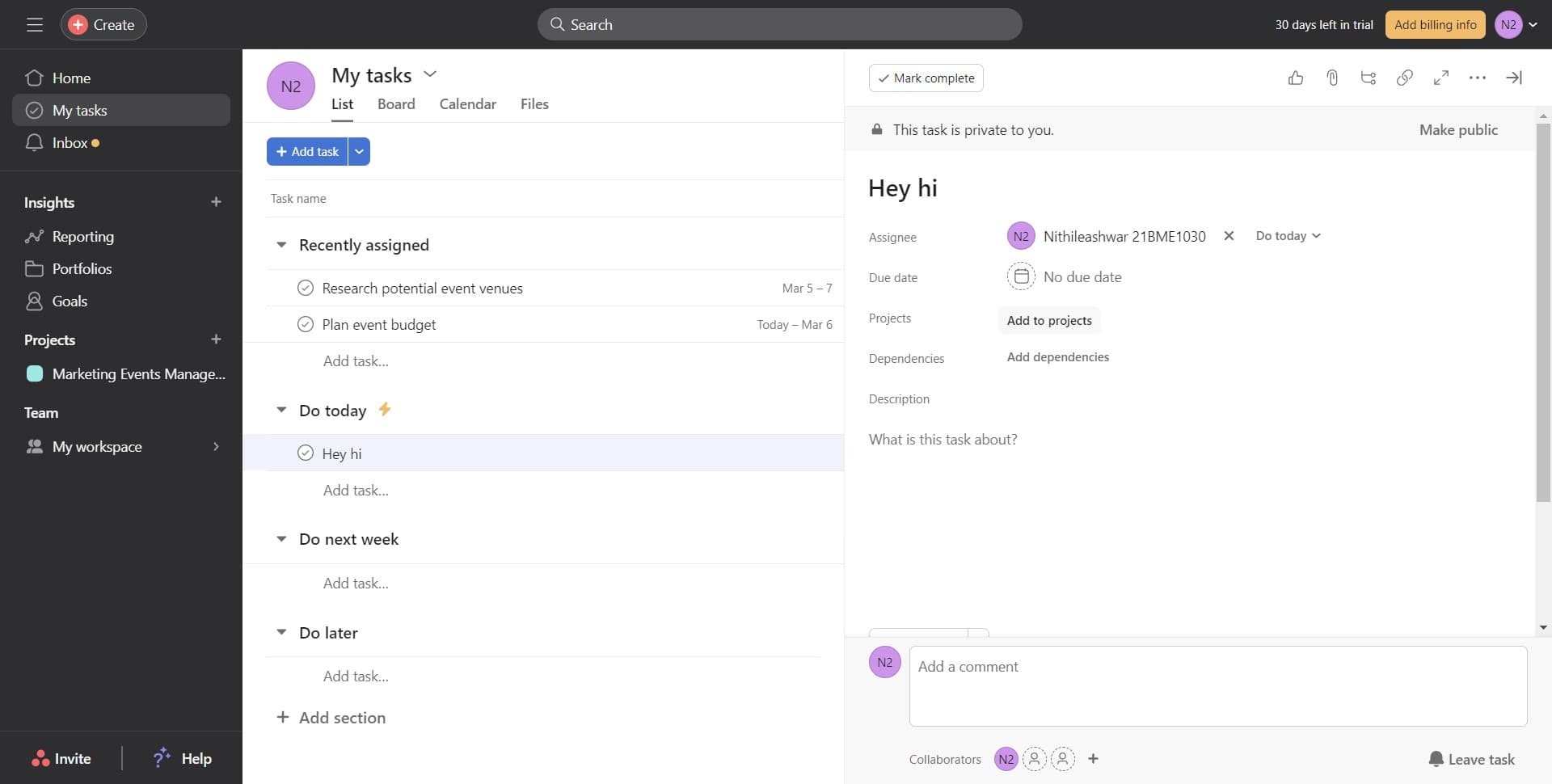
Select Add to projects
Click the 'Add to projects' option in the task details panel. This action allows you to associate your task with one or more projects simultaneously.
- 5
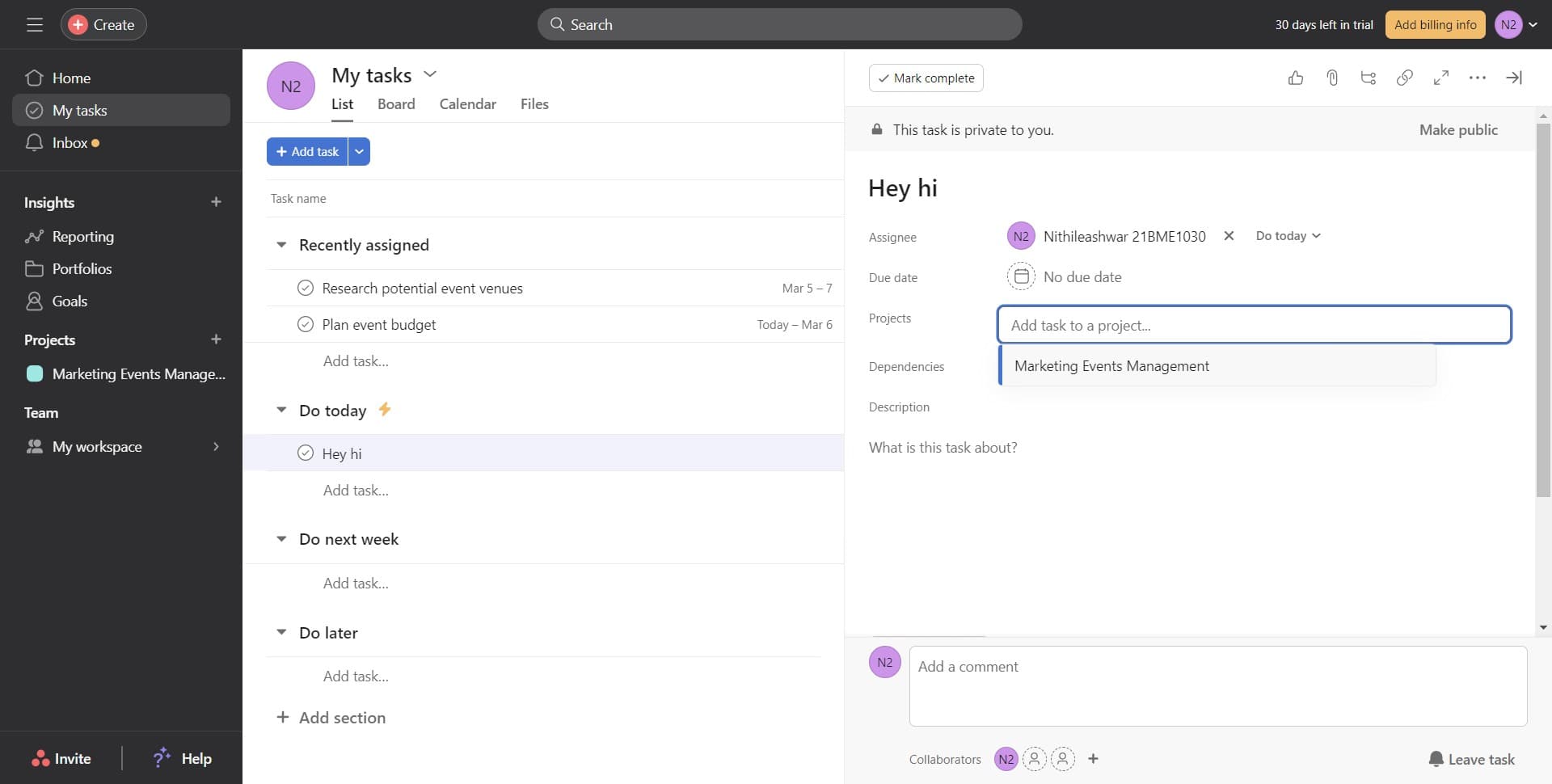
Choose your first project
Select 'Marketing Events Management' from the available projects list. This adds your task to that project's workflow.
- 6
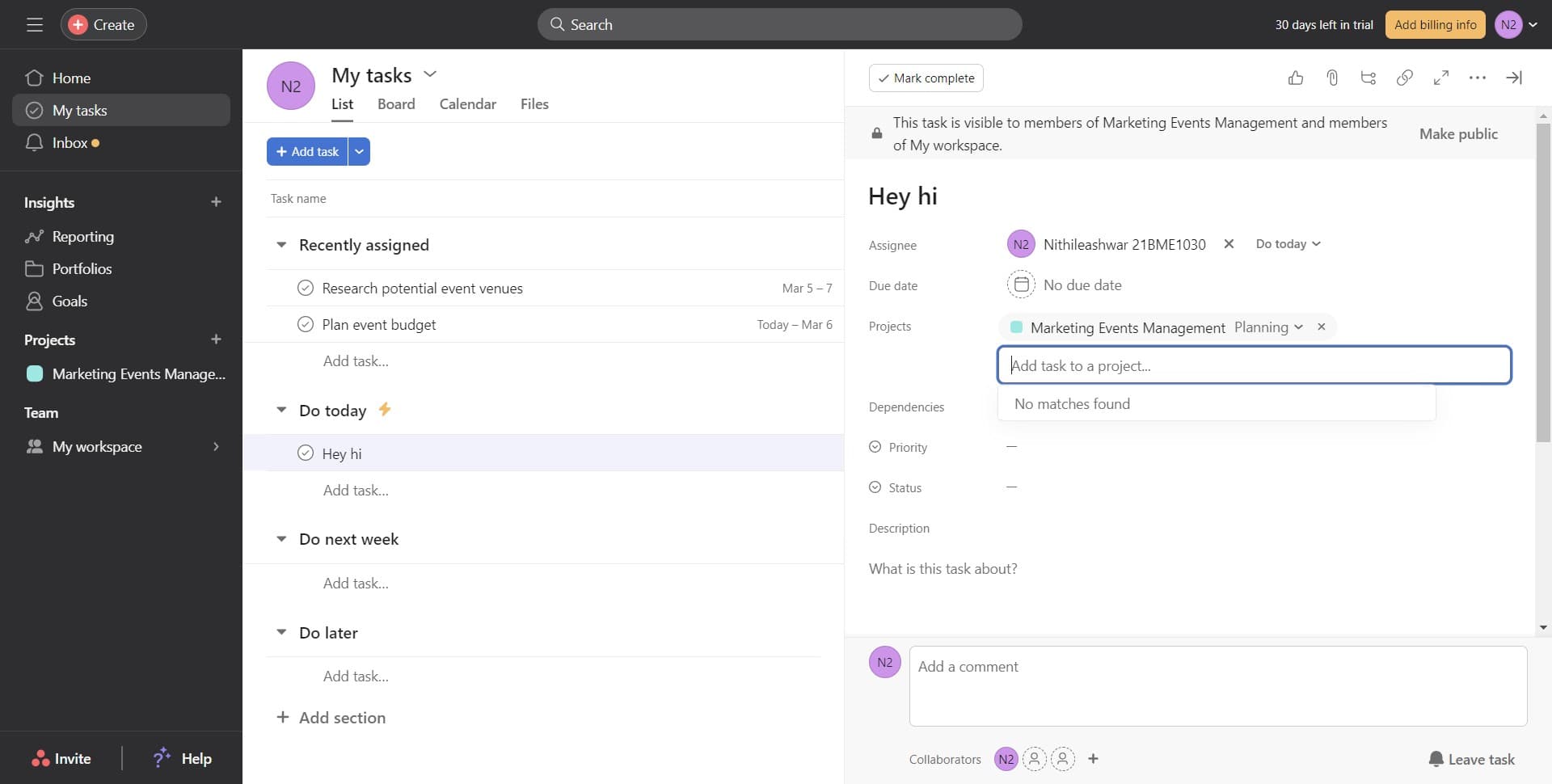
Add additional projects
Click the option to add more projects to your task. Repeat the selection process for any other projects that should include this task.
- 7
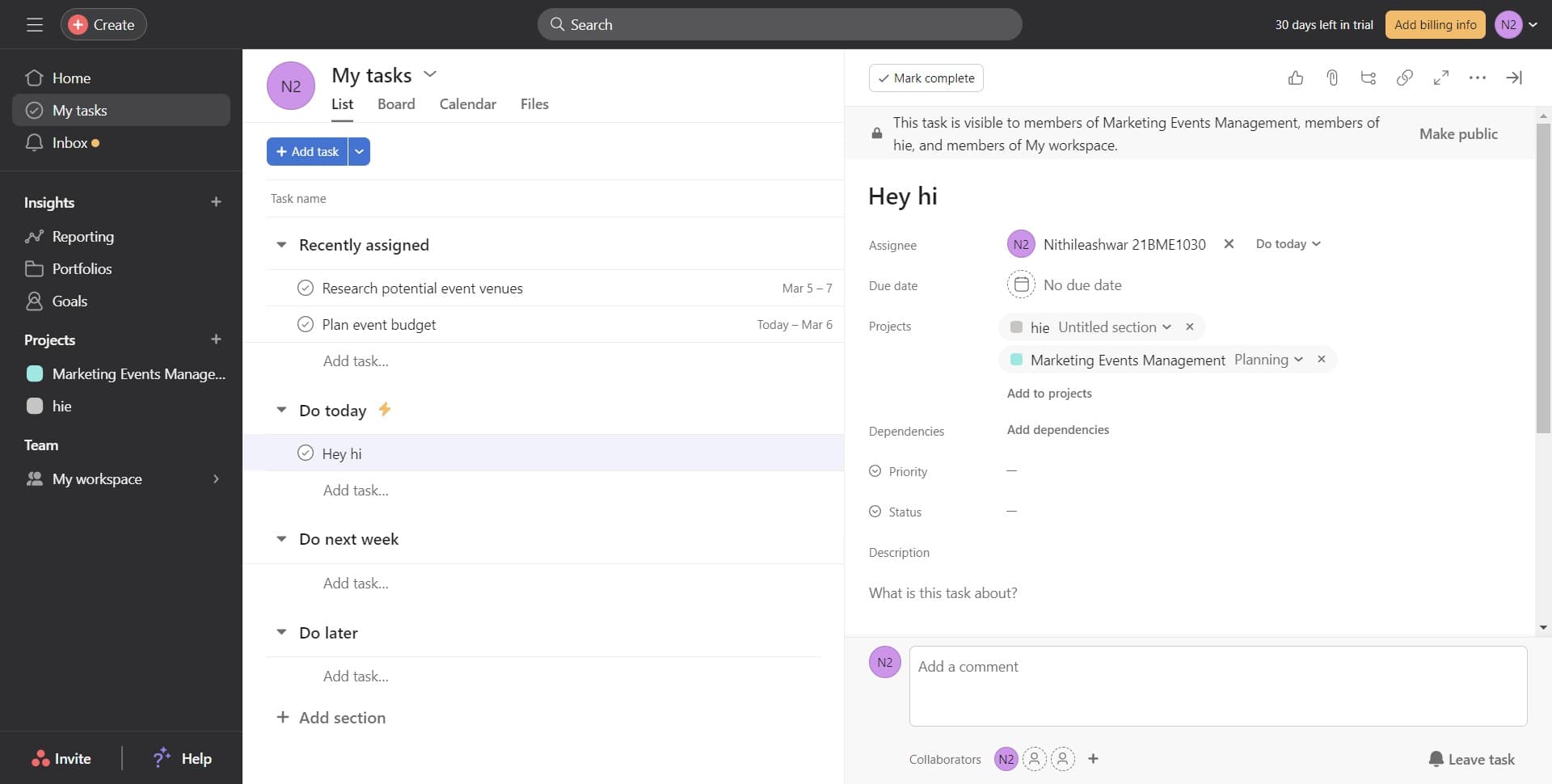
Confirm project assignments
Navigate to the Projects section to verify all project associations have been saved correctly. Your task should now appear in all selected projects.
Frequently asked questions
Common questions about how to add task in multiple project in asana.
Yes, Asana allows you to add a single task to multiple projects simultaneously. Simply continue clicking 'Add to projects' and select each additional project you need. There's no limit to how many projects a task can belong to.
Yes, since it's the same task in multiple projects, any updates you make (status, due date, assignee, etc.) will reflect across all projects automatically. This keeps your information consistent everywhere the task appears.
Adding a task to multiple projects keeps everything in one place with synchronized updates. Creating separate tasks duplicates work and creates confusion about which version is current. Using multi-project tasks is the more efficient approach.
Yes, you can remove a task from a specific project by editing the task and unchecking that project from the projects list. The task will remain in your other projects and in My Tasks.
Yes, anyone with access to those projects will see the task appear in their project view. The task visibility depends on project permissions, so make sure team members have access to all relevant projects.