How to create multi-home tasks in Asana

Multi-home tasks in Asana allow you to add a single task to multiple projects, making it easier to track work that spans different teams or initiatives. This feature is essential for cross-functional projects where a task needs visibility across multiple project boards. Learn how to quickly add tasks to multiple homes in Asana.
Quick summary
In this tutorial, you'll learn how to add a task to multiple projects in Asana using the multi-home feature. You'll navigate through the task details, select additional projects, and confirm the additions to ensure your task appears across all relevant project boards.
Why this matters
Multi-home tasks eliminate the need to create duplicate tasks across projects, reducing administrative overhead and keeping your team aligned. When work touches multiple departments or initiatives, assigning a task to multiple homes ensures all stakeholders have visibility without creating confusion or extra work. This workflow is critical for maintaining a single source of truth in complex, cross-functional organizations.
Step-by-step guide
- 1
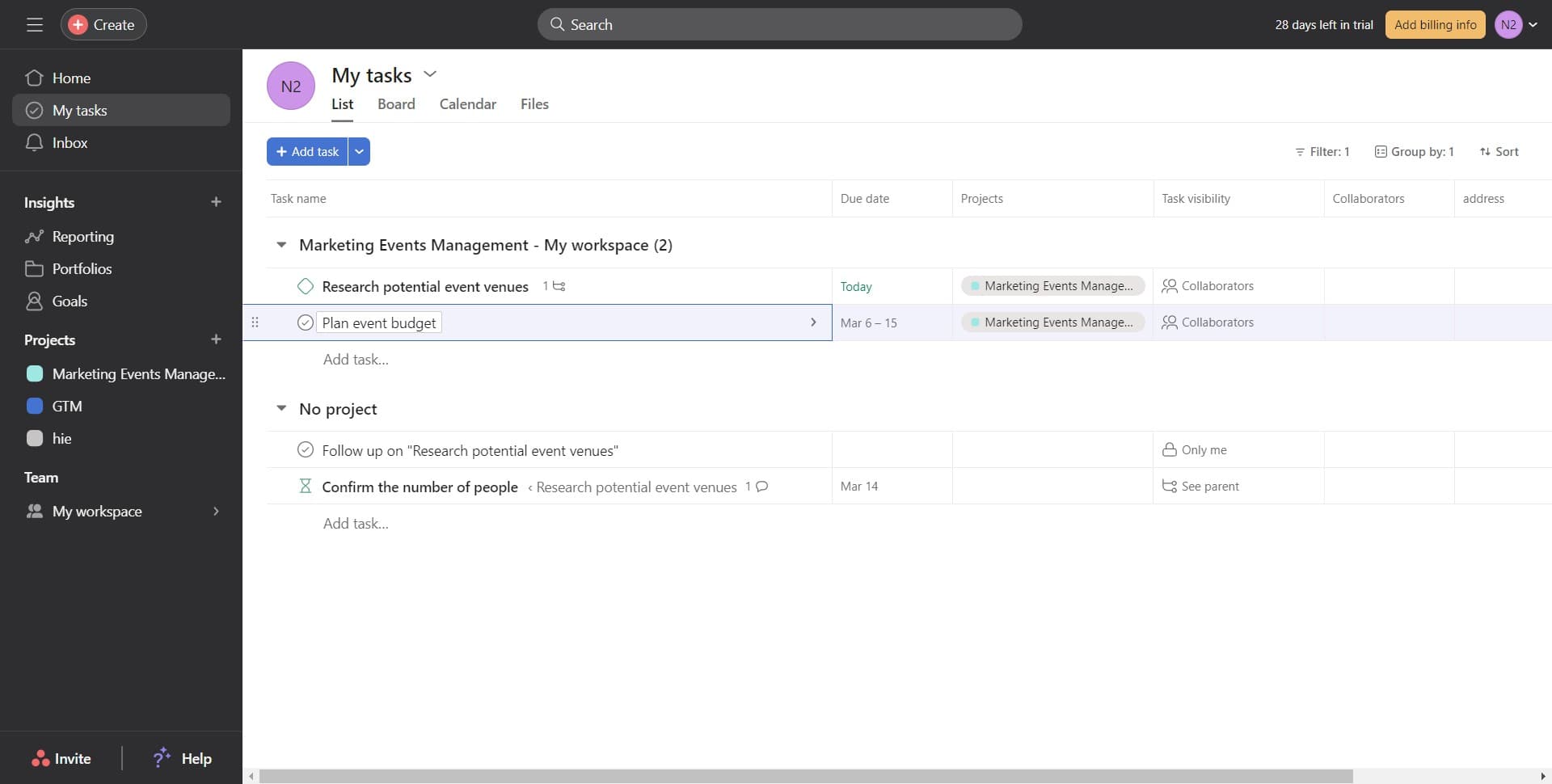
Open the task details
Begin by locating the task you want to add to multiple projects and click to open its details panel. This will display all available options for configuring the task.
- 2
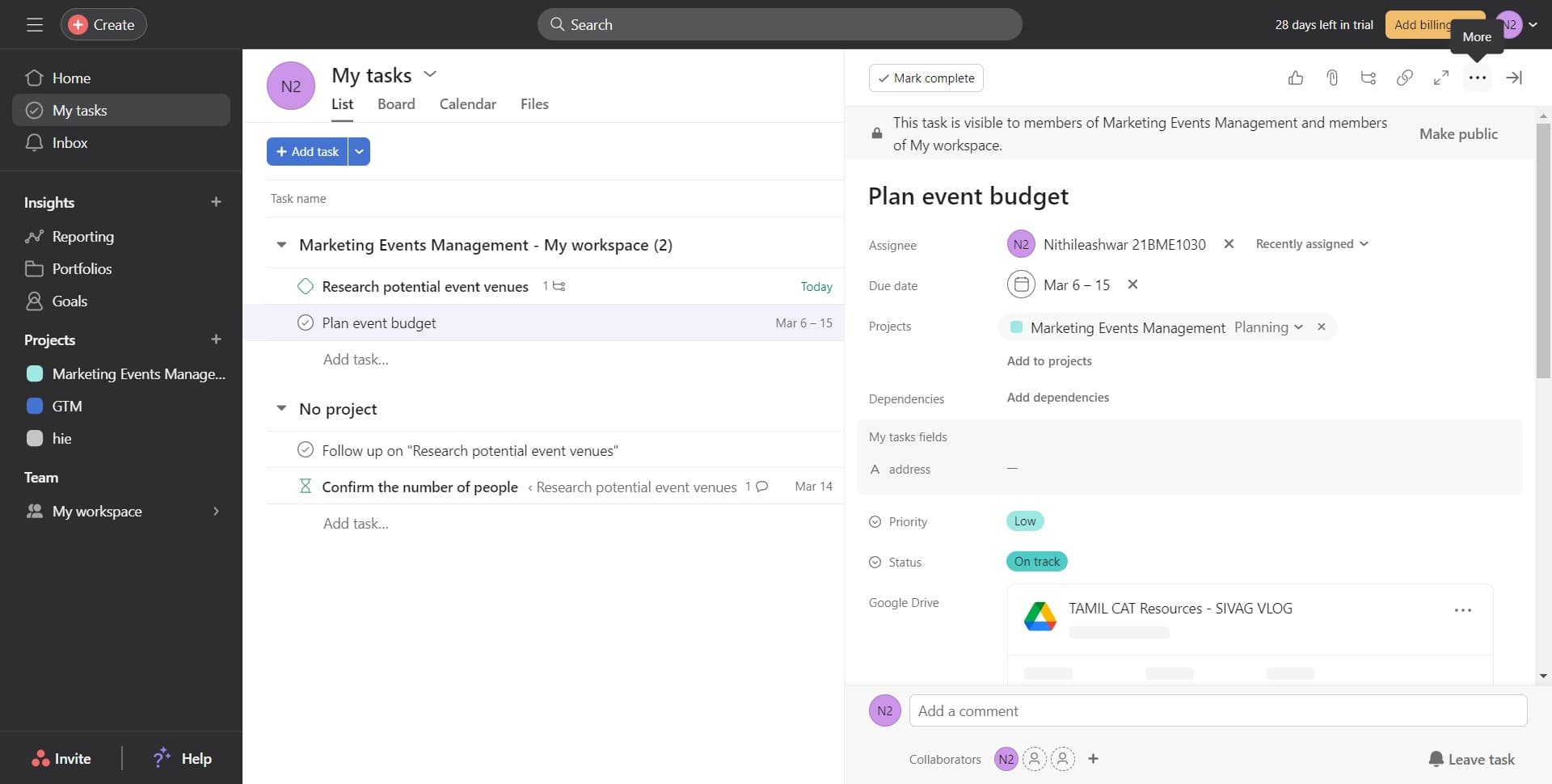
Access the task menu
Click on the task menu or options button to reveal additional actions you can perform on this task. Look for navigation elements that allow you to modify task properties.
- 3
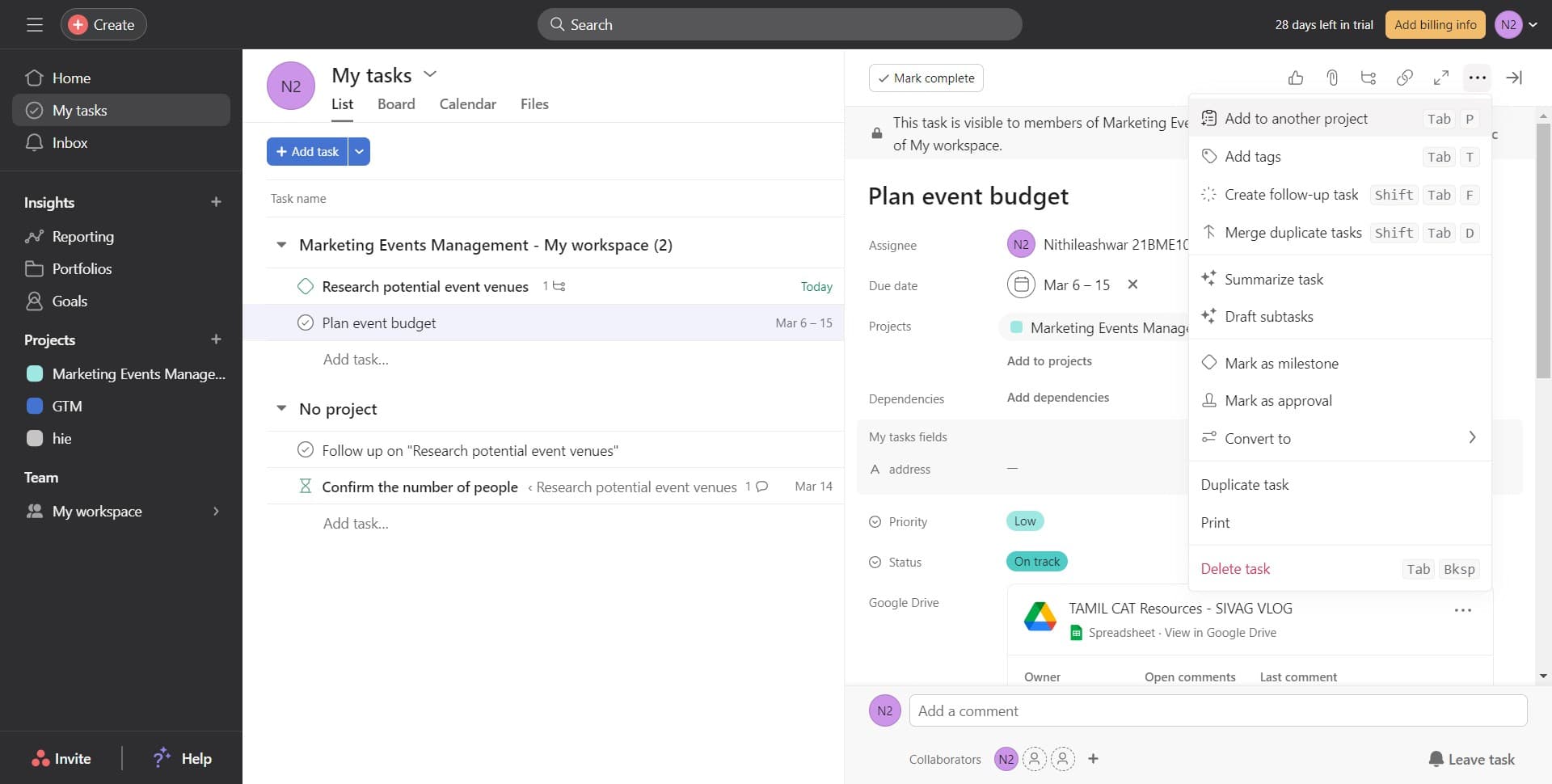
Select 'Add to another project'
Click on the 'Add to another project' option to initiate the multi-home assignment process. This will open a dialog or dropdown allowing you to select additional projects.
- 4
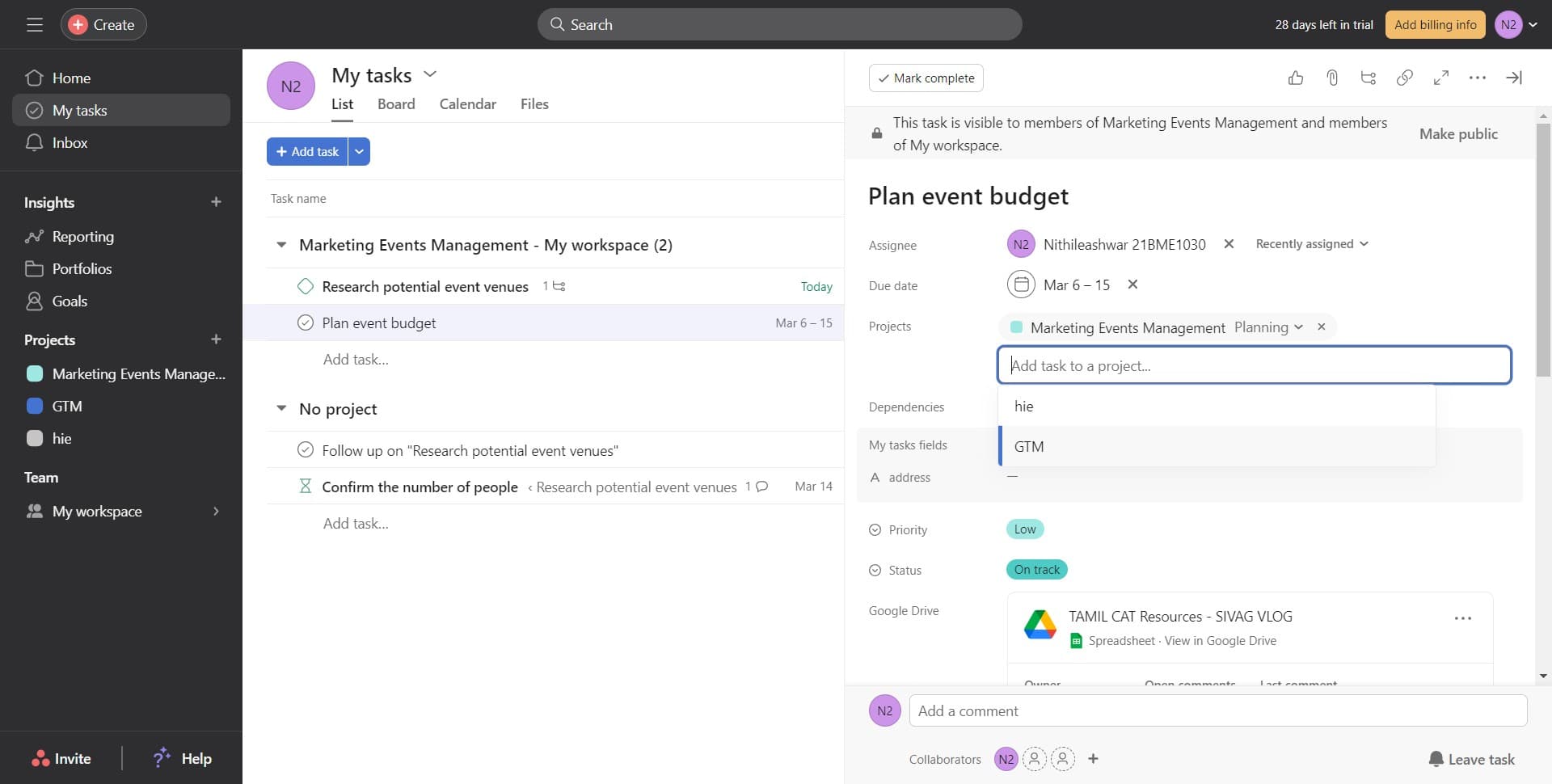
Click on 'GTM'
From the list of available projects, select the GTM project. This is the first project you want to add this task to.
- 5
Click on 'Planning'
Next, select the Planning project from the available options. This adds another home for your task.
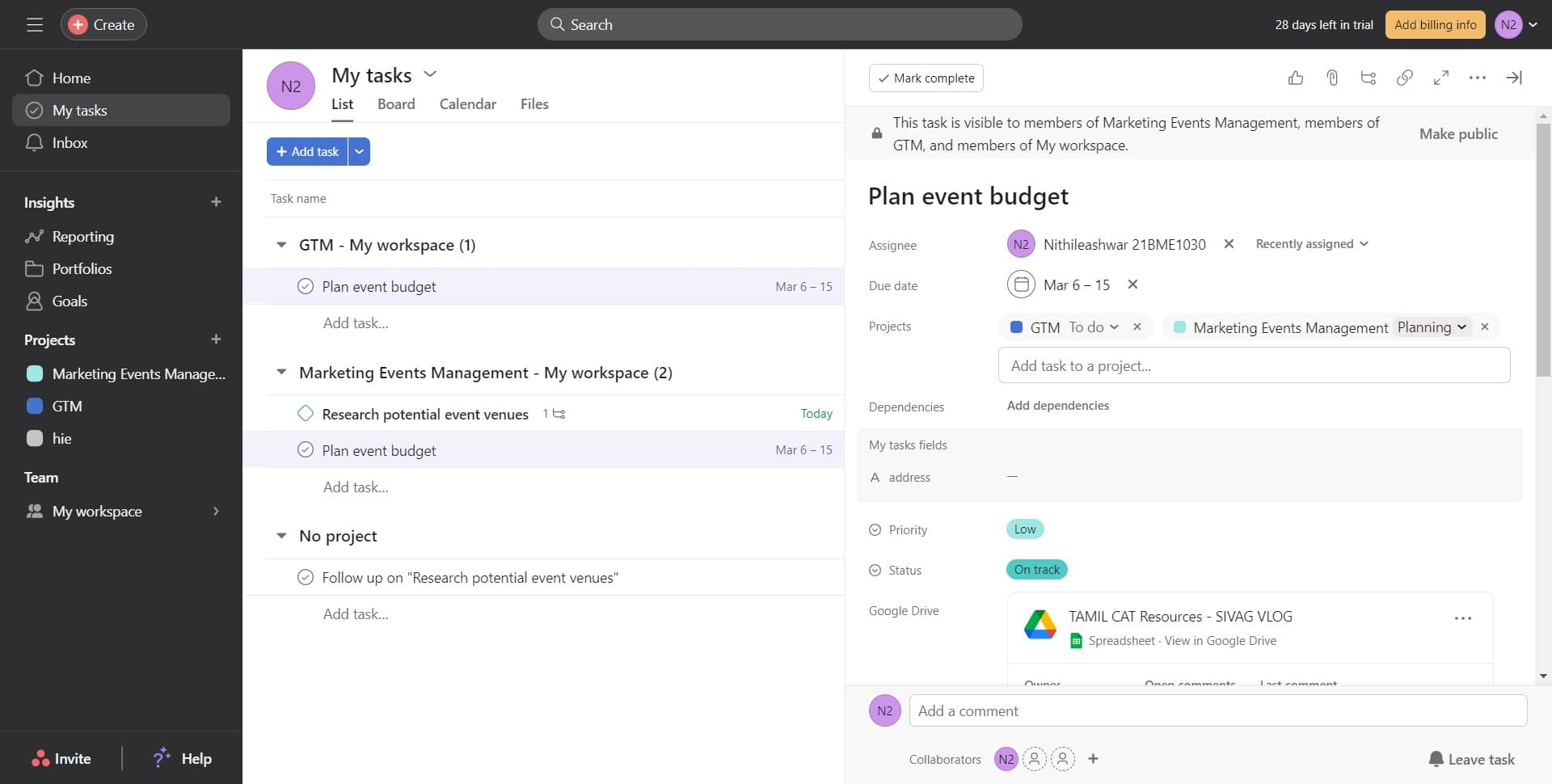
- 6
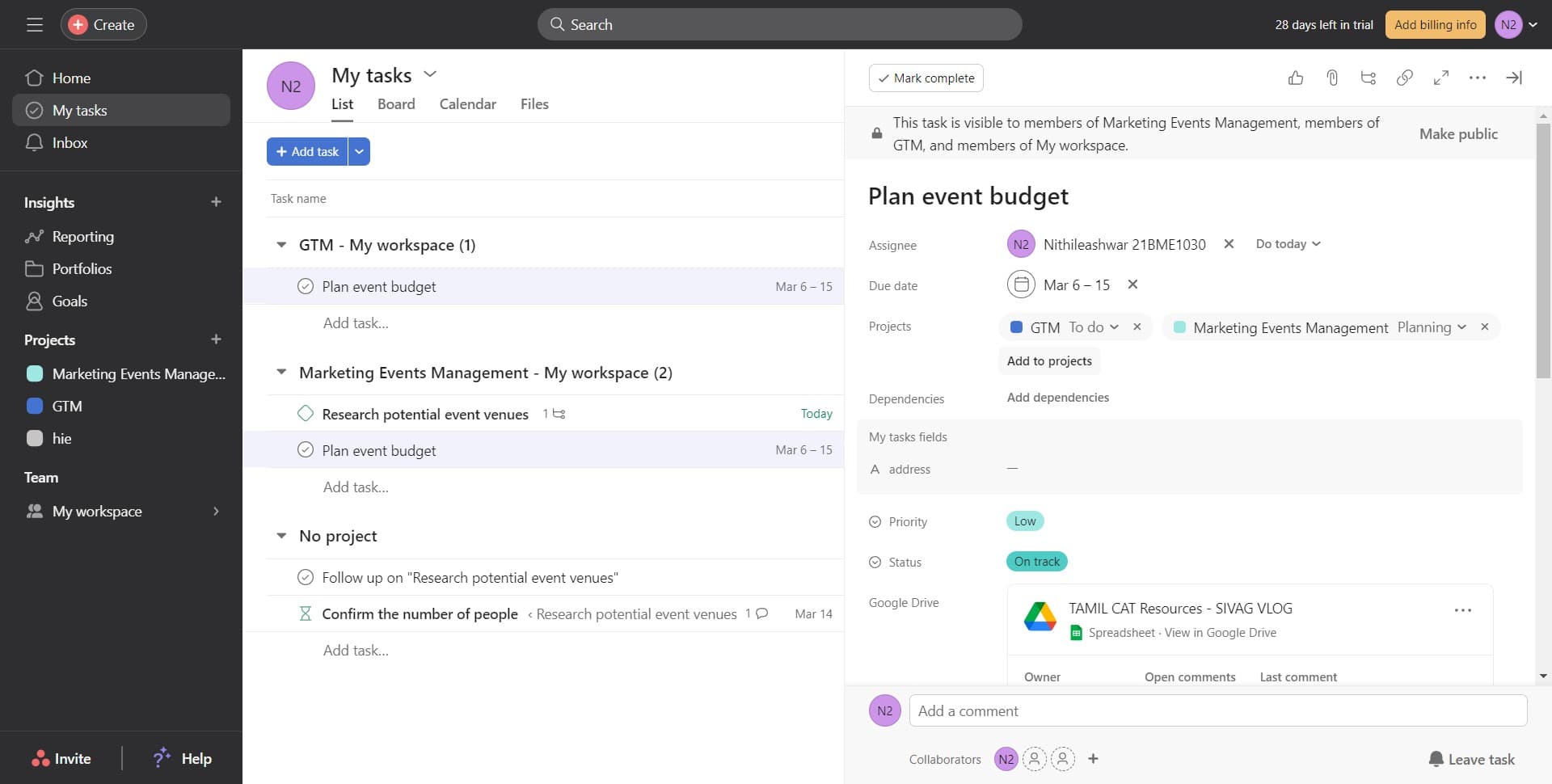
Confirm projects with 'Add to projects'
Click the 'Add to projects' button to confirm your selections and proceed with adding the task to the additional projects you've chosen.
- 7
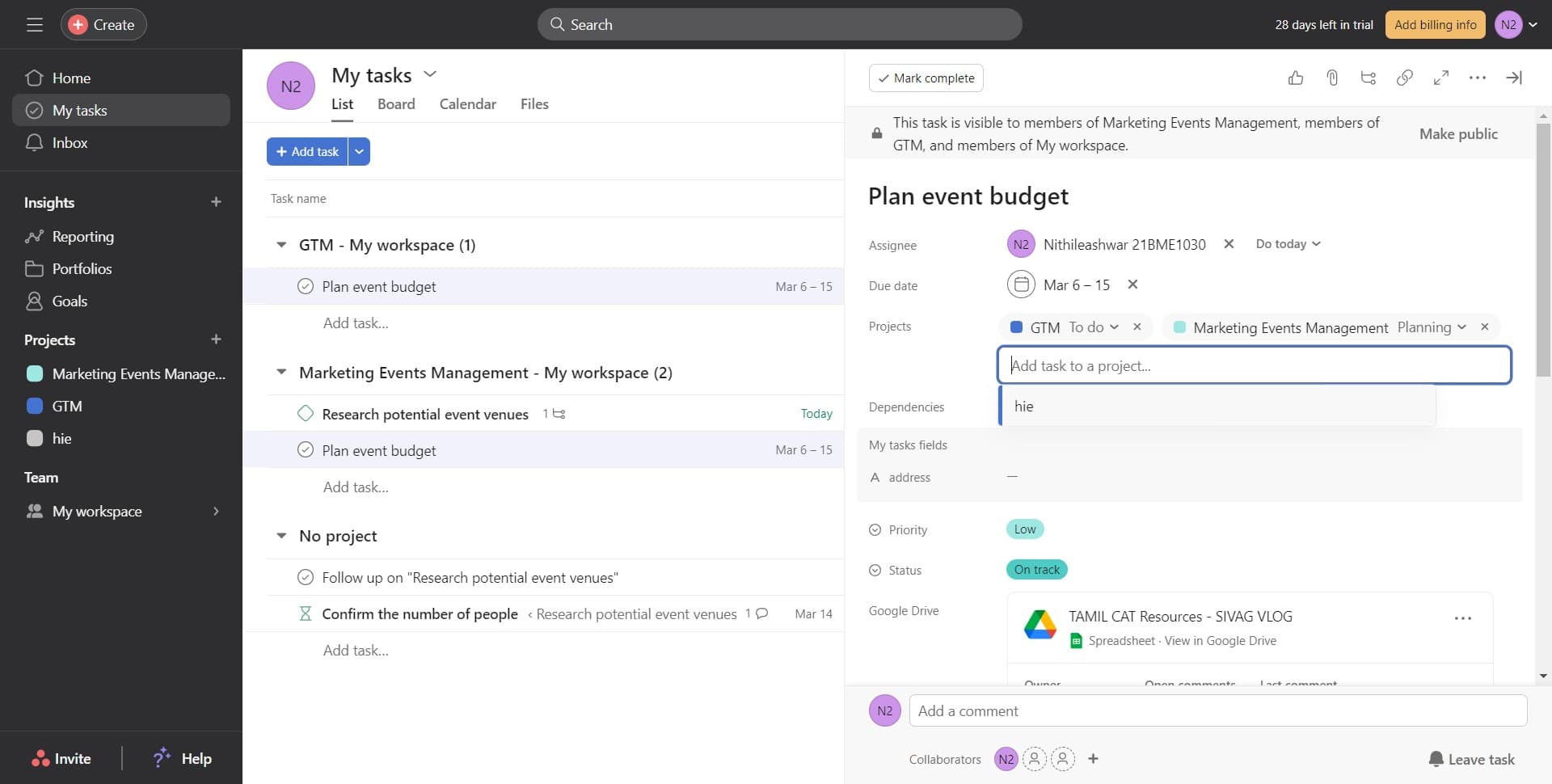
Select 'hie' project
From the remaining project options, click on the 'hie' project to add it as another home for this task. You can continue selecting multiple projects as needed.
- 8
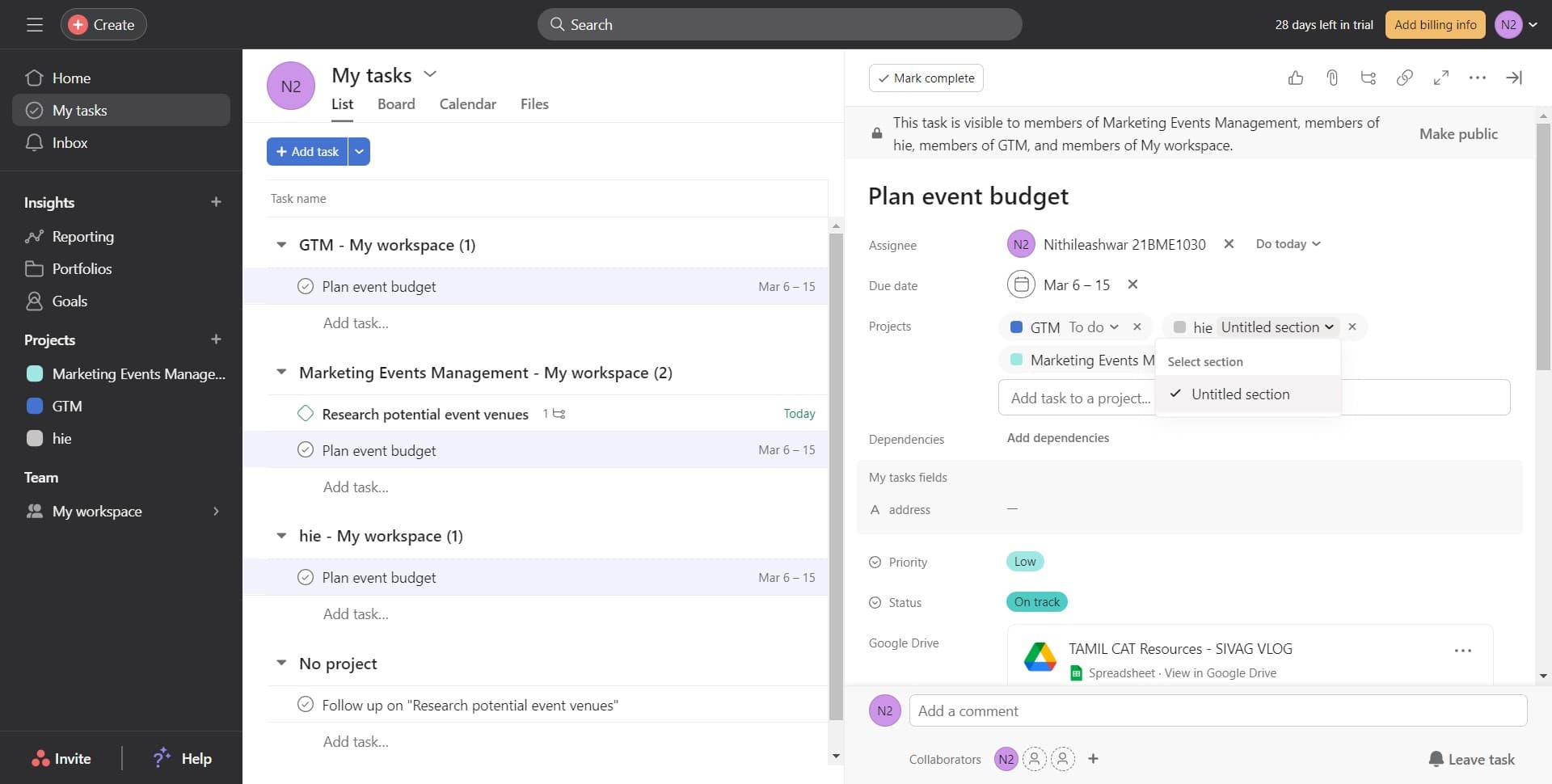
Assign to 'Untitled section'
Finally, click on 'Untitled section' to specify which section within the selected projects the task should appear in. This completes the multi-home task assignment.
Frequently asked questions
Common questions about how to create multi-home tasks in asana.
Yes, Asana allows you to add a single task to multiple projects without limitation. You can repeat the 'Add to another project' process as many times as needed to assign the task to all relevant projects. Keep in mind that having a task in too many projects can make it harder to manage, so use this feature strategically.
Yes, when you modify a multi-home task, the changes automatically sync across all projects where it appears. This ensures that all teams viewing the task see the same information, deadlines, and status updates regardless of which project they're viewing it from.
Absolutely. You can remove a task from a specific project home by accessing the task details and selecting the remove or delete option for that particular project. The task will remain in your other project homes and continue to sync normally.
Multi-home tasks add the same task to multiple projects for visibility and collaboration across teams. Task dependencies, on the other hand, create a relationship between separate tasks where one task's completion impacts another. These features serve different purposes and can be used together in complex workflows.
You need to be a member of all the projects you want to add the task to, and you should have edit permissions on the task itself. If you lack access to a project, that project won't appear as an option when you attempt to add the task to additional homes.