How to duplicate a project in Asana

Duplicating a project in Asana is a powerful way to reuse templates, create similar workflows, or establish consistent project structures across your team. This tutorial walks you through the process of cloning an existing project in just a few clicks, saving time and maintaining standardized project setups.
Quick summary
In this tutorial, you'll learn how to duplicate an Asana project from start to finish. You'll navigate to your project, access the duplicate option, and create a new copy with a custom name, enabling you to quickly replicate your project structure and tasks.
Why this matters
Duplicating projects eliminates the need to recreate tasks, timelines, and structures manually. This workflow is especially valuable for recurring projects, campaign templates, or when you need to maintain consistency across multiple similar initiatives within your organization.
Step-by-step guide
- 1
Select your project
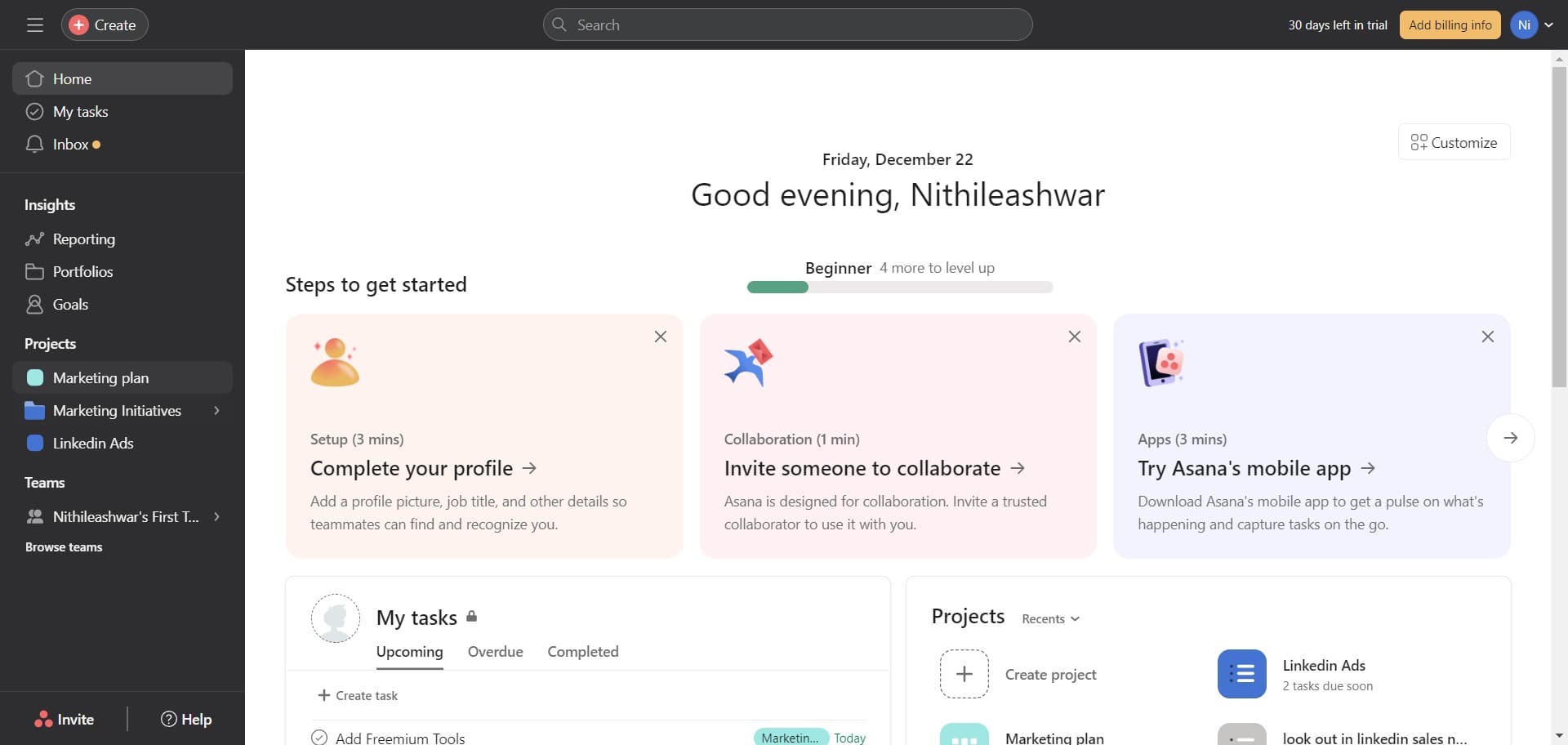
Navigate to your Asana workspace and locate the project you want to duplicate. Click on 'Marketing plan' or the name of your target project to open it.
- 2
Access the project menu
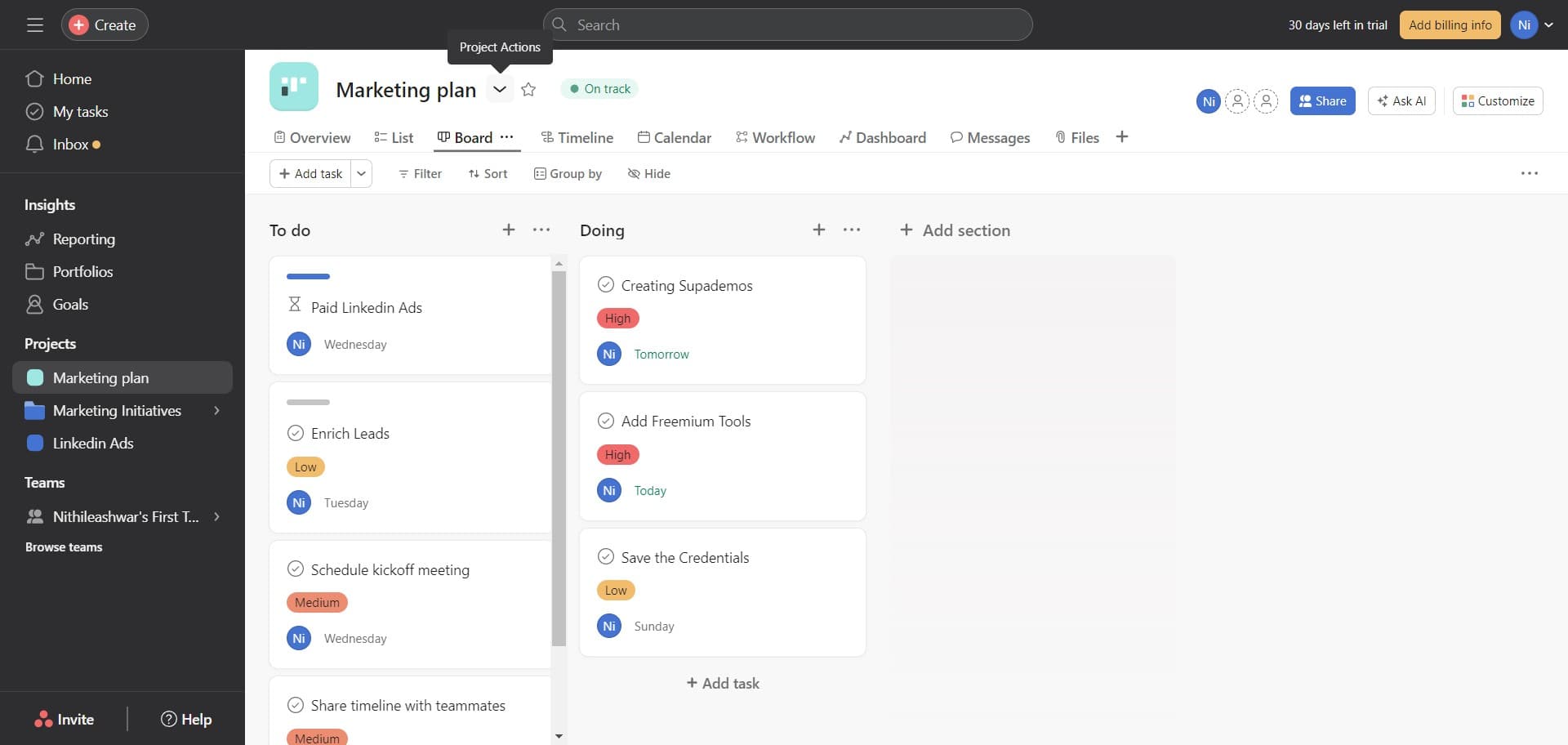
Look for the menu options associated with your project. Click on the appropriate menu icon or button to reveal additional project actions and settings.
- 3
Choose the Duplicate option
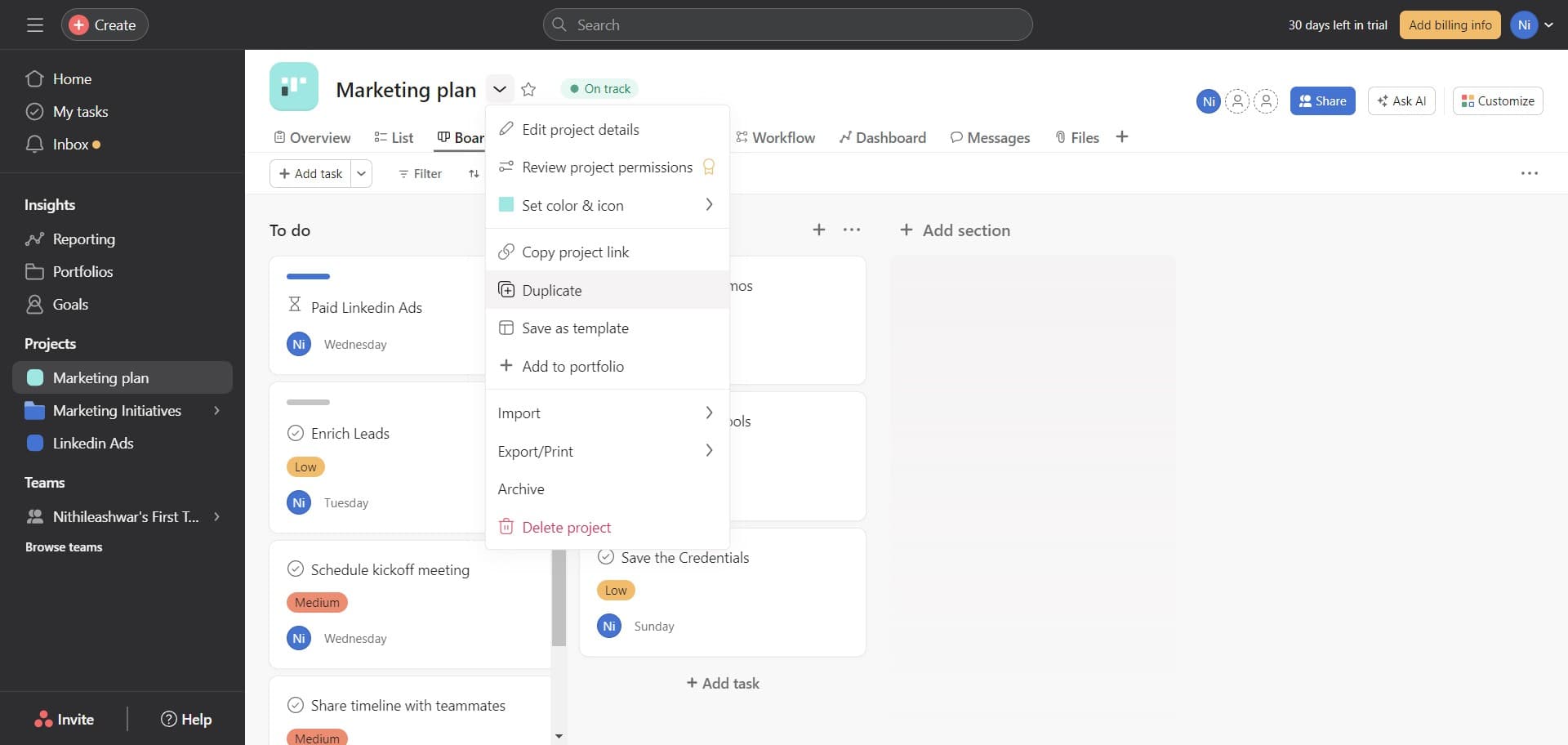
From the menu that appears, select 'Duplicate' to initiate the project duplication process. This will prepare Asana to create a copy of your project with all its tasks and structure.
- 4
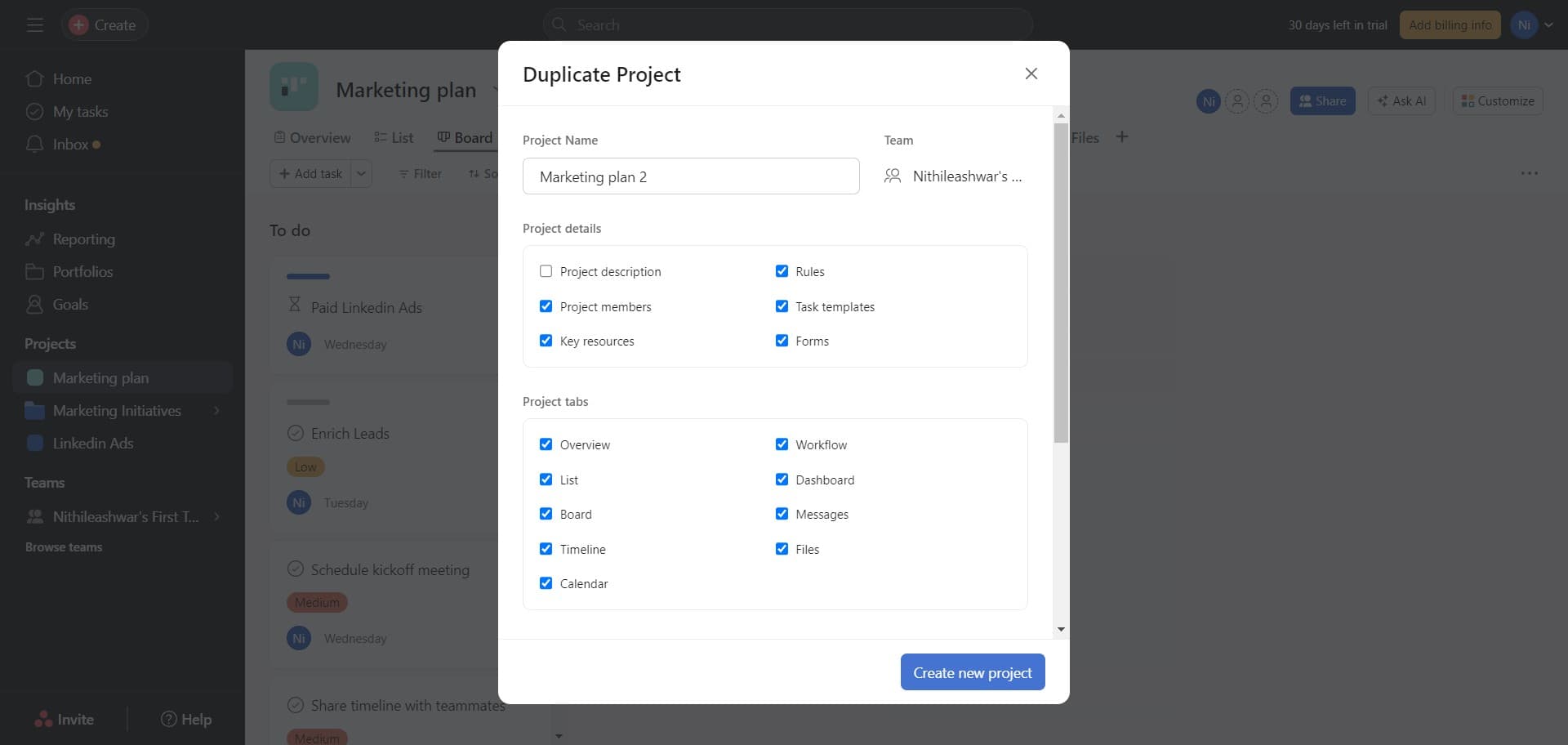
Configure duplication settings
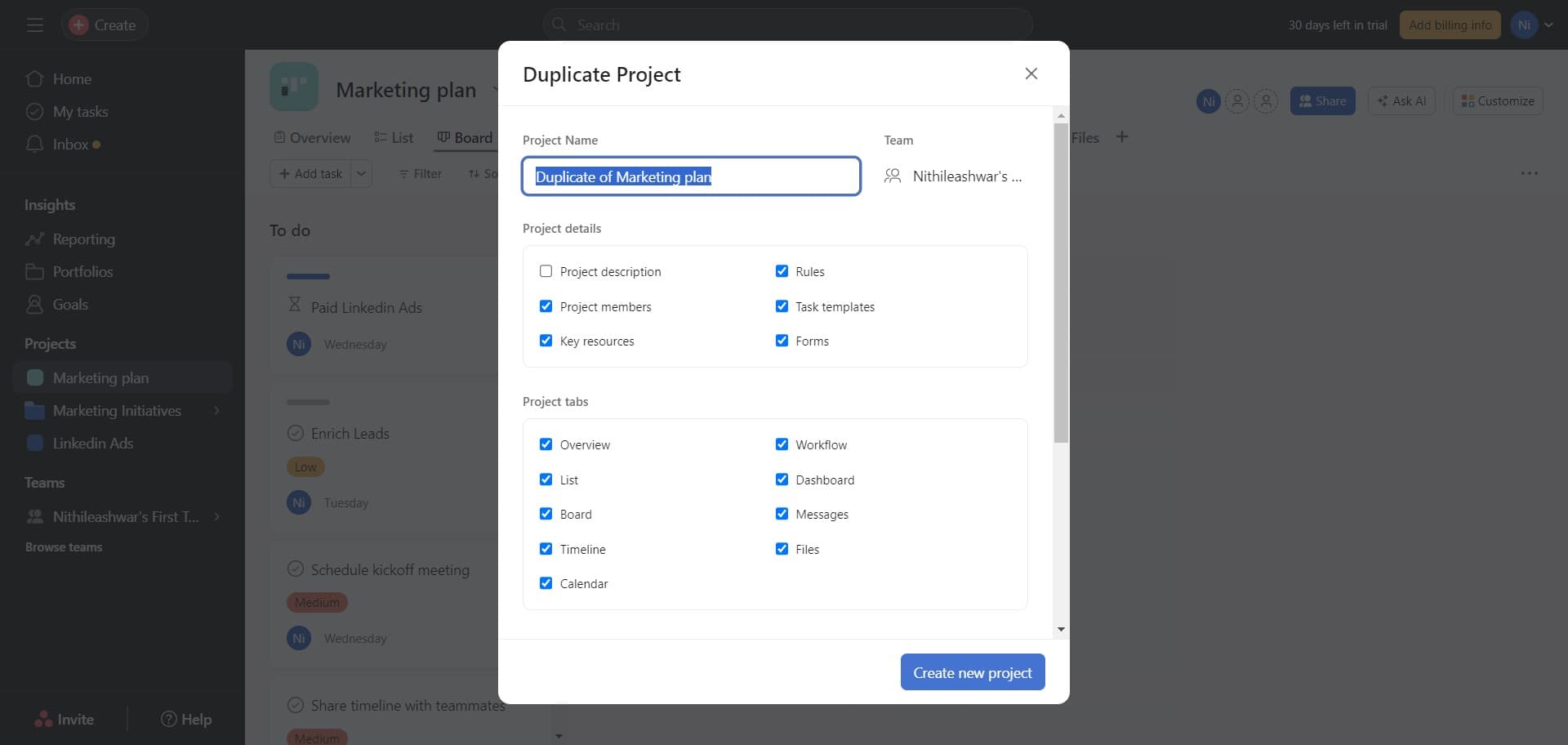
Review the duplication options presented to you. Click through any configuration screens to select which elements of your project you want to include in the duplicate, such as tasks, timelines, and team assignments.
- 5
Proceed with duplication
Confirm your settings by clicking the next action button to move forward in the duplication process. This step finalizes your selections before creating the new project.
- 6
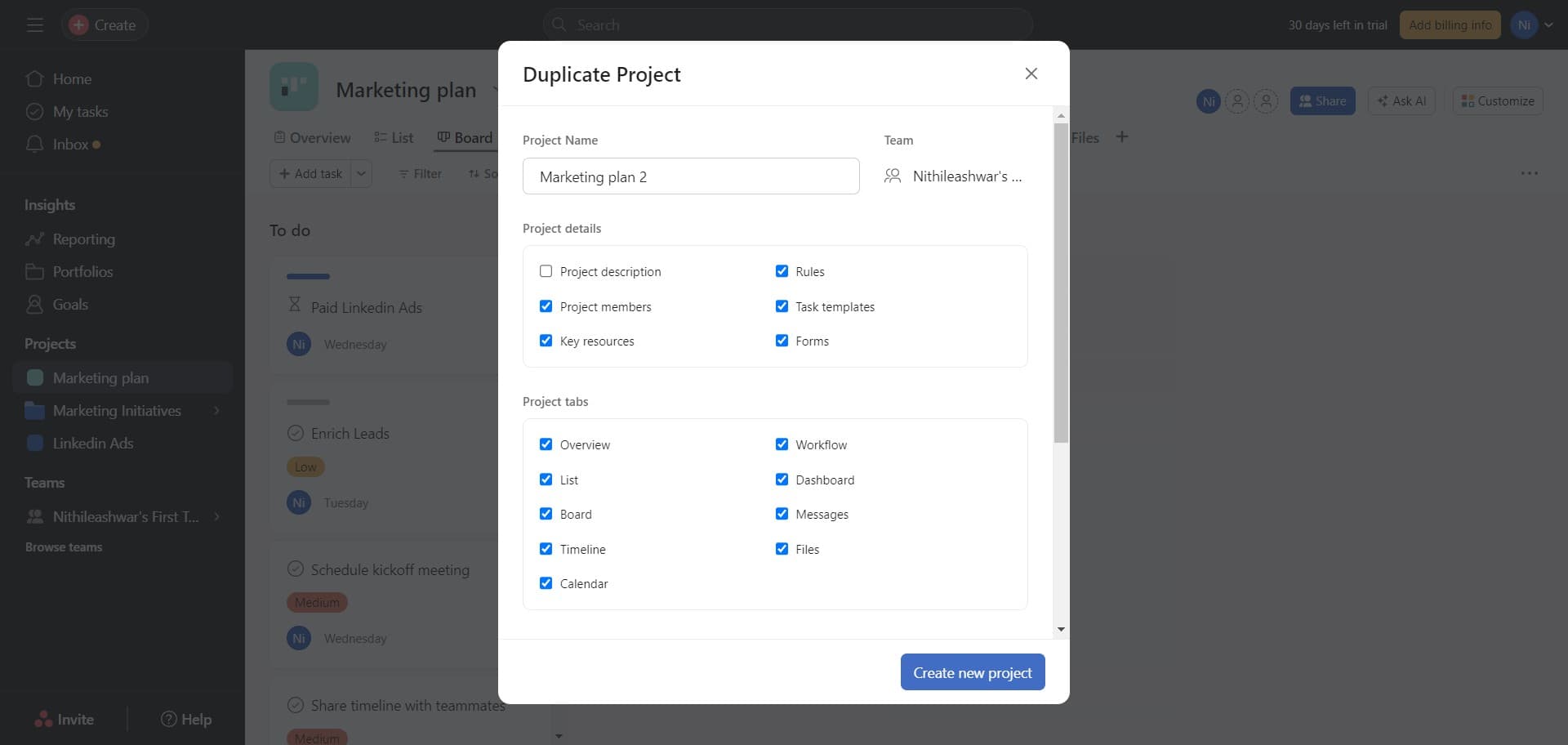
Create the new project
Click on 'Create new project' to generate the duplicated project. Asana will now copy all selected elements from your original project.
- 7
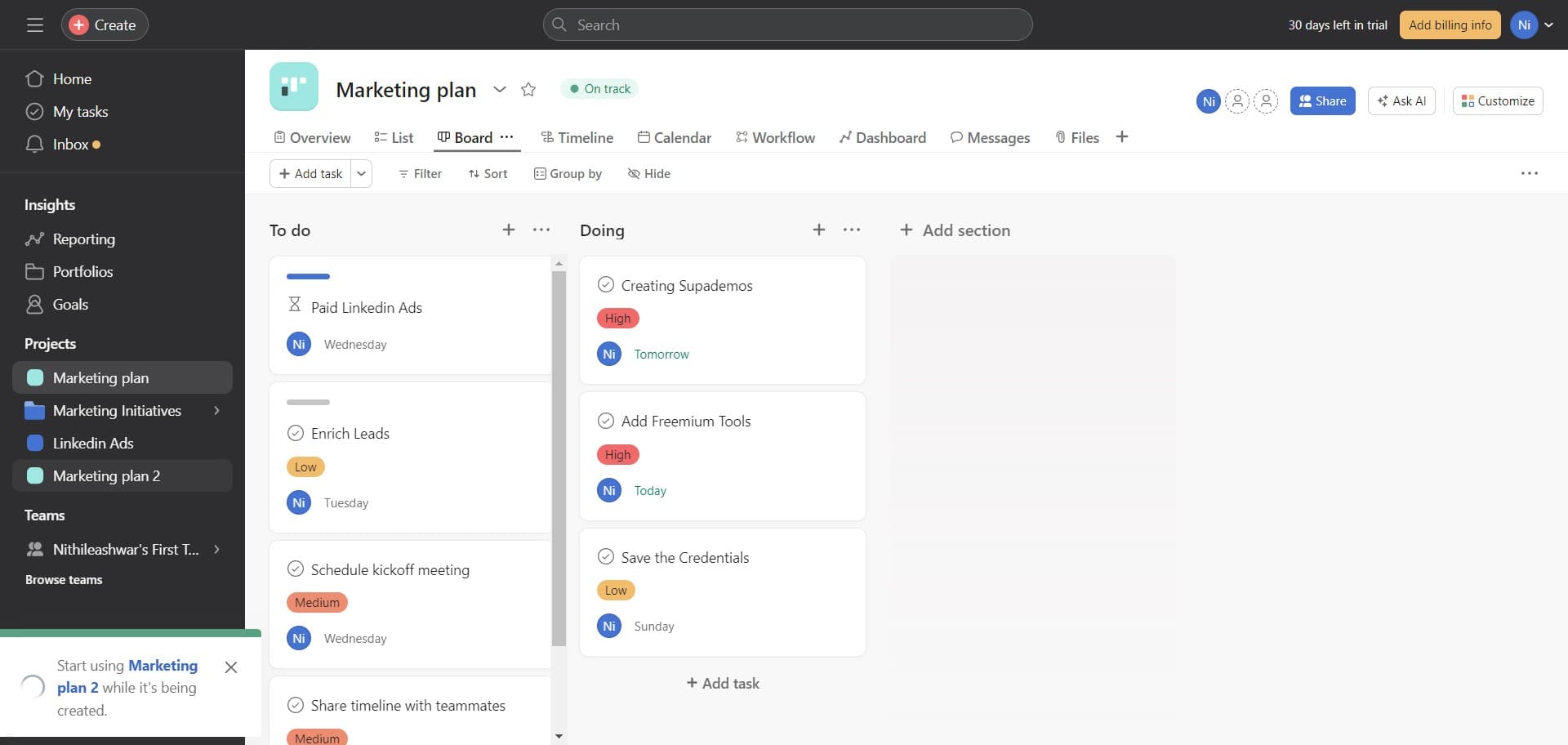
Verify the duplicated project
Once created, your new project will appear in your workspace. Click on 'Marketing plan 2' or your newly named project to verify that all tasks, timelines, and settings have been successfully duplicated.
Frequently asked questions
Common questions about how to duplicate a project in asana.
When you duplicate a project, Asana copies the project structure, tasks, custom fields, and timeline information. However, task assignees, attachments, and comments may vary depending on your duplication settings. You can customize which elements to include during the duplication process.
Yes, you can rename the duplicated project during or after the duplication process. In this tutorial, the duplicated project is named 'Marketing plan 2,' but you can change this to any name that suits your workflow and team naming conventions.
No, duplicating a project does not affect the original project in any way. The duplicate is a completely separate copy, so any changes you make to the new project will not impact your original project or its data.
The duplication time depends on the size of your project and the number of tasks it contains. Smaller projects typically duplicate within seconds, while larger projects with many tasks and custom fields may take a few moments longer to complete.
Yes, you can duplicate a project as many times as you need. Each duplication creates a separate copy, allowing you to generate multiple versions of the same project structure for different teams, departments, or time periods.