How to mark task as completed in Asana

Marking tasks as completed is one of the most common actions in Asana project management. This workflow helps you track progress, keep your team informed, and maintain visibility across your projects.
Quick summary
In this tutorial, you'll learn how to mark a task as completed in Asana using the quick-action menu. You'll also explore how to view your completed tasks across different project views, including Board and Timeline perspectives.
Why this matters
Completing tasks is essential for maintaining accurate project status and keeping your team aligned on progress. By marking tasks complete, you update project timelines, enable better reporting, and help team members understand which deliverables are finished and ready for the next phase.
Step-by-step guide
- 1
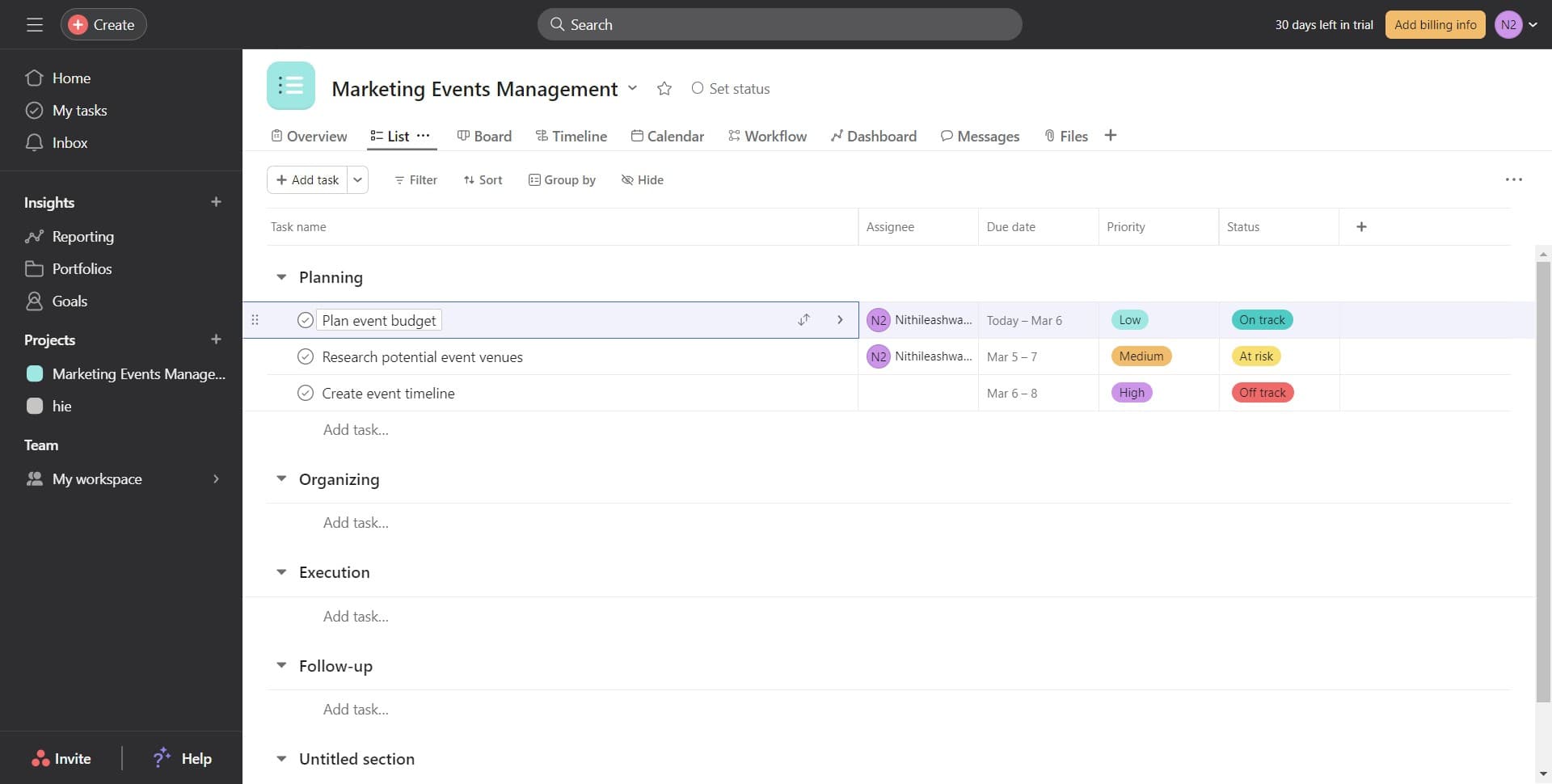
Access the task menu
Click on the task you want to mark as completed to open its details or access its action menu. This reveals the available options for that specific task.
- 2
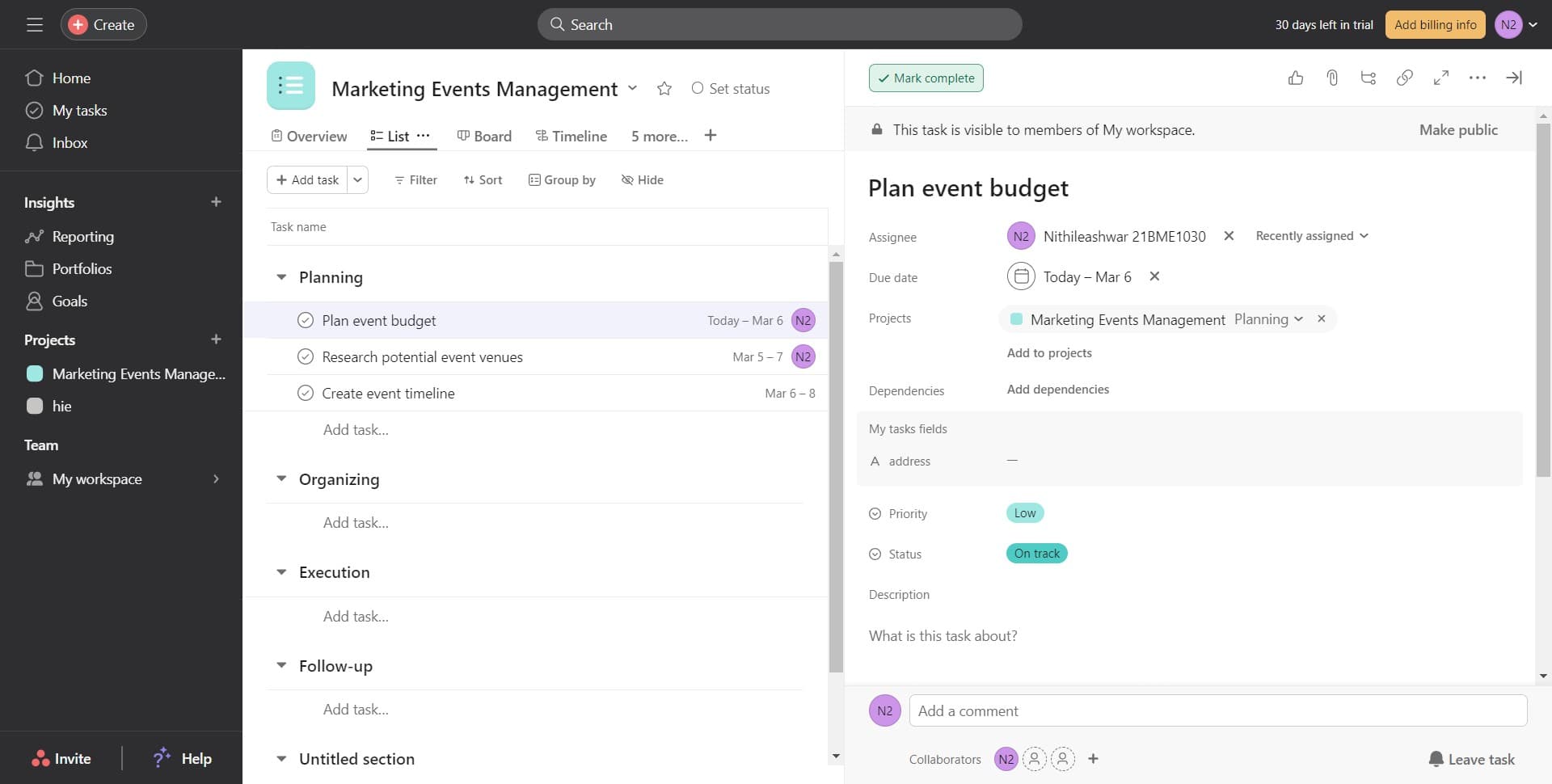
Click on Mark complete
Select the 'Mark complete' option from the menu to instantly update the task status. The task will be marked as completed and moved out of your active task list.
- 3
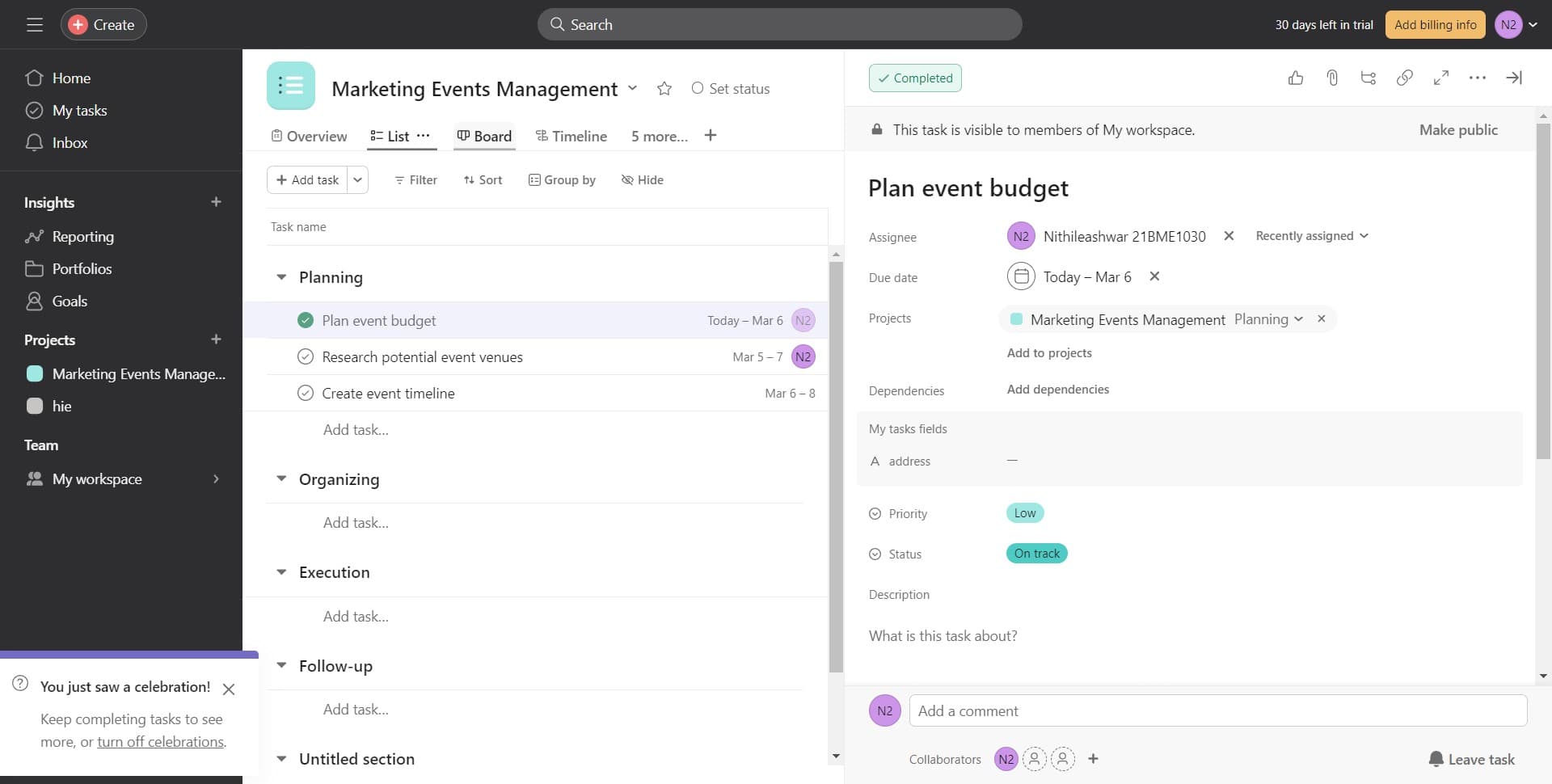
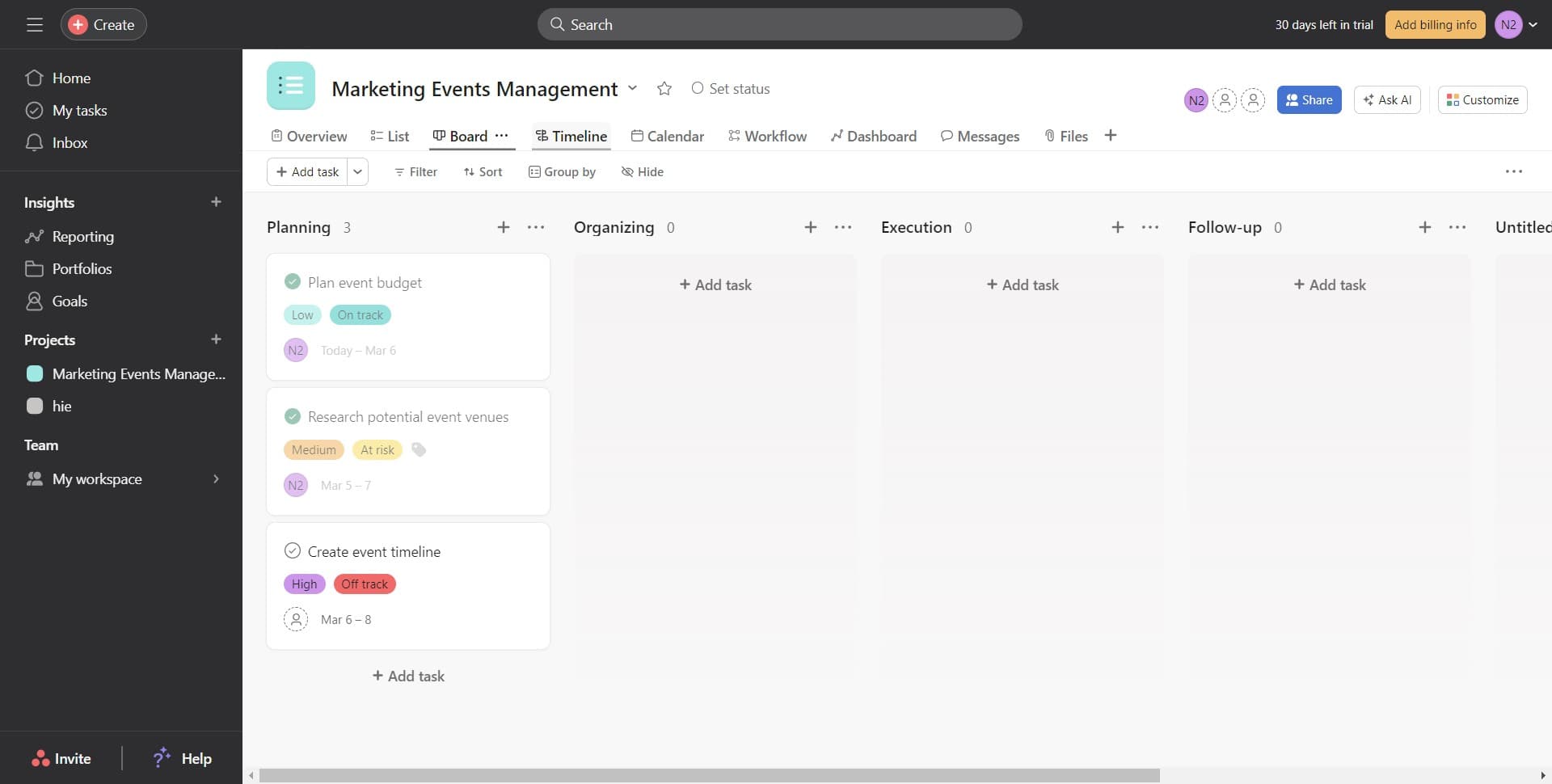
Switch to Board view
Click on the 'Board' option to view your project in a kanban-style layout. This view helps you see all tasks organized by status columns, including completed items.
- 4
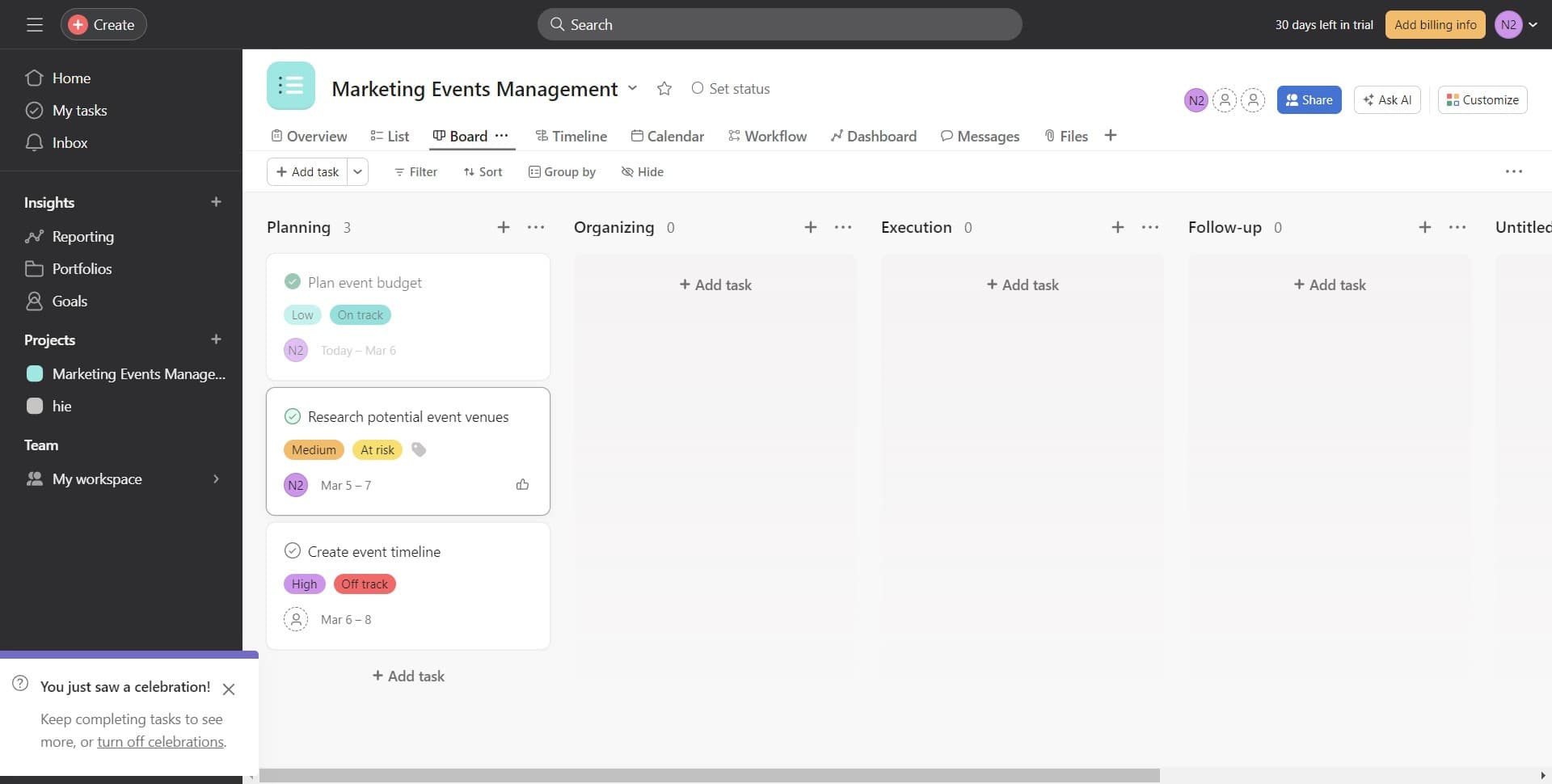
Verify completion in Board
Check that your completed task now appears in the appropriate status column on the board. This visual confirmation shows that the task has been successfully marked as complete.
- 5
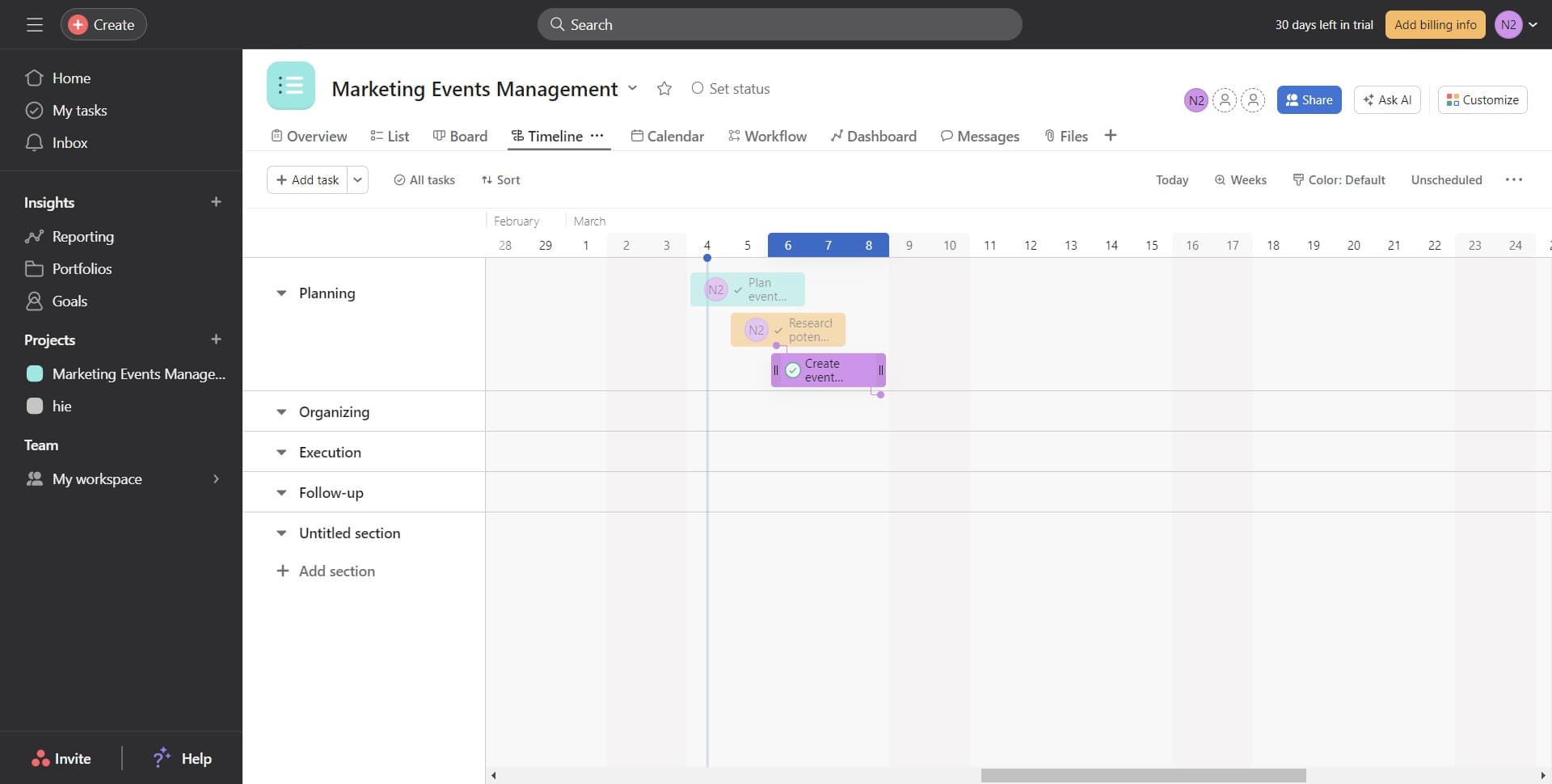
Switch to Timeline view
Click on the 'Timeline' option to see your project in a Gantt chart format. This view displays task completion status alongside project scheduling and dependencies.
- 6
Confirm completion in Timeline
Review the timeline to ensure your completed task is reflected in the schedule view. The timeline updates automatically to show which tasks are finished and how this impacts your overall project timeline.
Frequently asked questions
Common questions about how to mark task as completed in asana.
Yes, you can undo this action by clicking on the completed task and selecting 'Mark incomplete' from the menu. This will revert the task back to its previous status and return it to your active task list.
Asana can notify collaborators on the task depending on your notification settings. If the task has followers or assigned team members, they may receive updates based on their individual notification preferences.
Completed tasks remain visible in your project but are typically moved to a 'Completed' section or status column. You can filter views to show or hide completed tasks depending on your preference.
In Asana, you can select multiple tasks using checkboxes in list view and then use batch actions to mark them all complete at once. This is useful for quickly updating status on related tasks.
Marking a task complete does not automatically change dependent tasks. However, it updates the project timeline and helps dependent tasks move forward in the schedule. Team members working on dependent tasks will see this completion in their project views.