How to track time for a project in Asana

Time tracking in Asana helps teams stay accountable and understand how long tasks actually take to complete. This guide walks you through setting up and logging time for your projects, enabling better project planning and resource allocation.
Quick summary
In this tutorial, you'll learn how to enable time tracking on tasks, set estimated and actual time values, and monitor task completion across your project. By the end, you'll be able to log time entries and track progress against your estimates.
Why this matters
Accurate time tracking reveals patterns in your team's productivity and helps identify bottlenecks before they impact deadlines. When actual time is compared against estimates, you gain insights that improve future planning and forecasting for similar work.
Step-by-step guide
- 1
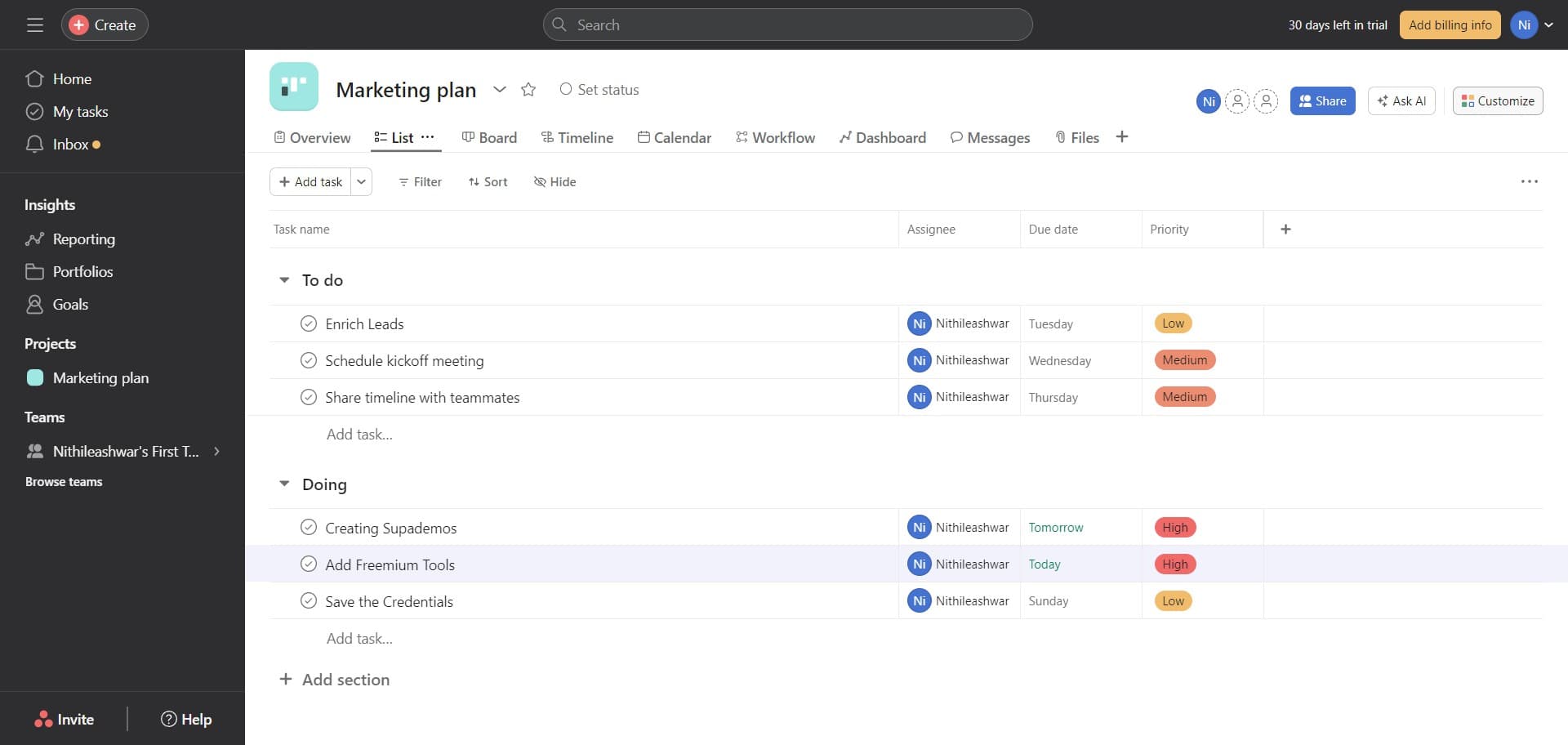
Click on the task image
Start by selecting the task you want to track time for. Click on the image or task card to open the task details panel.
- 2
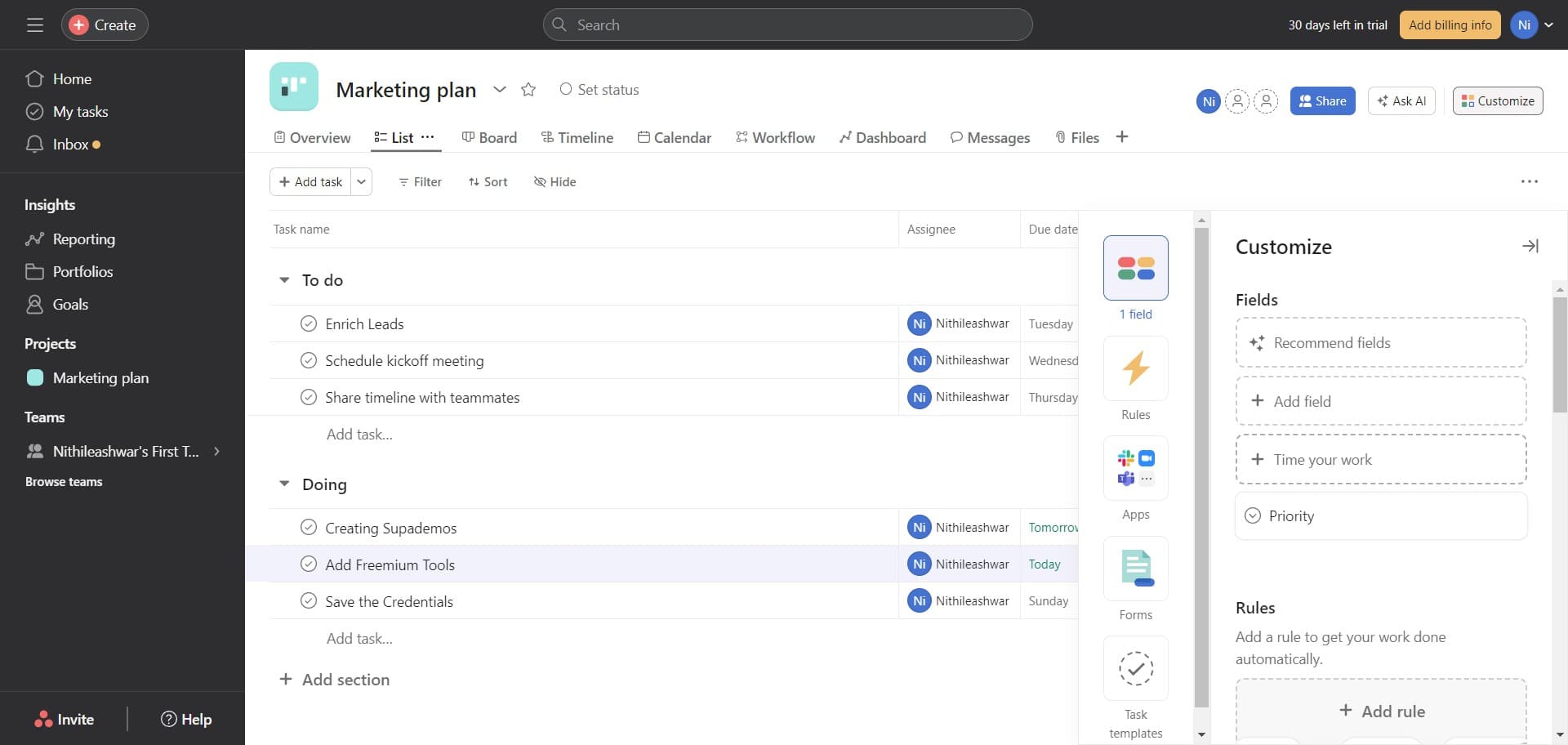
Select Time your work
In the task details, locate and click the 'Time your work' option. This enables the time tracking feature for this specific task.
- 3
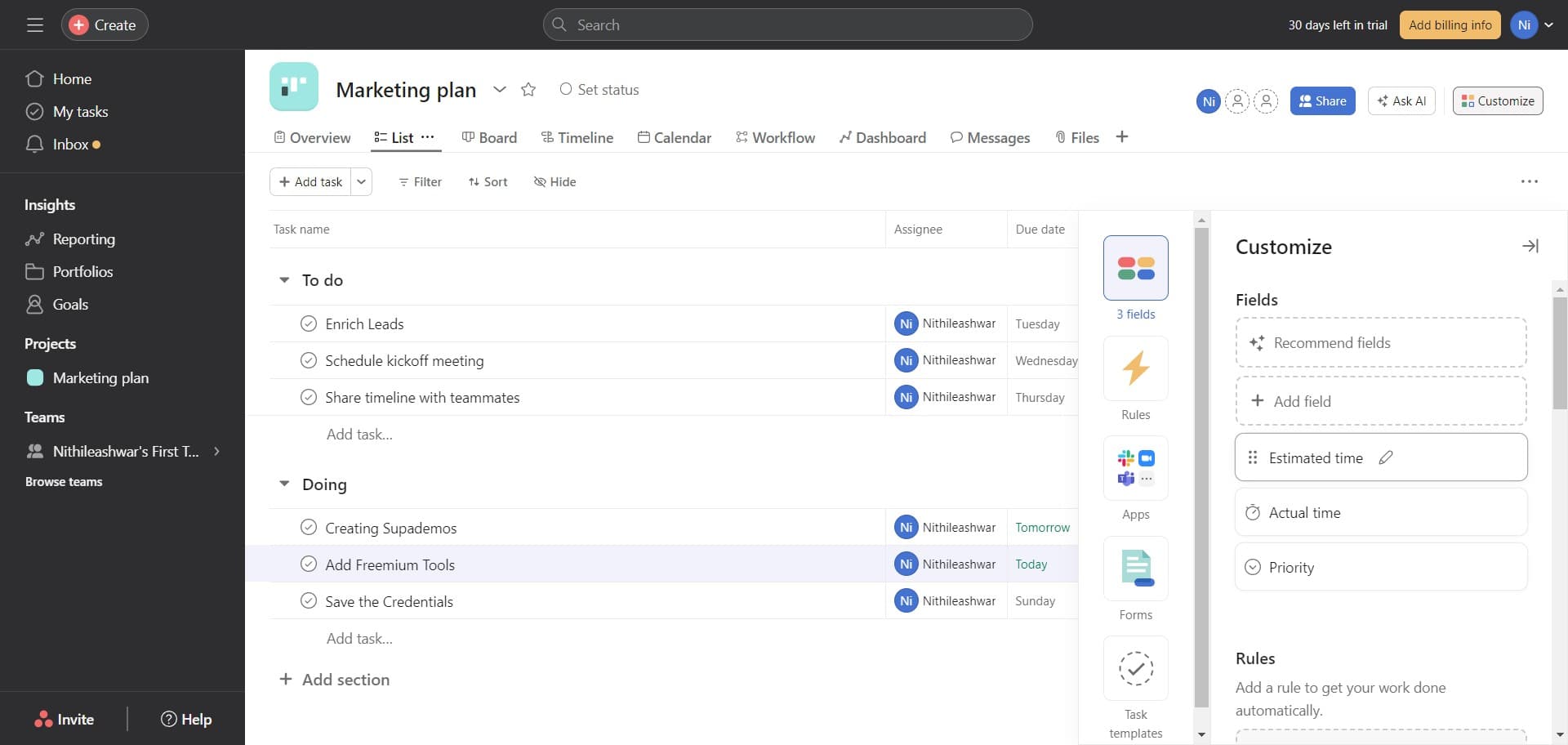
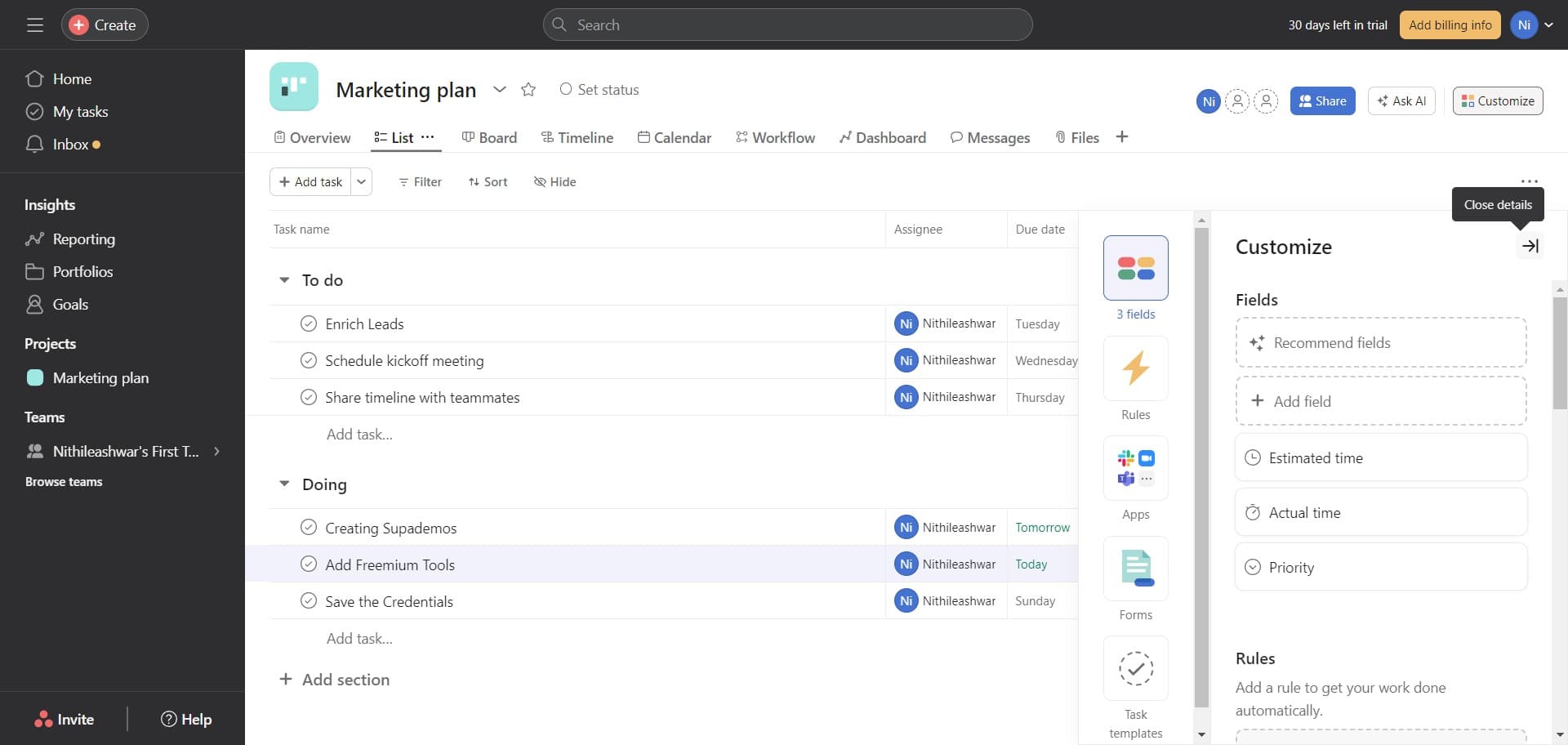
Set the estimated time
Click on 'Estimated time' to enter how long you anticipate the task will take. This baseline helps you compare planned versus actual effort.
- 4
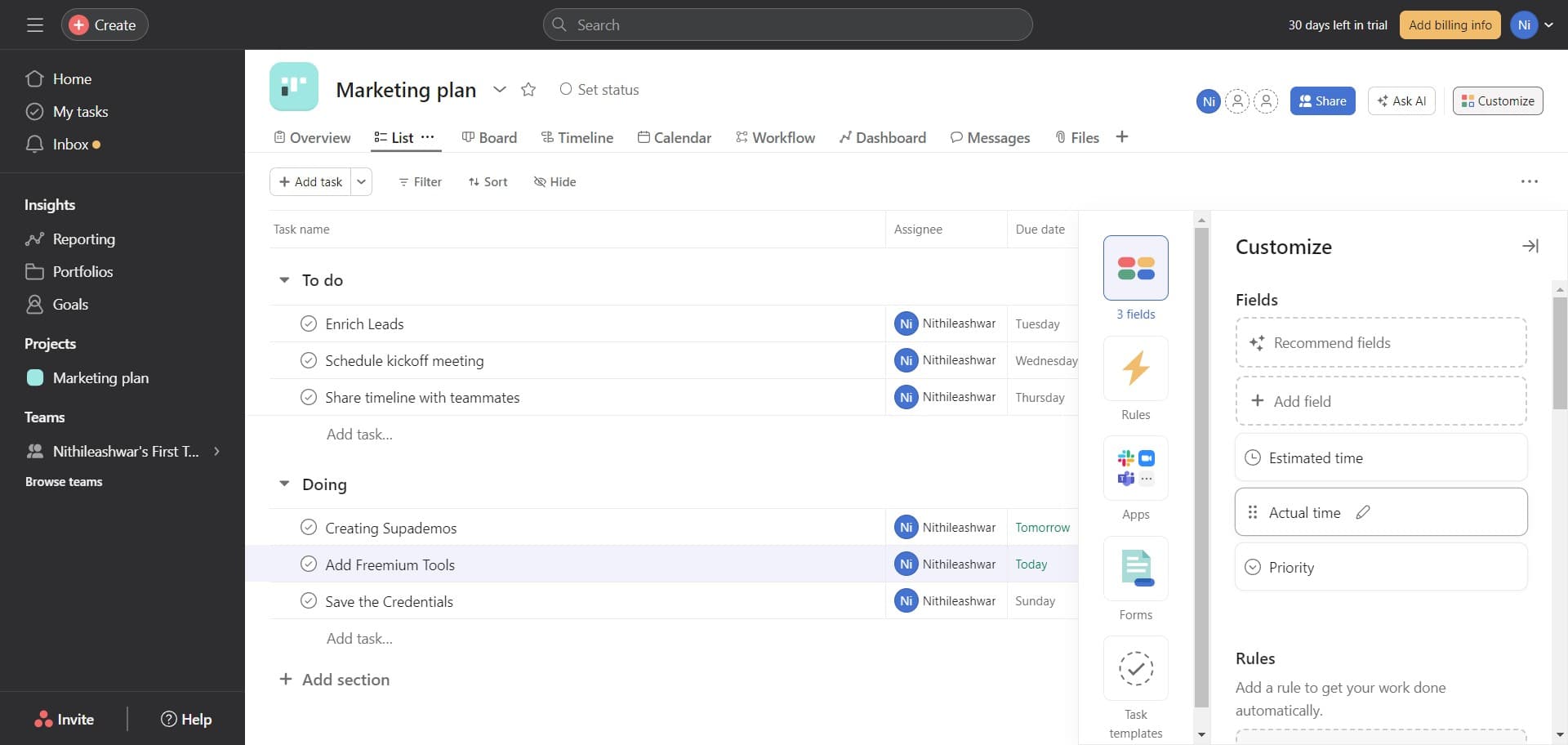
Set the actual time
Click on 'Actual time' to log the real time spent working on this task. This field records the true effort expended.
- 5
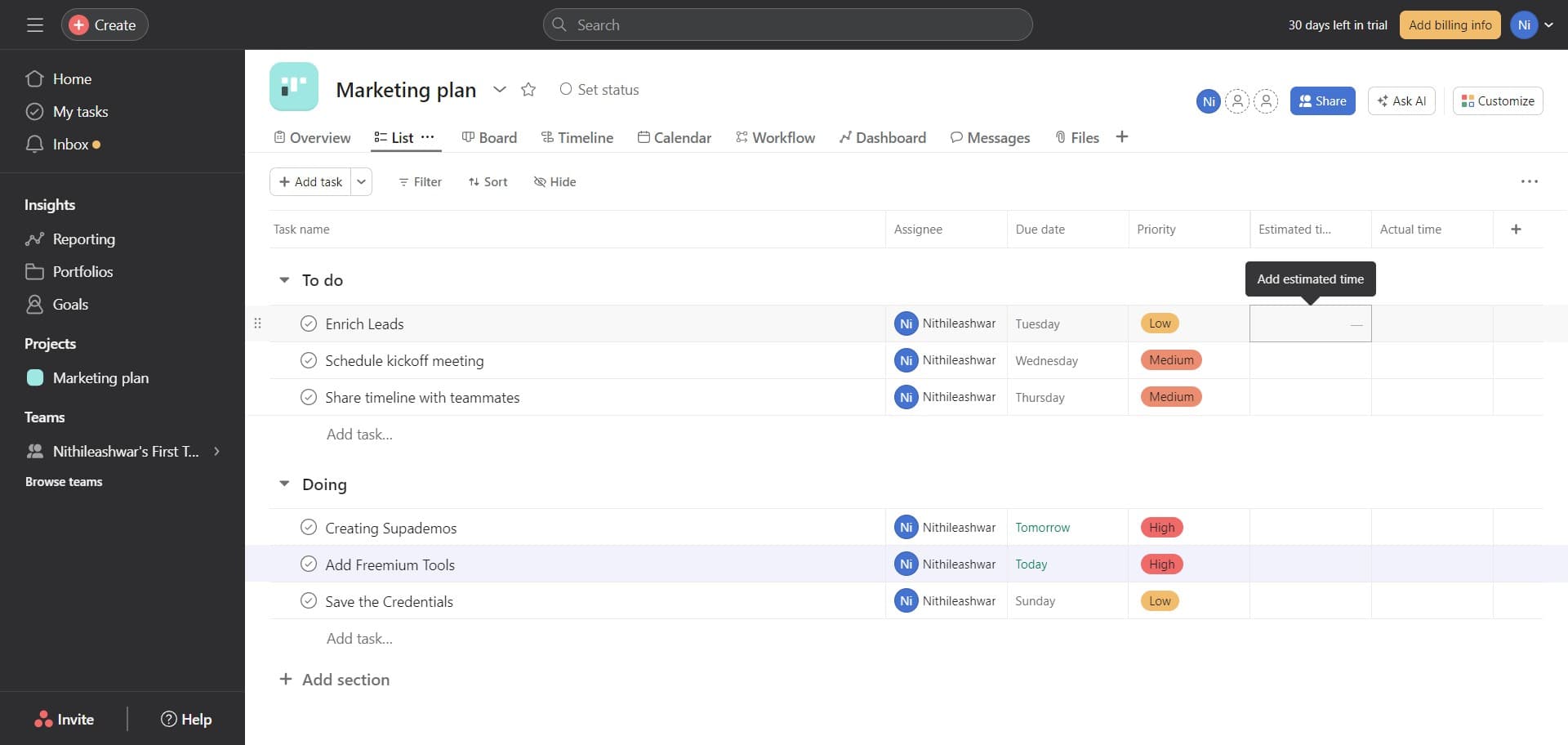
Access time input field one
Click the designated field to begin entering your time data. This opens the input mechanism for logging hours and minutes.
- 6
Access time input field two
Click the next field to continue entering time information. This may correspond to a different time metric or unit.
- 7
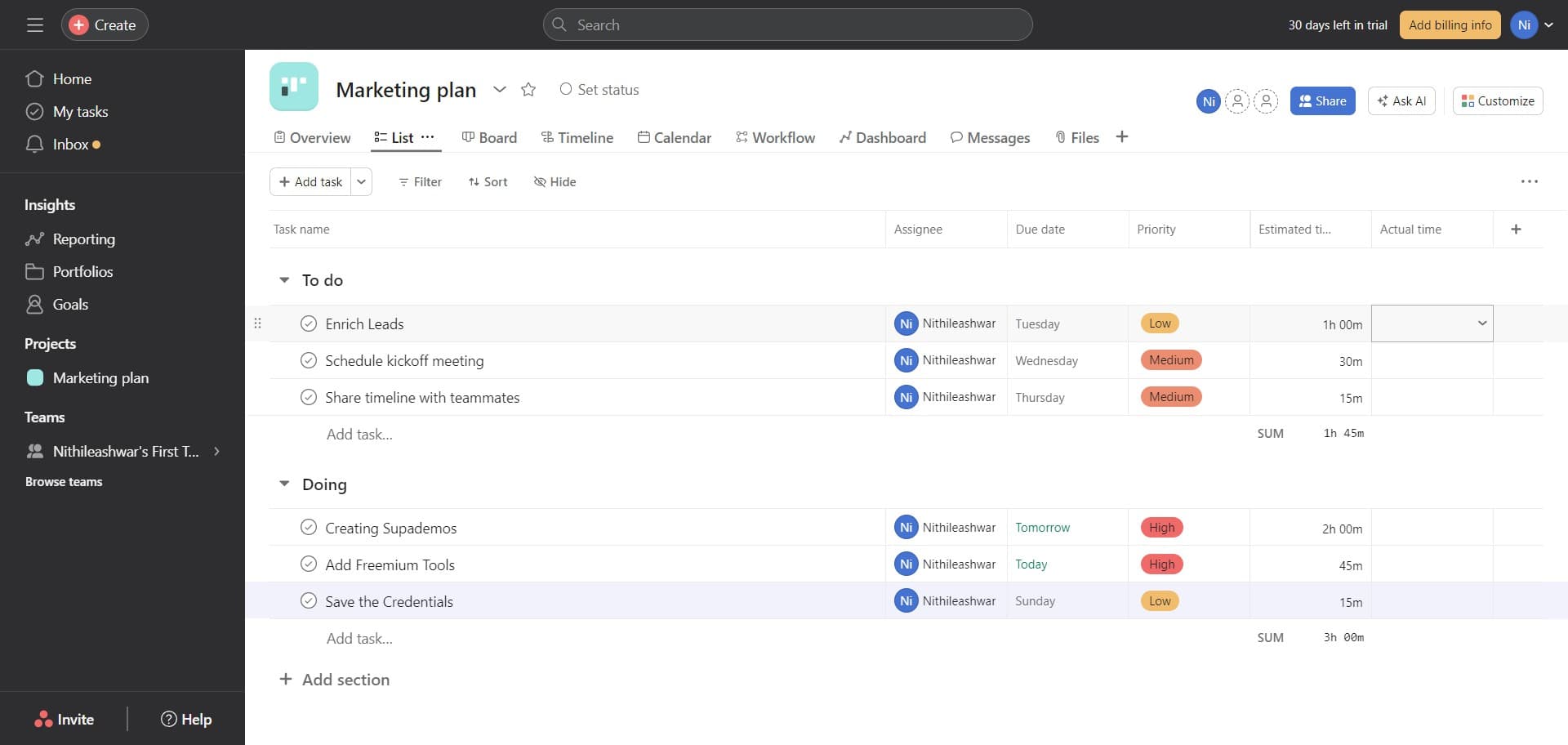
Access time input field three
Click the third field in the time entry sequence. Continue filling in required time information for accurate tracking.
- 8
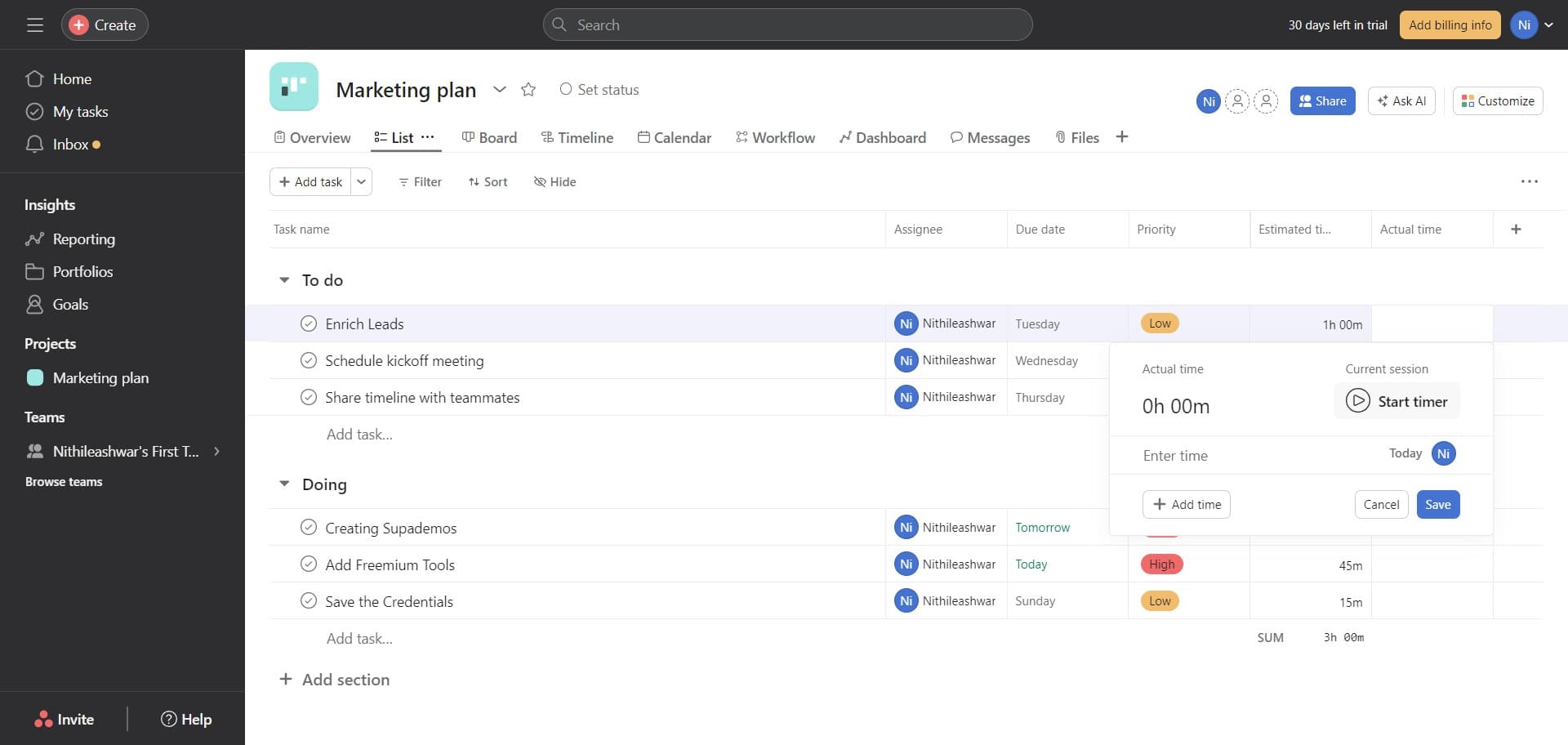
Access time input field four
Click the final field to complete your time entry inputs. Ensure all time values are entered before saving.
- 9
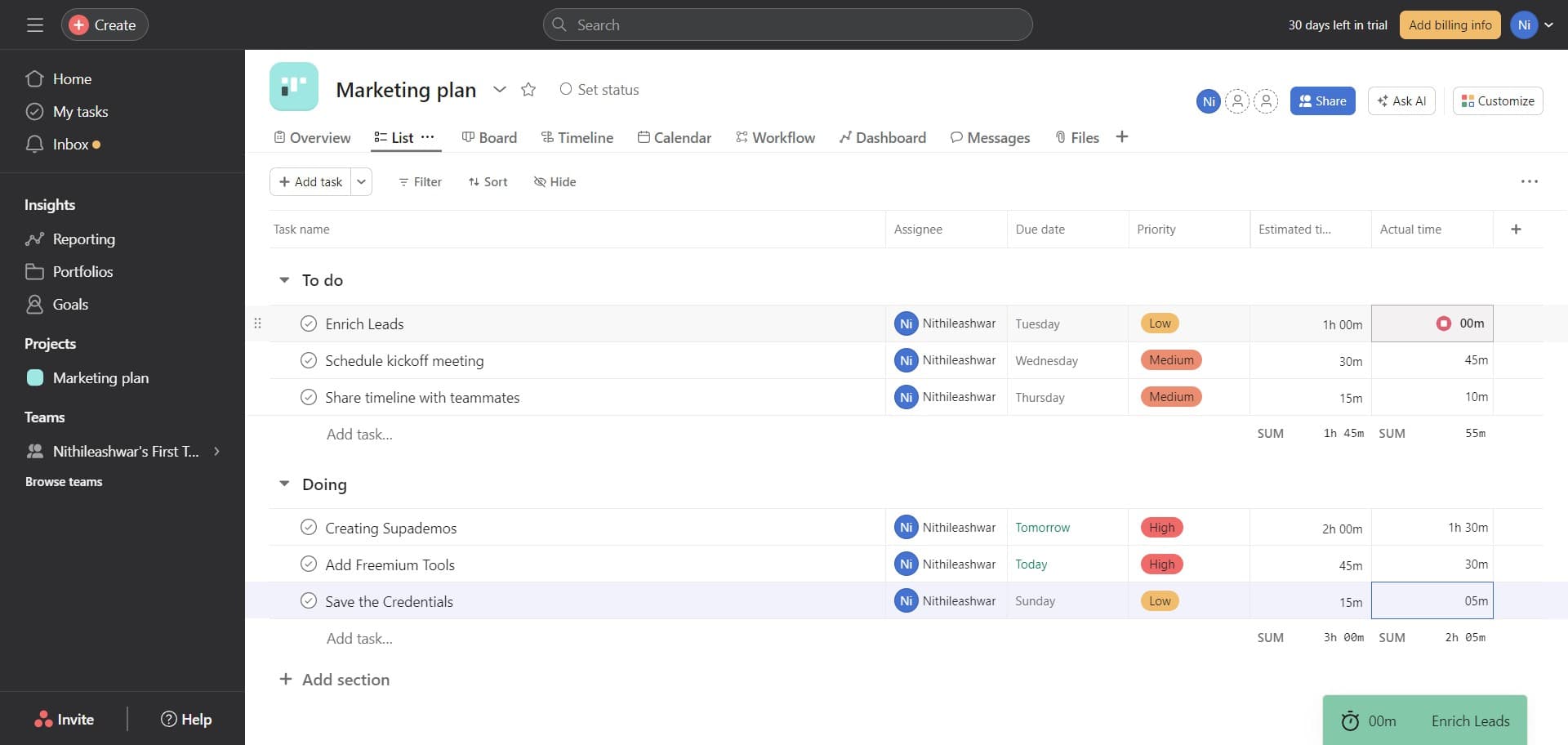
Enter minutes
Click on the minutes field (shown as '00m') and type the number of minutes spent on the task. This refines your time log beyond the hour increment.
- 10
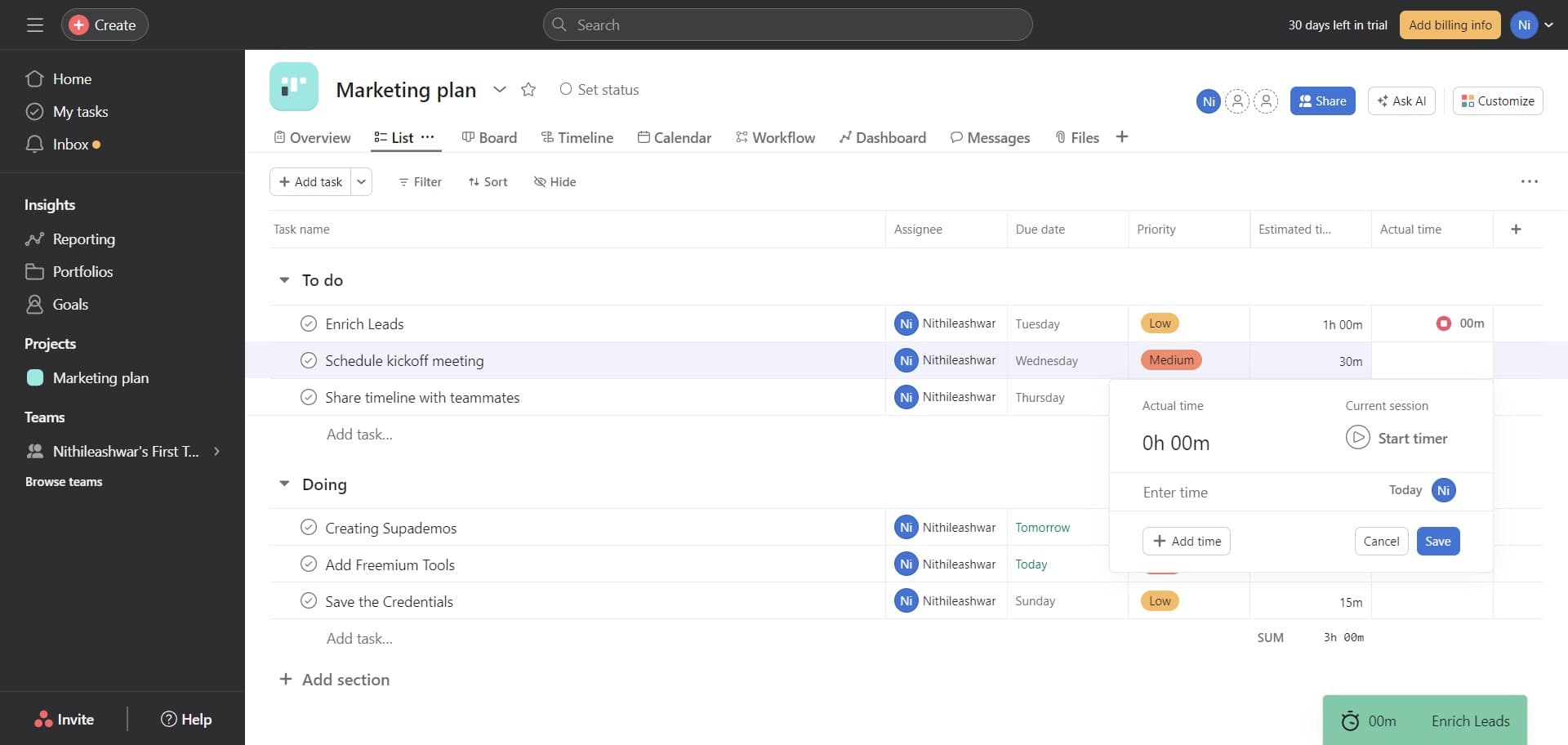
Enter hours and minutes
Click on the combined hours and minutes field (shown as '0h 00m') and enter the total time in hours and minutes format. This provides a complete time entry.
- 11
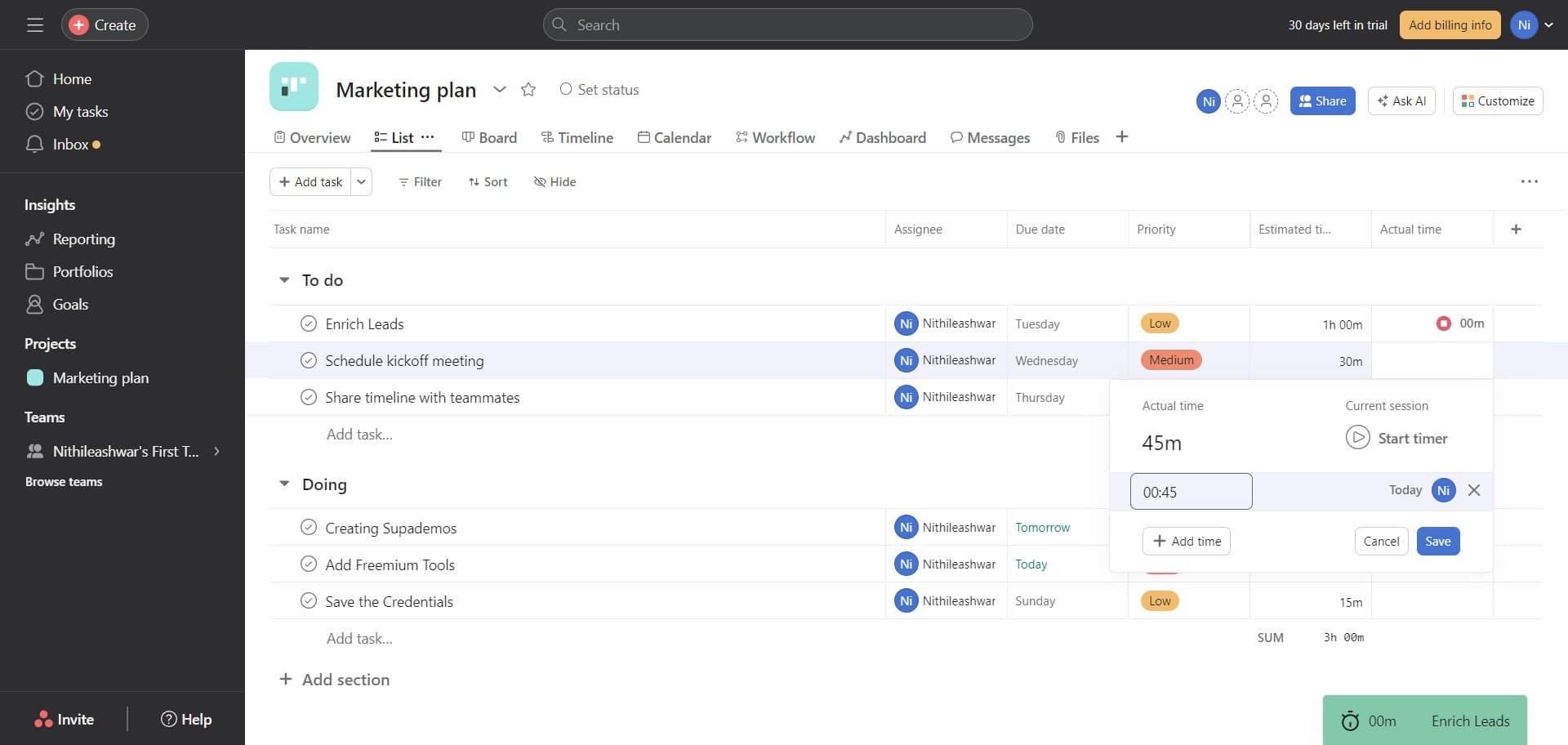
Save your time entry
Click 'Add time' to save your time entry to the task. The time will now be recorded and visible in your task's time tracking history.
- 12
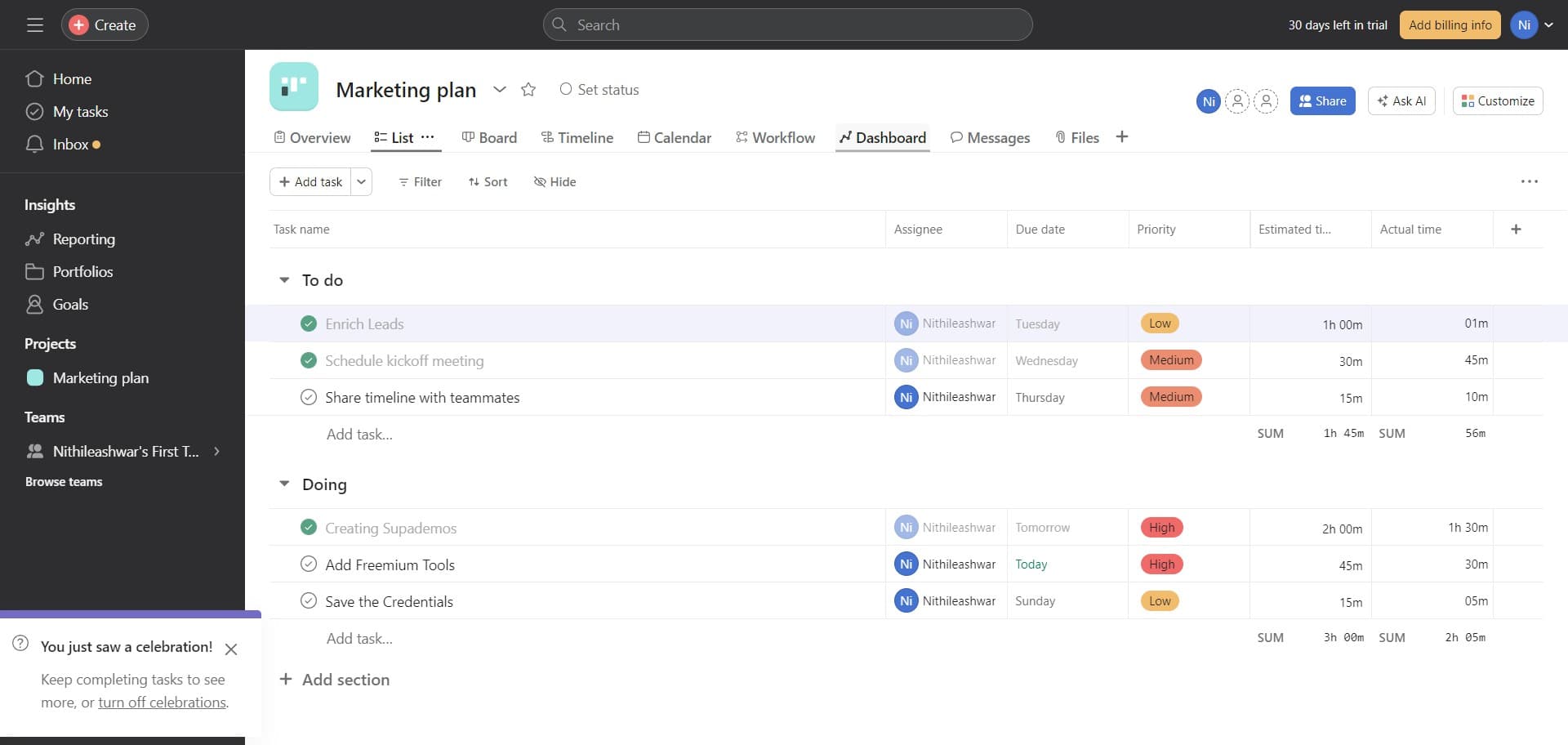
Confirm time entry submission
Click this field to finalize your time logging action. Your entry is now committed to the task record.
- 13
Review incomplete tasks
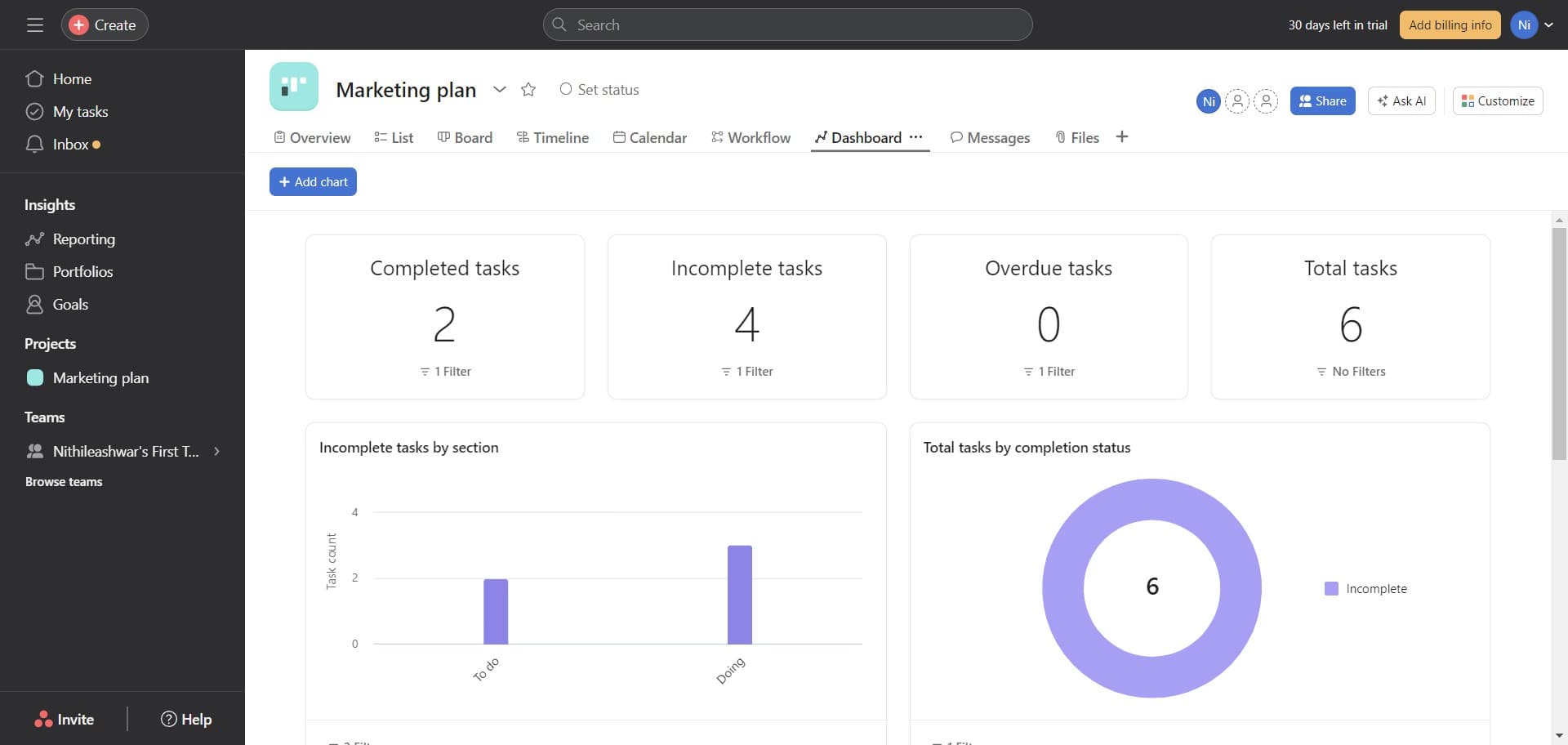
Navigate to the 'Incomplete tasks' section to see all open tasks requiring time tracking. The counter shows how many incomplete tasks exist, and you can apply filters to focus on specific work.
- 14
View task completion status
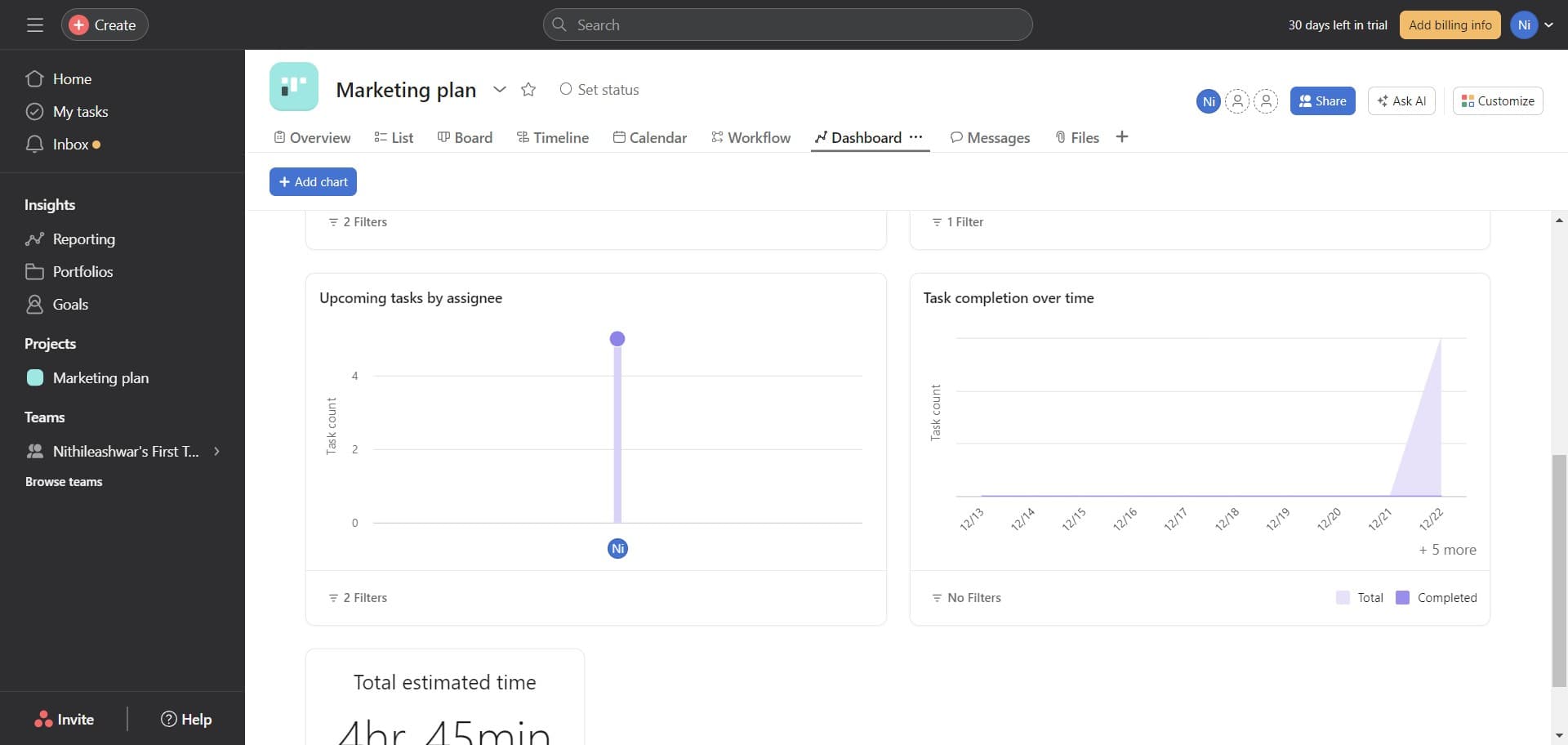
Click on 'Task completion' to see progress metrics and completion rates. This overview helps you understand which tasks are on track and which may need additional time allocation.
Frequently asked questions
Common questions about how to track time for a project in asana.
Estimated time is your prediction of how long a task should take before work begins. Actual time is the real time logged as work is completed. Comparing these two helps identify where estimates were accurate and where adjustments are needed for future projects.
Yes, you can log actual time for completed tasks. This is useful for retrospective tracking and helps build a historical record of effort spent. Open the task, enable time tracking if not already enabled, and enter the actual time spent.
You can review time tracking data through Asana's project views and reports. The 'Incomplete tasks' section and task completion filters let you see time data grouped by status. For comprehensive reporting, check your project's timeline or use custom views to sort by time entries.
Asana will display both values, making the variance visible to your team. This signals that the task took longer than expected and is valuable data for improving future estimates. Use these insights to identify tasks that consistently run over and allocate more time for similar work.
Permissions depend on your Asana workspace settings and project access levels. Typically, team members with edit access to a task can add time entries. Check your project permissions to ensure team members have the appropriate access to log time on shared tasks.