How to Add Fonts to Canva

Canva allows you to upload custom fonts to your designs, giving you complete control over your brand's typography. Adding fonts to Canva is a straightforward process that enhances your design flexibility and ensures consistency across all your creative projects.
Quick summary
In this tutorial, you'll learn how to upload custom fonts to your Canva Brand Kit in just nine steps. By the end, you'll be able to access your uploaded fonts across all your Canva designs, maintaining brand consistency effortlessly.
Why this matters
Custom fonts are essential for maintaining brand identity across your marketing materials, social media, and presentations. Storing fonts in your Brand Kit ensures your entire team uses the same typefaces, creating a cohesive and professional appearance across all designs.
Step-by-step guide
- 1
Access Recent Designs
Click on 'Recent designs' to view your saved Canva projects. This is your starting point for accessing the Brand Kit where you'll manage your custom fonts.

- 2
Navigate to Brand Section
Click on 'Brand' to enter your brand management area. This section houses all your brand assets, including fonts, colors, and logos.

- 3
Open Brand Settings
Click on the designated area to access your brand settings. You'll see various options for customizing your brand identity.

- 4
Select Brand Kit
Click on 'Brand Kit' to view and manage all your brand assets in one centralized location. This is where you'll upload and organize your custom fonts.
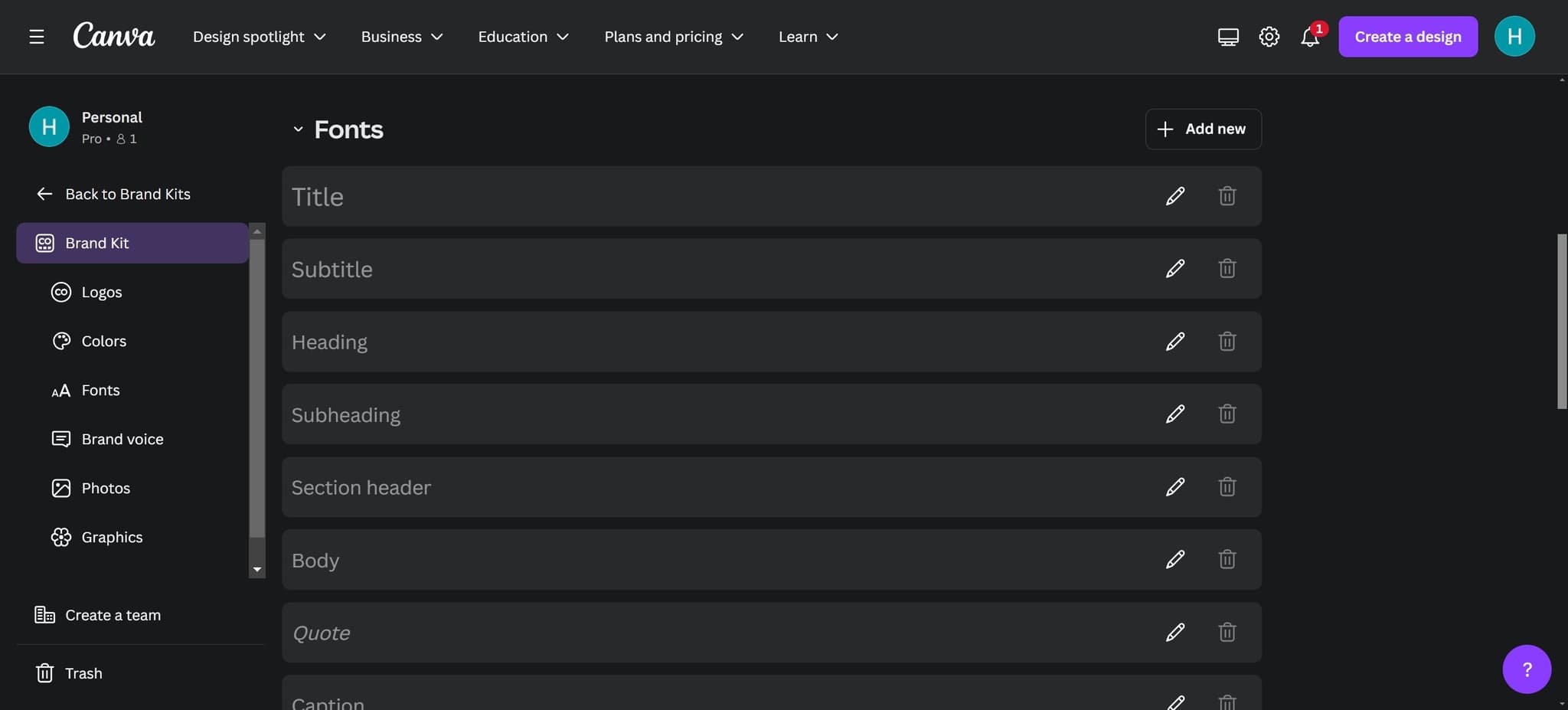
- 5
Create New Font Entry
Click on 'Add new' to begin the process of uploading a new font. This will initiate the font upload workflow.
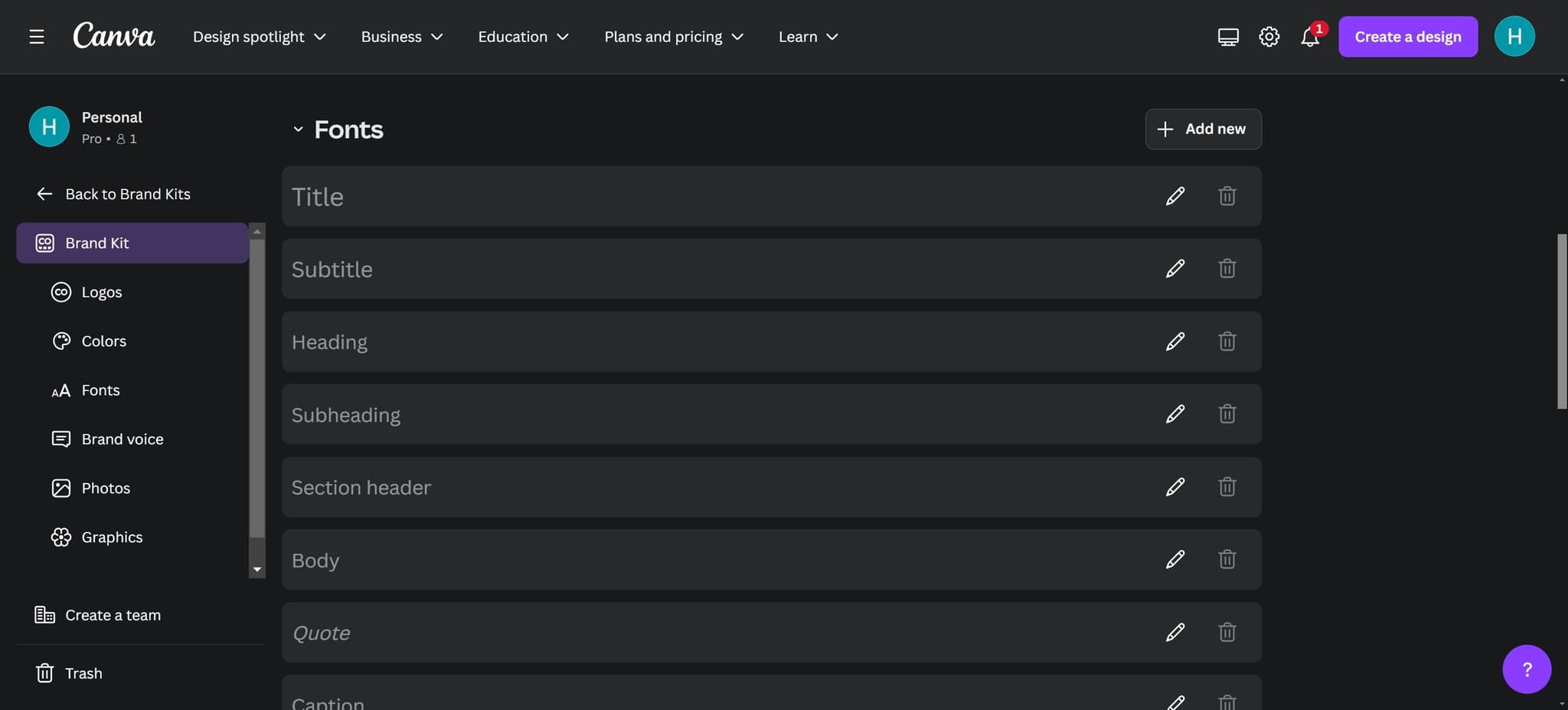
- 6
Choose Font Upload Option
Click on 'Upload a font' to select the option for adding a custom font file. This distinguishes uploading a new font from other brand asset options.
- 7
Select Font File
Click on 'Choose files' to open your file browser and locate the font file on your computer. You can select font files in formats like .ttf, .otf, or .woff.

- 8
Confirm Font Upload
Click on 'Yes, upload away!' to finalize uploading your selected font file to Canva. The system will process and add your font to your Brand Kit.

- 9
Apply Font to Design
Click on the element in your design where you want to apply the newly uploaded font. Your custom font will now be available in the font selection menu for this and future designs.

Frequently asked questions
Common questions about how to add fonts to canva.
Canva accepts common font file formats including TTF (TrueType), OTF (OpenType), and WOFF (Web Open Font Format). Most standard font files from font libraries and design websites will work with Canva's upload system.
Yes, if your team members have access to your shared Canva Brand Kit, they can use any fonts you've uploaded. This ensures brand consistency across all team members' designs.
Canva allows you to upload multiple custom fonts to your Brand Kit, though the exact limit may depend on your account type. Check your account settings or Canva's current documentation for specific limitations.
You can upload any font files you have the rights to use, but you must ensure you have proper licensing for your intended use. Always verify the font's license terms before uploading and using it in commercial projects.
First, verify that your font file is in a supported format and not corrupted. If the issue persists, try renaming the file, clearing your browser cache, or contacting Canva support for assistance with the upload process.