How to create a mind map in ClickUp

Mind maps are a powerful visual tool for brainstorming, organizing ideas, and planning projects in ClickUp. This tutorial walks you through creating a new mind map from scratch, enabling you to map out complex relationships and hierarchies in an intuitive, visual format.
Quick summary
In this tutorial, you'll learn how to create a mind map in ClickUp by navigating to the mind map feature and setting up a blank canvas. By the end, you'll have a working mind map ready to populate with your ideas and project structure.
Why this matters
Mind maps help teams visualize project workflows, brainstorm solutions, and break down complex tasks into manageable components. Using ClickUp's native mind map feature keeps all your planning work centralized, making it easier to collaborate and reference your visual structure throughout project execution.
Step-by-step guide
- 1
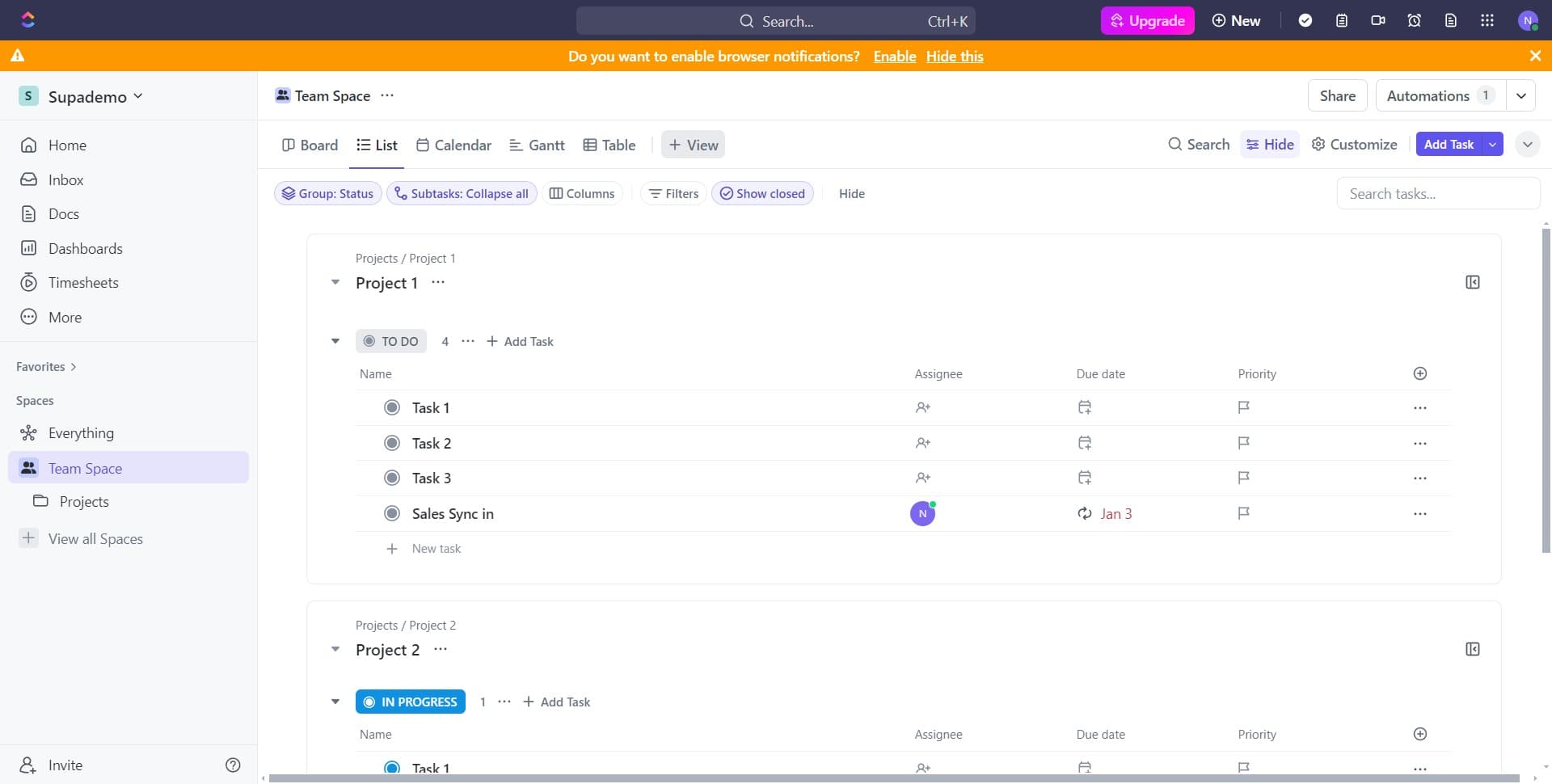
Open the ClickUp menu
Start by accessing the main menu or navigation area in ClickUp. This is your entry point to creating new items within the platform.
- 2
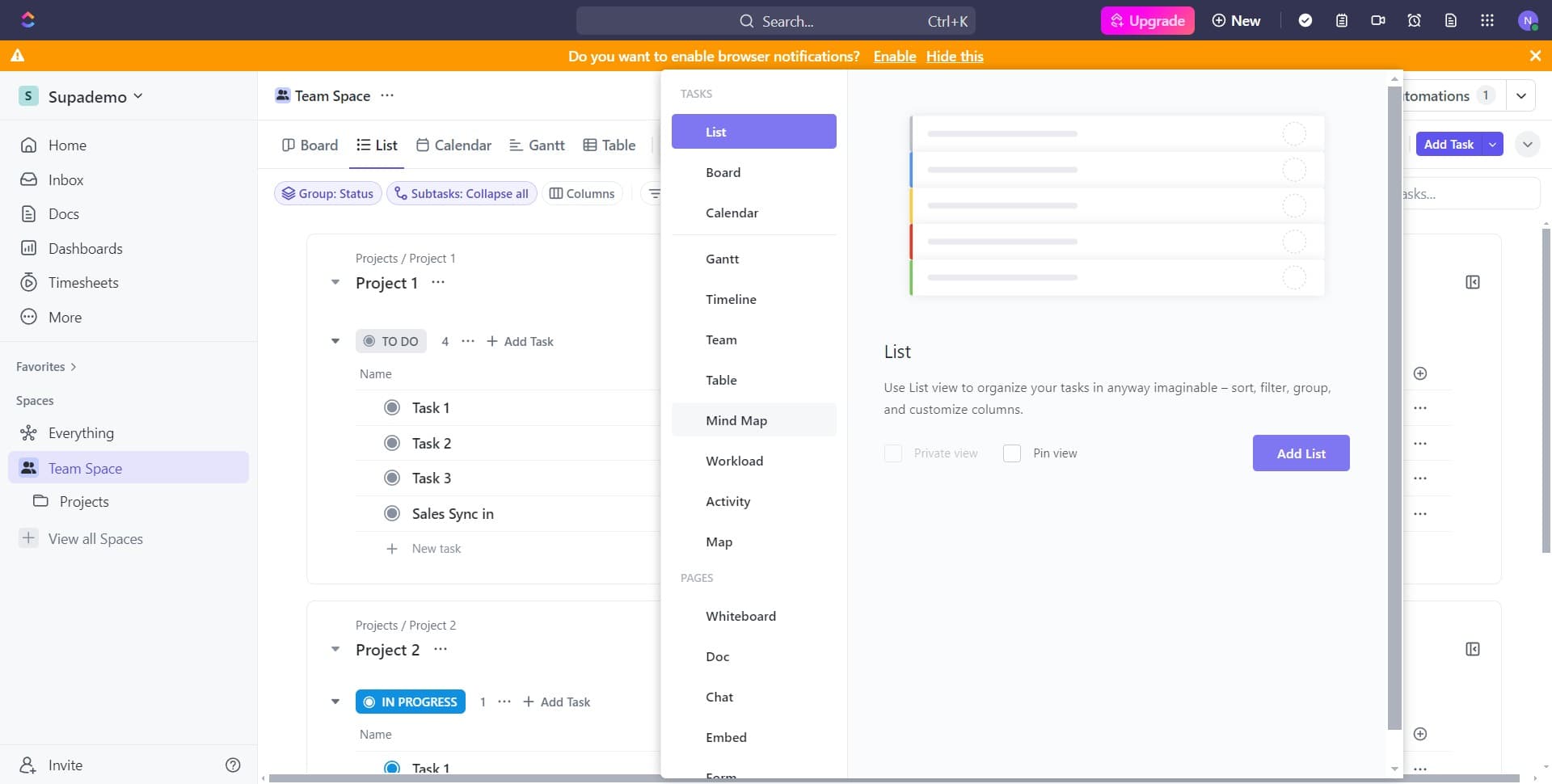
Click on Mind Map
Locate and select the Mind Map option from the available features. This directs you to ClickUp's mind map creation interface.
- 3
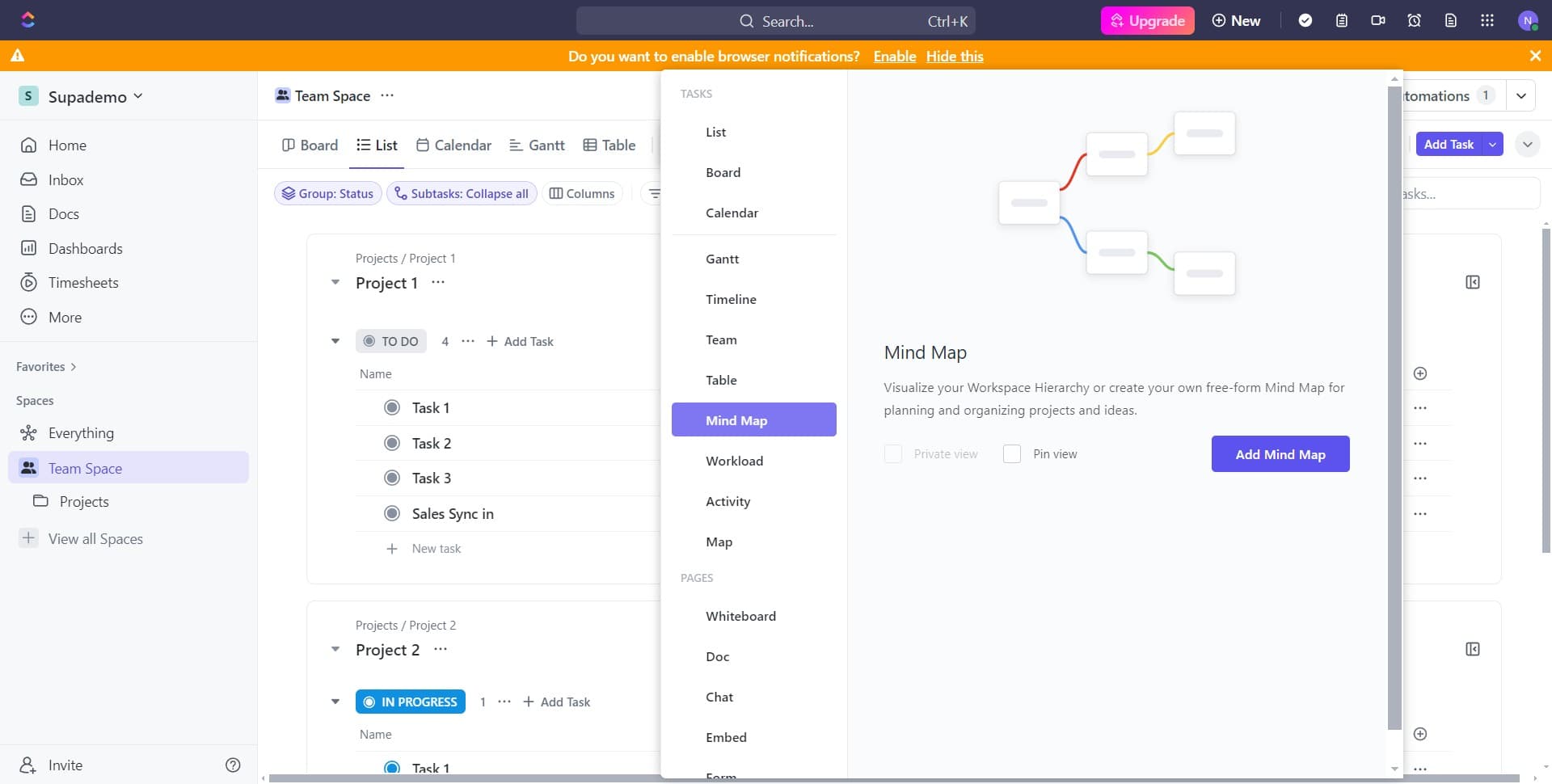
Click on Add Mind Map
Select the Add Mind Map button to initiate the creation of a new mind map. This opens the setup options for your new mind map.
- 4
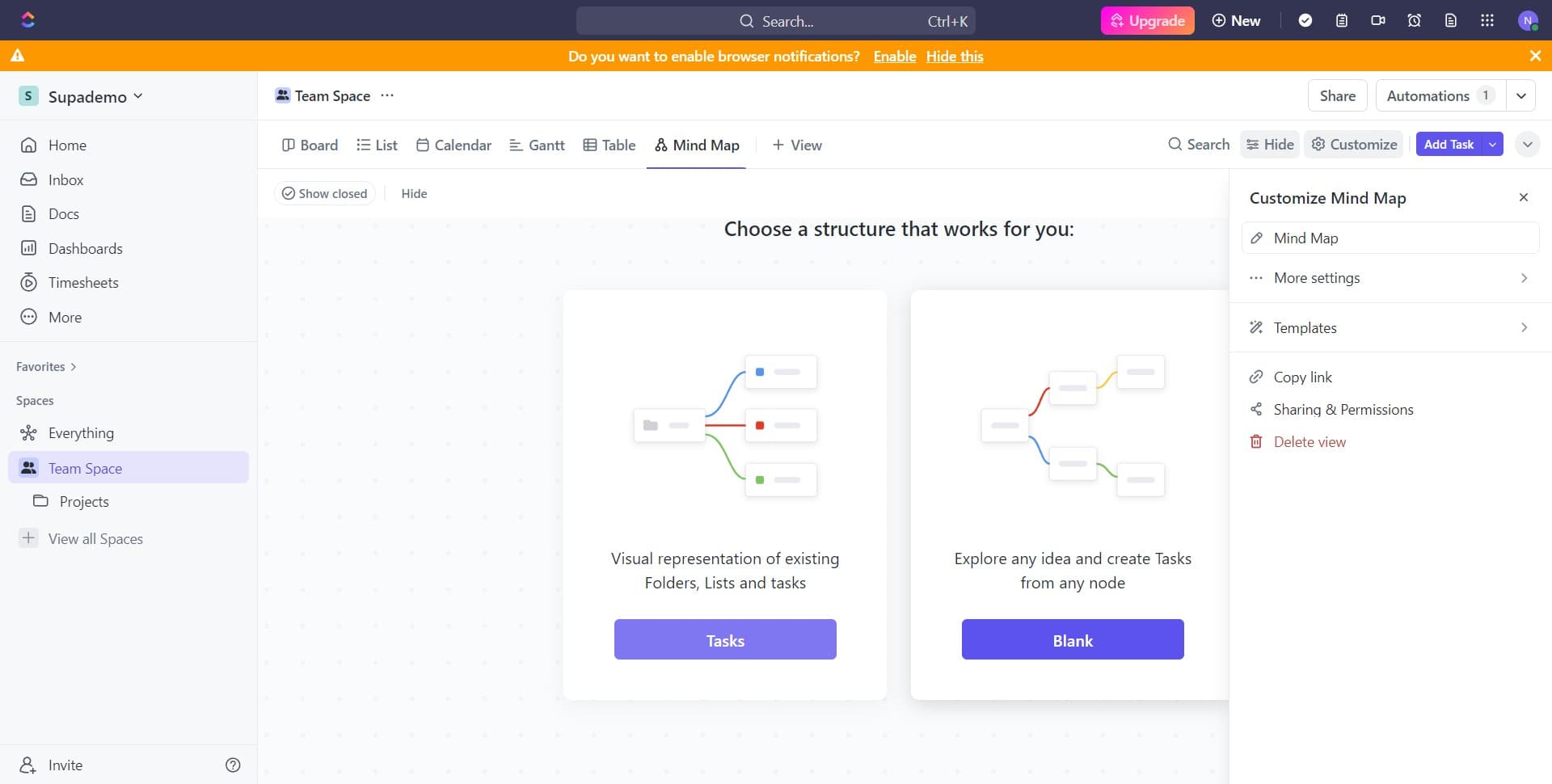
Select Blank template
Choose the Blank option to start with an empty canvas. This gives you full flexibility to structure your mind map according to your specific needs.
- 5
Configure initial settings
Complete any required setup steps or confirmations for your new mind map. Your blank mind map is now ready for you to begin adding nodes and organizing your ideas.
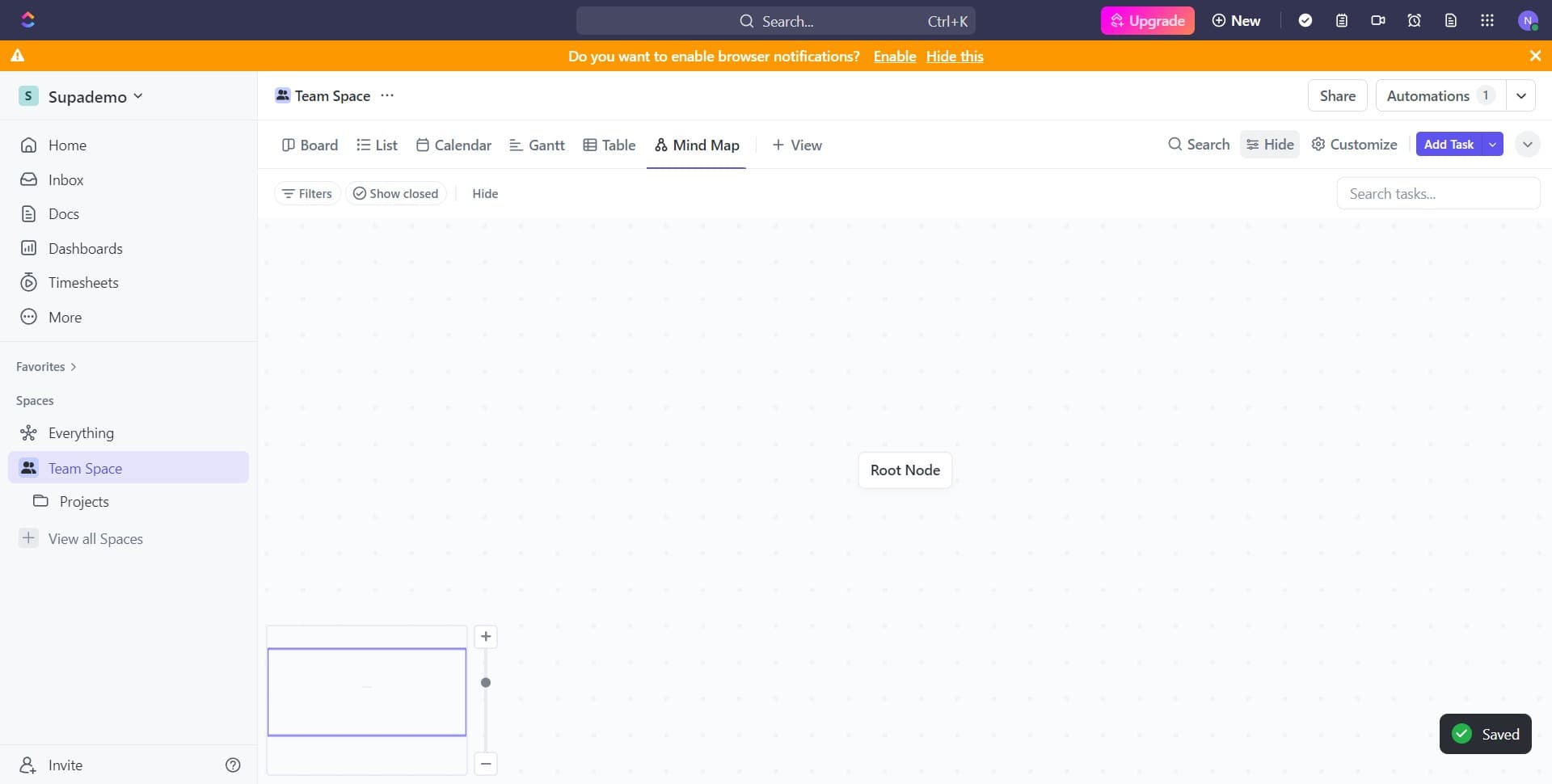
- 6
Begin structuring your map
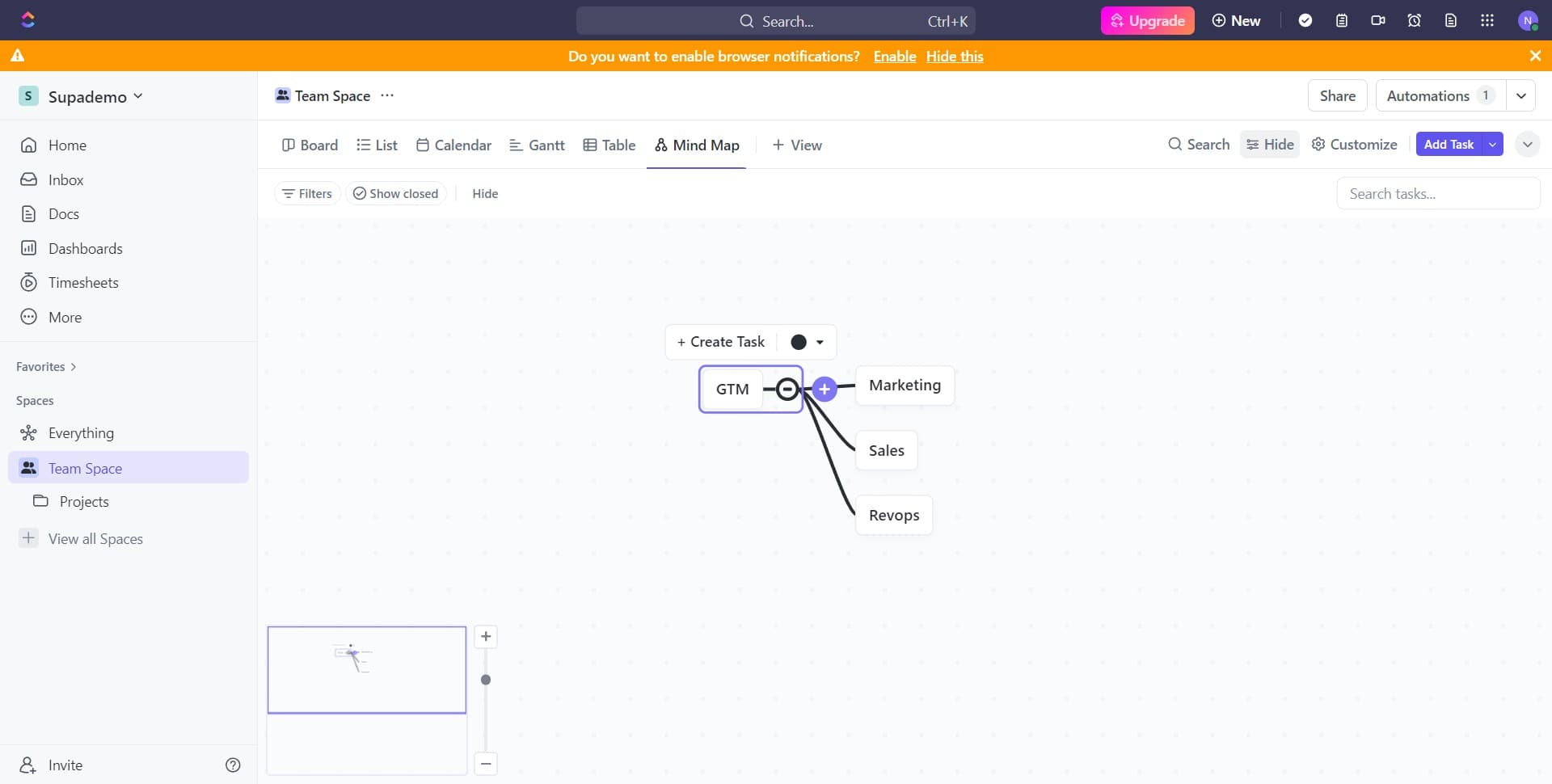
Start adding your central topic and branching ideas to the mind map. Use the interface to create the hierarchical structure that best represents your project or brainstorm session.
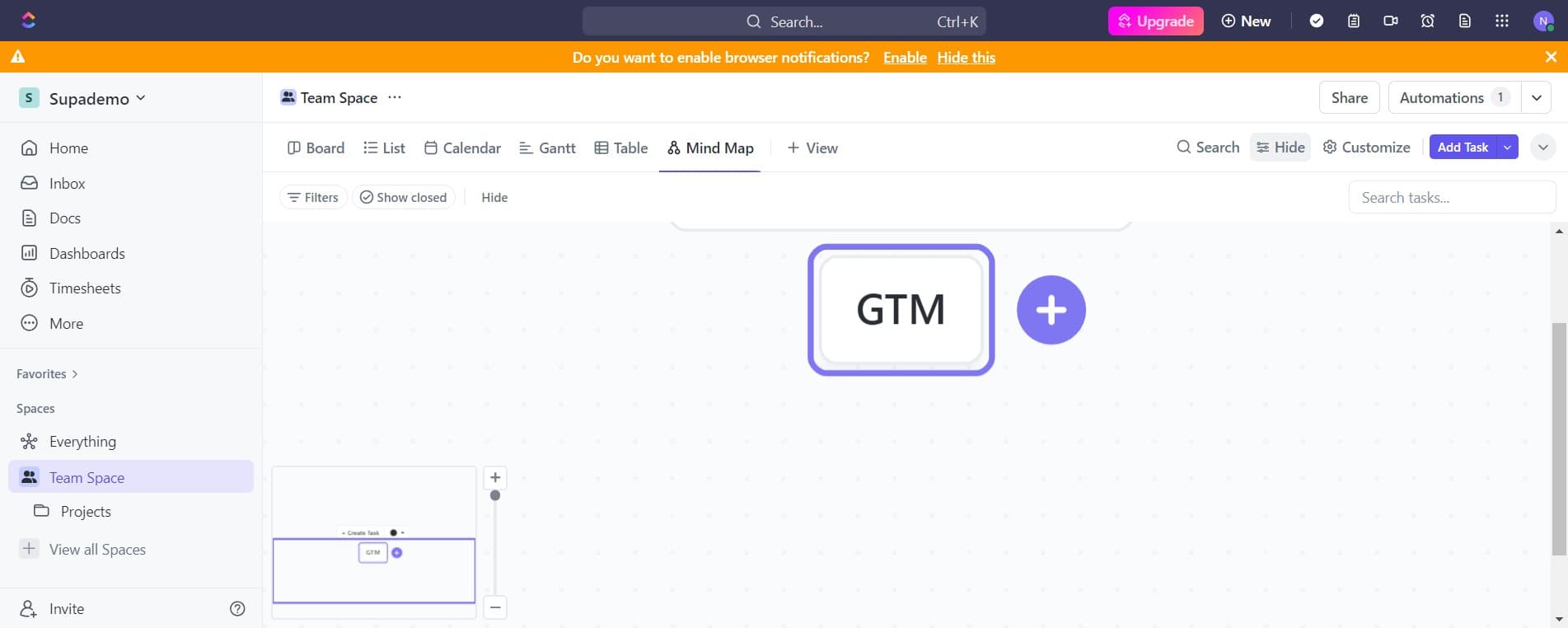
- 7
Add supporting details
Expand your mind map by adding additional nodes, connections, and information to each branch. This helps flesh out your ideas and clarifies relationships between different concepts.
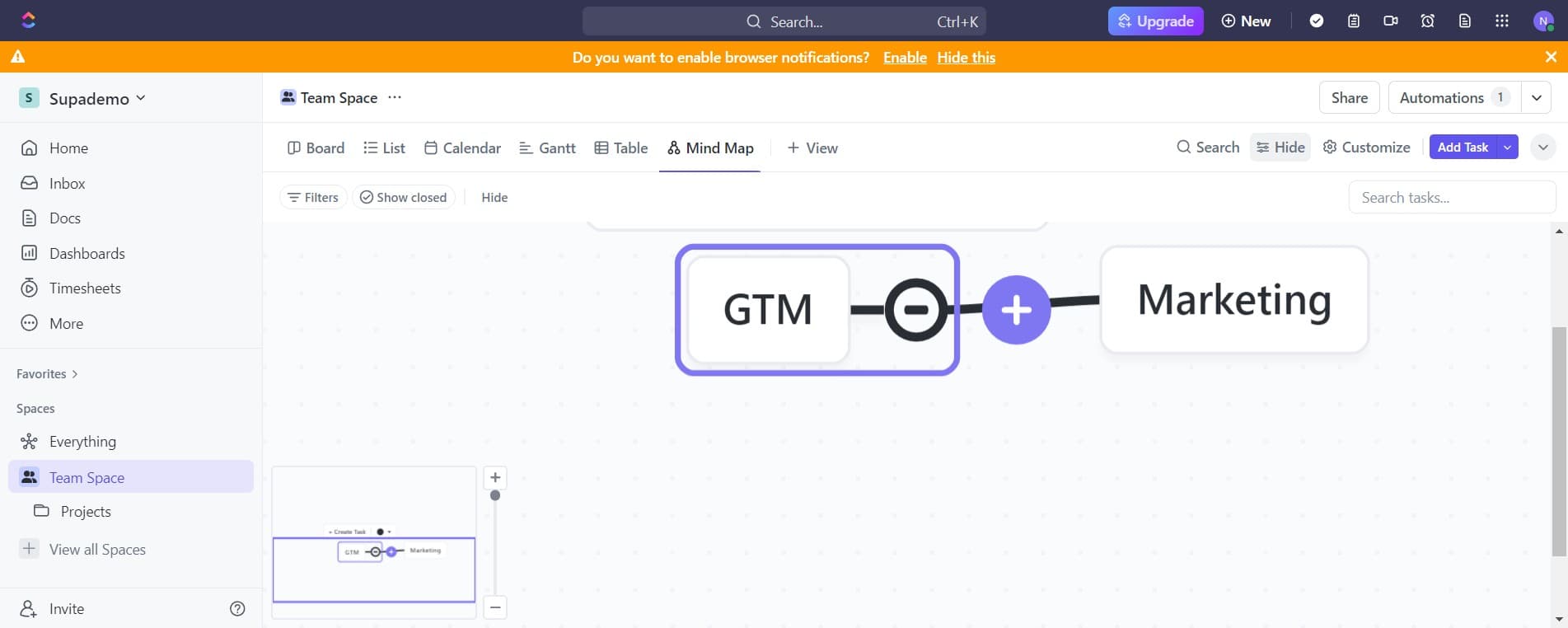
- 8
Organize and refine layout
Adjust the positioning and arrangement of your mind map elements for clarity and visual hierarchy. Ensure that your map is easy to read and logically structured.
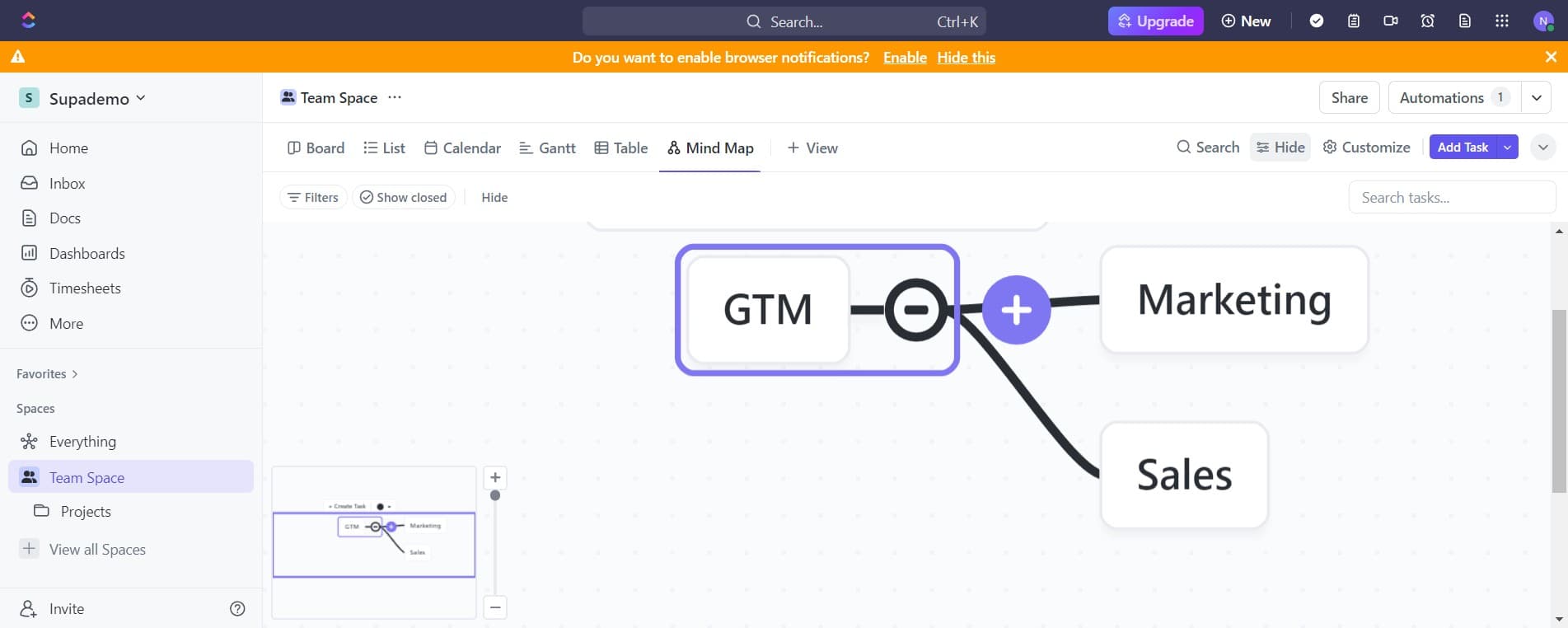
- 9
Save your mind map
Finalize and save your completed mind map within ClickUp. Your mind map is now stored and can be accessed, shared, and updated as your project evolves.
Frequently asked questions
Common questions about how to create a mind map in clickup.
Yes, ClickUp allows you to convert mind map nodes into actionable tasks. This enables you to move seamlessly from brainstorming and planning with your mind map directly into project execution and task management.
ClickUp supports real-time collaboration on mind maps, allowing team members to work together simultaneously. You can share the mind map with specific team members or the entire workspace, depending on your permission settings.
Beyond the blank template, ClickUp may offer pre-designed mind map templates depending on your workspace setup. You can also save your completed mind maps as templates for future projects to maintain consistency.
Start with a clear central concept, then branch out into main categories before adding sub-items. Use consistent colors or icons to group related ideas, and keep text concise. Regularly review and refactor your map to ensure it remains clear and focused as your project develops.
ClickUp provides various export and sharing options for mind maps, including the ability to generate shareable links or download your map in different formats. Check your workspace settings to see which export options are available for your account level.