How to create dependency between tasks in ClickUp

Task dependencies in ClickUp allow you to establish relationships between tasks, ensuring work progresses in the correct sequence. This feature is essential for managing complex projects where certain tasks must be completed before others can begin.
Quick summary
In this tutorial, you'll learn how to create task dependencies in ClickUp by linking tasks with blocking relationships. You'll navigate to your tasks, access the dependency settings, and configure which tasks must be completed first.
Why this matters
Setting up task dependencies prevents bottlenecks and keeps teams aligned on project sequence and priorities. When dependencies are clear, team members understand which tasks are blocking progress and can focus efforts accordingly. This reduces confusion, improves timeline accuracy, and ensures efficient project execution.
Step-by-step guide
- 1
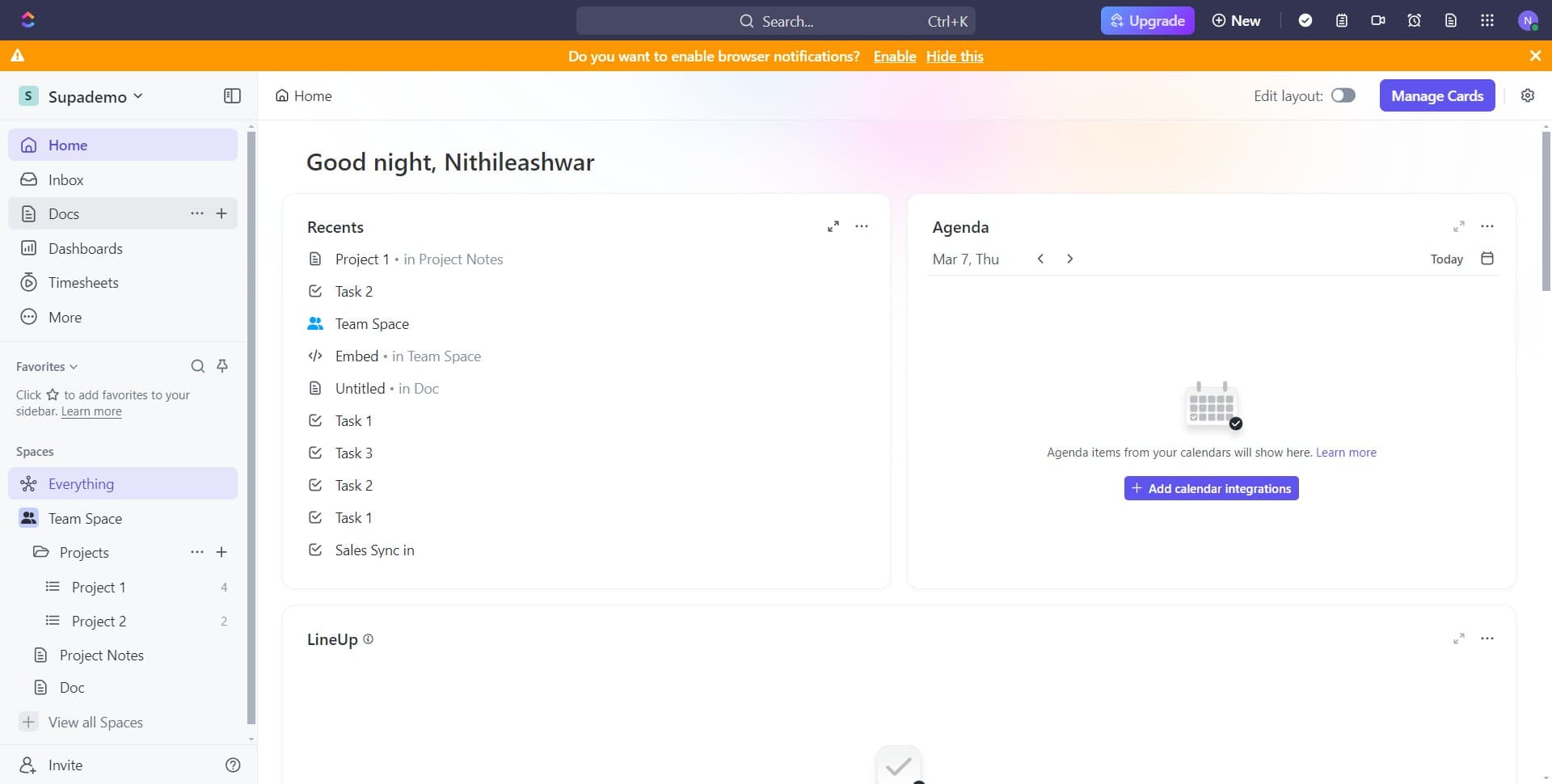
Open the Docs section
Click on 'Docs' in the left sidebar to access your documentation and task workspace. This takes you to the main area where you can view and manage your tasks and projects.
- 2
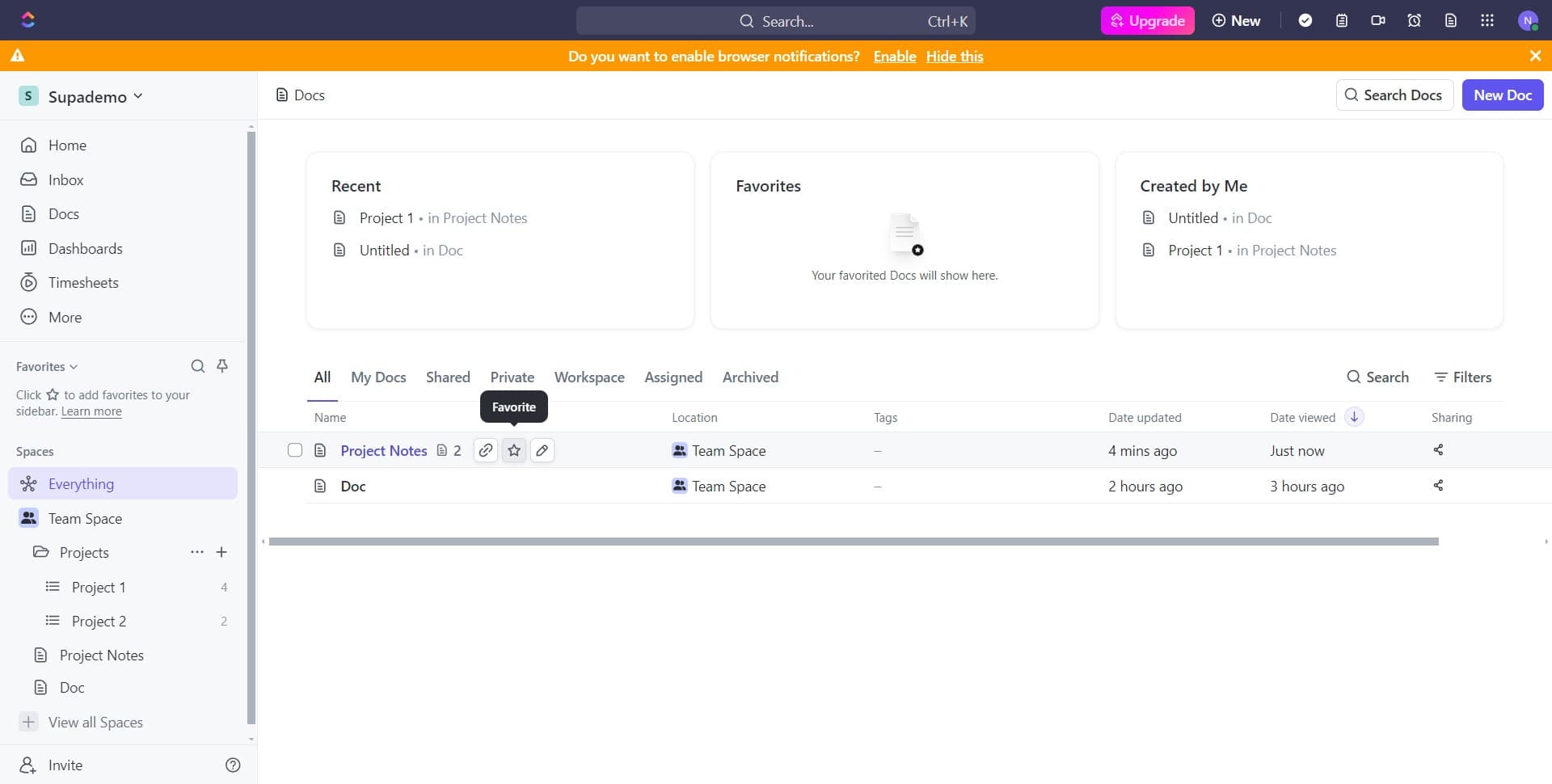
Navigate to the task area
Click on the designated area to move forward in the interface. You should see options to access your tasks and workspace items.
- 3
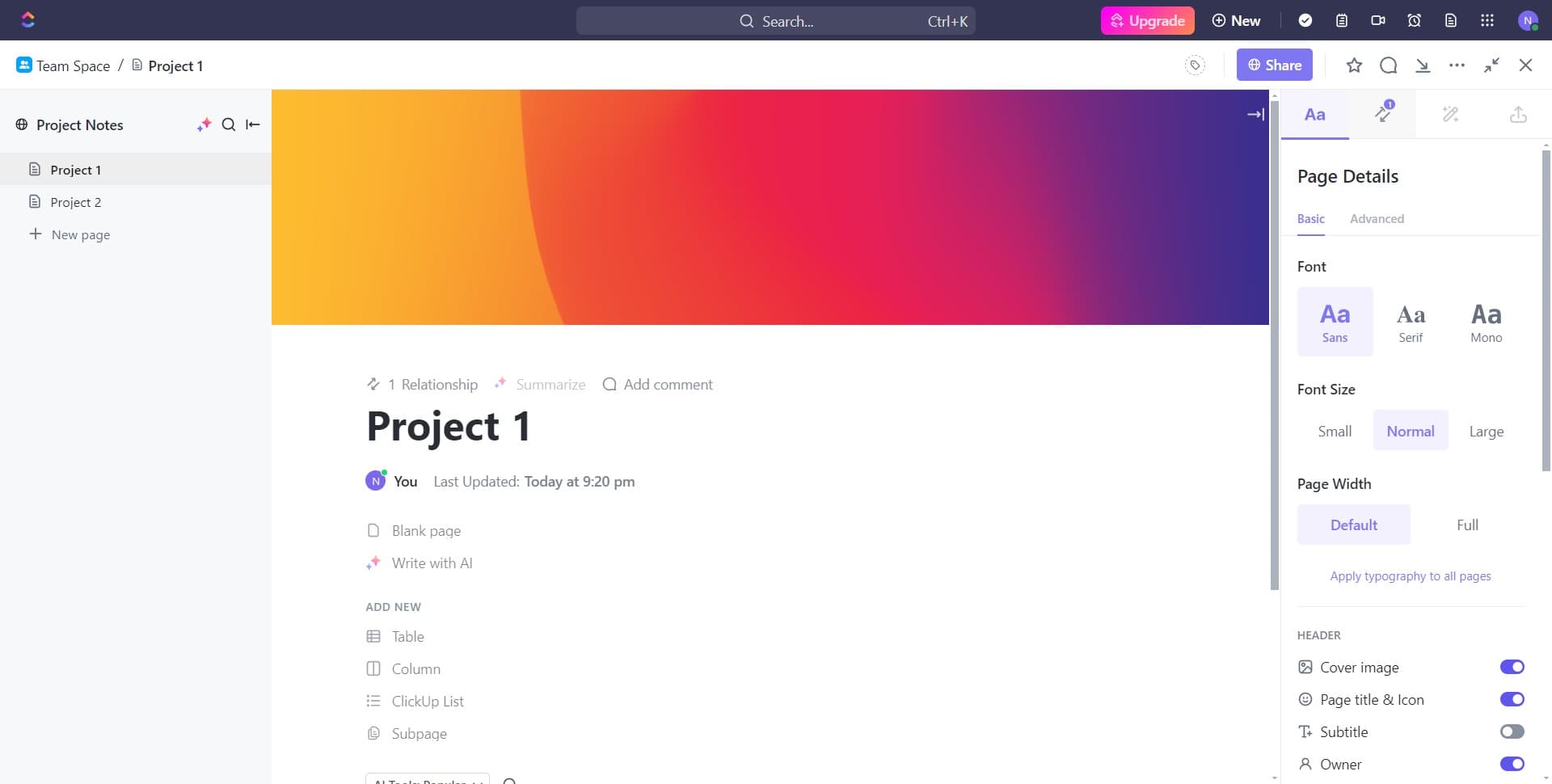
Select the first item
Click on '1' to begin working with your task list. This helps you identify and organize the specific tasks you want to link.
- 4
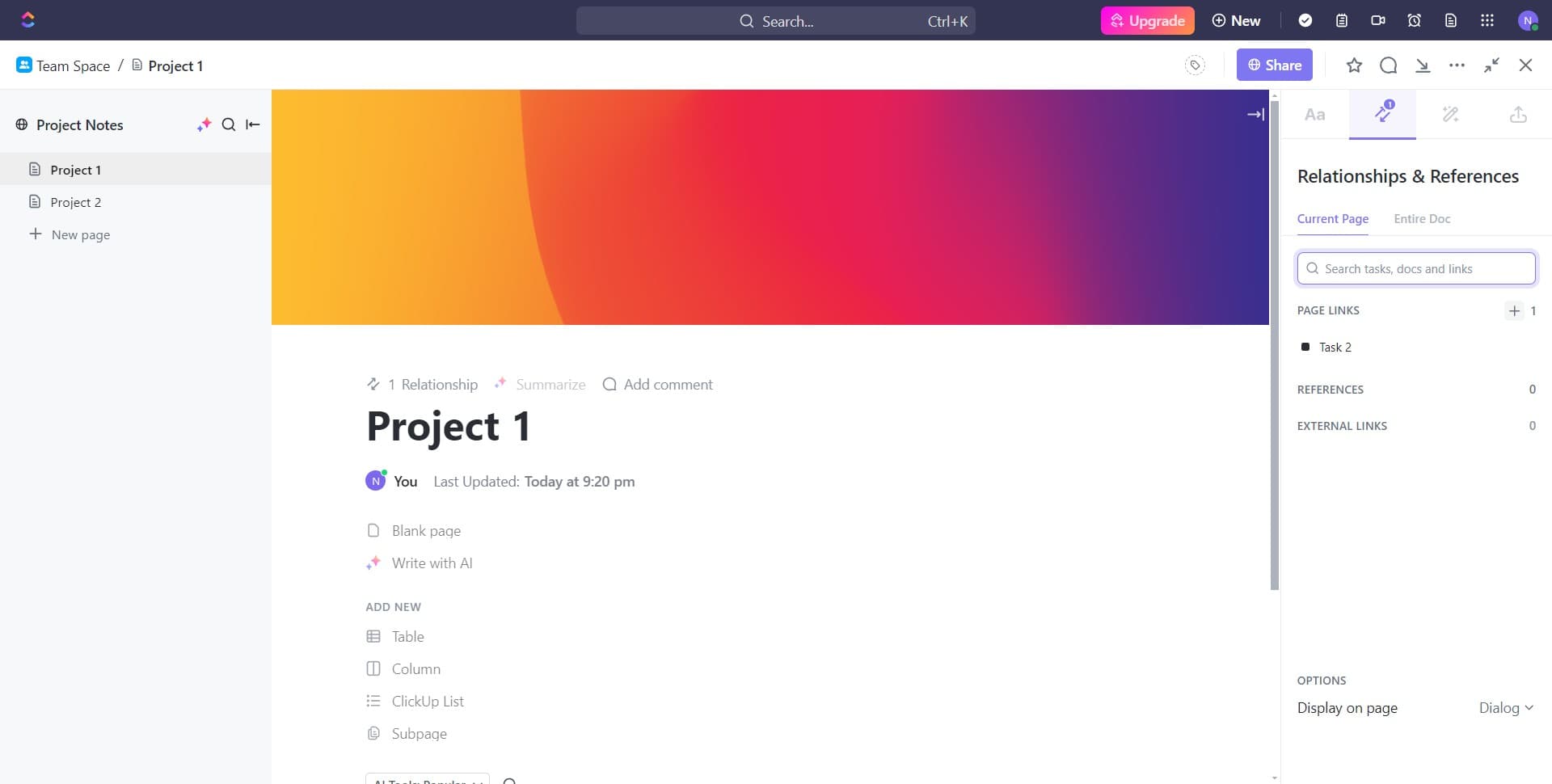
Continue navigating
Click on the next area to proceed further into the task management section. You're moving closer to where you can set up your task dependencies.
- 5
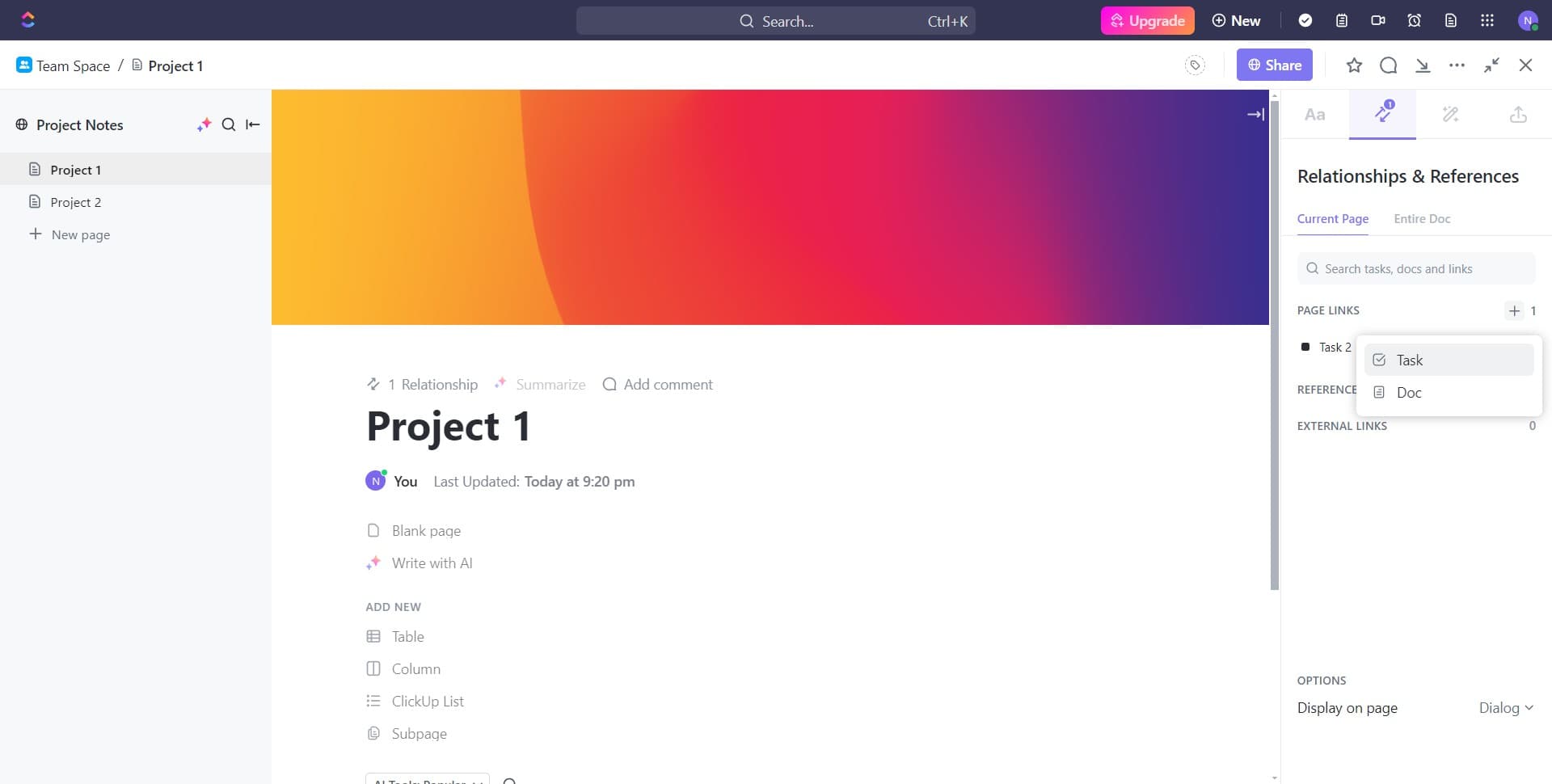
Select the Task option
Click on 'Task' to confirm you're working with task-level operations. This ensures you're in the correct mode to create dependencies between tasks.
- 6
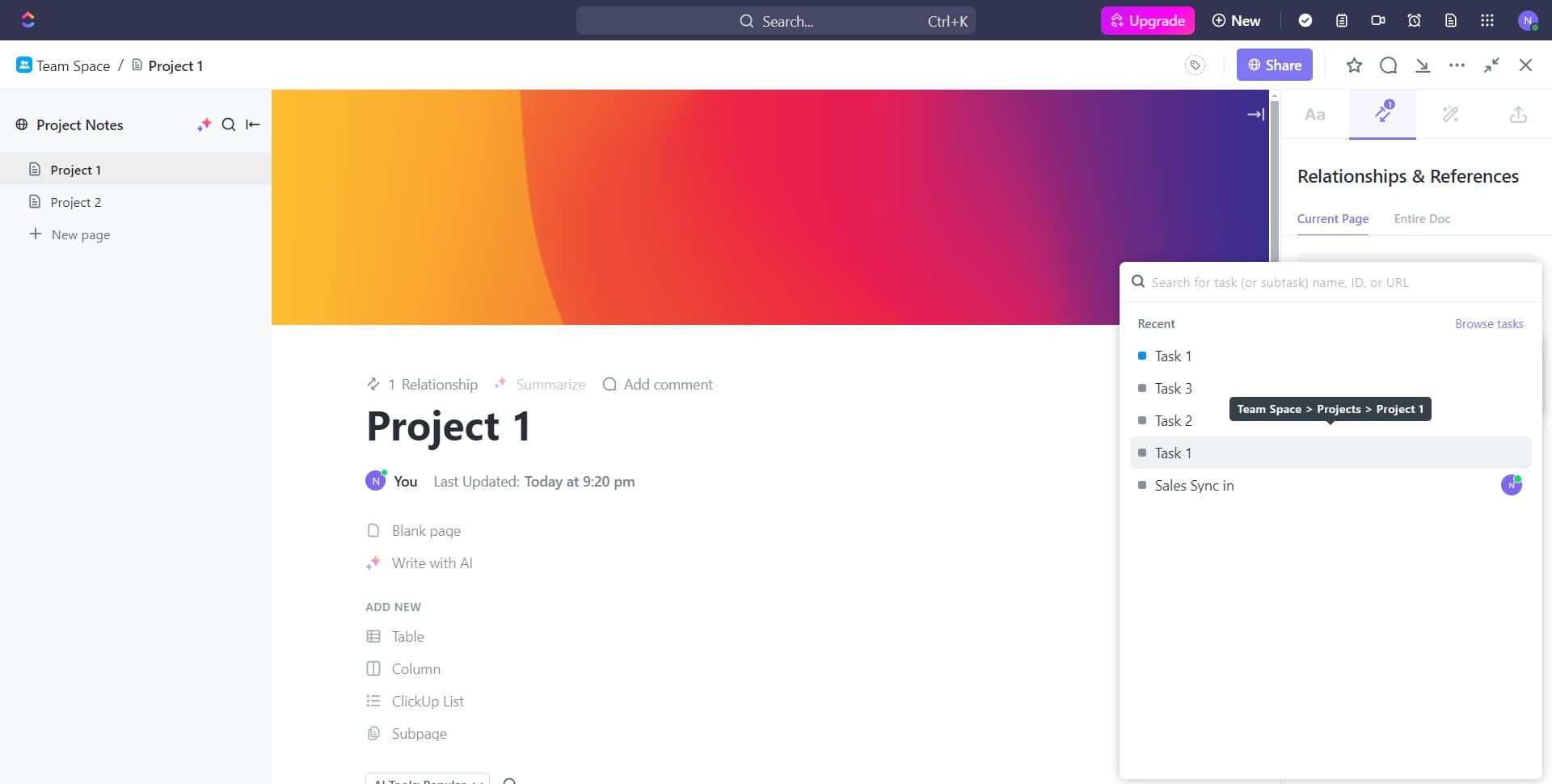
Open the first task
Click on 'Task 1' to open the task details. This is the first task you'll be setting up dependencies for.
- 7
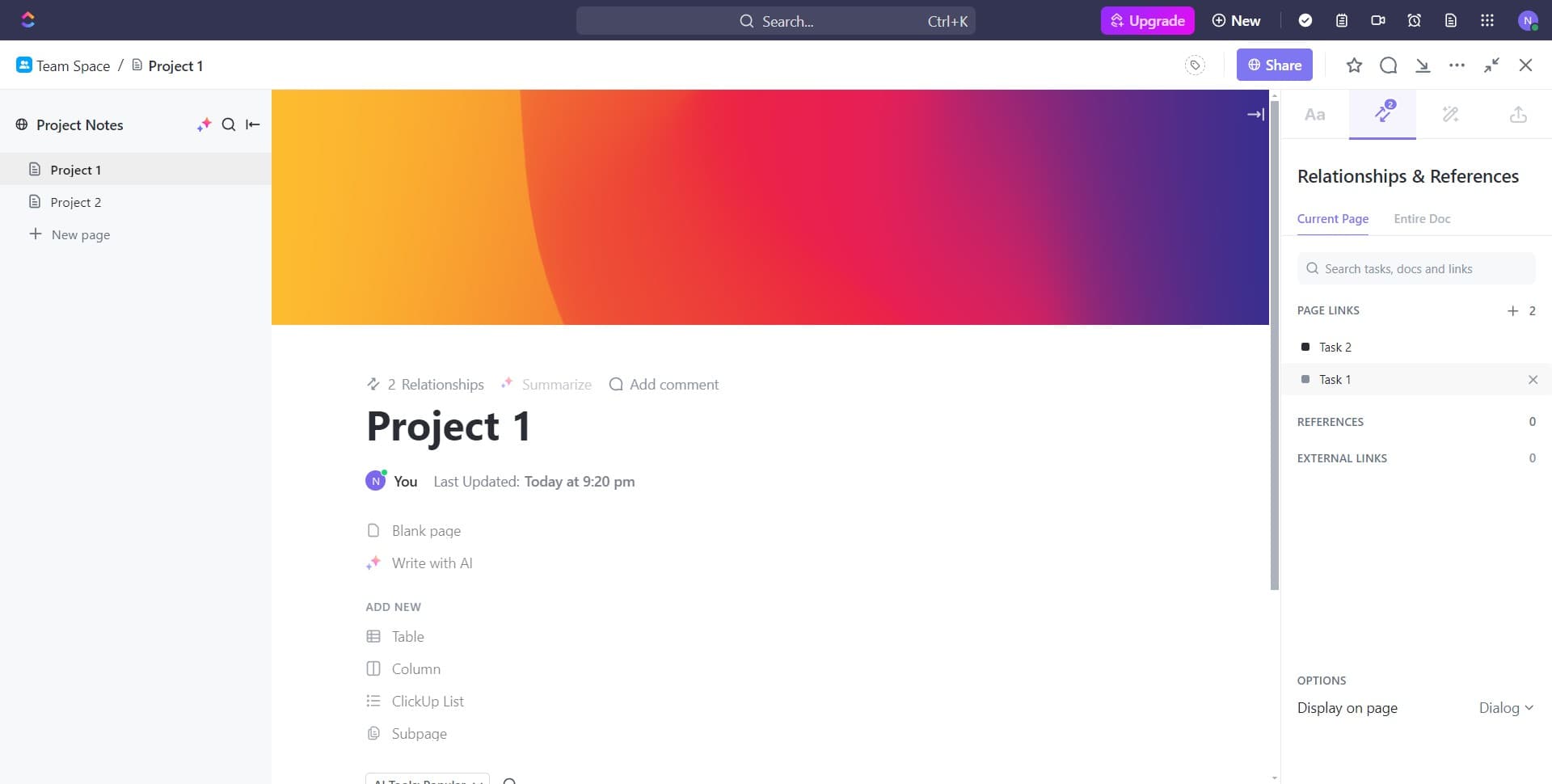
Access task details again
Click on 'Task 1' once more to ensure the task is fully loaded and ready for editing. You should now see the task's detailed view with all available options.
- 8
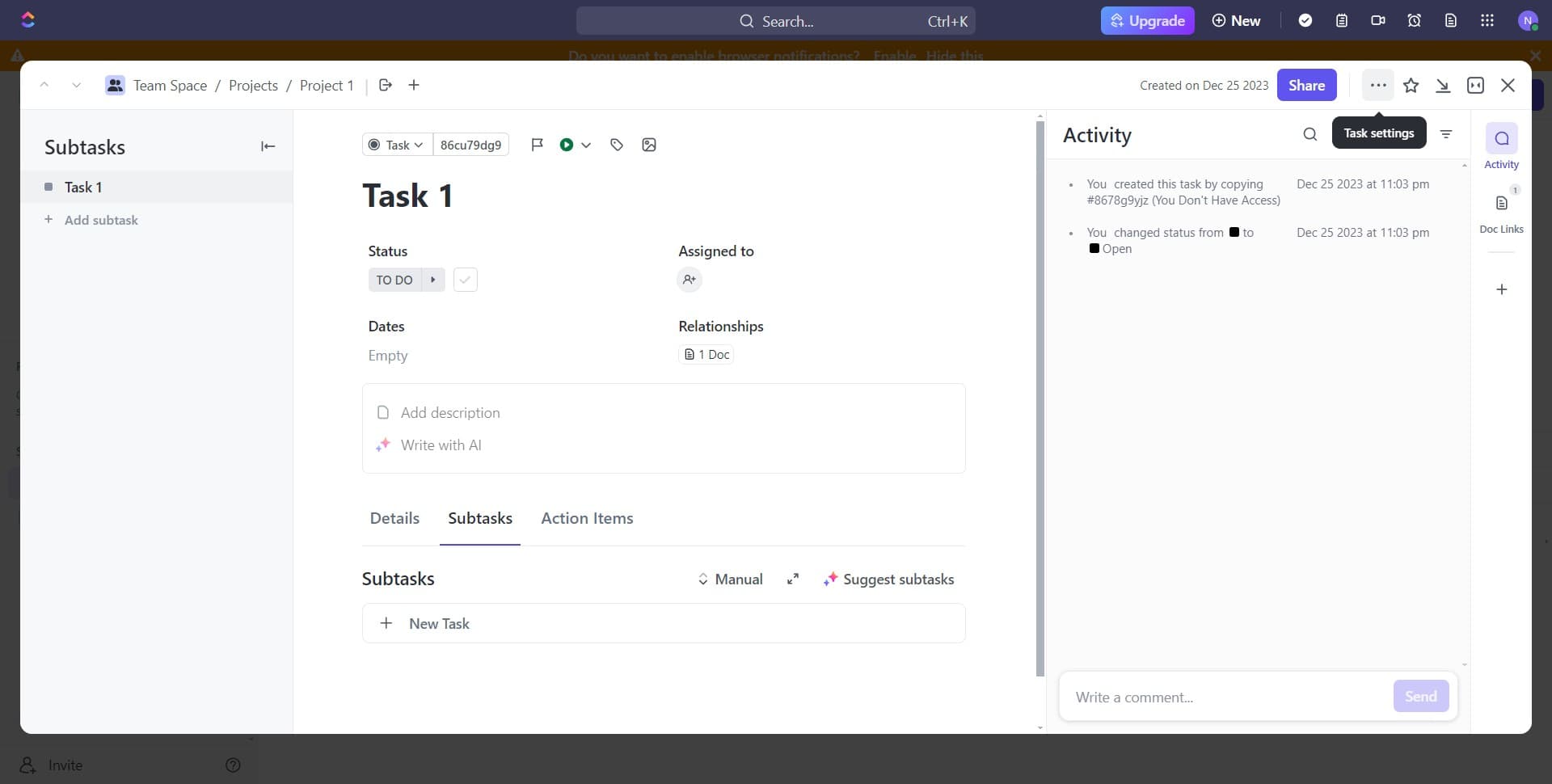
Expand the options menu
Click on the menu area to reveal additional task configuration options. This exposes the settings needed to add dependencies.
- 9
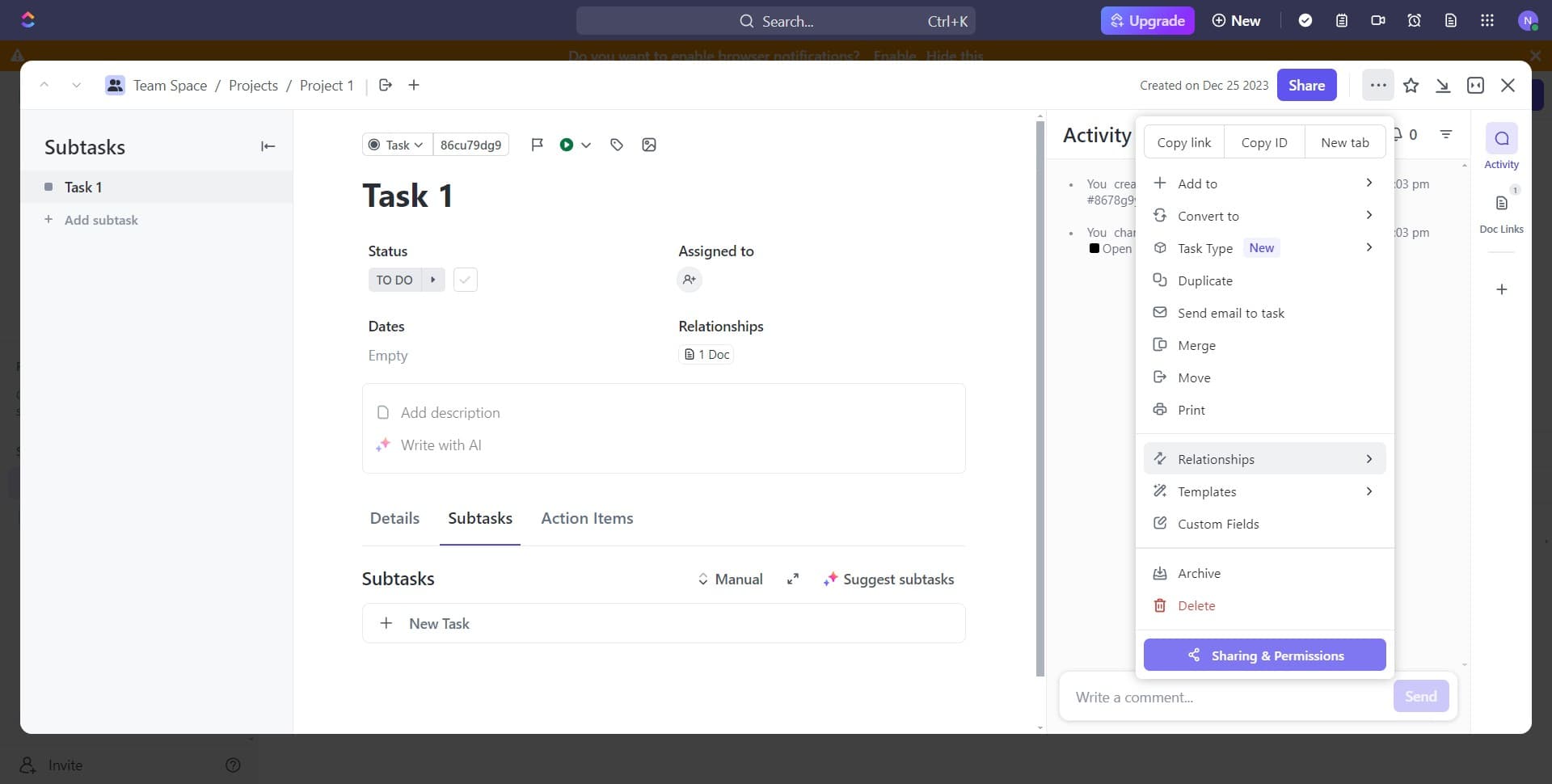
Access dependency settings
Click on the appropriate area to open the dependency configuration panel. You're now ready to define how this task relates to other tasks.
- 10
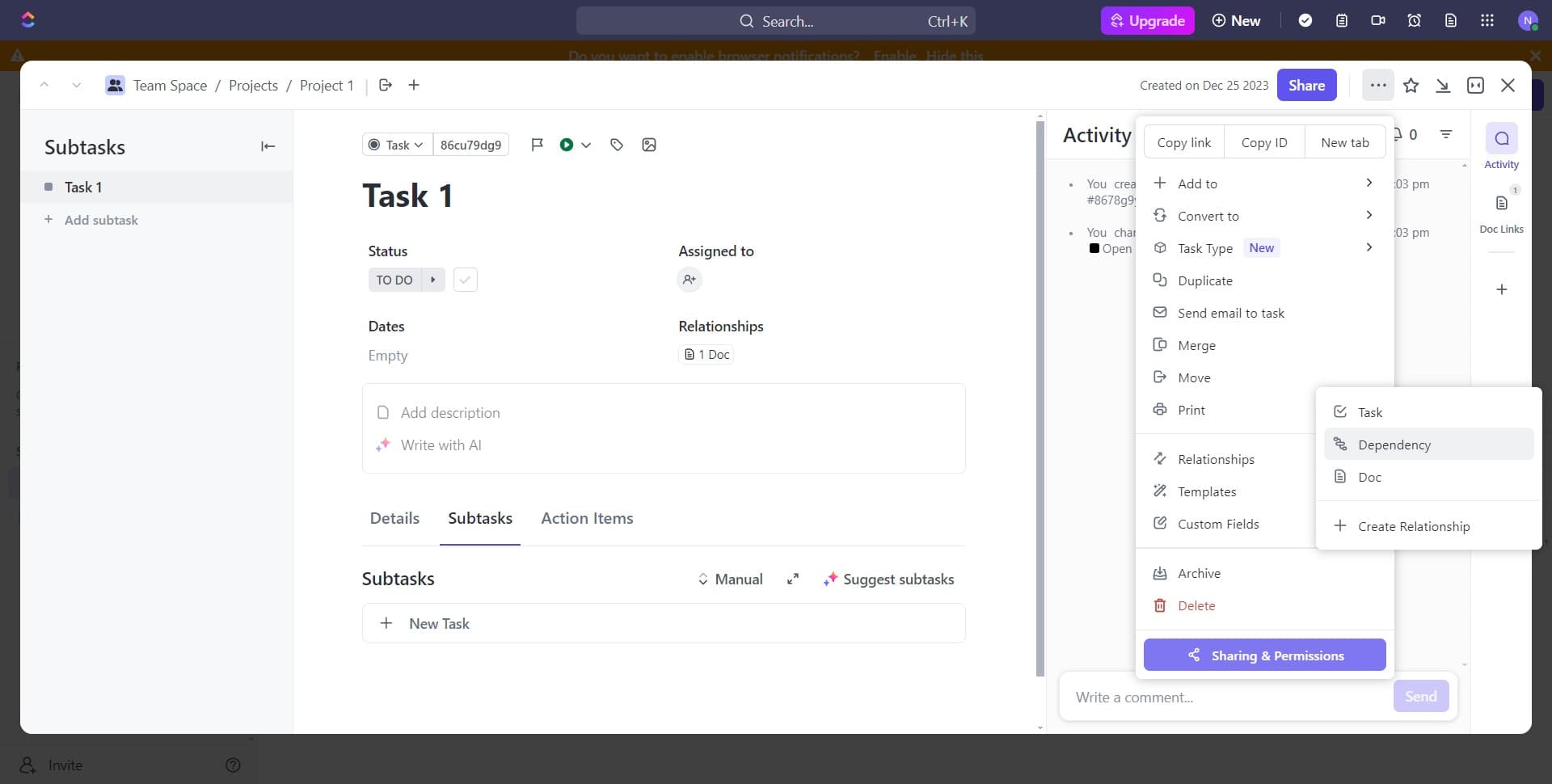
Select the Dependency option
Click on 'Dependency' to access the dependency management interface. This is where you'll establish relationships between your tasks.
- 11
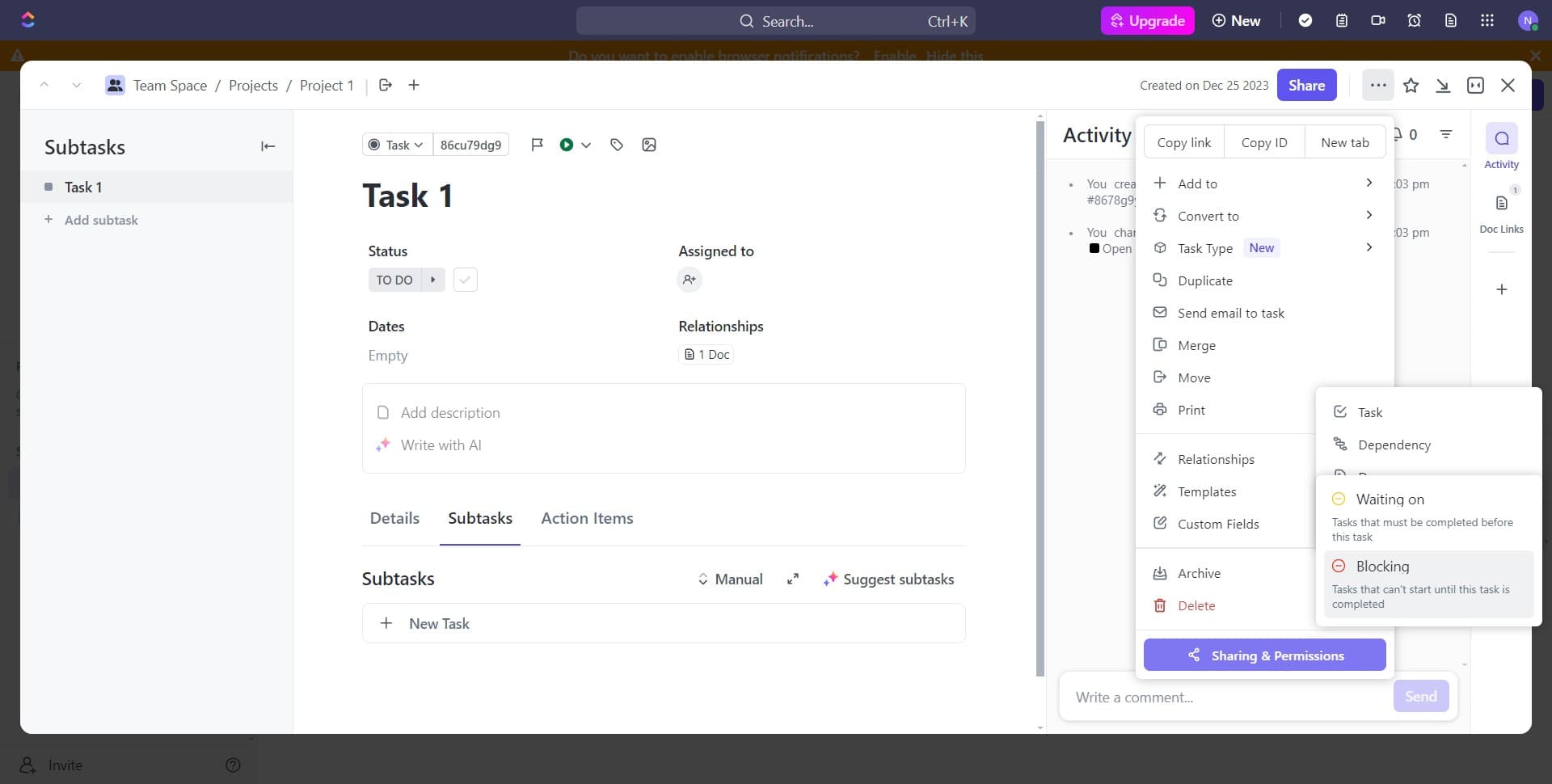
Choose the Blocking relationship type
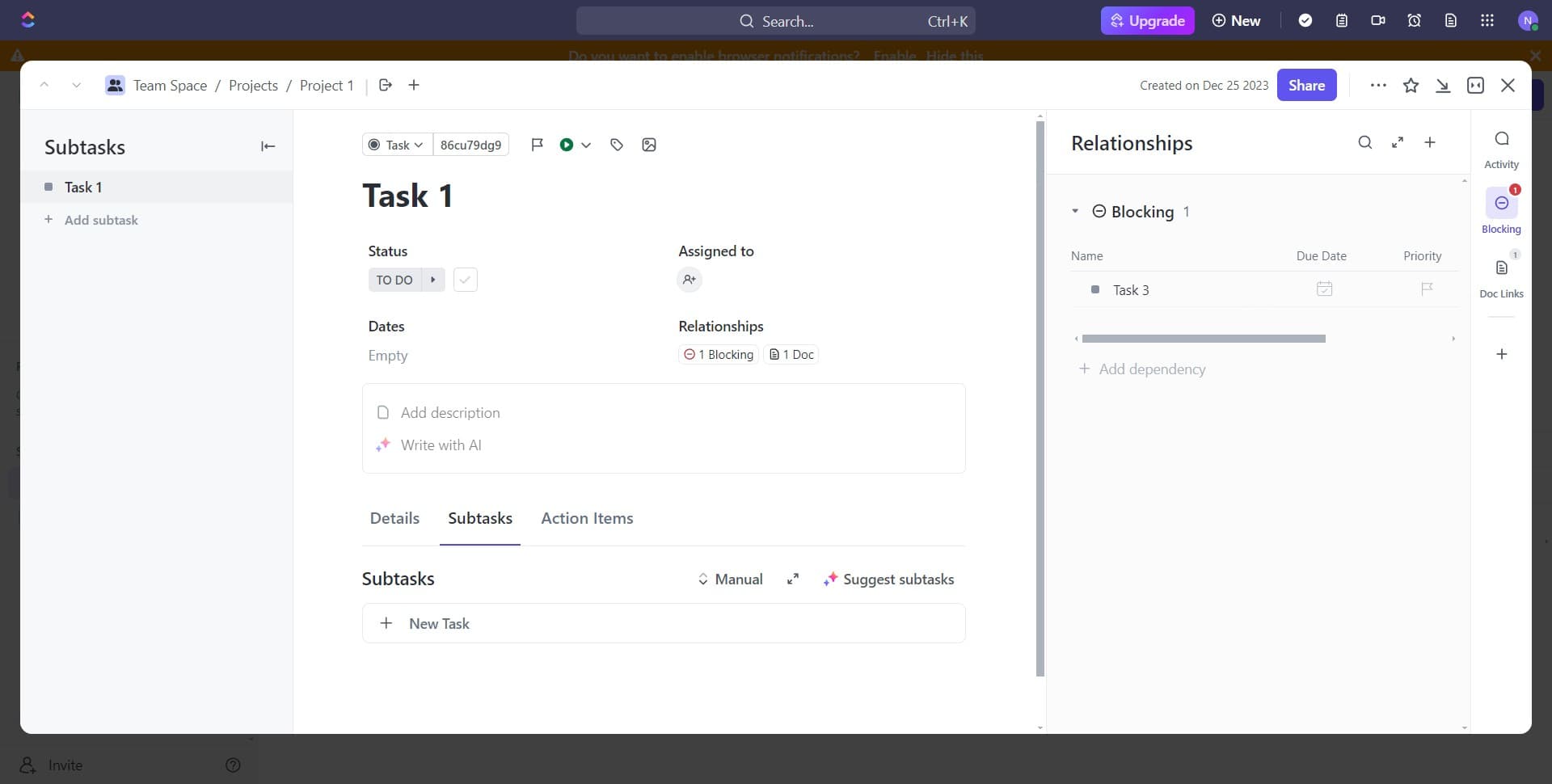
Click on 'Blocking' to specify that this task is blocked by another task. This means the current task cannot proceed until its dependencies are complete.
- 12
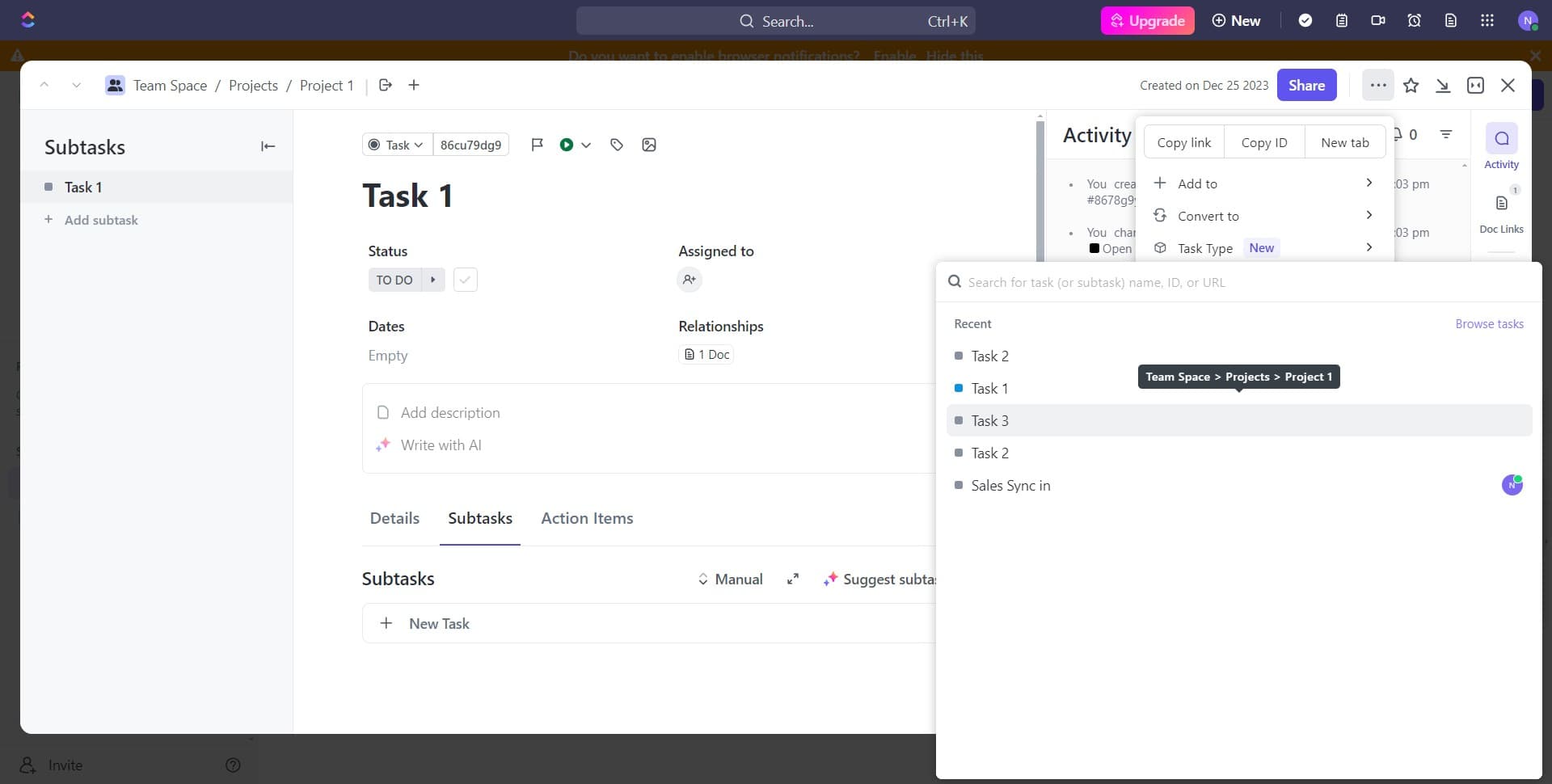
Select the blocking task
Click on 'Task 3' to designate it as the task that must be completed before Task 1 can proceed. Task 3 is now set as a blocker for Task 1.
- 13
Confirm the dependency
Click on 'Blocking' in the confirmation dialog to finalize the dependency relationship. The system will now recognize that Task 3 must be completed before Task 1 can be marked complete.
Frequently asked questions
Common questions about how to create dependency between tasks in clickup.
A blocking relationship means that the blocking task must be completed before the dependent task can proceed. In this example, Task 3 must be finished before Task 1 can be completed. This prevents teams from starting work on dependent tasks prematurely.
Yes, you can set up multiple blocking tasks for a single task. A task can be blocked by several other tasks, meaning all of them must be completed before the dependent task can proceed. This allows you to model complex project workflows with multiple prerequisite tasks.
Open the task details and navigate to the dependency section. You'll see all blocking tasks listed there, along with their status. This gives you a clear view of which tasks must be completed before you can proceed.
Yes, you can remove dependencies by accessing the task's dependency settings and deleting the unwanted relationship. Simply click on the dependency and remove it from the task. This is helpful when project priorities or sequences change.
When a blocking task is marked complete, the dependent task is freed up and team members can begin working on it. ClickUp will typically show a notification or status update indicating that the dependency has been resolved and the task is no longer blocked.