How to Create a Sequence on Dripify

Learn how to create a sequence on Dripify, the LinkedIn outreach automation platform that helps you scale your prospecting efforts. This tutorial guides you through setting up a complete campaign from lead discovery to sequence configuration, enabling you to automate personalized outreach at scale.
Quick summary
In this tutorial, you'll learn how to create a sequence on Dripify by discovering LinkedIn leads, building a targeted list, and configuring an automated Lead Generation campaign. You'll walk through filtering prospects, selecting message templates, and launching your first sequence.
Why this matters
Creating sequences on Dripify allows you to automate your LinkedIn outreach while maintaining personalization, saving hours of manual work each week. By setting up sequences with pre-built templates and configured actions, you can nurture multiple leads simultaneously and improve your sales pipeline efficiency.
Step-by-step guide
- 1
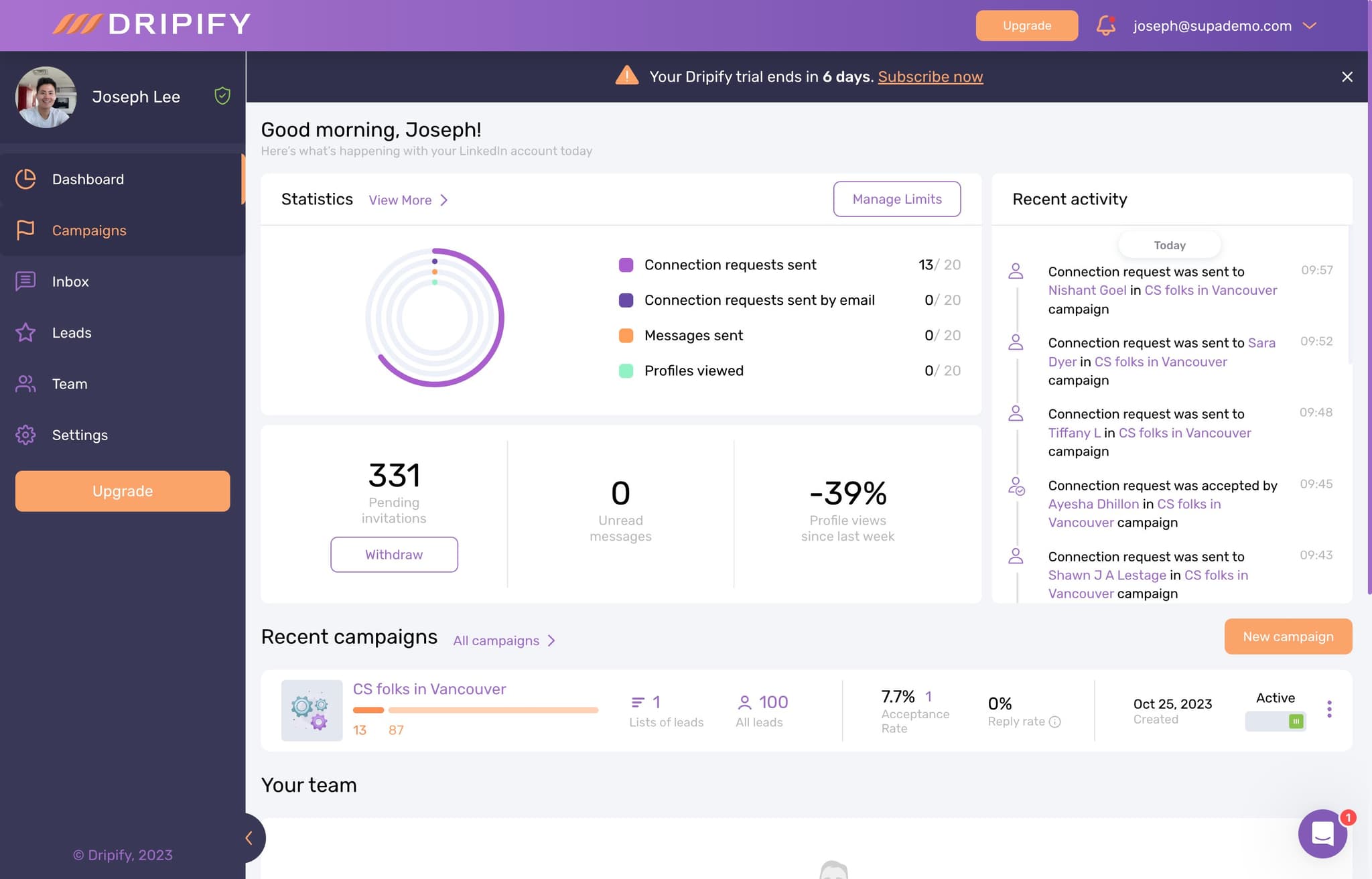
Navigate to Campaigns
Start by clicking on the Campaigns section in your Dripify dashboard. This is where you'll manage all your outreach sequences and track campaign performance.
- 2
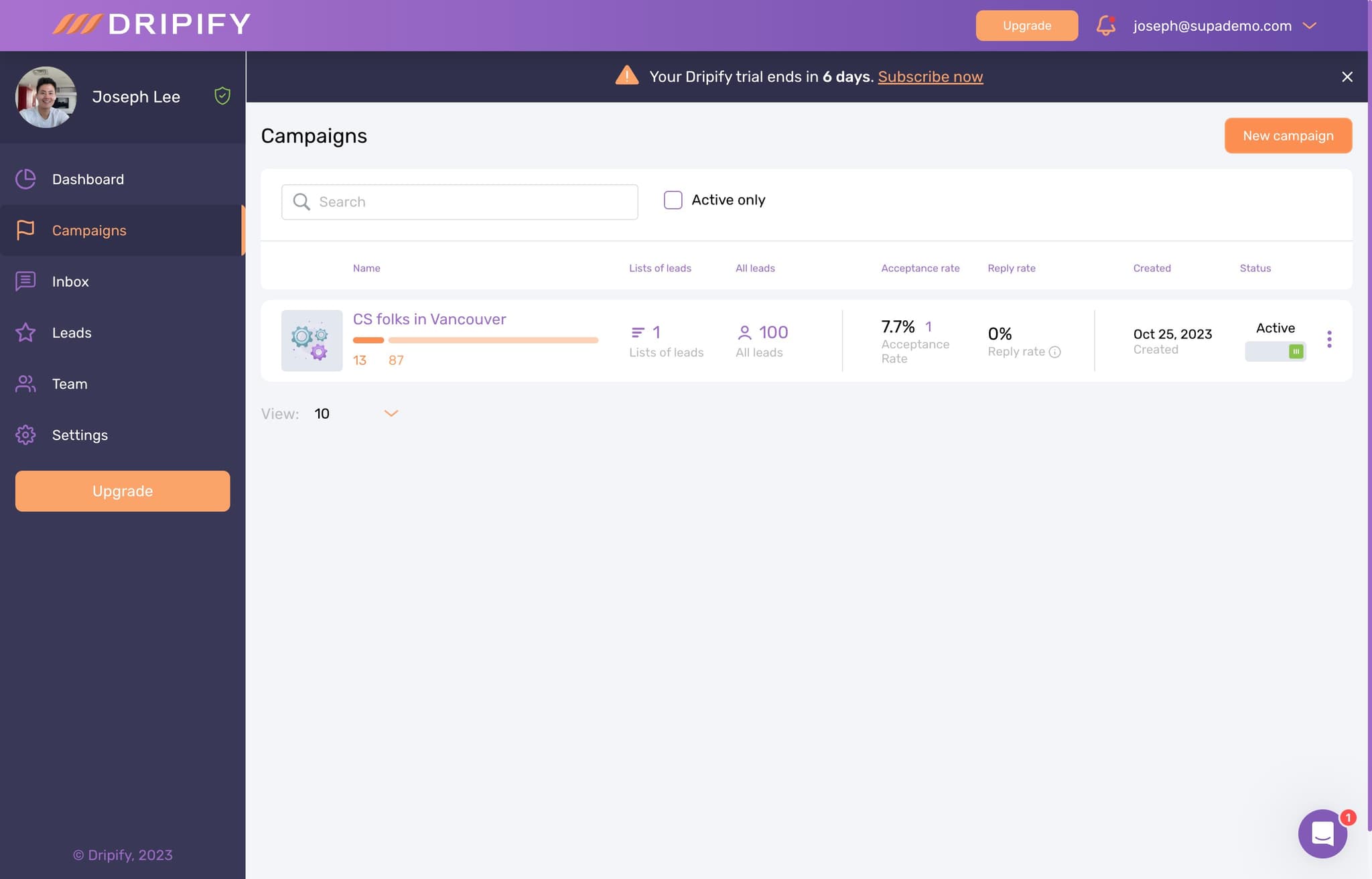
Create a New Campaign
Click on the New campaign button to begin setting up your sequence. This opens the campaign builder where you'll define your target audience and messaging strategy.
- 3
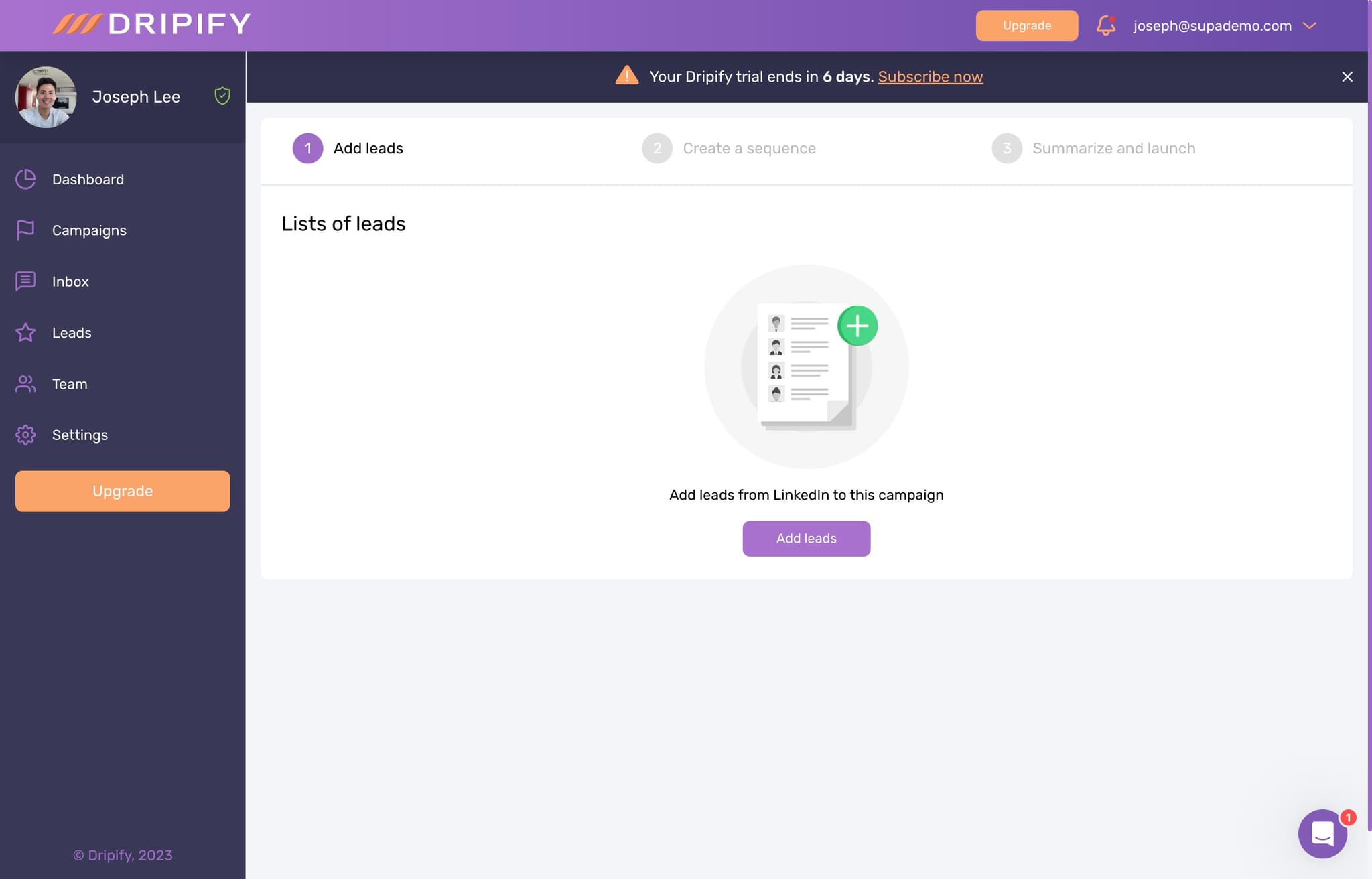
Add Leads to Your Campaign
Click on Add leads to start importing prospects into your sequence. You'll now have options to source leads from various channels including LinkedIn search.
- 4
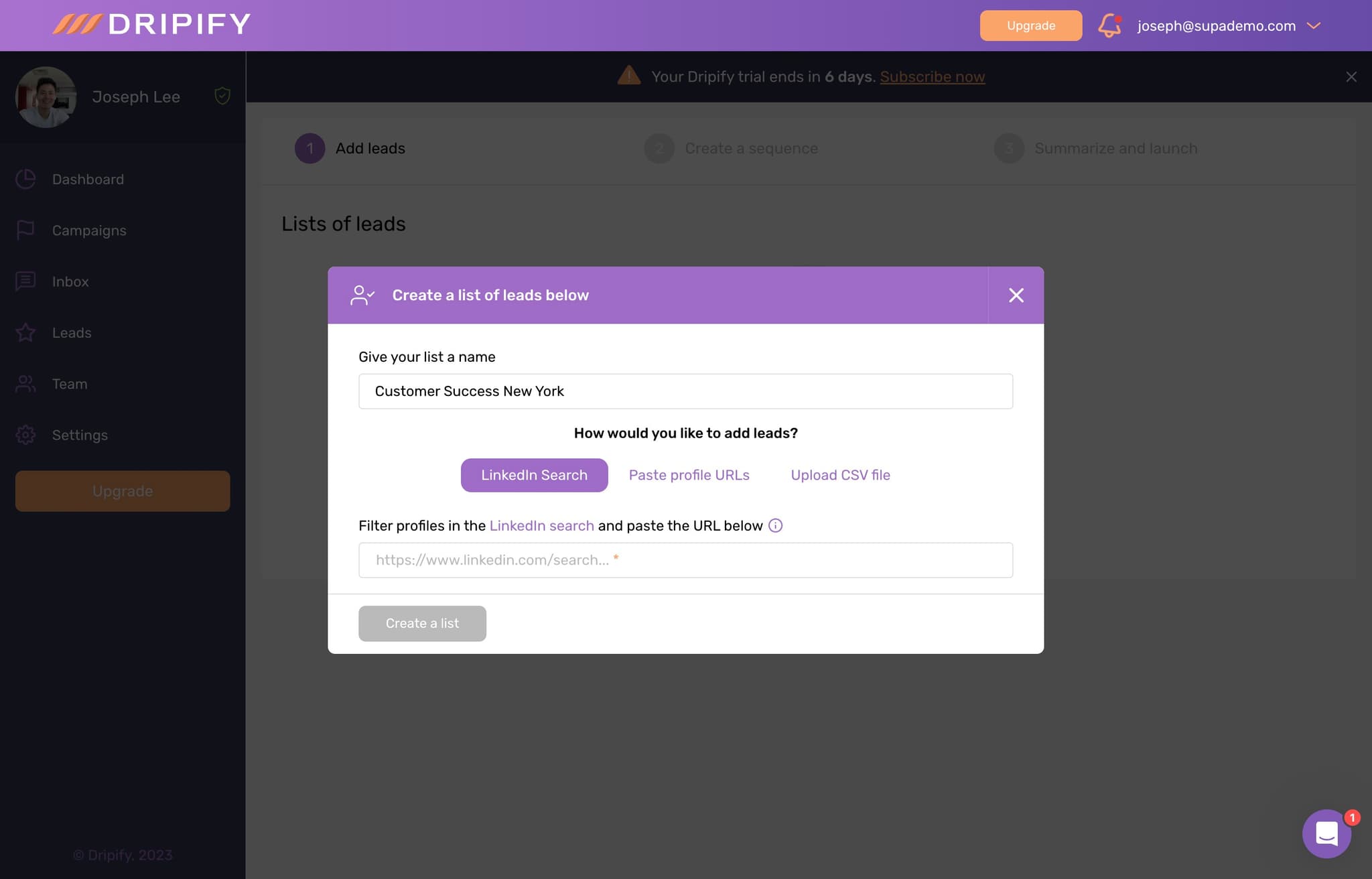
Select LinkedIn Search as Lead Source
Click on LinkedIn search to discover prospects directly from LinkedIn. This allows you to leverage LinkedIn's vast professional network to find high-quality leads matching your criteria.
- 5
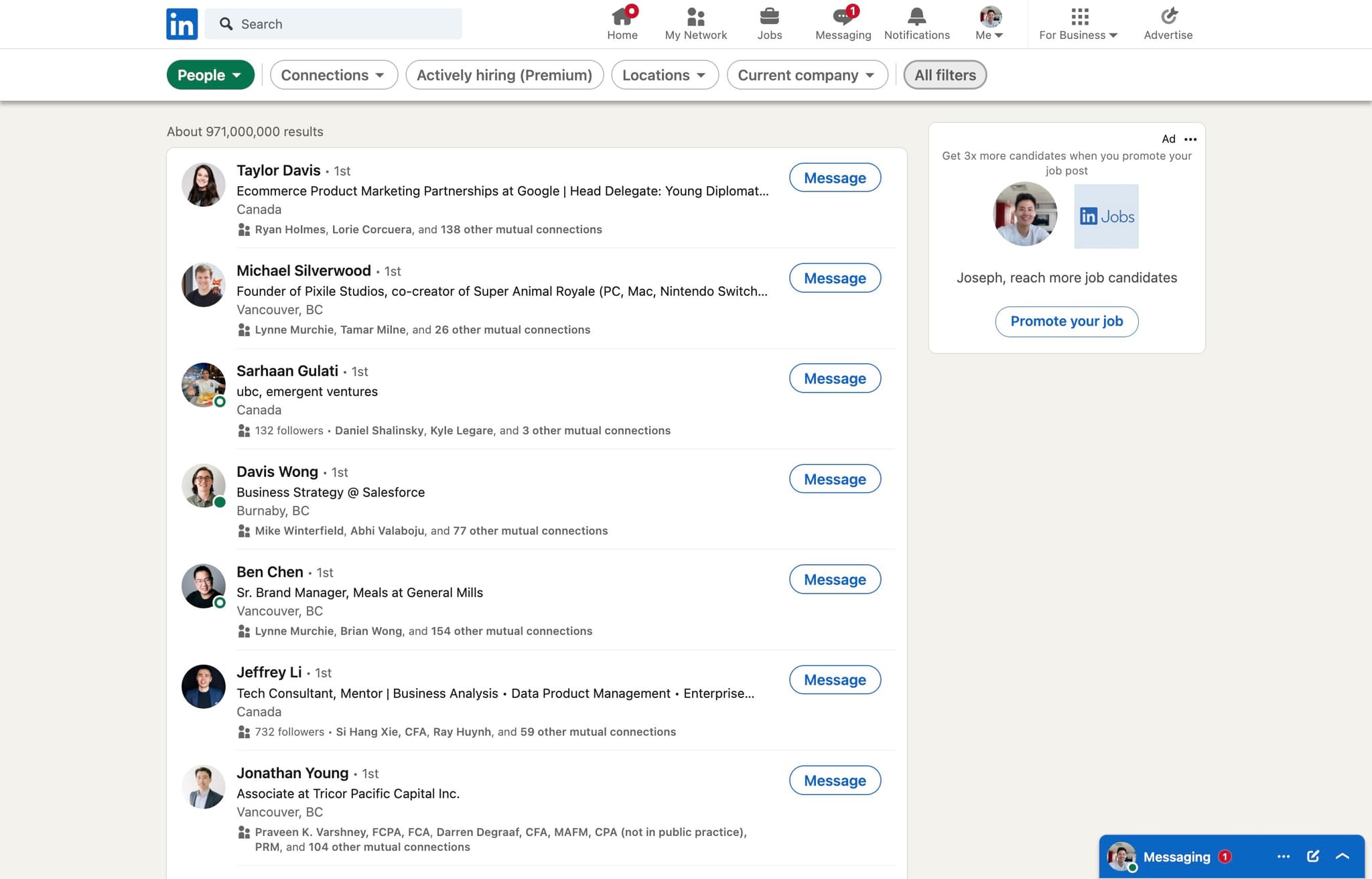
Access Advanced Filtering Options
Click on All filters to reveal detailed filtering options for refining your LinkedIn search. You can now apply criteria like industry, job title, company size, and location to target specific prospect profiles.
- 6
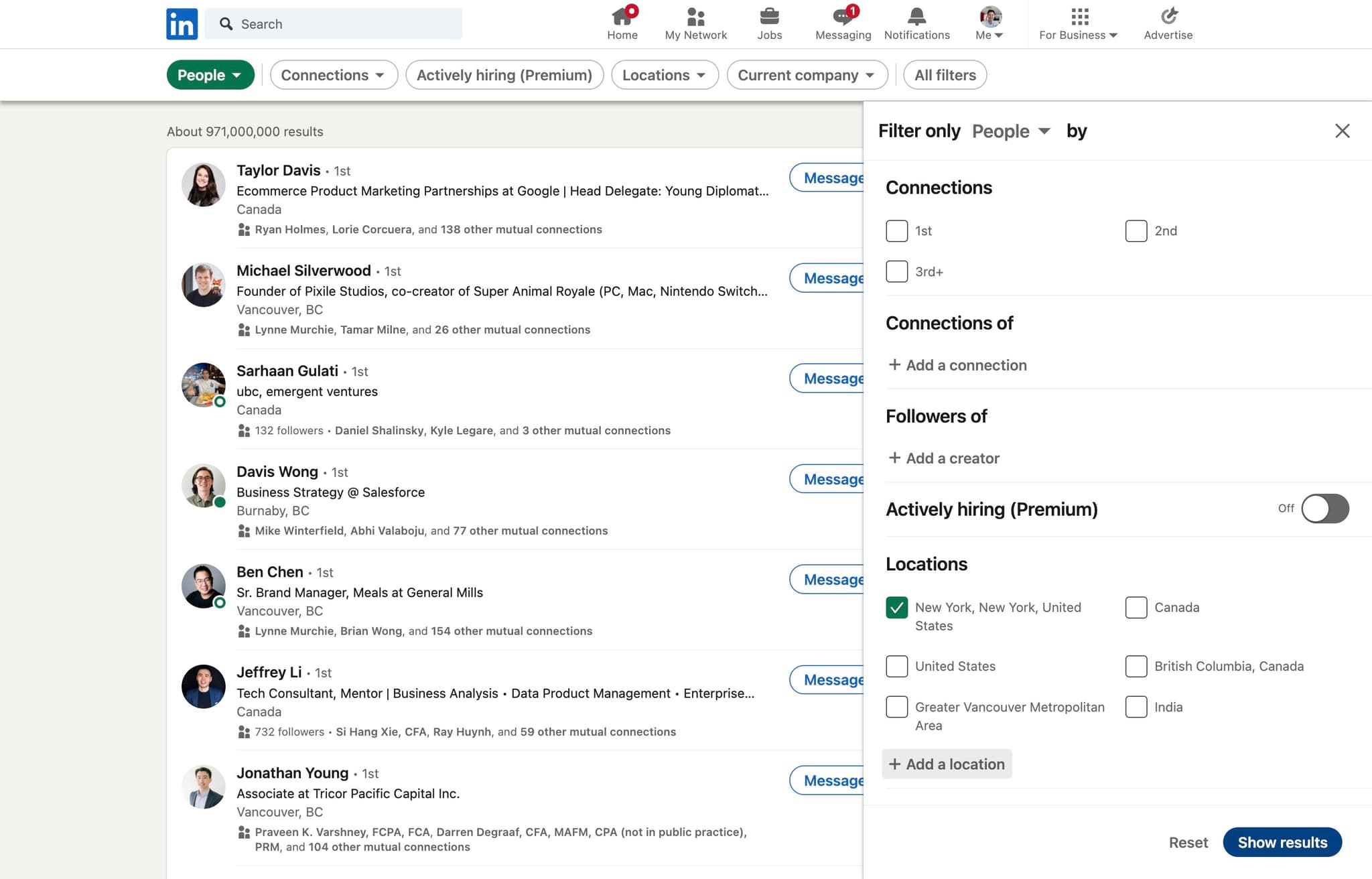
Review and Display Search Results
Click on Show results to view the prospects matching your filter criteria. This displays a list of LinkedIn profiles that match your targeting parameters.
- 7
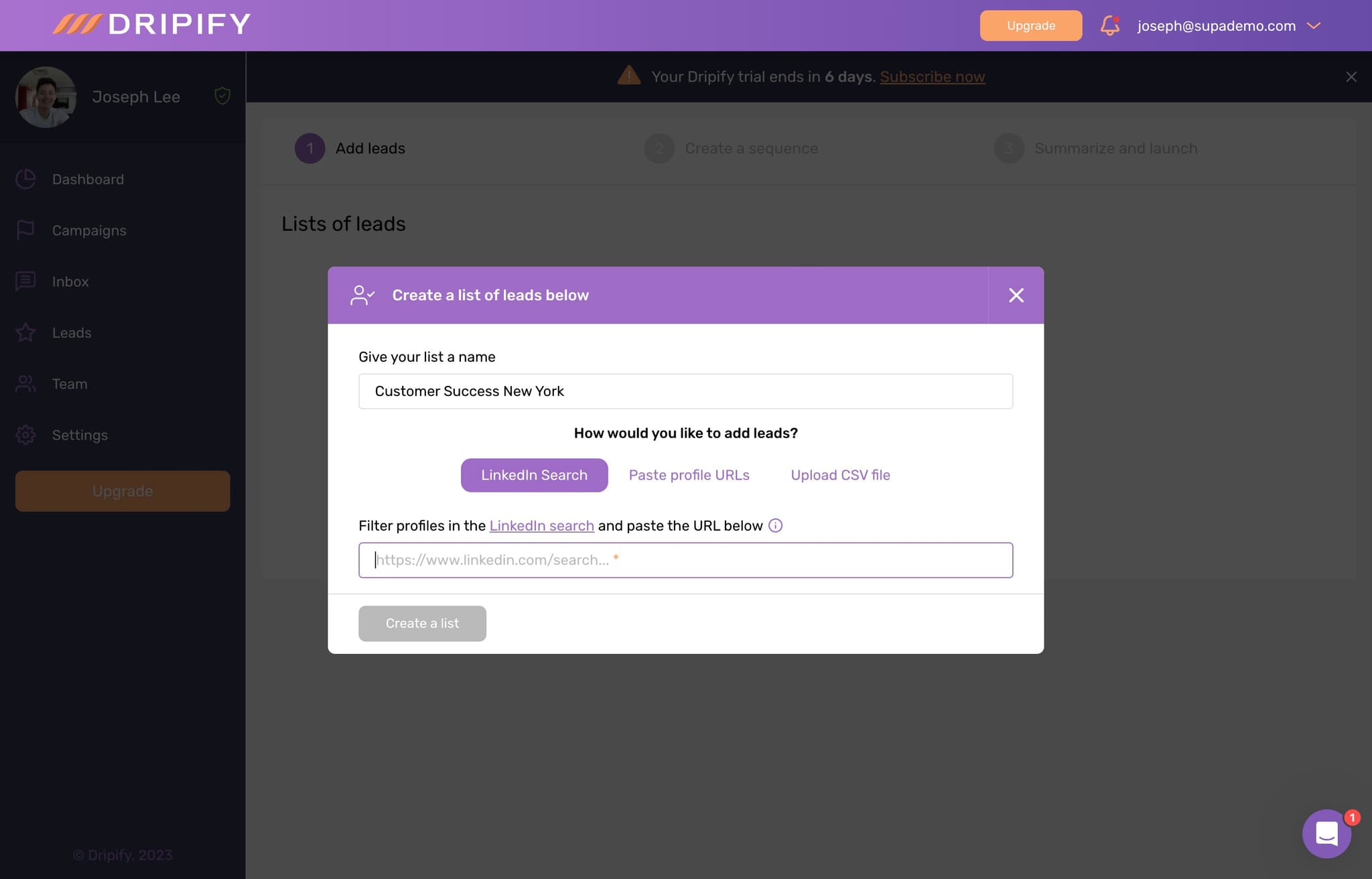
Select Prospects from Results
Click on the prospects you want to add to your sequence. You can select multiple profiles to include in your campaign.
- 8
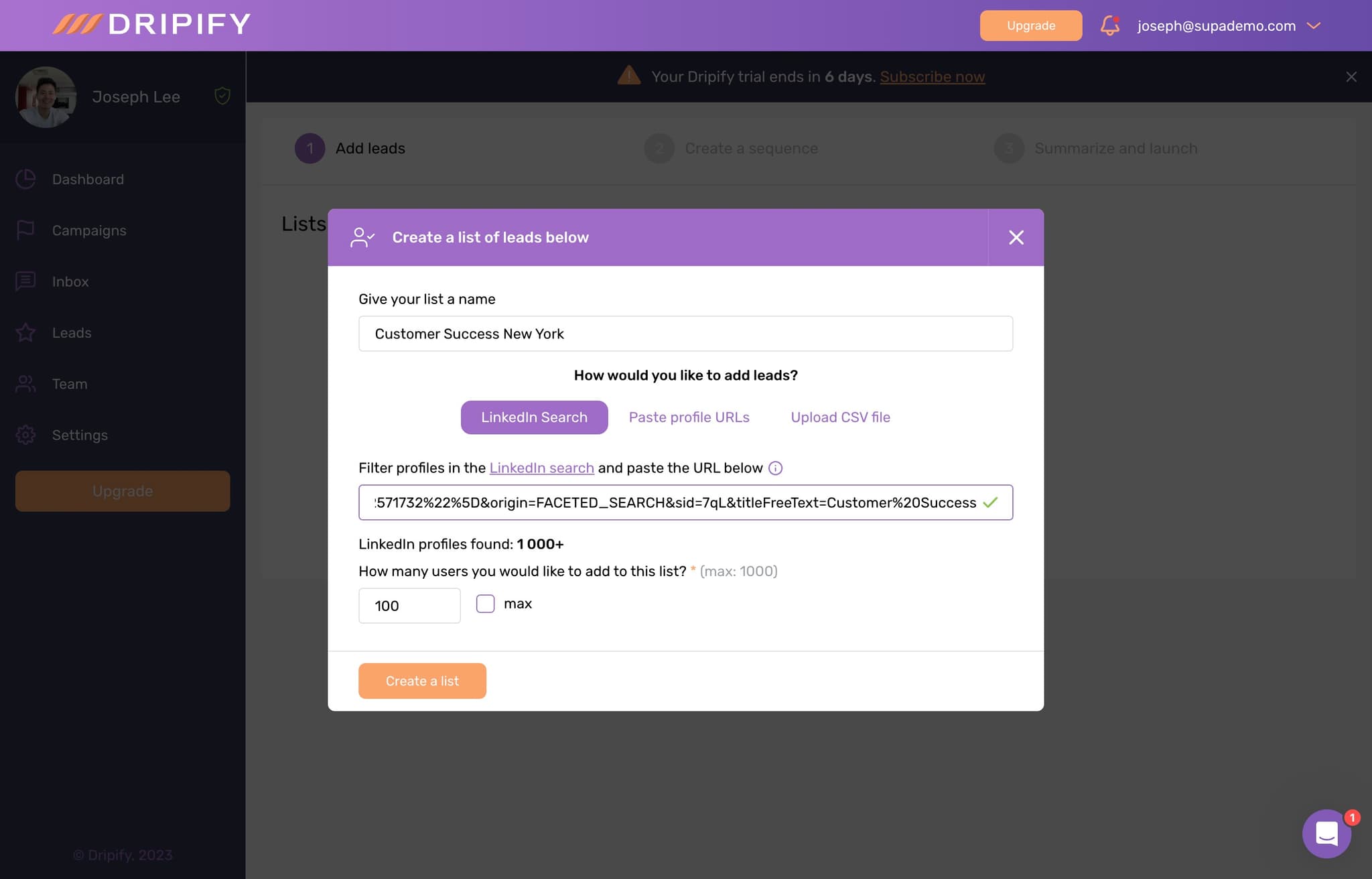
Set Maximum Lead Limit
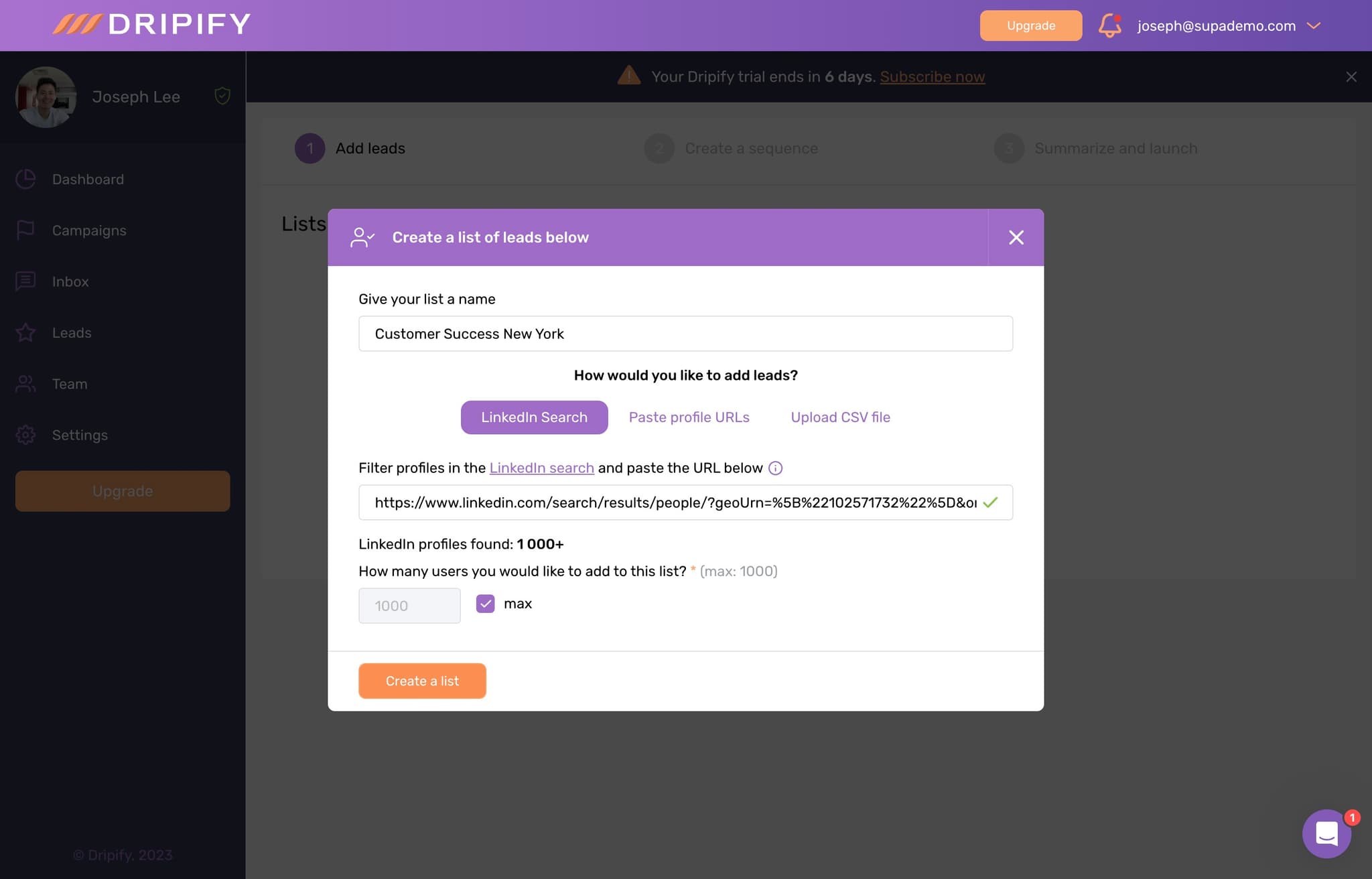
Click on max to define the maximum number of leads you want to add from your search results. This helps you control the scope of your campaign.
- 9
Create a Leads List
Click on Create a list to save your selected prospects as a named list within Dripify. This allows you to organize and reuse lead groups across multiple campaigns.
- 10
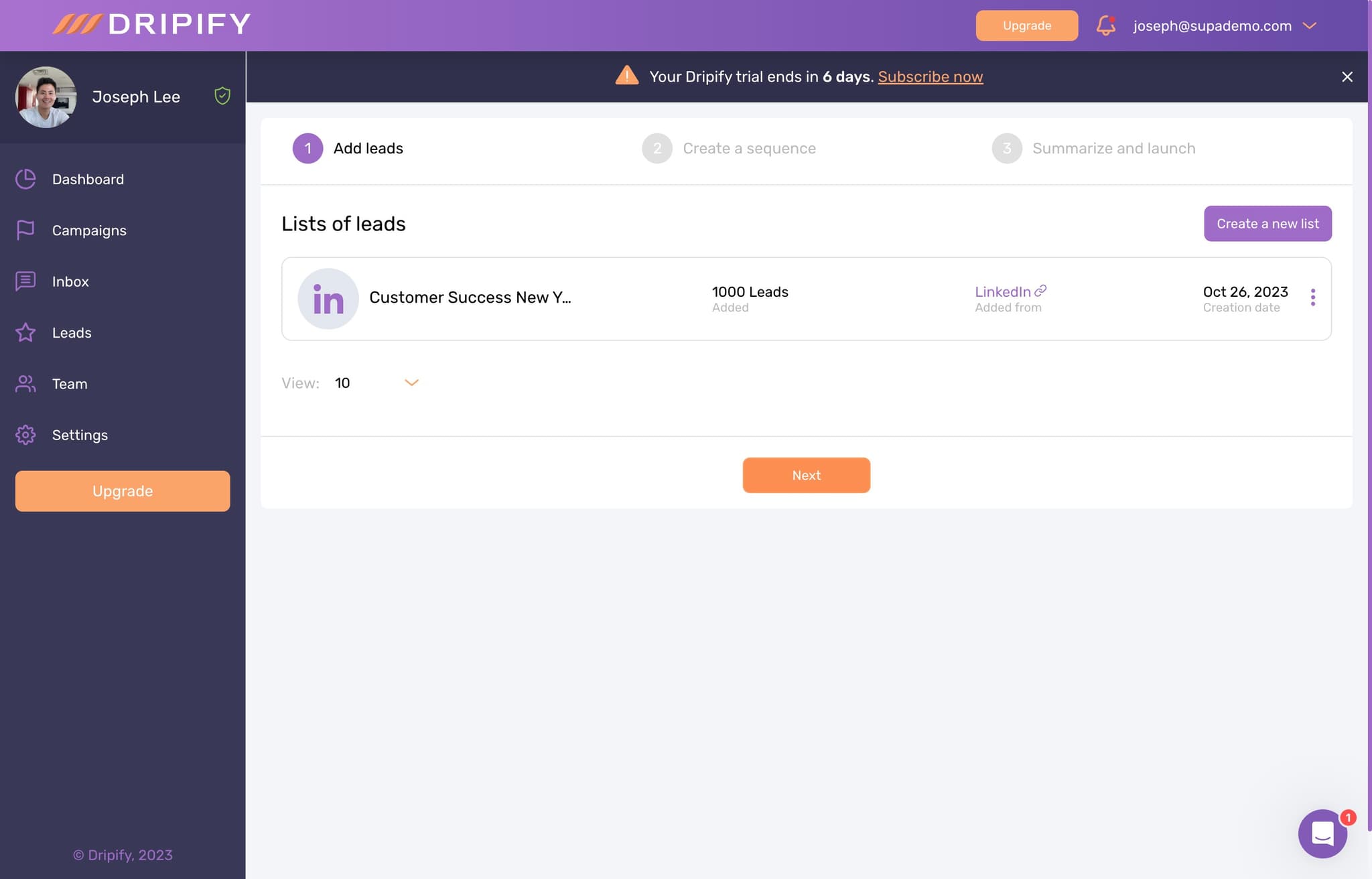
Proceed to Campaign Setup
Click on Next to move forward in the campaign creation process. You're now ready to configure how your sequence will interact with these leads.
- 11
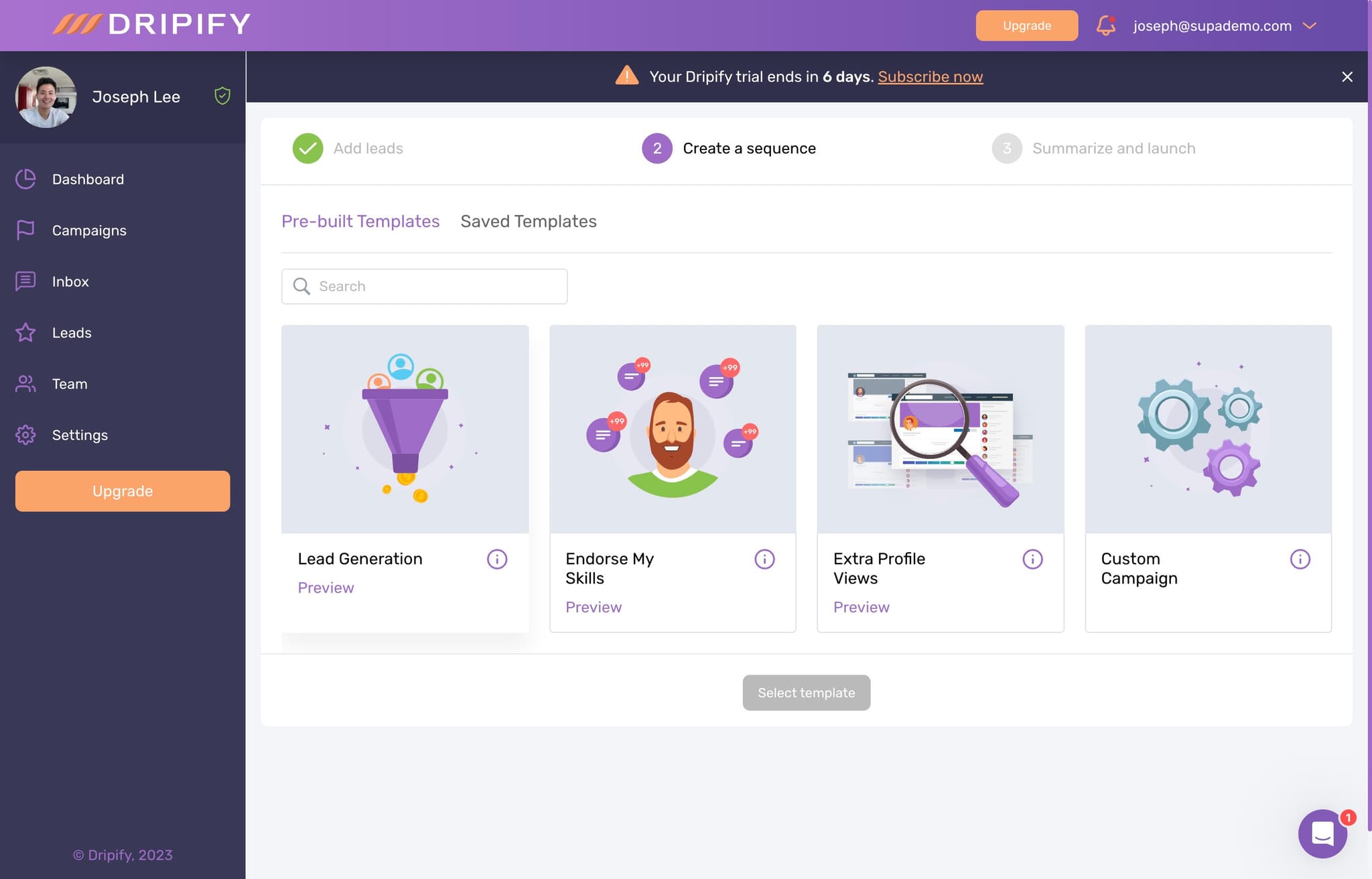
Choose Lead Generation Campaign Type
Click on Lead Generation to select the campaign type optimized for outreach and prospect engagement. This campaign type is designed to automate initial contact and nurturing.
- 12
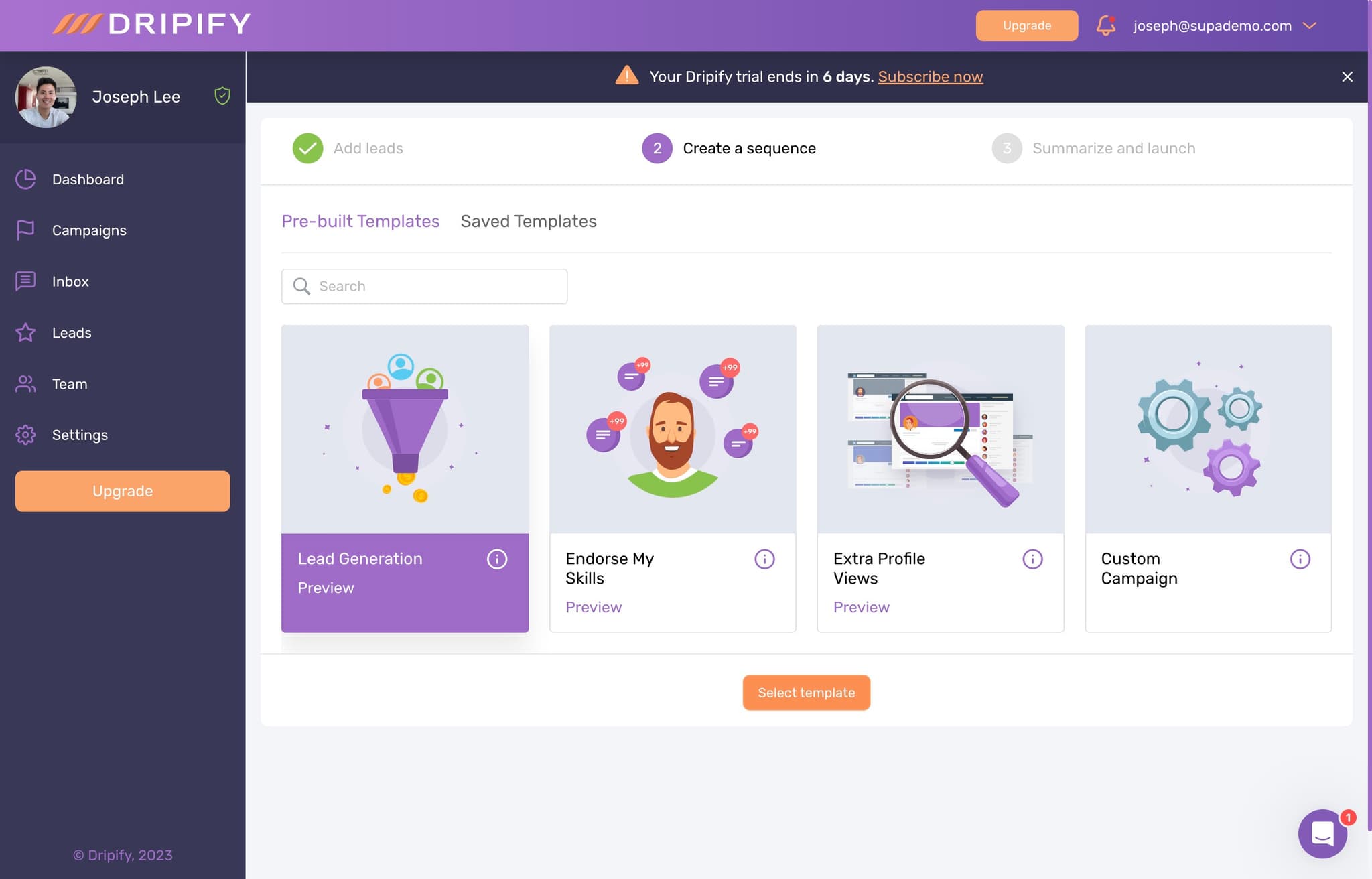
Browse Message Templates
Click on Select template to view Dripify's pre-built message templates. These templates are crafted for different industries and use cases to help you start with proven messaging.
- 13
Pick Your Message Template
Click to select the template that best fits your outreach strategy. The template you choose will serve as the foundation for your initial outreach message.
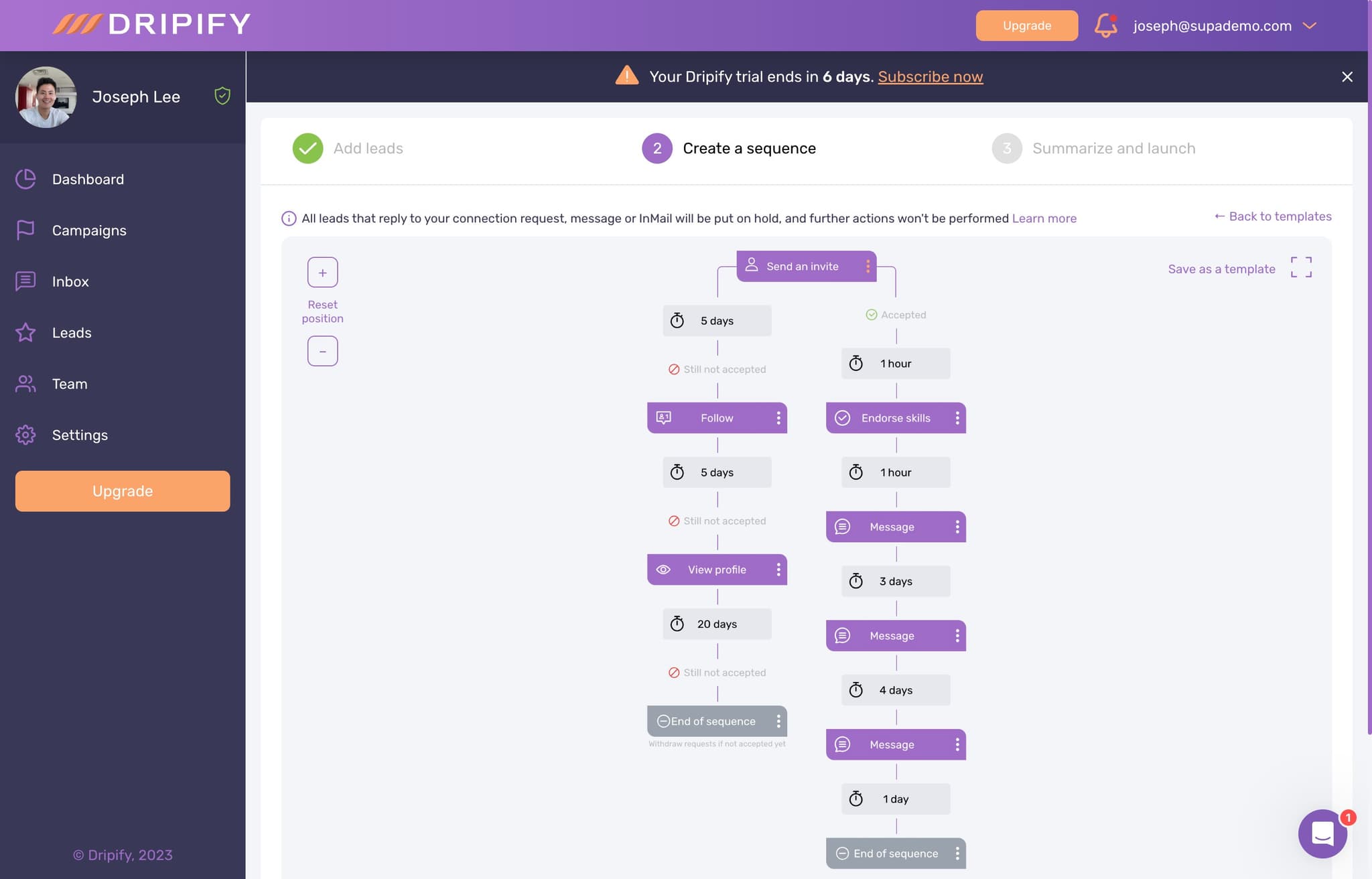
- 14
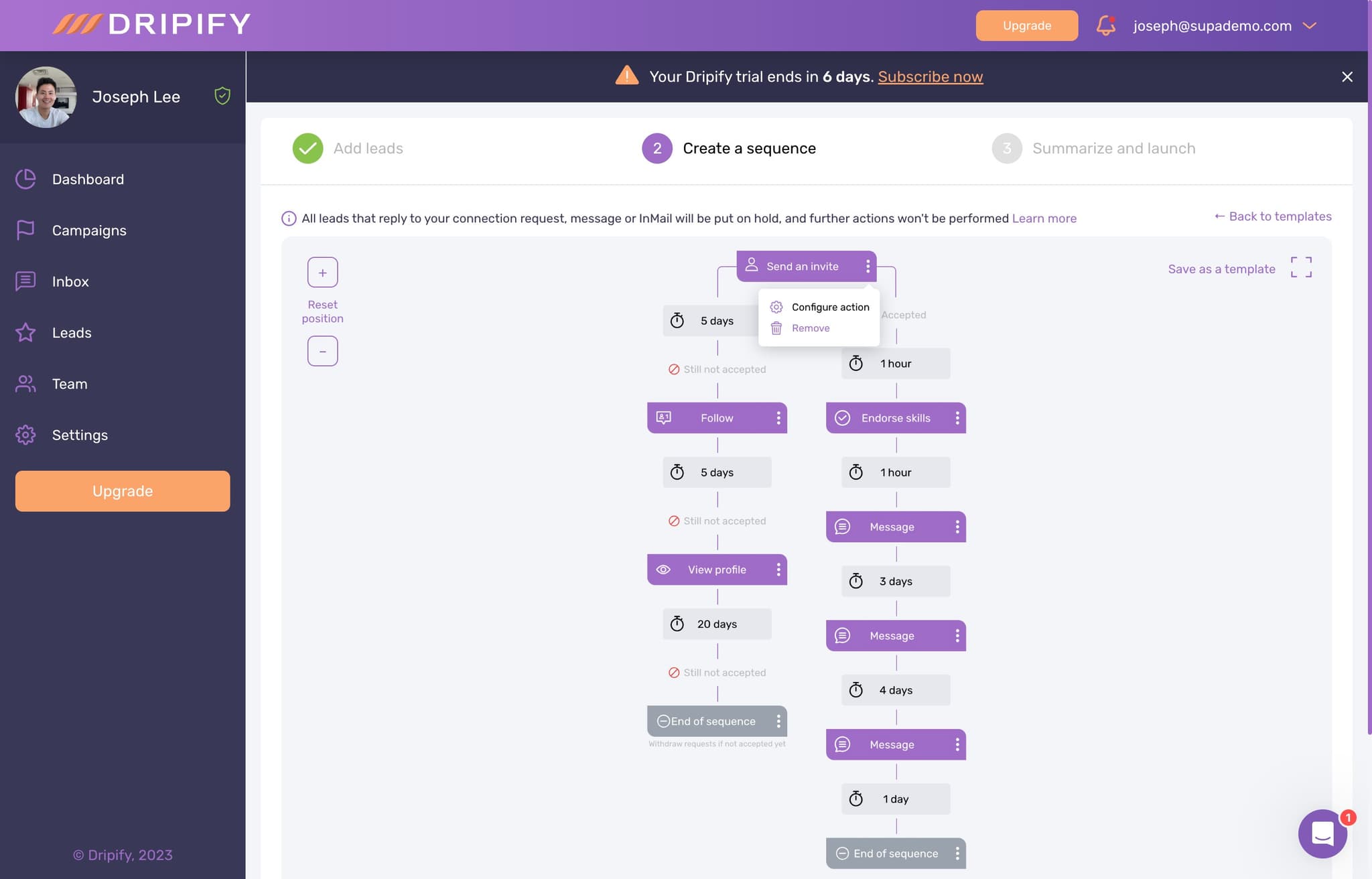
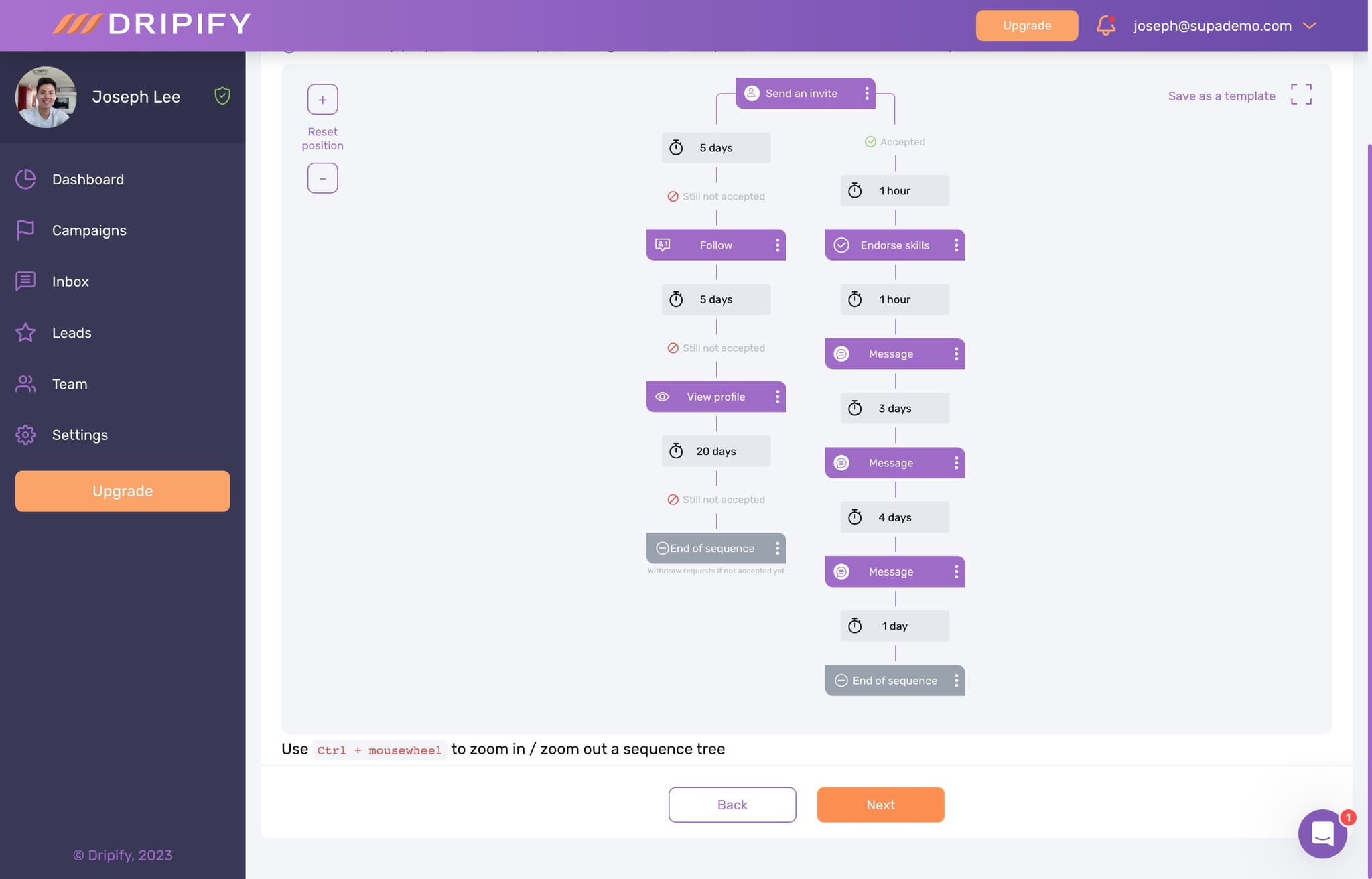
Configure Campaign Actions
Click on Configure action to set up the specific behaviors and follow-up sequences for your campaign. This includes defining delays between messages, response handling, and escalation rules.
- 15
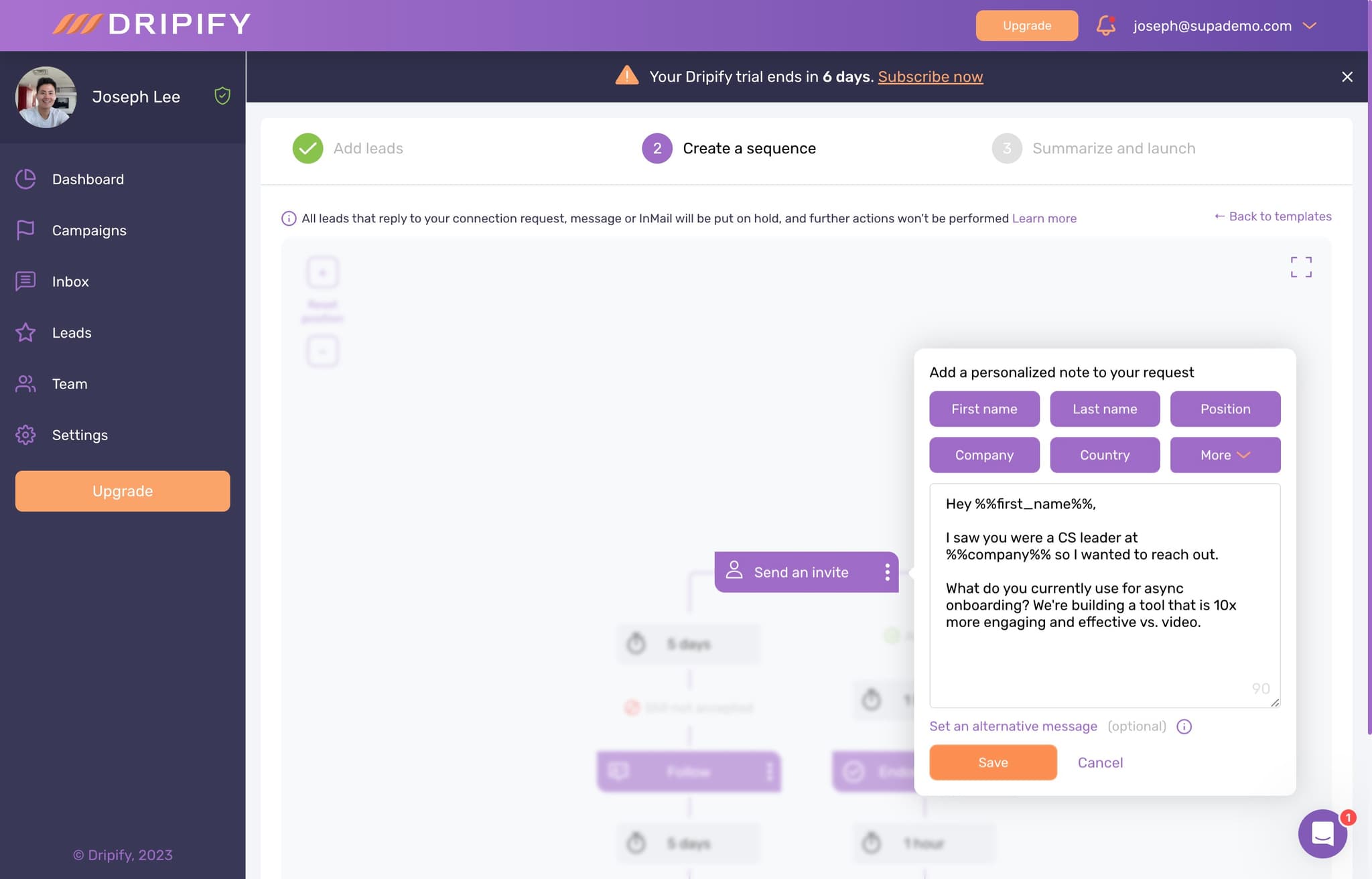
Save Your Configuration
Click on Save to preserve all your campaign settings and configurations. Your sequence is now configured and ready to be reviewed before launch.
- 16
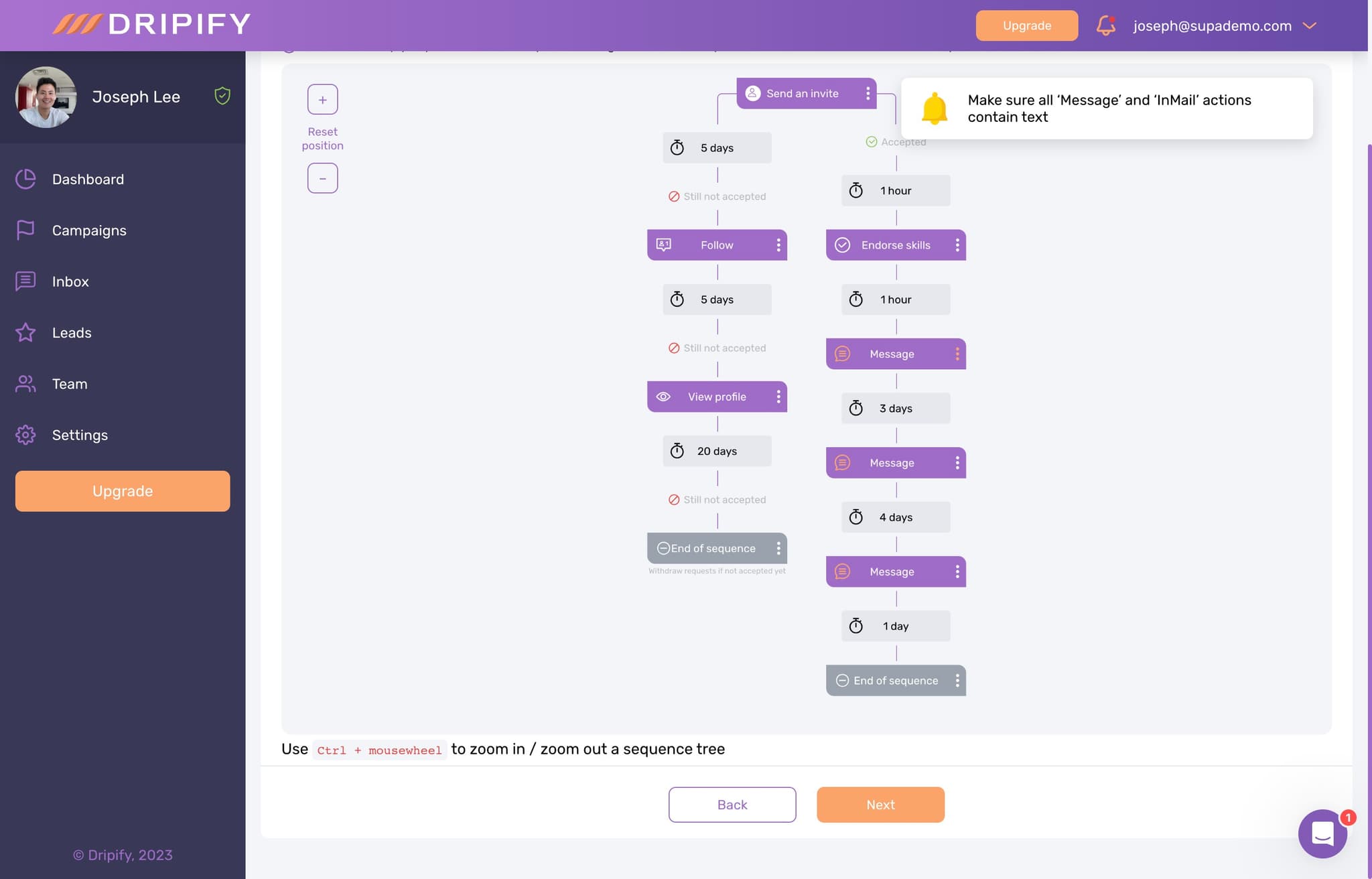
Review Campaign Summary
Click here to view a summary of your campaign settings including your target list, message template, and configured actions. This gives you a final chance to verify everything is correct.
- 17
Move to Launch Settings
Click on Next to proceed to the final step where you'll set launch preferences for your sequence. You can configure timing and any additional parameters before going live.
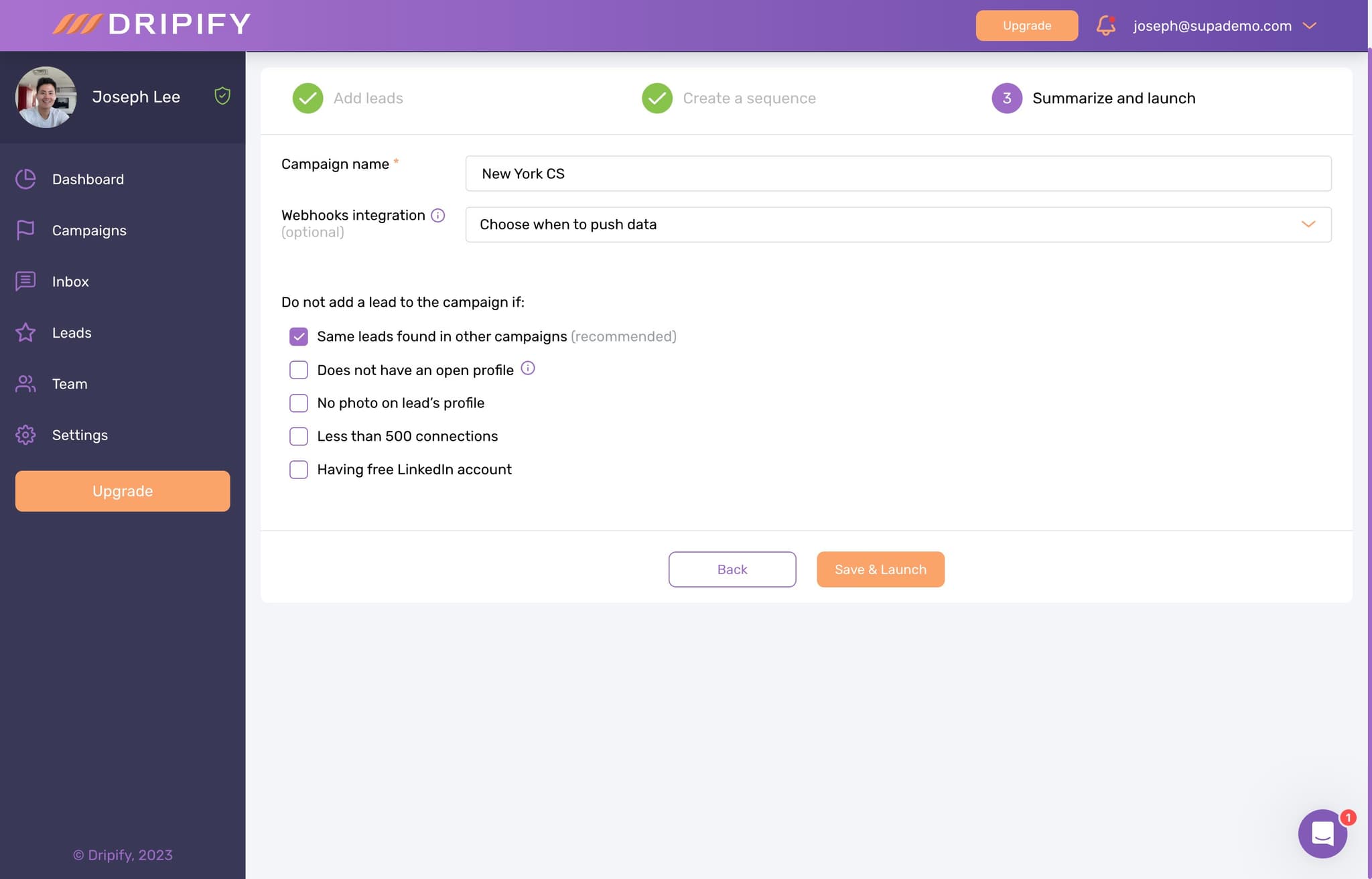
- 18
Save and Launch Your Sequence
Click on Save & Launch to finalize your sequence and begin your automated outreach campaign. Your sequence is now active and will start reaching out to your leads according to your configured schedule.
Frequently asked questions
Common questions about how to create a sequence on dripify.
Yes, Dripify allows you to edit sequences after launch. You can adjust message templates, timing, and follow-up actions without restarting your campaign. However, changes typically apply to new leads rather than those already in the sequence.
Dripify's Lead Generation campaign type automatically manages connection requests and multi-touch sequences. It tracks responses and can adjust follow-ups based on whether prospects accept your request or engage with your messages, helping you focus on warm leads.
Focus on specific criteria like job title, industry, company size, and location relevant to your product or service. Narrower filters typically yield higher-quality leads and better conversion rates than broad searches. Test different filter combinations to find what works best for your offering.
Yes, when you create a list through your LinkedIn search filters, you can save it in Dripify for reuse. This saves time on future campaigns and ensures consistency in your lead qualification criteria across multiple sequences.
It's recommended to start with a smaller test batch of 50-100 leads to validate your messaging and sequence timing before scaling up. This allows you to monitor response rates and refine your approach before launching larger campaigns.