Skip to content
Guided demos

Create guided demos from HTML or screenshots

Clone your app's HTML for a demo that looks and feels live, or capture screenshots of any web app. Then add hotspots, voiceover, and branching, and share the demo with one link.

Live examples

Two ways to capture

Pick the capture that fits the demo

Either one becomes a guided demo with hotspots, chapters, and analytics.

HTML capture

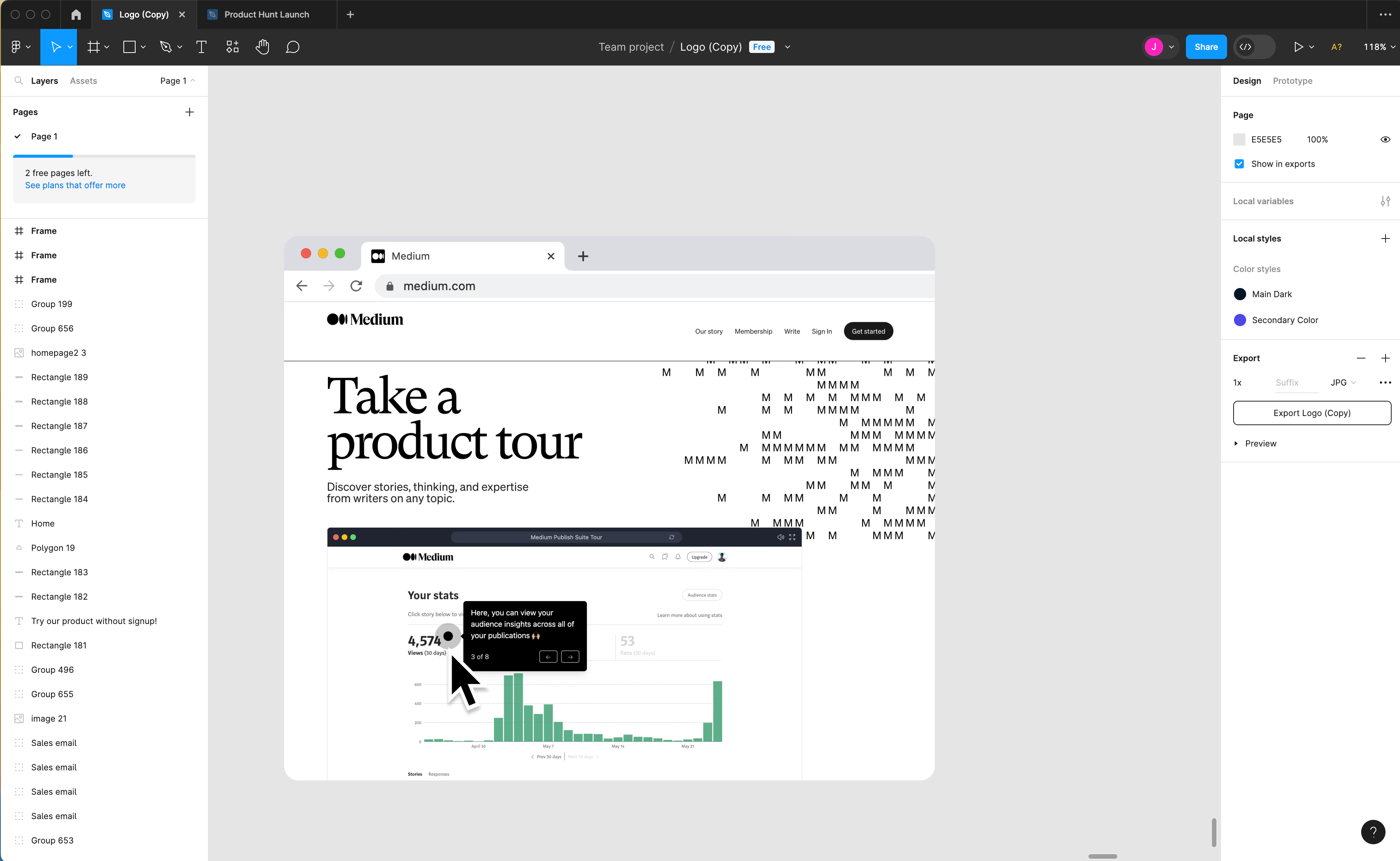
Supademo copies each page's HTML and CSS, so text, numbers, and logos stay editable after you record. Each step is a pixel-perfect copy of your app.

Best for

  • Sales demos you personalize per account
  • Sandbox-style walkthroughs
  • Pages you'll need to edit or redact later
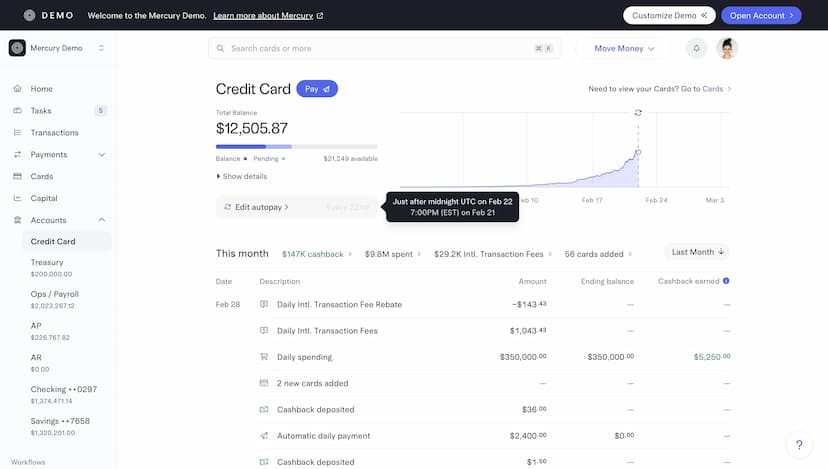
Screenshot capture

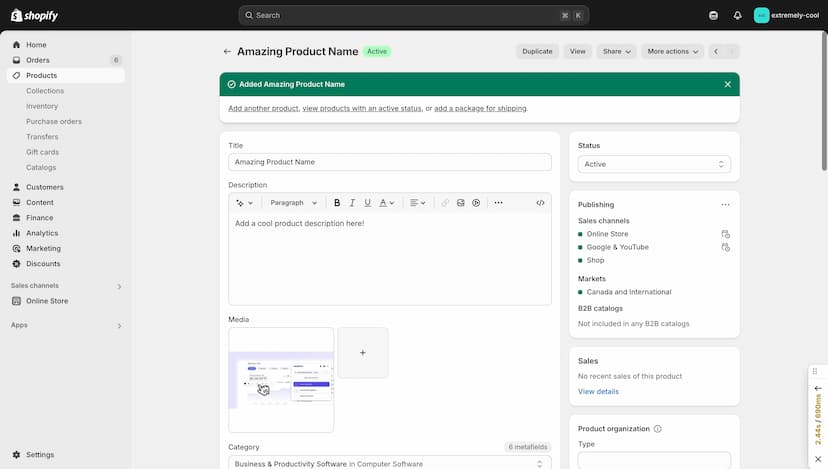
Supademo saves a screenshot at every click, so it works on any web app with no setup. Annotate, blur, and edit each step afterward.

Best for

  • How-to guides and onboarding flows
  • Training guides for internal tools
  • Quick walkthroughs you record in a minute

How it works

From one recording to a demo you can share

Record a workflow once, edit it as often as you need, and share it with a link or an embed.

Capture

Open the Chrome extension, pick HTML or screenshots, and click through the workflow once.

  • Set the recording size
  • Hide sensitive data while you record
  • Capture each click as a step

Edit

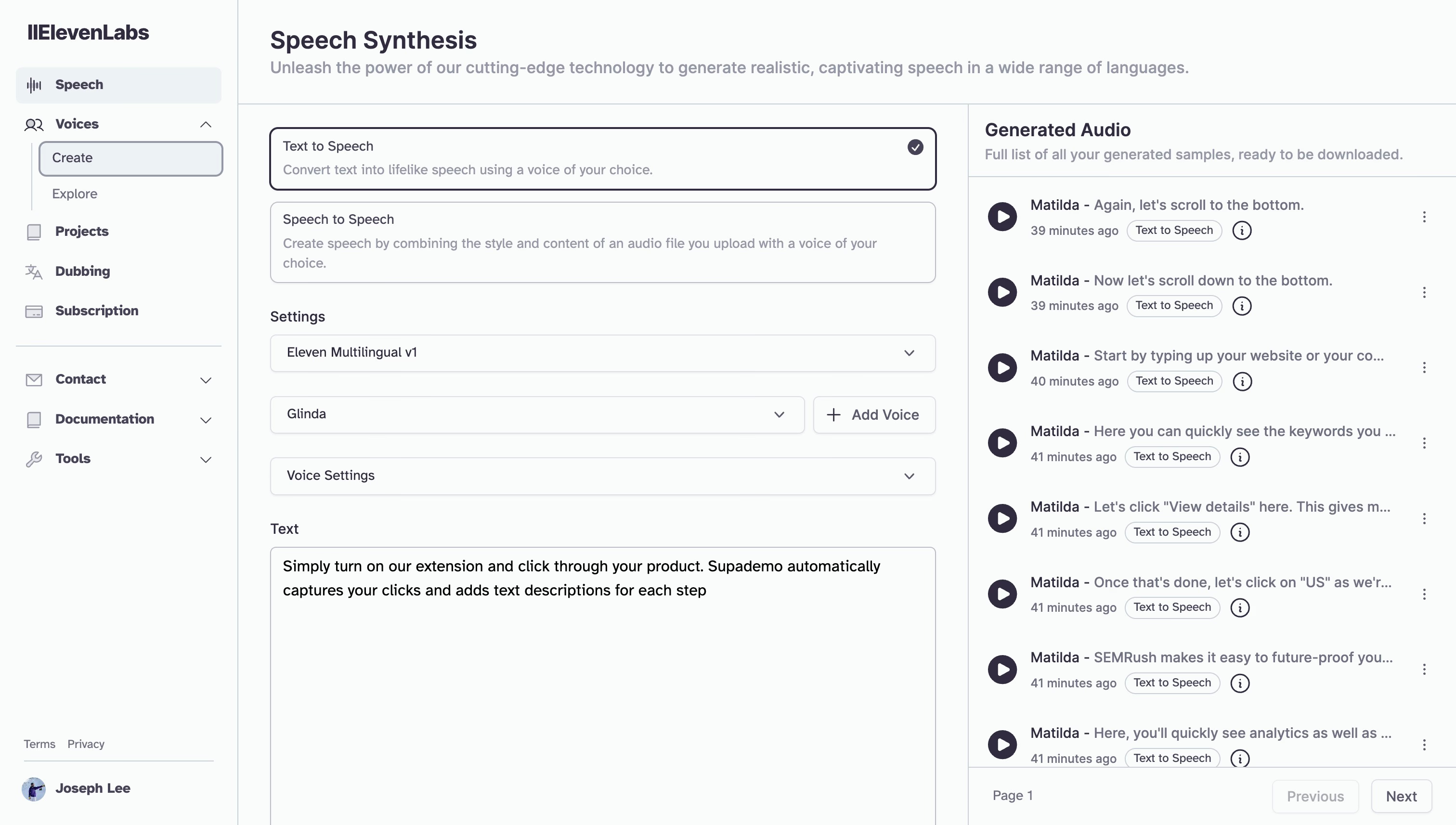
Rewrite text and numbers, swap logos, blur private data, and add an AI voiceover.

  • Add hotspots and annotations
  • Reorder steps and add chapters
  • Let viewers pick a path by role

Share

Send a tracked link or embed the demo on your site, then see who finished it and where they dropped off.

  • Personalize the link for each viewer
  • Embed it in your help center or app
  • Add it to a demo hub or showcase

Edit after you record

Change the demo without recording it again

Fix a typo, swap a logo, or translate the whole demo in the editor, by hand or with AI.

FAQs

Commonly asked questions about Supademo. Have other questions? Reach out and our team will be happy to help.

A guided demo is a click-through copy of your product with hotspots that walk the viewer through a workflow step by step. Viewers open it from a link or an embed without logging in to your product, and you don't need to keep a live demo environment running.

HTML capture copies each page's HTML and CSS, so the text, numbers, and logos stay editable after you record. Screenshot capture saves an image at every click. Both become guided demos with hotspots, chapters, and analytics.

Use HTML capture for demos you'll personalize for each deal, like sales and marketing demos. Use screenshots for guides, onboarding flows, and walkthroughs you want to record quickly.

Yes. In an HTML demo you can click any text and type over it, swap logos and images, and change data. In either kind you can add hotspots and annotations, blur private data, add an AI voiceover, and reorder steps. AI Command and the Supademo MCP server can make these edits for you.

Use Hide Sensitive Data in the Chrome extension before you record, or blur and redact elements in the editor afterward.

Copy a tracked share link, or embed the demo on your website, in your help center, or inside your app. Analytics show who viewed it, how far they got, and where they dropped off.

Yes. The Free plan includes 5 guided demos captured as screenshots. HTML capture is part of the Business, Growth, and Enterprise plans.