How to Duplicate in Figma

Duplicating elements in Figma is one of the most efficient ways to speed up your design workflow. Whether you're creating multiple instances of a component or repeating a design element across your canvas, knowing how to duplicate saves time and ensures consistency. This guide walks you through the process step by step.
Quick summary
In this tutorial, you'll learn how to duplicate elements in Figma using the platform's built-in duplication feature. You'll discover the quickest methods to create copies of your designs and understand when duplication is the most efficient approach for your project workflow.
Why this matters
Duplication is a fundamental technique in Figma that accelerates design work by eliminating the need to recreate elements from scratch. In real-world projects, duplicating components, frames, and design elements helps maintain consistency across your designs while reducing repetitive manual work. Mastering this skill is essential for working efficiently on larger projects with multiple similar elements.
Step-by-step guide
- 1
Select the element to duplicate
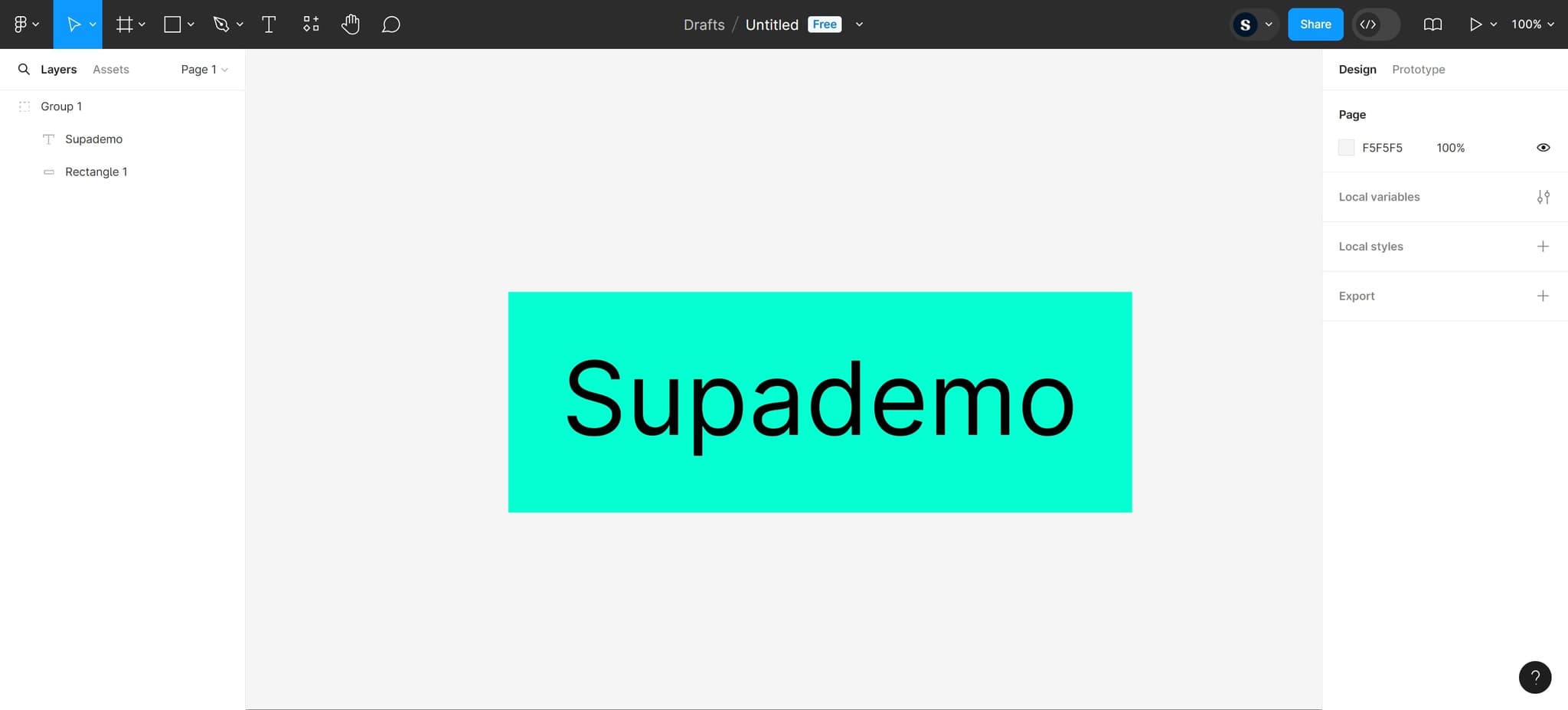
Click on the design element you want to copy. This could be a shape, text box, component, or any other object on your canvas. You'll see the element become highlighted with selection handles around it.
- 2
Access the duplication option
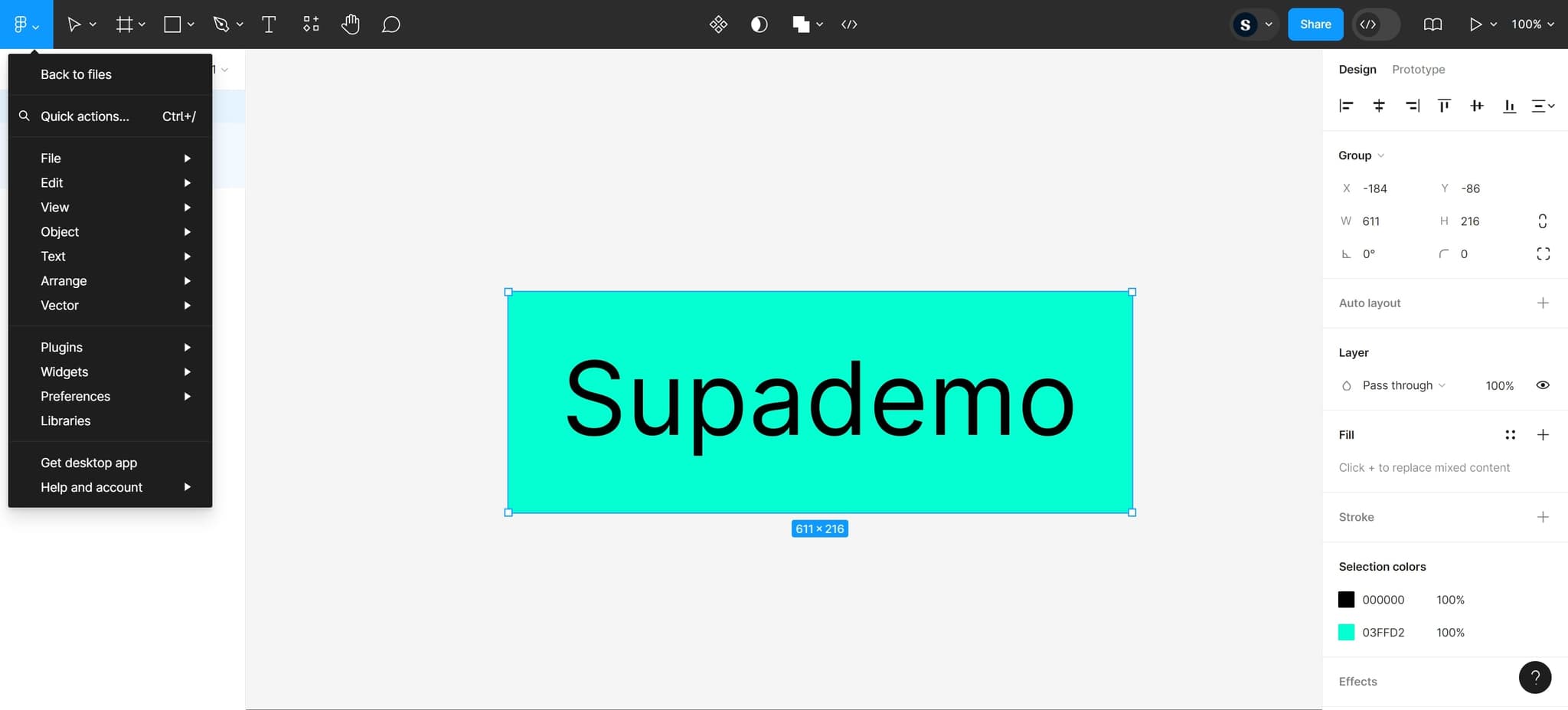
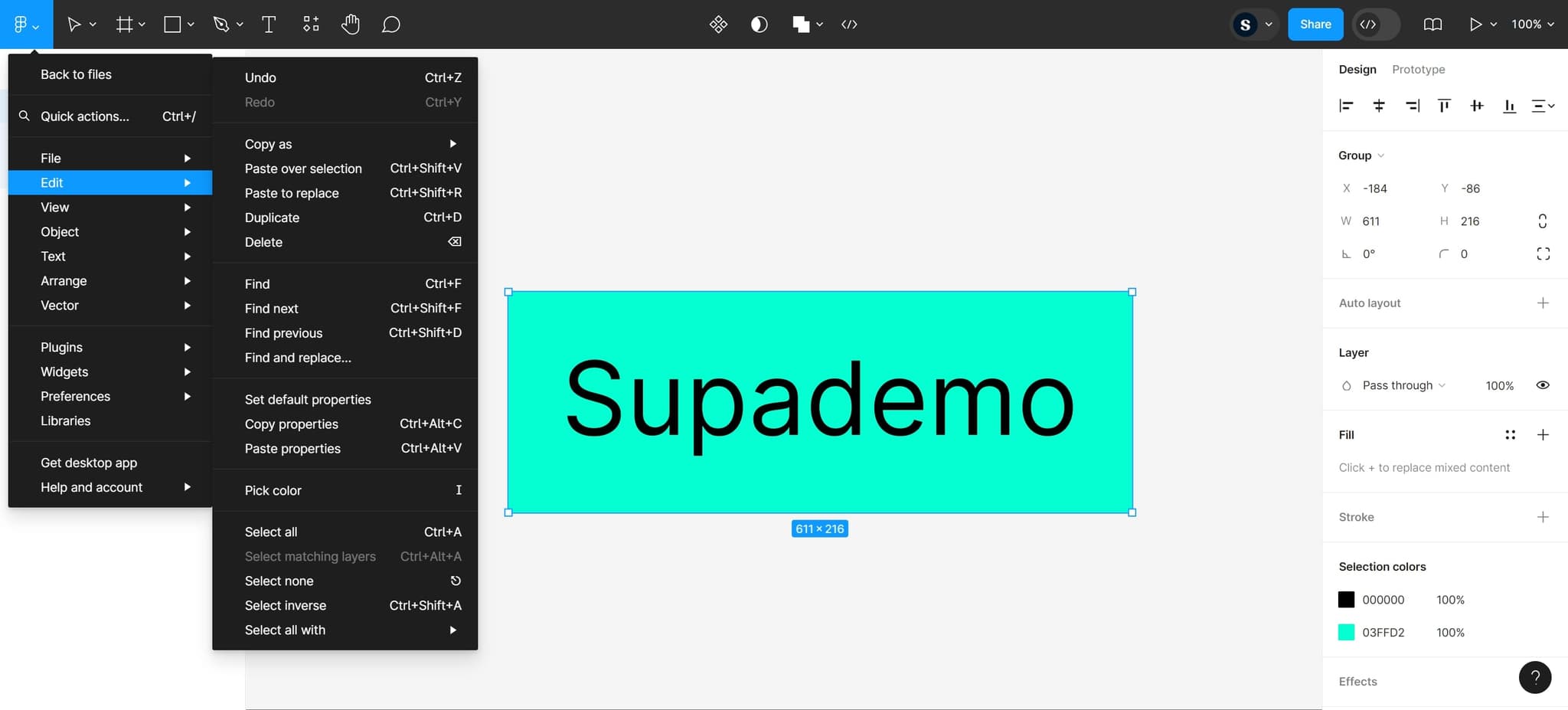
Look for the duplication option in the menu. You can use the keyboard shortcut Ctrl+D (Windows) or Cmd+D (Mac) for the fastest approach, or access it through the right-click context menu.
- 3
Confirm the duplication action
Complete the duplication by confirming your selection. The duplicated element will appear on your canvas, typically offset slightly from the original so you can see both versions clearly.
- 4
Position the duplicated element
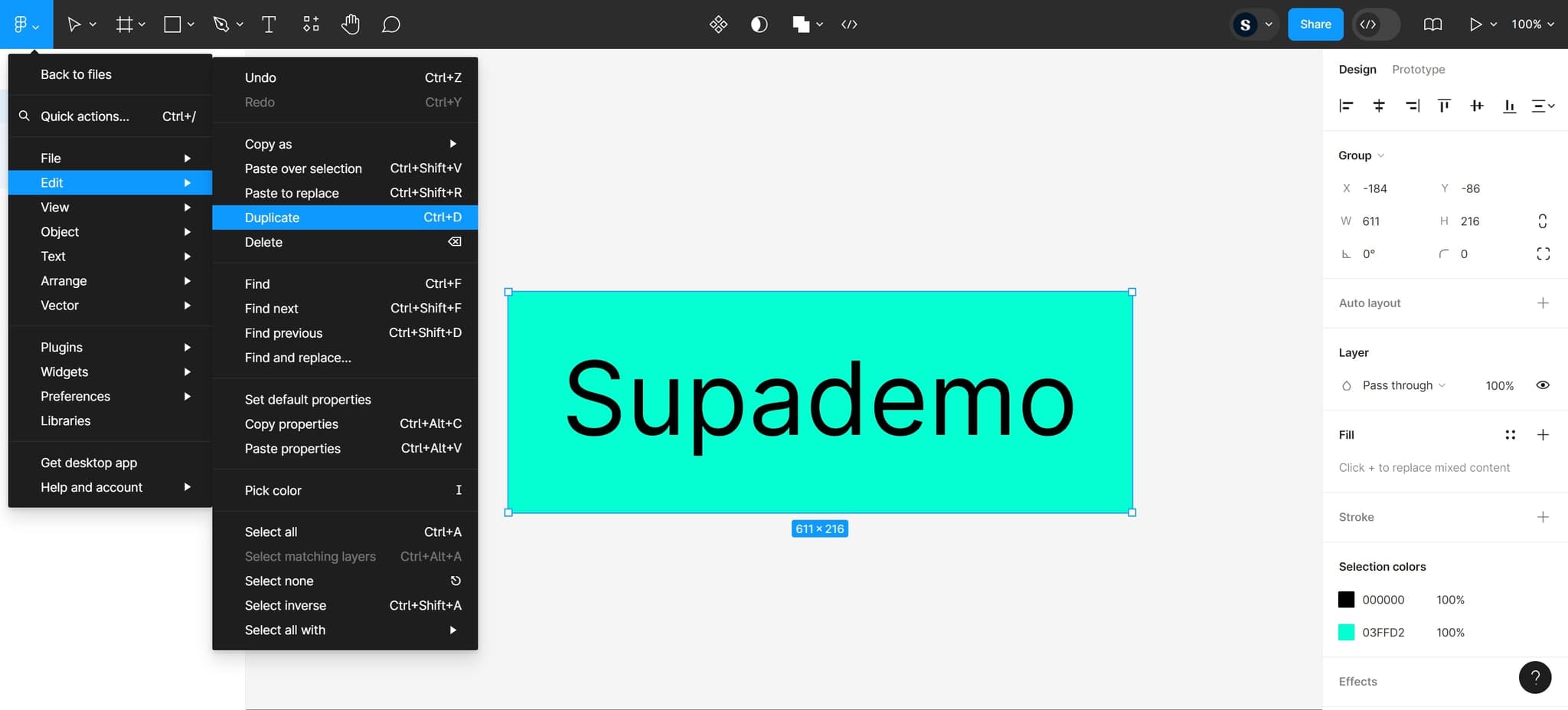
Click and drag the newly created duplicate to position it where you need it on your canvas. You can now edit this copy independently without affecting the original element.
- 5
Verify the duplication is complete
Confirm that both the original and duplicated elements are now visible on your canvas and that the copy maintains all the properties and styling of the original. Your duplication is now ready for any additional edits.
Frequently asked questions
Common questions about how to duplicate in figma.
The quickest method is to select your element and use the keyboard shortcut Cmd+D on Mac or Ctrl+D on Windows. This instantly creates a duplicate without opening any menus. For most users, this keyboard shortcut is significantly faster than right-clicking or using menu options.
Yes, you can select multiple elements by holding Shift and clicking on each one, then use the same duplication shortcuts to copy all of them together. Figma will maintain the relative positions and spacing of your selected elements in the duplicated set.
Duplicating a component creates a separate instance of that component, not a new main component. If you want to duplicate the main component itself, you'll need to use the Assets panel instead. This distinction is important for maintaining design system integrity in larger projects.
Figma places the duplicate directly on top of or slightly offset from the original element so you can see it's been created. The duplicate will remain selected after creation, allowing you to immediately move or edit it. If you can't see it, try dragging the selected element to reveal the duplicate beneath.
Yes, you can undo any duplication by pressing Ctrl+Z (Windows) or Cmd+Z (Mac), or by using Edit menu and selecting Undo. Figma maintains a full undo history, so you can step back through multiple duplication actions if needed.