How to Ungroup in Figma

Ungrouping elements in Figma allows you to break apart grouped objects and work with individual components independently. This is essential when you need to modify specific layers within a group or reorganize your design structure.
Quick summary
In this tutorial, you'll learn how to ungroup elements in Figma by selecting grouped objects and using Figma's ungroup command. By the end, you'll be able to quickly separate grouped layers and access individual components for editing.
Why this matters
Ungrouping is a fundamental workflow in Figma design. It enables you to make precise edits to individual elements, adjust layer hierarchy, and maintain flexibility as your designs evolve and become more complex.
Step-by-step guide
- 1
Upload your Figma file
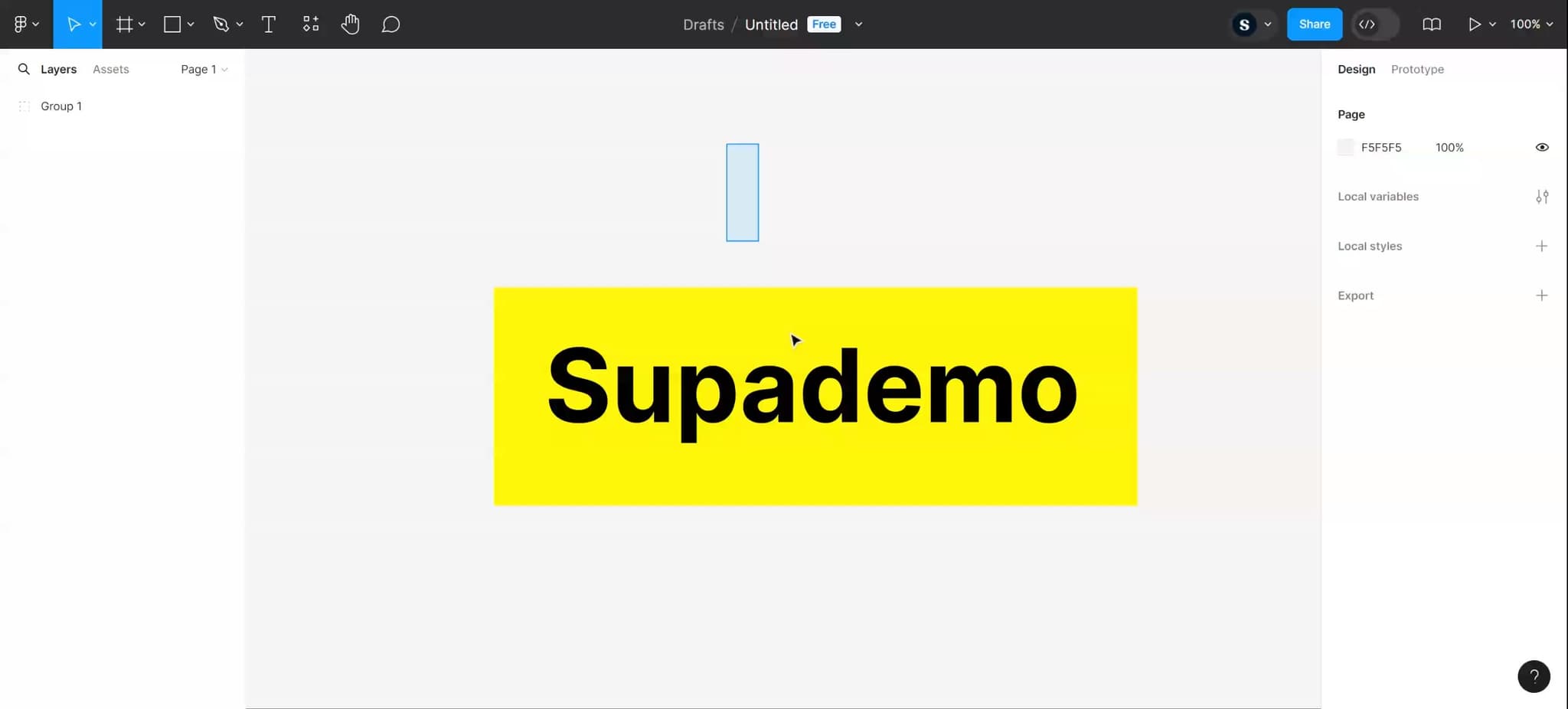
Start by uploading or opening your Figma project that contains grouped elements. Ensure you have access to the file and it's loaded in your workspace.
- 2
Select the grouped element
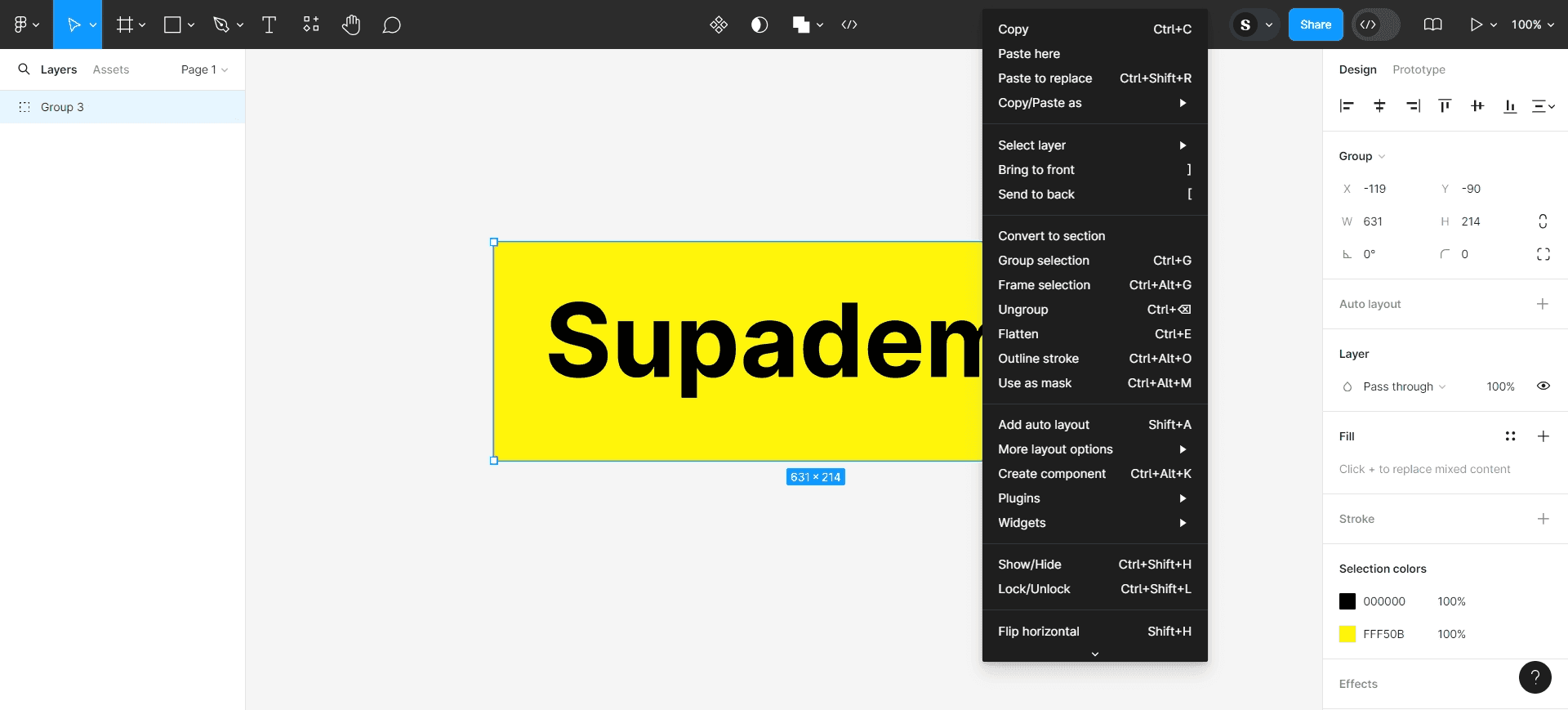
On the canvas, click on the group you want to ungroup. The group will be highlighted with a selection box, and you'll see it listed in the layers panel on the left.
- 3
Access the ungroup option
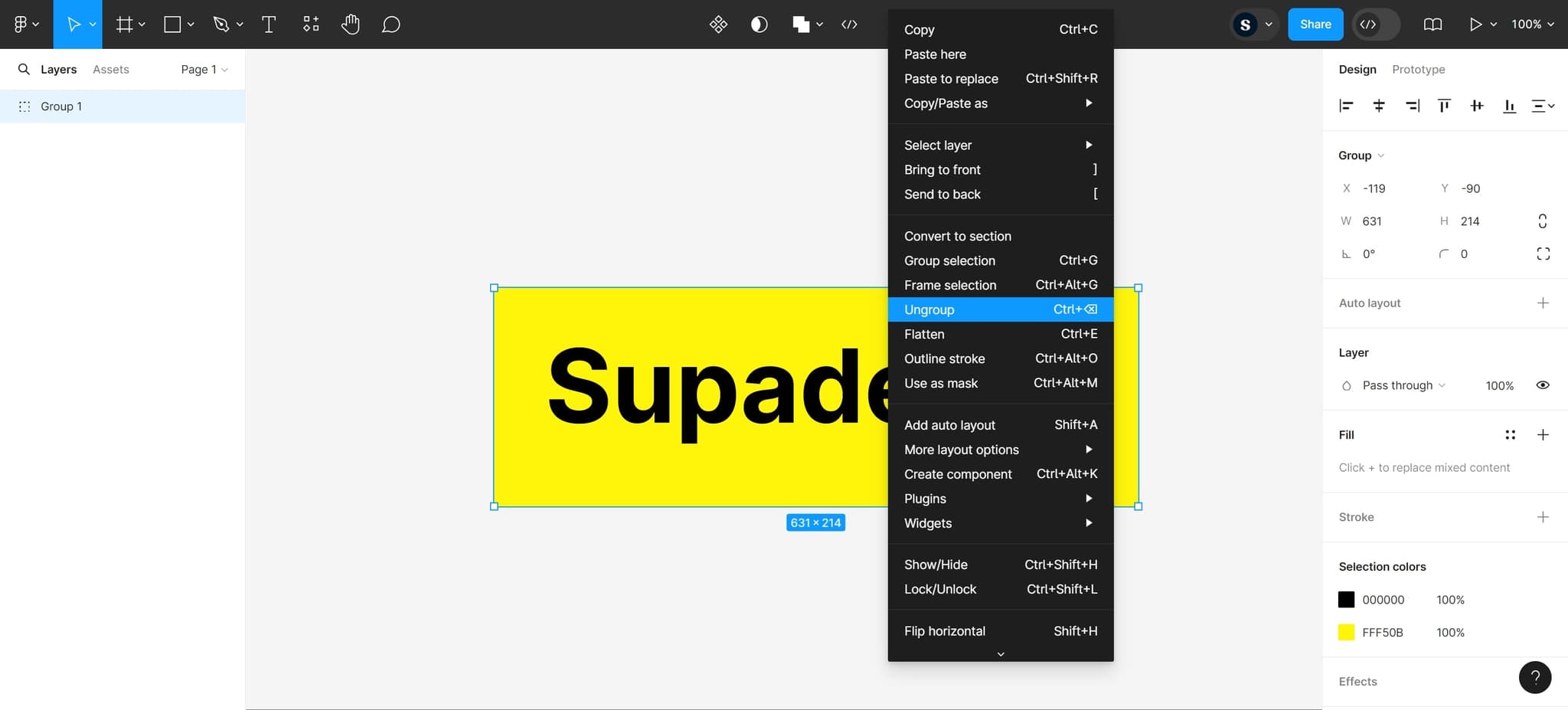
Right-click on the selected group to open the context menu. Look for the ungroup option in the menu that appears.
- 4
Click on the ungroup command
Click the ungroup option to break apart the grouped elements. The individual layers will now be separate and independently selectable on your canvas.

Frequently asked questions
Common questions about how to ungroup in figma.
Yes, you can use Ctrl+Z (or Cmd+Z on Mac) immediately after ungrouping to undo the action and restore the group. Figma maintains full undo history throughout your session.
Ungrouping separates grouped elements into individual layers, while unlocking allows you to edit elements within a locked group without separating them. Use unlocking if you want to keep elements grouped but editable.
No, ungrouping does not move or reposition your elements. They remain in their exact same location on the canvas; they're simply no longer contained within a group.
Yes, if you have groups within groups, you can ungroup multiple times. Each ungroup action separates one level of grouping, so you may need to ungroup several times to fully separate all nested elements.
Yes, you can use Ctrl+Shift+G (or Cmd+Shift+G on Mac) to ungroup selected elements. This keyboard shortcut is faster than using the right-click context menu.