How to Hide Comments in Figma

Comments in Figma can clutter your workspace, especially when working on complex designs with multiple collaborators. Learning how to hide comments helps you maintain a clean, distraction-free design environment while keeping them available when needed. This guide walks you through the process step by step.
Quick summary
In this tutorial, you'll learn how to hide comments in Figma to reduce visual clutter and focus on your design work. By following these straightforward steps, you'll be able to quickly toggle comment visibility on and off as needed.
Why this matters
Hiding comments is essential when you're in deep design mode and need to concentrate on layouts, typography, and visual hierarchy without distraction. Teams often use this feature during presentations or when sharing designs with stakeholders who don't need to see ongoing feedback threads. It's a simple workflow that significantly improves focus and professionalism in collaborative design work.
Step-by-step guide
- 1
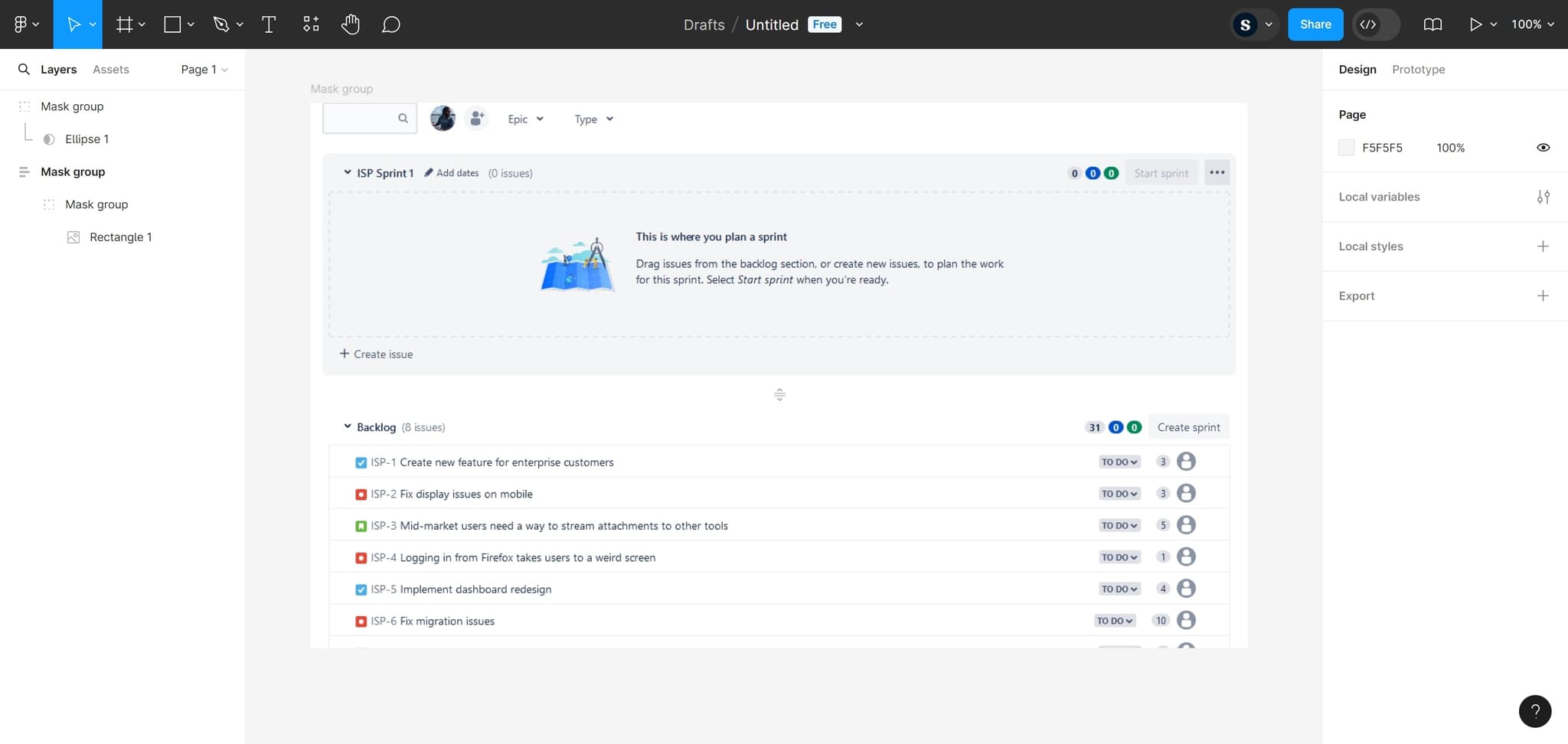
Access the comments menu
Start by clicking on the designated area to open Figma's comments interface. This is typically located in the top navigation or toolbar of your design canvas.
- 2
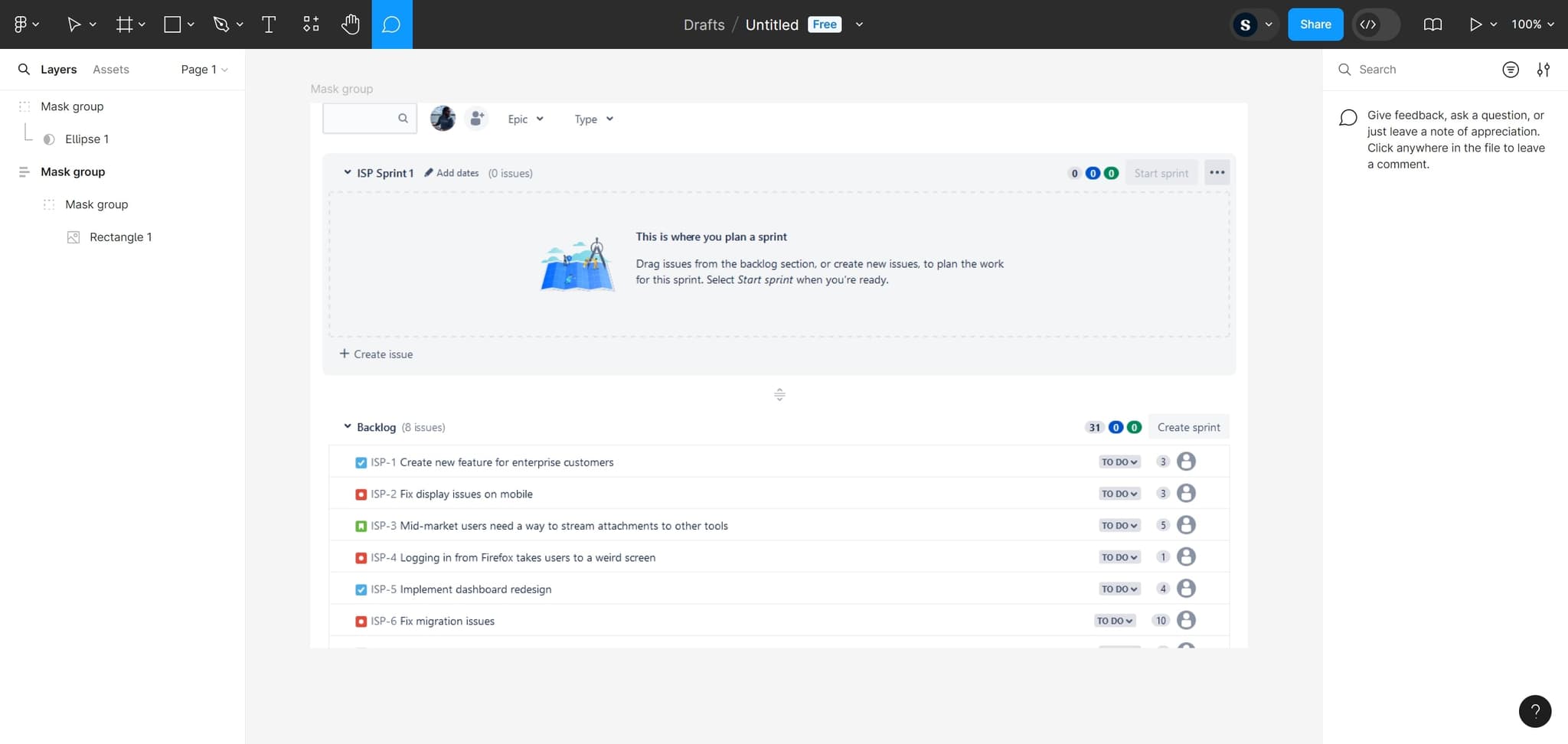
Select the relevant element
Click on the element or frame that contains the comments you want to manage. This focuses Figma on that specific design component.
- 3
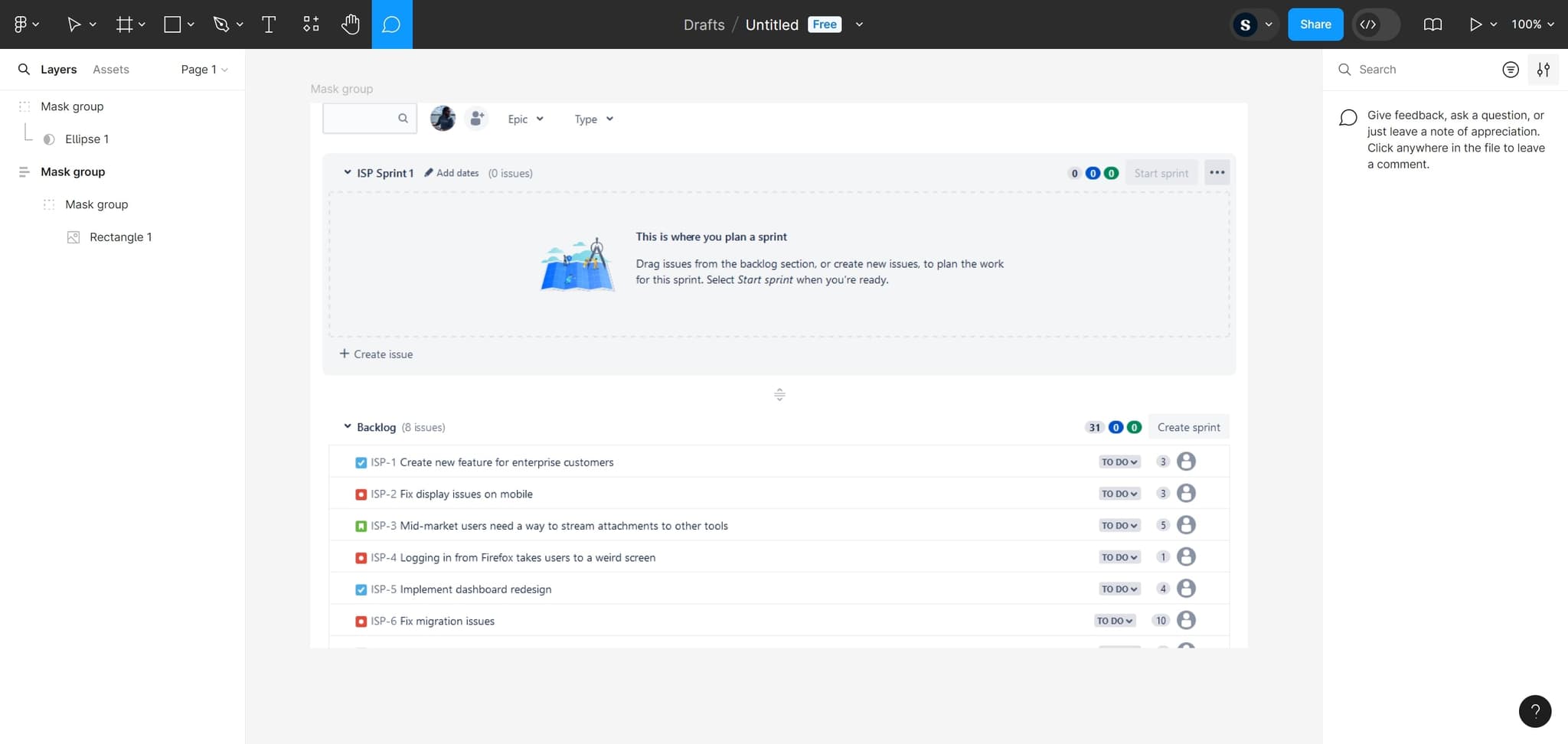
Open comment options
Click on the element again or access its context menu to reveal additional comment-related options. This will display available actions for managing comments on that element.
- 4
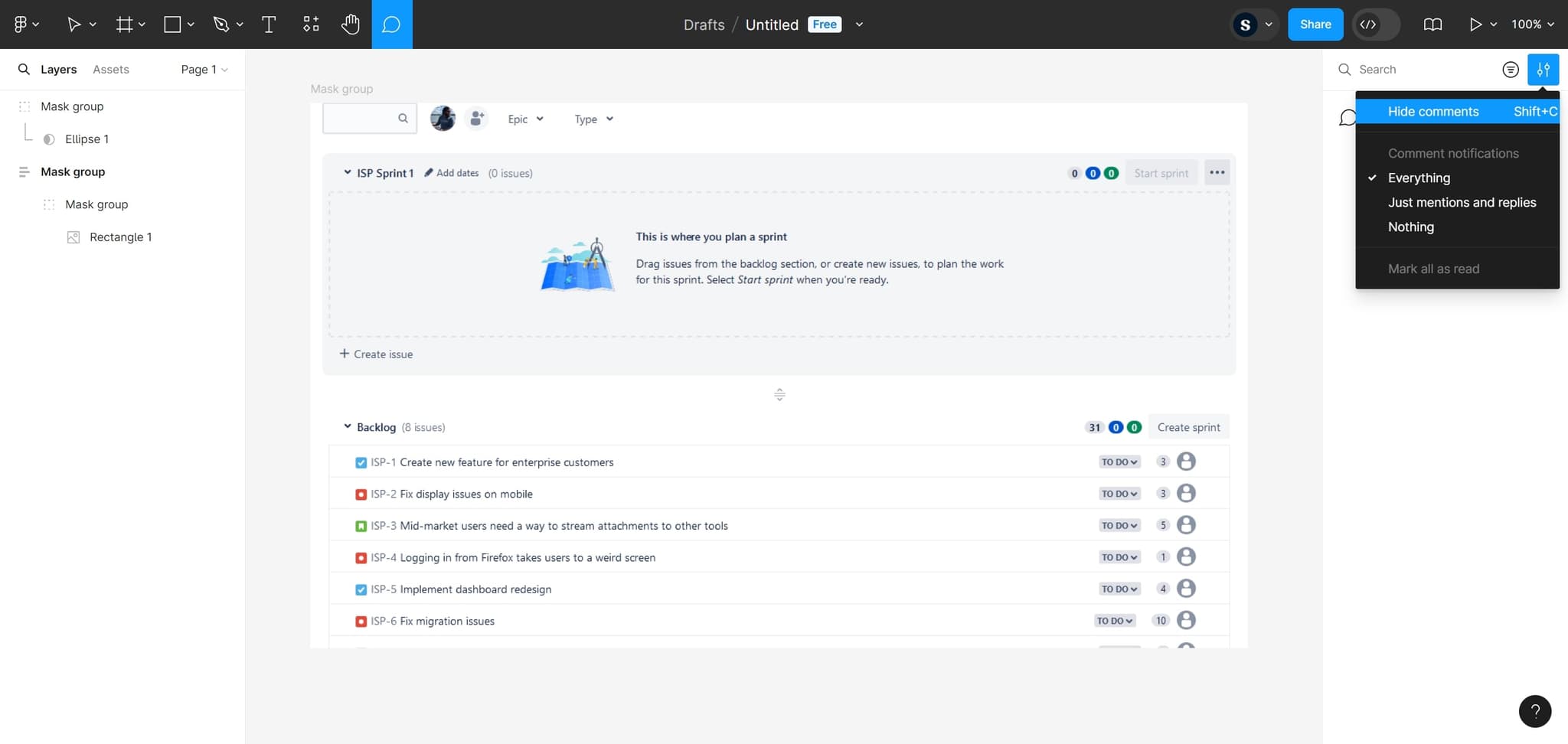
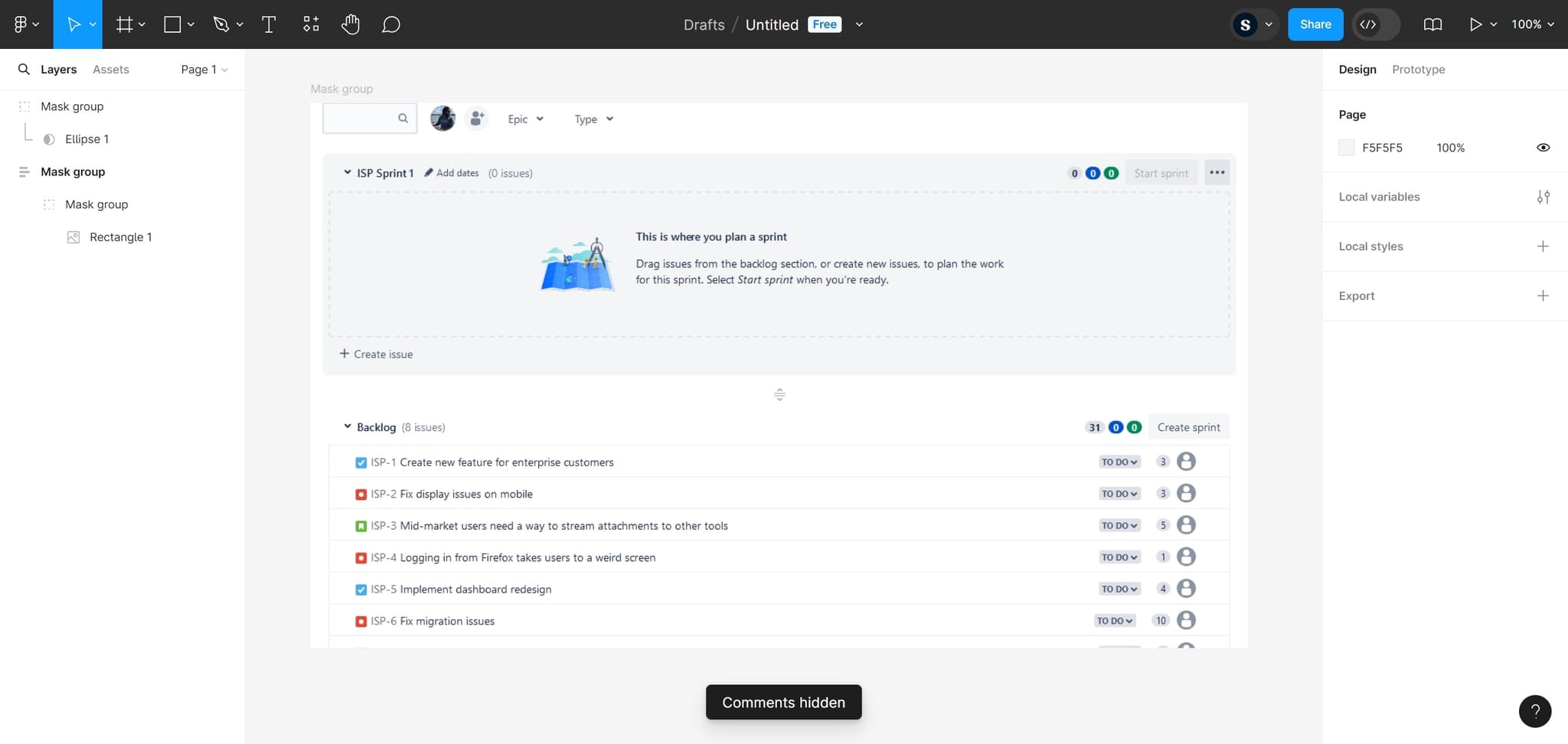
Click Hide comments
Select the 'Hide comments' option from the menu. Once clicked, all comments associated with that element or section will be hidden from your view without being deleted.
- 5
Confirm the action
Click on the final element to complete the process. Your workspace is now cleaned up, and comments remain available to unhide whenever you need them again.
Frequently asked questions
Common questions about how to hide comments in figma.
No, hiding comments only removes them from your view temporarily. All comments remain in Figma's system and can be unhidden at any time by reversing the same steps. Other collaborators can still see comments unless they've also hidden them individually.
Yes, you can hide comments on individual elements or frames. This allows you to selectively hide feedback on certain parts of your design while keeping comments visible on other sections you're actively working on.
No, hiding comments is a personal workspace setting. Each team member can independently choose to hide or show comments without affecting what others see in their Figma workspace.
Follow the same steps and select the 'Show comments' option instead of 'Hide comments'. This will restore visibility of all previously hidden comments on that element.
You can hide comments on a per-element or per-section basis by following these steps for each area. Figma doesn't currently offer a 'hide all comments' option for an entire file, but you can work through elements systematically to achieve a clean workspace.