How to Undo in Figma

Undoing actions in Figma is essential for maintaining a clean design workflow and recovering from mistakes quickly. Whether you've made an accidental change or want to explore different design directions, knowing how to undo efficiently will save you time and frustration.
Quick summary
In this tutorial, you'll learn the step-by-step process for undoing actions in Figma. We'll walk you through accessing the undo function and applying it to your design elements.
Why this matters
Undo functionality is critical in design work because it allows you to experiment freely without fear of losing your progress. Being able to quickly revert unwanted changes keeps your workflow smooth and lets you maintain multiple design iterations without manual workarounds.
Step-by-step guide
- 1
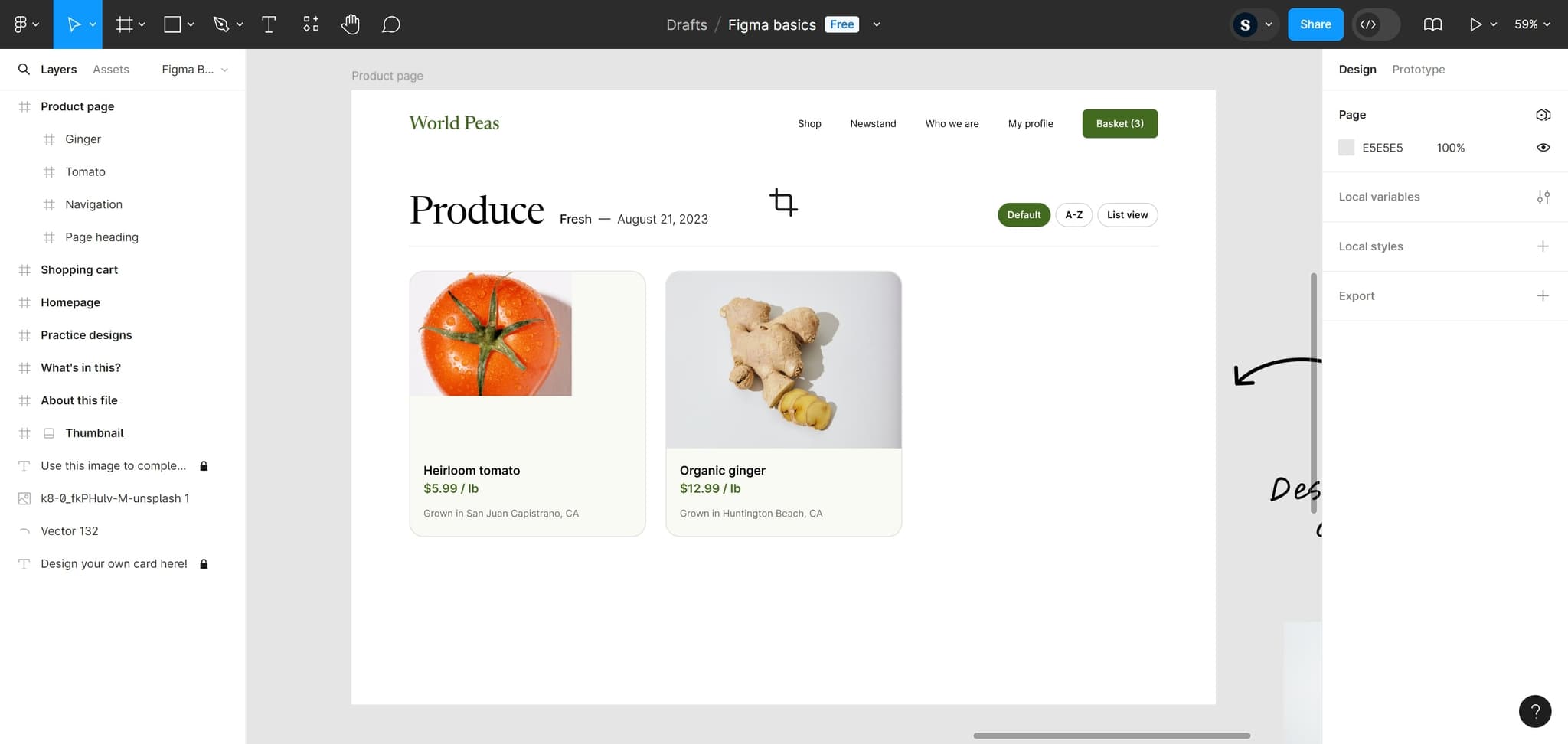
Click to access the menu
Start by clicking the designated area to open the menu options. This will reveal the available actions you can perform in Figma, including the undo function.
- 2
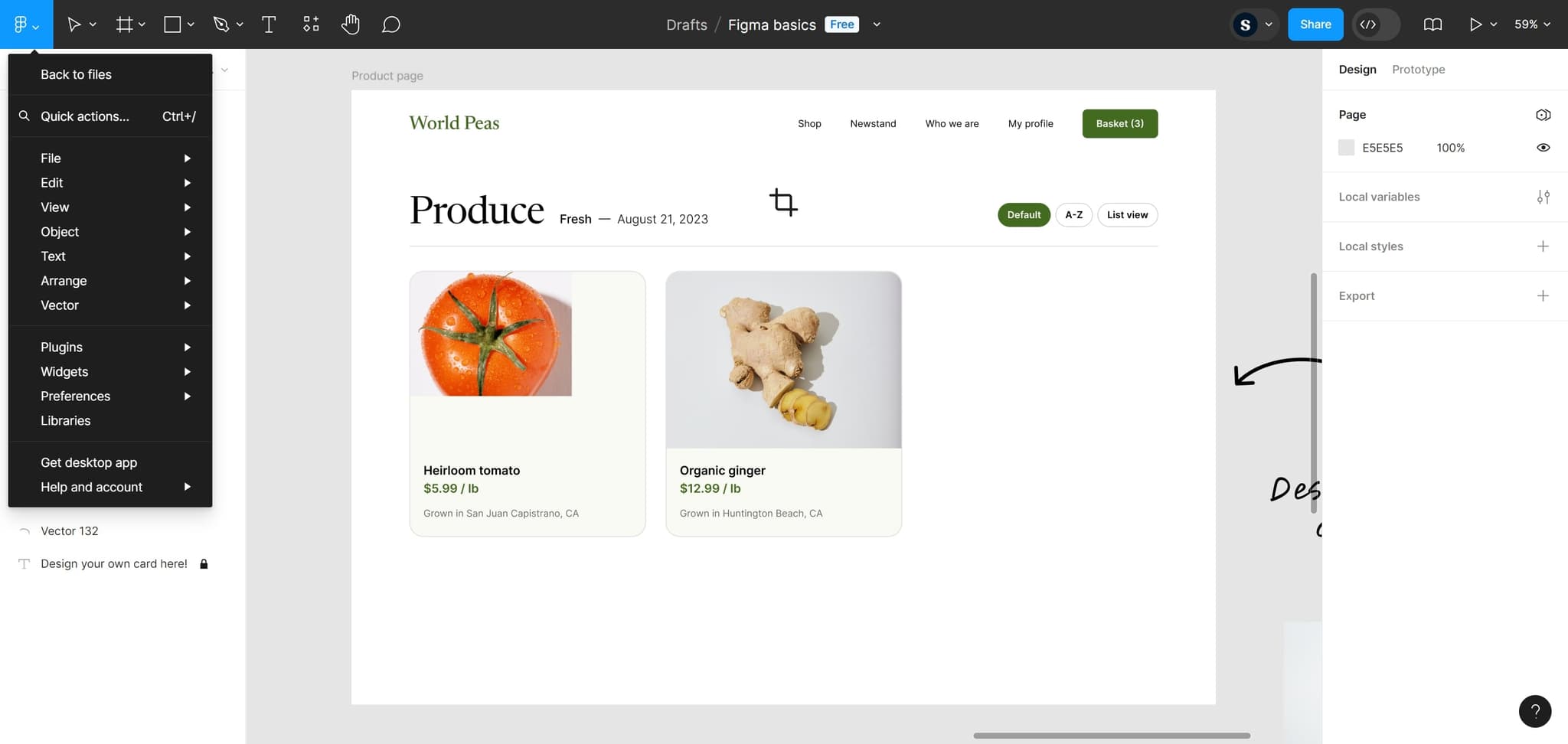
Select the target element
Click on the specific design element you want to undo changes for. This ensures that your undo action applies to the correct part of your design.
- 3
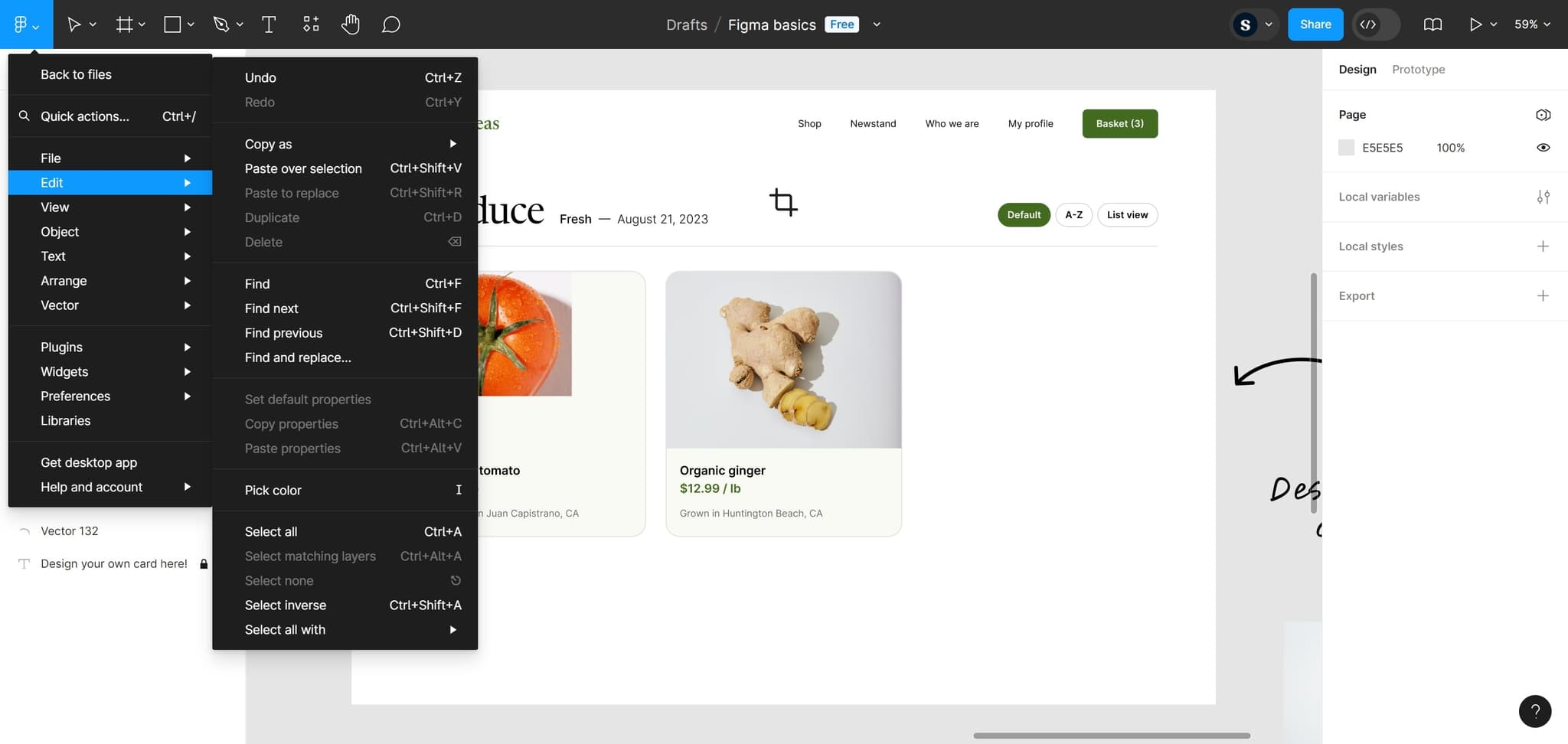
Upload your file
Complete the upload process to ensure all your design changes are properly saved. This step confirms that your file is ready for the undo operation.
- 4
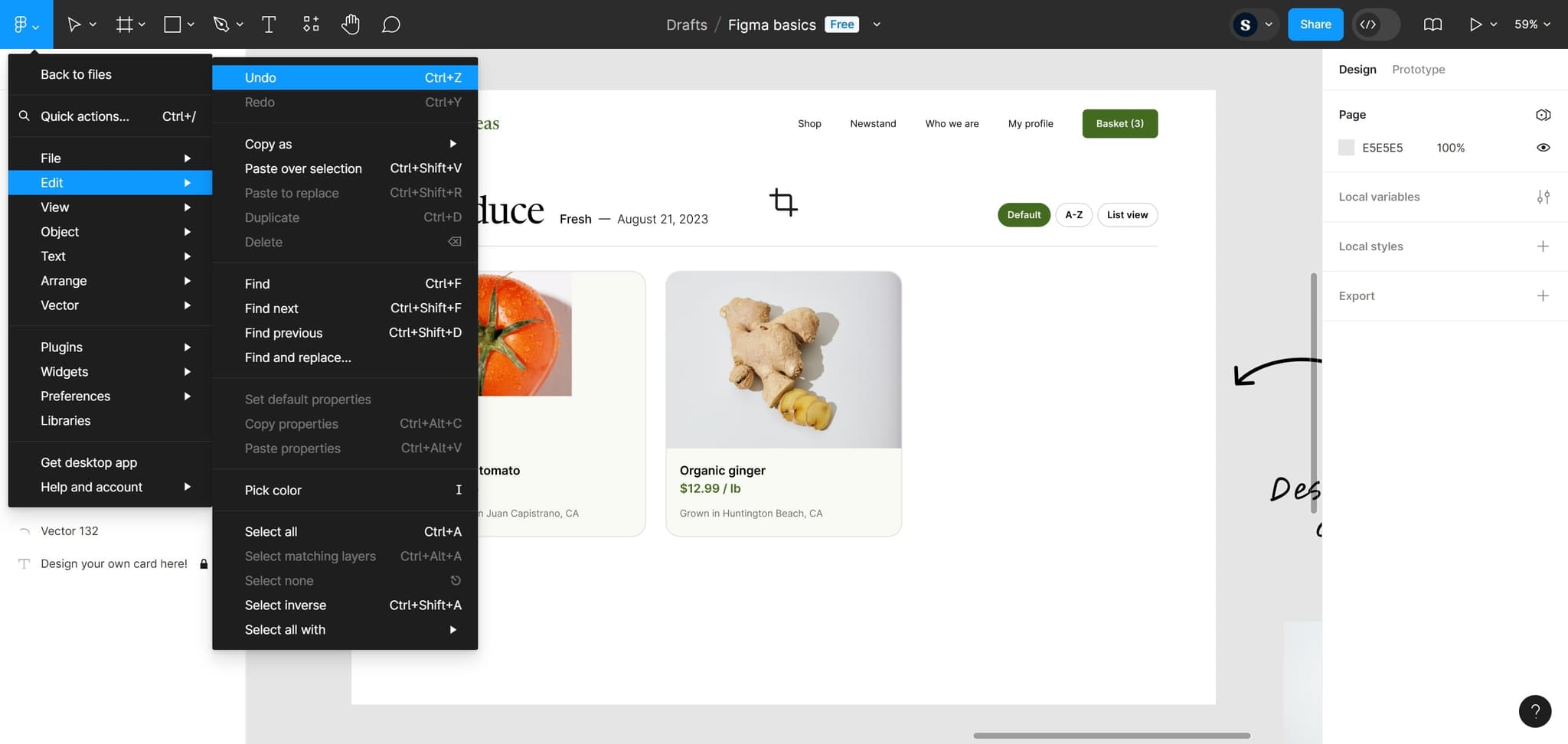
Execute the undo command
Click the designated area to finalize the undo action. Your most recent change will be reversed, and you'll see your design revert to its previous state.
Frequently asked questions
Common questions about how to undo in figma.
Figma allows you to undo multiple actions, maintaining a comprehensive history of your changes. You can continue clicking undo to revert through your entire design session, though the available history may depend on your current session.
Yes, Figma supports the standard keyboard shortcut Ctrl+Z (Windows) or Cmd+Z (Mac) for undoing actions. This is often faster than using the menu for quick corrections during your design workflow.
Undo functionality works within your current session, but the history may be limited once you close and reopen a file. It's best to use undo immediately after making unwanted changes to ensure you can revert them successfully.
Undo reverses your most recent action, while redo reapplies an action you've just undone. You can use Ctrl+Shift+Z (Windows) or Cmd+Shift+Z (Mac) to redo changes, allowing you to move back and forth through your design history.
Undo typically reverses your last action, whether it affected a single element or multiple parts of your design. The scope depends on what change you made, so be aware that a single undo command may affect more than one element if that was part of your last action.