How to duplicate and edit a file in Figma

Duplicating files in Figma is a quick way to create variations of your designs without starting from scratch. Whether you're experimenting with different layouts or creating version backups, knowing how to duplicate and edit files will speed up your design workflow.
Quick summary
In this tutorial, you'll learn how to duplicate a file in Figma and make edits to it. You'll navigate through the file menu, select the duplicate option, and access your new file from the main dashboard.
Why this matters
Duplicating files is essential for design iteration and experimentation. It allows you to preserve your original work while freely testing new ideas, making it a best practice for maintaining clean project structures and version control in collaborative design environments.
Step-by-step guide
- 1
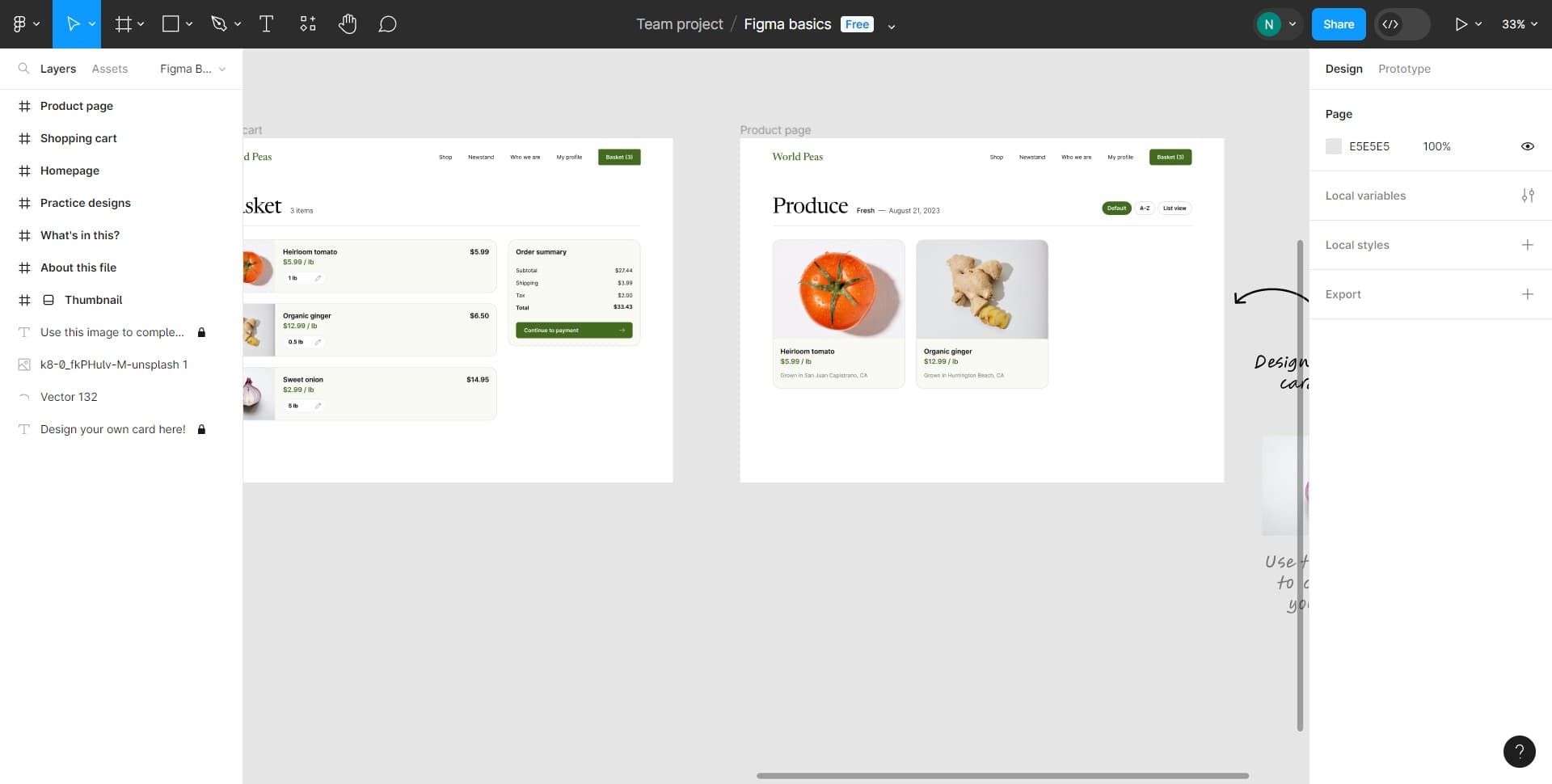
Access the file menu
Start by clicking on the designated area to open the file menu. This will reveal all the options available for managing your current file.
- 2
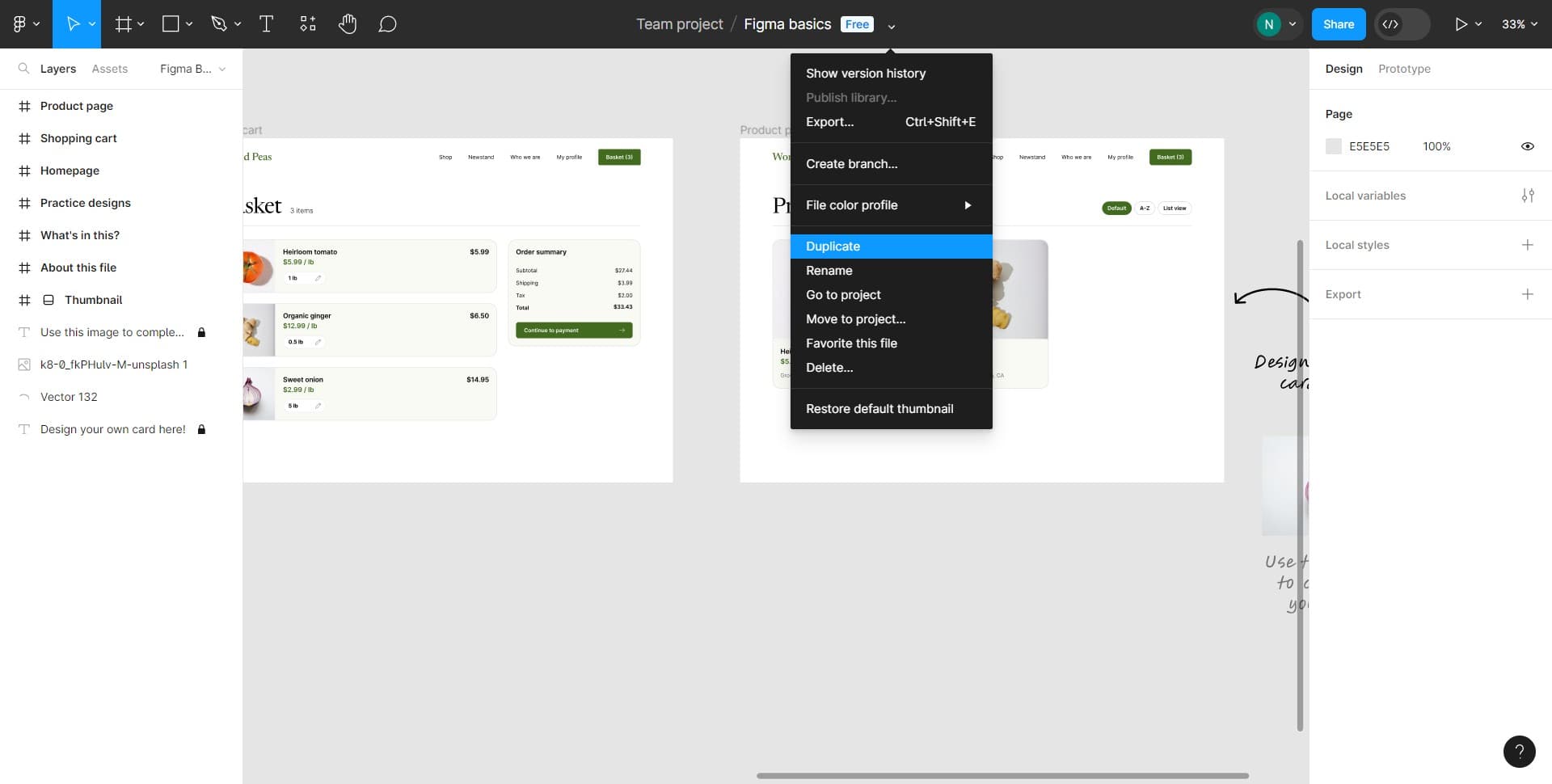
Click on Duplicate
Select the Duplicate option from the menu. Figma will immediately create an exact copy of your file with all layers, components, and design elements intact.
- 3
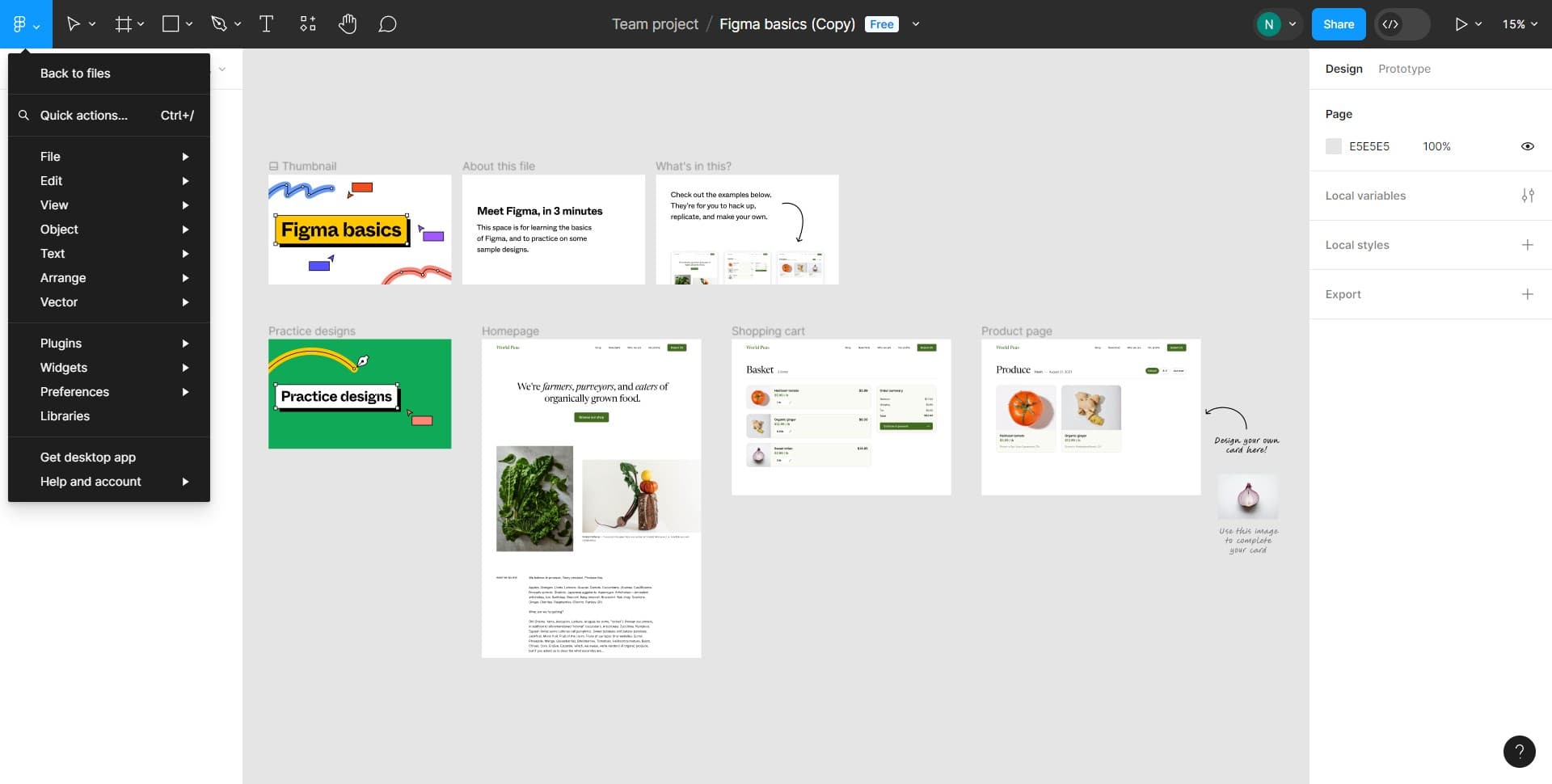
Confirm the duplication
Click on the confirmation area to complete the duplication process. Your new duplicated file is now being created in your workspace.
- 4
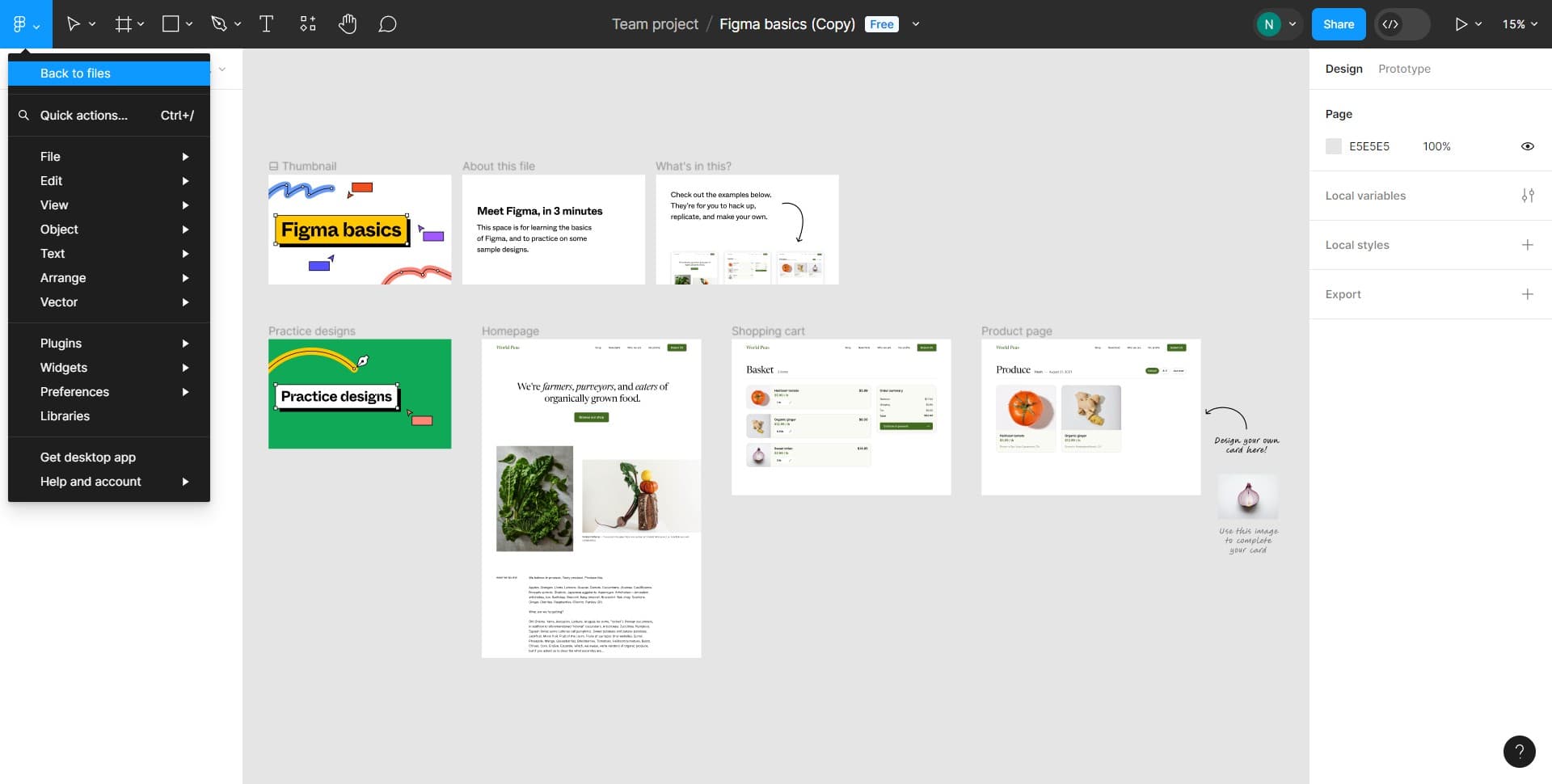
Return to files dashboard
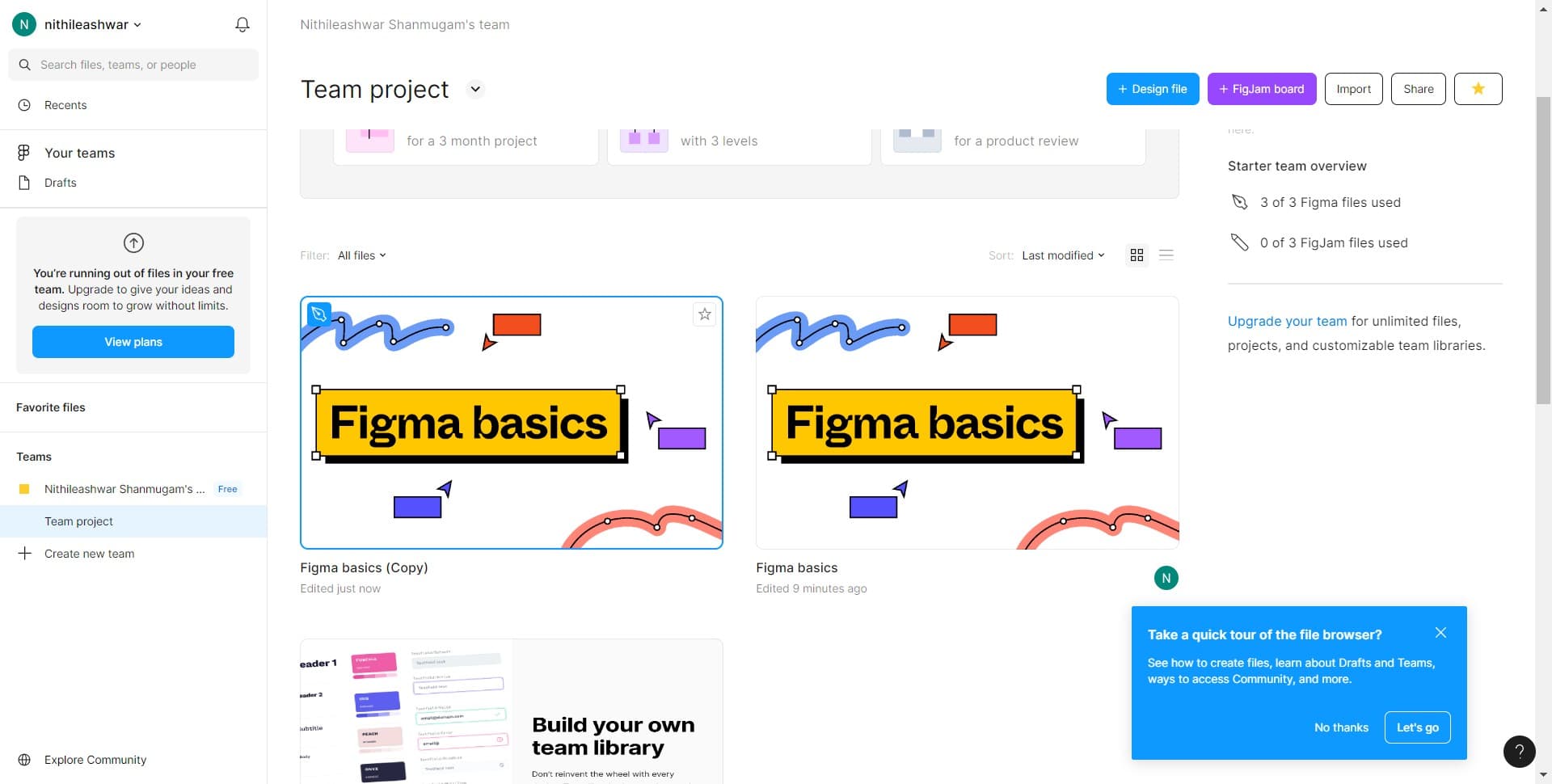
Click on Back to files to exit the current file and return to your main file library. You'll now see both your original and duplicated files listed here.
- 5
Open and edit the duplicated file
Click on the Image file (your duplicated version) to open it. You can now make any edits or modifications to this copy without affecting your original file.
Frequently asked questions
Common questions about how to duplicate and edit a file in figma.
Yes, duplicating a file creates a complete copy of everything in your original file, including all layers, components, text, and design elements. All properties and settings are preserved in the duplicate.
Absolutely. After duplicating, you can rename the file by right-clicking on it in your files dashboard and selecting rename, or by clicking on the file name at the top of the editor. This helps you keep your versions organized.
Duplicating creates a separate, independent copy of your file that you can freely edit. Templates, on the other hand, are typically used as starting points for new projects and may have specific guidelines or shared components.
No, duplicated files are completely independent of the original. Any changes you make to the original file will not appear in your duplicate, and vice versa.
You can duplicate a file as many times as you need. Figma will automatically number duplicates to help you keep track of different versions in your workspace.