How to export file into PDF in Figma

Exporting your Figma designs as PDF files is essential for sharing presentations, documentation, and final deliverables with stakeholders and clients. This guide walks you through the complete export process, ensuring your designs maintain quality and formatting when converted to PDF.
Quick summary
In this tutorial, you'll learn how to export files from Figma into PDF format through a series of straightforward steps. By following along, you'll be able to quickly prepare your designs for sharing, printing, or archiving.
Why this matters
PDF export is critical for presenting design work to non-Figma users, creating printable documentation, and establishing a static version of your designs that won't change. It's a standard deliverable in design workflows and ensures your work is accessible across all devices and platforms.
Step-by-step guide
- 1
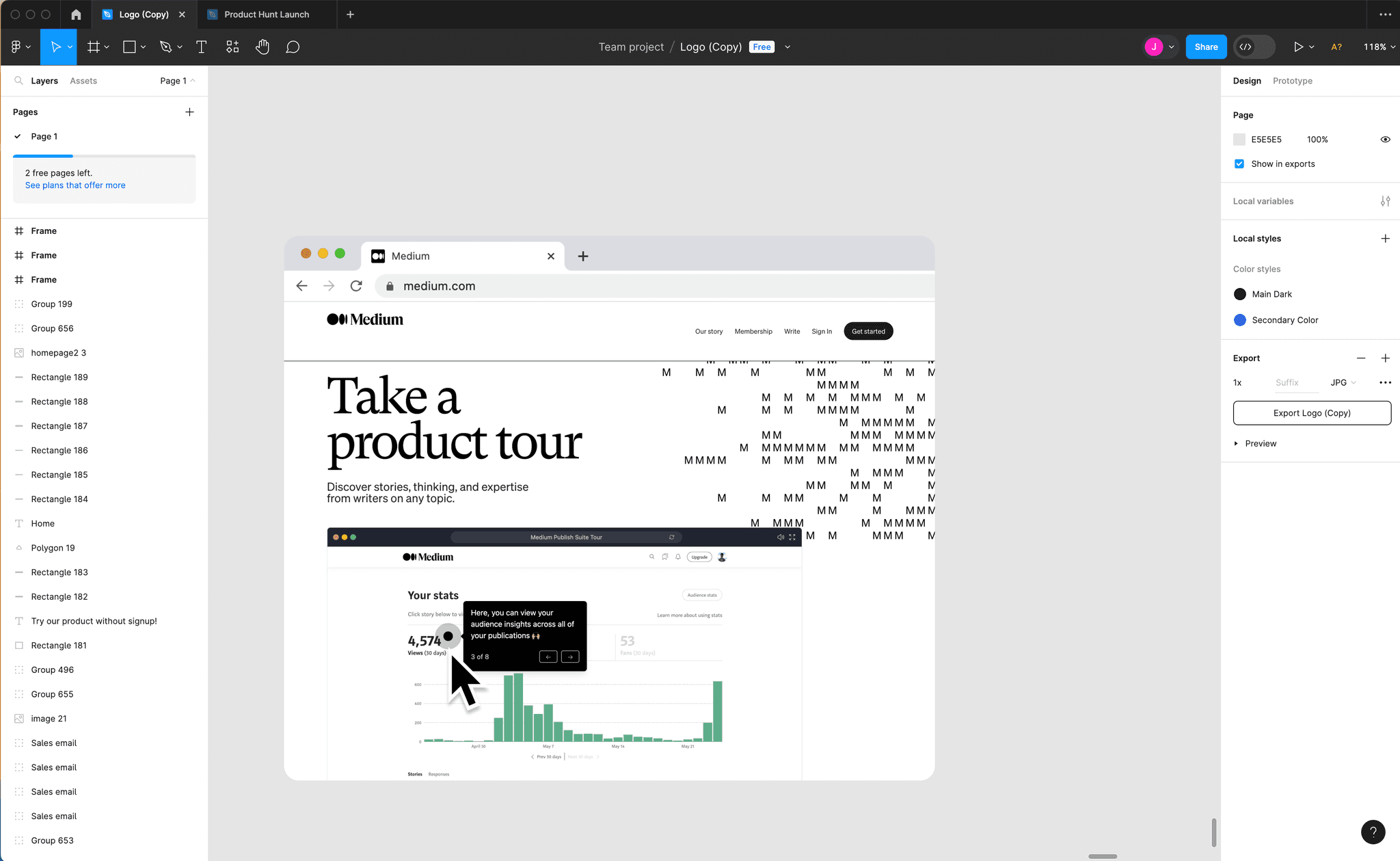
Open your Figma file
Launch Figma and open the project containing the designs you want to export as PDF. Ensure you're viewing the artboard or frame you wish to export.
- 2
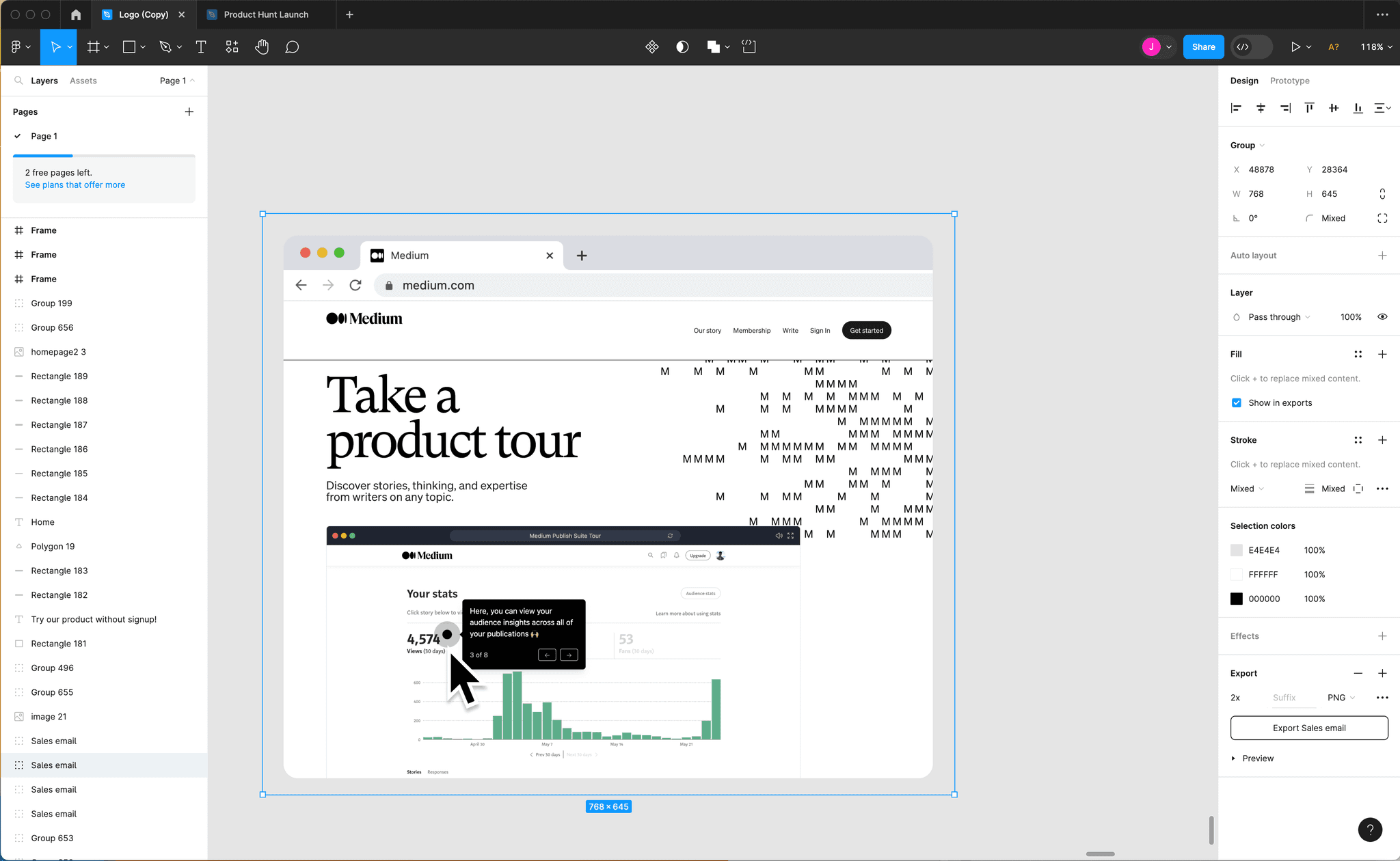
Select the frame or page
Click on the specific frame, artboard, or page you want to export to PDF. You can select multiple frames by holding Cmd (Mac) or Ctrl (Windows) and clicking each one.
- 3
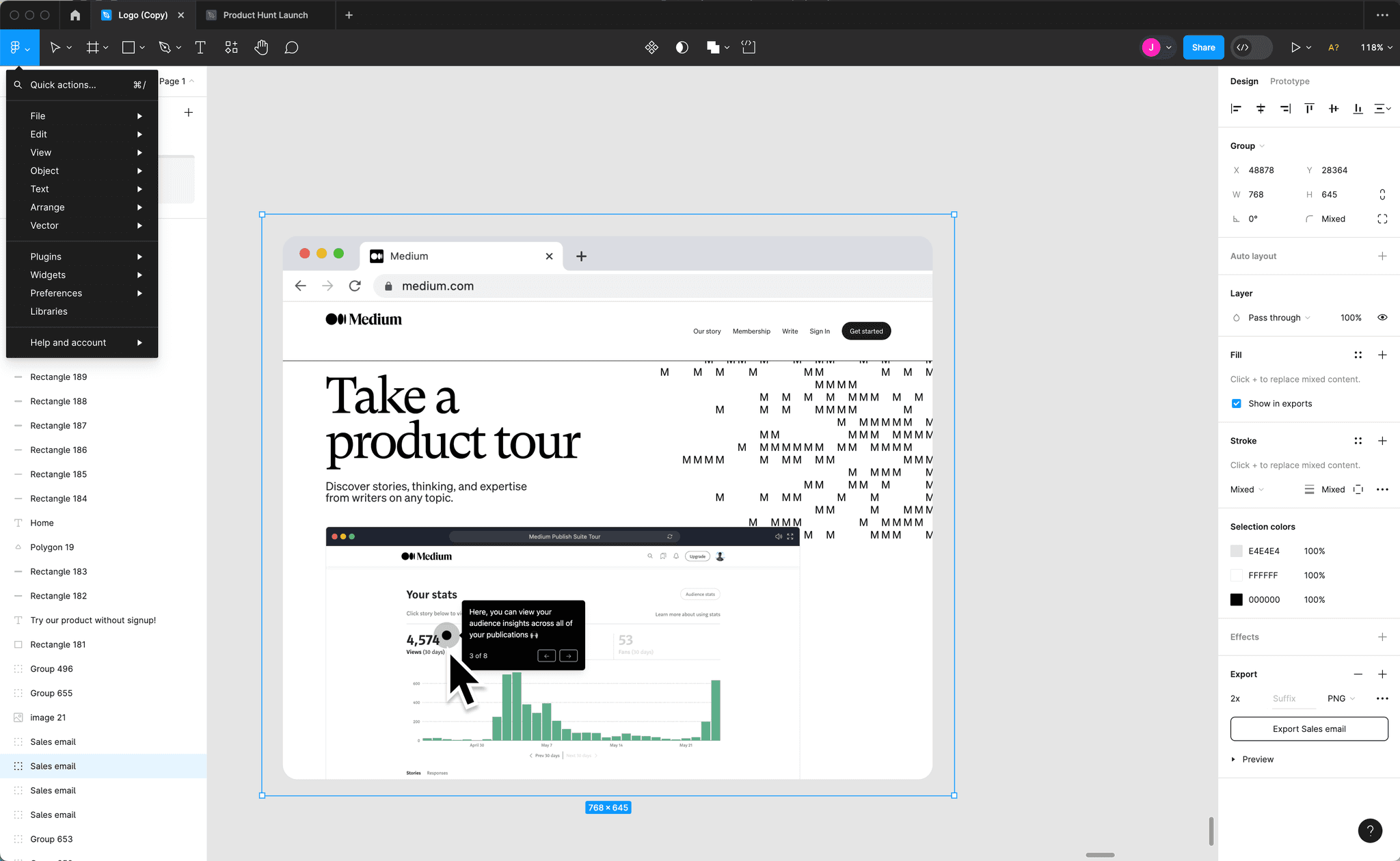
Access the export menu
Look for the export options in the design panel on the right sidebar. If you don't see export settings, you may need to scroll down in the properties panel or right-click on your selection.
- 4
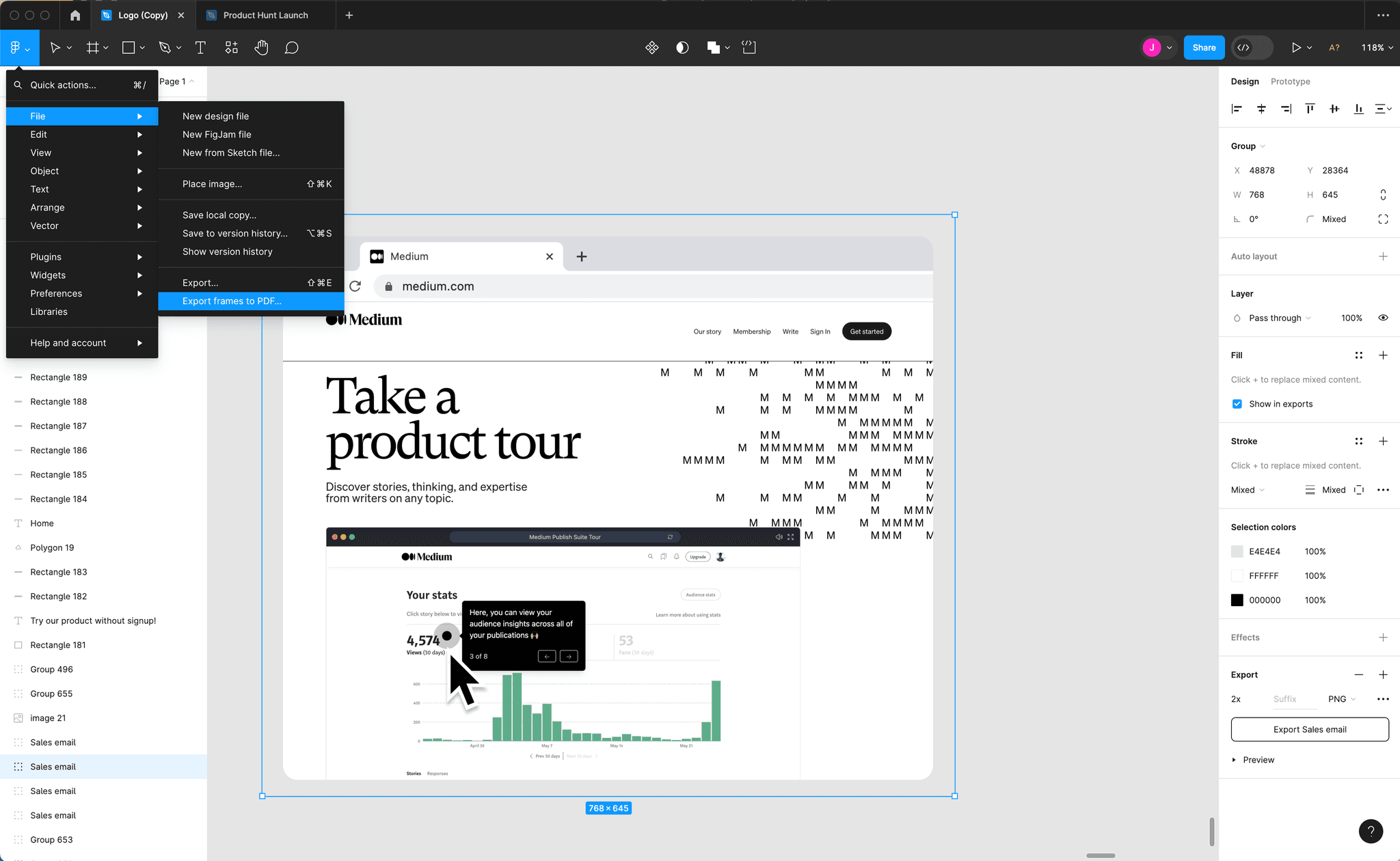
Configure PDF export settings
Set your desired export parameters such as scale, format, and any additional options. Verify that PDF is selected as your file format before proceeding.
- 5
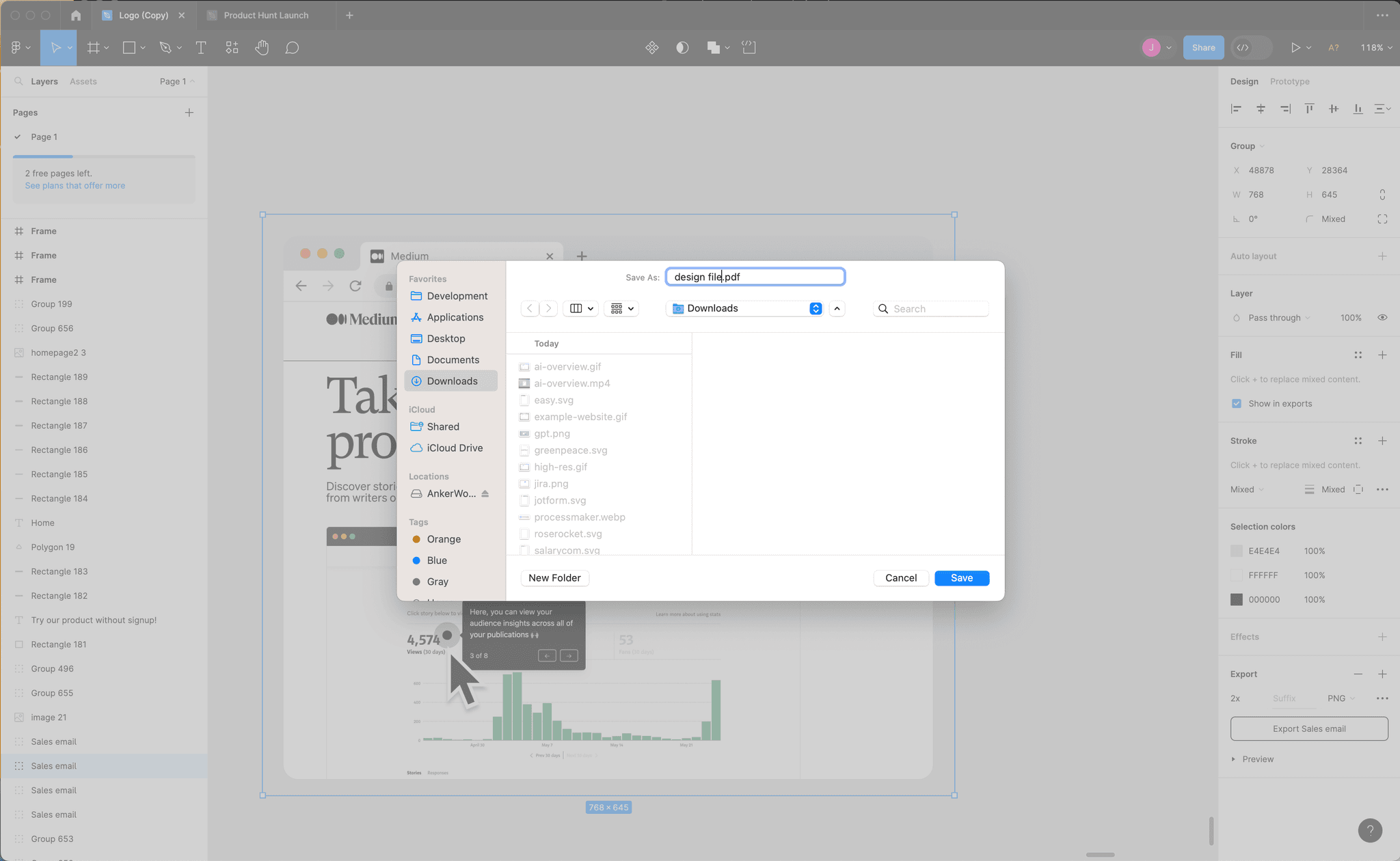
Download your PDF file
Click the export button to generate and download your PDF file. Your browser will save the file to your default downloads folder with the filename you specified.
Frequently asked questions
Common questions about how to export file into pdf in figma.
Yes, you can select multiple frames or artboards and export them together. Figma will create a multi-page PDF with each selected element on its own page. This is useful for creating comprehensive design documents or presentations.
For screen-based viewing, a 1x scale is typically sufficient. For printing, consider exporting at 2x or 3x scale to ensure crisp, high-quality output. Test with a small export first to verify quality meets your needs.
Fonts and colors are generally preserved in PDF exports, but some fonts may be embedded or substituted depending on your settings. Always review the exported PDF to confirm that fonts render correctly and colors appear as intended.
Figma's native export doesn't include password protection. However, you can password-protect the PDF after downloading it using your operating system's tools or dedicated PDF software.
File size depends on the complexity of your design, resolution settings, and number of pages. Complex designs with many layers and high-resolution exports will be larger. Test your export settings with a sample frame to estimate final file size.