How to Mask in Figma

Masking in Figma is a powerful technique that lets you hide or reveal portions of layers using shapes and paths as masks. This skill is essential for creating complex designs, refining visual compositions, and controlling how elements interact within your canvas.
Quick summary
In this tutorial, you'll learn the fundamental steps to apply masks in Figma. You'll discover how to select elements, apply masking techniques, and refine your designs with precision control.
Why this matters
Masking is crucial in design workflows because it allows you to create sophisticated visual effects without permanently deleting content. In professional design practice, masking enables non-destructive editing, faster iterations, and the ability to reveal or hide elements dynamically.
Step-by-step guide
- 1
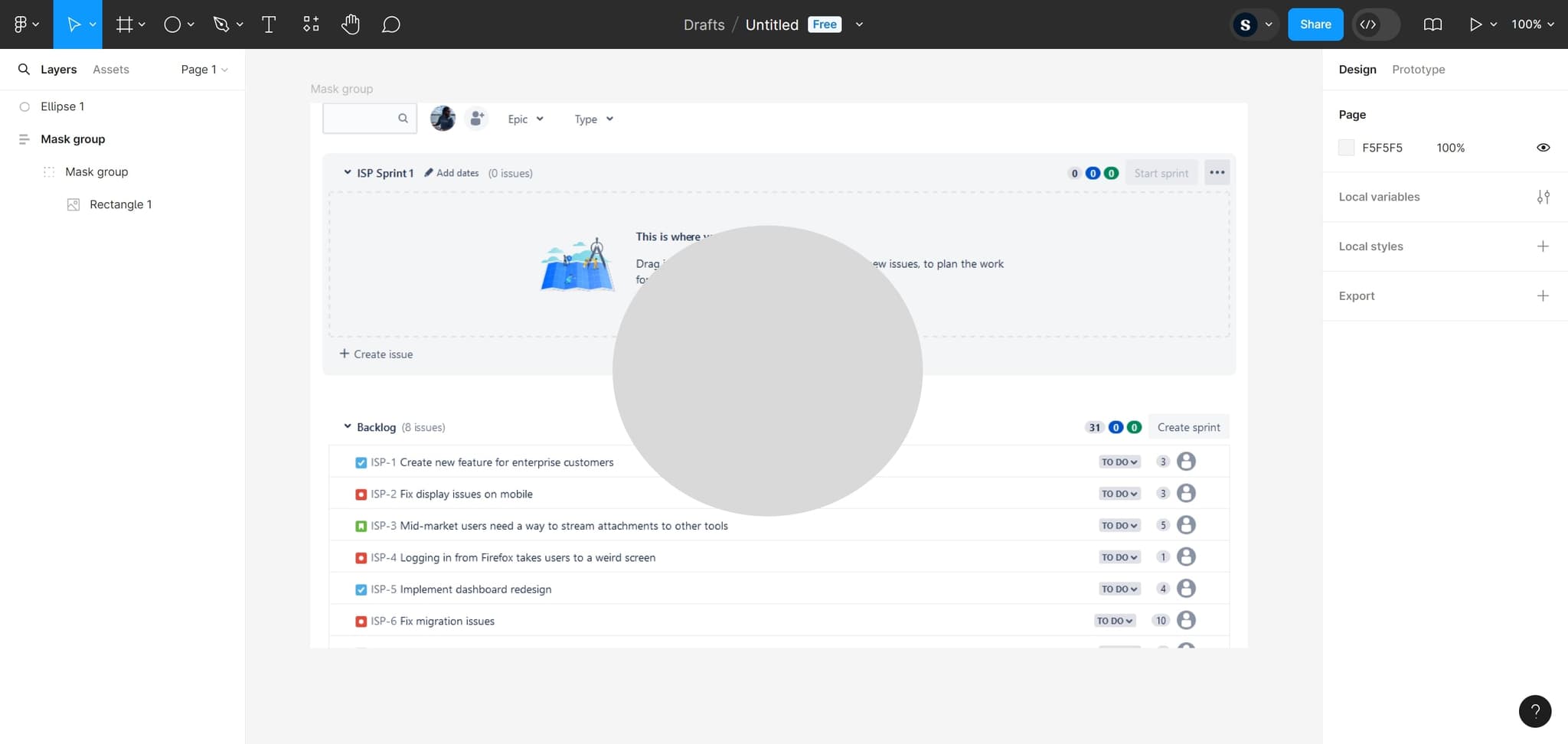
Click the first element
Locate and click on the initial element you want to work with. This selection prepares your canvas for the masking workflow.
- 2
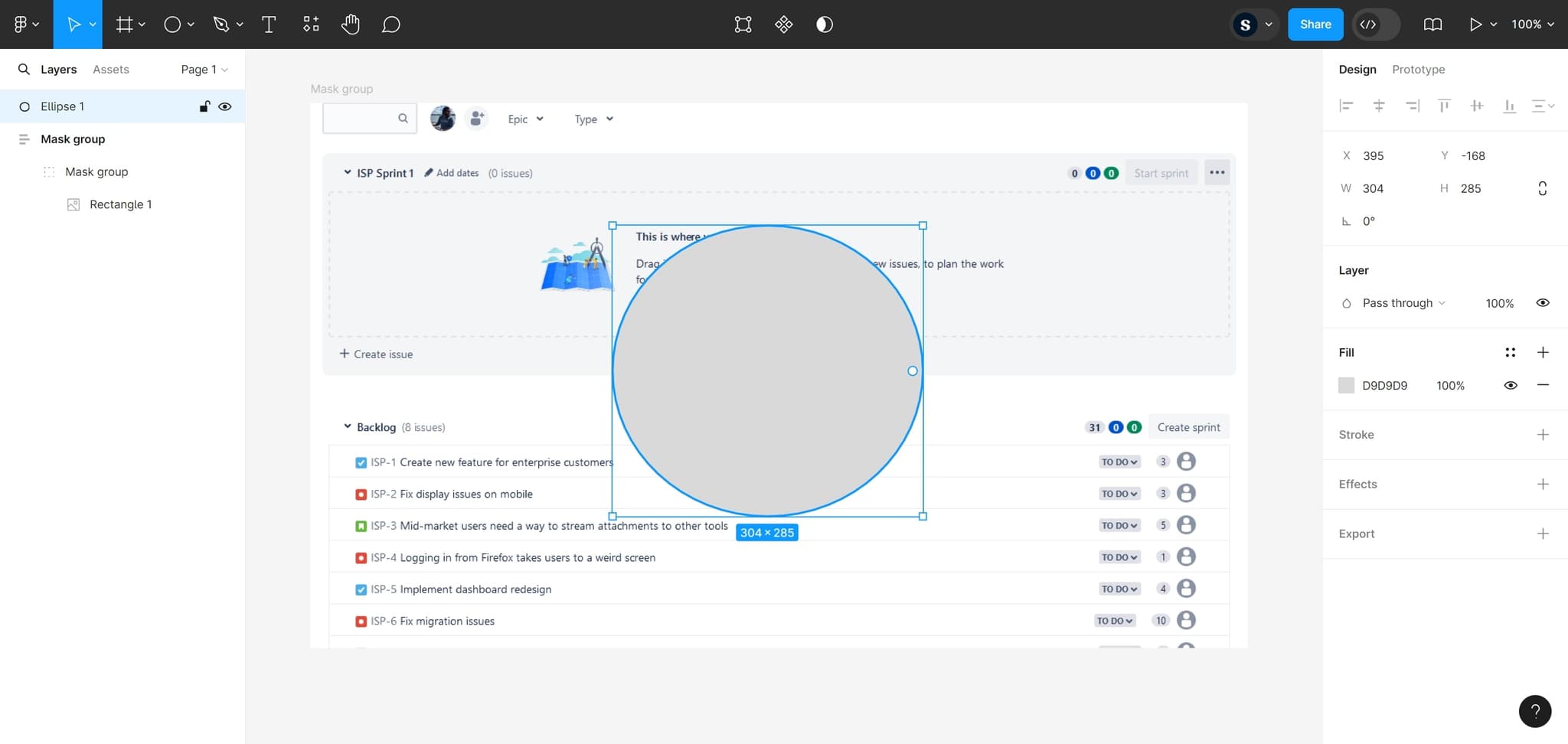
Select the target element
Click on the specific element that will serve as your mask or the element you want to mask. This selection determines which layer will interact with your masking operation.
- 3
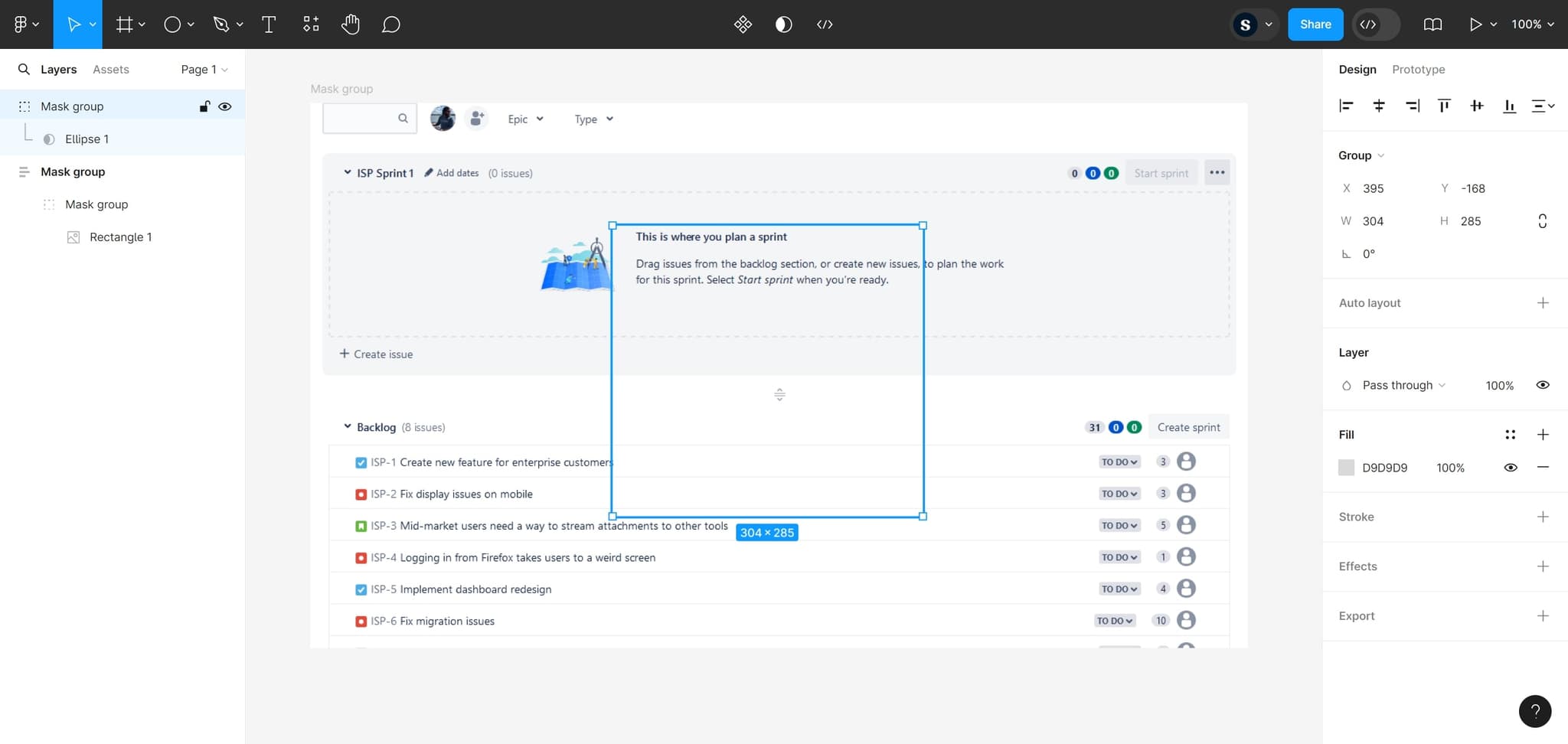
Apply the masking action
Click on the masking control to complete the operation. Figma will apply the mask, and you'll immediately see the effect take place on your selected layers.
Frequently asked questions
Common questions about how to mask in figma.
Masking uses the shape or path of one layer to hide or reveal content in another layer, while clipping creates a contained area where content is visible only within the bounds of a parent frame. Masking offers more flexibility for complex visual effects, whereas clipping is better for organizing content hierarchies.
Yes, masks in Figma are fully editable. You can double-click the mask layer to modify its shape, adjust its properties, or move it without affecting the original content underneath. This non-destructive approach lets you refine your designs without losing any data.
To remove a mask, select the masked layer and look for the mask options in the design panel. You can either delete the mask entirely or right-click and select 'Remove mask' from the context menu. The original content will remain intact and fully visible.
Any shape in Figma can function as a mask, including rectangles, circles, polygons, and custom paths. The shape you choose determines the visible area, so select shapes that match your design intent. Complex shapes and hand-drawn paths work well for organic, detailed masks.
Text can be converted to a path and then used as a mask, allowing you to create text-shaped cutouts in your designs. To do this, select the text layer, right-click, and choose 'Convert to path' before applying it as a mask.