How to Remove a Component in Figma

Removing components in Figma is a fundamental skill for maintaining clean design files and managing your component library efficiently. Whether you're deleting outdated components or reorganizing your design system, understanding the proper removal process ensures you don't accidentally break linked instances.
Quick summary
In this tutorial, you'll learn how to remove a component in Figma by selecting the element and executing the deletion command. You'll understand the key steps to safely delete components while managing any dependent instances in your design file.
Why this matters
Keeping your component library lean and up-to-date is critical for design system maintenance and team collaboration. Removing unused or obsolete components reduces file clutter, prevents confusion among team members, and helps maintain a scalable design structure.
Step-by-step guide
- 1
Click on the element
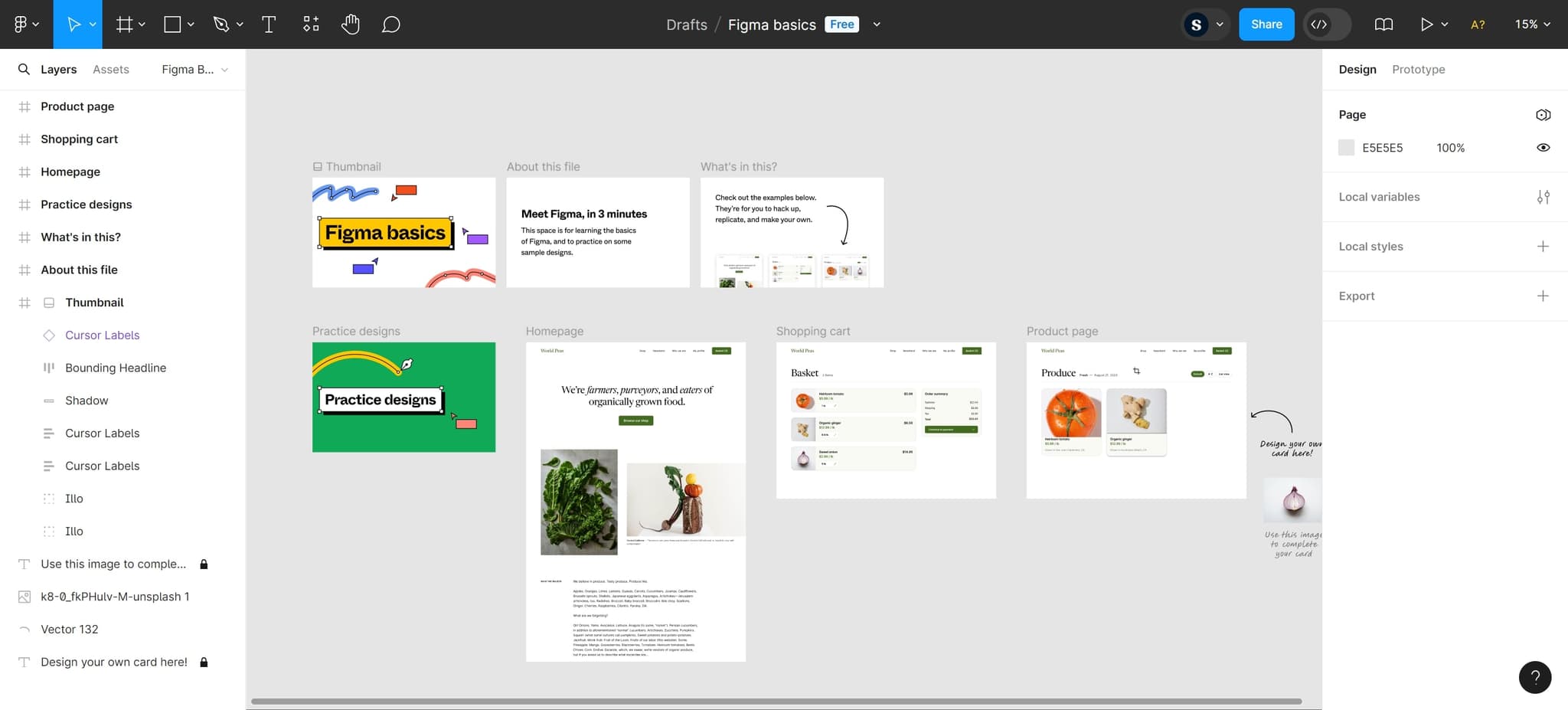
Start by clicking on the component you want to remove in your canvas or layers panel. The element will be highlighted with a selection box, indicating it's active and ready for deletion.
- 2
Access the delete option
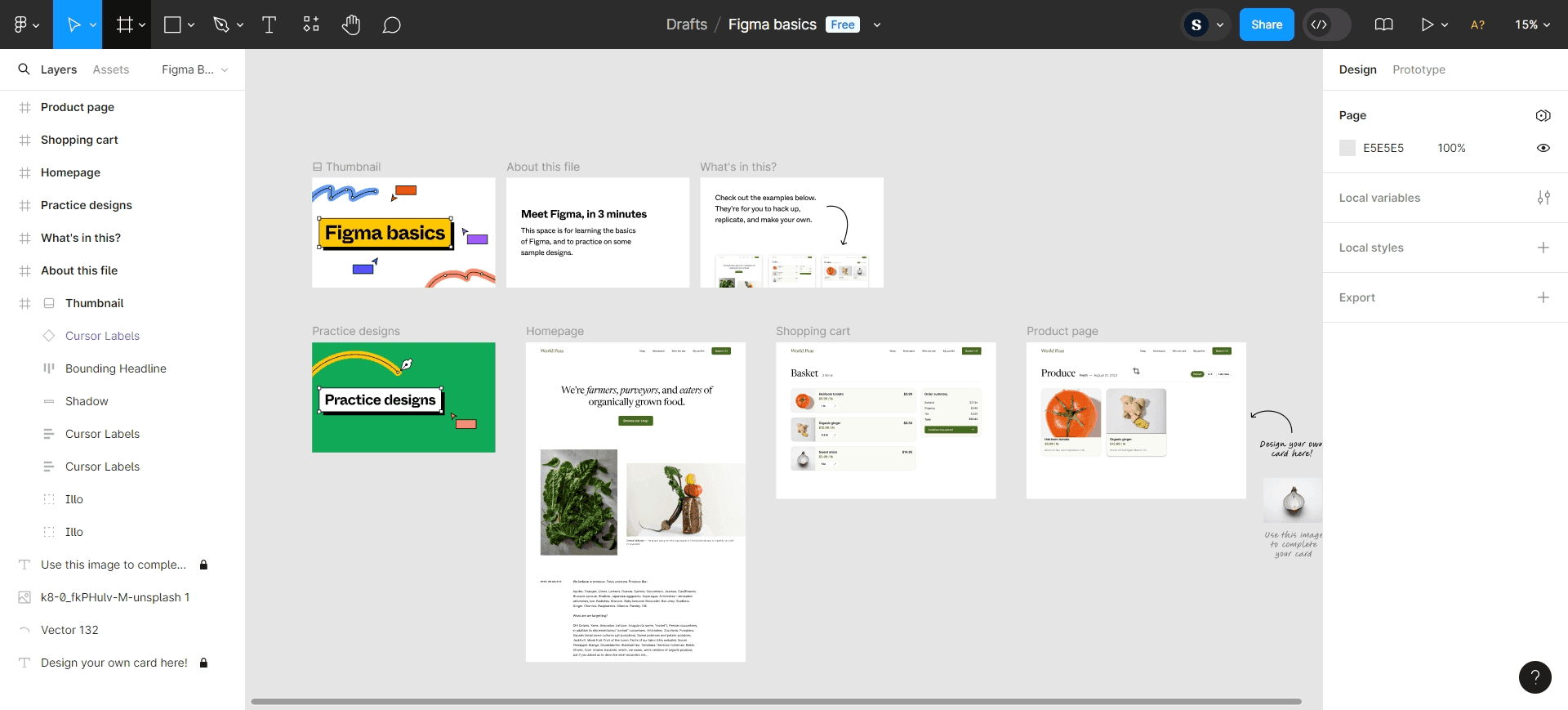
Once the component is selected, you can delete it by pressing the Delete or Backspace key on your keyboard. Alternatively, right-click on the selected element and choose Delete from the context menu.
- 3
Confirm component removal
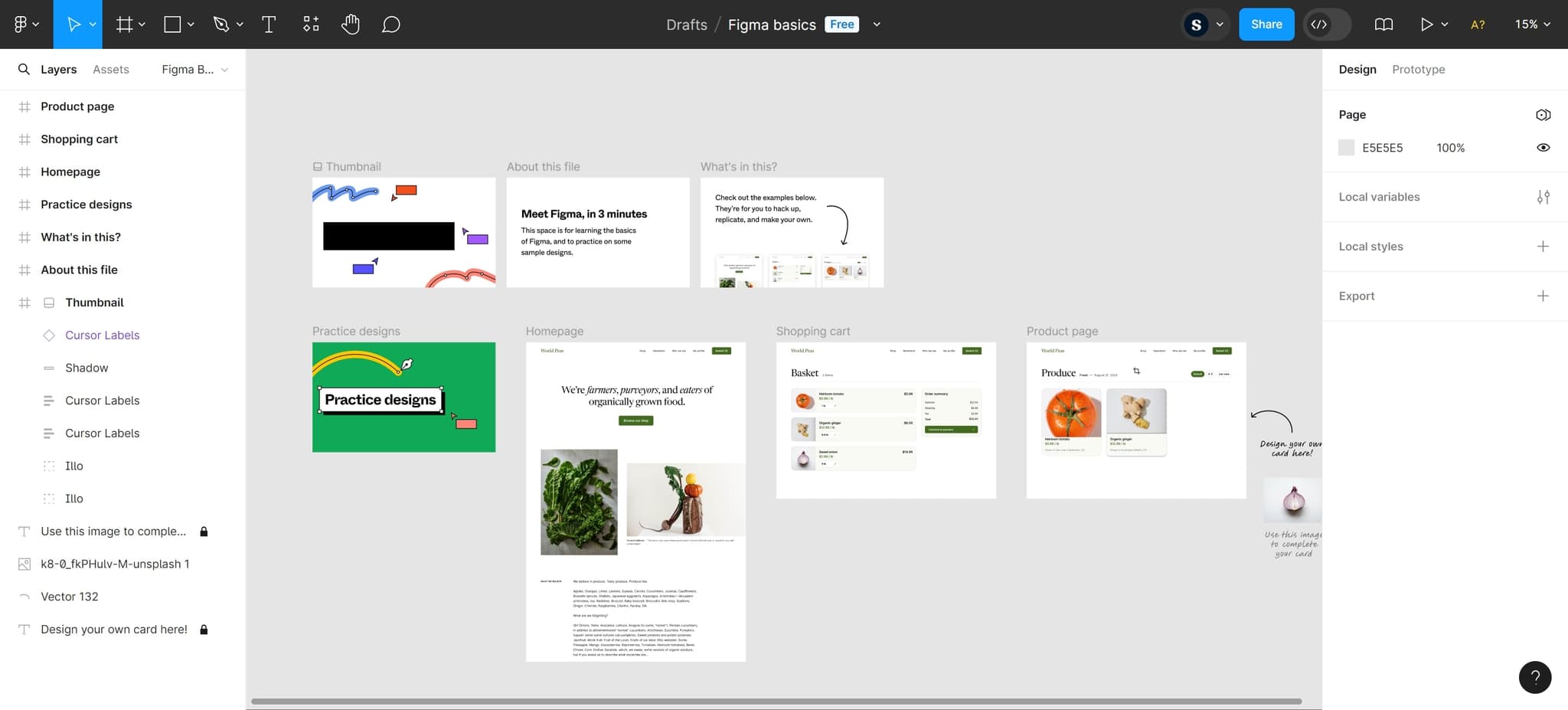
Figma will remove the component from your file. If the component has linked instances, Figma may prompt you about what to do with those instances, or they may be converted to regular groups depending on your version.
- 4
Click on the element
Verify that the component has been successfully removed by checking your layers panel and canvas. The component should no longer appear in your design file or component library.
Frequently asked questions
Common questions about how to remove a component in figma.
When you delete a component in Figma, any linked instances will typically be converted to groups or frames. Figma preserves the visual appearance of these instances, but they will no longer update automatically when the main component changes. You may receive a warning before deletion depending on how many instances are affected.
Yes, you can undo a component deletion by pressing Ctrl+Z (Windows) or Cmd+Z (Mac) immediately after deleting it. This will restore the component and re-establish the links to any instances. If you've made other changes since the deletion, use the undo history to navigate back to the desired state.
In Figma, you can select the main component and look at the Design panel on the right. It will show the number of instances currently linked to that component. You can also right-click on the component to see options related to its instances before proceeding with deletion.
Yes, deleting a main component affects all linked instances and may break the component system, while deleting an instance only removes that single copy without affecting the main component or other instances. Always identify whether you're selecting the main component or an instance before deletion.
Yes, you can select multiple components by holding Shift or Ctrl (Windows) or Cmd (Mac) while clicking on each component. Once multiple elements are selected, you can delete them all simultaneously by pressing Delete or Backspace. This is useful for cleaning up your design file quickly.