How to Set Up Branching on Figma

Branching in Figma allows you to create independent versions of your design files without affecting the main project. This feature is essential for collaborative design work, enabling multiple team members to iterate simultaneously while maintaining a clean version history.
Quick summary
In this tutorial, you'll learn how to set up branching in Figma by accessing the branch creation interface and establishing separate design branches. You'll understand the foundational steps needed to begin working with branches for parallel design workflows.
Why this matters
Branching prevents design conflicts when multiple designers work on the same file and provides a safe space to experiment with new ideas before merging changes back to the main file. This workflow is critical for maintaining project stability and enabling non-destructive iteration in professional design teams.
Step-by-step guide
- 1
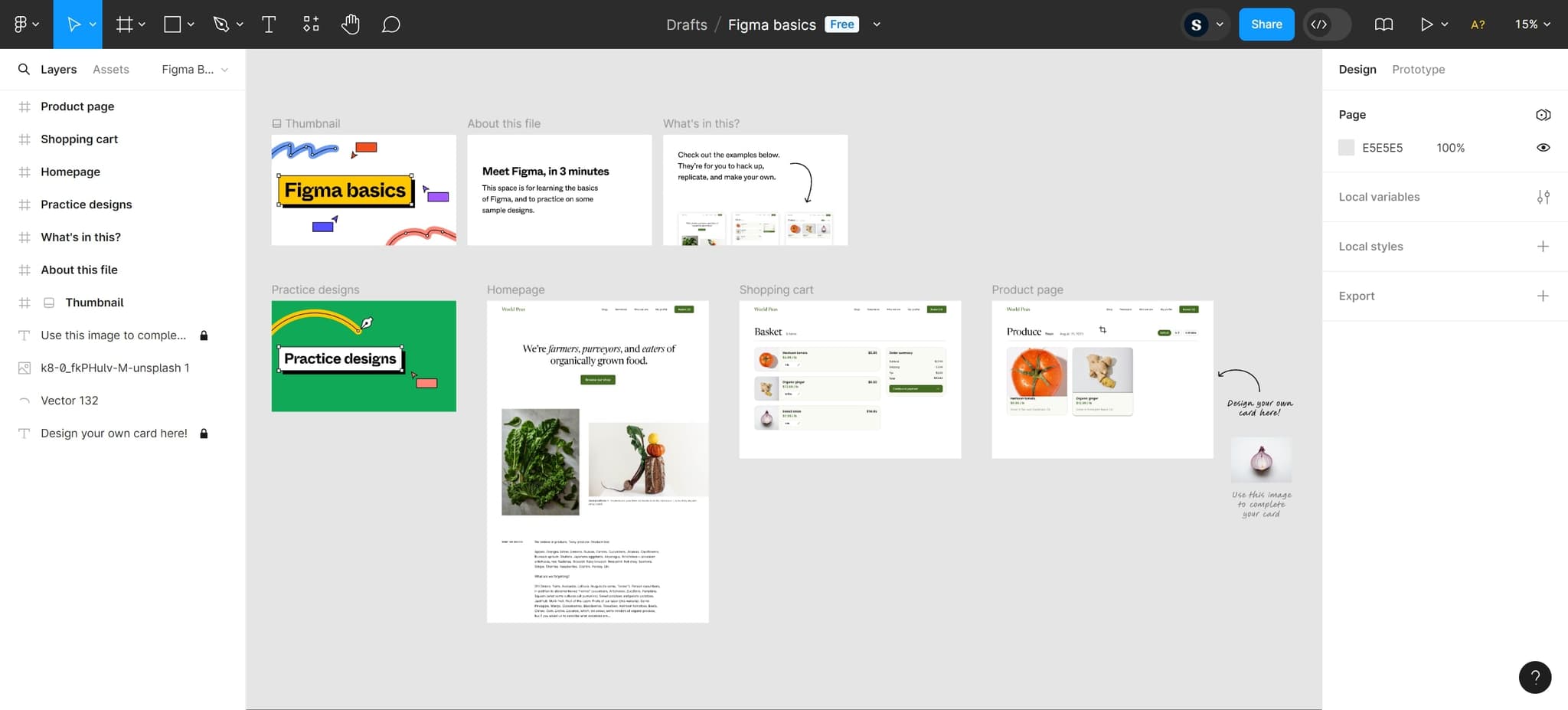
Access the file menu
Begin by clicking the designated menu area in Figma to reveal options for file management. This opens the interface where you can initiate the branching process.
- 2
Upload your project files
Upload the design files you want to work with into Figma if they aren't already in your workspace. Ensure all necessary assets and components are available before proceeding to create branches.
- 3
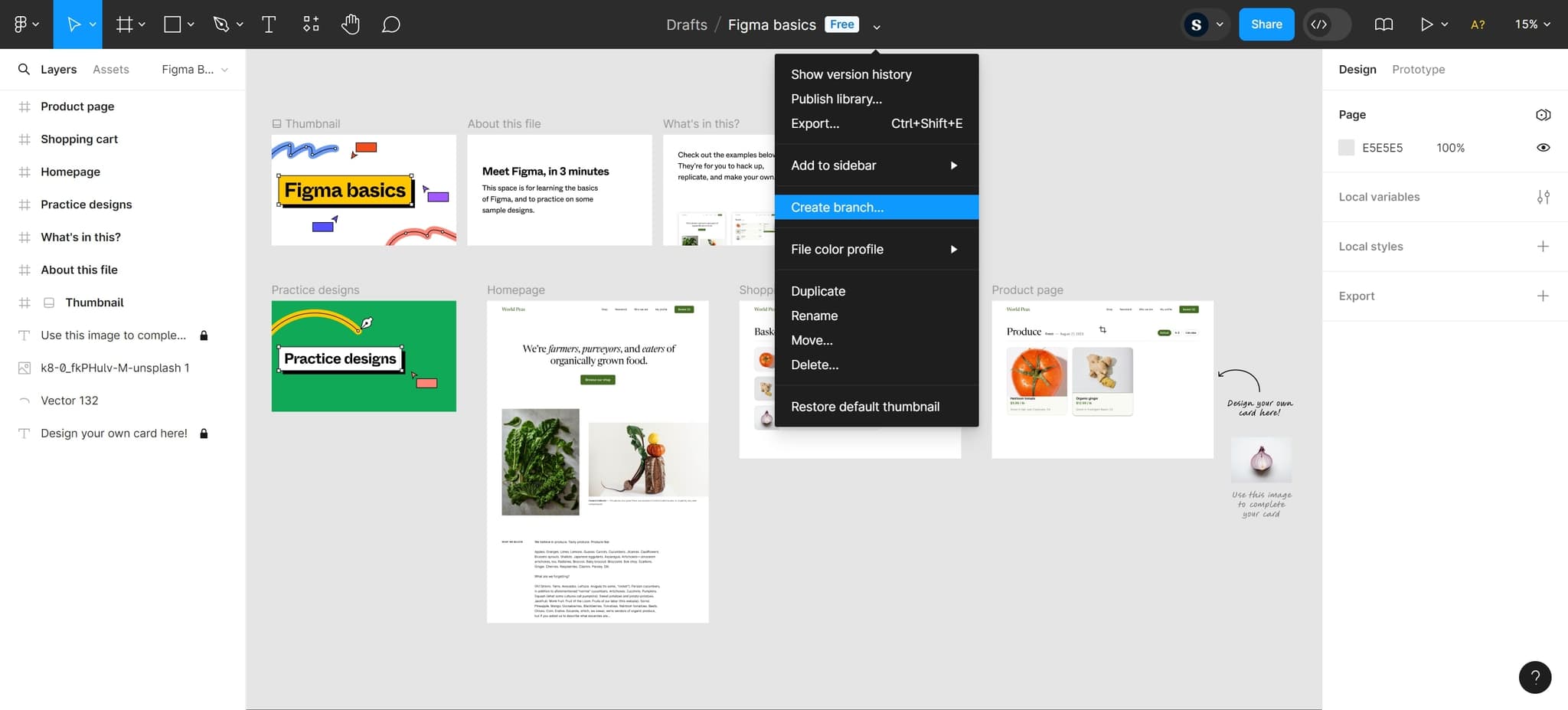
Click on Create branch
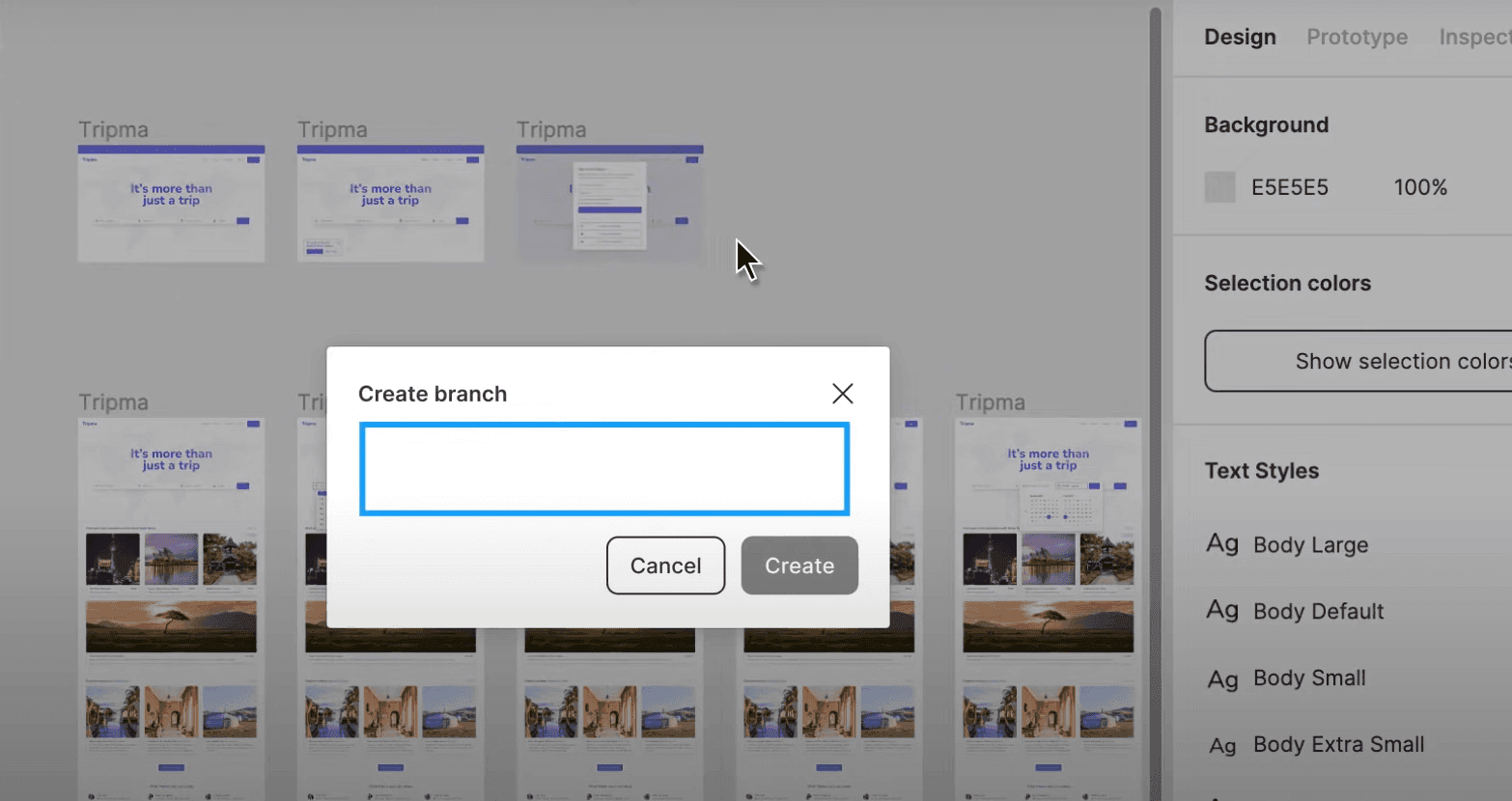
Locate and click the 'Create branch...' option from the menu. This action opens the branch creation interface where you can name and configure your new branch.
- 4
Upload additional assets if needed
Add any supplementary files or resources required for your branching workflow. This ensures your branch has all the dependencies it needs for design work.
- 5
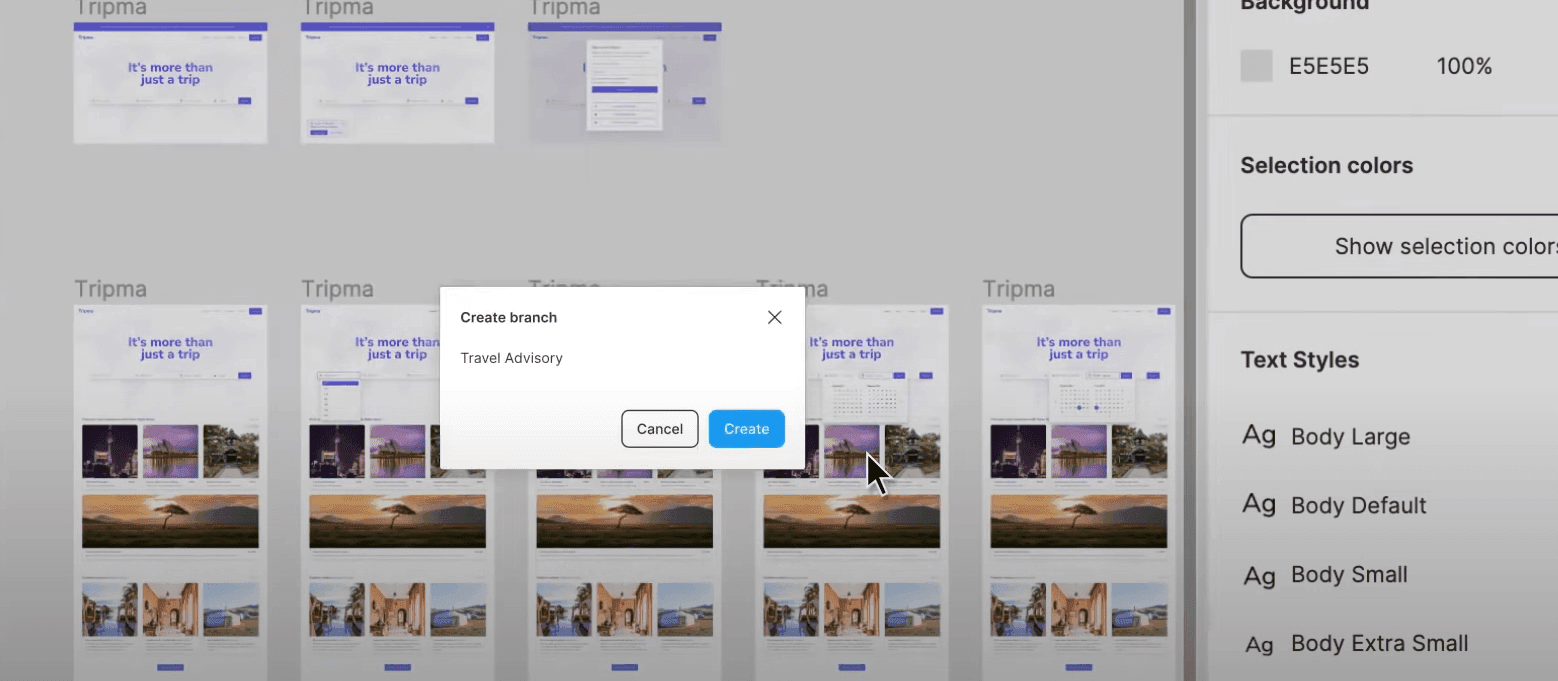
Finalize branch setup
Complete the branch creation process by confirming your settings. Your new branch is now ready for independent design iterations separate from the main file.
Frequently asked questions
Common questions about how to set up branching on figma.
Branching allows multiple designers to work on the same project simultaneously without interfering with each other's work. Each branch is an independent copy where you can make changes, test ideas, and iterate freely before merging updates back to the main file.
Yes, Figma allows you to merge branch changes back to the main file or other branches through the merge functionality. This consolidates your work and keeps the main project updated with approved design changes.
Figma supports creating multiple branches from a single file, allowing for complex collaborative workflows with many parallel design iterations. The number of branches you can create depends on your Figma plan and team permissions.
No, changes in a branch do not automatically affect the main file. You must explicitly merge the branch to apply changes to the main project or other branches, giving you full control over when updates are integrated.
All team members with access to the main file can see and work with all branches within that project. This transparency promotes collaboration and helps teams track all ongoing design efforts.