How to use Auto Layout in Figma

Auto Layout is a powerful Figma feature that automatically adjusts spacing, sizing, and alignment of components as their content changes. This tutorial walks you through the essential steps to set up and use Auto Layout, enabling you to build responsive, maintainable designs that scale effortlessly.
Quick summary
In this tutorial, you'll learn how to enable and configure Auto Layout in Figma by selecting your frame or component and applying layout settings. You'll discover how to use the Packed alignment option to create flexible designs that adapt to content changes without manual repositioning.
Why this matters
Auto Layout eliminates the tedious work of manually adjusting spacing and alignment when design content changes. By using this feature, design teams reduce iteration time, maintain consistency across components, and create prototypes that better simulate how interfaces will actually behave in production.
Step-by-step guide
- 1
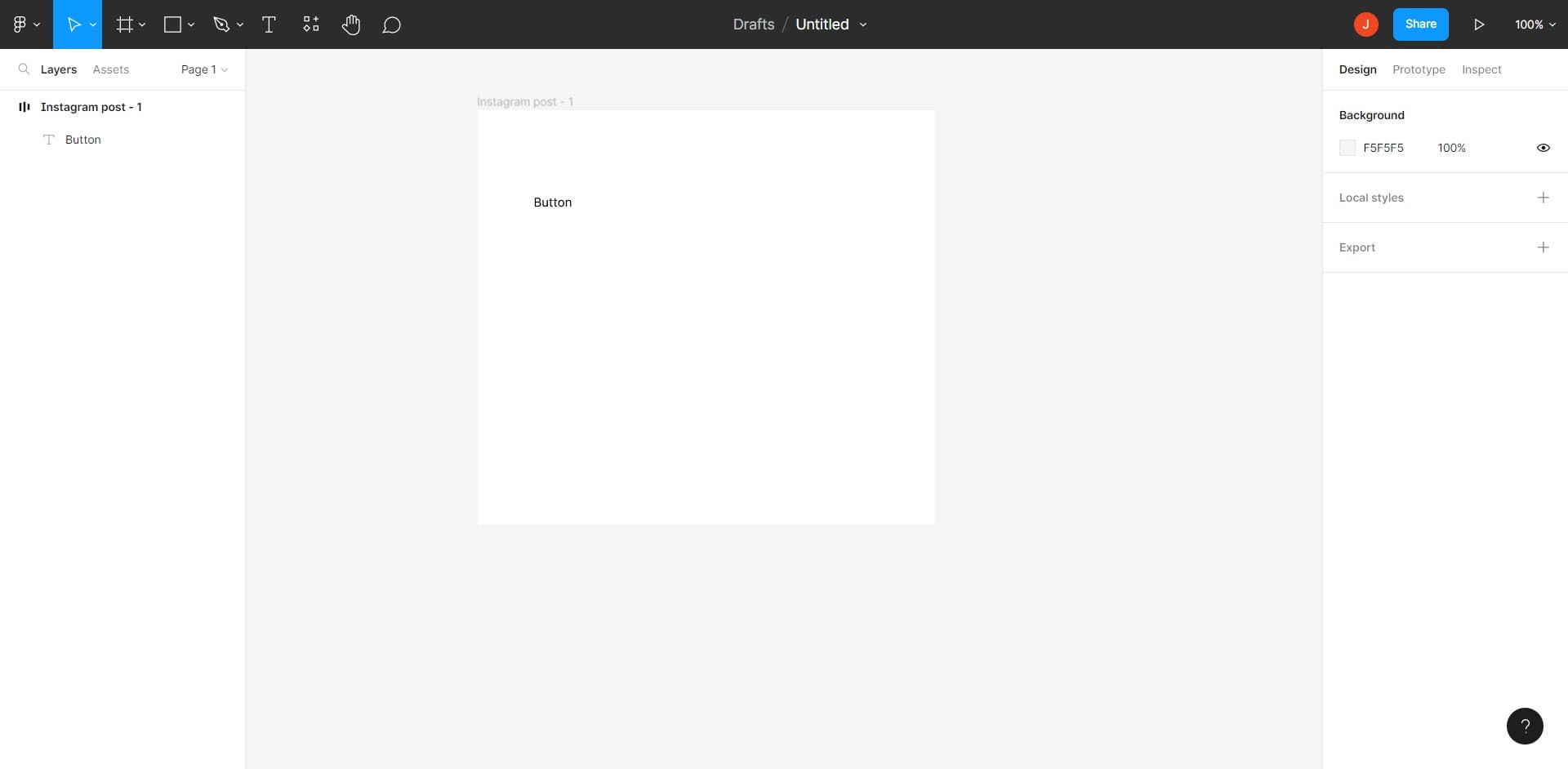
Select your frame or component
Begin by clicking on the frame or component in your canvas where you want to apply Auto Layout. This selection will be the parent container that Auto Layout will manage.
- 2
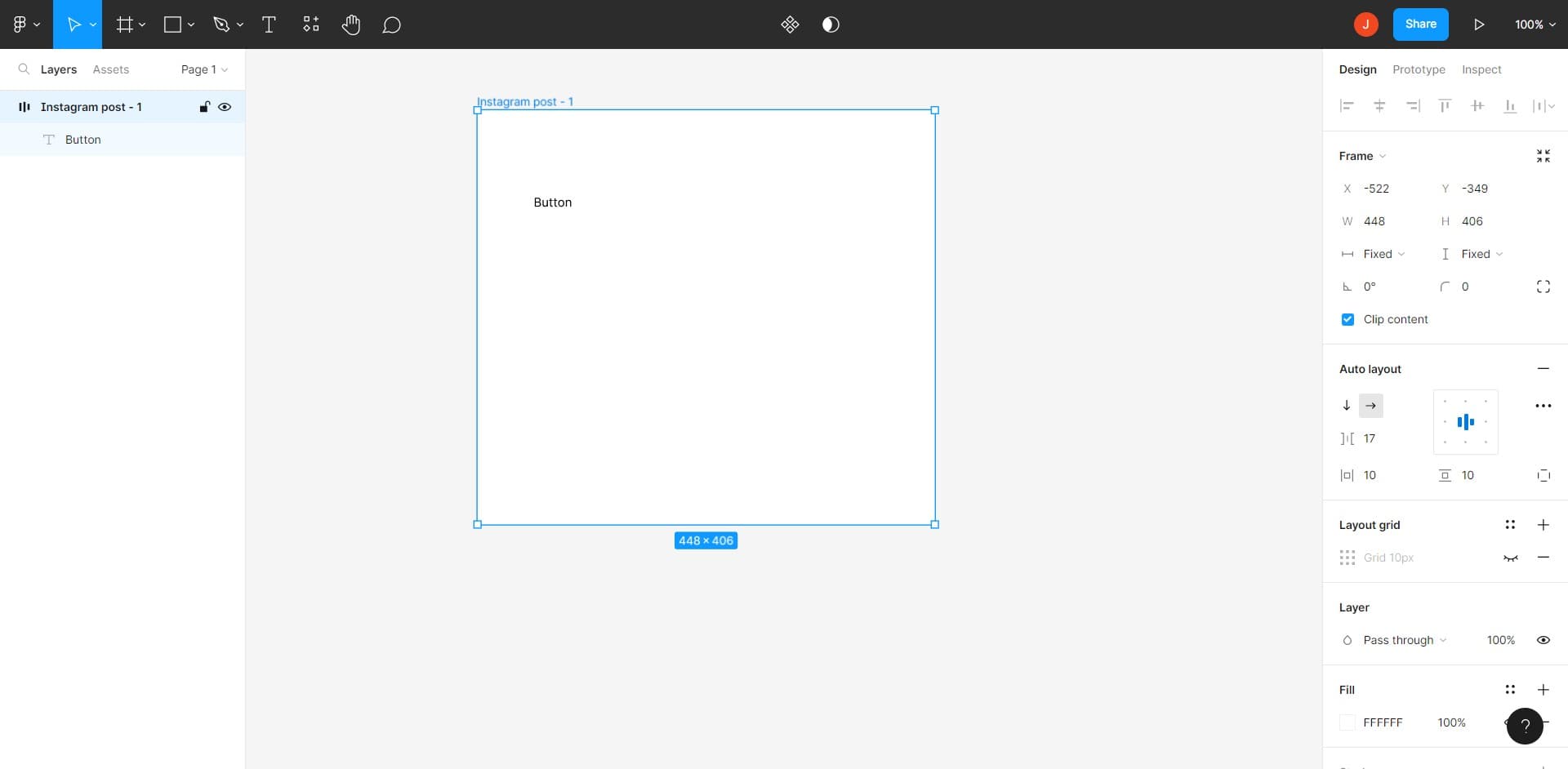
Open the Auto Layout menu
Click on the Auto Layout option in the design panel. This will enable Auto Layout for your selected frame and reveal additional spacing and alignment controls.
- 3
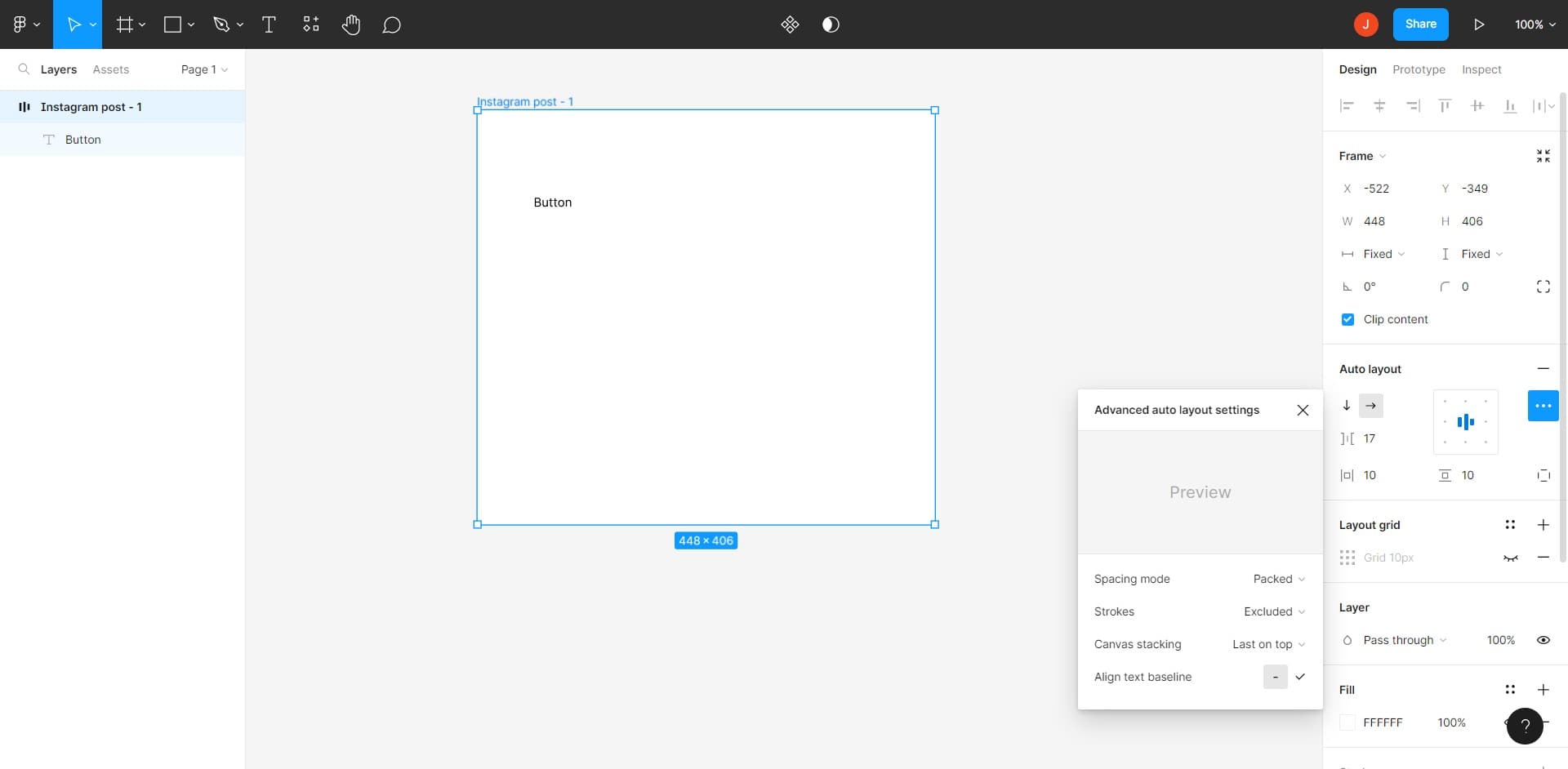
Configure spacing and direction
Click to set your desired spacing between child elements and choose whether items flow horizontally or vertically. These settings control how child elements arrange themselves within the container.
- 4
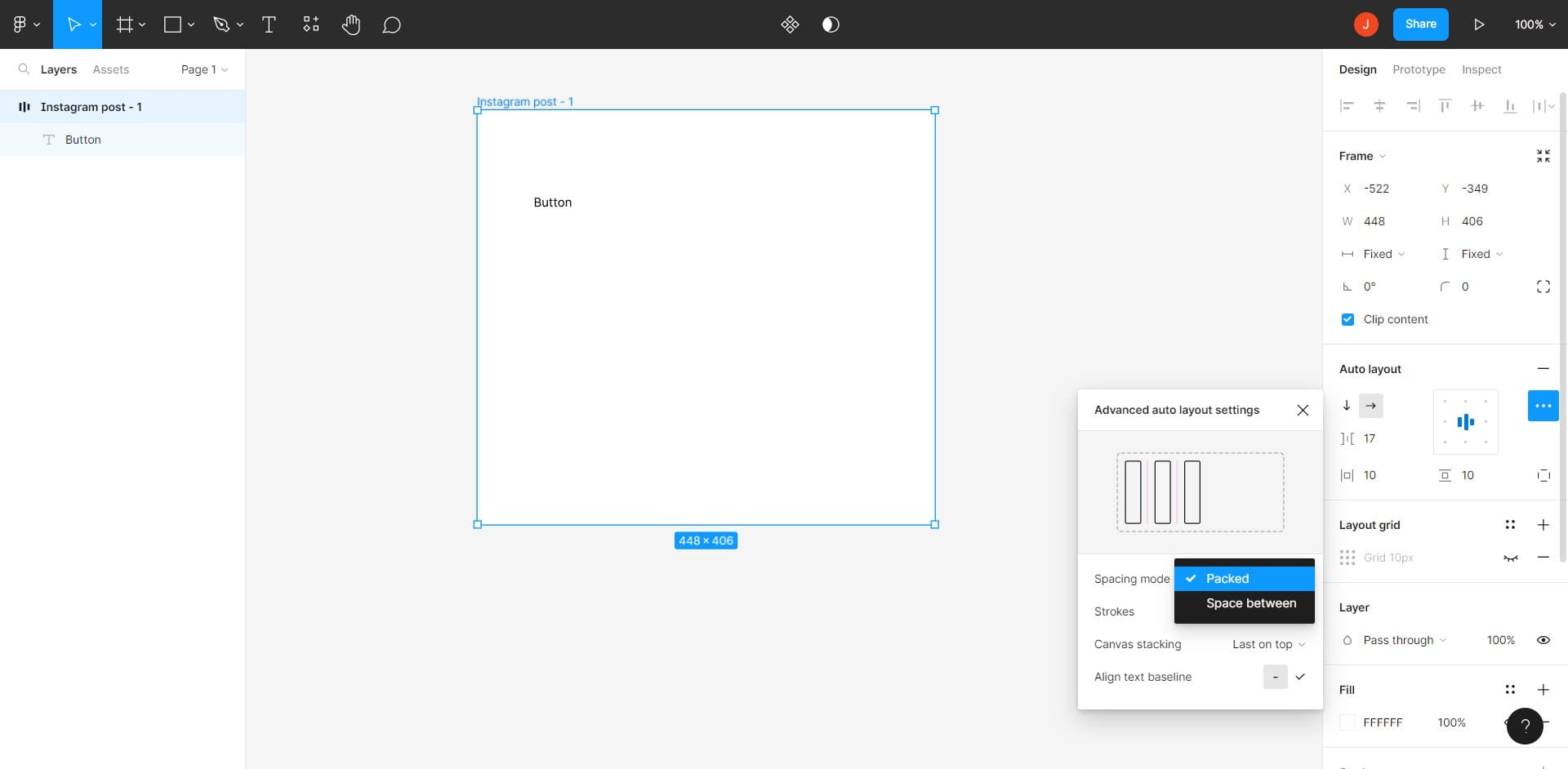
Apply Packed alignment
Click on the Packed option to make child elements group together tightly with consistent spacing. This alignment mode is ideal for creating flexible button sets, navigation menus, and other compact component layouts.
Frequently asked questions
Common questions about how to use auto layout in figma.
Packed groups child elements tightly together with even spacing between them. Space Between distributes items across the full width with equal gaps, while Space Around adds equal padding around each item. Choose Packed for compact layouts, Space Between for full-width distributions, and Space Around when you need breathing room around each element.
Yes, you can apply Auto Layout to multiple frames at different nesting levels. Each frame with Auto Layout manages its own children independently, allowing you to create complex responsive layouts with nested Auto Layout containers. This is especially powerful for building scalable design systems.
In the design panel, look for the spacing or gap input field when Auto Layout is enabled. Enter your desired pixel value to control the distance between child elements. You can also set different spacing values for horizontal and vertical directions depending on your layout configuration.
Applying Auto Layout to a main component will affect all instances, but existing overrides on child properties may behave differently. Test your instances after applying Auto Layout to ensure overrides work as expected. You may need to adjust override settings for properties like width or height.
Auto Layout works best when combined with min/max width and height constraints rather than fixed dimensions. Use hug content to make frames shrink to fit their children, and fixed sizing when you need precise control. This combination creates truly responsive components that adapt to various content lengths.