How to delete an unwanted page in Google Docs

Accidentally created an extra page in your Google Docs document? Removing unwanted pages is a straightforward process that helps keep your documents clean and organized. This tutorial walks you through the steps to delete a page quickly and efficiently.
Quick summary
In this tutorial, you'll learn how to identify and remove unwanted pages from your Google Docs document. By following these simple steps, you'll be able to clean up your document and maintain a professional appearance.
Why this matters
Deleting unwanted pages is important for maintaining document clarity and reducing confusion for readers. Whether you have blank pages, duplicated content, or sections you no longer need, removing them ensures your document stays focused and concise. A well-organized document is easier to share, review, and publish.
Step-by-step guide
- 1
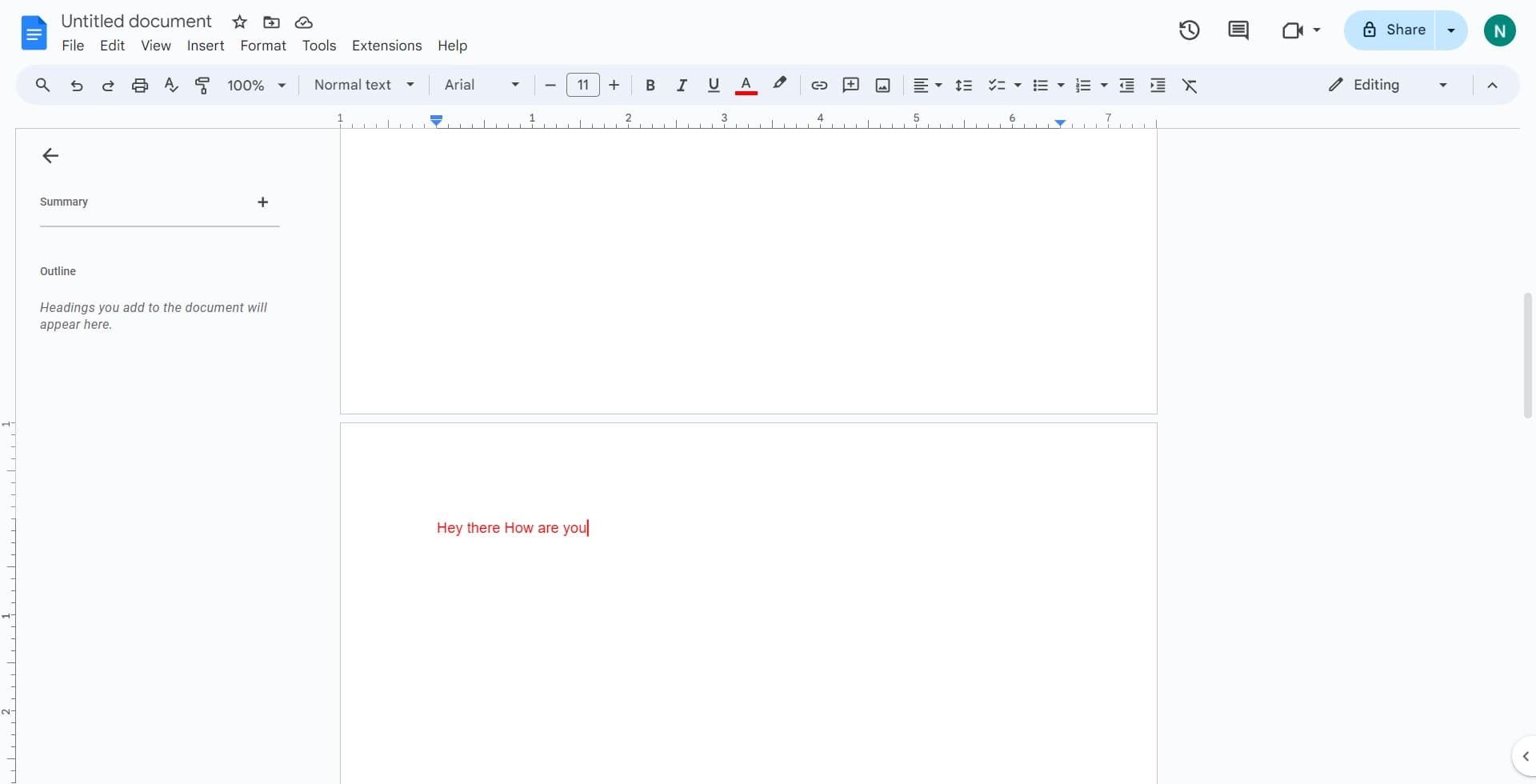
Select the content on the page
Begin by clicking on the page you want to delete to position your cursor there. You'll want to select all the content on that page before removing it.
- 2
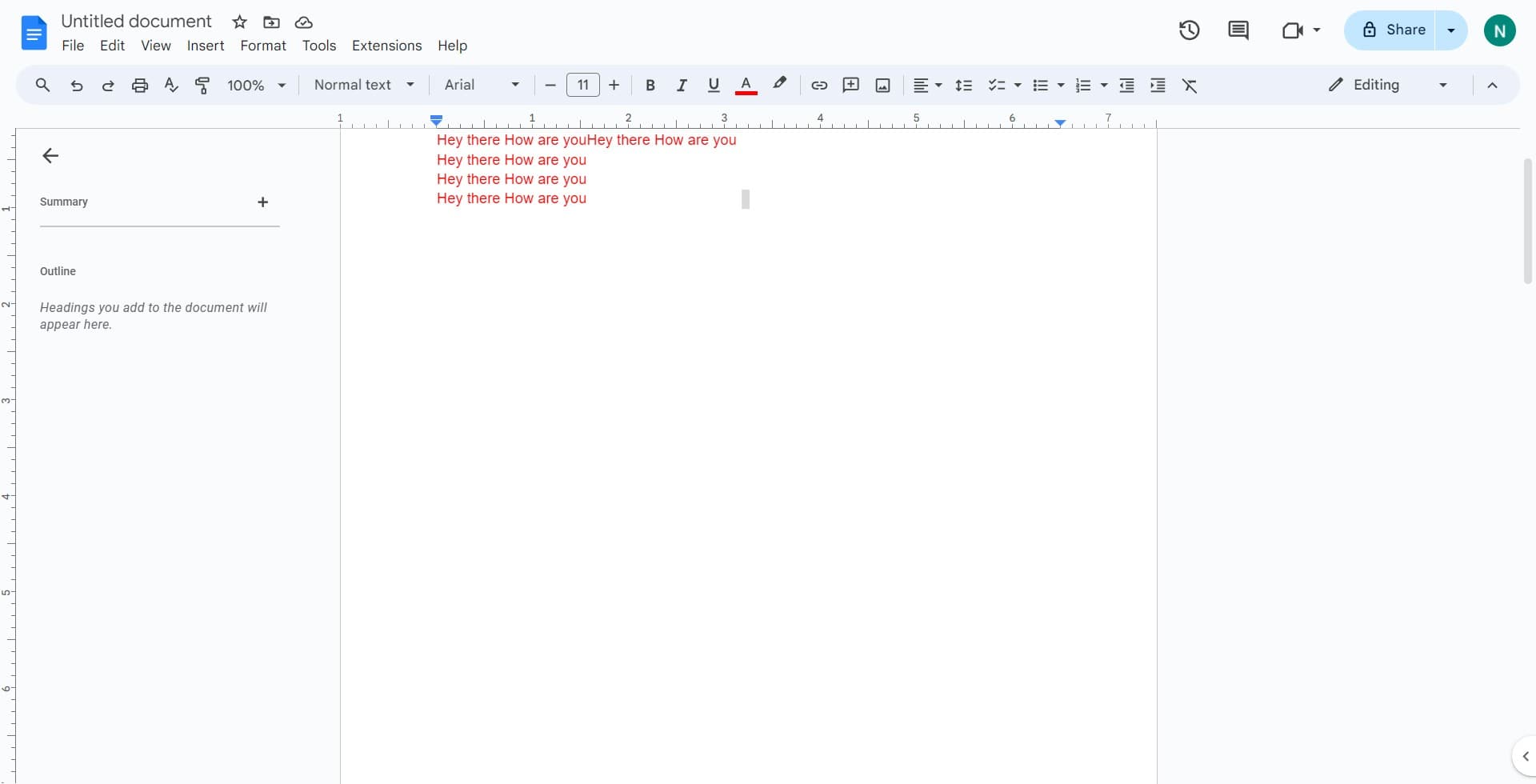
Highlight all page content
Click and drag to select all text and elements on the unwanted page, or use keyboard shortcuts to select the entire page content. Make sure everything you want to remove is highlighted.
- 3
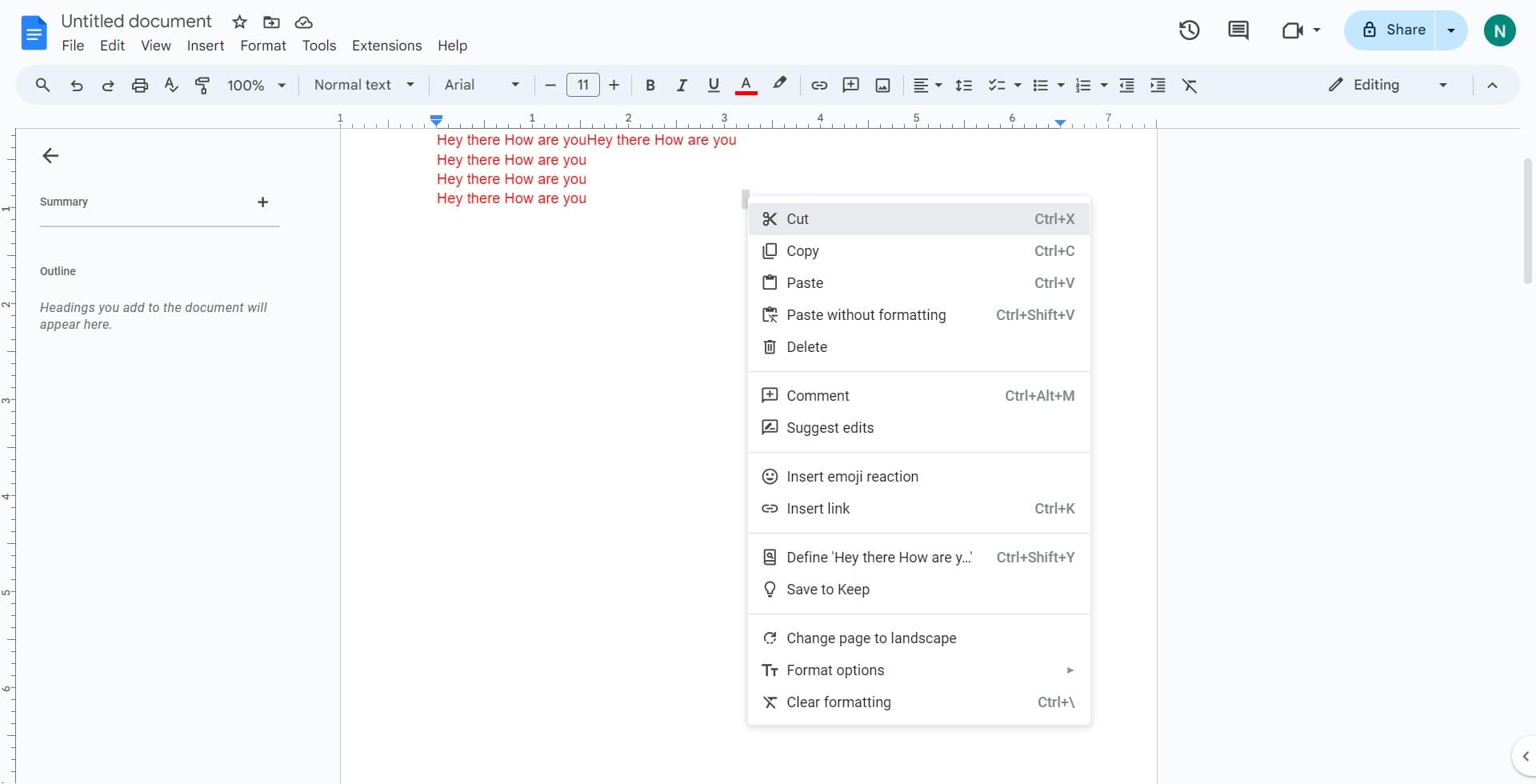
Cut the selected content
Click on the 'Cut' option to remove the selected content from your document. This action deletes the content and removes the page from your document.
- 4
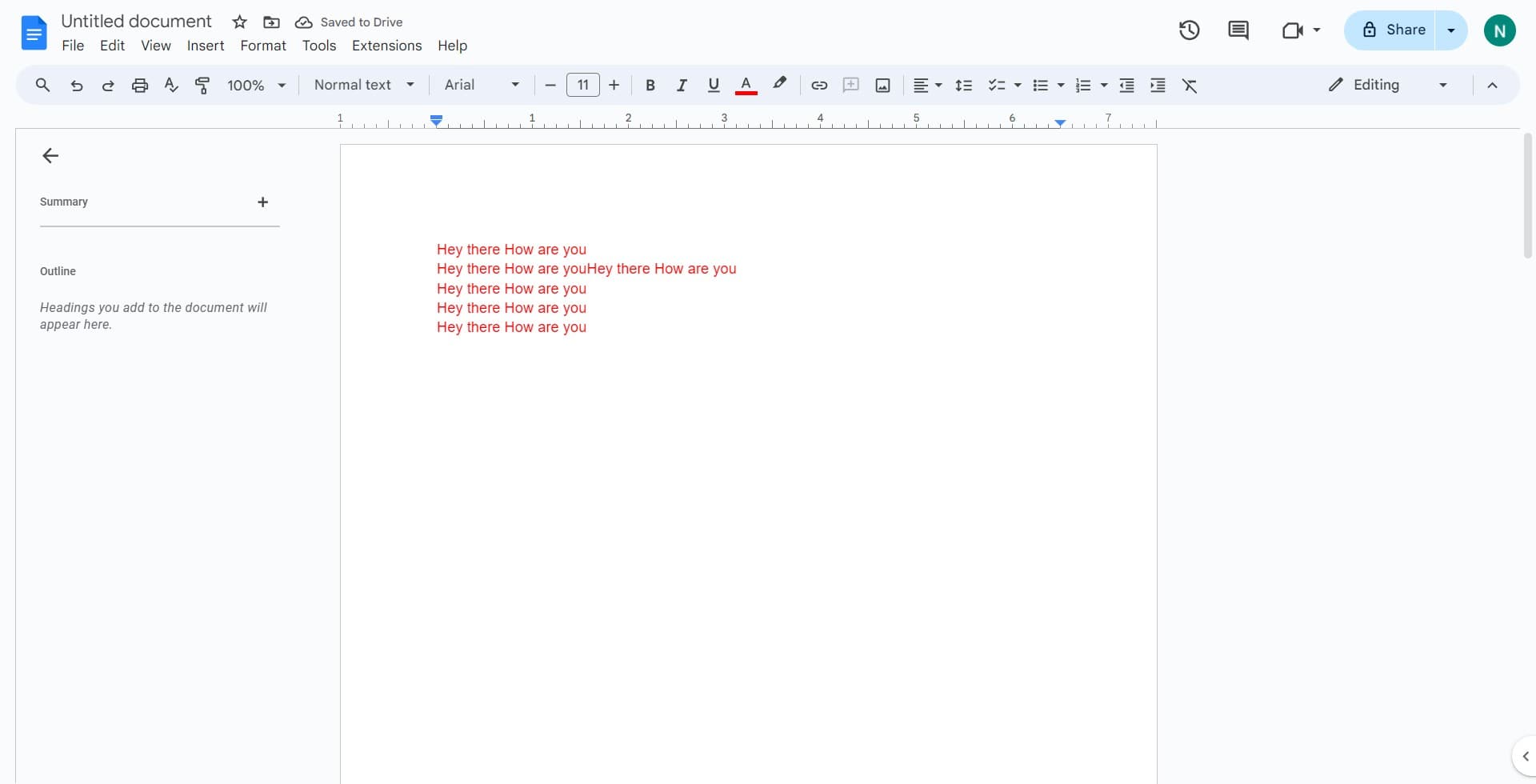
Confirm the page removal
Click to finalize the deletion and verify that the unwanted page has been removed from your document. Your document should now display the correct number of pages.
Frequently asked questions
Common questions about how to delete an unwanted page in google docs.
Yes, you can undo a page deletion by pressing Ctrl+Z (or Cmd+Z on Mac) immediately after deleting it. Google Docs maintains an undo history that allows you to recover recently deleted content within your current session.
Deleting a page removes all its content and reduces your document's total page count. Clearing content only removes the text and elements but may leave blank space. For a clean removal, cutting the content is the most effective approach.
Select the blank page by clicking at the beginning of the page and use backspace or delete to remove it. If the blank page persists, it may be due to a page break, which you can remove by positioning your cursor and deleting the break.
Deleting a page typically won't affect your overall document formatting, but it may impact page breaks or section breaks you've set up. Always review your document after deletion to ensure the formatting remains as intended.
Yes, you can select content across multiple pages and cut it all at once. Click at the start of the first page you want to delete and drag to the end of the last page, then cut the selection to remove all selected pages together.