How to download a Google document as PDF

Exporting a Google Doc as a PDF is a practical way to share your document in a universally compatible format that preserves formatting across all devices. Whether you need to send a polished report, archive a document, or prepare content for print, converting to PDF ensures your work looks exactly as intended. This guide walks you through the simple process in just three clicks.
Quick summary
In this tutorial, you'll learn how to download a Google Document as a PDF file. We'll cover accessing the File menu, selecting the download option, and choosing the PDF format to complete the export.
Why this matters
Converting documents to PDF is essential for professional communication, legal compliance, and ensuring your formatting remains intact regardless of the recipient's software. PDFs are also ideal for archiving important documents and sharing read-only versions that cannot be accidentally edited. This workflow is one of the most common document management tasks in business and personal productivity.
Step-by-step guide
- 1
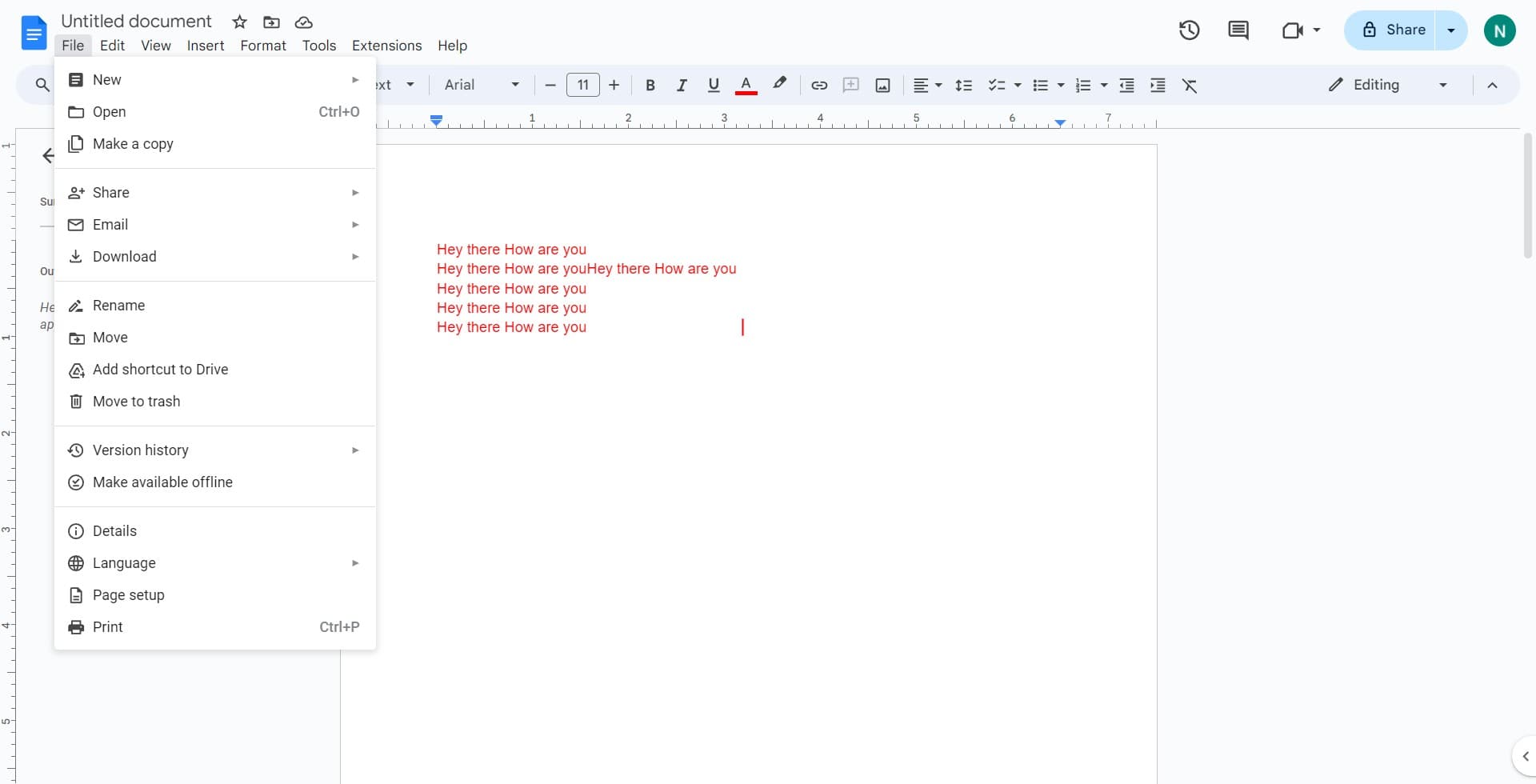
Click on the File menu
Open your Google Document and locate the File menu in the top-left corner of the screen. Click on it to reveal the dropdown menu with export and download options.
- 2
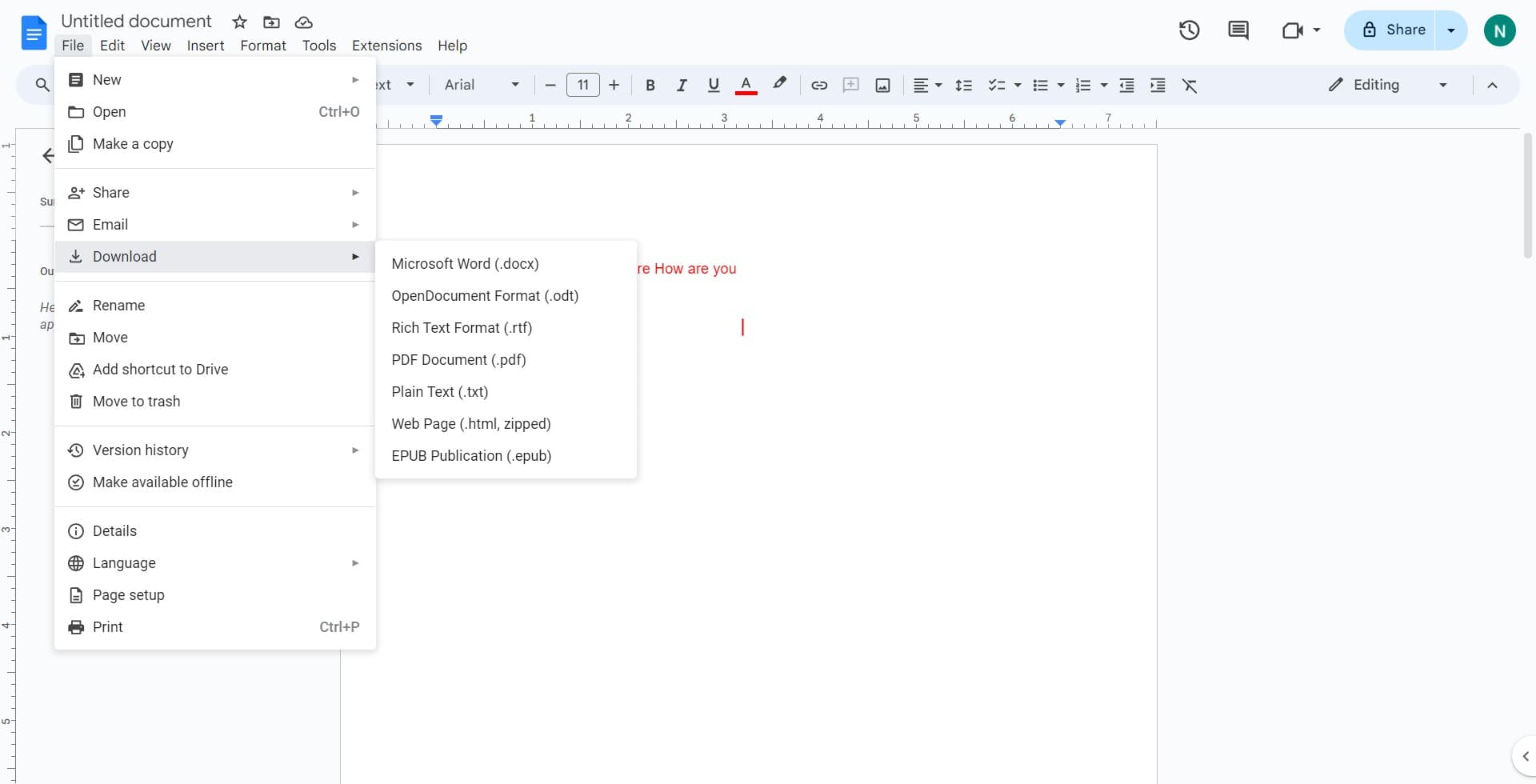
Click on Download option
In the File dropdown menu, find and click on "Download" to see the available export format options. A submenu will appear showing different file formats you can download.
- 3
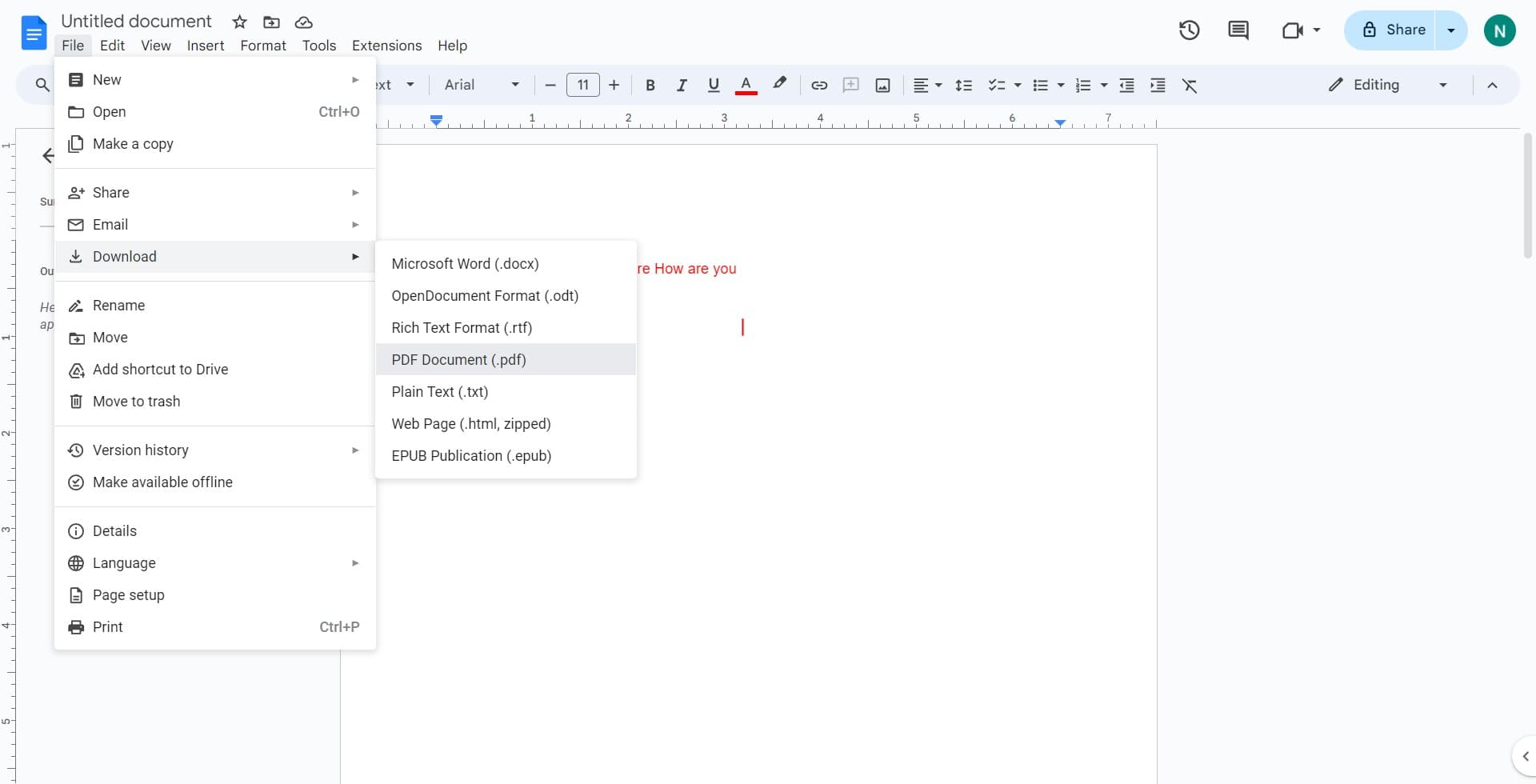
Select PDF Document format
From the submenu, click on "PDF Document (.pdf)" to initiate the download. Your browser will automatically download the file with the same name as your Google Doc, converted to PDF format.
Frequently asked questions
Common questions about how to download a google document as pdf.
Yes, Google Docs automatically converts your document to PDF while maintaining all formatting, fonts, colors, images, and layout. The PDF will look identical to how your Google Doc appears on screen, ensuring a professional appearance.
No, Google Docs requires you to download documents individually. However, the process is quick—just three clicks per document. If you need to batch convert many files, consider using Google's export tools or third-party automation services.
The PDF file downloads to your computer's default downloads folder, typically named "Downloads." The file is named the same as your Google Doc with a .pdf extension. You can rename or move it to any location on your computer after download.
No, PDFs downloaded from Google Docs are static files and cannot be edited as easily as Google Docs. If you need to make further edits, work with the original Google Doc. You can always download a new PDF version after making changes.
No, PDFs are universally compatible and can be opened with any standard PDF reader, including Adobe Reader, web browsers, and most operating systems' built-in viewers. This makes PDFs ideal for sharing documents with anyone, regardless of what software they have installed.