How to prevent viewers from resharing or copying Google Docs, Sheets, or Slides

Protecting your Google Docs, Sheets, and Slides from unauthorized resharing or copying is essential for maintaining control over sensitive information. This tutorial walks you through the permission settings that allow you to restrict viewer actions and prevent content from being redistributed.
Quick summary
In this tutorial, you'll learn how to configure sharing permissions in Google Docs to prevent viewers from resharing or copying your documents. You'll access the sharing settings and adjust editor permissions to enforce the level of control you need over your content.
Why this matters
When you share documents with collaborators or colleagues, you may want to limit what they can do with that access. Preventing resharing and copying ensures your confidential information, proprietary documents, or draft materials stay within your intended audience and aren't distributed further without your knowledge.
Step-by-step guide
- 1
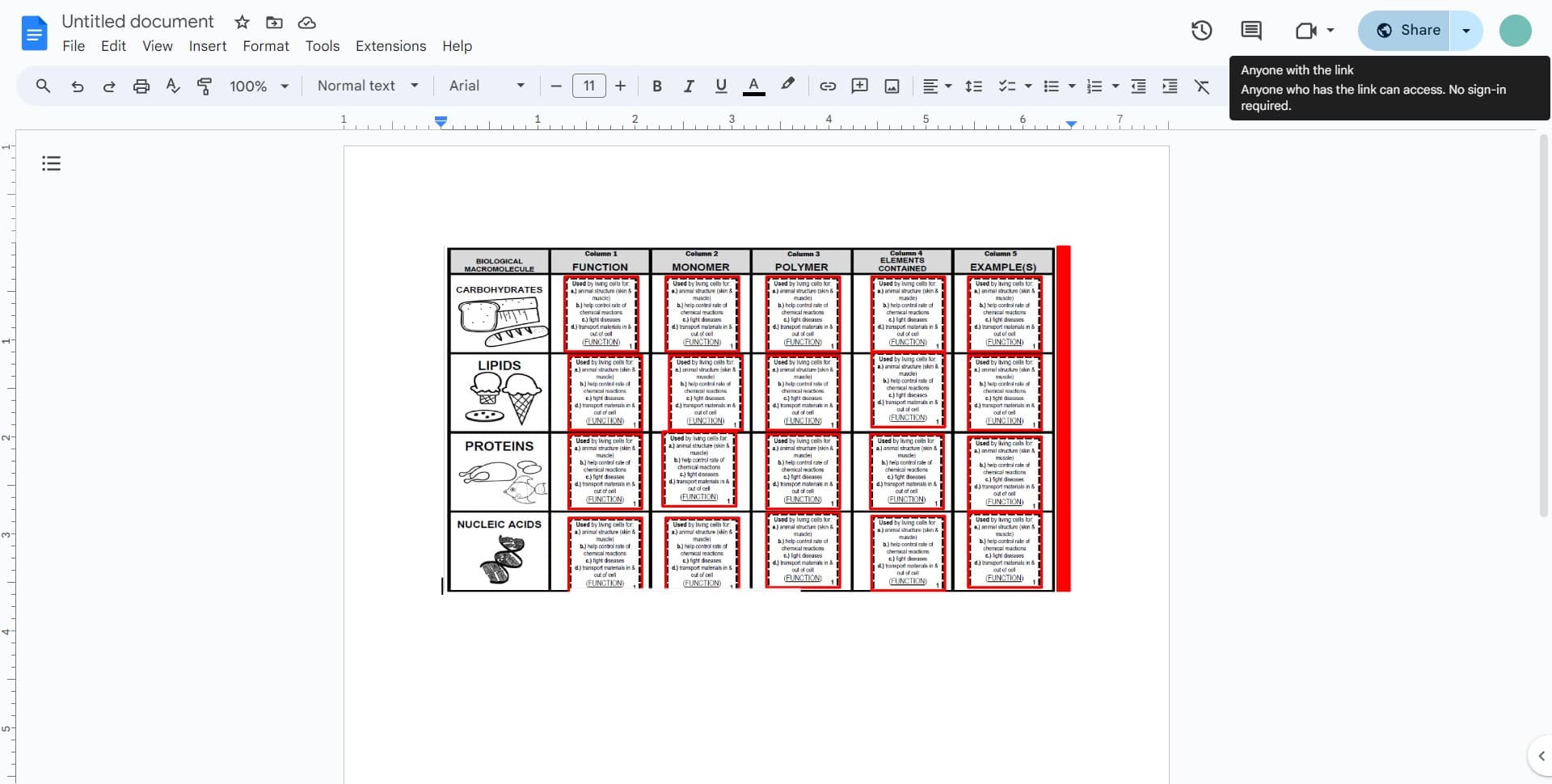
Open the sharing menu
Click on the share button or menu icon at the top of your Google Doc. This opens the sharing panel where you can manage permissions and access settings for your document.
- 2
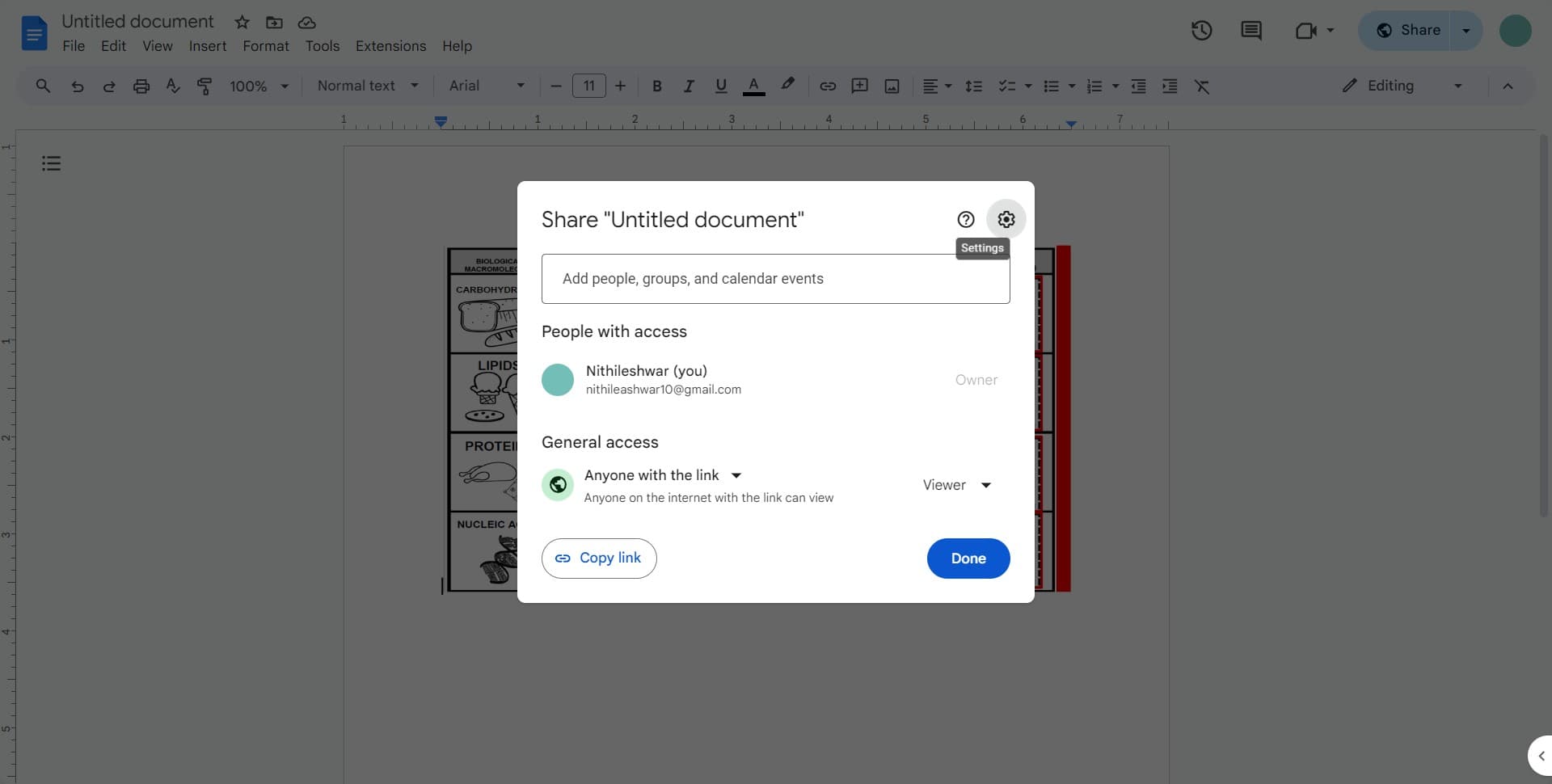
Access sharing settings
Click on the sharing options or settings area within the panel. This displays the current permission configuration for all viewers and collaborators.
- 3
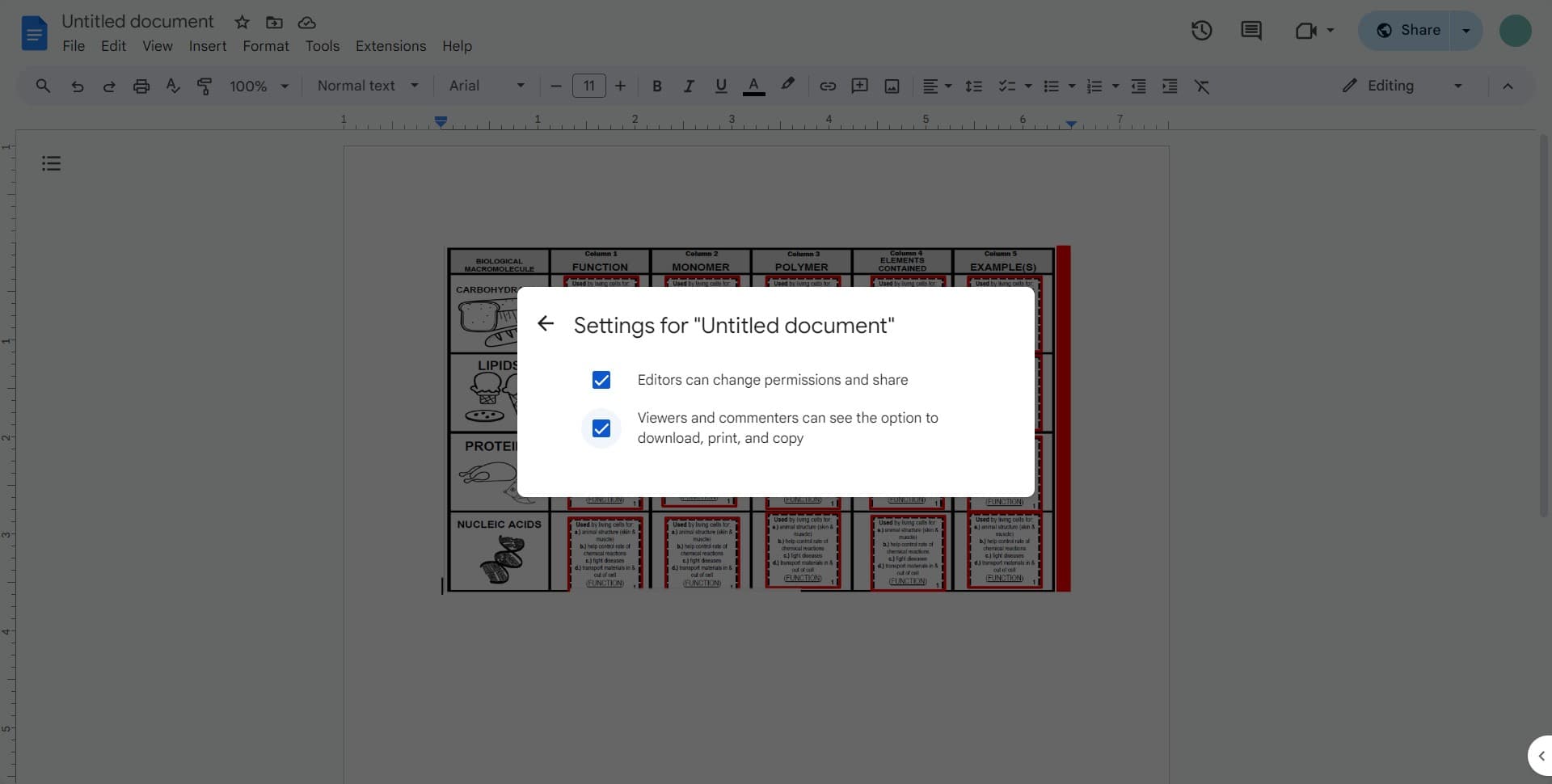
Navigate to advanced permissions
Click on the advanced permissions option to reveal granular control settings. This section contains the restrictions you need to prevent resharing and copying.
- 4
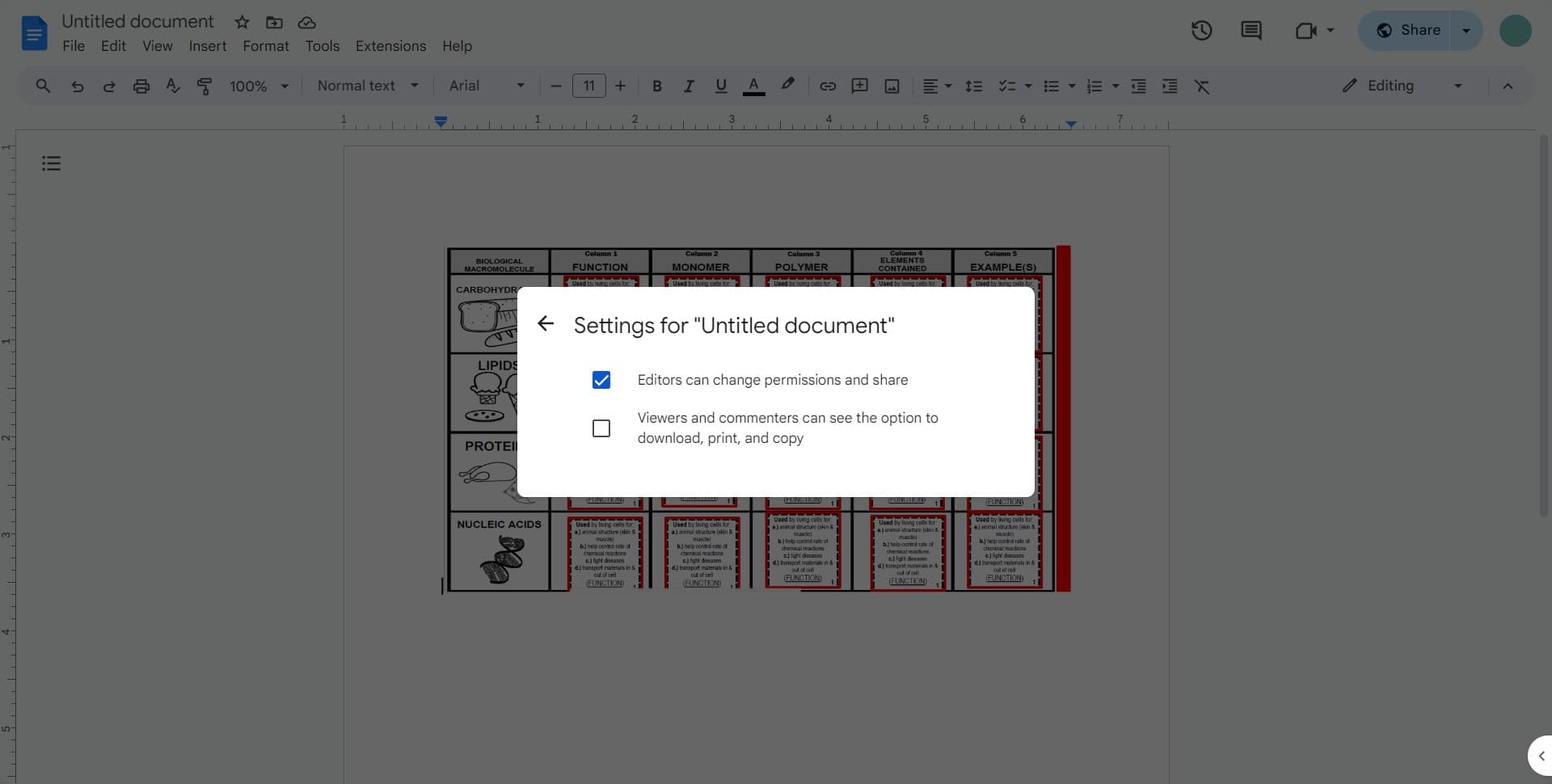
Restrict editor permissions
Click on the editors permissions option, which shows settings like 'Editors can change permissions and share' or 'Editors can download, print, and copy'. Uncheck the copy and resharing options to prevent viewers from duplicating or redistributing your document.
Frequently asked questions
Common questions about how to prevent viewers from resharing or copying google docs, sheets, or slides.
Google Docs permission settings typically control print, download, and copy access together. You cannot selectively enable printing while disabling copying. If you need fine-grained control over different output methods, consider using Google Drive's advanced sharing restrictions or exploring third-party access control solutions.
View-only access prevents users from making any changes to the document. However, depending on your sharing settings, they may still be able to copy text, download, or print the document. Disabling these permissions in the advanced sharing settings will prevent these actions.
The permission settings allow you to configure restrictions separately for editors and viewers. Editors typically have broader permissions than viewers, but you can adjust both groups' abilities to copy, print, and download in the advanced permissions panel.
While Google's permission system prevents standard copying and downloading through the interface, determined users with technical knowledge might find workarounds. For highly sensitive content, consider storing documents in a restricted environment or using additional security measures beyond sharing permissions.
You can test the restrictions by having a colleague or secondary account attempt to copy, print, or download the document. If the options are grayed out or disabled in the interface, your restrictions are in effect. You can also review the sharing settings audit trail to monitor access changes.