How to rotate and insert checkboxes in Google doc

Google Docs offers powerful formatting and editing tools to customize your document's appearance and functionality. This tutorial shows you how to rotate text elements and insert checkboxes, two features that enhance document usability and visual presentation.
Quick summary
In this tutorial, you'll learn how to rotate text in Google Docs and add checkboxes to your document. These techniques are useful for creating specialized layouts, forms, and visually distinct content within your documents.
Why this matters
Rotating text helps you create unique document designs, particularly for headers, sidebars, or vertical labels. Checkboxes enable you to build interactive forms and task lists directly in Google Docs, improving document functionality and user engagement.
Step-by-step guide
- 1
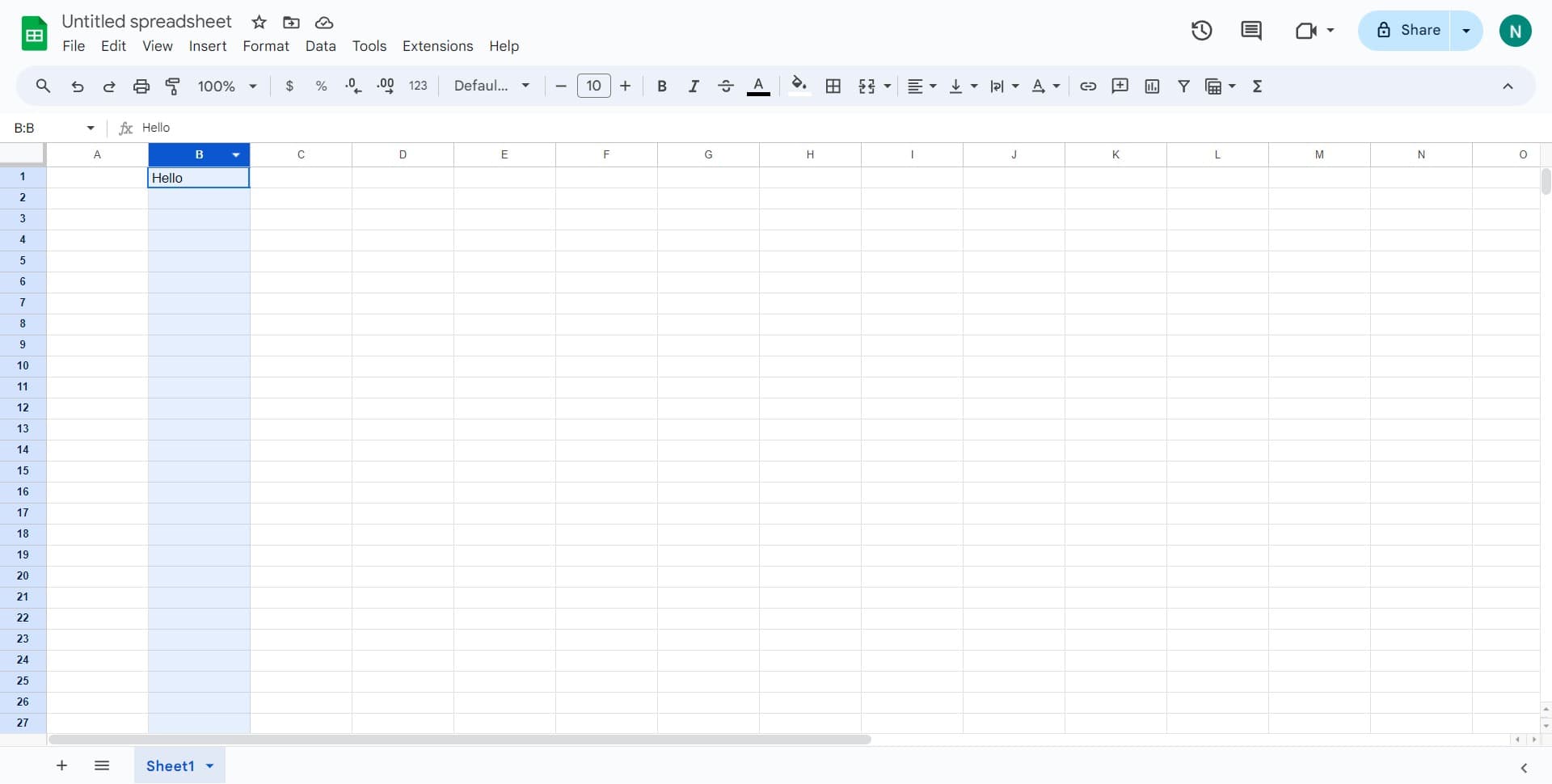
Select the text element
Begin by clicking on the text or object you want to rotate. This selects it and prepares it for formatting changes.
- 2
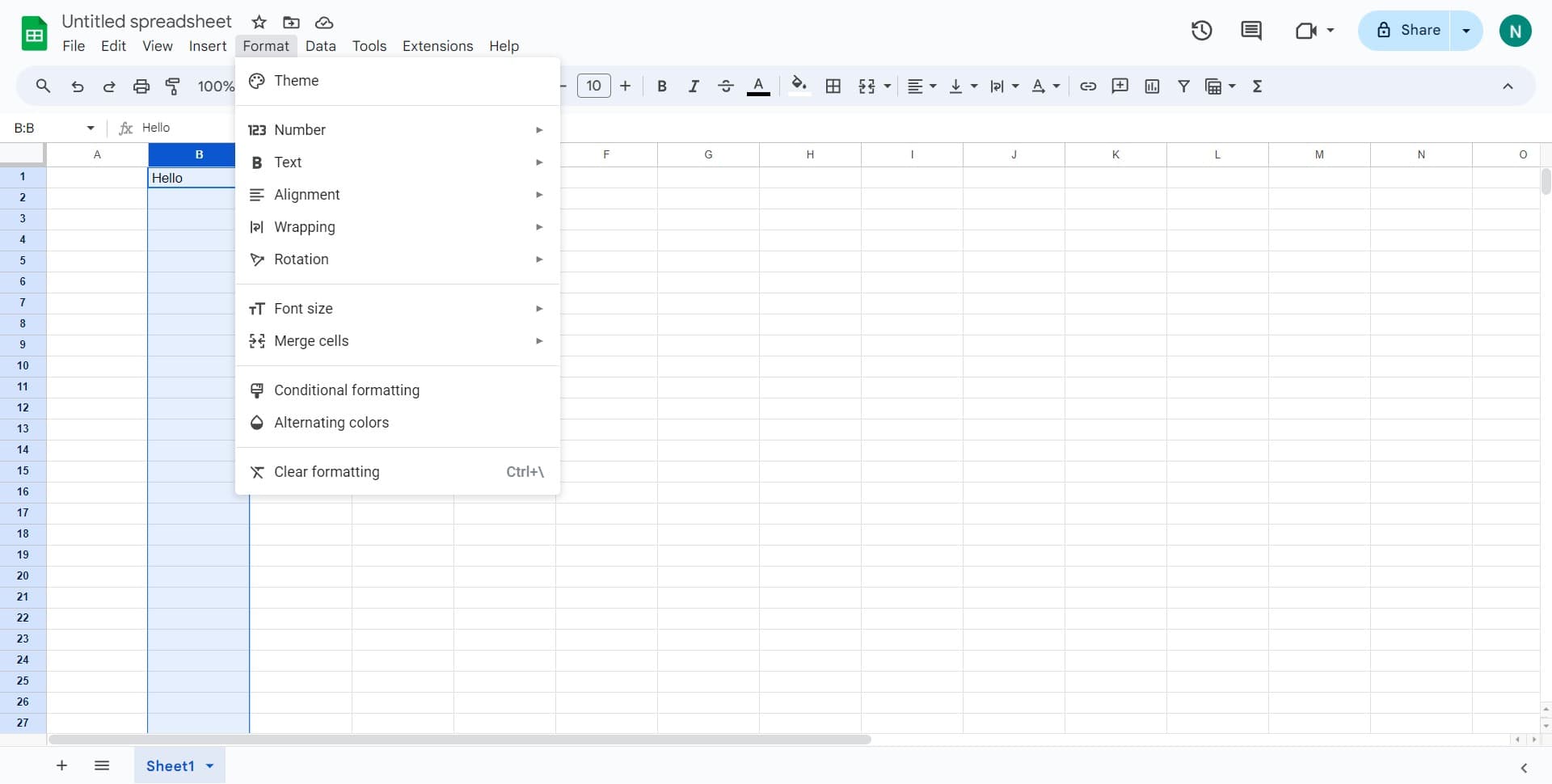
Open the Format menu
Click on 'Format' in the top menu bar to access all available formatting options for your selected element.
- 3
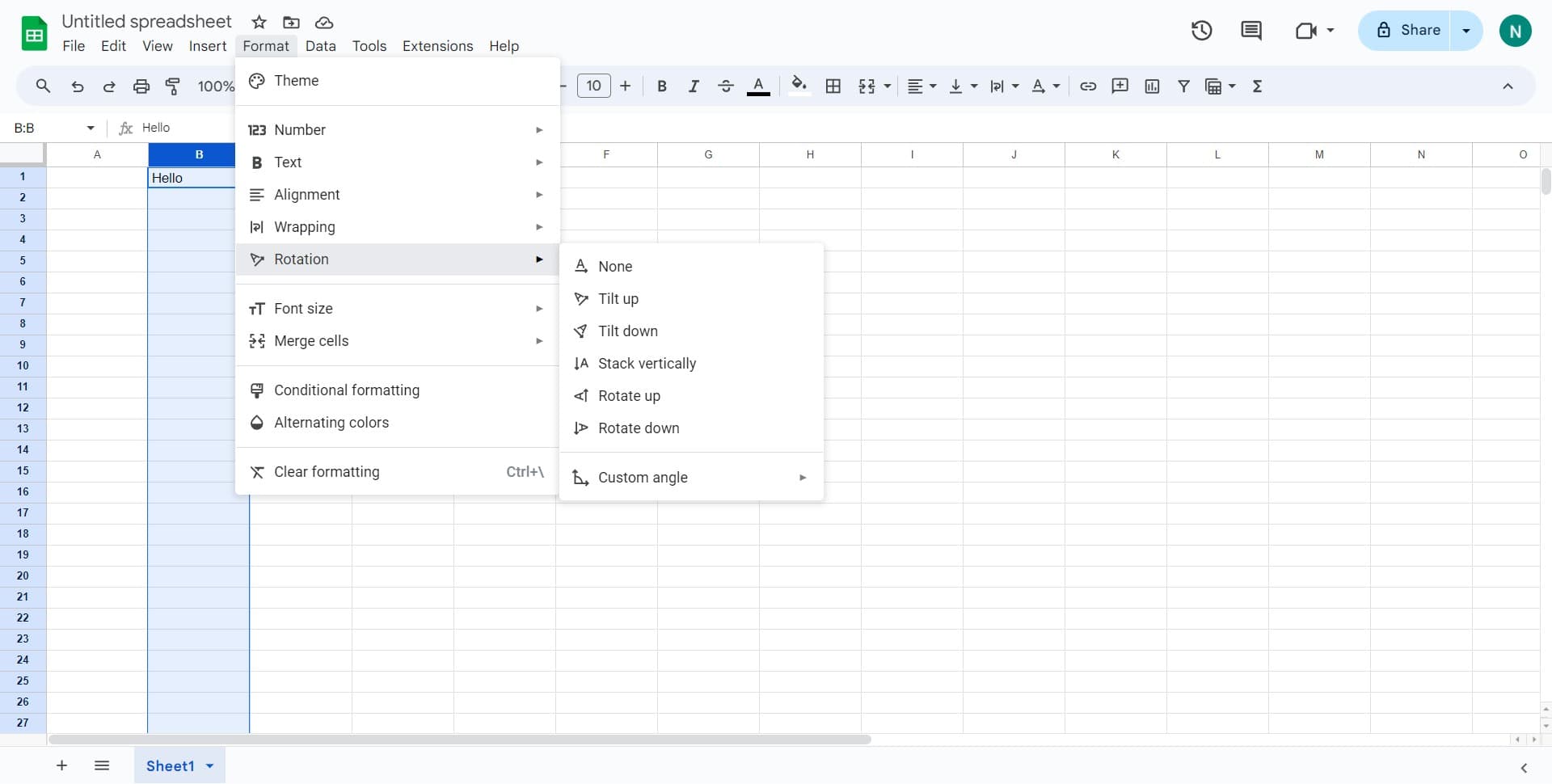
Navigate to Rotation options
Hover over or click on 'Rotation' to reveal the rotation submenu with preset rotation angles.
- 4
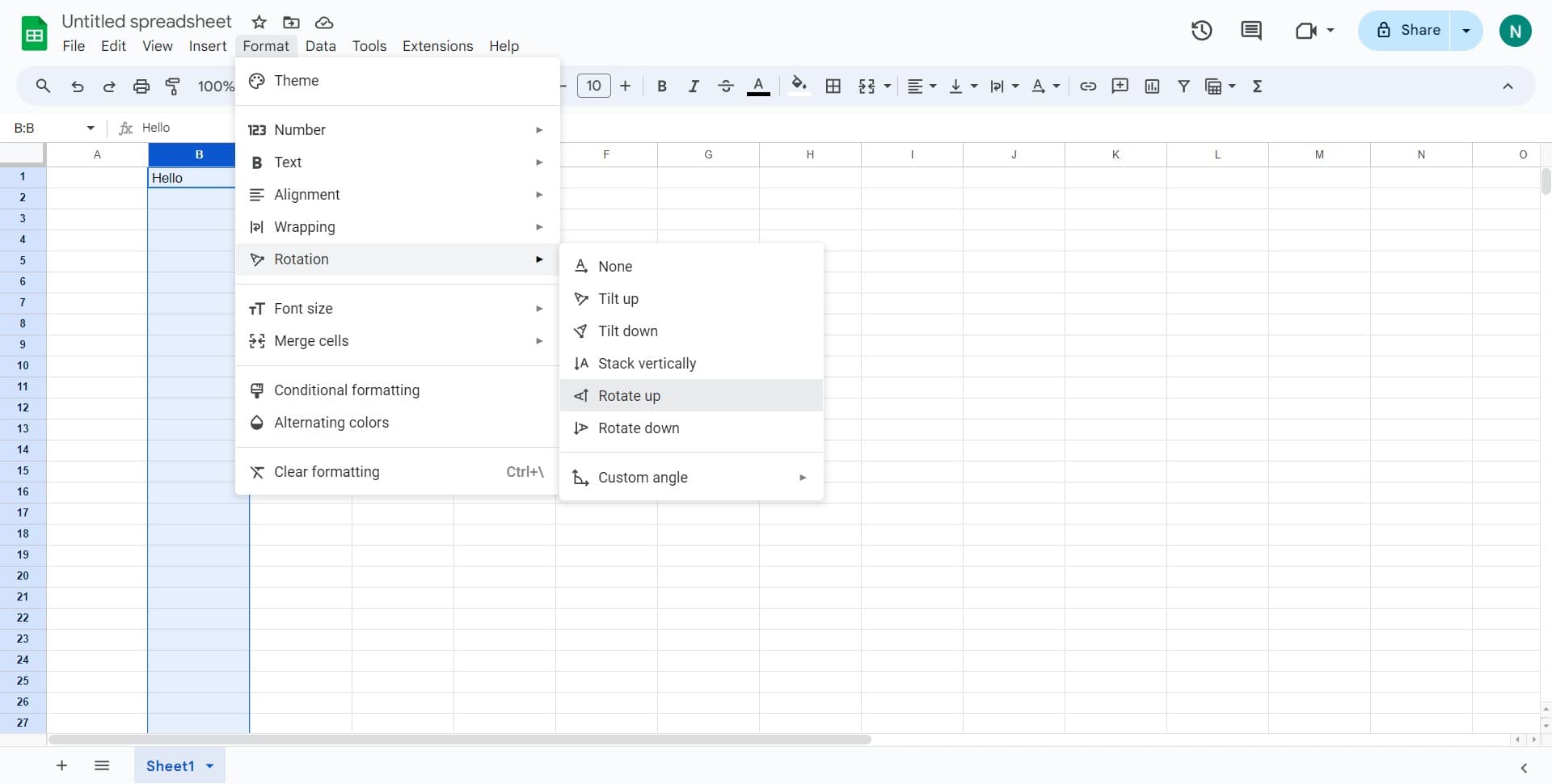
Select rotate up option
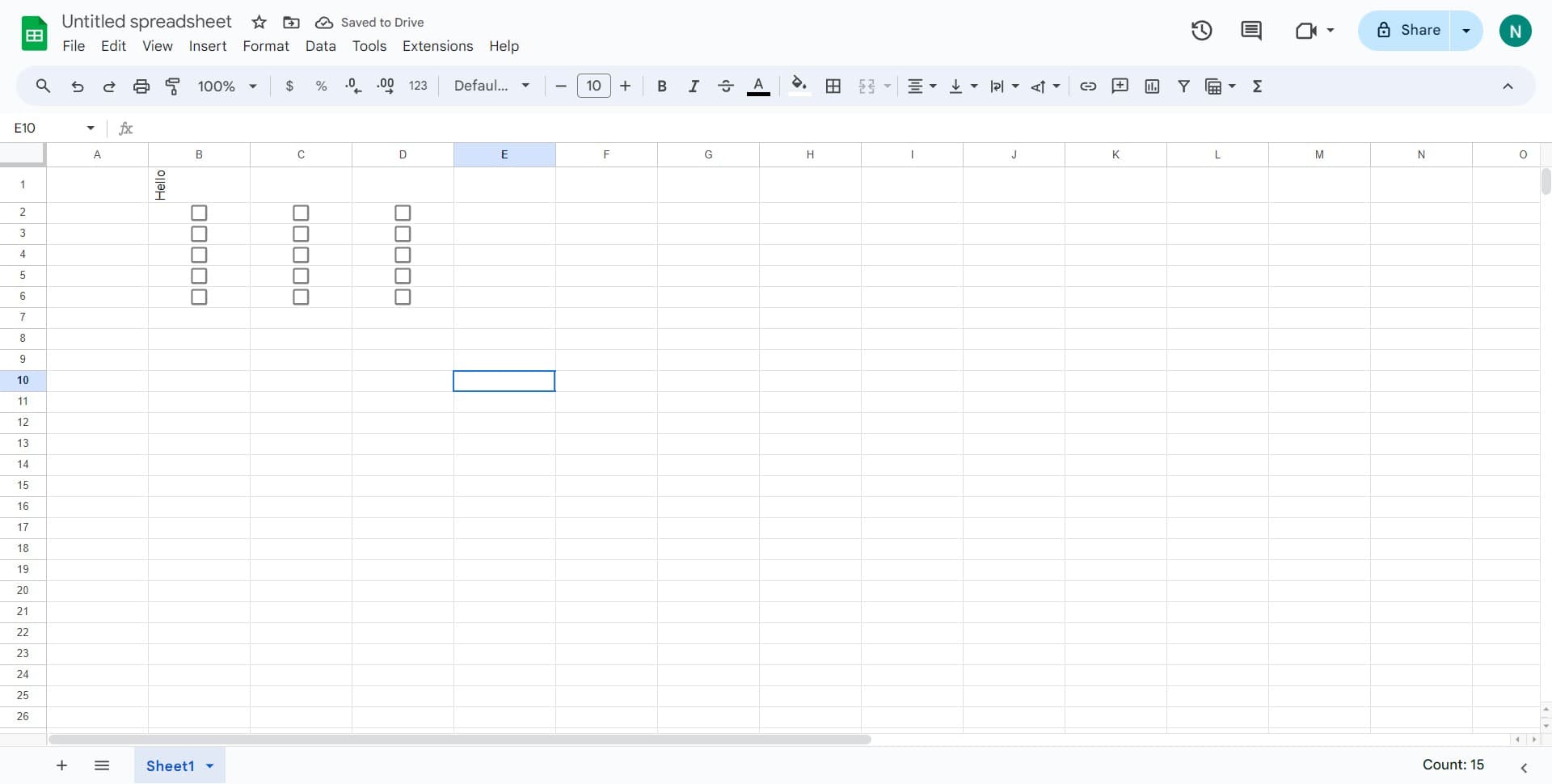
Click on 'Rotate up' to rotate your selected text or object 90 degrees counterclockwise. The element will immediately reflect this change in your document.
- 5
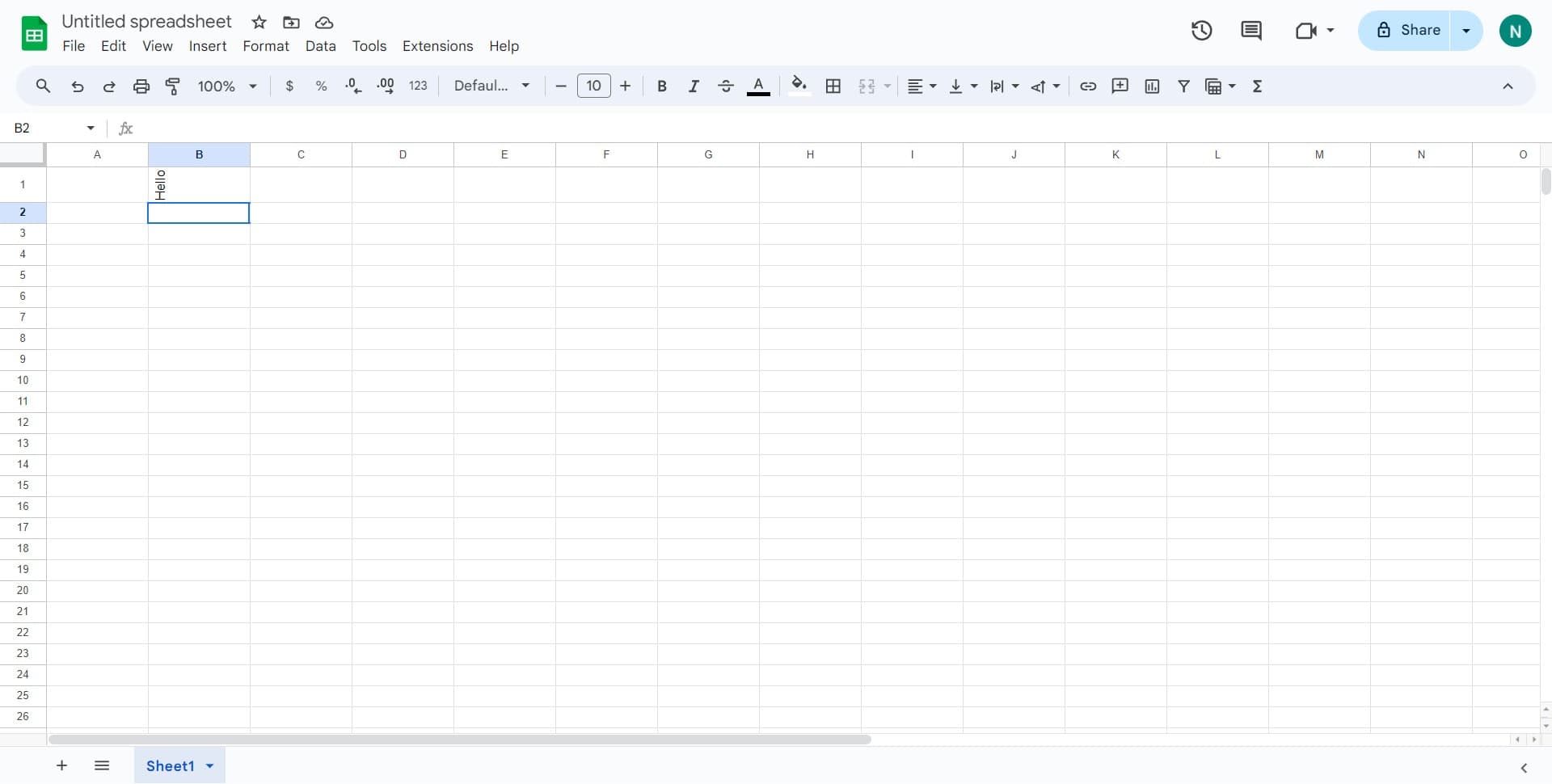
Position rotated element
Click on the document area where you want to place the rotated element, or adjust its position by clicking and dragging it to the desired location.
- 6
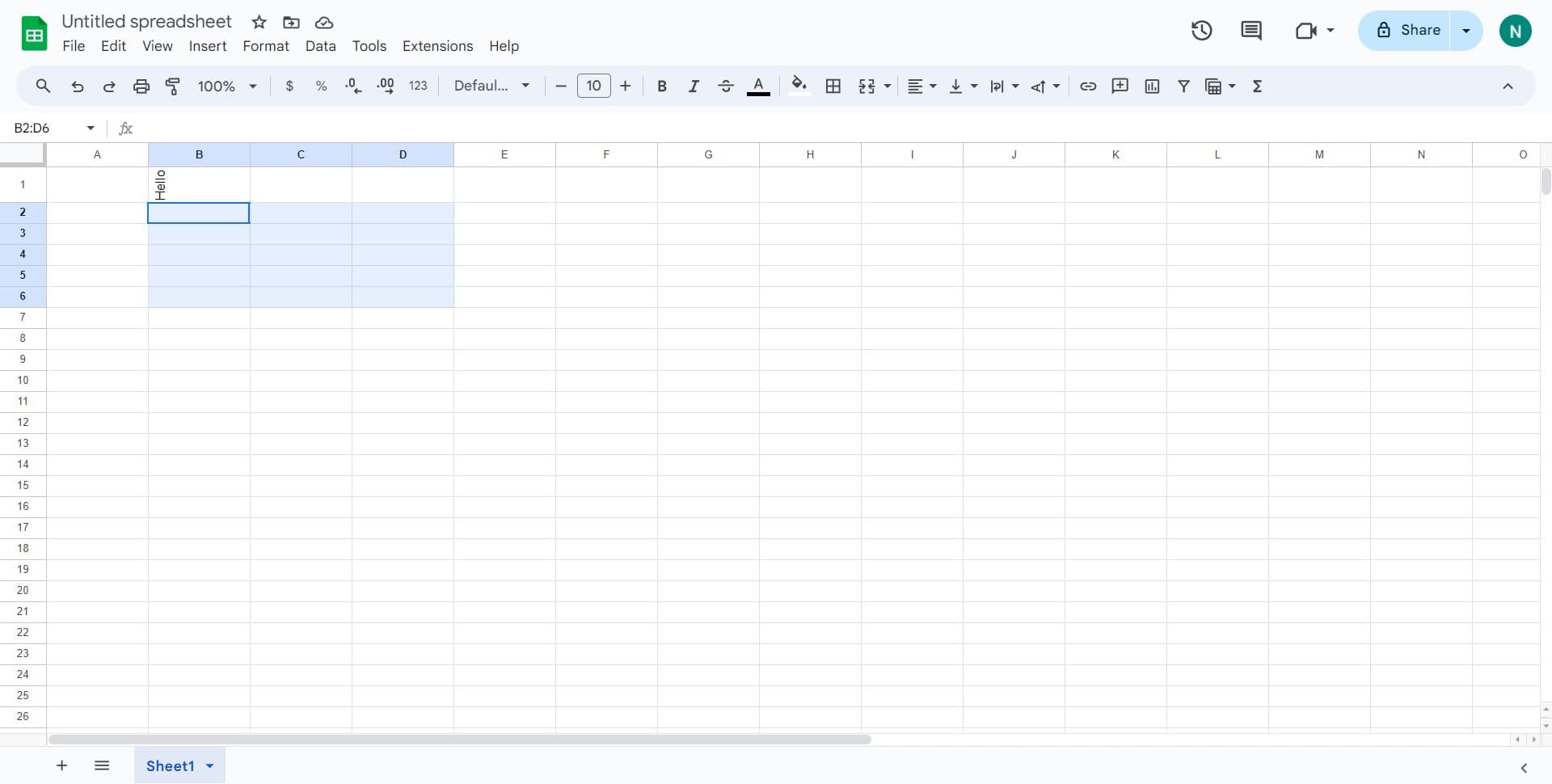
Prepare to insert checkbox
Click on the location in your document where you want to insert a checkbox. This positions your cursor for the next insertion step.
- 7
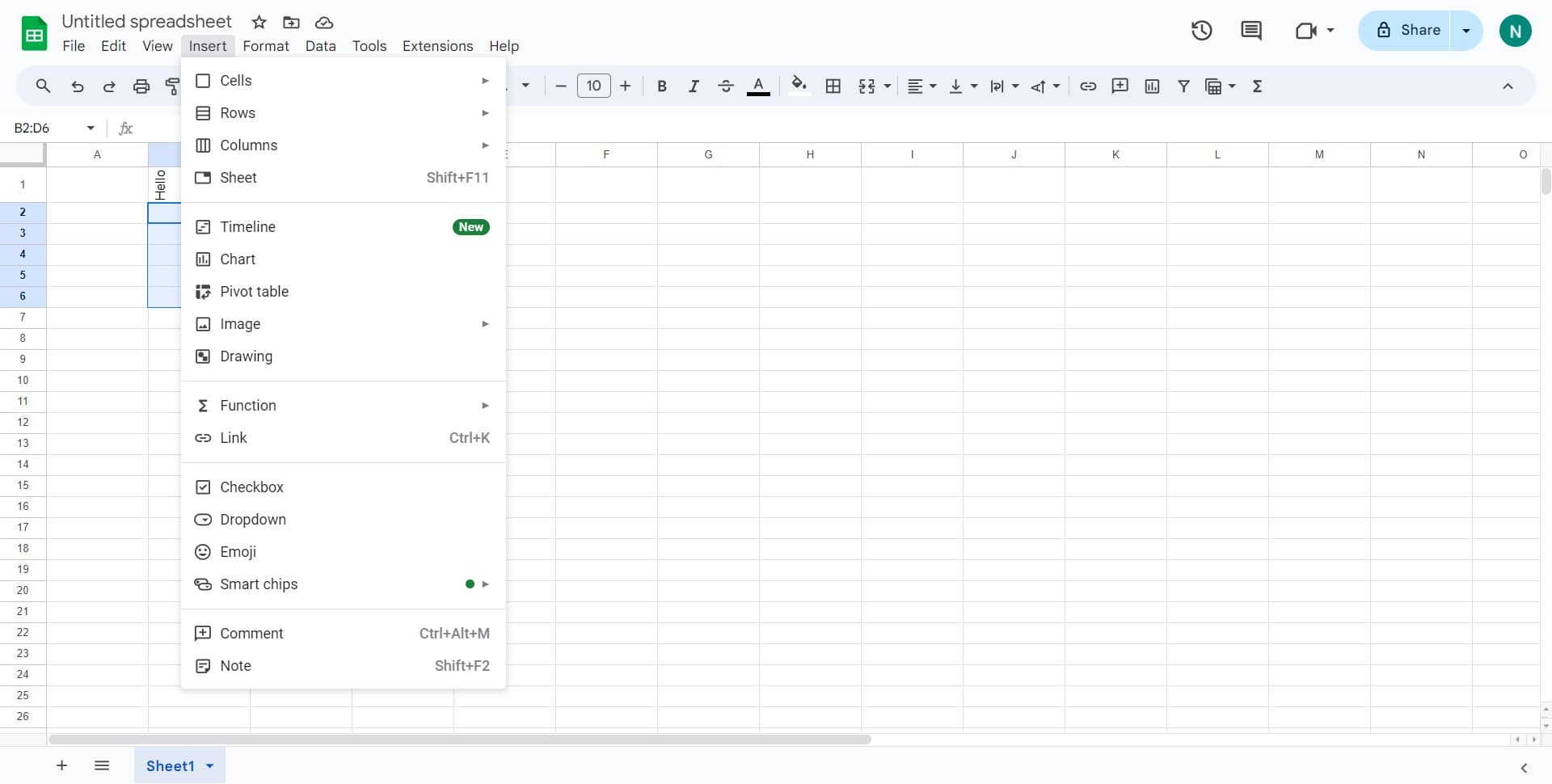
Open the Insert menu
Click on 'Insert' in the top menu bar to access options for adding various elements to your document.
- 8
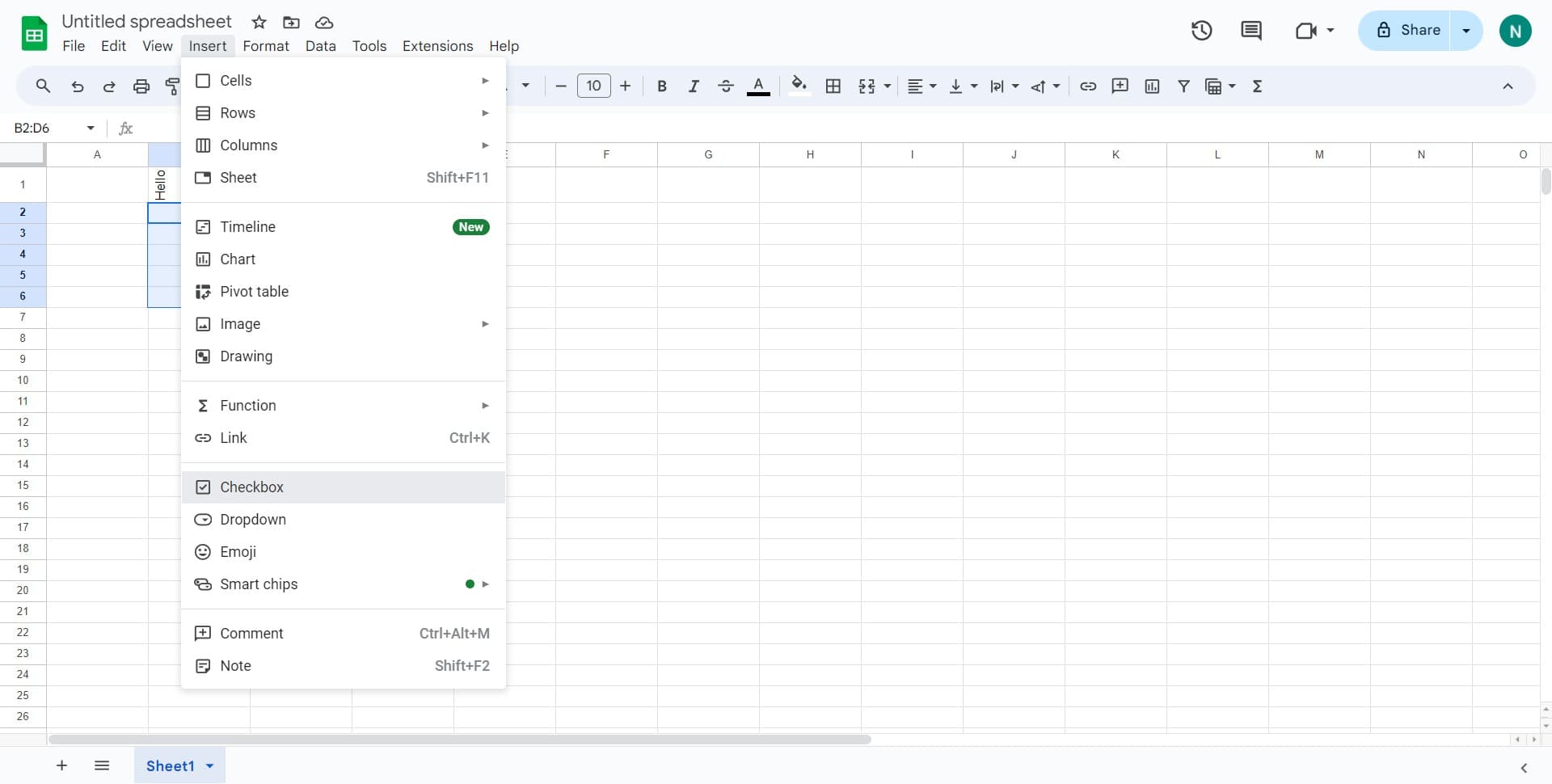
Insert checkbox element
Click on 'Checkbox' from the Insert menu. A checkbox symbol will be inserted at your cursor's current position in the document.
- 9
Finalize checkbox placement
Click in the document to deselect the checkbox and confirm its insertion. You can now add text after the checkbox or insert additional checkboxes as needed.
Frequently asked questions
Common questions about how to rotate and insert checkboxes in google doc.
Google Docs provides preset rotation options including rotate up, rotate down, and flip options. For custom angles, you may need to use the rotation handle on the element itself or insert a text box and rotate it manually. Check the Rotation menu for all available preset options.
Checkboxes inserted through the Insert menu are formatting symbols, not interactive form fields. To create interactive checkboxes that users can click to toggle, consider using Google Forms or enabling the checkbox option in collaborative editing mode where reviewers can mark items as complete.
Yes, you can format rotated text just like regular text. After rotating, use the Format menu to change font style, size, color, and other text properties. The text will retain these formatting changes while remaining rotated.
Rotating text works well for creating vertical headers in tables, labeling sidebars, designing unique title pages, or creating specialized layouts like certificates or brochures. It helps draw attention and improves document aesthetics in creative document designs.
Yes, you can select a checkbox and copy it using Ctrl+C (or Cmd+C on Mac), then paste it multiple times throughout your document using Ctrl+V (or Cmd+V). This is useful for quickly building checkbox lists or forms.