How to type with voice on Google docs

Voice typing in Google Docs allows you to compose documents hands-free using speech recognition technology. This feature is particularly useful for drafting content quickly, improving accessibility, or reducing repetitive strain during long writing sessions.
Quick summary
In this tutorial, you'll learn how to enable and use Google Docs' voice typing feature to dictate text directly into your documents. By following these simple steps, you'll be able to switch between traditional typing and voice input seamlessly.
Why this matters
Voice typing increases productivity by allowing you to write faster than manual typing while maintaining focus on your ideas rather than keystrokes. It's also an essential accessibility tool for users with mobility limitations or anyone looking to reduce fatigue during extended writing sessions.
Step-by-step guide
- 1
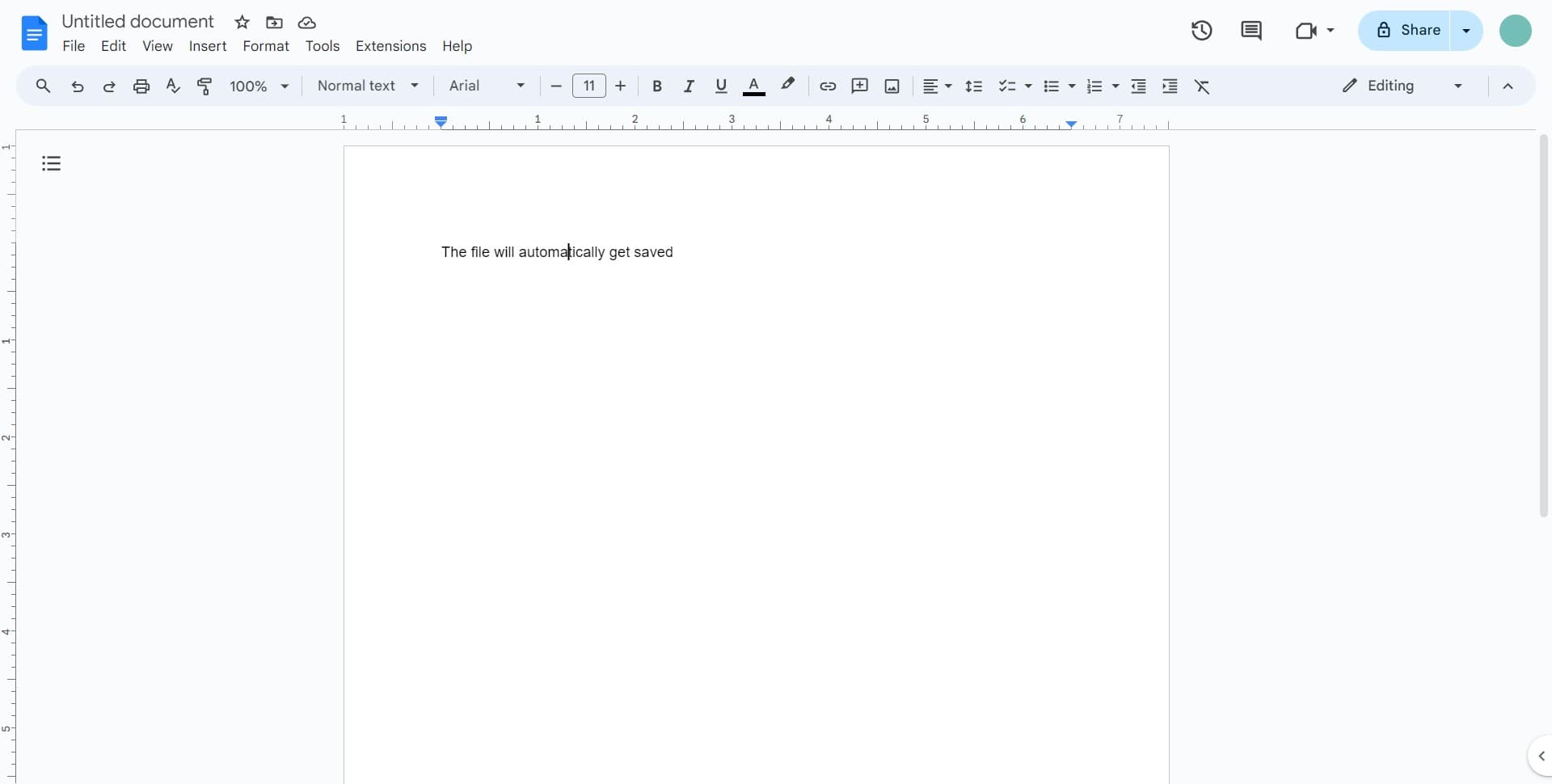
Open your Google Docs document
Navigate to Google Docs and open the document where you want to use voice typing. Ensure you're logged into your Google account and have the document ready for editing.
- 2
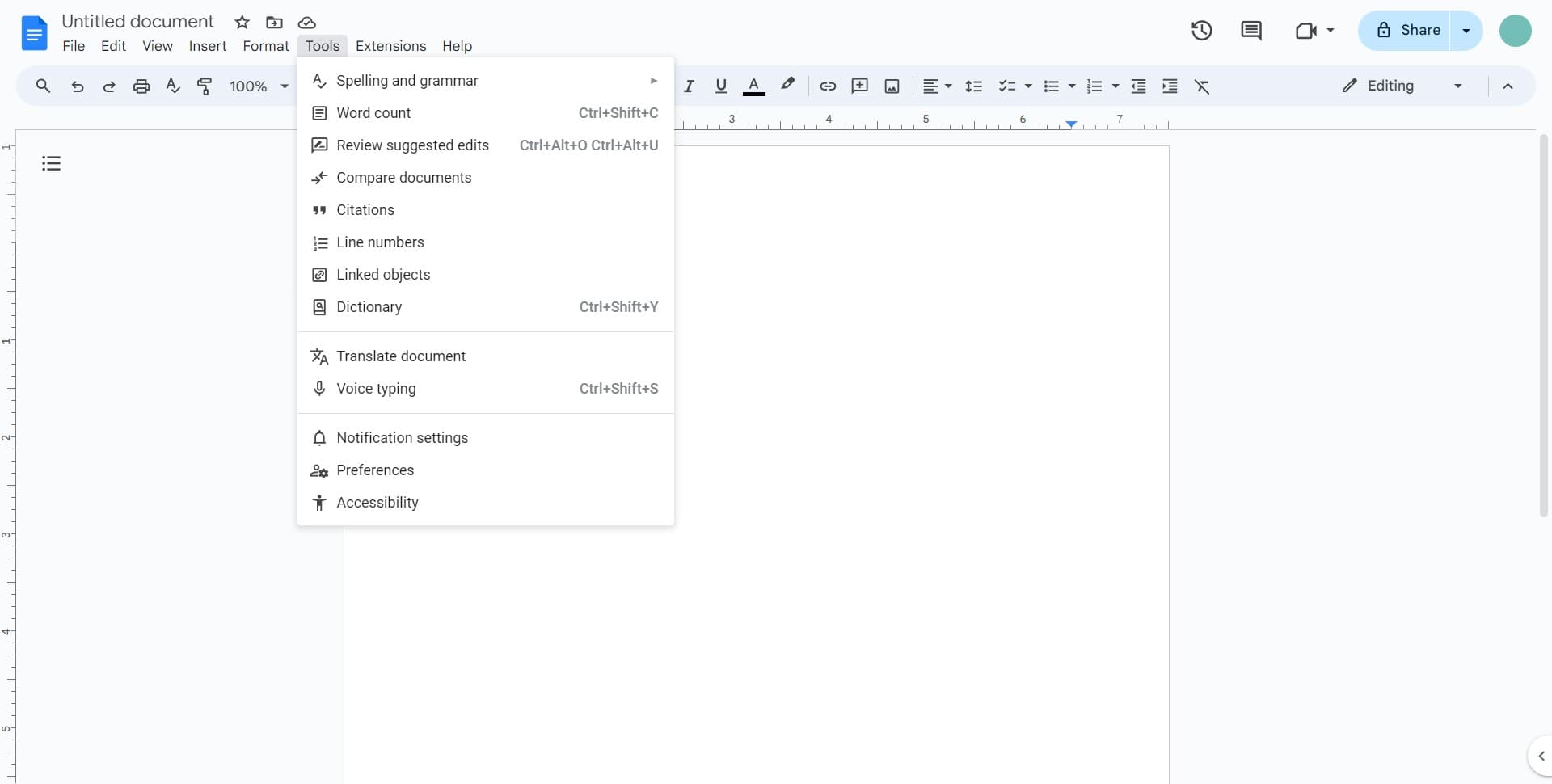
Click on the Tools menu
In the top menu bar, locate and click on 'Tools' to access additional document features and settings.
- 3
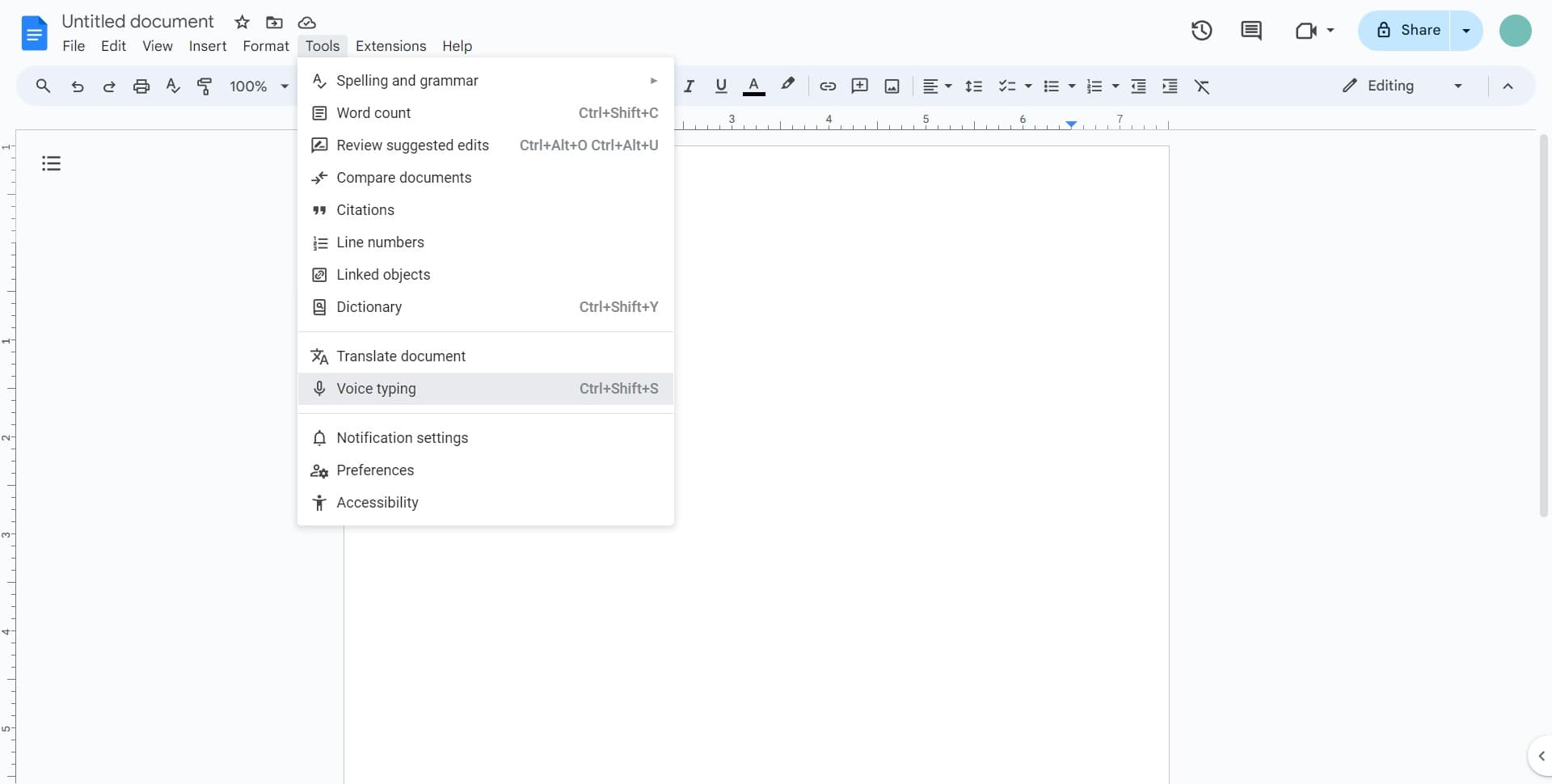
Select Voice typing option
From the Tools dropdown menu, click on 'Voice typing' to activate the voice input feature for your document.
- 4
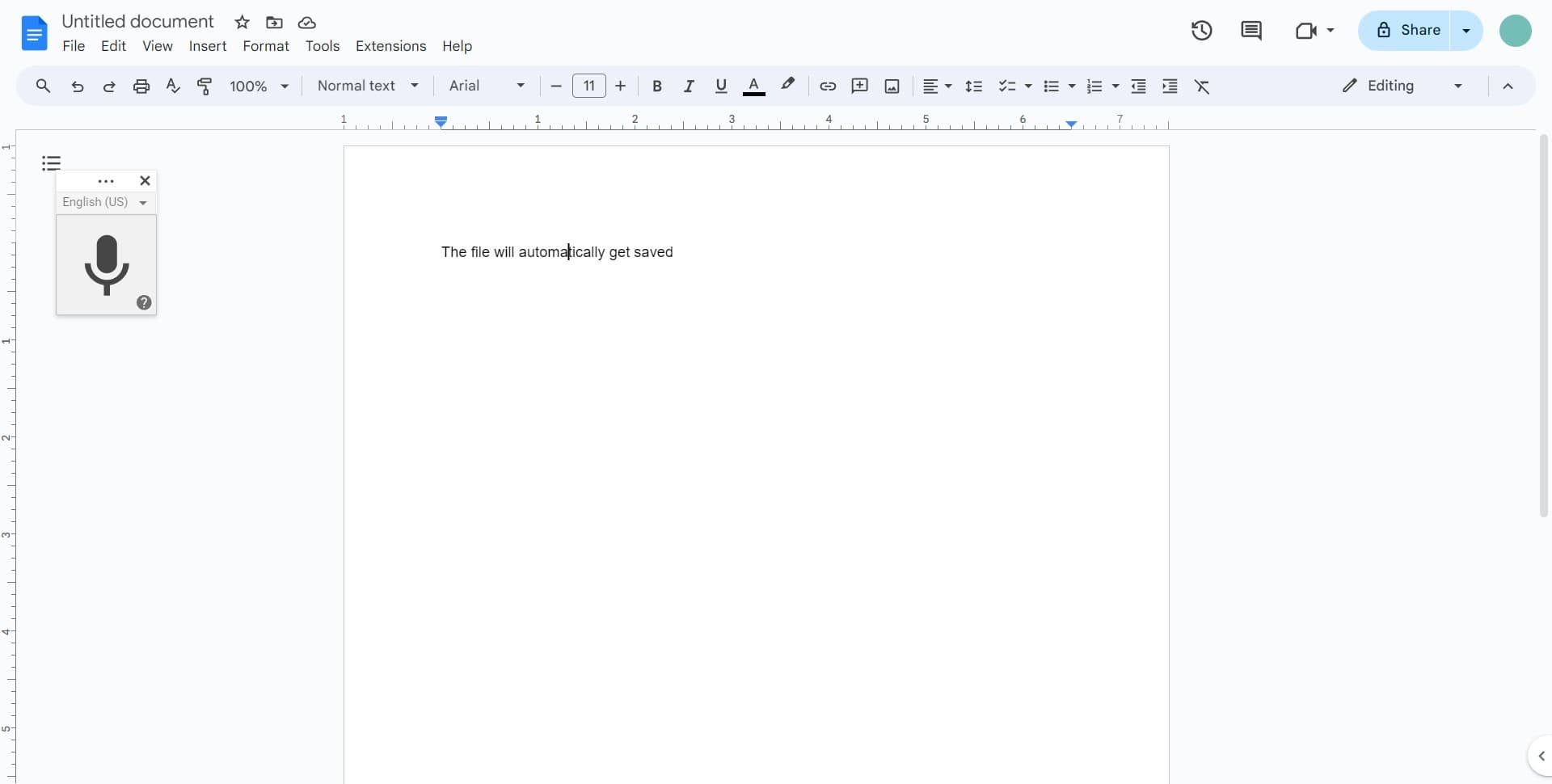
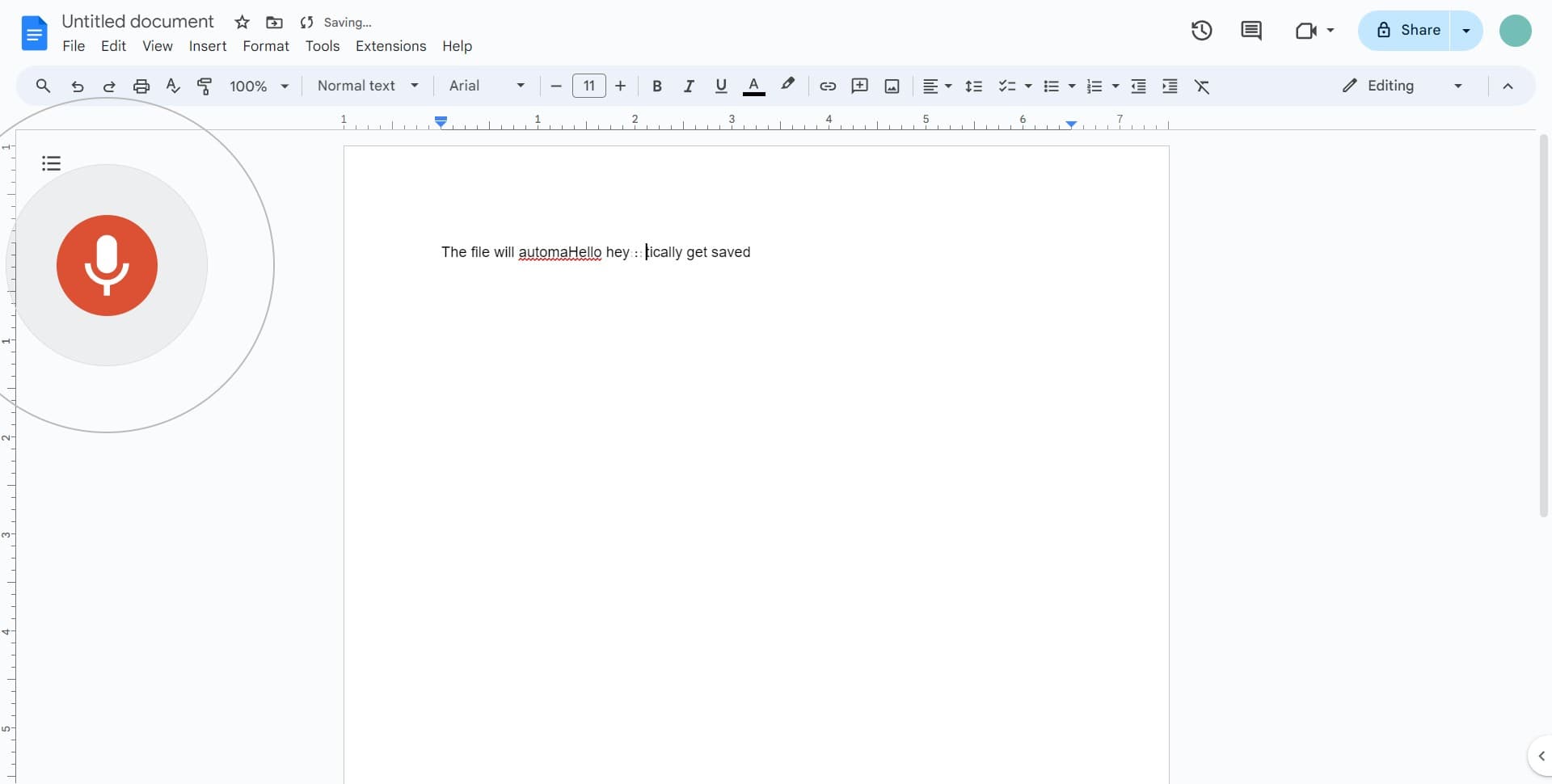
Click to start recording
A voice typing panel will appear on your screen. Click the microphone icon or designated button to begin speaking your text into the document.
- 5
Confirm voice input is active
The microphone icon will indicate when voice typing is actively listening. Speak clearly and naturally, and your words will appear in the document as you dictate.
Frequently asked questions
Common questions about how to type with voice on google docs.
Google Docs voice typing supports over 120 languages and dialects. You can change the language in the voice typing settings before you start dictating. Make sure your language preference is set correctly for accurate transcription.
Yes, you'll need a working microphone connected to your computer. This can be a built-in microphone on your device, an external USB microphone, or headphones with an integrated mic. Test your microphone in your browser settings before using voice typing.
Yes, you can switch between voice typing and manual editing at any time. You can click elsewhere in your document to position your cursor, make edits with your keyboard, and then resume voice typing when ready.
Voice typing is primarily available on desktop and web browsers. Mobile users can use their device's native speech-to-text features through the Google Docs mobile app, though the experience may differ slightly from the desktop version.
Google Docs voice typing generally has high accuracy, especially in quiet environments and when speaking clearly. Accuracy improves with proper microphone quality and clear speech. You should always proofread your dictated text for any errors or missed words.