How to connect Asana with Google drive

Connecting Asana with Google Drive enables seamless collaboration by allowing you to attach and manage files directly within your Asana tasks. This integration streamlines your workflow by keeping all project documents and resources in one accessible location.
Quick summary
In this tutorial, you'll learn how to set up the Google Drive integration in Asana and attach files to your tasks. You'll navigate through the customization settings, authorize Google Drive access, and add your first file to a project.
Why this matters
Integrating Google Drive with Asana eliminates the need to switch between applications when sharing or accessing project files. This connection keeps your team organized and ensures that all task-related documents are readily available without losing context or productivity.
Step-by-step guide
- 1
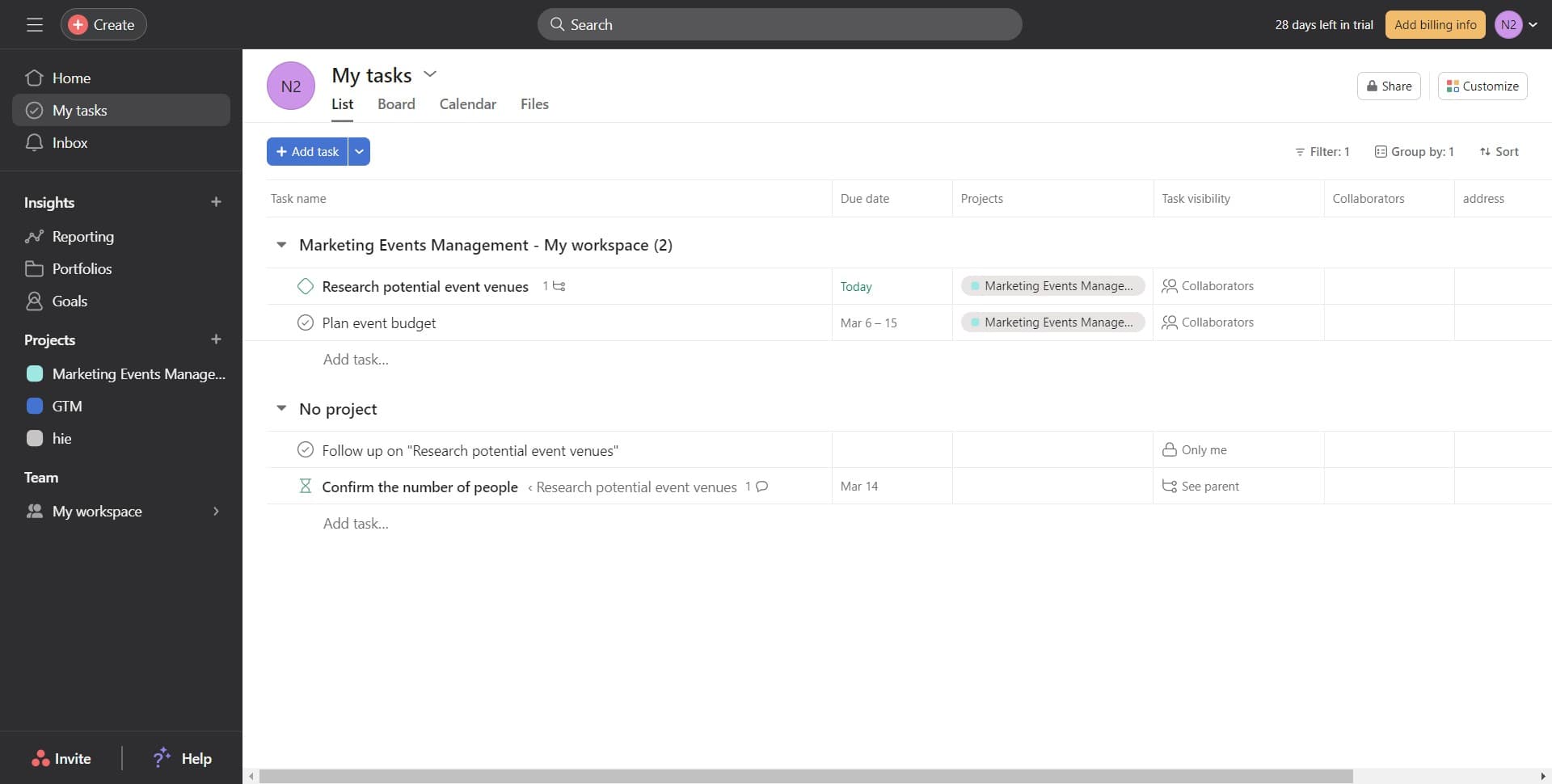
Open your tasks dashboard
Click on 'My tasks' to access your personal task dashboard. This is where you'll manage and customize your task views.
- 2
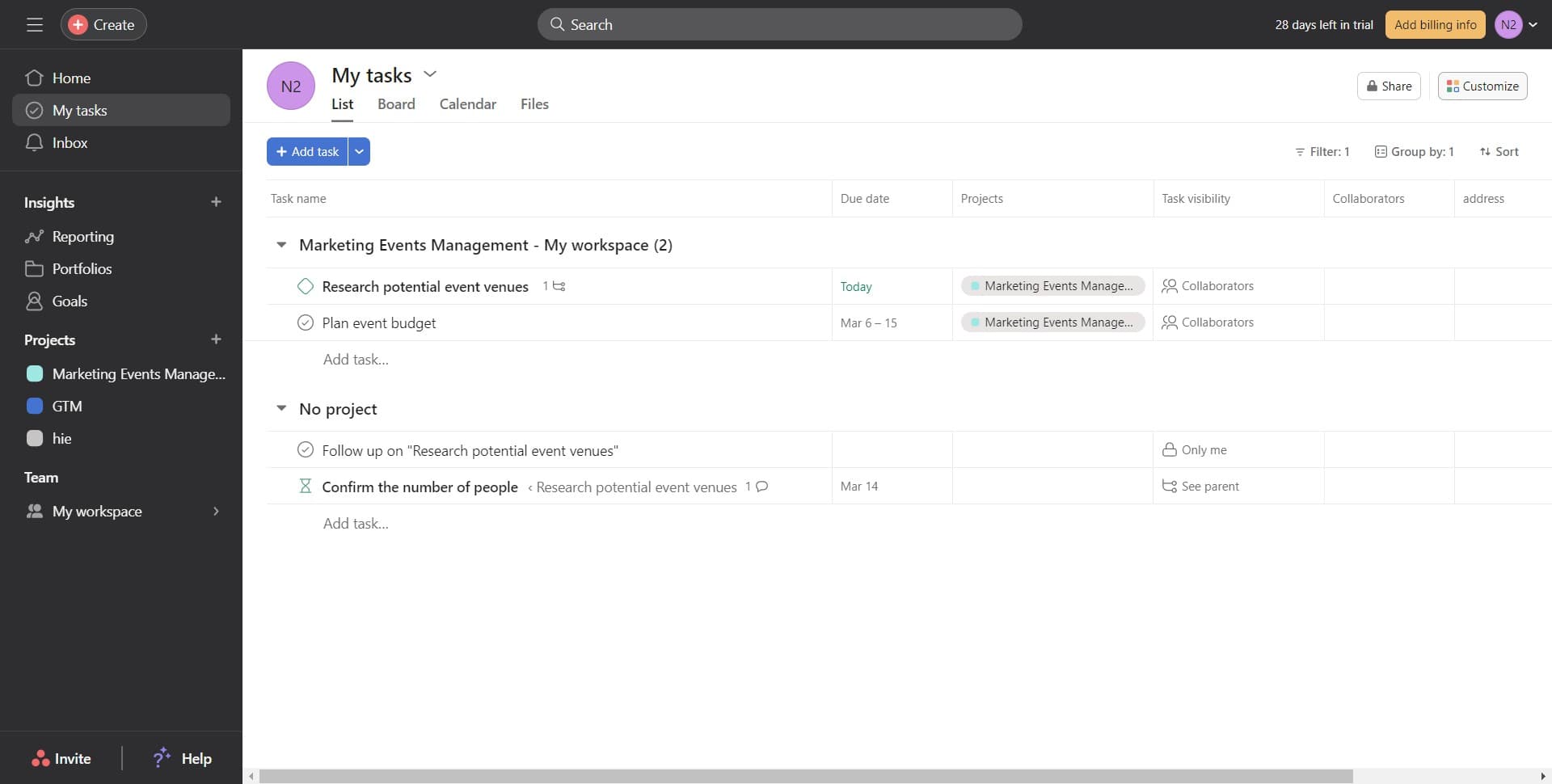
Access customization settings
Click on 'Customize' to open the options for modifying your task display and adding integrations. This menu allows you to configure how your tasks appear and what tools are available.
- 3
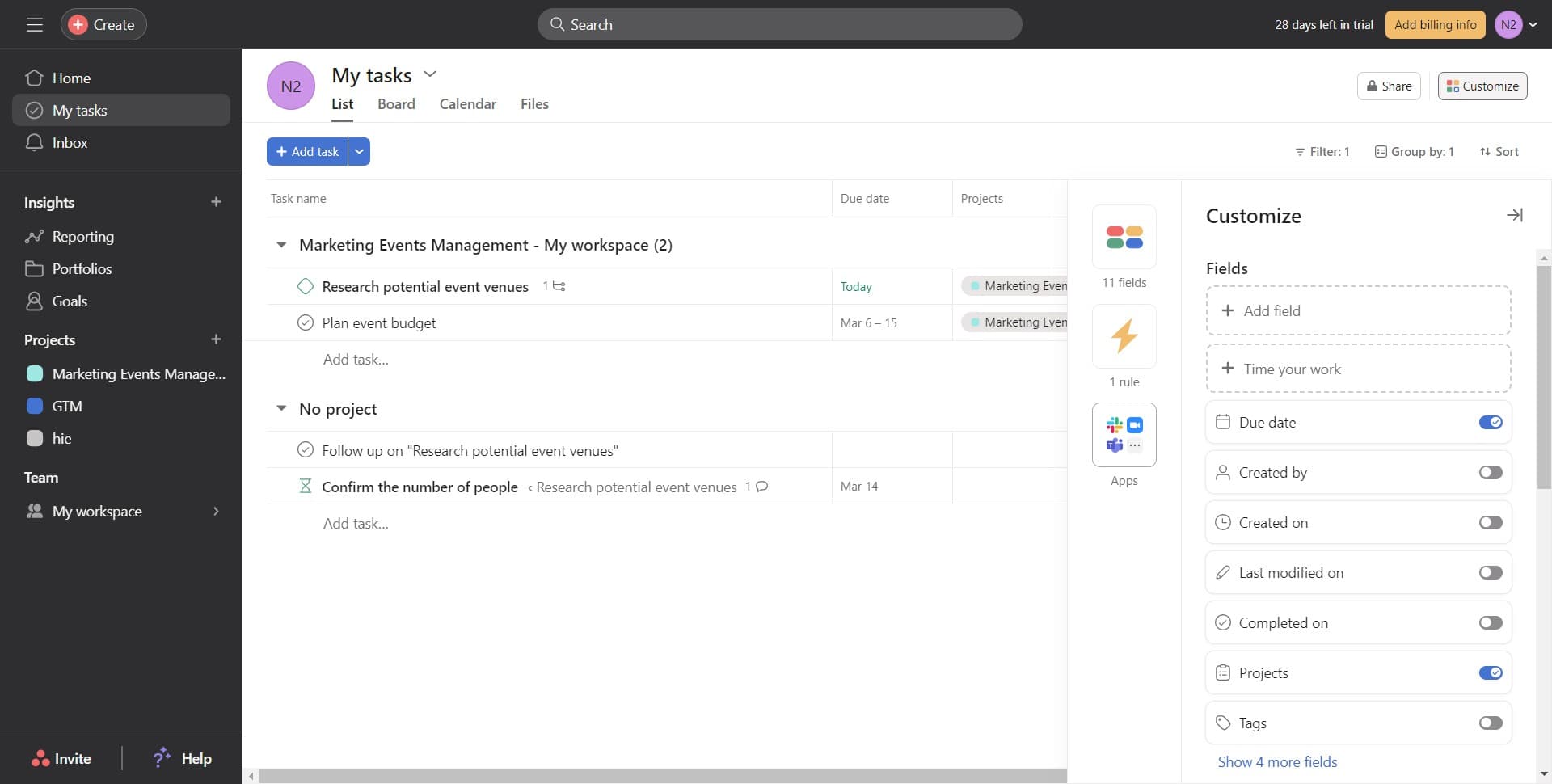
Select the image option
Click on 'Image' to begin the process of adding file attachment capabilities. This step prepares the interface for adding external file sources.
- 4
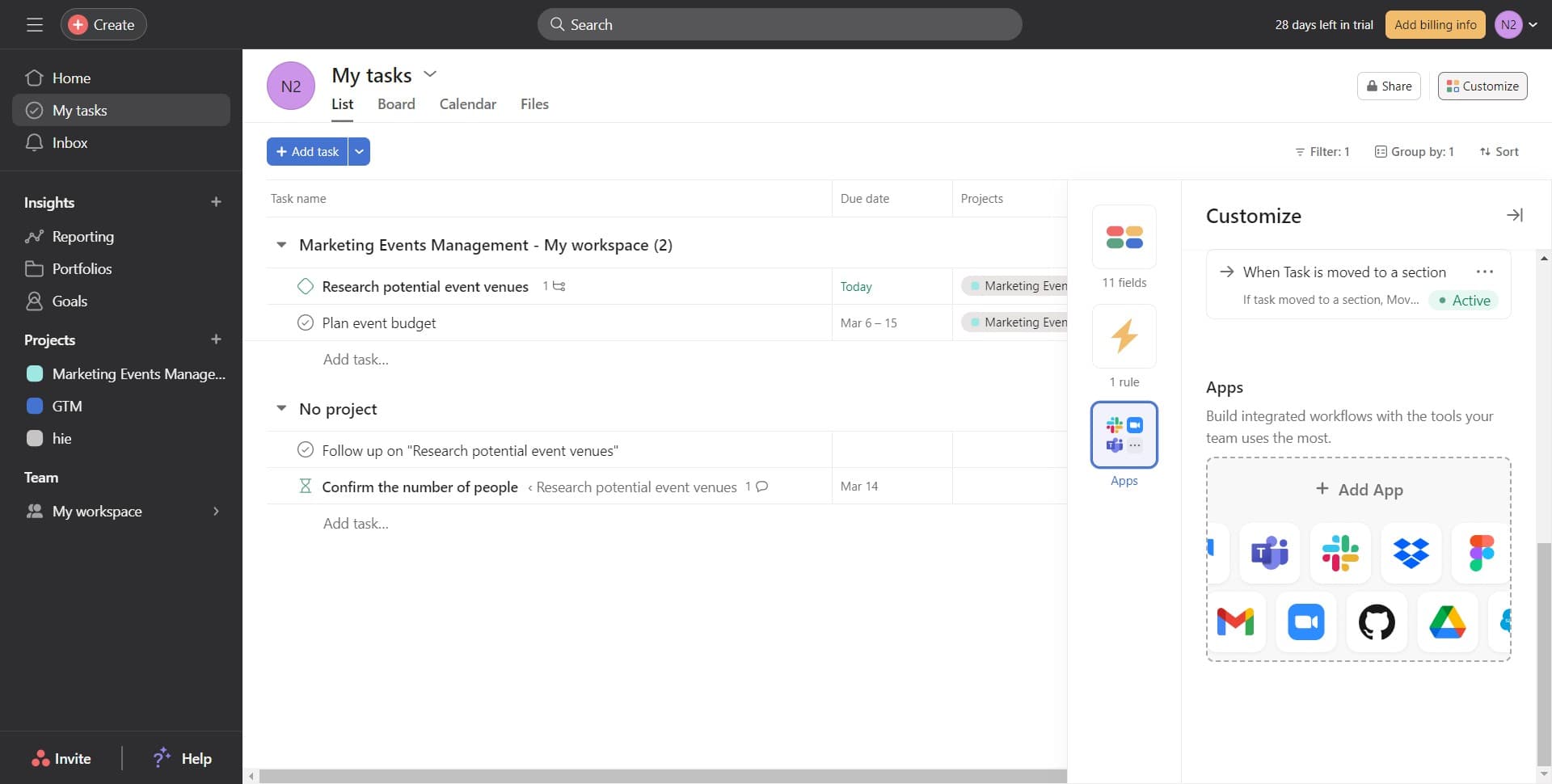
Confirm image selection
Click on 'Image' again to proceed with the next configuration step. This confirms your selection and moves you forward in the setup process.
- 5
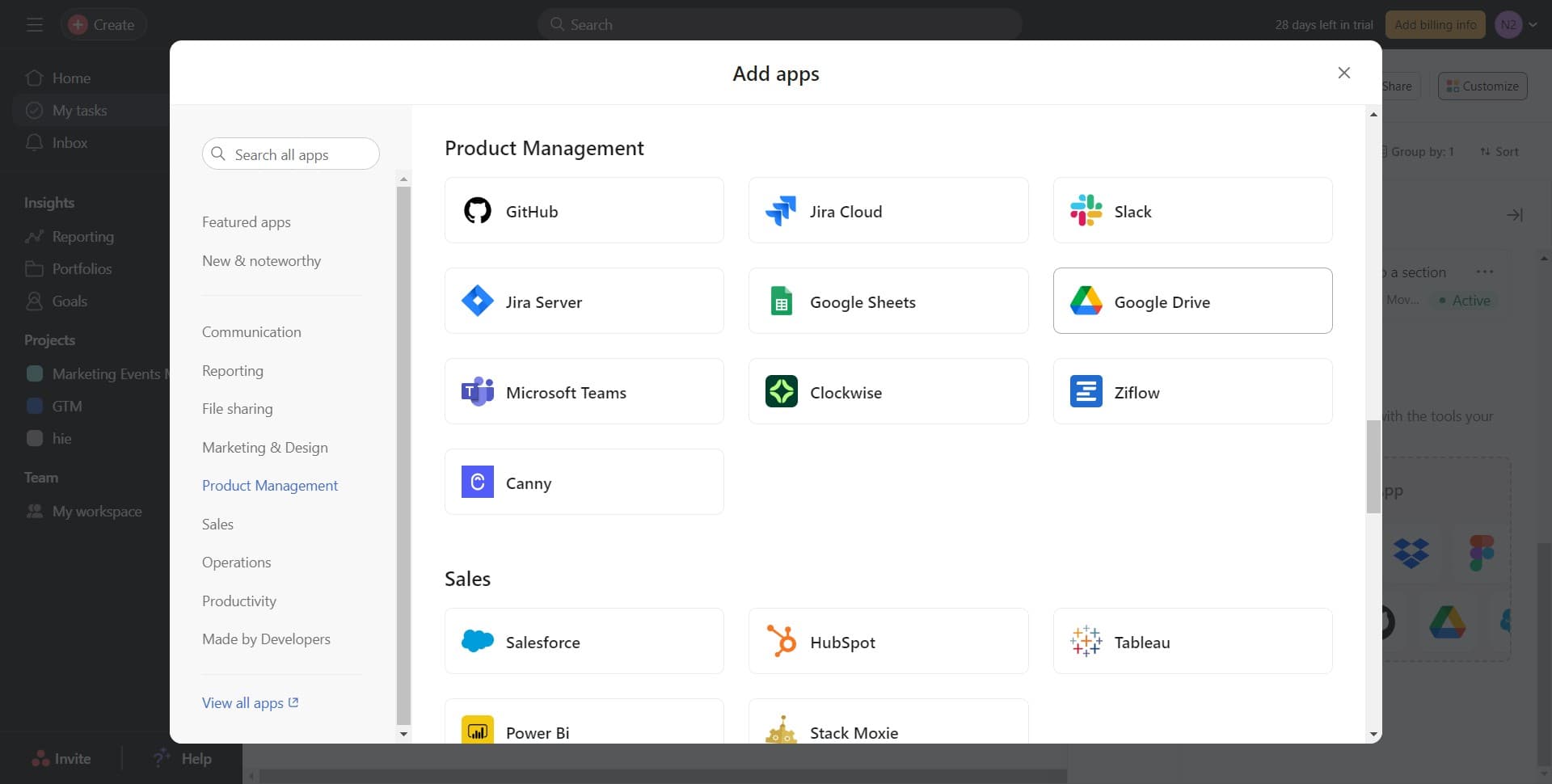
Choose Google Drive integration
Click on 'Google Drive' from the available integration options. This specifies that you want to connect your Google Drive account to Asana.
- 6
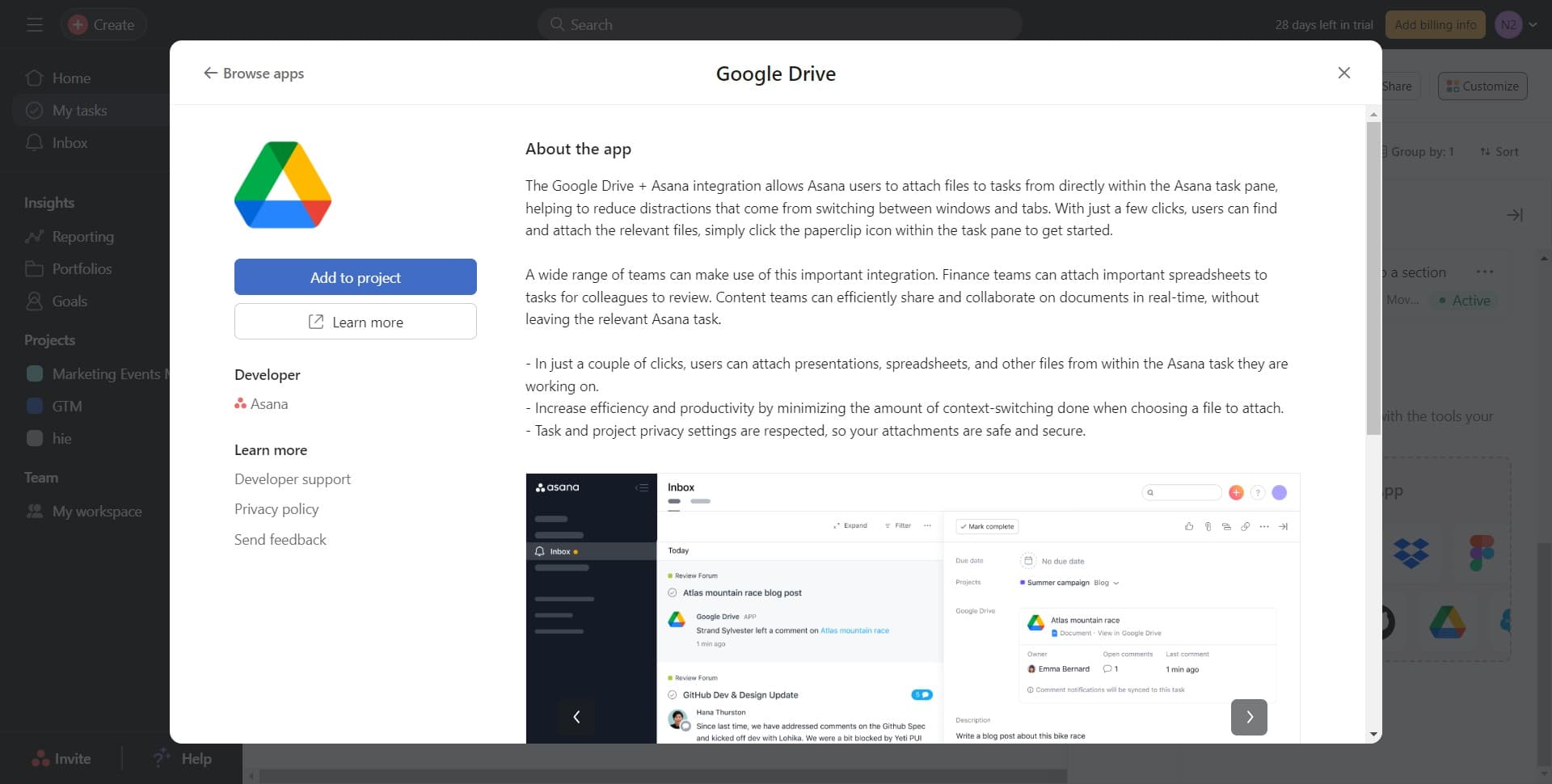
Add integration to your project
Click on 'Add to project' to apply the Google Drive integration to your current project. This action enables the integration for all tasks within this project.
- 7
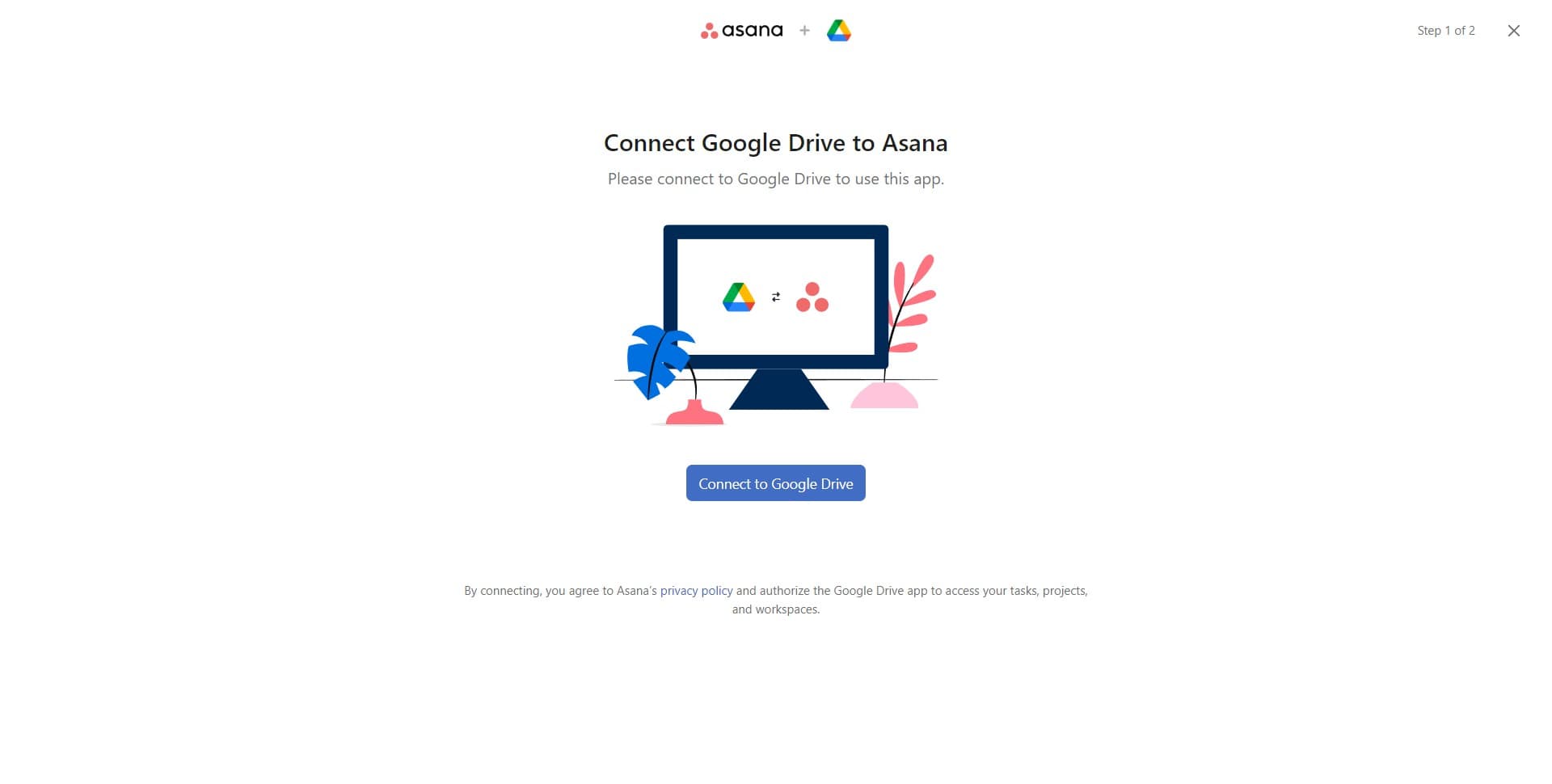
Initiate Google Drive connection
Click on 'Connect to Google Drive' to start the authorization process. This button opens the authentication flow between Asana and your Google account.
- 8
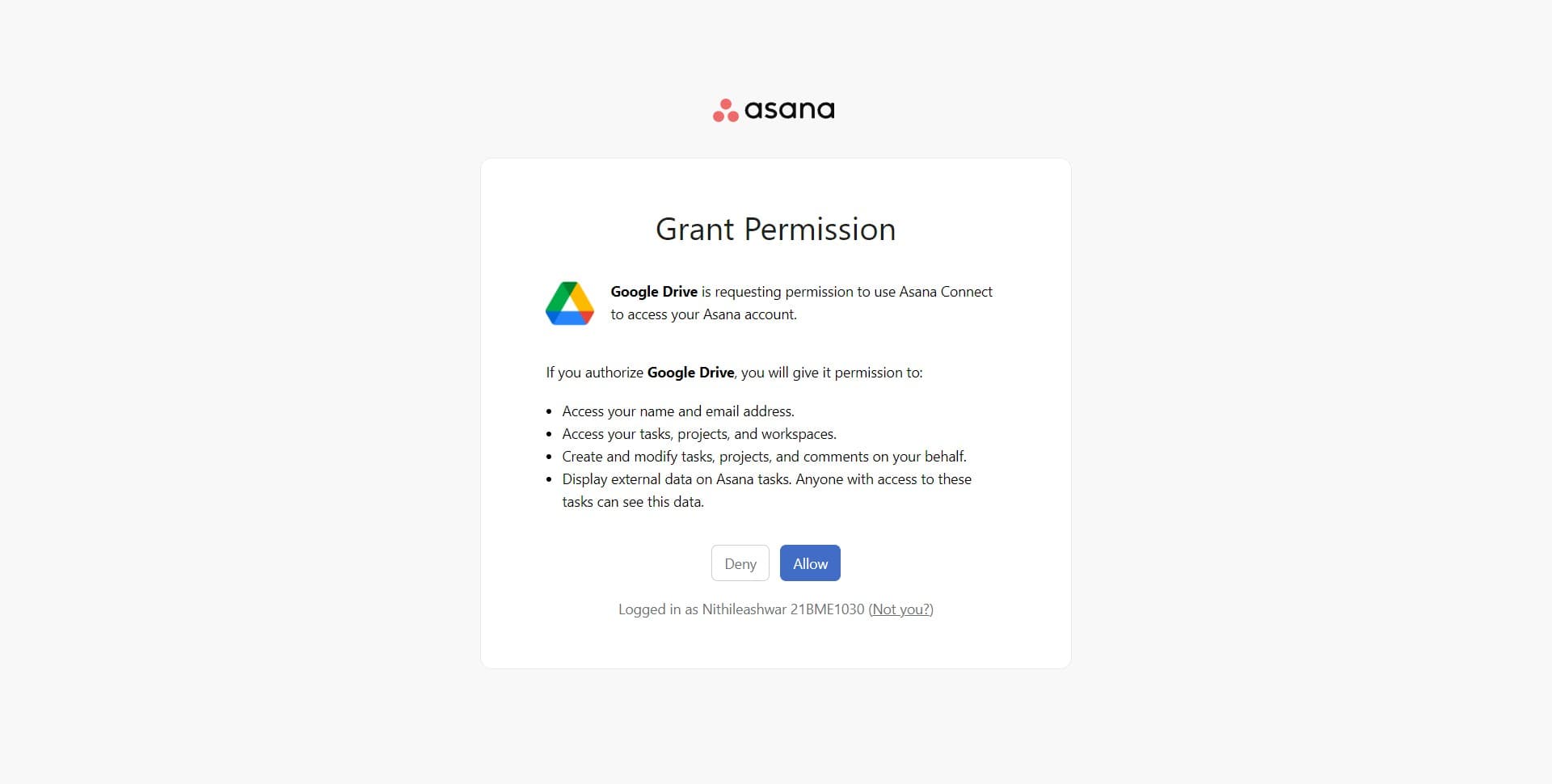
Grant permission to Asana
Click on 'Allow' to authorize Asana to access your Google Drive files. This permission is required for the integration to function properly.
- 9
Confirm successful connection
Click on 'Got it!' to acknowledge that the connection has been successfully established. This completes the authorization step.
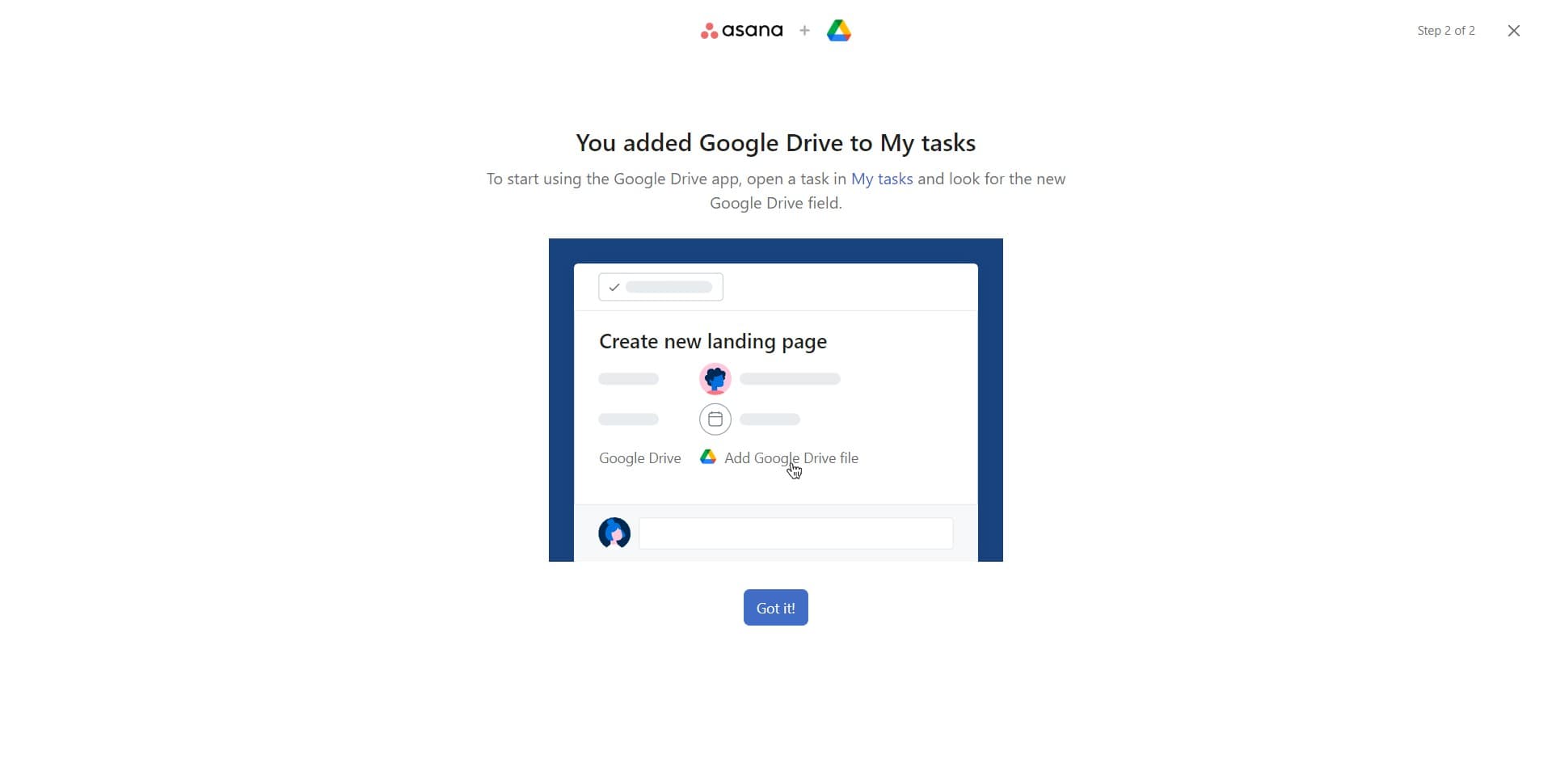
- 10
Proceed to file attachment
Click the indicated area to move forward with adding Google Drive files to your tasks. This action transitions you to the file selection interface.
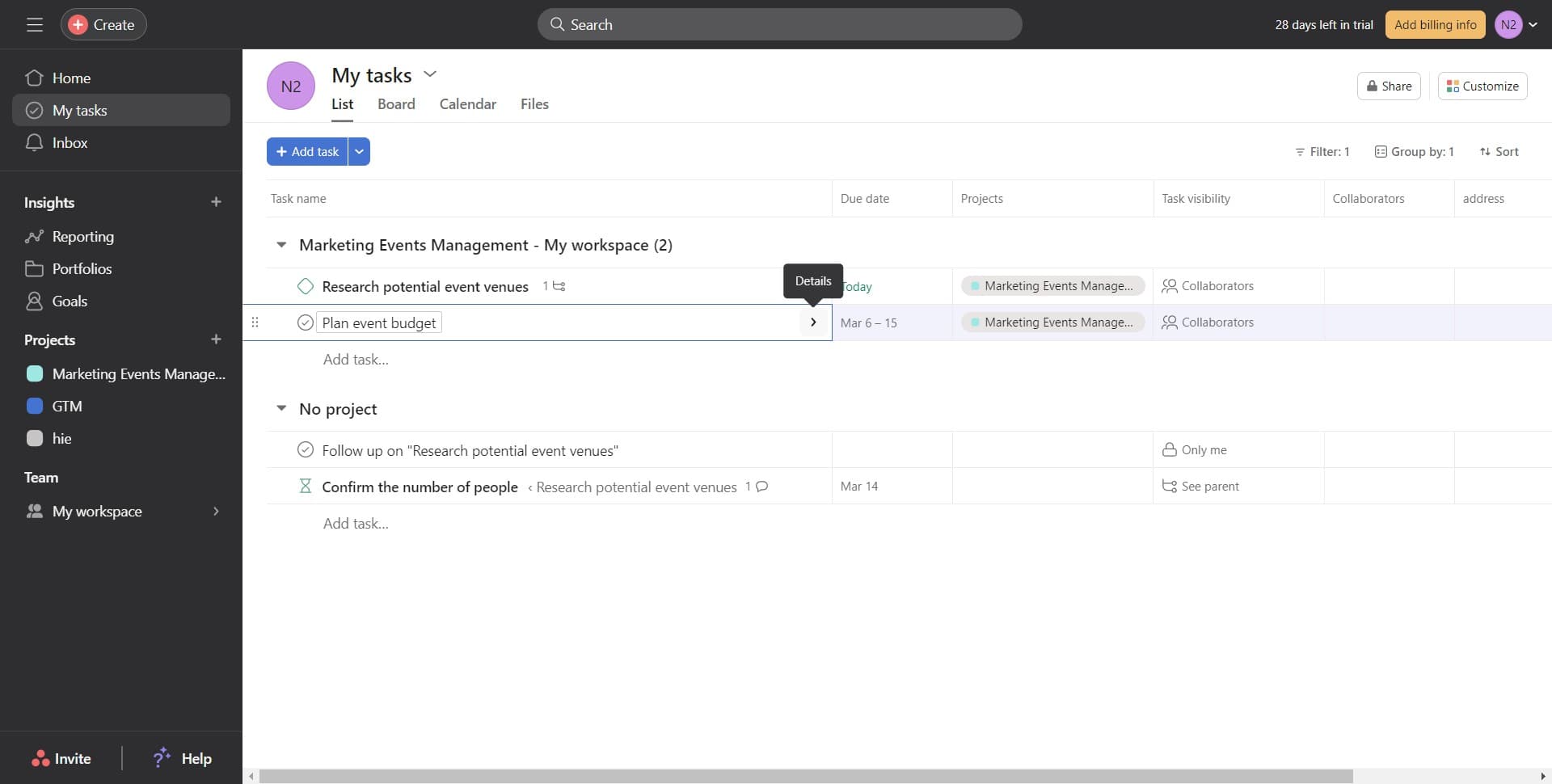
- 11
Add a Google Drive file
Click on 'Add Google Drive file' to browse and select files from your Google Drive. This opens a file picker where you can choose which documents or files to attach.
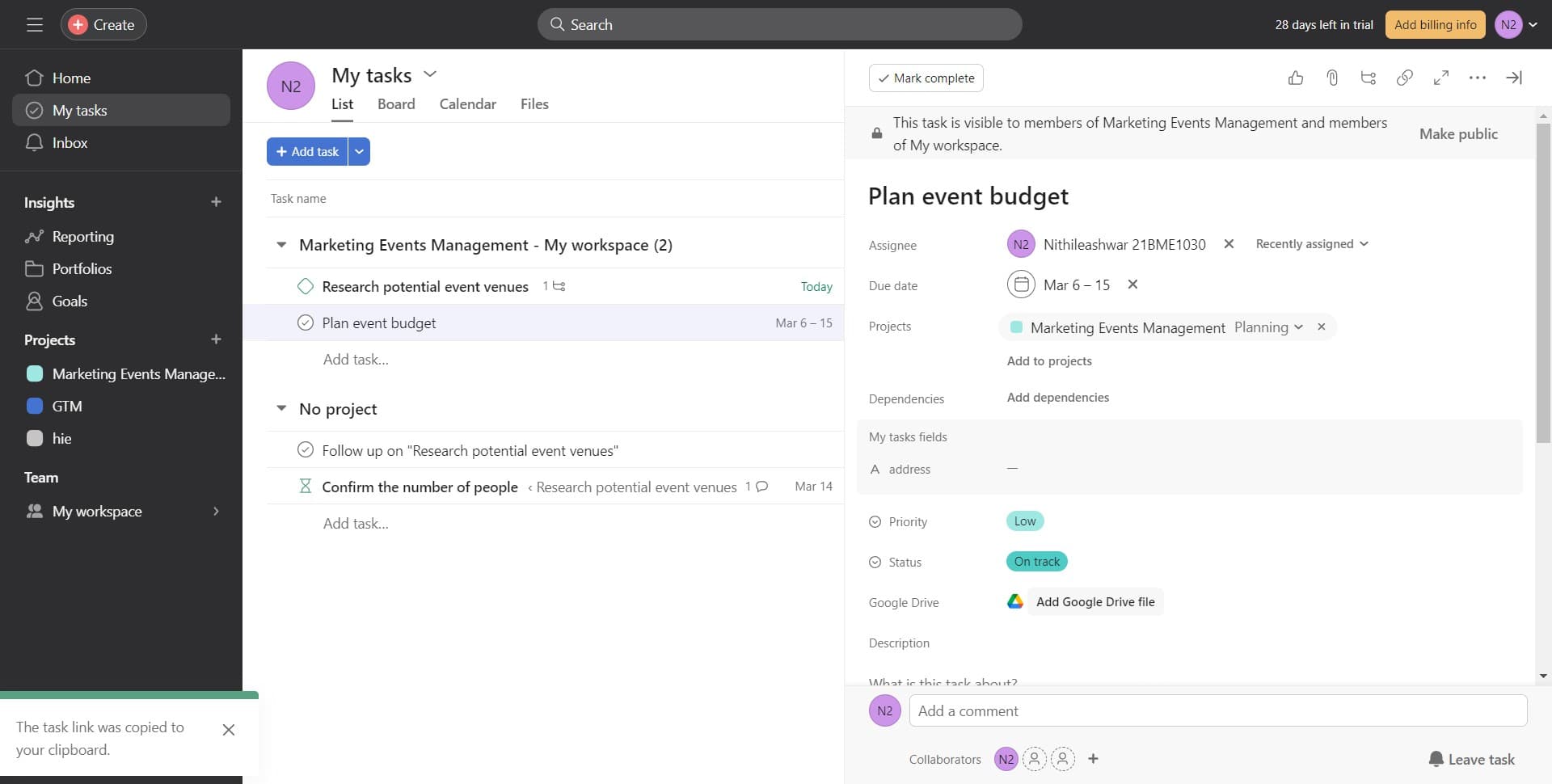
- 12
Complete file selection
Click the designated area to finalize your file selection. This confirms which files you want to attach to your task.
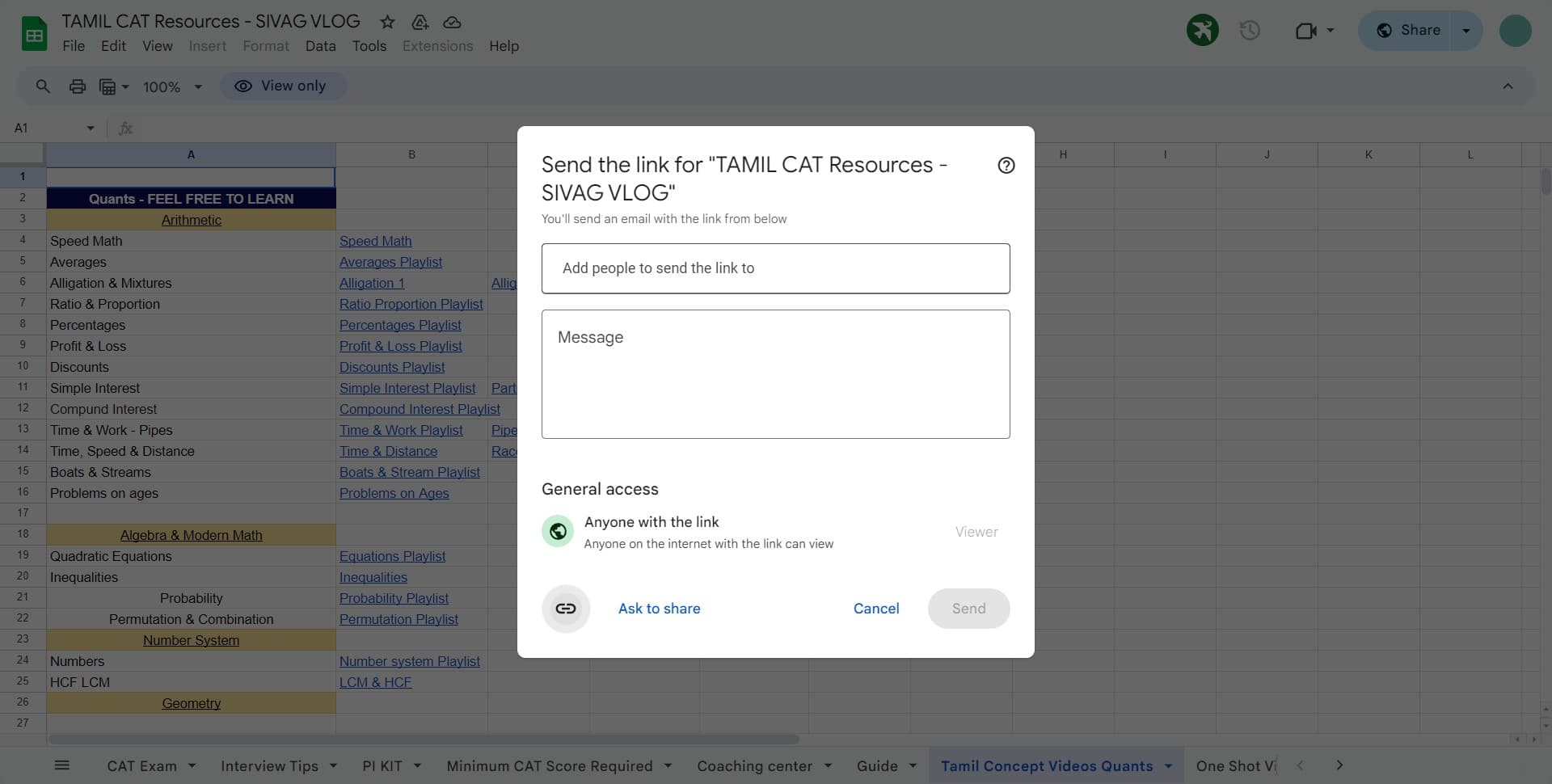
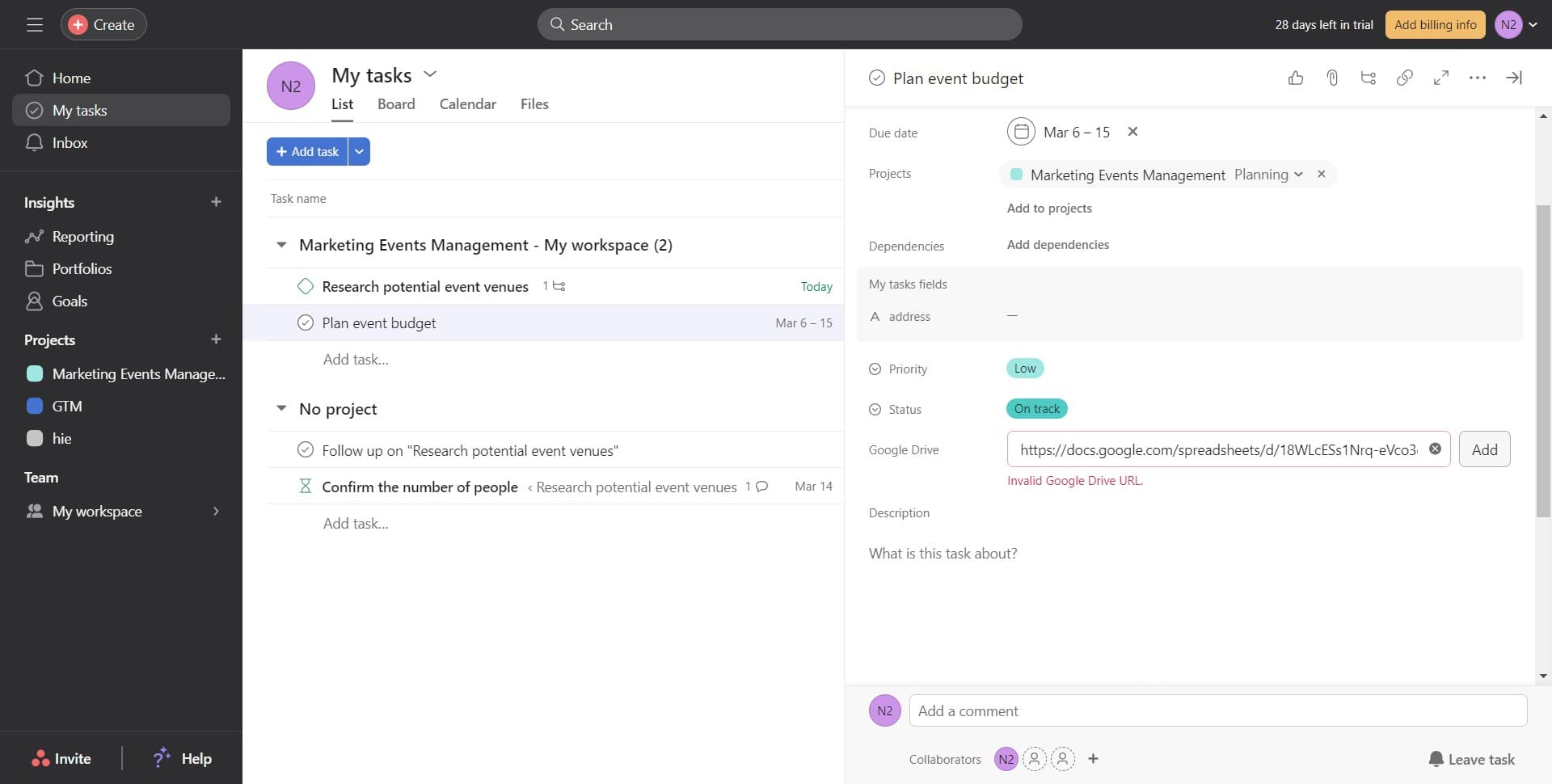
- 13
Attach the selected file
Click on 'Add' to confirm and attach the selected Google Drive file to your task. The file link will now appear in your task details.
- 14
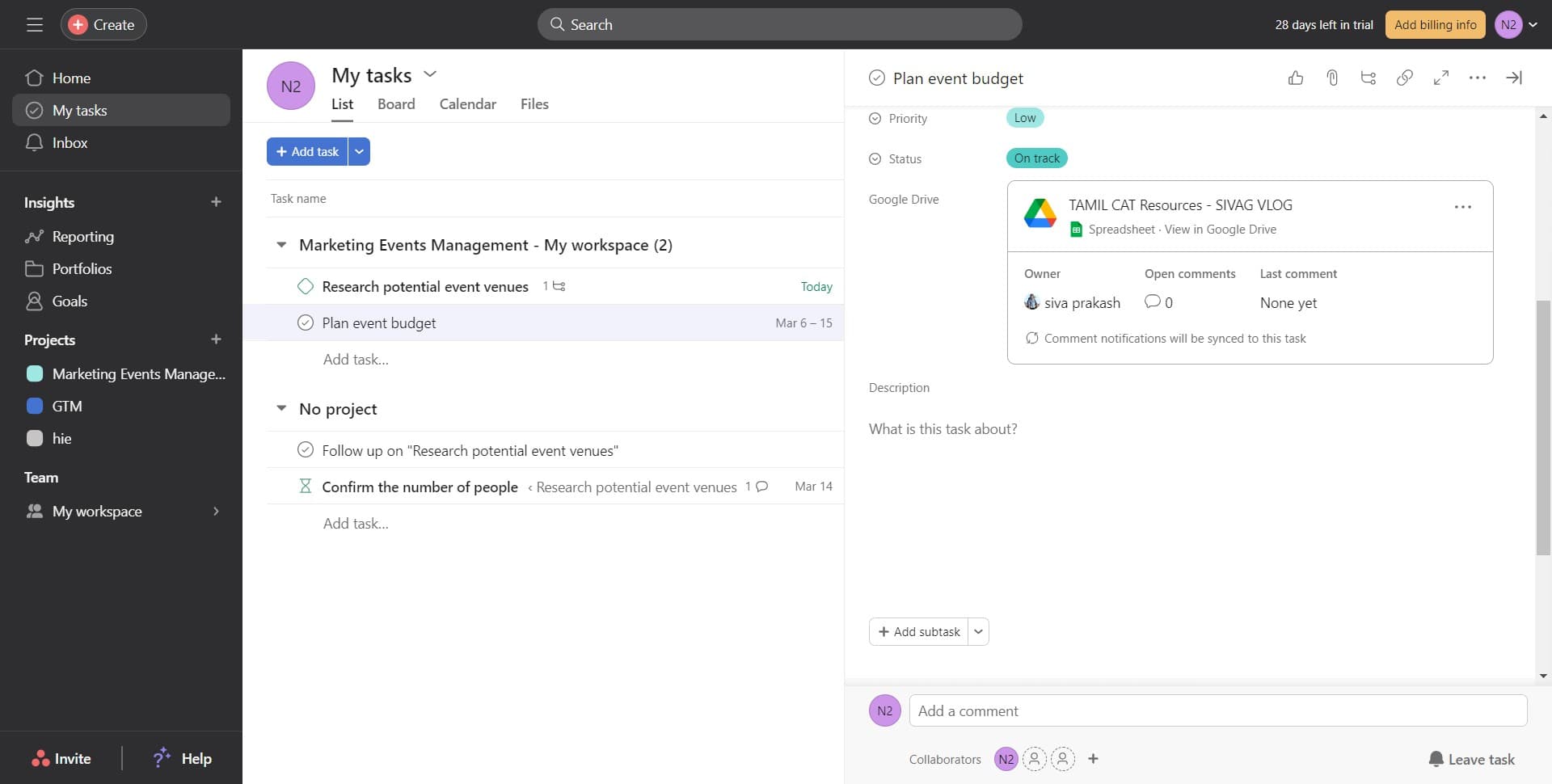
Finalize the attachment
Click on 'Image' to complete the file attachment process. Your Google Drive file is now connected to your Asana task.
Frequently asked questions
Common questions about how to connect asana with google drive.
Yes, you need an active Google account to connect Google Drive with Asana. The integration requires authorization to access your Google Drive files, which is only possible with a valid Google account linked to your Asana workspace.
Yes, you can attach multiple Google Drive files to a single task by repeating the 'Add Google Drive file' step for each file you want to include. Each file will be linked separately within the task.
You can attach any file type stored in your Google Drive, including Google Docs, Sheets, Slides, PDFs, images, and other document formats. The integration supports all files accessible within your Google Drive account.
Your team members can access the attached files only if they have permission to view them in your Google Drive. You may need to adjust sharing settings in Google Drive to ensure that project collaborators can open and edit the attached files.
Yes, you can disconnect Google Drive from Asana at any time through your account settings or integration preferences. This will remove the ability to attach new Google Drive files, though existing attachments will remain in your tasks.